Solved Problems with right-click menu after Windows 7 reinstall

WebPixie

New member
Member
Local time
11:36 PM
Messages
34
I have had to reinstall Windows 5 times this year and I've only had this new PC since last December. There have been various issues that have made this necessary, but nothing has changed anything with the right-click menu until this last time.

I use Microsoft Office 2000 Professional with the Microsoft Office Compatibility Pack for Word, Excel, and PowerPoint File Formats. Until this most recent OS reinstall, I could right-click on the Desktop or an open folder and create any new MS Office file by choosing "New" from the right-click menu and then selecting Word, Excel, or whatever. After this most recent OS reinstall, Word is missing from that list of applications.

There is one thing I did prior to installing MS Office after reinstalling Windows this time that I didn't do with the earlier Windows 7 clean installs: There was a Word file that I needed to see but I didn't have Office installed yet, so I used WordPad to open the file. As a result (because I neglected to choose otherwise), WordPad became the default application for files with the .doc file extension. I tried removing the file association for .DOC files and then uninstalling and reinstalling Office, but I still have the same problem - Word does not appear in the right-click menu for creating new documents.

There is another thing that seems trivial but I should probably mention it anyway. After I reinstalled Office, Word became the default application for the .doc files but the appearance of the Word icon has changed from what it looked like prior to this last Windows reinstall. Instead of a blue "W" the same size as the green "X" on Excel documents, the .doc files on my PC now have a very small blue "W" in the middle of the icon. The Excel icons look the same as always.

As I said, that issue seems trivial but it is another thing that has changed with Word following the latest OS reinstall. The main issue, and the issue that is causing the greatest inconvenience, is the fact that I can no longer create a new Word file using the right-click menu.

Any advice that might restore Word to the right-click menu will be much appreciated. Thanks!
 

My Computer My Computer

Computer type
PC/Desktop
Computer Manufacturer/Model Number
Dell XPS 8900
OS
Windows 7 Pro 64bit
Have you tried this, Open Control Panel, select Default Programs, then Set your Default Program, when that opens Select Word (Desktop) from the list & then use one of the two options from the list at the bottom of the screen, one being Set This Program as Default & the other Choose Defaults for This Program, which will show a list of what it will open as the default.
 

My Computer My Computer

Computer type
PC/Desktop
Computer Manufacturer/Model Number
Self built using existing case
OS
Windows 7 Home Premium 64 bit sp1
CPU
Intel i5 3570 3.4Ghz Ivy Bridge SKT 1155 quad core
Motherboard
Gigabyte Z77-HD3 SKT 1155 2xSata 3, 4x USB 3.0
Memory
G-Skill Rip Jaws 16Gb (8x2) DDR3 -1600 PC3 12800 CL 10 red
Graphics Card(s)
Gigabyte NVIDIA GT610 1Gb DDR3 810/1200 PCI-E 2.0 Silent
Sound Card
NVIDIA High Definition & Realtech High Definition Audio
Monitor(s) Displays
2 x Philips 226V4L 16:9 aspect ratio
Screen Resolution
1920 x 1080 HD
Hard Drives
Samsung 840 Pro 256gb SSD, SATA 3.
Hitachi Touro Portable 1tb, USB 3.0 HDD used for image b/ups.
PSU
Corsair VS450
Case
Codeng
Cooling
PSU fan & CPU fan
Keyboard
Logitech
Mouse
Logitech Wireless trackball M570
Internet Speed
Wireless 3G. 3mg down & 550kb up.
Antivirus
Bitdefender Internet Security 2020
Browser
Opera (Current Version) & Firefox
Other Info
MS Office 2013 Pro. Davis weather station software. MGE Nova 600 avr UPS.
Have you tried this, Open Control Panel, select Default Programs, then Set your Default Program, when that opens Select Word (Desktop) from the list & then use one of the two options from the list at the bottom of the screen, one being Set This Program as Default & the other Choose Defaults for This Program, which will show a list of what it will open as the default.

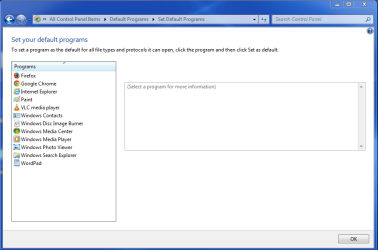
Thanks for your reply. I'm afraid I'm stuck right after "Set you Default Program." I don't see Word (Desktop) on the list. In fact, I don't see any of the Office applications on the list. It could be that I did something wrong.

Below is a screen shot of the window that opens with Control Panel->Default Programs->Set you Default Program.

If I did follow your suggestion correctly, any ideas why there are no Office applications on the list?

Thanks again!
 

Attachments

  • SetDefault.PNG
    SetDefault.PNG
    22.6 KB · Views: 0

My Computer My Computer

Computer type
PC/Desktop
Computer Manufacturer/Model Number
Dell XPS 8900
OS
Windows 7 Pro 64bit
You are on the right track as that is where those Office programs should be shown.

Does Office 2000 have a repair feature. Open Control Panel, select Programs & Features, scroll down to Microsoft Office, right click on it & select Change. In Office 2013 this provides 2 repair options, but as I have never used Office 2000 I can't say if that will work.

Have you tried uninstalling Office & reinstalling it.
 

My Computer My Computer

Computer type
PC/Desktop
Computer Manufacturer/Model Number
Self built using existing case
OS
Windows 7 Home Premium 64 bit sp1
CPU
Intel i5 3570 3.4Ghz Ivy Bridge SKT 1155 quad core
Motherboard
Gigabyte Z77-HD3 SKT 1155 2xSata 3, 4x USB 3.0
Memory
G-Skill Rip Jaws 16Gb (8x2) DDR3 -1600 PC3 12800 CL 10 red
Graphics Card(s)
Gigabyte NVIDIA GT610 1Gb DDR3 810/1200 PCI-E 2.0 Silent
Sound Card
NVIDIA High Definition & Realtech High Definition Audio
Monitor(s) Displays
2 x Philips 226V4L 16:9 aspect ratio
Screen Resolution
1920 x 1080 HD
Hard Drives
Samsung 840 Pro 256gb SSD, SATA 3.
Hitachi Touro Portable 1tb, USB 3.0 HDD used for image b/ups.
PSU
Corsair VS450
Case
Codeng
Cooling
PSU fan & CPU fan
Keyboard
Logitech
Mouse
Logitech Wireless trackball M570
Internet Speed
Wireless 3G. 3mg down & 550kb up.
Antivirus
Bitdefender Internet Security 2020
Browser
Opera (Current Version) & Firefox
Other Info
MS Office 2013 Pro. Davis weather station software. MGE Nova 600 avr UPS.
From post #1

I have had to reinstall Windows 5 times this year and I've only had this new PC since last December.

It might be helpful to know why you had to install Windows 7 (5) times in such a short time period.

Also what method did you use for the 5 installs?
 

My Computer My Computer

Computer type
PC/Desktop
Computer Manufacturer/Model Number
Home made Desktop
OS
Windows 10 Pro. 64/ version 1709 Windows 7 Pro/64
CPU
Intel i7-6800K @ 4.3
Motherboard
ASUS X-99 Deluxe II
Memory
Corsair Platinum 16 gig @2400
Graphics Card(s)
EVGA GTX 1070 OC
Monitor(s) Displays
Asus 27" LED LCD/VE278Q
Screen Resolution
1920-1080 or 1280-720 HDMI
Hard Drives
INTEL SSD 730-240 Gb Sata 3.0/
PSU
EVGA Platium 1200W
Case
Phanteks Luxe Tempered Glass 8 fans/ one radiator
Cooling
XSPC/ Water Cooled CPU
Keyboard
Das 4 Professional
Mouse
Logitech M705/MX Anywhere 2-S
Internet Speed
100 mbits
Antivirus
Microsoft Security Essentials/ Malwarebytes Premium 3.0/ SAS
Browser
I.E. 11 default/Firefox/ ISP Time Warner Cable/Spectrum
Other Info
LG BluRay Burner/
Sound system-KLipsch-THX/
Icy Dock ssd Hot Swap bays.
From post #1

I have had to reinstall Windows 5 times this year and I've only had this new PC since last December.
It might be helpful to know why you had to install Windows 7 (5) times in such a short time period.

Also what method did you use for the 5 installs?

I used various methods for the installs. The first one was from a partition on the drive. The second was from a disk that Dell sent. Dell sent a USB key for the 3rd, which I also used for the 4th and 5th installs. Each was a clean install, except for the first one.

I got the PC in December and all was well until I got a BSOD in February. That's when I first contacted Dell Tech Support. I started getting numerous error messages soon after that, some of the same ones over and over again. Tech Support suspected those were from incompatible 3rd-party applications - but removing them didn't help. Besides, (1) I had checked all the applications I was using for Windows 7 compatibility before I got the computer and (2) the errors didn't start appearing until after the BSOD. So Dell recommended a Windows 7 reinstall (or restore, or refresh?). I started to reinstall the 3rd-party software I had been using very slowly, so I could see which application was causing the problem if the errors from before returned.

I had only reinstalled the applications I absolutely needed when an entirely different issue arose. There was an odd behavior at shutdown that Tech Support couldn't explain. A black-ish screen would appear, just for an instant, with a message that other applications were running - except that (1) it didn't list any applications (like that type of screen at shutdown usually does) and (2) there were, in fact, no other applications running. Dell's Tech Support researched the issue thoroughly but found nothing that would help or explain the issue, so they recommended reinstalling Windows from the disk they had sent.

The 3rd reinstall was necessary because I couldn't get the 3rd-party backup software I use to install. It had been running since December with no problems until I tried to reinstall it after that OS reinstall. The Microsoft Installer (MSI) would hang after most (or all?) of the application's files had downloaded. Both Dell and the vendor for the backup software ran several tests on the system, but it was finally agreed that the only solution was a clean OS reinstall. The backup software installed with no issues after reinstalling Window 7 from the USB key, as did the other 3rd-party software I installed - but I have yet to reinstall ALL the software I had been using up until the BSOD.

I used the 3rd-party backup software to restore my user files after that reinstall, but the backup plan I had been using turned out to have backed up way more than just my user files. That resulted in a major mess when I restored them all back to my system. The backup software vendor recommended doing a clean install to get rid of all the "junk" and then simply restoring the user files manually.

It took quite some time to do that. When I finally had things the way I thought I wanted them, I felt I was ready to set up a new backup plan - this time selecting only the files and folders that I knew I wanted backed up. Ha! This time, the system hung when I tried to create the backup plan! I uninstalled the backup software and when I went to reinstall it, the MSI hung the same way it had after reinstall #2.

All along, since February, there were problems with the audio - problems with the sub-woofer, problems with the Dell Audio application losing some of its functionality, problems with the overall audio quality. I had pretty much put the audio issues on hold while dealing with the error messages, the backup software issues, and everything else. After the 4th reinstall, my contact with Dell was escalated to another technician who sent a new motherboard to address the issue with the audio.

I did the 5th OS reinstall after the new motherboard was installed. The backup software installed with no problems and I was able to restore files (individually) and set up a new backup plan with no issues. The audio sounded great, or at least as great as it could with an audio processor integrated with the system board. I thought everything was going to be great.

I reinstalled my other software slowly. As a result, I found that I needed to view a .doc file before I had reinstalled the Office software that I use so I used WordPad to open it.

I think the rest of the story is at the beginning of this thread. :cry:

Sorry for the lengthy explanation. Not sure if it will help anyone advise me on what to do about Word missing from the right-click menu, but maybe it will help someone uncover an underlying issue that is eluding Tech Support.
 

My Computer My Computer

Computer type
PC/Desktop
Computer Manufacturer/Model Number
Dell XPS 8900
OS
Windows 7 Pro 64bit
You are on the right track as that is where those Office programs should be shown.

Does Office 2000 have a repair feature. Open Control Panel, select Programs & Features, scroll down to Microsoft Office, right click on it & select Change. In Office 2013 this provides 2 repair options, but as I have never used Office 2000 I can't say if that will work.

Have you tried uninstalling Office & reinstalling it.

Yes, I have tried uninstalling and reinstalling Office. I also tried removing the file associations from the .doc file, thinking something somehow got messed up by associating a .doc file with WordPad before I had Office installed. I tried that after simply uninstalling and reinstalling didn't work.

Office 2000 does have a repair feature. I think I might have tried that before I uninstalled it the first time because it's presented as an option when you uninstall it. If I did try it, it didn't work.

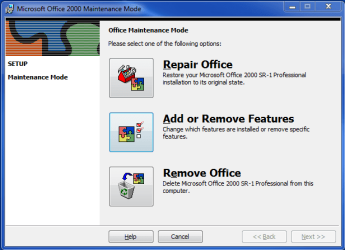
I followed your recommendation and Change was one of the options on the right-click menu. There were 3 options there: Repair Office, Add or Remove Features, and Remove Office.

Is that similar to the 2 repair options in Office 2013?
I should note that there are 2 entries for Microsoft Office in Programs and Features but the second one probably only has to do with the tools and templates that are installed from Disc 2.​
 

My Computer My Computer

Computer type
PC/Desktop
Computer Manufacturer/Model Number
Dell XPS 8900
OS
Windows 7 Pro 64bit
It does seem that you now have your computer running satisfactorily except for the Office problem.

As I suggested have you tried the Office repair, & if that does not work, uninstalling Office & reinstalling it.

Our posts have crossed.

Yes Office 2013 does have 2 Repair options & one to uninstall.

What are the 2 entries that you have in Programs & Features, how are they actually worded.
 

My Computer My Computer

Computer type
PC/Desktop
Computer Manufacturer/Model Number
Self built using existing case
OS
Windows 7 Home Premium 64 bit sp1
CPU
Intel i5 3570 3.4Ghz Ivy Bridge SKT 1155 quad core
Motherboard
Gigabyte Z77-HD3 SKT 1155 2xSata 3, 4x USB 3.0
Memory
G-Skill Rip Jaws 16Gb (8x2) DDR3 -1600 PC3 12800 CL 10 red
Graphics Card(s)
Gigabyte NVIDIA GT610 1Gb DDR3 810/1200 PCI-E 2.0 Silent
Sound Card
NVIDIA High Definition & Realtech High Definition Audio
Monitor(s) Displays
2 x Philips 226V4L 16:9 aspect ratio
Screen Resolution
1920 x 1080 HD
Hard Drives
Samsung 840 Pro 256gb SSD, SATA 3.
Hitachi Touro Portable 1tb, USB 3.0 HDD used for image b/ups.
PSU
Corsair VS450
Case
Codeng
Cooling
PSU fan & CPU fan
Keyboard
Logitech
Mouse
Logitech Wireless trackball M570
Internet Speed
Wireless 3G. 3mg down & 550kb up.
Antivirus
Bitdefender Internet Security 2020
Browser
Opera (Current Version) & Firefox
Other Info
MS Office 2013 Pro. Davis weather station software. MGE Nova 600 avr UPS.
It does seem that you now have your computer running satisfactorily except for the Office problem.

As I suggested have you tried the Office repair, & if that does not work, uninstalling Office & reinstalling it.

Our posts have crossed.

Yes Office 2013 does have 2 Repair options & one to uninstall.

What are the 2 entries that you have in Programs & Features, how are they actually worded.
I only hope it's running satisfactorily aside from the Office problem. This morning it didn't recognize that my printer was connected until I reconnected it to a different USB port, but I just got a note from Dell that they will contact me to look into that.

There are also a few other annoying little quirks, but this issue with Office is causing a problem with how I typically use the computer. Creating a new Word document using the right-click menu takes 1 step, while opening Word and saving a new document in the folder where I want to create it takes several. :confused:

There are 3 options when I right-click on Office as you recommended (please see the screenshot below). They are:
Repair Office
Add or Remove Features
Remove Office
When I click on Repair, there are 2 options and a "sub-option." It's the "sub-option" that I have reservations about. The options are when I click on "Repair" are:

  • Reinstall Office
  • Repair errors in my Office installation
    • Restore my shortcuts
When I click Help to get clarification about restoring the shortcuts, I get this:
"Finds and repairs any errors in the Office installation. Click Restore my shortcuts to replace any shortcuts that were removed."

What shortcuts? Removed by what or by whom?

Does that mean the shortcut to Word in the right-click menu?
Does it mean any shortcuts to Office documents that I may have created since Office was installed?

I haven't created any shortcuts that I'm aware of. I just uninstalled and reinstalled Office two days ago. The shortcut to Word on the right-click menu hasn't been there since before I reinstalled Windows 10 days ago. The only Office files I have are the ones I've restored individually from my backup drive.

Your thoughts?

Thanks!
 

Attachments

  • UninstallRepairOffice.PNG
    UninstallRepairOffice.PNG
    16.2 KB · Views: 23
  • RepairOffice.PNG
    RepairOffice.PNG
    11.4 KB · Views: 24

My Computer My Computer

Computer type
PC/Desktop
Computer Manufacturer/Model Number
Dell XPS 8900
OS
Windows 7 Pro 64bit
At this point you really have nothing to lose, so you may as well try the options shown in your second screen shot, Repair errors in my installation & if that doesn't help run it again after ticking the Restore my short cuts & see if that makes any difference.
 

My Computer My Computer

Computer type
PC/Desktop
Computer Manufacturer/Model Number
Self built using existing case
OS
Windows 7 Home Premium 64 bit sp1
CPU
Intel i5 3570 3.4Ghz Ivy Bridge SKT 1155 quad core
Motherboard
Gigabyte Z77-HD3 SKT 1155 2xSata 3, 4x USB 3.0
Memory
G-Skill Rip Jaws 16Gb (8x2) DDR3 -1600 PC3 12800 CL 10 red
Graphics Card(s)
Gigabyte NVIDIA GT610 1Gb DDR3 810/1200 PCI-E 2.0 Silent
Sound Card
NVIDIA High Definition & Realtech High Definition Audio
Monitor(s) Displays
2 x Philips 226V4L 16:9 aspect ratio
Screen Resolution
1920 x 1080 HD
Hard Drives
Samsung 840 Pro 256gb SSD, SATA 3.
Hitachi Touro Portable 1tb, USB 3.0 HDD used for image b/ups.
PSU
Corsair VS450
Case
Codeng
Cooling
PSU fan & CPU fan
Keyboard
Logitech
Mouse
Logitech Wireless trackball M570
Internet Speed
Wireless 3G. 3mg down & 550kb up.
Antivirus
Bitdefender Internet Security 2020
Browser
Opera (Current Version) & Firefox
Other Info
MS Office 2013 Pro. Davis weather station software. MGE Nova 600 avr UPS.
Adding Applications to the Context (Right-Click) Menu

At this point you really have nothing to lose, so you may as well try the options shown in your second screen shot, Repair errors in my installation & if that doesn't help run it again after ticking the Restore my short cuts & see if that makes any difference.
Thanks for these suggestions but, unfortunately, Repair still did nothing whether I ticked the Restore my shortcuts check-box or not.

When I right-clicked on the application in Control Panel->Programs & Features, there was also a "Change" option. I tried that too, to no avail.
I remembered one thing I did differently when I installed Office 2000 this last time: I installed Office 2000 SP3 before I installed the Microsoft Office Compatibility Pack. After the previous Windows 7 reinstalls, I installed Office 2000 from the disk and then installed the Compatibility Pack either right away or when I found later that I needed it.

This time, I looked at the System Requirements for the Office Compatibility Pack before I installed it and it recommended Microsoft Word 2000 with Service Pack 3, Microsoft Excel 2000 with Service Pack 3, and Microsoft PowerPoint 2000 with Service Pack 3."

While it seems that installing Service Pack 3 was the correct thing to do, it seems things worked better when I didn't have it installed. Is there a way to uninstall the Service Pack?
It seems there is a way to add an application, any application, to the right-click menu. Do you (or does anyone) know where I might find out how to do that?

Thanks again, Ranger4!
 
Last edited:

My Computer My Computer

Computer type
PC/Desktop
Computer Manufacturer/Model Number
Dell XPS 8900
OS
Windows 7 Pro 64bit
So you have 2 versions of Office installed, is that correct?. From what you have said in your Post#11 it seems that you installed Office 2003 & then installed Office 2000, is that correct?.

If you want to have 2 versions of Office installed then you must have the older version installed first & fully updated before you install the later version. Even this does not always overcome compatibility problems that can occur but it usually minimisers them.

So you may need completely uninstall both & reinstall in that order.
 

My Computer My Computer

Computer type
PC/Desktop
Computer Manufacturer/Model Number
Self built using existing case
OS
Windows 7 Home Premium 64 bit sp1
CPU
Intel i5 3570 3.4Ghz Ivy Bridge SKT 1155 quad core
Motherboard
Gigabyte Z77-HD3 SKT 1155 2xSata 3, 4x USB 3.0
Memory
G-Skill Rip Jaws 16Gb (8x2) DDR3 -1600 PC3 12800 CL 10 red
Graphics Card(s)
Gigabyte NVIDIA GT610 1Gb DDR3 810/1200 PCI-E 2.0 Silent
Sound Card
NVIDIA High Definition & Realtech High Definition Audio
Monitor(s) Displays
2 x Philips 226V4L 16:9 aspect ratio
Screen Resolution
1920 x 1080 HD
Hard Drives
Samsung 840 Pro 256gb SSD, SATA 3.
Hitachi Touro Portable 1tb, USB 3.0 HDD used for image b/ups.
PSU
Corsair VS450
Case
Codeng
Cooling
PSU fan & CPU fan
Keyboard
Logitech
Mouse
Logitech Wireless trackball M570
Internet Speed
Wireless 3G. 3mg down & 550kb up.
Antivirus
Bitdefender Internet Security 2020
Browser
Opera (Current Version) & Firefox
Other Info
MS Office 2013 Pro. Davis weather station software. MGE Nova 600 avr UPS.
So you have 2 versions of Office installed, is that correct?. From what you have said in your Post#11 it seems that you installed Office 2003 & then installed Office 2000, is that correct?.

If you want to have 2 versions of Office installed then you must have the older version installed first & fully updated before you install the later version. Even this does not always overcome compatibility problems that can occur but it usually minimisers them.

So you may need completely uninstall both & reinstall in that order.
I only have one version of Office installed: Office 2000

The files extensions for Office documents created in more current versions of Office end in "x" as in .docx, .xlsx, etc. I was not able to open them with Office 2000 but I found that Microsoft offered a "Compatibility Pack" that allowed me to work with those documents:
https://www.microsoft.com/en-us/download/details.aspx?id=3

There is also an Office 2000 Update: Service Pack 3

I did not always remember to install the Office 2000 Service Pack 3 when I installed Office 2000 on this computer, but I don't recall having any problems with it until this latest install. It appears that I did install it sometimes because there is an "O2kSp3" installer on my backup drive from last January, but Office 2000 was one of the first applications I installed when I got the computer in December. I evidently used it for more than a month without Service Pack 3 installed, although it's not clear when I first installed the Compatibility Pack on this computer.

It's only with this latest install that Word is not in the right-click menu under "New" and, other than Copy and Paste, that is the right-click function I use the most.
 

My Computer My Computer

Computer type
PC/Desktop
Computer Manufacturer/Model Number
Dell XPS 8900
OS
Windows 7 Pro 64bit

My Computer My Computer

Computer type
PC/Desktop
Computer Manufacturer/Model Number
Home made Desktop
OS
Windows 10 Pro. 64/ version 1709 Windows 7 Pro/64
CPU
Intel i7-6800K @ 4.3
Motherboard
ASUS X-99 Deluxe II
Memory
Corsair Platinum 16 gig @2400
Graphics Card(s)
EVGA GTX 1070 OC
Monitor(s) Displays
Asus 27" LED LCD/VE278Q
Screen Resolution
1920-1080 or 1280-720 HDMI
Hard Drives
INTEL SSD 730-240 Gb Sata 3.0/
PSU
EVGA Platium 1200W
Case
Phanteks Luxe Tempered Glass 8 fans/ one radiator
Cooling
XSPC/ Water Cooled CPU
Keyboard
Das 4 Professional
Mouse
Logitech M705/MX Anywhere 2-S
Internet Speed
100 mbits
Antivirus
Microsoft Security Essentials/ Malwarebytes Premium 3.0/ SAS
Browser
I.E. 11 default/Firefox/ ISP Time Warner Cable/Spectrum
Other Info
LG BluRay Burner/
Sound system-KLipsch-THX/
Icy Dock ssd Hot Swap bays.

My Computer My Computer

Computer type
PC/Desktop
Computer Manufacturer/Model Number
Dell XPS 8900
OS
Windows 7 Pro 64bit
I'm not a Office user but I do have a idea.

Would this Tutorial by Brink be helpful?

http://www.sevenforums.com/tutorials/45421-send-context-menu-remove-restore-default-items.html
Thanks for offering that link! While that particular Tutorial didn't get me there, there was a related Tutorial by Brink that did. Although that one didn't have EXACTLY what I needed either, Brink was kind enough to provide something that did restore Word to the right-click menu:

http://www.sevenforums.com/tutorials/22001-new-context-menu-edit-desktop-4.html#post3171867
(It's post #32)

Now Word is back in the "New..." section of the context menu, right where it belongs! All I need to do now when I want to create a new Word document in an open folder or on my desktop, is right-click and there it is - ready to go.

Thanks again, Layback Bear, for directing me over to Tutorials by Brink! :D
 

My Computer My Computer

Computer type
PC/Desktop
Computer Manufacturer/Model Number
Dell XPS 8900
OS
Windows 7 Pro 64bit
Your welcome.

Please do keep in mind for problems with Office, Word ect.
Ranger4 knows a million time more than I do.

I think what Brink did was more of a Windows 7 adjustment.
 

My Computer My Computer

Computer type
PC/Desktop
Computer Manufacturer/Model Number
Home made Desktop
OS
Windows 10 Pro. 64/ version 1709 Windows 7 Pro/64
CPU
Intel i7-6800K @ 4.3
Motherboard
ASUS X-99 Deluxe II
Memory
Corsair Platinum 16 gig @2400
Graphics Card(s)
EVGA GTX 1070 OC
Monitor(s) Displays
Asus 27" LED LCD/VE278Q
Screen Resolution
1920-1080 or 1280-720 HDMI
Hard Drives
INTEL SSD 730-240 Gb Sata 3.0/
PSU
EVGA Platium 1200W
Case
Phanteks Luxe Tempered Glass 8 fans/ one radiator
Cooling
XSPC/ Water Cooled CPU
Keyboard
Das 4 Professional
Mouse
Logitech M705/MX Anywhere 2-S
Internet Speed
100 mbits
Antivirus
Microsoft Security Essentials/ Malwarebytes Premium 3.0/ SAS
Browser
I.E. 11 default/Firefox/ ISP Time Warner Cable/Spectrum
Other Info
LG BluRay Burner/
Sound system-KLipsch-THX/
Icy Dock ssd Hot Swap bays.
Glad to hear you got it fixed WebPixie.

Thanks Layback Bear for your reference to my ability, which often fails & suggested solutions don't work.
 

My Computer My Computer

Computer type
PC/Desktop
Computer Manufacturer/Model Number
Self built using existing case
OS
Windows 7 Home Premium 64 bit sp1
CPU
Intel i5 3570 3.4Ghz Ivy Bridge SKT 1155 quad core
Motherboard
Gigabyte Z77-HD3 SKT 1155 2xSata 3, 4x USB 3.0
Memory
G-Skill Rip Jaws 16Gb (8x2) DDR3 -1600 PC3 12800 CL 10 red
Graphics Card(s)
Gigabyte NVIDIA GT610 1Gb DDR3 810/1200 PCI-E 2.0 Silent
Sound Card
NVIDIA High Definition & Realtech High Definition Audio
Monitor(s) Displays
2 x Philips 226V4L 16:9 aspect ratio
Screen Resolution
1920 x 1080 HD
Hard Drives
Samsung 840 Pro 256gb SSD, SATA 3.
Hitachi Touro Portable 1tb, USB 3.0 HDD used for image b/ups.
PSU
Corsair VS450
Case
Codeng
Cooling
PSU fan & CPU fan
Keyboard
Logitech
Mouse
Logitech Wireless trackball M570
Internet Speed
Wireless 3G. 3mg down & 550kb up.
Antivirus
Bitdefender Internet Security 2020
Browser
Opera (Current Version) & Firefox
Other Info
MS Office 2013 Pro. Davis weather station software. MGE Nova 600 avr UPS.
Back
Top