How to Set Processor Affinity to an Application in Windows 7
Information
Processor affinity or CPU Pinning enables the binding and un-binding of a process or thread to a physical CPU or a range of CPUs, so that the process or thread in question will run only on the CPU or range of CPUs in question, rather than being able to run on any CPU
By default, Vista and Windows 7 runs an application on all available cores of the processor. If you have a multi-core processor, then this tutorial will show you how to set the processor affinity for an application to control which core(s) of the processor the application will run on.
If the application and CPU supports Symmetric Multiprocessing (SMP) or HyperThreading (HT), then Windows will automatically adjust the application's usage of each processor core for the best performance. You will not gain much, if anything, from manually changing the processor affinity for these type of applications.
If you have more then one processor intensive applications running, then you could improve their performance by setting the processor affinity of their processes to run on a different core(s). This way they are not competing for the resources of the same core(s).
By default, Vista and Windows 7 runs an application on all available cores of the processor. If you have a multi-core processor, then this tutorial will show you how to set the processor affinity for an application to control which core(s) of the processor the application will run on.
If the application and CPU supports Symmetric Multiprocessing (SMP) or HyperThreading (HT), then Windows will automatically adjust the application's usage of each processor core for the best performance. You will not gain much, if anything, from manually changing the processor affinity for these type of applications.
If you have more then one processor intensive applications running, then you could improve their performance by setting the processor affinity of their processes to run on a different core(s). This way they are not competing for the resources of the same core(s).
Note
It is NOT recommended to change the processor affinity for system processes. Doing so could reduce their performance or slow the system down.
The affinity changes you make to the current instance of an application or process are only temporary and not set permanently. Once you close the application or restart your system, the processor affinity of the application will automatically return back to the default of running on all available CPU cores.
The affinity changes you make to the current instance of an application or process are only temporary and not set permanently. Once you close the application or restart your system, the processor affinity of the application will automatically return back to the default of running on all available CPU cores.
OPTION ONE
To Set CPU Affinity of Process in Task Manager
1. Open the application that you want to change the processor affinity of, and do step 2 or 3 below.
2. If the Application Does Not "Run as administrator"
A) Right click on a empty space on the taskbar, click on Task Manager, and go to step 4 below.
NOTE: You can also press CTRL+SHIFT+ESC to open Task Manager.
3. If the Application Does "Run as administrator" (Elevated)
A) Click on the Processes tab in Task Manager, then click on the Show processes from all users button. (see screenshot below)

B) If prompted by UAC, then click on Yes (if administrator) or enter the administrator's password (if standard user).
C) Continue on to step 4.
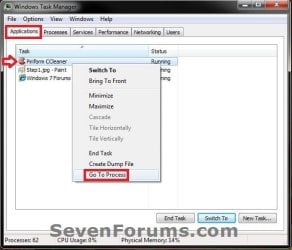
4. In Task Manager, click on the Applications tab, right click on the application from step 1, and click on Go to Process. (see screenshot below)
[
5. In the Processes tab, right click on the application's process, then click on Set Affinity. (see screenshot below)
NOTE: If Set Affinity is grayed out, then it means that the process cannot have the processor affinity set for.

6. Check (allow) or Uncheck (not allow) one or more CPU cores that you want to be allowed or not allowed to run the application on, then click on OK. (see screenshot below)
NOTE: Only the number of cores in your processor(s) will be available to set affinity to. CPU-0 = Core 1, CPU-1 = Core 2, etc...

7. Repeat for any other applications that you wish to change the processor affinity of.
8. When finished, close Task Manager.
OPTION TWO
To Run a Program with a Set CPU Affinity in Command Prompt
1. This step will show you how many CPU cores you have, and how to figure the hex value to use at step 3 below for the CPU(s) you want to run the application on.
NOTE: If you should need any assistance with this step, then please feel free to post. I'll be happy to help.
A) Open Task Manager (CTRL+Shift+ESC) in more details view, click on the Processes tab, right click on any process in the Image Name column, and click on Set affinity. (see screenshot below)
NOTE: This will show you how many CPU cores you have. I have 12 CPU cores numbered from 0 to 11.

B) For how many CPU cores you have will also be how long the binary number will be. Since I have 12 CPU cores, the binary number will be 12 zeros 000000000000. Each zero in the binary number represents a CPU core number from right to left. In my case with 12 CPU cores, the far right 0 in the binary number will be for CPU 0, and the far left 0 will be for CPU 11. (see screenshot below)
C) For each CPU number you want to run the application on, replace 0 (off) with 1 (on) in the binary number for the CPU numbers.
For example, if I wanted to run the application only on CPU 0, then my binary number would be changed to 000000000001. To run the application on CPU 0 and CPU 3, I would use 000000001001. (see screenshot below)

D) Go the website below, and type your binary number from step 1C above into the Binary field. This will convert the binary number to a hexadecimal (hex) that you will need to use at step 3 below.
Website: Binary/Decimal/Hexadecimal Converter
For example, with my 000000000001 binary number, I get a hex value of 1. (see screenshot below)

2. Open a command prompt.
3. In the command prompt, type the command below into the location area, and click on the Next button. (see screenshot below)
cmd.exe /c start "Program Name" /affinity # "Full path of application file"
For example: I would type this command below exactly if I wanted to create a shortcut to run Process Monitor on only CPU 0 (step 1), and it's .exe file is located at "E:\Programs\Process Monitor 3.05\Procmon.exe".
(For only on CPU 0)
cmd.exe /c start "Process Monitor" /affinity 1 "E:\Programs\Process Monitor 3.05\Procmon.exe"
(For on CPU 0 and CPU 3)
cmd.exe /c start "Process Monitor" /affinity 9 "E:\Programs\Process Monitor 3.05\Procmon.exe"
Note
Substitute Program Name in the command with the actual program's name within quotes.
Substitute # in the command for the affinity # with the hex value (ex: 1) from step 1D above.
Substitute Full path of application file in the command with the full path of the file within quotes.
Substitute # in the command for the affinity # with the hex value (ex: 1) from step 1D above.
Substitute Full path of application file in the command with the full path of the file within quotes.
That's it,
Shawn
Related Tutorials
- How to Create a Shortcut to Run an Application with a Set CPU Affinity in Windows
- How to Create a Elevated Windows 7 Task Manager Shortcut
- How to Set Priority Level for Applications and Processes in Windows 7
- How to Add or Remove "Run with Priority" to Context Menu of EXE Files in Windows
- How to Add or Remove "Run with CPU Affinity" to the Context Menu
- How to Adjust Processor Scheduling for Best Performance in Vista, Windows 7, and Windows 8
Last edited: