
How to Enable or Disable Program Compatibility Assistant in Vista, Windows 7, and Windows 8
Information
The Program Compatibility Assistant (PCA) runs in the background and monitors user initiated programs for known compatibility issues at run time. Whenever a potential issue with an application is detected, the PCA will prompt the user with pointers to recommended solutions.
This tutorial will show you how to enable or disable Program Compatibility Assistant (PCA) for all or specific users in Vista, Windows 7, and Windows 8.
Turning off PCA is useful for system administrators who require faster performance and are aware of the compatibility of the applications they are using.
This tutorial will show you how to enable or disable Program Compatibility Assistant (PCA) for all or specific users in Vista, Windows 7, and Windows 8.
Turning off PCA is useful for system administrators who require faster performance and are aware of the compatibility of the applications they are using.
Note
With the PCA turned off, users will not be presented with solutions to known compatibility issues when running applications.
Warning
The Diagnostic Policy Service (DPS) and Program Compatibility Assistant Service must be set to Started and Automatic in Services for the PCA to be able to be enabled and to execute.
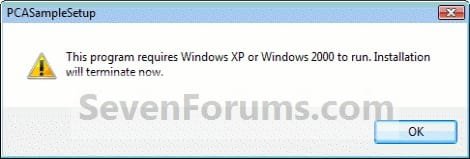
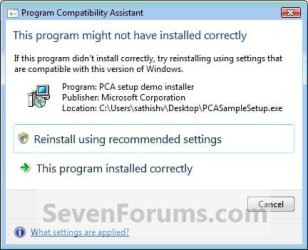
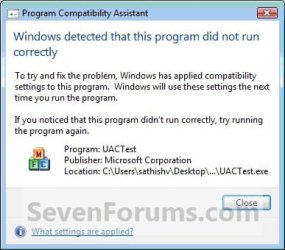
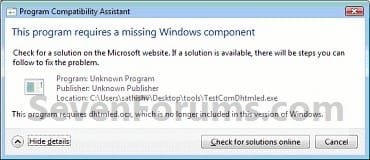
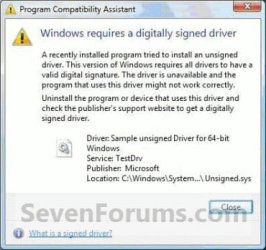
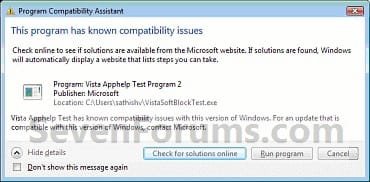
EXAMPLE: Program Compatibility Assistant Warnings
NOTE: These are some examples of the warnings that PCA may give you if it detects a compatibility issue with a program. You can read more about these here: Application Compatibility: Program Compatibility Assistant (PCA)

OPTION ONE
To Enable or Disable Program Compatibility Assistant using a REG File
1. Do step 2 or 3 below for what you would like to do.
2. To Enable Program Compatibility Assistant for All Users
NOTE: This is the default setting.
A) Click/tap on the Download button below to download the file below, and go to step 4 below.
Enable_Program_Compatibility_Assistant.reg
Download
3. To Disable Program Compatibility Assistant for All Users
A) Click/tap on the Download button below to download the file below, and go to step 4 below.
Disable_Program_Compatibility_Assistant.reg
Download
4. Save the .reg file to your desktop.
5. Double click/tap on the downloaded .reg file to merge it.
6. If prompted, click/tap on Run, Yes (UAC Windows 7/8) or Continue (UAC Vista), Yes, and OK to approve the merge.
7. Restart the computer to fully apply.
8. When done, you can delete the downloaded .reg file if you like.
OPTION TWO
To Enable or Disable Program Compatibility Assistant in Group Policy
1. Open the all users, specific users or groups, or all users except administrators Local Group Policy Editor for how you want this policy applied.
2. In the left pane, click on to expand User Configuration, Administrative Templates, Windows Components, and Application Compatibility. (see screenshot below)
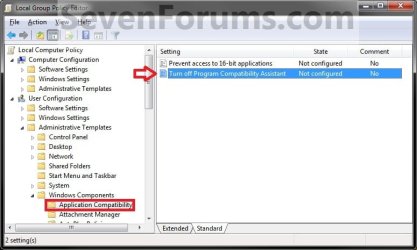
3. In the right pane, double click on Turn off Program Compatibility Assistant to edit it, and go to step 4 or 5 below for what you would like to do. (see screenshot above)
4. To Enable Program Compatibility Assistant
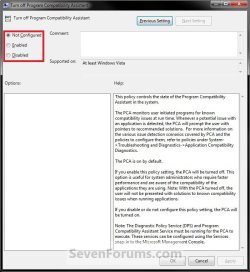
A) Select (dot) either Not Configured or Disabled, and go to step 6 below. (see screenshot below step 6)
NOTE: Not Configured is the default setting.
5. To Disable Program Compatibility Assistant
A) Select (dot) Enabled, and go to step 6 below. (see screenshot below step 6)
6. Click/tap on OK. (see screenshot below)
7. Close the Local Group Policy Editor window.
That's it,
Shawn
Related Tutorials
Attachments
Last edited:


