
Programs - Uninstall using Command Prompt in Windows

How to Uninstall Programs using Command Prompt in Windows


   Information
This tutorial will show you how to uninstall programs using a command prompt in XP, Vista, Windows 7, and Windows 8.

You must be logged in as an administrator to be able to do the steps in this tutorial.

   Note
This will only list programs that use Windows Installer when installed.

It is recommended to uninstall a program in Programs and Features if able instead to have a full list of installed program.


Here's How:

1. Do step 2 or 3 below for what you would like to do.

2. Open an elevated command prompt in XP/Vista/Windows 7 or Windows 8, and go to step 4 below.

3. Open Safe Mode with command prompt in XP/Vista/Windows 7 or Windows 8, and go to step 4 below.

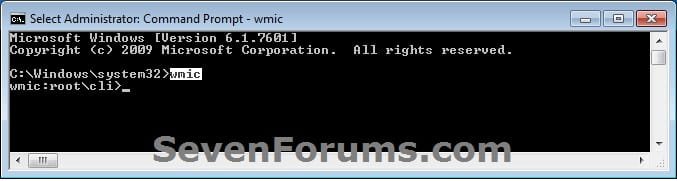
4. In the command prompt, type wmic and press Enter. (see screenshot below)
Uninstall_Programs_Command_Line-1.jpg
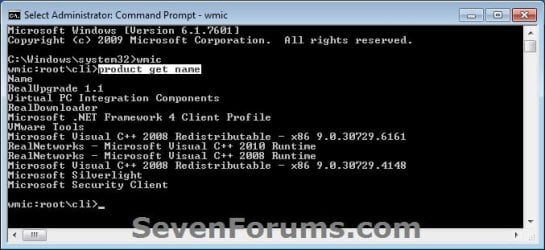
5. Type product get name and press Enter. (see screenshot below)
NOTE: This will give you a list of program names installed on your computer to use in the next step. This list will not always have all of the programs listed in Programs and Features though.
Uninstall_Programs_Command_Line-2.jpg
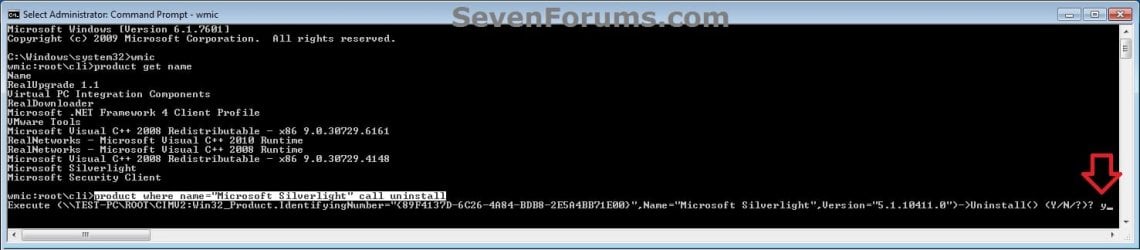
6. Type in either command below using the exact name of the program (ex: Microsoft Silverlight) listed in step 5 above within quotes that you want to uninstall, and press Enter. (see screenshot below)
(To be prompted Y/N to approve. Recommended)

product where name=”name of program” call uninstall


(To NOT be prompted Y/N to approve.)

product where name=”name of program” call uninstall /nointeractive

Uninstall_Programs_Command_Line-3.jpg
7. If prompted, type Y to confirm uninstalling the program, and press Enter. (see screenshot above)

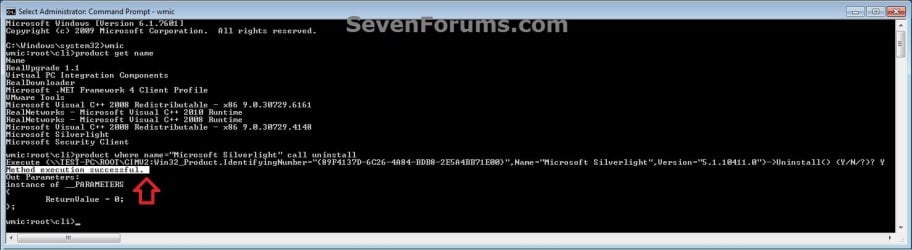
8. When successfully uninstalled, you can close the command prompt. (see screenshot below)
Uninstall_Programs_Command_Line-4.jpg
That's it,
Shawn


Last edited:
In that case, see if using this below for your original idea may work.

It was able to add it to my registry.

Code:
REG ADD HKLM\SOFTWARE\Microsoft\Windows\CurrentVersion\RunOnce /v "!UOO" /t REG_SZ /d "cmd /c wmic product where name=C:\Program Files\OO Software\Defrag call uninstall /nointeractive"
 

My Computer

Computer type
PC/Desktop
Computer Manufacturer/Model Number
Self built custom
OS
64-bit Windows 11 Pro for Workstations
CPU
Intel i7-8700K OC'd to 5 GHz
Motherboard
ASUS ROG Maximus XI Formula Z390
Memory
64 GB (4x16GB) G.SKILL TridentZ RGB DDR4 3600 MHz
Graphics Card(s)
ASUS ROG-STRIX-GTX1080TI-O11G-GAMING
Sound Card
Integrated
Monitor(s) Displays
2 x Samsung Odyssey G7 27"
Screen Resolution
2560x1440
Hard Drives
1TB Samsung 990 PRO M.2,
4TB Samsung 990 PRO PRO M.2,
TerraMaster F8 SSD Plus NAS
PSU
Seasonic Prime Titanium 850W
Case
Thermaltake Core P3
Cooling
Corsair Hydro H115i
Keyboard
Logitech wireless K800
Mouse
Logitech MX Master 4
Internet Speed
2 Gb/s Download and 100 Mb/s Upload
Antivirus
Malwarebyte Anti-Malware Premium
Browser
Google Chrome
Other Info
Logitech Z625 speaker system,
Logitech BRIO 4K Pro webcam,
HP Color LaserJet Pro MFP M477fdn,
APC SMART-UPS RT 1000 XL - SURT1000XLI,
Galaxy S23 Plus phone
Yes, this ways works to be added to registry, but the spaces inside the command itself will make it useless. the " " and ' ' where needed for it to work. seems cmd has trouble figuring the starting " " and ' ' insde an expression
 

My Computer

OS
Windows 7 Home Premium x64
CPU
AMD Phenom II 1055T
Motherboard
Asrock 870 Extreme3
Memory
2x2GB A-data Vitesta Extreme 1600+ DDR3
Graphics Card(s)
MSI N560GTX M2D1GD5
Sound Card
Realtek HD Audio ALC892(onboard)
Monitor(s) Displays
Samsung 32A656
Hard Drives
1xST31000528AS
1xWDC WD5000AAKS-22TMA0
1xWDC WD6400AAKS-65A7B0
PSU
Cooler Master silent pro m600
Case
NZXT Gamma
Cooling
Cooler Master GeminiII, 6 fans on the case
Yes, this ways works to be added to registry, but the spaces inside the command itself will make it useless. the " " and ' ' where needed for it to work. seems cmd has trouble figuring the starting " " and ' ' insde an expression

While I was looking for such a solution, I saw this thread and your remark about not able to use comma's inside the expression. You can do this by escaping them with \" or \', which seem to work fine (tested on Windows 7 Pro). Just wanted to share this, sorry if this thread is too old.
 

My Computer

Computer type
PC/Desktop
OS
Windows 10 Pro x64
Back
Top