
Quick Launch - Enable or Disable

How to Enable or Disable Quick Launch in Windows 7

   Information
By default Quick Launch is disabled in Windows 7. This will show you how to enable or disable Quick Launch as a taskbar toolbar using small or large icons in Windows 7.

   Note
Quick Launch is a toolbar on the taskbar. Quick Launch is used to open a program quickly from a shortcut from within it separate from the pinned programs on the taskbar.

The Quick Launch folder is located at the hidden system folder location below to add shortcuts to.

C:\Users\(user-name)\AppData\Roaming\Microsoft\Internet Explorer\Quick Launch

   Tip
Microsoft has made available a hotfix that will resolve a problem where the taskbar customizations are lost and reset to defaults when automatic logon is enabled in Windows 7 and Windows Server 2008 R2. More details are available at FIX: The Taskbar is reset to the default settings when you use the "Automatically Log On" feature in Windows 7 and in Windows Server 2008 R2.


If you still have the issue of where the pinned Quick Launch used in this tutorial disappears on you after logging off and on or restarting the computer, then a workaround for this issue is to either:
EXAMPLE: Default Windows 7 Taskbar
1441d1234757806-quick-launch-enable-disable-disabled.jpg


EXAMPLE: Quick Launch Enabled on Right Side of Taskbar
NOTE: This is the new Quick Launch toolbar with text and title, small icons, or large icons.
2048d1234327806-quick-launch-enable-disable-quick_launch_toolbar.jpg


4733d1234757607-quick-launch-enable-disable-small_quick_launch.jpg


4732d1234757607-quick-launch-enable-disable-large_quick_launch.jpg


EXAMPLE: Quick Launch Enabled on Left Side of Taskbar
NOTE: This is the new Quick Launch toolbar without text and title, and with small icons or large icons.

Right_Example-1.jpg

Right_Example-2.jpg


OPTION ONE

To Add Quick Launch to Taskbar


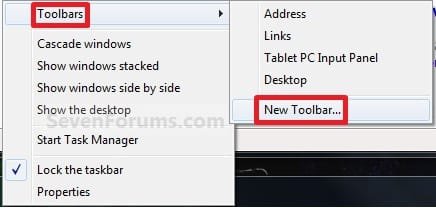
1. Right click on a empty space on the taskbar, then select (hover on) Taskbar and click on New Toolbar. (See screenshot below)
Right_Click_Taskbar.jpg
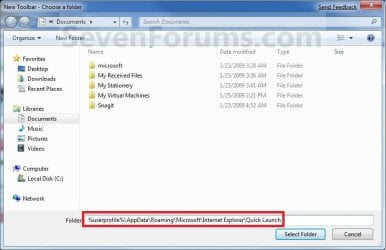
2. In the Folder line, type or copy the location below. (See screenshot below)
%userprofile%\AppData\Roaming\Microsoft\Internet Explorer\Quick Launch
Select_Folder.jpg
3. Click on the Select Folder button. (See screenshot above)

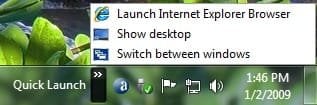
4. You now have a Quick Launch toolbar on the taskbar. (See screenshot below)
NOTE: Click on the arrow to see your Quick Launch shortcuts.
Quick_Launch_Toolbar.jpg
5. To Expand the Quick Launch Toolbar
A) Unlock the taskbar.

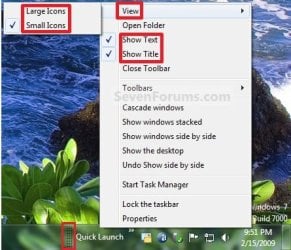
B) Left click and hold on the dotted separator line just to the left of Quick Launch, then drag it to the left or right to adjust to unhide all of the icons. Release the left click when done. (See screenshot below)
Right_Click_Toolbar.jpg
C) Lock the taskbar.
6. To Remove Quick Launch Toolbar Icon Text or Title
A) Unlock the taskbar.

B) Right click on the dotted separator line just to the left of Quick Launch, then uncheck the Show Text and Show Title by clicking on them. (See screenshot below step 5B)

C) Lock the taskbar.
7. To Have Small or Large Icons for Quick Launch Toolbar
A) Unlock the taskbar.

B) Right click on the dotted separator line just to the left of Quick Launch, then click on View and select to have Large Icons or Small Icons. (See screenshot below step 5B)

C) Lock the taskbar.
8. To Have Quick Launch Toolbar on Left Side of Taskbar
A) Unlock the taskbar.

B) Left click and hold on the dotted separator line just to the left of Quick Launch, then drag Quick Launch as far to the left on the taskbar as you are able to and release.

C) If you still have any pinned program icons to the left of Quick Launch, then left click and hold on the dotted separator line just to the left of the icons and hold, and drag it to the right past Quick Launch and release. (See screenshot below)

RightSide_1.jpg
D) The Quick Launch toolbar is now on the far left side of the taskbar. (See screenshot below)

RightSide_2.jpg
E) Left click and hold on the dotted separator line for the other icons and drag them left or right to make any adjustments to how you want them placed on the taskbar. (See screenshot above)

F) Lock the taskbar.


OPTION TWO

To Remove Quick Launch from Taskbar


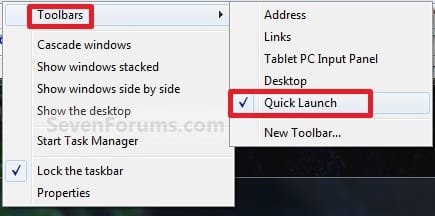
1. Right click on a empty space on the taskbar and click on Toolbars and Quick Launch to uncheck and remove it from the taskbar. (See screenshot below)
Remove.jpg
That's it,
Shawn


Attachments

  • Disabled.jpg
    Disabled.jpg
    9.3 KB · Views: 1,677,290
  • Large_Quick_Launch.jpg
    Large_Quick_Launch.jpg
    8.5 KB · Views: 1,656,917
  • Small_Quick_Launch.jpg
    Small_Quick_Launch.jpg
    8.5 KB · Views: 1,657,225
Last edited:
Thank you for posting this tutorial, thank you for the detail, and thank you for making it despite whether or not you find the quicklaunch unnecessary. I personally don't see it as unnecessary because items being pinned to the taskbar are fairly large in comparison to quicklaunch icons, as many others have said, and because unopened items pinned to the taskbar get mixed in between opened items pinned to the taskbar. This to me is extremely annoying because I may not normally have certain programs open, but on an occasion if I get enough programs open that are before a program I may frequent, it moves the unopened icon away from where I'm normally used to it being. It's just extremely less efficient to me when things aren't where I left them, so to say.

I agree with that. I think that changing position of menu, toolbar or desktop items is totally unproductive. When you know where items are, you go and click them without thinking and searching. It becomes a reflex clicking. If the system changes the position of your items you have to search, read text (when you have them) or interpret icons (or, worse, you have to hover your icons and wait to get a description...).
For those reasons, I really like the new Office 2007's ribbons. Even if it requires a time to adapt, when you know where the functions are, you get acces to almost every function in two mouse clicks.

What I don't understand either is why Microsoft wants people to search their menu items and files. I don't why they think that users are so stupid, so unstrcuctured that they can't organize their files in folders and subfolders, and that they can't name their files so taht they can find them. I don't know why users should become dependant on search engines.
That's why I don't like the new taskbar and, worse, the new start menu. They are perhaps good for some people but we should have the choice to get the previous (not old) way of use.

I finish by : Thank you for that tutorial ! :D
 

My Computer

OS
Windows 7 Ultimate x86
Hello RJ, and welcome to Seven Forums.

As a workaround, you can pin a folder to the taskbar and place your shortcuts in it instead.

I said I can get the QL bar up and looking like I want. You didn't address my problem. When I arrange the QL buttons as I want them, I lose the order whenever I reboot. How do I get them to stay put?

I would assume that a folder could not be arranged in any order I want it in.

-Bob
 

My Computer

Computer Manufacturer/Model Number
HP DV5z
OS
Win 7
CPU
Athlon
Memory
4GB
Graphics Card(s)
ATI
Yeah, it looks like pinned icons on the taskbar will be the future with Windows 7.

As for the other questions, you should post them in the appropriate General Discussion and Network & Internet forums for them so this tutorial can stay on topic, and so you can get more replies to them. ;)

:mad: That is absolutely idiotic. I have 40-50 QL items. That WILL NOT FIT on the task bar as pinned items.

Have you tried checking the "Use small icons" box in Properties? Changing the icons that way makes them the same size as the old QL icons on my system.

Tom L

I have small icons activated everywhere. Small icons on the QL bar are less than a quarter ich square. On the Task bar they are bars that are about a third of an inch high and take up the full width of the task bar (I use it vertically on the left side.)

On the QL part of the task bar I get 3 columns of small icons. I count 52 things I can start up with one click. I could weed out little used ones, but I would still have 30 or more.

-Bob
 

My Computer

Computer Manufacturer/Model Number
HP DV5z
OS
Win 7
CPU
Athlon
Memory
4GB
Graphics Card(s)
ATI
nice feature, i missed this. Cheers
 

My Computer

Computer Manufacturer/Model Number
Intel
OS
WIn 7 64bit
CPU
Intel (R) Pentium (R) D CPU 3.46GHz Extreme chip
Motherboard
INtel BX975
Memory
8Gigs
Graphics Card(s)
NVIDIA 7900 GTX
Monitor(s) Displays
Samsung SyncMaster 245T X2
Screen Resolution
1600x1200
Hard Drives
4.5T in Total
PSU
500Watts
:mad: That is absolutely idiotic. I have 40-50 QL items. That WILL NOT FIT on the task bar as pinned items.

This is incredibly annoying. I use pinning for the 3-4 apps that I always run. It's convenient to always have them in the same place. The 2 states of the buttons are confusing, but I'll probably get used to that.

You have provided no substitute for the QL bar. Removing it was just dumb.

IMO the QL bar is for 6 or so items, why not use the start menu for the rest of the programs. If you organize the programs it works pretty well. That is what it was designed to do.
I use the QL for 6 or so most often used programs (daily) everything else is desktop or start menu.
I cant imagine you use 40+ items daily??

To each his own I guess :P

I am a software architect/developer. I use probably 15-20 different icons daily and I have frequent enough use of perhaps 20 more that I want them immediately available. I occasionally run VMs of Linux with yet more tools I need.
 
Last edited by a moderator:

My Computer

Computer Manufacturer/Model Number
HP DV5z
OS
Win 7
CPU
Athlon
Memory
4GB
Graphics Card(s)
ATI
Hello RJ, and welcome to Seven Forums.

As a workaround, you can pin a folder to the taskbar and place your shortcuts in it instead.

I said I can get the QL bar up and looking like I want. You didn't address my problem. When I arrange the QL buttons as I want them, I lose the order whenever I reboot. How do I get them to stay put?

I would assume that a folder could not be arranged in any order I want it in.

-Bob

Bob,

Sorry, but there does not seem to be a way to arrange the shortcuts in a pinned folder and keep them in that order after a restart. QL is just a folder as well. :(
 
Last edited:

My Computer

Computer type
PC/Desktop
Computer Manufacturer/Model Number
Self built custom
OS
64-bit Windows 11 Pro for Workstations
CPU
Intel i7-8700K OC'd to 5 GHz
Motherboard
ASUS ROG Maximus XI Formula Z390
Memory
64 GB (4x16GB) G.SKILL TridentZ RGB DDR4 3600 MHz
Graphics Card(s)
ASUS ROG-STRIX-GTX1080TI-O11G-GAMING
Sound Card
Integrated
Monitor(s) Displays
2 x Samsung Odyssey G7 27"
Screen Resolution
2560x1440
Hard Drives
1TB Samsung 990 PRO M.2,
4TB Samsung 990 PRO PRO M.2,
TerraMaster F8 SSD Plus NAS
PSU
Seasonic Prime Titanium 850W
Case
Thermaltake Core P3
Cooling
Corsair Hydro H115i
Keyboard
Logitech wireless K800
Mouse
Logitech MX Master 4
Internet Speed
2 Gb/s Download and 100 Mb/s Upload
Antivirus
Malwarebyte Anti-Malware Premium
Browser
Google Chrome
Other Info
Logitech Z625 speaker system,
Logitech BRIO 4K Pro webcam,
HP Color LaserJet Pro MFP M477fdn,
APC SMART-UPS RT 1000 XL - SURT1000XLI,
Galaxy S23 Plus phone
I am glad this problem is not on 64bit, it would drive me nuts. This thread now 21 pages long, it seems clear to me microsoft made a howler when they though they could make such a big change to the gui like that and people would just accept it.
 

My Computer

Computer type
PC/Desktop
Computer Manufacturer/Model Number
home built
OS
windows 8.1 Pro x64
CPU
intel i5 4670k @ 4.3ghz
Motherboard
asus z87-plus
Memory
16 gig ram ddr3 @ 1600 corsair vengeance
Graphics Card(s)
evga 970 GTX 4 GIG FTW ACX 2.0
Sound Card
asus xonar D2X
Monitor(s) Displays
benq gw2765ht
Screen Resolution
2560x1440
Hard Drives
Samsung 850 pro SSD 512gig - boot device wooosh
WD black cavalier 640gig WD6401AALS
Seagate 500gig ST3500630AS
WD 2TB Green WDC20EARS
2 x WD Red 3TB WD30EFRX
Samsung 750gig HD753LG - on asmedia controller
PSU
coolermaster silent pro 600watt modular
Case
fractal define R4
Cooling
artic freezer i30, 3 case fans
Keyboard
microsoft business ps2 keyboard
Mouse
microsoft optical black mouse
Internet Speed
80/20 FTTC SkyBB
Antivirus
Nod32 AV v8, HitmanProAlert, SRP, System Hardening
Browser
Chrome x64
Other Info
Intel controller is in AHCI mode currently using IaSTOR 12.8.0.1016 drivers
:mad: That is absolutely idiotic. I have 40-50 QL items. That WILL NOT FIT on the task bar as pinned items.

This is incredibly annoying. I use pinning for the 3-4 apps that I always run. It's convenient to always have them in the same place. The 2 states of the buttons are confusing, but I'll probably get used to that.

You have provided no substitute for the QL bar. Removing it was just dumb.

IMO the QL bar is for 6 or so items, why not use the start menu for the rest of the programs. If you organize the programs it works pretty well. That is what it was designed to do.
I use the QL for 6 or so most often used programs (daily) everything else is desktop or start menu.
I cant imagine you use 40+ items daily??

To each his own I guess :P

I am a software architect/developer. I use probably 15-20 different icons daily and I have frequent enough use of perhaps 20 more that I want them immediately available. I occasionally run VMs of Linux with yet more tools I need.

Wow, I guess it is convenient for you then! I stand corrected :). I am glad that my QL has been staying put and icons stay where I put them as far as I can tell!
 
Last edited:

My Computer

Computer Manufacturer/Model Number
Custom
OS
Windows 7 Pro
CPU
Q9650 @ 4.05ghz
Motherboard
Asus Striker II Extreme
Memory
Kingston DDR3 @1800mhz 8GB
Graphics Card(s)
BFG GTX 285SC
Sound Card
Audigy Fatal1ty
Monitor(s) Displays
Dell 24" 1920x 1200
Hard Drives
Raid 0 1TB Windows 7-64
Raid 0 800GB XP-32
PSU
Zalman 950-HP
Case
Cooler Master 690
Cooling
Zalman Pure Copper
I am glad this problem is not on 64bit, it would drive me nuts. This thread now 21 pages long, it seems clear to me microsoft made a howler when they though they could make such a big change to the gui like that and people would just accept it.

I use 64-bit W7 Home Premium. The QL bar does not disappear, but it does not retain order either. M$ really messed this one up. This thread is up to 21 pages. What does that tell you?
 

My Computer

Computer Manufacturer/Model Number
HP DV5z
OS
Win 7
CPU
Athlon
Memory
4GB
Graphics Card(s)
ATI
What does that tell you?
I agree they screwed the pooch on this one.

I have to cope with using a corporate SOE, which is still XP based, for much of my professional work and Win 7 at home.... for me Quick Launch functionality is crucial ! :geek:

I have tried hard to come to terms with the Win 7 taskbar approach but it certainly doesn't work for me. :cry:
 

My Computer

OS
Vista Ultimate x64
Thank you for posting this tutorial, thank you for the detail, and thank you for making it despite whether or not you find the quicklaunch unnecessary. I personally don't see it as unnecessary because items being pinned to the taskbar are fairly large in comparison to quicklaunch icons, as many others have said, and because unopened items pinned to the taskbar get mixed in between opened items pinned to the taskbar. This to me is extremely annoying because I may not normally have certain programs open, but on an occasion if I get enough programs open that are before a program I may frequent, it moves the unopened icon away from where I'm normally used to it being. It's just extremely less efficient to me when things aren't where I left them, so to say.

I agree with that. I think that changing position of menu, toolbar or desktop items is totally unproductive. When you know where items are, you go and click them without thinking and searching. It becomes a reflex clicking. If the system changes the position of your items you have to search, read text (when you have them) or interpret icons (or, worse, you have to hover your icons and wait to get a description...).
For those reasons, I really like the new Office 2007's ribbons. Even if it requires a time to adapt, when you know where the functions are, you get acces to almost every function in two mouse clicks.

What I don't understand either is why Microsoft wants people to search their menu items and files. I don't why they think that users are so stupid, so unstrcuctured that they can't organize their files in folders and subfolders, and that they can't name their files so taht they can find them. I don't know why users should become dependant on search engines.
That's why I don't like the new taskbar and, worse, the new start menu. They are perhaps good for some people but we should have the choice to get the previous (not old) way of use.

I finish by : Thank you for that tutorial ! :D

I don't think being unorganized and using the search is necessarily due to stupidity, I do that and sometimes it's more efficient, sometimes its annoying though, take the good with the bad I guess. I essentially save everything from browsers into the same folder, or basically save everything from certain programs into the same folders, like just a main folder, so it does get quite full and confusing looking for something. But search is relatively fast, I don't necessarily like the search in Windows 7/Vista, I liked the XP search better, but often times the files I need are one time use things anyways so searching yields decent efficiency for me. The only problem I have with this unorganized method is I end up wasting lots of hard drive space because everything is everywhere, and as I said most of the time they are one time use things, and I don't delete them right away thinking maybe I'll go back (even though I never do, I do this IRL too haha, packrat much?) Which in XP I used to just do a search based on file size of over like 10mb and wait for it to bring everything up and then just dedicate some time to clearing it all out. I guess efficiency just went right out the window :p
 

My Computer

OS
Windows 7 Home Premium
CPU
Intel Core i7 920
Motherboard
X58
Memory
6GB DDR3 1066
Graphics Card(s)
Nvidia GTS 250
Monitor(s) Displays
Asus 23" 1080p 16x9
I don't think being unorganized and using the search is necessarily due to stupidity, I do that and sometimes it's more efficient, sometimes its annoying though, take the good with the bad I guess. I essentially save everything from browsers into the same folder, or basically save everything from certain programs into the same folders, like just a main folder, so it does get quite full and confusing looking for something. But search is relatively fast, I don't necessarily like the search in Windows 7/Vista, I liked the XP search better, but often times the files I need are one time use things anyways so searching yields decent efficiency for me. The only problem I have with this unorganized method is I end up wasting lots of hard drive space because everything is everywhere, and as I said most of the time they are one time use things, and I don't delete them right away thinking maybe I'll go back (even though I never do, I do this IRL too haha, packrat much?) Which in XP I used to just do a search based on file size of over like 10mb and wait for it to bring everything up and then just dedicate some time to clearing it all out. I guess efficiency just went right out the window :p

Ok, I don't say that unorganized people are stupid but that Search Engines Manufacturers say "Don't even try to be organized, we 'give' you tools to find YOUR files". They try to create a dependency upon their tools, and that's what I don't like.
When you try to find something on the Www, you don't know exactly what you search and there are so many sites, so a search engine is the best solution.
But that's different when you try to find a file on your computer, among your files. You either know (perhaps approximatively) the file name or the date of the file and it's type. That's why I likes XP search better too.
If you want a "smart" search engine to be efficient to find files among your files, you have to tag all your files. If you don't have many files, you don't waste time to tag your files but you don't need a search engine to find them...
If you have a lot of files that you don't use very often, tagging is a very time consuming task. In that case, a "basic" search engine like the one in Win 95 (or XP or Atari ST GEM :D, ...) is efficient enough to find files by name (and type by the extention), date and size.
We have tools to organize files (folders, name and extentions) and to find them ("basic" search engine) for years now. These tools must be too simple for system vendors so they think that they have to hide file extensions so that users don't know the type of their files, that they have to show files in virtual aggregated folders (Libraries) so that users don't know where there files are physically on their drives, that they have not to provide structured help for their softwares (organized by chapters with a table of content) so that people have to use search features to find help... and so on.
The only reasons I see for that are either they think that people not able to manage data by theirselves or they try to create a dependency upon their tools so that people keep on buying new versions of their softwares. I don't mind as long as I can continue using simple tools that make me productive and as long as I have choice not to use those so called "smart" and not so efficient tools that make me waste time. :mad:
The official reason for thoses changes is "It's time to move on" (in other words "That's newer then that's better"), and I desagree whith that. I think that "If it's not broken, don't fix it".
 

My Computer

OS
Windows 7 Ultimate x86
Hey guys I have a problem. From time to time my quick launch toolbar dissappears. I haven't noticed if it dissappear after restart but i does. Can anyone help?

If you read earlier post it is discussed but still it is NOT solved yet.

I'm having the same issue under x86. The quick launch bar would disappear on reboot. However, if you terminate explorer.exe and then relaunch it, it appears again.

Thanks for the tips, I will surely give that a try.

Disable the language bar.
Control Panel / Region and Language tab keyboards and language
Or right-click on US, DE or what else.

For german user: deskmodder-Wiki

Sorry Riotblade...can you be more clear? How do you actually disable language bar? And does it really have something to do with it? Beside, I recently added the language toolbar and it still disappears (i have EN on the right corner next to notification icons). So I ain't sure if this is responsible, but it does not hurt to try, so how do you disable it? When you said "what else" I don't undersand you.
 

My Computer

Computer type
PC/Desktop
Computer Manufacturer/Model Number
Custom build
OS
Microsoft Windows 7 Ultimate 64-bit 7601 Multiprocessor Free Service Pack 1
CPU
Intel(R) Core(TM) i5 CPU 650 @ 3.20GHz
Motherboard
Gigabyte Technology Co., Ltd. P55A-UD3
Memory
12.00 GB
Graphics Card(s)
NVIDIA GeForce GTX 570
Sound Card
(1) High Definition Audio Device (2) High Definition Audio
Monitor(s) Displays
BenQ 21"
Screen Resolution
1920 x 1080 x 32 bits (4294967296 colors) @ 60 Hz
Hard Drives
(1) WDC WD15EARS-00S8B1 ATA Device (2) WDC WD20EARS-00MVWB0 ATA Device (3) Samsung SSD 840 Series SCSI Disk Device
Hi Natri and Gary,

Were you guys able to get your Quick Launch working?

I was able to get mine to work - the tutorial was beautiful. I'm using the Classic theme, and more and more I'm getting my Windows 7 looking like good old Win2K! Thanks!

Raargh
 

My Computer

Computer Manufacturer/Model Number
Dell T3400
OS
Windows 7 Pro x64 (dual-booting XPSP3 and Win7)
CPU
Intel Core-2 Quad
Memory
4GB 800 Mhz PC2 unbuffered ECC
Graphics Card(s)
NVIDIA Quadro FX 570
Sound Card
Creative SB X-Fi model SB0770
Monitor(s) Displays
Dell 19" FP
Screen Resolution
1680x1050
Hard Drives
SATA disk0 250GB disk1 500GB
Internet Speed
TW RR
Other Info
Just a baby compared to my work box!
You're welcome Raargh, and welcome to Seven Forums. :)
 

My Computer

Computer type
PC/Desktop
Computer Manufacturer/Model Number
Self built custom
OS
64-bit Windows 11 Pro for Workstations
CPU
Intel i7-8700K OC'd to 5 GHz
Motherboard
ASUS ROG Maximus XI Formula Z390
Memory
64 GB (4x16GB) G.SKILL TridentZ RGB DDR4 3600 MHz
Graphics Card(s)
ASUS ROG-STRIX-GTX1080TI-O11G-GAMING
Sound Card
Integrated
Monitor(s) Displays
2 x Samsung Odyssey G7 27"
Screen Resolution
2560x1440
Hard Drives
1TB Samsung 990 PRO M.2,
4TB Samsung 990 PRO PRO M.2,
TerraMaster F8 SSD Plus NAS
PSU
Seasonic Prime Titanium 850W
Case
Thermaltake Core P3
Cooling
Corsair Hydro H115i
Keyboard
Logitech wireless K800
Mouse
Logitech MX Master 4
Internet Speed
2 Gb/s Download and 100 Mb/s Upload
Antivirus
Malwarebyte Anti-Malware Premium
Browser
Google Chrome
Other Info
Logitech Z625 speaker system,
Logitech BRIO 4K Pro webcam,
HP Color LaserJet Pro MFP M477fdn,
APC SMART-UPS RT 1000 XL - SURT1000XLI,
Galaxy S23 Plus phone
thanks a lot dude.. u r really gr8 !
IT WORKS PERFECT ...
 

My Computer

Computer Manufacturer/Model Number
Gigabyte
OS
Win7 Ultimate 32bit
CPU
3Ghz /2MB L2
Motherboard
Gigabyte 945 S3P
Memory
2GB
Graphics Card(s)
1GB nVidia 5800 GT
Sound Card
built in
Monitor(s) Displays
Acer 17"
Hard Drives
320 GB
160 GB
PSU
400 W
Case
Discovery
Cooling
n/a
How To Make A Quick Launch Using The Links Folder

FYI, I am using the Links folder because it is hard coded within Windows 7 and is on the Taskbar’s right click menu under Toolbars. Other methods to add a Quick Launch by making a New Toolbar using the Quick Launch folder have not been completely successful. SEE NOTES AT THE END OF THIS WRITEUP.

The Links folder is in the Favorites folder: "C:\Users\{USER_NAME}\Favorites". By default the Links folder is not shown. You need to turn it on.

Right click the Taskbar and go to Toolbars > Links and click on it. You will now have Links on the Taskbar next to Notification Area. It is now shown in the Favorites folder.

Go to the Quick Launch folder: "C:\Users\{USER_NAME}\AppData\Roaming\Microsoft\Internet Explorer\Quick Launch" and copy everything except for the desktop.ini file and the User Pinned folder. Paste everything in the Links folder. Shortcuts can be made in the Links folder.

If you go to the Taskbar and left click on Links, you will see everything you pasted in the Links folder.

To make your Quick Launch work properly, you need to have everything in the Links folder "Run as Administrator". In the Links folder, right click each item, click on Properties, Shortcut, Advanced, and tick "Run as Administrator". Click Ok, Apply, Ok. Do this for every item. Some shortcuts might already be ticked to "Run as Administrator". If you do not do this, when you click on a Quick Launch icon you will get a popup to run that item. For those that use UAC, you will still see the UAC popup when you click on some Quick Launch icons. Information on how to make an elevated shortcut can be found in http://www.sevenforums.com/tutorials/

http://www.sevenforums.com/tutorials/11949-elevated-program-shortcut-without-uac-prompt-create.html

Once you are done with each item, you need to hide the Links folder or else it will show in your IE8 Toolbar Favorites list when you access a bookmark. Right click on the Links folder, click on Properties, General, and tick Hidden, Apply, OK. The Links folder will appear dimmed (hidden).

Go to the Taskbar, and untick "Lock the taskbar". Move your mouse pointer over to the left of Links and you will see double arrows. Right click on the double arrows and untick "Show Text" and "Show Title".

To have your new Quick Launch on the left side of the Taskbar, left click on the double dotted lines and pull it all the way to the left. In doing so the double dotted lines that were next to the Start Button will shift to the right. Any pinned icons will also be on the right side. Reposition your Quick Launch icons if you want, left click on the right side double dotted lines and pull them to the left, and right click the Taskbar and tick "Lock the taskbar".

You have just completed making a Quick Launch using the Links folder!


Notes:

UAC was disabled. Distributed Link Tracking Client was set to manual and stopped. Disabling these two services are not prerequisites to making the Links folder into the Quick Launch.

This write-up also works with UAC on. Elevated shortcuts can be made if necessary.

Make a backup of the Links folder and put it somewhere safe. It is portable.

You can import/export your Favorites by using IE8 > File > Import/Export..., however, the Links folder will not be included. If you lose the Links folder, simply copy/paste your backup Links folder in your Favorites folder and you are back in business.
--------

I think all the bugs are out of this. It works great on my system and I don't have any problems with changing themes or anything. The services I turned off doesn't seem to affect this. I did try this on another installation briefly with UAC and Distributed Link Tracking Client set to default and it seemed to work ok. The only thing I noted was that there was a UAC prompt on some items which is normal and can be eliminated.

Try it, abuse it, find holes in it! :D

NOTES 2:

12-11-09
Everything was going well (over two weeks) since the creation of the Quick Launch using the Links folder and absolutely nothing was interfering with it, UNTIL TODAY!

I had to replace a failing optical drive. I installed the unit and Windows 7 found the unit ok. The Quick launch (Links folder) was there at that time. Did a reboot after a while, came back to Windows 7 and the Quick Launch was gone! Whatever Windows 7 is doing is crazy! It was a simple remove and replace and Windows 7 took away my Quick Launch. But this makes me believe that Windows 7 does a repair on the system which removes the Quick Launch.
 
Last edited:

My Computers

System One System Two

  • Computer type
    Laptop
    Computer Manufacturer/Model Number
    Dell Precision 7510
    OS
    W7PRO
    CPU
    Intel i7-6820HQ @ 2.7GHz
    Memory
    16GB
  • Computer type
    Laptop
    OS
    W7Pro
Windows 7 Ultimate 64-bit here. The Quick Launch is disappearing after reboot even with the theme saved and UAC off. So much for your statistics.

MS destroyed Windows by removing Quick Launch. I come from WinXP which I like A LOT more. People who don't miss QL are generally beginners and inexperienced computer users. For them it doesn't matter because they need 10 seconds to open a program anyway. But for us experienced users who multitask faster, open files by dragging them onto the QL, open multiple instances simultaneously, for us this removal is BAD.

By the way, if anyone has problems moving the Quick Launch toolbar to the left, it may be because you have the language bar open. Close it, move QL to the left and open the Language toolbar again from control panel.
 

My Computer

OS
Windows 7
Windows 7 Ultimate 64-bit here. The Quick Launch is disappearing after reboot even with the theme saved and UAC off. So much for your statistics.

Windows 7 Ultimate 64-bit here too X5 and each system that I have implemented the quick launch to, has worked fine and remains on reboot. I have not have any problems with it disapearing. So I would check your settings, maybe something you changed may not be saving changes, or perhaps your firewall/antivirus is the cause. Either way 5 out of 5 systems of mine have the quick launch permanently added and I have done this to at least half a dozen friends computers (non-ultimate though) and they aren't having any problems with quick launch disappearing.
 
Last edited:

My Computer

Computer Manufacturer/Model Number
Intel
OS
WIn 7 64bit
CPU
Intel (R) Pentium (R) D CPU 3.46GHz Extreme chip
Motherboard
INtel BX975
Memory
8Gigs
Graphics Card(s)
NVIDIA 7900 GTX
Monitor(s) Displays
Samsung SyncMaster 245T X2
Screen Resolution
1600x1200
Hard Drives
4.5T in Total
PSU
500Watts
Back
Top


