Recent Items - Turn On or Off

How to Turn Recent Items On or Off in Windows 7


   Information
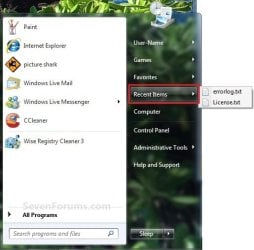
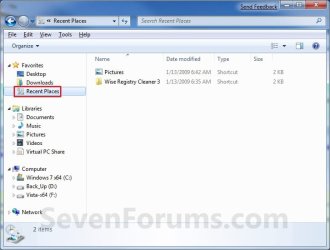
Recent Items is a list of your recently used files on the right side of the Start Menu, Taskbar Windows Explorer icon link, in the Navigaton Pane Recent Places, and in Jump Lists. This will show you how to turn Recent Items on or off in Windows 7.
   Note
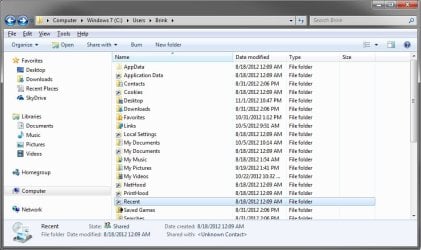
The hidden system folder Recent Items is located at:

C:\Users\(User Name)\AppData\Roaming\Microsoft\Windows\Recent Items

OR

%AppData%\Microsoft\Windows\Recent Items

If you go to the Recent Items folder location above and you have a yellow folder named Recent instead of one named Recent Items with an icon, then right click on the Recent folder and click Delete. Type shell:recent in the white line (Start Search) area of the Start Menu, and press Enter. Logoff and logon, or restart the computer, to rebuild the folder back to the default Recent Items. Recent Items will not function correctly if is not set as the default Recent Items folder.

If this did not fix the Recent Items folder, then see the post at this link to make sure that the registry locations at the link have the correct locations entered for them.


EXAMPLE: Recent Items
NOTE: If Recent Items is turned on, the these are the locations (Taskbar, Start Menu, Navigation Pane) that you will see your recent items listed.
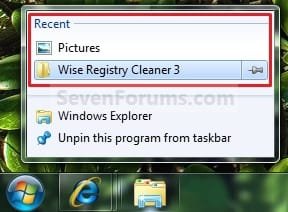
Taskbar.jpg

Start_Menu.jpg

Recent_Places.jpg


OPTION ONE

To Turn Recent Items On or Off in Start Menu Properties

1. Right click on the Start button, and click on Properties.

2. To Turn Recent Items On A) Check the Store and display recently opened items in the Start menu and the taskbar box. (see screenshot below step 4)
NOTE: If you just turned on Recent Items, then it may take a bit after opening the recents items a few times before they actually show up.

B) Go to step 4.
3. To Turn Recent Items Off A) Uncheck the Store and display recently opened items in the Start menu and the taskbar box. (see screenshot below step 4)
4. Click on OK. (see screenshot below) Properties.jpg
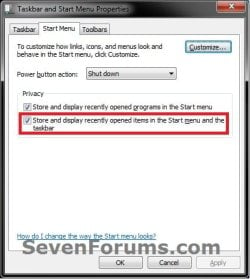
5. If you turned on recent items, then be sure to also set how many recent items you want displayed.

   Tip
If you turned on recent items, and would like to have Frequent (recent items) display in the Internet Explorer taskbar jump list, then you will need to be sure to add (check) "Internet Explorer History" to the Indexed Location.
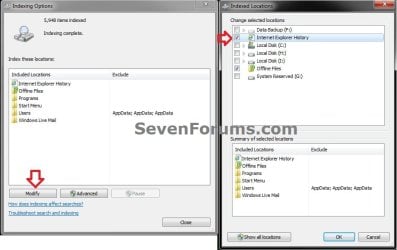
IE.jpg


OPTION TWO

To Turn Recent Items On or Off using a REG File Download

1. To Turn Recent Items On
NOTE: This is the default setting. A) Click on the Download button below to download the file below. Turn_On_Recent_Items_in_Start_Menu.reg

Download


B) Go to step 3.
2. To Turn Recent Items Off A) Click on the Download button below to download the file below. Turn_Off_Recent_Items_in_Start_Menu.reg

Download


3. Save the .reg file to the desktop.

4. Right click on the downloaded .reg file, and click on Merge.

5. Click on Run, Yes (UAC), Yes, and OK when prompted.

6. When done, you can delete the downloaded .reg file if you like.


OPTION THREE

To Add or Remove "Recent Items" Button from the Start Menu


NOTE: This will allow you to add or remove the Recent Items button from the right dark side of the Start Menu. If you add it, then you will need to turn on Recent Items on OPTION ONE above to have them listed. 1. Open the Start Menu Customize window.

2. Scroll down a bit, and check the Recent Items box, and click on OK. (See screenshot below) Start_Menu_Customize.jpg
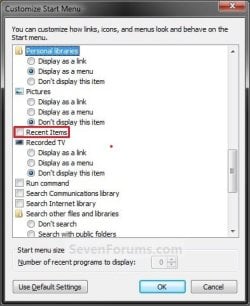
3. Click on OK. (See link in step 1)
That's it,
Shawn


Attachments

Last edited:
I ran Enable_Recent_Items.reg
"Taskbar and Start Menu Properties" still has "Store and display recently opened items in the Start menu and the taskbar" grayed out.

I tried another solution at w7forums which involved a simple batch program that resets the jump lists (links in Recent Places). Not working as well as I'd like but finally I'm getting some folders showing up in Recent Places! (Note properties above is still grayed out)
See tip "Recent Places" always empty
my post "Recent Places" always empty
 
Last edited:

My Computer

Computer Manufacturer/Model Number
HP Pavilion DV7-2157ca
OS
Windows 7 Home Premium 64bit
CPU
P7350
Memory
4 GB
Graphics Card(s)
ATI Mobility Radeon HD 4530
Sound Card
Altec Lansing
Monitor(s) Displays
1600x900 LED
Hard Drives
500 GB
Well, if this had recently just happended, then you could do a system restore using a restore point (if available) dated before this happened to hopefully fix it.
 

My Computer

Computer type
PC/Desktop
Computer Manufacturer/Model Number
Self built custom
OS
64-bit Windows 11 Pro for Workstations
CPU
Intel i7-8700K OC'd to 5 GHz
Motherboard
ASUS ROG Maximus XI Formula Z390
Memory
64 GB (4x16GB) G.SKILL TridentZ RGB DDR4 3600 MHz
Graphics Card(s)
ASUS ROG-STRIX-GTX1080TI-O11G-GAMING
Sound Card
Integrated
Monitor(s) Displays
2 x Samsung Odyssey G7 27"
Screen Resolution
2560x1440
Hard Drives
1TB Samsung 990 PRO M.2,
4TB Samsung 990 PRO PRO M.2,
TerraMaster F8 SSD Plus NAS
PSU
Seasonic Prime Titanium 850W
Case
Thermaltake Core P3
Cooling
Corsair Hydro H115i
Keyboard
Logitech wireless K800
Mouse
Logitech MX Master 4
Internet Speed
2 Gb/s Download and 100 Mb/s Upload
Antivirus
Malwarebyte Anti-Malware Premium
Browser
Google Chrome
Other Info
Logitech Z625 speaker system,
Logitech BRIO 4K Pro webcam,
HP Color LaserJet Pro MFP M477fdn,
APC SMART-UPS RT 1000 XL - SURT1000XLI,
Galaxy S23 Plus phone
Going back in time is too painful for something I can live with - besides I have no idea when it began. :(
 

My Computer

Computer Manufacturer/Model Number
HP Pavilion DV7-2157ca
OS
Windows 7 Home Premium 64bit
CPU
P7350
Memory
4 GB
Graphics Card(s)
ATI Mobility Radeon HD 4530
Sound Card
Altec Lansing
Monitor(s) Displays
1600x900 LED
Hard Drives
500 GB
I can understand that. If you like as a test, create a new administrator account to see if it works properly while logged in to it. This will help let you know if it's system wide issue or just a issue with your user account.
 

My Computer

Computer type
PC/Desktop
Computer Manufacturer/Model Number
Self built custom
OS
64-bit Windows 11 Pro for Workstations
CPU
Intel i7-8700K OC'd to 5 GHz
Motherboard
ASUS ROG Maximus XI Formula Z390
Memory
64 GB (4x16GB) G.SKILL TridentZ RGB DDR4 3600 MHz
Graphics Card(s)
ASUS ROG-STRIX-GTX1080TI-O11G-GAMING
Sound Card
Integrated
Monitor(s) Displays
2 x Samsung Odyssey G7 27"
Screen Resolution
2560x1440
Hard Drives
1TB Samsung 990 PRO M.2,
4TB Samsung 990 PRO PRO M.2,
TerraMaster F8 SSD Plus NAS
PSU
Seasonic Prime Titanium 850W
Case
Thermaltake Core P3
Cooling
Corsair Hydro H115i
Keyboard
Logitech wireless K800
Mouse
Logitech MX Master 4
Internet Speed
2 Gb/s Download and 100 Mb/s Upload
Antivirus
Malwarebyte Anti-Malware Premium
Browser
Google Chrome
Other Info
Logitech Z625 speaker system,
Logitech BRIO 4K Pro webcam,
HP Color LaserJet Pro MFP M477fdn,
APC SMART-UPS RT 1000 XL - SURT1000XLI,
Galaxy S23 Plus phone
no roaming files at all

Here is my problem:
There is no AppData folder in my User-directory.
It is however indicated in the default-folder but when i open the roaming folder its empty. Even when i push 'show hippen files' nothing to see
search for the folder content gives no result.

where did i go wrong?
 

My Computer

OS
Nederland
Hello arevista, and welcome to Seven Forums.

See if opening this location by from Run or address bar in Windows Explorer will open your AppData folder.
%UserProfile%\AppData
If you wanted to open the Recent Items folder, then:
%AppData%\Microsoft\Windows\Recent Items
Hope this helps, :)
Shawn
 

My Computer

Computer type
PC/Desktop
Computer Manufacturer/Model Number
Self built custom
OS
64-bit Windows 11 Pro for Workstations
CPU
Intel i7-8700K OC'd to 5 GHz
Motherboard
ASUS ROG Maximus XI Formula Z390
Memory
64 GB (4x16GB) G.SKILL TridentZ RGB DDR4 3600 MHz
Graphics Card(s)
ASUS ROG-STRIX-GTX1080TI-O11G-GAMING
Sound Card
Integrated
Monitor(s) Displays
2 x Samsung Odyssey G7 27"
Screen Resolution
2560x1440
Hard Drives
1TB Samsung 990 PRO M.2,
4TB Samsung 990 PRO PRO M.2,
TerraMaster F8 SSD Plus NAS
PSU
Seasonic Prime Titanium 850W
Case
Thermaltake Core P3
Cooling
Corsair Hydro H115i
Keyboard
Logitech wireless K800
Mouse
Logitech MX Master 4
Internet Speed
2 Gb/s Download and 100 Mb/s Upload
Antivirus
Malwarebyte Anti-Malware Premium
Browser
Google Chrome
Other Info
Logitech Z625 speaker system,
Logitech BRIO 4K Pro webcam,
HP Color LaserJet Pro MFP M477fdn,
APC SMART-UPS RT 1000 XL - SURT1000XLI,
Galaxy S23 Plus phone
Thanks. that reveals something

It's just that there's no folder called 'recent'. There's only 'recent items', which contains what i was looking for so I moved that tot favorites in explorer.
But I'am still puzzeled what the empty shortcut to 'recent locations' is doing under favorites (it was there by default)
 

My Computer

OS
Nederland
From the location in the blue NOTE box, you would want the folder to be named Recent Items and not Recent. If it had been named recent, then it would have been broken and needed to be fixed as per the NOTE box. That's all that was for. :)

If you mean the Recent shortcut below, then yes it's there by default.

Recent.jpg
 

My Computer

Computer type
PC/Desktop
Computer Manufacturer/Model Number
Self built custom
OS
64-bit Windows 11 Pro for Workstations
CPU
Intel i7-8700K OC'd to 5 GHz
Motherboard
ASUS ROG Maximus XI Formula Z390
Memory
64 GB (4x16GB) G.SKILL TridentZ RGB DDR4 3600 MHz
Graphics Card(s)
ASUS ROG-STRIX-GTX1080TI-O11G-GAMING
Sound Card
Integrated
Monitor(s) Displays
2 x Samsung Odyssey G7 27"
Screen Resolution
2560x1440
Hard Drives
1TB Samsung 990 PRO M.2,
4TB Samsung 990 PRO PRO M.2,
TerraMaster F8 SSD Plus NAS
PSU
Seasonic Prime Titanium 850W
Case
Thermaltake Core P3
Cooling
Corsair Hydro H115i
Keyboard
Logitech wireless K800
Mouse
Logitech MX Master 4
Internet Speed
2 Gb/s Download and 100 Mb/s Upload
Antivirus
Malwarebyte Anti-Malware Premium
Browser
Google Chrome
Other Info
Logitech Z625 speaker system,
Logitech BRIO 4K Pro webcam,
HP Color LaserJet Pro MFP M477fdn,
APC SMART-UPS RT 1000 XL - SURT1000XLI,
Galaxy S23 Plus phone
Is there any way for the 'recent items' in start menu to store only certain filetypes?

I want to see the recently opened office documents but not mp3s or videos..
Thanks in advance,
JaX

Go to HKCR\Classes\.mp3 and see what the ref is (for me it's MediaMonkey.MP3File)
Go to this folder (in same branch of reg as Classes ^), and try adding an EditFlags DWORD (assuming none exist)....

The bit-flag for FTA_NoRecentDocs is 00100000.

The EASY solution is using Nirsoft's FileTypeMan, go to the offending filetypes, F2 to edit, and check the (3rd last) option "Don't add this file type to 'Recent...'). (NB: attempting the reverse using this method, ie adding or re-adding items to recent docs, like chm for exampple, might not work)
 

My Computer

Computer type
Laptop
Computer Manufacturer/Model Number
Dell
OS
Windows 7 Ultimate 64bit
CPU
2.2
Memory
8Gb
Graphics Card(s)
NVIDIA
Screen Resolution
1280/762
Mouse
built in pad || iphone || MS wireless
Internet Speed
100MB
Antivirus
Avast
Browser
Chrome, Chrome portable
Back
Top