
How to Turn Recent Programs On or Off in Windows 7
Information
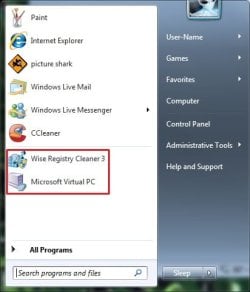
Recent Programs saves and displays file names, programs, and locations you type in the Run dialog box and a list of your recently opened programs on the left white side of the Start Menu below the Pinned Programs line.
This tutorial will show you how to turn Recent Programs on or off in Windows 7.
This tutorial will show you how to turn Recent Programs on or off in Windows 7.
Note
If you have a progam pinned to the Start Menu, then it will not show up in the recent program area below the pin to area in the Start Menu.
Warning
Unchecking the Store and display recently opened programs in the Start menu box in step 3 below will also cause the Run command dialog box to clear and no longer save it's run program history.
EXAMPLE: Recent Programs in the Start Menu
OPTION ONE
To Turn Recent Programs On or Off in Start Menu Properties
1. Right click on the Start button, and click on Properties.
2. To Turn Recent Programs On
NOTE: This is the default setting.
A) Check the Store and display recently opened programs in the Start menu box. (See screenshot below step 4)
B) Go to step 4.
3. To Turn Recent Programs Off
A) Uncheck the Store and display recently opened programs in the Start menu box. (See screenshot below step 4)
NOTE: See warning at top of tutorial.
4. Click on OK. (See screenshot below)

OPTION TWO
To Turn Recent Programs On or Off using a REG File Download
1. To Turn Recent Programs On
NOTE: This is the default setting.
A) Click on the Download button below to download the file below.
Turn_On_Recent_Programs_in_Start_Menu.reg
Download
B) Go to step 3.
2. To Turn Recent Programs Off
A) Click on the Download button below to download the file below.
Turn_Off_Recent_Programs_in_Start_Menu.reg
Download
3. Save the .reg file to your desktop.
4. Double click on the downloaded .reg file to merge it.
5. Click on Run, Yes (UAC), Yes, and OK when prompted.
6. When done, you can delete the downloaded .reg file if you like.
That's it,
Shawn
Related Tutorials
- How to Enable or Disable Recent Programs in Windows 7
- How to Enable or Disable Recent Items in Windows 7 and Vista
- How to Change the Number of Recent Programs to Display in Windows 7 Start Menu
- How to Turn Recent Items On or Off in Windows 7
- How to Customize the Windows 7 Start Menu
- How to Pin or Unpin a Program to the Windows 7 Taskbar
- How to Pin or Unpin a Program to the Windows 7 Start Menu
- How to Open and Use Windows 7 Start Menu and Taskbar Jump Lists
- How to Enable or Disable Windows 7 Explorer Recent Search Box Suggestions
- How to Edit or Reset Windows 7 Explorer Recent Search Box Suggestions
- How to Reset and Clear All Items in Windows 7 Jump Lists
- How to Create a Start Menu Properties Shortcut in Windows 7 and Vista
- How to Delete your Run Dialog Auto Suggest History in Windows
Attachments
Last edited:


