Recommended Resolution

Heyyou

New member
Pro User
VIP
Local time
9:43 AM
Messages
212
Location
USA
Hi All,
The recommended resolution for my WIN7 is 1920x1080. When I right click my desk top and click Screen Resolution, the adjust resolution page comes up, and when I click the down arrow it shows all the different resolutions and recommends 1920x1080. When I apply that resolution, the desktop gets smaller and there's about an inch of space between the desktop and the monitor edge. I have tried adjusting the monitor settings and looked everywhere on the computer, and can't find a way to stretch the desktop to the edges of the screen. Before I bought this computer, I bought my 23" monitor for my WIN XP computer and just plugged it in and it fit the screen perfect. Not so with my WIN7 DELL. I keep thinking there's a simple step that will stretch my desktop to the edge of the frame, but it is beyond my grasp. In order to fill the monitor screen I have to set the resolution to 1024x768. The only problem with that is any round circles on the screen are slightly elliptical. Is there any one who can solve this problem for me? Thanks in advance for a solution. :)
 

My Computer

Computer Manufacturer/Model Number
DELLXPS 8300
OS
WIN7 x64 Home Premium SP1
CPU
Intel Core i5-2400 processor(6MB Cache, 3.1GHz)
Memory
8 GB RAM
Hard Drives
1.5TB C Drive
More then likely the screen is an HDMI type. I just went through this on a friends PC. But I forget what I did to correct it.
 

My Computer

OS
7 x64
1920x1080 is a 16:9 resolution, most commonly for HDMI connected displays.

If your monitor also offers a DVI connection (and there's also a DVI connection on the video card, as well as the HDMI connection), ALWAYS GO WITH THE DVI CABLE AND CONNECTION OPTION.

Using DVI will make use of the entire "native resolution" and available real estate on a screen, whereas HDMI might not. For example, I have an Eizo HD2441W which has a native resolution of 1920x1200 (16:10 aspect ratio, not 16:9 as with a standard HDTV screen or similar monitor). The screen is shaped 16:10, not 16:9.

When using a DVI connection to my HD5770 video card the full 1920x1200 appears in the "available resolutions" and is also the "recommended resolution") and is used in its entirety if I select it (which of course I do). So there are no black bars on top/bottom of the Windows desktop which extends fully to the outer edges of the screen (in both H and W directions). And of course 1920x1200 provides more vertical size for the Windows desktop than, say, 1920x1080 would.

On the other if I use an HDMI cable connection, it only shows as 1920x1080 available and recommended. And consequently there are black bars on top and bottom of the Windows Desktop which is only 1920x1080, "centered" vertically by the monitor itself fed via HDMI inside the native 1920x1200 screen itself.

Furthermore, when I experimented further by routing the HDMI video cable through one of the HDMI-inputs of my AVR (in order to get HDMI audio into my external surround-system that way) and then back from the HDMI-output to the HDMI input of the monitor, it was even worse (much like yours). Now the 16x9 1920x1080 image appeared "shrunken and reduced" in both H and W dimensions, so that it now looked "postage stamp" with black bars on both top and bottom as well as left and right. For some reason the monitor had "miniaturized" the 1920x1080 image coming from the video card through the AVR and out to the monitor to some degree, so that I'd say the pixel size now was shrunken/reduced from the pixel size using a single direct HDMI cable. Yes, it was still 16x9 aspect ratio, but reduced in overall size inside my monitor's available screen real estate.

Now my Eizo has a setting which did result in a "small enlargement" of the 1920x1080 postage stamp, so that it did grow somewhat in both H and W directions. But it still did not reach the extreme left/right edges of the screen, and certainly still came nowhere close to the top/bottom edges of the screen.

==>> ALWAYS USE DVI WHEN IT'S AVAILABLE. NEVER USE HDMI IF NOT MANDATORY OR ESSENTIAL.

DVI is the right way to take advantage of 100% of any monitor's available real estate, i.e. "native resolution" of the hardware as in its specs.

Furthermore, I have a second monitor in my setup... an Eizo S2443W, which is also a 1920x1200 monitor. And again, I wanted to use DVI to connect it but at the time my HD4850 video card only had one DVI output and one VGA output (which actually did support the Eizo in native 1920x1200 but in analog rather than digital mode as I wanted). I went ahead and upgraded my video card to a dual-DVI HD5770 (specifically that one with TWO DVI OUTPUTS, as video cards come in various configurations of connectors in support of multiple monitors)... specifically so that I could get full 1920x1200 display on both 1920x1200 monitors, both in digital DVI mode.
 

My Computer

Computer type
PC/Desktop
Computer Manufacturer/Model Number
Home-built, two systems (1) and (2)
OS
Windows 7 Pro x64 (1), Win7 Pro X64 (2)
CPU
i5-3350p 3.1Ghz/6MB-cache (1); E8400 3.0Ghz/6MB-cache (2)
Motherboard
ASUS P8Z77-V Pro (1); ASUS P5Q3 (2)
Memory
8GB PC3-12800 DDR3 (1); 4GB PC3-10600 DDR3 (2)
Graphics Card(s)
ATI HD7750 (1), (see TV cards); ATI R7 250 (2)
Sound Card
Realtek ALC892 HD Audio (1); Realtek ALC1200 HD Audio (2)
Monitor(s) Displays
Eizo HD2441W LCD, Eizo S2433W (1); Eizo 24" S2433W (2)
Screen Resolution
1920x1200, 1920x1200 (1); 1920x1200 (2)
Hard Drives
(1) 1TB SATA-II (7200RPM), 2x2TB SATA-III (7200RPM), 250GB SATA-III (10000RPM) for OS; 2x2TB external USB 3.0

(2) 320GB SATA-II (7200RPM), 750GB SATA-II (7200RPM), 150GB SATA-II (10000RPM) for OS; 2TB external USB 3.0
PSU
Nesteq ECS-6001 600W (1); Nesteq ECS-5001 500W (2)
Case
Acousti-Case 360 (1) and (2)
Cooling
Noctua NH-U12P SE2 for CPU, 2x120mm case fans (1) and (2)
Keyboard
IBM PS/2 (1) and (2)
Mouse
Logitech MX Revolution wireless (1); Microsoft wired (2)
Internet Speed
100mbps down / 10mbps up
Antivirus
Microsoft Security Essentials; Malwarebyte Anti-Malware Pro
Browser
Firefox
Other Info
Ceton InfiniTV 4-tuner cablecard-enabled TV card as well as Hauppauge HVR-2250 OTA/ATSC 2-tuner TV card in (1), running under Win7 WMC
1920x1080 is a 16:9 resolution, most commonly for HDMI connected displays.

If your monitor also offers a DVI connection (and there's also a DVI connection on the video card, as well as the HDMI connection), ALWAYS GO WITH THE DVI CABLE AND CONNECTION OPTION.

Using DVI will make use of the entire "native resolution" and available real estate on a screen, whereas HDMI might not. For example, I have an Eizo HD2441W which has a native resolution of 1920x1200 (16:10 aspect ratio, not 16:9 as with a standard HDTV screen or similar monitor). The screen is shaped 16:10, not 16:9.

When using a DVI connection to my HD5770 video card the full 1920x1200 appears in the "available resolutions" and is also the "recommended resolution") and is used in its entirety if I select it (which of course I do). So there are no black bars on top/bottom of the Windows desktop which extends fully to the outer edges of the screen (in both H and W directions). And of course 1920x1200 provides more vertical size for the Windows desktop than, say, 1920x1080 would.

On the other if I use an HDMI cable connection, it only shows as 1920x1080 available and recommended. And consequently there are black bars on top and bottom of the Windows Desktop which is only 1920x1080, "centered" vertically by the monitor itself fed via HDMI inside the native 1920x1200 screen itself.

Furthermore, when I experimented further by routing the HDMI video cable through one of the HDMI-inputs of my AVR (in order to get HDMI audio into my external surround-system that way) and then back from the HDMI-output to the HDMI input of the monitor, it was even worse (much like yours). Now the 16x9 1920x1080 image appeared "shrunken and reduced" in both H and W dimensions, so that it now looked "postage stamp" with black bars on both top and bottom as well as left and right. For some reason the monitor had "miniaturized" the 1920x1080 image coming from the video card through the AVR and out to the monitor to some degree, so that I'd say the pixel size now was shrunken/reduced from the pixel size using a single direct HDMI cable. Yes, it was still 16x9 aspect ratio, but reduced in overall size inside my monitor's available screen real estate.

Now my Eizo has a setting which did result in a "small enlargement" of the 1920x1080 postage stamp, so that it did grow somewhat in both H and W directions. But it still did not reach the extreme left/right edges of the screen, and certainly still came nowhere close to the top/bottom edges of the screen.

==>> ALWAYS USE DVI WHEN IT'S AVAILABLE. NEVER USE HDMI IF NOT MANDATORY OR ESSENTIAL.

DVI is the right way to take advantage of 100% of any monitor's available real estate, i.e. "native resolution" of the hardware as in its specs.

Furthermore, I have a second monitor in my setup... an Eizo S2443W, which is also a 1920x1200 monitor. And again, I wanted to use DVI to connect it but at the time my HD4850 video card only had one DVI output and one VGA output (which actually did support the Eizo in native 1920x1200 but in analog rather than digital mode as I wanted). I went ahead and upgraded my video card to a dual-DVI HD5770 (specifically that one with TWO DVI OUTPUTS, as video cards come in various configurations of connectors in support of multiple monitors)... specifically so that I could get full 1920x1200 display on both 1920x1200 monitors, both in digital DVI mode.
Thanks for your response and info. Thanks to you I have the answer to the problem. My monitor came with a VGA cable, and I bought a HDMI cable to replace it. I see there is a DVI-D port on the monitor and a DVI port next to the VGA port on the computer. I will have to buy the DVI cable. :)
 

My Computer

Computer Manufacturer/Model Number
DELLXPS 8300
OS
WIN7 x64 Home Premium SP1
CPU
Intel Core i5-2400 processor(6MB Cache, 3.1GHz)
Memory
8 GB RAM
Hard Drives
1.5TB C Drive
There are two aspects (yay puns) to this problem:

- The display. Most displays have a setting which makes them stretch the image to the full screen, and it sounds like you have this enabled (otherwise 1024x768 would take up a smaller portion of the screen). Make sure you find this setting and disable it, at least while you're troubleshooting.

- The computer's graphics card. What brand is it? (AMD/ATI, nVidia, Intel, other?) The settings are all slightly different, but you basically want to set your output resolution to 1:1 (one pixel in the original image = one pixel in the output signal). For some cards, you need to disable overscan, which makes the image smaller to account for different border sizes on CRT (cathode ray tube) TVs - it sounds to me like this might be your primary issue.

I would suggest you come back with model numbers for your graphics card and display so we can give you more concise instructions. I wouldn't worry about HDMI vs. DVI too much unless you're using an HDTV - both connectors transmit identical signals, but TVs may be lacking the controls to properly size the image being received.
 

My Computer

Computer type
PC/Desktop
OS
Win7 Pro x64
CPU
Intel Q9550
Motherboard
Gigabyte EP45-DS4P
Memory
16GB PC2-8000
Graphics Card(s)
ATI HD7970
Sound Card
Onboard
Monitor(s) Displays
IPS screen, Projector
Screen Resolution
1920x1200 / 1280x720
PSU
Corsair HX750
Cooling
Water
There are two aspects (yay puns) to this problem:

- The display. Most displays have a setting which makes them stretch the image to the full screen, and it sounds like you have this enabled (otherwise 1024x768 would take up a smaller portion of the screen). Make sure you find this setting and disable it, at least while you're troubleshooting.

- The computer's graphics card. What brand is it? (AMD/ATI, nVidia, Intel, other?) The settings are all slightly different, but you basically want to set your output resolution to 1:1 (one pixel in the original image = one pixel in the output signal). For some cards, you need to disable overscan, which makes the image smaller to account for different border sizes on CRT (cathode ray tube) TVs - it sounds to me like this might be your primary issue.

I would suggest you come back with model numbers for your graphics card and display so we can give you more concise instructions. I wouldn't worry about HDMI vs. DVI too much unless you're using an HDTV - both connectors transmit identical signals, but TVs may be lacking the controls to properly size the image being received.
Thanks for responding. My video card is a ATI Radeon HD5450 and the monitor is a Dell ST2310-HDMI 23" if that's what you mean by my "display". I can't find my output resolution as to whether it's 1:1 or not because I don't know where to find it. I'm not a techie, just a home computer user and learn as I go so please take that into consideration. :)
 

My Computer

Computer Manufacturer/Model Number
DELLXPS 8300
OS
WIN7 x64 Home Premium SP1
CPU
Intel Core i5-2400 processor(6MB Cache, 3.1GHz)
Memory
8 GB RAM
Hard Drives
1.5TB C Drive
Thanks for responding. My video card is a ATI Radeon HD5450 and the monitor is a Dell ST2310-HDMI 23" if that's what you mean by my "display". I can't find my output resolution as to whether it's 1:1 or not because I don't know where to find it. I'm not a techie, just a home computer user and learn as I go so please take that into consideration. :)
Don't spend any more time fretting.

Just buy a DVI cable and it will almost certainly solve your problem.

The Dell ST2310 is a 16x9 monitor, with native resolution of 1920x1080. I am confident that the DVI cable will result in edge-to-edge presentation for that 1920x1080, rather than the somewhat smaller than full-screen (i.e. "miniaturized") 1920x1080 which apparently results from using your HDMI cable. As I described earlier, this is the identical symptom I saw with my own Eizo 1920x1200 monitor when routing HDMI from video card through AVR and back out to monitor, where (a) it was only 1920x1080, and (b) it was "miniaturized" on the screen itself, not a full-screen edge-to-edge 1920x1080.

I cannot say whether or not there is any setting on your Dell ST2310 to slightly expand the "miniaturized" presentation you describe. But I'm confident the DVI cable will solve your problem.
 

My Computer

Computer type
PC/Desktop
Computer Manufacturer/Model Number
Home-built, two systems (1) and (2)
OS
Windows 7 Pro x64 (1), Win7 Pro X64 (2)
CPU
i5-3350p 3.1Ghz/6MB-cache (1); E8400 3.0Ghz/6MB-cache (2)
Motherboard
ASUS P8Z77-V Pro (1); ASUS P5Q3 (2)
Memory
8GB PC3-12800 DDR3 (1); 4GB PC3-10600 DDR3 (2)
Graphics Card(s)
ATI HD7750 (1), (see TV cards); ATI R7 250 (2)
Sound Card
Realtek ALC892 HD Audio (1); Realtek ALC1200 HD Audio (2)
Monitor(s) Displays
Eizo HD2441W LCD, Eizo S2433W (1); Eizo 24" S2433W (2)
Screen Resolution
1920x1200, 1920x1200 (1); 1920x1200 (2)
Hard Drives
(1) 1TB SATA-II (7200RPM), 2x2TB SATA-III (7200RPM), 250GB SATA-III (10000RPM) for OS; 2x2TB external USB 3.0

(2) 320GB SATA-II (7200RPM), 750GB SATA-II (7200RPM), 150GB SATA-II (10000RPM) for OS; 2TB external USB 3.0
PSU
Nesteq ECS-6001 600W (1); Nesteq ECS-5001 500W (2)
Case
Acousti-Case 360 (1) and (2)
Cooling
Noctua NH-U12P SE2 for CPU, 2x120mm case fans (1) and (2)
Keyboard
IBM PS/2 (1) and (2)
Mouse
Logitech MX Revolution wireless (1); Microsoft wired (2)
Internet Speed
100mbps down / 10mbps up
Antivirus
Microsoft Security Essentials; Malwarebyte Anti-Malware Pro
Browser
Firefox
Other Info
Ceton InfiniTV 4-tuner cablecard-enabled TV card as well as Hauppauge HVR-2250 OTA/ATSC 2-tuner TV card in (1), running under Win7 WMC
Thanks for responding. My video card is a ATI Radeon HD5450 and the monitor is a Dell ST2310-HDMI 23" if that's what you mean by my "display". I can't find my output resolution as to whether it's 1:1 or not because I don't know where to find it. I'm not a techie, just a home computer user and learn as I go so please take that into consideration. :)
Don't spend any more time fretting.

Just buy a DVI cable and it will almost certainly solve your problem.

The Dell ST2310 is a 16x9 monitor, with native resolution of 1920x1080. I am confident that the DVI cable will result in edge-to-edge presentation for that 1920x1080, rather than the somewhat smaller than full-screen (i.e. "miniaturized") 1920x1080 which apparently results from using your HDMI cable. As I described earlier, this is the identical symptom I saw with my own Eizo 1920x1200 monitor when routing HDMI from video card through AVR and back out to monitor, where (a) it was only 1920x1080, and (b) it was "miniaturized" on the screen itself, not a full-screen edge-to-edge 1920x1080.

I cannot say whether or not there is any setting on your Dell ST2310 to slightly expand the "miniaturized" presentation you describe. But I'm confident the DVI cable will solve your problem.
OK will do. I just remembered that a friend of mine recently bought the same computer I have with probably a lesser video card, and has his monitor hooked up with the VGA cable that came with the monitor. He doesn't have my problem. Is the VGA cable basically the same as the DVI cable but lesser quality?
 

My Computer

Computer Manufacturer/Model Number
DELLXPS 8300
OS
WIN7 x64 Home Premium SP1
CPU
Intel Core i5-2400 processor(6MB Cache, 3.1GHz)
Memory
8 GB RAM
Hard Drives
1.5TB C Drive
Are you using an Dedicated GPU if so it isn't the monitor at this point you need to scale your GPU to size with the screen depending on what brand Nvidia or AMD you are using

I would first check if you are running dedicated graphics because if it is HD graphics by intel they should have some sort of callibration settings to fit your needs

I just saw you are using AMD/ATI HD5400 series cards so what you want to do is put the resolution you set go into ccc where it says flap panel scaling and after that fit to size and the resolution will be correct
 

My Computer

Computer type
PC/Desktop
Computer Manufacturer/Model Number
CoreI7-6700K MrFingerIII Special Builds
OS
Windows 10 Home Premium 64bit sp1
CPU
Intel I7-6700K @ 4.6 Ghz 1.344 volts everyday OC
Motherboard
Asrock Fatality K6 Z170 Socket 1151
Memory
32GB G-Skill TridentZ 3200mhz 16-18-18-38 DDR4
Graphics Card(s)
Sli Gigabyte Windforce GTX 980 G1
Sound Card
AC97 Creative Rage Tactic 3D Headphones Bluetooth
Monitor(s) Displays
27" Asus ROG Swift PG278Q G-Sync 48" Vizio Smart HD TV
Screen Resolution
2560x1440p 27"- 48" Currently Gaming at 2560x1440p Res 2K
Hard Drives
250GB Samsung Evo840SSD Seagate baracuda 500 GB WD Mybook 500Gb 1TB Seagate Barracuda
PSU
HX1050w Corsair Silver 80plus certified crosfire/sli
Case
Enthod Pro Full Tower
Cooling
Corsair H110i GT 280 mm High Performance WaterBlock
Keyboard
Logitech wireless keyboard
Mouse
Logitech wireless mouse
Internet Speed
Cox Cable 100+ mb
Antivirus
WebRoot Spysweeper with Antivirus
Browser
IE-10, Chrome, Opera
Other Info
My Other Rig is a AMD FX8320E @4.6Ghz 16GB Ballistic Sport Ram
Mobo Asrock Fatality 990FX 120GB OCZ SSD 1TB Seagate Barracuda Corsair H75 Cooling PSU Corsair CX750
GPU GTX Gigabyte 970G1
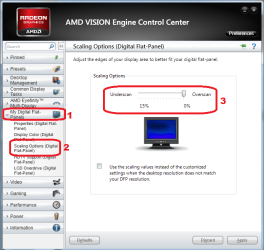
Before switching or buying another cable, leave it connected HDMI and check the scaling options in CCC/VECC,

overscan.png

It is likely set to 15%, and if so set it to 0% and that should fix it.
 

My Computer

Computer type
PC/Desktop
Computer Manufacturer/Model Number
Me
OS
Win 7 Ultimate x64
CPU
FX-8350 @ 4.6 GHz so far
Motherboard
Asus M5A97 EVO
Memory
ADATA XPG V1 Series Black 8GB DDR3 1600
Graphics Card(s)
Sapphire R9 270x Dual-X
Sound Card
Xonar DGX w/ Corsair Vengence 1300
Monitor(s) Displays
Acer S232HL Abid
Screen Resolution
1920x1080
Hard Drives
120 GB OCZ Vertex 3
500 GB Seagate 7200.12
PSU
Antec Earthwatts 650W Green
Case
Antec Three Hundred
Cooling
Cooler Master 212 EVO
Keyboard
Logitech G510
Mouse
Logitech G500s
Internet Speed
35000/3000
Yep, that's exactly what we need.

Taking a look at your monitor's manual, your system is correct in stating the native resolution is 1920x1080. The setting I was referring to was Display Settings > Wide Mode, which controls whether the monitor alters the way the image is displayed when the resolution is smaller than 1920x1080. Since you're wanting to use the native resolution, we shouldn't need to worry about changing that setting.

The fix therefore will be in your video card's settings. Windows doesn't really have the settings you will need to change, so you may need to download ATI/AMD's Catalyst Control Center (CCC) if you're using the generic Microsoft drivers. If you already have it, there are a few versions of the CCC software; mainly the one from before ATI was bought out by AMD, the redesigned one from after.

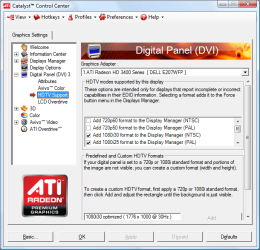
The ATI version:
catalyst_hdtv.png

The AMD Radeon version:
AdvancedHDTV.png

Note you may need to switch to the "Advanced View" before some settings will show in the older ATI version. The main resolution settings are on the Display Manager page in the ATI version, or Desktop Management > Desktop Properties in the AMD releases. Without seeing what you have there right now I can't give you exact instructions, but there are two main things you want to confirm:

- The desktop resolution is set to 1920x1080 pixels at a refresh rate of 60Hz.

- "GPU Scaling" is disabled or set to "Use centered timings". This will prevent your computer from resizing things on its own - so your 640x480 DOS game will show in the original size instead of being stretched. Not really necessary, but it might help for troubleshooting.

It should be fairly evident what the problem is - the reported resolution might show 1080p@60Hz (overscan) or (HDTV) or similar, if that's the issue. If you can't find the solution, take a few screenshots of your settings or write them down so we have a better idea of what you're seeing.

[edit: Try stormy13's suggestion as well - that's what I was looking for but I couldn't find it in my drivers. The settings I mentioned might also rectify the problem, but that's the more direct route to solve it!]
 

My Computer

Computer type
PC/Desktop
OS
Win7 Pro x64
CPU
Intel Q9550
Motherboard
Gigabyte EP45-DS4P
Memory
16GB PC2-8000
Graphics Card(s)
ATI HD7970
Sound Card
Onboard
Monitor(s) Displays
IPS screen, Projector
Screen Resolution
1920x1200 / 1280x720
PSU
Corsair HX750
Cooling
Water
It's not an HDTV. It's a 16x9 monitor (1920x1080) connected via an HDMI cable.

Overscan is not applicable with DVI connections, that I know of anyway. It is always "pixel-perfect", using 100% of the screen real estate. It certainly isn't even available with my own HD5770 and my two Eizo 1920x1200 monitors (it's grayed out, and you cannot even use that feature).

Just get a DVI cable today and tell us if that fixes the problem.

No more need for discussion until then.
 

My Computer

Computer type
PC/Desktop
Computer Manufacturer/Model Number
Home-built, two systems (1) and (2)
OS
Windows 7 Pro x64 (1), Win7 Pro X64 (2)
CPU
i5-3350p 3.1Ghz/6MB-cache (1); E8400 3.0Ghz/6MB-cache (2)
Motherboard
ASUS P8Z77-V Pro (1); ASUS P5Q3 (2)
Memory
8GB PC3-12800 DDR3 (1); 4GB PC3-10600 DDR3 (2)
Graphics Card(s)
ATI HD7750 (1), (see TV cards); ATI R7 250 (2)
Sound Card
Realtek ALC892 HD Audio (1); Realtek ALC1200 HD Audio (2)
Monitor(s) Displays
Eizo HD2441W LCD, Eizo S2433W (1); Eizo 24" S2433W (2)
Screen Resolution
1920x1200, 1920x1200 (1); 1920x1200 (2)
Hard Drives
(1) 1TB SATA-II (7200RPM), 2x2TB SATA-III (7200RPM), 250GB SATA-III (10000RPM) for OS; 2x2TB external USB 3.0

(2) 320GB SATA-II (7200RPM), 750GB SATA-II (7200RPM), 150GB SATA-II (10000RPM) for OS; 2TB external USB 3.0
PSU
Nesteq ECS-6001 600W (1); Nesteq ECS-5001 500W (2)
Case
Acousti-Case 360 (1) and (2)
Cooling
Noctua NH-U12P SE2 for CPU, 2x120mm case fans (1) and (2)
Keyboard
IBM PS/2 (1) and (2)
Mouse
Logitech MX Revolution wireless (1); Microsoft wired (2)
Internet Speed
100mbps down / 10mbps up
Antivirus
Microsoft Security Essentials; Malwarebyte Anti-Malware Pro
Browser
Firefox
Other Info
Ceton InfiniTV 4-tuner cablecard-enabled TV card as well as Hauppauge HVR-2250 OTA/ATSC 2-tuner TV card in (1), running under Win7 WMC
It's not an HDTV. It's a 16x9 monitor (1920x1080) connected via an HDMI cable.

Overscan is not applicable with DVI connections, that I know of anyway. It is always "pixel-perfect", using 100% of the screen real estate. It certainly isn't even available with my own HD5770 and my two Eizo 1920x1200 monitors (it's grayed out, and you cannot even use that feature).

Just get a DVI cable today and tell us if that fixes the problem.

No more need for discussion until then.
I will get it as soon as I can get to the stores. I'll report back once I see how I make out. Thanks :)
 

My Computer

Computer Manufacturer/Model Number
DELLXPS 8300
OS
WIN7 x64 Home Premium SP1
CPU
Intel Core i5-2400 processor(6MB Cache, 3.1GHz)
Memory
8 GB RAM
Hard Drives
1.5TB C Drive
Hi Solarstarshines, Stormy13 & Invaliderror, Thanks so much for your advice. As I mentioned in an earlier reply, I'm not too tech savvy to this extent, so before I try to figure out your advice I am going to try dsperber's advice and try the DVI cable first. As I mentioned earlier, a friend has the same Dell computer and system, and a similar Dell monitor and is using the VGA cable that came with his monitor and doesn't have the problem. I'll report back. Thanks again :)
 

My Computer

Computer Manufacturer/Model Number
DELLXPS 8300
OS
WIN7 x64 Home Premium SP1
CPU
Intel Core i5-2400 processor(6MB Cache, 3.1GHz)
Memory
8 GB RAM
Hard Drives
1.5TB C Drive
You can save to cost of a cable at the expense of a couple of mouse clicks right now.

Right click on an open spot on the desktop and select "Catalyst Control Center", and once open do the following (may have to click on Preferences and set it to advanced mode),

overscan.png

and set it to 0%, as it is likely set to 15% (no idea why it defaults to there).
 

My Computer

Computer type
PC/Desktop
Computer Manufacturer/Model Number
Me
OS
Win 7 Ultimate x64
CPU
FX-8350 @ 4.6 GHz so far
Motherboard
Asus M5A97 EVO
Memory
ADATA XPG V1 Series Black 8GB DDR3 1600
Graphics Card(s)
Sapphire R9 270x Dual-X
Sound Card
Xonar DGX w/ Corsair Vengence 1300
Monitor(s) Displays
Acer S232HL Abid
Screen Resolution
1920x1080
Hard Drives
120 GB OCZ Vertex 3
500 GB Seagate 7200.12
PSU
Antec Earthwatts 650W Green
Case
Antec Three Hundred
Cooling
Cooler Master 212 EVO
Keyboard
Logitech G510
Mouse
Logitech G500s
Internet Speed
35000/3000
Simply will not happen with DVI cable.

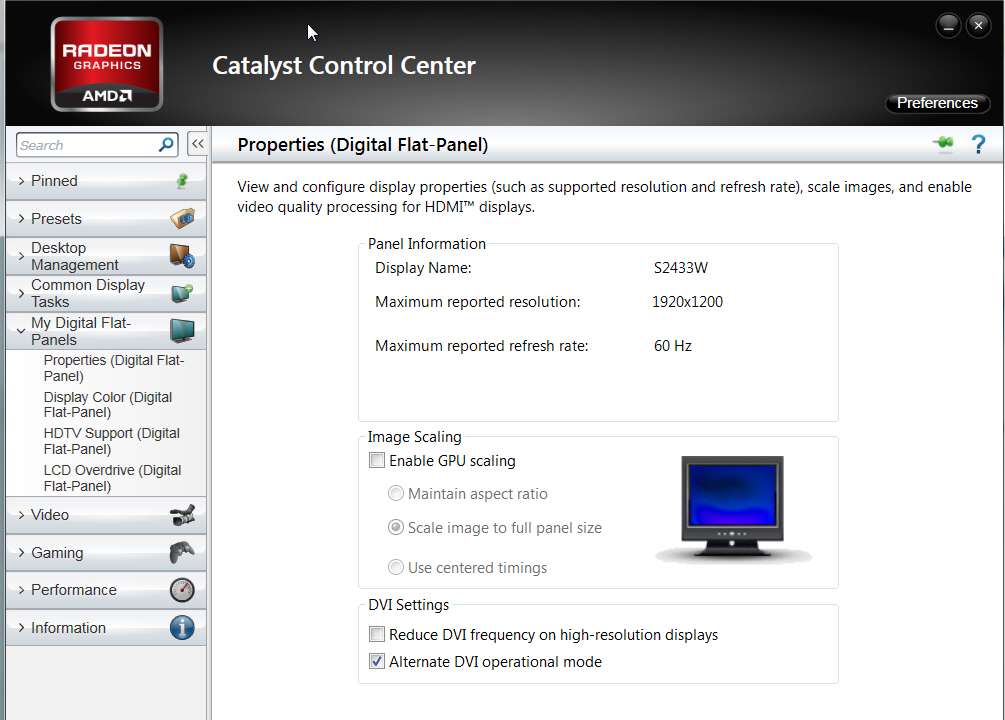
Here's my CCC presentation for "digital flat panels" (I'm on my 1-monitor machine, with HD4850 video card running Catalyst 12.6 Legacy and 12.6 CCC, and Eizo S2433W 1920x1200 24" monitor). Note that there simply IS NO WAY TO SCALE THIS TO ANYTHING BUT 100% OF THE PHYSICAL SCREEN SIZE!!!

dviconnection.jpg


Your "scaling" presentation for "AMD Vision" is not even available. In fact, what appears to be its equivalent is actually grayed-out and cannot be changed from a setting that specifies "use 100% of the monitor screen".

In fact, even if I check the "enable GPU scaling" box, the "scale image to full panel size item" remains grayed out and checked. I cannot un-check it even if I wanted to!

I repeat my own feeling: if DVI is available on a monitor and also available on the video card, IT SHOULD BE USED!!! HDMI should not be used if DVI is available as an alternative, and HDMI is not required (say to deliver digital audio over HDMI to an external sound system). There is no purpose or value or advantage to using HDMI if you don't have to, and if you have DVI as an alternative.

Myself... I no longer use the HDMI path routing through my AVR, just to get external multi-channel digital audio. And the reason is as I've stated above: (a) 1920x1080 instead of 1920x1200 as my monitor would support, and (b) "miniaturized" postage-stamp 1920x1080 presentation on my Eizo monitor with that HDMI-relay setup.

Instead, I now use the optical S/PDIF output from my sound chip (Realtek ALC892) to feed my AVR that way. No HDMI involved, so I do lose the 7.1 codecs using this approach, but HDTV (which is what I use it for) only has DD5.1 so the optical connection to my AVR works perfectly.

DVI.
 

My Computer

Computer type
PC/Desktop
Computer Manufacturer/Model Number
Home-built, two systems (1) and (2)
OS
Windows 7 Pro x64 (1), Win7 Pro X64 (2)
CPU
i5-3350p 3.1Ghz/6MB-cache (1); E8400 3.0Ghz/6MB-cache (2)
Motherboard
ASUS P8Z77-V Pro (1); ASUS P5Q3 (2)
Memory
8GB PC3-12800 DDR3 (1); 4GB PC3-10600 DDR3 (2)
Graphics Card(s)
ATI HD7750 (1), (see TV cards); ATI R7 250 (2)
Sound Card
Realtek ALC892 HD Audio (1); Realtek ALC1200 HD Audio (2)
Monitor(s) Displays
Eizo HD2441W LCD, Eizo S2433W (1); Eizo 24" S2433W (2)
Screen Resolution
1920x1200, 1920x1200 (1); 1920x1200 (2)
Hard Drives
(1) 1TB SATA-II (7200RPM), 2x2TB SATA-III (7200RPM), 250GB SATA-III (10000RPM) for OS; 2x2TB external USB 3.0

(2) 320GB SATA-II (7200RPM), 750GB SATA-II (7200RPM), 150GB SATA-II (10000RPM) for OS; 2TB external USB 3.0
PSU
Nesteq ECS-6001 600W (1); Nesteq ECS-5001 500W (2)
Case
Acousti-Case 360 (1) and (2)
Cooling
Noctua NH-U12P SE2 for CPU, 2x120mm case fans (1) and (2)
Keyboard
IBM PS/2 (1) and (2)
Mouse
Logitech MX Revolution wireless (1); Microsoft wired (2)
Internet Speed
100mbps down / 10mbps up
Antivirus
Microsoft Security Essentials; Malwarebyte Anti-Malware Pro
Browser
Firefox
Other Info
Ceton InfiniTV 4-tuner cablecard-enabled TV card as well as Hauppauge HVR-2250 OTA/ATSC 2-tuner TV card in (1), running under Win7 WMC
Hello dsperber,

These are greyed out due to using VGA. VGA is analog and DVI is digital, so you should be able to access these options using DVI.

GPU-68: How to Configure GPU Scaling Option in AMD Catalyst

Requirements to Configure GPU Scaling Option:

  • A digital connection such as a DVI, HDMI or DisplayPort™ must be used
  • The desktop must be set to a lower non-native resolution. Refer to the display device manual to determine the native resolution. This will be important to know when configuring the display to a non-native resolution

Edit: lol sorry dsperber, thought you were the OP. I agree with you on this subject good info
 

My Computer

Computer type
Laptop
Computer Manufacturer/Model Number
ASUS G60-RBBX05
OS
Win7 Home Premium 64x
CPU
Intel Core 2 Duo P7450 / 2.13 GHz (2.29 with Extreme Turbo)
Memory
4 GB PC-6400 Hyundai (2X2) at 800Mhz
Graphics Card(s)
NVIDIA GeForce GTX 260M 1GB DDR3 VRAM
Monitor(s) Displays
16" LED Backlit
Screen Resolution
1366 x 768 on laptop 1600x1050 max res on 22" external mon
Hard Drives
OCZ Agility 3 60GB SSD / 320 GB - Serial ATA-150 - 7200 rpm
PSU
6-cell Lithium ion { lasts 1.5 hours }
Case
ASUS G60 Laptop
Keyboard
Chicklet type back-lit (white light) keyboard
Mouse
Logitech G9 Laser Mouse 3200dpi and 1000 reports per minute
Internet Speed
Comcast 8.60mb/s up - 3.11mb/s down
Antivirus
MSE
Browser
Firefox
Other Info
General mid-budget gaming Comp. Low batterylife - High FrameRates - currently overheating problems :(

2nd Rig: Case: Rosewill BLACKHAWK Gaming ATX Mid Tower Computer Case

Mobo: GIGABYTE GA-990FXA-UD3
CPU: AMD FX-6200 Zambezi 3.8GHz (4.1GHz Turbo)
Heatsink: COOLER MASTER V8 CPU Cooler
RAM: Patriot Viper 3 8GB (2 x 4GB) 240-Pin DDR3 SDRAM 1866 (PC3 15000)
GPU: SAPPHIRE Radeon HD 6850 1GB 2
As I mentioned earlier, a friend has the same Dell computer and system, and a similar Dell monitor and is using the VGA cable that came with his monitor and doesn't have the problem. I'll report back. Thanks again :)
Yes, the VGA cable is an alternative which SHOULD SUPPORT FULL-PANEL PRESENTATION, at the native resolution of the monitor. No scaling should result... same as with the DVI cable.

So my intuition says if you used the VGA cable which came with your monitor instead of the HDMI cable, you would be using 100% of the panel real-estate. No black bars anywhere on any of the edges.

But... you'd be running your monitor in analog mode through a VGA cable, not digital mode... as would be the case with a DVI cable. Yes, I know the monitor will have to convert the analog VGA control via that cable to digital pixels for display because it is a pixel-based display device but it's built to do exactly that, when you use a VGA cable. However you would be getting full-screen 100% scaling as a result, is my prediction.

And you'll get exactly the same 100% scaling result with your DVI cable, except that the monitor's electronics will not have to convert from analog VGA to digital/pixel for display, as the DVI cable is delivering the pure digital DVI-D 1920x1080 output from your video card directly. Pixel-perfect from the get-go.


There is a noticeable difference between how a pixel-based display (like both of our monitors) looks, when fed via VGA analog cable vs. DVI digital cable. Characters of any kind (text in emails or documents, titles under icons, characters on web pages, etc.) will look "painted", whereas those same characters will appear crystal-sharp and clear, with no "edges" or extra width or anything other than pixel-perfect characters.

Believe me... you CAN easily tell the difference when using VGA vs. DVI. The only issue is whether it will bother you (as it did me). The HD4850 I'm using on this machine only had one DVI connector and its second was VGA. So when I first got my second 24" Eizo I was forced to use the VGA connector for the second monitor, and I just didn't like it when compared to how my first 24" Eizo looked via its DVI connection.

That's what prompted me to upgrade my video card for that 2-monitor machine, to a dual-DVI HD5770. And now both the monitors on that machine are connected with DVI cables, and both look pixel-perfect and all-digital. I'm finally happy.
 

My Computer

Computer type
PC/Desktop
Computer Manufacturer/Model Number
Home-built, two systems (1) and (2)
OS
Windows 7 Pro x64 (1), Win7 Pro X64 (2)
CPU
i5-3350p 3.1Ghz/6MB-cache (1); E8400 3.0Ghz/6MB-cache (2)
Motherboard
ASUS P8Z77-V Pro (1); ASUS P5Q3 (2)
Memory
8GB PC3-12800 DDR3 (1); 4GB PC3-10600 DDR3 (2)
Graphics Card(s)
ATI HD7750 (1), (see TV cards); ATI R7 250 (2)
Sound Card
Realtek ALC892 HD Audio (1); Realtek ALC1200 HD Audio (2)
Monitor(s) Displays
Eizo HD2441W LCD, Eizo S2433W (1); Eizo 24" S2433W (2)
Screen Resolution
1920x1200, 1920x1200 (1); 1920x1200 (2)
Hard Drives
(1) 1TB SATA-II (7200RPM), 2x2TB SATA-III (7200RPM), 250GB SATA-III (10000RPM) for OS; 2x2TB external USB 3.0

(2) 320GB SATA-II (7200RPM), 750GB SATA-II (7200RPM), 150GB SATA-II (10000RPM) for OS; 2TB external USB 3.0
PSU
Nesteq ECS-6001 600W (1); Nesteq ECS-5001 500W (2)
Case
Acousti-Case 360 (1) and (2)
Cooling
Noctua NH-U12P SE2 for CPU, 2x120mm case fans (1) and (2)
Keyboard
IBM PS/2 (1) and (2)
Mouse
Logitech MX Revolution wireless (1); Microsoft wired (2)
Internet Speed
100mbps down / 10mbps up
Antivirus
Microsoft Security Essentials; Malwarebyte Anti-Malware Pro
Browser
Firefox
Other Info
Ceton InfiniTV 4-tuner cablecard-enabled TV card as well as Hauppauge HVR-2250 OTA/ATSC 2-tuner TV card in (1), running under Win7 WMC
These are greyed out due to using VGA. VGA is analog and DVI is digital, so you should be able to access these options using DVI.
I repeat: I am using a DVI cable, not a VGA cable.

Eizo S2433W monitor, 1920x1200, DVI cable from HD4850 video card.

And I am using the full native "recommended" resolution of my 1920x1200 monitor. Note that your quote shows that GPU scaling is only possible with LESS THAN RECOMMENDED RESOLUTION, something I do not do.

Same with OP's story. He's got a 1920x1080 Dell monitor, and wants to run it at that native "recommended" resolution from his HD5450 video card... with 100% of the screen panel used (i.e. no black edges of unused screen real-estate). And this WILL occur, if only he uses a DVI cable (or a VGA cable as well), but apparently will not occur with his HDMI cable. He's still specified native "recommended" 1920x1080 resolution, so your scaling prerequisite would not apply and it should not be available for him to even configure.
 

My Computer

Computer type
PC/Desktop
Computer Manufacturer/Model Number
Home-built, two systems (1) and (2)
OS
Windows 7 Pro x64 (1), Win7 Pro X64 (2)
CPU
i5-3350p 3.1Ghz/6MB-cache (1); E8400 3.0Ghz/6MB-cache (2)
Motherboard
ASUS P8Z77-V Pro (1); ASUS P5Q3 (2)
Memory
8GB PC3-12800 DDR3 (1); 4GB PC3-10600 DDR3 (2)
Graphics Card(s)
ATI HD7750 (1), (see TV cards); ATI R7 250 (2)
Sound Card
Realtek ALC892 HD Audio (1); Realtek ALC1200 HD Audio (2)
Monitor(s) Displays
Eizo HD2441W LCD, Eizo S2433W (1); Eizo 24" S2433W (2)
Screen Resolution
1920x1200, 1920x1200 (1); 1920x1200 (2)
Hard Drives
(1) 1TB SATA-II (7200RPM), 2x2TB SATA-III (7200RPM), 250GB SATA-III (10000RPM) for OS; 2x2TB external USB 3.0

(2) 320GB SATA-II (7200RPM), 750GB SATA-II (7200RPM), 150GB SATA-II (10000RPM) for OS; 2TB external USB 3.0
PSU
Nesteq ECS-6001 600W (1); Nesteq ECS-5001 500W (2)
Case
Acousti-Case 360 (1) and (2)
Cooling
Noctua NH-U12P SE2 for CPU, 2x120mm case fans (1) and (2)
Keyboard
IBM PS/2 (1) and (2)
Mouse
Logitech MX Revolution wireless (1); Microsoft wired (2)
Internet Speed
100mbps down / 10mbps up
Antivirus
Microsoft Security Essentials; Malwarebyte Anti-Malware Pro
Browser
Firefox
Other Info
Ceton InfiniTV 4-tuner cablecard-enabled TV card as well as Hauppauge HVR-2250 OTA/ATSC 2-tuner TV card in (1), running under Win7 WMC
These are greyed out due to using VGA. VGA is analog and DVI is digital, so you should be able to access these options using DVI.
I repeat: I am using a DVI cable, not a VGA cable.

Eizo S2433W monitor, 1920x1200, DVI cable from HD4850 video card.

And I am using the full native "recommended" resolution of my 1920x1200 monitor. Note that your quote shows that GPU scaling is only possible with LESS THAN RECOMMENDED RESOLUTION, something I do not do.

Sorry Dsperber, thought you were the original poster. I was posting faster than reading :o
 

My Computer

Computer type
Laptop
Computer Manufacturer/Model Number
ASUS G60-RBBX05
OS
Win7 Home Premium 64x
CPU
Intel Core 2 Duo P7450 / 2.13 GHz (2.29 with Extreme Turbo)
Memory
4 GB PC-6400 Hyundai (2X2) at 800Mhz
Graphics Card(s)
NVIDIA GeForce GTX 260M 1GB DDR3 VRAM
Monitor(s) Displays
16" LED Backlit
Screen Resolution
1366 x 768 on laptop 1600x1050 max res on 22" external mon
Hard Drives
OCZ Agility 3 60GB SSD / 320 GB - Serial ATA-150 - 7200 rpm
PSU
6-cell Lithium ion { lasts 1.5 hours }
Case
ASUS G60 Laptop
Keyboard
Chicklet type back-lit (white light) keyboard
Mouse
Logitech G9 Laser Mouse 3200dpi and 1000 reports per minute
Internet Speed
Comcast 8.60mb/s up - 3.11mb/s down
Antivirus
MSE
Browser
Firefox
Other Info
General mid-budget gaming Comp. Low batterylife - High FrameRates - currently overheating problems :(

2nd Rig: Case: Rosewill BLACKHAWK Gaming ATX Mid Tower Computer Case

Mobo: GIGABYTE GA-990FXA-UD3
CPU: AMD FX-6200 Zambezi 3.8GHz (4.1GHz Turbo)
Heatsink: COOLER MASTER V8 CPU Cooler
RAM: Patriot Viper 3 8GB (2 x 4GB) 240-Pin DDR3 SDRAM 1866 (PC3 15000)
GPU: SAPPHIRE Radeon HD 6850 1GB 2
Back
Top