Recover partition after aborted diskpart clean all command

mimo4019

New member
Local time
6:42 PM
Messages
12
Hi,

I've used diskpart clean all command on my 640GB hdd by mistake. But I aborted (Ctrl+C) it after about 15 minutes of beginning.

There was 4 partitions on it:
1. Windows partition (about 90GB).
2. Unallocated space (about 25GB).
3. Another partition (about 50GB).
4. Data partition (The rest of it and this is what I want to recover).

I have done MiniTool Partition wizard fast and complete scan and the result was two 3MB partitions.
I have run Acronis recovery fast and complete scan, fast scan has no result and complete scan has run for over 20 hours without finishing.
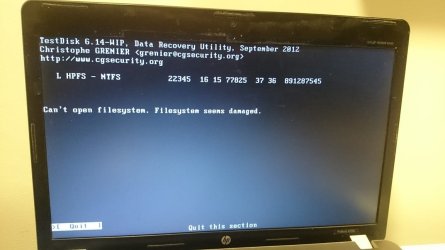
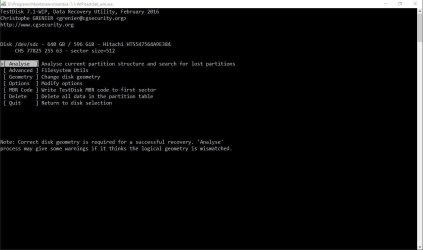
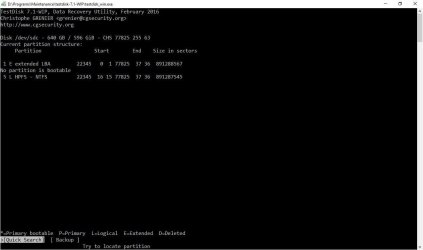
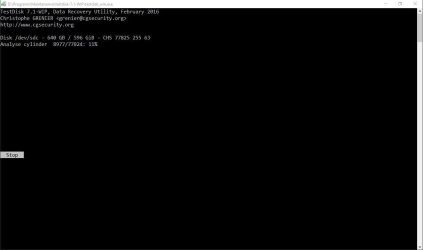
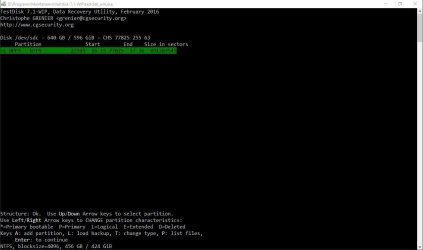
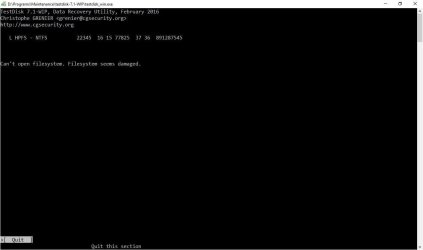
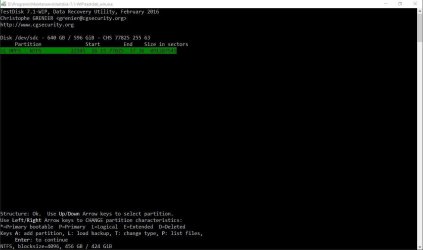
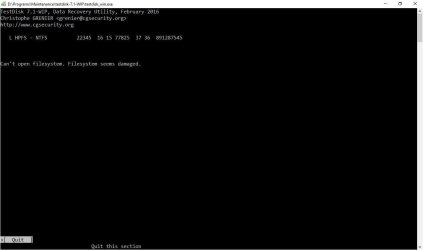
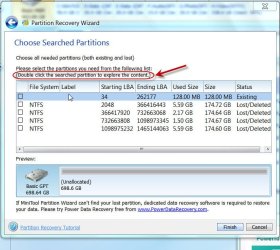
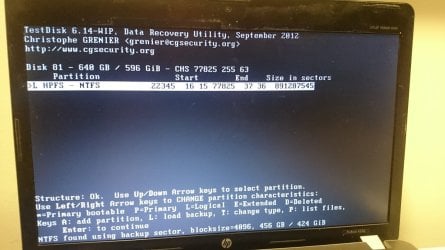
Then, I run TestDisk quick scan with no results. After that, TestDisk Deeper scan with the attached results. I tried to list the files in that partition but it told me that "Can't open filesystem. Filesystem seems damaged." as the second attachment.

What should I do next? please help.
 

Attachments
  • DSC_0006.JPG
    DSC_0006.JPG
    96.4 KB · Views: 2
  • DSC_0008.JPG
    DSC_0008.JPG
    71.7 KB · Views: 1
Last edited:

My Computer My Computer

At a glance

Windows 10 Pro x648GB
Computer type
Laptop
Computer Manufacturer/Model Number
HP Probook 4530s
OS
Windows 10 Pro x64
Memory
8GB
Clean All is like shooting yourself into the leg - it writes all zeros on the disk. I am afraid you are out of luck. Sorry.
 

My Computer My Computer

At a glance

Vista, Windows7, Mint Mate, Zorin, Windows 8from 1.6GHz Duo to i7
Computer Manufacturer/Model Number
HP, Dell, Gateway, Toshiba - 4 laptops and 2 desktops
OS
Vista, Windows7, Mint Mate, Zorin, Windows 8
CPU
from 1.6GHz Duo to i7
Monitor(s) Displays
2x HP w2207
Hard Drives
5x HDD, 7x SSD, 12x Externals
Keyboard
with trackball - no mices
Mouse
Trackball mice
Internet Speed
DSL 6000
Clean All is like shooting yourself into the leg - it writes all zeros on the disk. I am afraid you are out of luck. Sorry.
Thanks for your response, I've aborted the process before its completion (about 15 minutes from its beginning) Can I recover the data that didn't have overwritten with zeroes?
Any way to fix the damaged filesystem?
 

My Computer My Computer

At a glance

Windows 10 Pro x648GB
Computer type
Laptop
Computer Manufacturer/Model Number
HP Probook 4530s
OS
Windows 10 Pro x64
Memory
8GB
hmm... Since you aborted clean all after about 15 minutes, I presume that almost 75% (plus or minus) of your data may still be there. Please do the following:

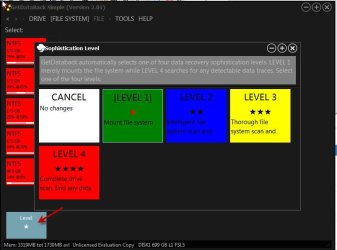
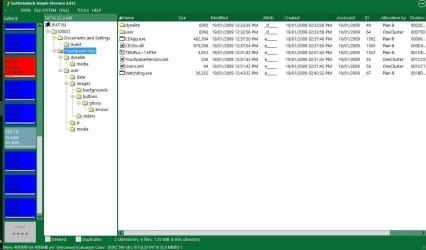
This is only for exploration: Download, install and run GetDataback Simple Data Recovery Free demo version from here https://www.runtime.org/data-recovery-software.htm. ( Also read the How-to-Guides and Documentation on that page) Scan your 640GB drive.and check whether it shows all or some of your partitions and files in it.. That will be Level 1.

29-02-2016 18-22-37.jpg

If Level 1 fails , try Level 2. Level 3 and then Level 4. Report the results. ( Post screenshots)


2. If it successfully shows your files - which however you may not be able to copy because it is only a trial version - you may try PhotoRec to carve out the files.

PhotoRec Step By Step - CGSecurity

http://www.sevenforums.com/software/193467-guide-using-photorec-recovery-software.html ( Do not format your drive. I formatted only to show how PhotoRec can recover files even after formatting the drive. Straightaway go to the topic Recovery in it.)
 

My Computer My Computer

At a glance

Windows 7 Home Premium 32 bit
OS
Windows 7 Home Premium 32 bit
After going through your first post leisurely and having examined the TestDisk screenshots in depth, I may comment as follows.

TestDisk seems to have found atleast one partition of 456 GB. This could be your last data Partition.( Initially I thought it was showing your whole Disk)

Since you said that it had one 90GB Windows Partition, it becomes imperative to know 1. wherefrom that HDD came, 2. what Windows and bit version was on it and 3. How is it connected at present while you ran TestDisk.

If you are connecting the old 640GB HDD - which was an MBR drive that ran Windows 7 - now to a Windows 10, 64 bit system, you are complicating the whole issue of data recovery. :)

TestDisk had to dig out the NTFS boot sector from its backup to show you that 456GB partition, but it still failed to list the files because it is now running on Windows 10 and looking for data in 4096 bytes/sector size as ordained by Windows 10, 64bit. Atleast that is my thinking. ( Read the last line in the first TestDisk screenshot in your first post. "NTFS found using backup sector, blocksize = 4096, 456GB / 424 GiB")

You may be better off connecting that HDD to a Windows 7 system, run TestDisk from Windows 7 and do a deeper scan. It may still find the backup boot sector and read from 512bytes/sector size . In such a situation it may be able to list the files.

EDIT: If you still want to persist on doing it in Windows 10, change the Sector size from 4096 to 512 in TestDisk and then do a deeper search. You may find the appropriate screenshots in this post Solved Win 8.1 x64 and raw file system on external USB drive If you are sure that it was an MBR disk, select [Intel], then [Geometry]. If the first line shows Sector Size = 4096, then change it to 512 and proceed. Please note in that reference we were trying to change it from 512 to 4096 but here you will be changing it from 4096 t0 512.
 
Last edited:

My Computer My Computer

At a glance

Windows 7 Home Premium 32 bit
OS
Windows 7 Home Premium 32 bit
hmm... Since you aborted clean all after about 15 minutes, I presume that almost 75% (plus or minus) of your data may still be there. Please do the following:

This is only for exploration: Download, install and run GetDataback Simple Data Recovery Free demo version from here https://www.runtime.org/data-recovery-software.htm. ( Also read the How-to-Guides and Documentation on that page) Scan your 640GB drive.and check whether it shows all or some of your partitions and files in it.. That will be Level 1.

View attachment 382695

If Level 1 fails , try Level 2. Level 3 and then Level 4. Report the results. ( Post screenshots)


2. If it successfully shows your files - which however you may not be able to copy because it is only a trial version - you may try PhotoRec to carve out the files.

PhotoRec Step By Step - CGSecurity

http://www.sevenforums.com/software/193467-guide-using-photorec-recovery-software.html ( Do not format your drive. I formatted only to show how PhotoRec can recover files even after formatting the drive. Straightaway go to the topic Recovery in it.)

After going through your first post leisurely and having examined the TestDisk screenshots in depth, I may comment as follows.

TestDisk seems to have found atleast one partition of 456 GB. This could be your last data Partition.( Initially I thought it was showing your whole Disk)

Since you said that it had one 90GB Windows Partition, it becomes imperative to know 1. wherefrom that HDD came, 2. what Windows and bit version was on it and 3. How is it connected at present while you ran TestDisk.

If you are connecting the old 640GB HDD - which was an MBR drive that ran Windows 7 - now to a Windows 10, 64 bit system, you are complicating the whole issue of data recovery. :)

TestDisk had to dig out the NTFS boot sector from its backup to show you that 456GB partition, but it still failed to list the files because it is now running on Windows 10 and looking for data in 4096 bytes/sector size as ordained by Windows 10, 64bit. Atleast that is my thinking. ( Read the last line in the first TestDisk screenshot in your first post. "NTFS found using backup sector, blocksize = 4096, 456GB / 424 GiB")

You may be better off connecting that HDD to a Windows 7 system, run TestDisk from Windows 7 and do a deeper scan. It may still find the backup boot sector and read from 512bytes/sector size . In such a situation it may be able to list the files.

EDIT: If you still want to persist on doing it in Windows 10, change the Sector size from 4096 to 512 in TestDisk and then do a deeper search. You may find the appropriate screenshots in this post Solved Win 8.1 x64 and raw file system on external USB drive If you are sure that it was an MBR disk, select [Intel], then [Geometry]. If the first line shows Sector Size = 4096, then change it to 512 and proceed. Please note in that reference we were trying to change it from 512 to 4096 but here you will be changing it from 4096 t0 512.


Thanks jumanji for your reply. Unfortunaltely I've write the TestDisk result shown on my first post before reading your reply. However, I've made the process you've told me. You've asked some questions about the system:
1. This is the original HDD came with the laptop.
2. It was have Windows 10 Pro x64 upgraded from Windows 7 Pro x64 (Upgraded about 3 months ago).
3. The result of the first post result was using Hiren's Boot CD loaded into USB flash memory (The HDD was connected inside my laptop).

I've checked the sector size you mentioned and it was already 512 for DOS. Also, I connected the HDD to another computer using USB 2 adapter and performed quick and deeper scan under Windows 7 x64 and another scan under Windows 10 x64 with the same results (Now quick scan get the same result as deeper scan).
Here are the screenshots of the scan in Windows 10 (same as Windows 7):
attachment.php

attachment.php

attachment.php

attachment.php

attachment.php

attachment.php

attachment.php


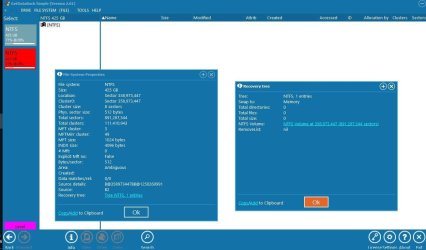
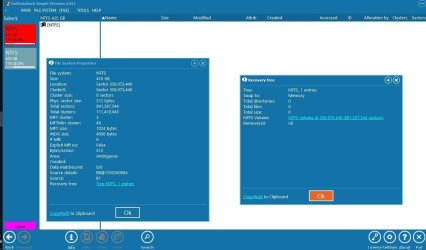
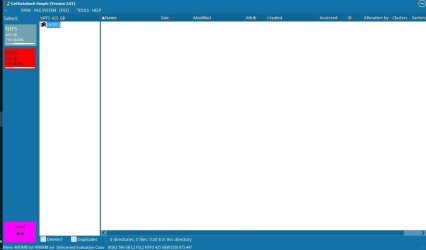
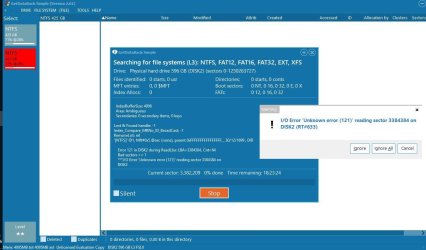
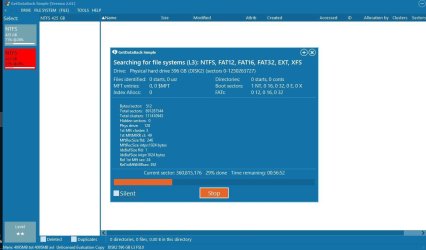
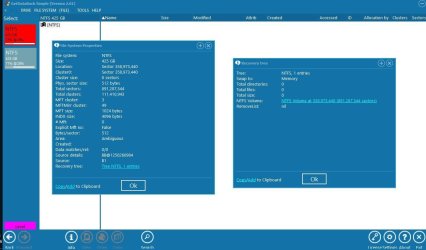
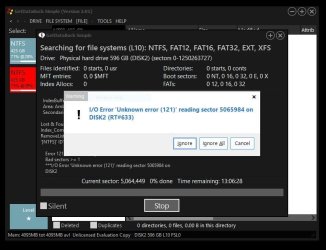
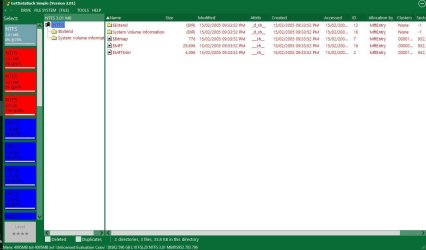
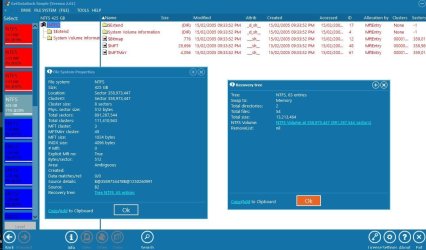
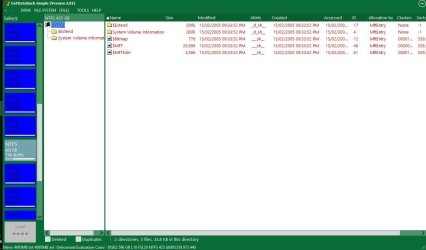
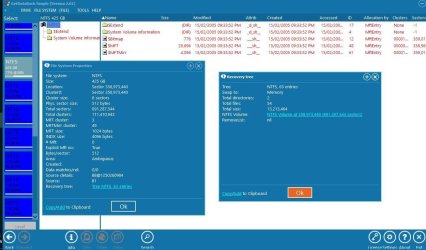
Regarding GetDataBack, I've run the four levels of scan. The first three levels result was two NTFS 425GB empty partitions. Level4 scan result was also two NTFS 425GB partition with two system folders inside them in addition to 3 NTFS 3MB partitions, some FAT12 partitions, and one FAT16 32MB partition which has one data folder of my work. Here are the screenshots:

Level1 scan:
attachment.php

attachment.php


Level2 scan:
attachment.php


Level3 scan:
attachment.php

attachment.php

attachment.php


Level4 scan:
attachment.php

attachment.php

attachment.php

attachment.php

attachment.php

attachment.php


Should I do anything regarding the write I've mentioned in the beginning of this reply. Please advise for further process I should do.
 

Attachments

  • 6a8tjqebtzcoci3zg.jpg
    6a8tjqebtzcoci3zg.jpg
    50.5 KB · Views: 62
  • i09vri122bdlxshzg.jpg
    i09vri122bdlxshzg.jpg
    41.4 KB · Views: 61
  • md1gi2q1lc6p784zg.jpg
    md1gi2q1lc6p784zg.jpg
    24.5 KB · Views: 62
  • nunpuna02t3fnpazg.jpg
    nunpuna02t3fnpazg.jpg
    45.9 KB · Views: 62
  • 8gikh0ispa268a3zg.jpg
    8gikh0ispa268a3zg.jpg
    27.5 KB · Views: 61
  • u7v3oze6kfncpdezg.jpg
    u7v3oze6kfncpdezg.jpg
    45.9 KB · Views: 62
  • jjv18ntb81bq6tbzg.jpg
    jjv18ntb81bq6tbzg.jpg
    27.5 KB · Views: 62
  • w5ssgu57d6l577dzg.jpg
    w5ssgu57d6l577dzg.jpg
    72.2 KB · Views: 62
  • h2e1e9762g6fypszg.jpg
    h2e1e9762g6fypszg.jpg
    72 KB · Views: 63
  • 2n8l4dc84ikei7izg.jpg
    2n8l4dc84ikei7izg.jpg
    34.3 KB · Views: 62
  • vtkt4uz0b54gu7hzg.jpg
    vtkt4uz0b54gu7hzg.jpg
    81.5 KB · Views: 63
  • 3hg24cu9w09xtv4zg.jpg
    3hg24cu9w09xtv4zg.jpg
    70.3 KB · Views: 61
  • ccvhhp00552h0p8zg.jpg
    ccvhhp00552h0p8zg.jpg
    71 KB · Views: 62
  • vong9rannc44jnkzg.jpg
    vong9rannc44jnkzg.jpg
    59.7 KB · Views: 63
  • e7xb5r3md3lm2cczg.jpg
    e7xb5r3md3lm2cczg.jpg
    67.9 KB · Views: 61
  • s7919dzoyhu8cpkzg.jpg
    s7919dzoyhu8cpkzg.jpg
    106.6 KB · Views: 61
  • prlt316c4e17lggzg.jpg
    prlt316c4e17lggzg.jpg
    67.4 KB · Views: 61
  • 7c1ffv4qni2rgvqzg.jpg
    7c1ffv4qni2rgvqzg.jpg
    104.3 KB · Views: 61
  • lozydca0c77n5dmzg.jpg
    lozydca0c77n5dmzg.jpg
    88.9 KB · Views: 61
Last edited:

My Computer My Computer

At a glance

Windows 10 Pro x648GB
Computer type
Laptop
Computer Manufacturer/Model Number
HP Probook 4530s
OS
Windows 10 Pro x64
Memory
8GB
OK, I missed your post since it is under Backup and Restore.

Now your first post TestDisk Screenshot showed that TestDisk could find the partition with the backup boot sector. Your recent TestDisk screenshot does not show that. So obviously some change has taken place. Never mind. We shall start from scratch and see where we are.

Now please stick to one system.

Windows 7 ( 32bit or 64 bit does not matter but do indicate which one you are using)

Your laptop HDD connected externally with the SATA to USB adapter you had mentioned. Confirm.

Download, install and run MiniTool Partition Wizard 9.1 from MiniTool Partition Wizard | Best partition magic alternative for Windows PC and Server

Do a Quick Scan with Partition Recovery Wizard and post the screenshot of Partitions found Window.

Click on Cancel and quit PW.

If Quick San does not find any partition, do a Full Scan. If it finds any partition, post the screenshot of that Window. Again Cancel and quit PW.

Please upload the screenshots to SevenForums server. ( I refuse to go to a third party site to see it.)

http://www.sevenforums.com/tutorials/9733-screenshots-files-upload-post-seven-forums.html
 

My Computer My Computer

At a glance

Windows 7 Home Premium 32 bit
OS
Windows 7 Home Premium 32 bit
OK, I missed your post since it is under Backup and Restore.

Now your first post TestDisk Screenshot showed that TestDisk could find the partition with the backup boot sector. Your recent TestDisk screenshot does not show that. So obviously some change has taken place. Never mind. We shall start from scratch and see where we are.

Now please stick to one system.

Windows 7 ( 32bit or 64 bit does not matter but do indicate which one you are using)

Your laptop HDD connected externally with the SATA to USB adapter you had mentioned. Confirm.

Download, install and run MiniTool Partition Wizard 9.1 from MiniTool Partition Wizard | Best partition magic alternative for Windows PC and Server

Do a Quick Scan with Partition Recovery Wizard and post the screenshot of Partitions found Window.

Click on Cancel and quit PW.

If Quick San does not find any partition, do a Full Scan. If it finds any partition, post the screenshot of that Window. Again Cancel and quit PW.

Please upload the screenshots to SevenForums server. ( I refuse to go to a third party site to see it.)

http://www.sevenforums.com/tutorials/9733-screenshots-files-upload-post-seven-forums.html

Thanks Mr. jumanji for your attention.
The available PC now is with Windows 10 x64. Should I install Windows 7 on it first or use Windows 10?
 

My Computer My Computer

At a glance

Windows 10 Pro x648GB
Computer type
Laptop
Computer Manufacturer/Model Number
HP Probook 4530s
OS
Windows 10 Pro x64
Memory
8GB
OK, go ahead with Windows 10 and run Partition Recovery Wizard.
 

My Computer My Computer

At a glance

Windows 7 Home Premium 32 bit
OS
Windows 7 Home Premium 32 bit
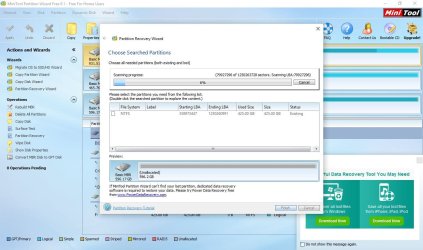
Quick scan is now running since 15 hours ago (attached screenshot).

BTW, I'm willing to buy a new hdd for the laptop. After some search, I think that Seagate SSHD ST1000LM014 is a good choice for performance and cost. Do you agree or have a better suggestion?
 

Attachments

  • PW-1_QuickScan.JPG
    PW-1_QuickScan.JPG
    117.3 KB · Views: 5

My Computer My Computer

At a glance

Windows 10 Pro x648GB
Computer type
Laptop
Computer Manufacturer/Model Number
HP Probook 4530s
OS
Windows 10 Pro x64
Memory
8GB

My Computer My Computer

At a glance

Windows 10 Pro x64Intel Core i7 6700KGSkill TridentZ RGB 16GB 3600 16-16-16-36EVGA GTX 980 Ti SC x2
Computer type
PC/Desktop
Computer Manufacturer/Model Number
Skylake Special #666
OS
Windows 10 Pro x64
CPU
Intel Core i7 6700K
Motherboard
Asus Sabertooth Z170 Mark 1
Memory
GSkill TridentZ RGB 16GB 3600 16-16-16-36
Graphics Card(s)
EVGA GTX 980 Ti SC x2
Sound Card
Realtek High Definition
Monitor(s) Displays
AOC G2460PG
Screen Resolution
1920 x 1080 144Hz
Hard Drives
Samsung 860 Pro 256GB, Seagate Barracuda 4TB x2
PSU
EVGA 1000 P2, EVGA White Custom Braided Cables
Case
Corsair Vengeance C70 Gunmetal Black
Cooling
Corsair H100i v2, Corsair ML120 x2, Thermal Grizzly Kryonaut
Keyboard
Logitech G910 Orion Spectrum
Mouse
Logitech G700s
Internet Speed
Verizon Fios Quantum Gateway 75/75
Antivirus
Windows Defender, Malwarebytes Free 3.8.3
Browser
Chrome
Other Info
Corsair SP120 x4, LG Blu-ray Drive, Durabrand HT-395 100 Watt Dolby Digital Amp, Corsair H2100 Wireless 7.1 Headset
OK, let it complete. Patience is virtue.

From what I see and infer, your last partition on which you have your data seems to be alright. ( The recovery wizard does show that partition as existing.) But you are unable to access it since Sector 0 that had the MBR and Partition table has been wiped to zeros.

Once Quick Scan completes, follow the instructions below carefully.

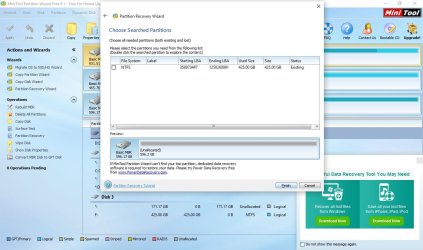
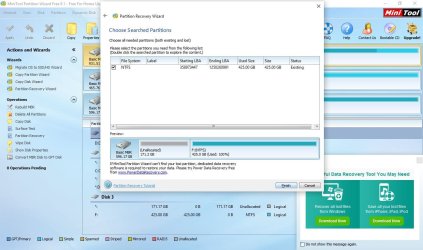
Put a tick mark in the square ( by clicking on it) of the only partition showing. Starting LBA 358973447 Ending LBA 1250260991 - 425.00GB - Existing.

Sample screenshot:

12-03-2016 18-54-47.jpg

Double click on it. You will get a Partition Explorer Window. Does it show all/ most of your files?

Close that Partition Explorer Window and click on Finish.

That will take you to the PW main Window. Go to the Top Menu Bar and click on APPLY

Note: If Apply is greyed out, do not worry. Just post a screenshot of the Main Window.

Yes, if Apply goes through successfully or greyed out, I need to see the screenshot of the main Window.

After taking the screenshot close PW.

After seeing the screenshot I shall post further instructions.
 

My Computer My Computer

At a glance

Windows 7 Home Premium 32 bit
OS
Windows 7 Home Premium 32 bit
Get a true solid state drive, not a hybrid.

Store your data on your current hard drive.

That is the perfect scenario.

SSD 850 PRO 2.5” SATA III MZ-7KE512BW | Memory & Storage

or

SSD 850 EVO 2.5" SATA III 500GB | Samsung Solid State Drives

Thanks for your attention, should I use SSD you mean for better performance or ?

OK, let it complete. Patience is virtue.

From what I see and infer, your last partition on which you have your data seems to be alright. ( The recovery wizard does show that partition as existing.) But you are unable to access it since Sector 0 that had the MBR and Partition table has been wiped to zeros.

Once Quick Scan completes, follow the instructions below carefully.

Put a tick mark in the square ( by clicking on it) of the only partition showing. Starting LBA 358973447 Ending LBA 1250260991 - 425.00GB - Existing.

Sample screenshot:

View attachment 383342

Double click on it. You will get a Partition Explorer Window. Does it show all/ most of your files?

Close that Partition Explorer Window and click on Finish.

That will take you to the PW main Window. Go to the Top Menu Bar and click on APPLY

Note: If Apply is greyed out, do not worry. Just post a screenshot of the Main Window.

Yes, if Apply goes through successfully or greyed out, I need to see the screenshot of the main Window.

After taking the screenshot close PW.

After seeing the screenshot I shall post further instructions.

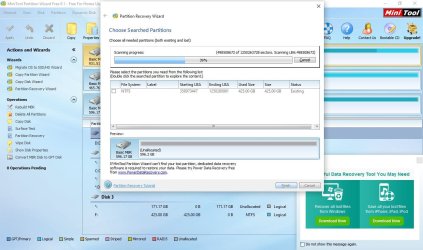
Quick scan is now running for about 80 hours.

As I said in the beginning of my third post, I've written the TestDisk result shown in my first post. Should I do anything regarding this?


PW-2_QuickScan.JPG
 

My Computer My Computer

At a glance

Windows 10 Pro x648GB
Computer type
Laptop
Computer Manufacturer/Model Number
HP Probook 4530s
OS
Windows 10 Pro x64
Memory
8GB
OK, Quick Scan has been obnoxiously slow. We shall not wait for it to complete but take a bite now.

Put a tick mark in the square ( by clicking on it) of the only partition showing. Starting LBA 358973447 Ending LBA 1250260991 - 425.00GB - Existing.

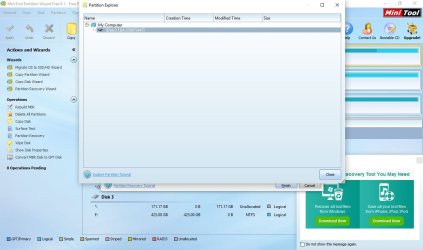
Double click on it. You will get a Partition Explorer Window. Does it show all/ most of your files? Yes/No

Close that Partition Explorer Window and click on Cancel to terminate Quick Scan.

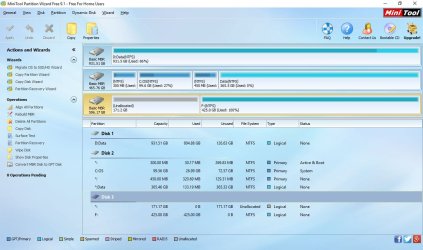
It should take you PW main screen. Post a screenshot and then close PW.

We shall not do anything with TestDisk now. What I believe is you have written the partition table to the sector 0 . And that is why the partition is shown as existing. But still TestDisk is saying File System is corrupt. In the next step we shall do a sector examination with bootice and see what it holds in sector 0, sector 358973447 and also roll up from that sector and see whether those are populated with data. Quite an exercise and be prepared.)
 
Last edited:

My Computer My Computer

At a glance

Windows 7 Home Premium 32 bit
OS
Windows 7 Home Premium 32 bit
OK, Quick Scan has been obnoxiously slow. We shall not wait for it to complete but take a bite now.

Put a tick mark in the square ( by clicking on it) of the only partition showing. Starting LBA 358973447 Ending LBA 1250260991 - 425.00GB - Existing.

Double click on it. You will get a Partition Explorer Window. Does it show all/ most of your files? Yes/No

Close that Partition Explorer Window and click on Cancel to terminate Quick Scan.

It should take you PW main screen. Post a screenshot and then close PW.

We shall not do anything with TestDisk now. What I believe is you have written the partition table to the sector 0 . And that is why the partition is shown as existing. But still TestDisk is saying File System is corrupt. In the next step we shall do a sector examination with bootice and see what it holds in sector 0, sector 358973447 and also roll up from that sector and see whether those are populated with data. Quite an exercise and be prepared.)

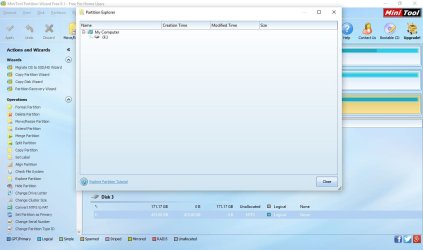
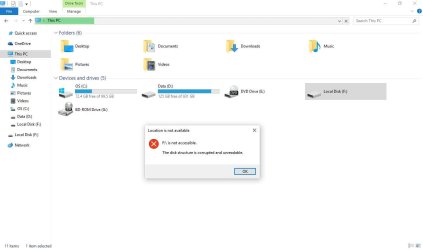
Attached the screenshots you've asked for. The partition explorer doesn't show any files or folders exactly as if I explored the partition from the PW main windows as attached. The last screenshot is for the message appears if I tried to open the partition from Windows Explorer.

PW-3_QuickScan.JPG

PW-4_QuickScan.JPG

PW-5_QuickScan.JPG

PW-6_QuickScan.JPG

PW-7_QuickScan.JPG

PW-8_QuickScan.JPG
 

My Computer My Computer

At a glance

Windows 10 Pro x648GB
Computer type
Laptop
Computer Manufacturer/Model Number
HP Probook 4530s
OS
Windows 10 Pro x64
Memory
8GB
Of course for better performance, a hybrid drive just boots fast, but once you`re in windows it`s still a mechanical slow hard drive, go solid state all the way.

I posted 2 excellent choices.
 

My Computer My Computer

At a glance

Windows 10 Pro x64Intel Core i7 6700KGSkill TridentZ RGB 16GB 3600 16-16-16-36EVGA GTX 980 Ti SC x2
Computer type
PC/Desktop
Computer Manufacturer/Model Number
Skylake Special #666
OS
Windows 10 Pro x64
CPU
Intel Core i7 6700K
Motherboard
Asus Sabertooth Z170 Mark 1
Memory
GSkill TridentZ RGB 16GB 3600 16-16-16-36
Graphics Card(s)
EVGA GTX 980 Ti SC x2
Sound Card
Realtek High Definition
Monitor(s) Displays
AOC G2460PG
Screen Resolution
1920 x 1080 144Hz
Hard Drives
Samsung 860 Pro 256GB, Seagate Barracuda 4TB x2
PSU
EVGA 1000 P2, EVGA White Custom Braided Cables
Case
Corsair Vengeance C70 Gunmetal Black
Cooling
Corsair H100i v2, Corsair ML120 x2, Thermal Grizzly Kryonaut
Keyboard
Logitech G910 Orion Spectrum
Mouse
Logitech G700s
Internet Speed
Verizon Fios Quantum Gateway 75/75
Antivirus
Windows Defender, Malwarebytes Free 3.8.3
Browser
Chrome
Other Info
Corsair SP120 x4, LG Blu-ray Drive, Durabrand HT-395 100 Watt Dolby Digital Amp, Corsair H2100 Wireless 7.1 Headset
OK, now run check disk on that external drive. Please make sure to remove all other external drives.

Open Command prompt. Start > All programs > Accessories > Command Prompt

Type
CHKDSK F: /f /v /r /x Press enter. Note: Replace F: with the actual drive letter of the external drive. There is a space before every / (If you are sure that the drive is F:, then you can simply copy the command and paste it.)

Allow check disk to complete. On completion reboot and check whether your drive is accessible.

Do not abort checkdisk at anytime. That could make matters worse.

If it aborts by itself its ok. We have no control over it. But in such a case write down any error message it throws and post it verbatim.
 

My Computer My Computer

At a glance

Windows 7 Home Premium 32 bit
OS
Windows 7 Home Premium 32 bit
Of course for better performance, a hybrid drive just boots fast, but once you`re in windows it`s still a mechanical slow hard drive, go solid state all the way.

I posted 2 excellent choices.

Thanks. I'll purchase the 850 evo 250GB and use the current drive for data.

OK, now run check disk on that external drive. Please make sure to remove all other external drives.

Open Command prompt. Start > All programs > Accessories > Command Prompt

Type
CHKDSK F: /f /v /r /x Press enter. Note: Replace F: with the actual drive letter of the external drive. There is a space before every / (If you are sure that the drive is F:, then you can simply copy the command and paste it.)

Allow check disk to complete. On completion reboot and check whether your drive is accessible.

Do not abort checkdisk at anytime. That could make matters worse.

If it aborts by itself its ok. We have no control over it. But in such a case write down any error message it throws and post it verbatim.

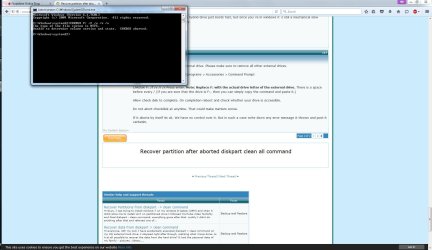
Check disk aborted.

CHKDSK aborted.JPG
 

My Computer My Computer

At a glance

Windows 10 Pro x648GB
Computer type
Laptop
Computer Manufacturer/Model Number
HP Probook 4530s
OS
Windows 10 Pro x64
Memory
8GB
OK, Let me think about it and comeback.

Whenever you post a screenshot take a snap of only the Window that is needed. That will be large and readable. We do not need to see any background which in this case occupies almost useless 80% with the required Window only at 20% and almost unreadable.
 

My Computer My Computer

At a glance

Windows 7 Home Premium 32 bit
OS
Windows 7 Home Premium 32 bit
Let us explore your drive again with Test Disk. May be a repetition but you are doing it now under my control :D.
Run TestDisk again, and follow these steps: Be sure you have only the faulty external drive is connected.

A. At the first window, select “No Log” and press the <Enter> key.
B. Select which disk to analyse, choose “Proceed” and <Enter>. ( Choose Disk not drive)
C. Select partition type – Intel if it’s a PC then <Enter>.
D. Choose Advanced > press <Enter>.
E. Choose Boot > press <Enter>.

Post the resultant screen. Remember I only want that Window not the full screen in the background. I shall see it only tomorrow morning that is about 10 hours from now. Post the screenshot and then quit TestDisk. We shall continue after I see the screenshot.
 

My Computer My Computer

At a glance

Windows 7 Home Premium 32 bit
OS
Windows 7 Home Premium 32 bit
Back
Top