Solved Recovering data from a dead partition

jon777

New member
Local time
4:59 AM
Messages
29
My wife's laptop drive died. Replaced the drive and restored a backup, so that PC is back up and running.

However, there are some files on the old drive that were created/changed after the last backup.

Plugging her drive into an external SATA mount I see the following is Windows Explorer:
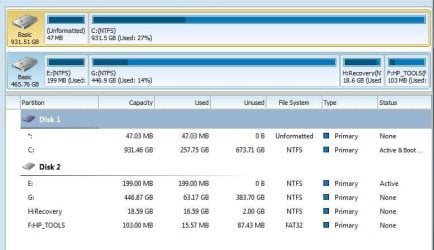
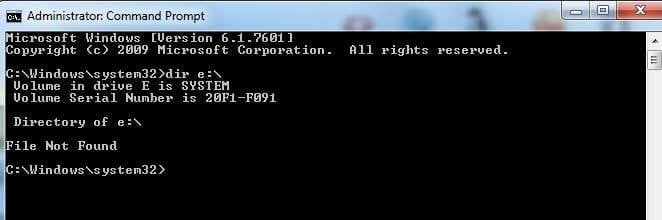
E: System (nothing in it) -- I did run CHKDSK /F on it, and completed (with Bad Sectors
F: HP Tools (fully accessible)
G: Local Disk (Hangs any time I try to access, either thru Win Explorer or CMD prompt
H: Recovery (fully accessible)

Anything I can do possibly using shareware/freeware to possibly restore the data from G:? Most of the stuff I can likely get elsewhere, (e.g. outbox attachments). So not going to spend $$$ on the data recovery company or expensive software...
 

My Computer My Computer

Computer Manufacturer/Model Number
Dell Inspiron 530
OS
Windows 7 Ultimate x64

My Computer My Computer

Computer type
Laptop
Computer Manufacturer/Model Number
ACER ASPIRE 5742G
OS
Microsoft Windows 7 Home Premium 64-bits 7601 Multiprocessor Free Service Pack 1
CPU
Intel(R) Core(TM) i3 CPU M 370 @ 2.40GHz
Motherboard
Acer Aspire 5742G
Memory
4,00 GB
Graphics Card(s)
ATI Mobility Radeon HD 5400 Series
Sound Card
(1) AMD High Definition Audio Device (2) Realtek High Defi
Screen Resolution
1366 x 768 x 32 bits (4294967296 colors) @ 60 Hz
Hard Drives
WDC WD5000BEVT-22ZAT0
E: System (nothing in it) -- I did run CHKDSK /F on it, and completed (with Bad Sectors
=> no bad sectors anymore? DIR E:\ does show the files/folders?
 

My Computer My Computer

Computer type
Laptop
Computer Manufacturer/Model Number
ACER ASPIRE 5742G
OS
Microsoft Windows 7 Home Premium 64-bits 7601 Multiprocessor Free Service Pack 1
CPU
Intel(R) Core(TM) i3 CPU M 370 @ 2.40GHz
Motherboard
Acer Aspire 5742G
Memory
4,00 GB
Graphics Card(s)
ATI Mobility Radeon HD 5400 Series
Sound Card
(1) AMD High Definition Audio Device (2) Realtek High Defi
Screen Resolution
1366 x 768 x 32 bits (4294967296 colors) @ 60 Hz
Hard Drives
WDC WD5000BEVT-22ZAT0
Screen shot of Partition Manager and CMD window

Nothing shows on the system drive...

What now?
 

Attachments

  • SP32-20141230-102149.jpg
    SP32-20141230-102149.jpg
    44.3 KB · Views: 1
  • SP32-20141230-102244.jpg
    SP32-20141230-102244.jpg
    15.9 KB · Views: 32
Last edited:

My Computer My Computer

Computer Manufacturer/Model Number
Dell Inspiron 530
OS
Windows 7 Ultimate x64
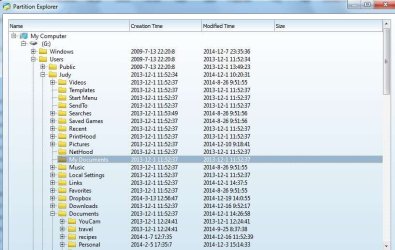
I checked the partition explorer feature on G: (since it seems to have the right specs in terms of usage), and it looks like it can see the file structure. Not sure what the best way to grab the data? Just want to grab all of the files/folders from the Users directory at this point and bring it over to the local drive -- then I can get rid of the failing drive completely.
 

Attachments

  • SP32-20141230-122703.jpg
    SP32-20141230-122703.jpg
    64.1 KB · Views: 0

My Computer My Computer

Computer Manufacturer/Model Number
Dell Inspiron 530
OS
Windows 7 Ultimate x64
I used the recovery wizard (the other "half" of that software) -- worked like a charm. Filtering allowed me to just find the files in "users" that were either modified or created after 12/1 and copy them to my "real" hard drive.

THANKS!!! Great piece of software!
 

My Computer My Computer

Computer Manufacturer/Model Number
Dell Inspiron 530
OS
Windows 7 Ultimate x64
Once you get all your files off that drive, you can format it and start using it for storage and disk images, so this never happens again. Apparently the drive is fine.

Not sure why you thought it died :huh:
 

My Computer My Computer

Computer type
PC/Desktop
Computer Manufacturer/Model Number
Skylake Special #666
OS
Windows 10 Pro x64
CPU
Intel Core i7 6700K
Motherboard
Asus Sabertooth Z170 Mark 1
Memory
GSkill TridentZ RGB 16GB 3600 16-16-16-36
Graphics Card(s)
EVGA GTX 980 Ti SC x2
Sound Card
Realtek High Definition
Monitor(s) Displays
AOC G2460PG
Screen Resolution
1920 x 1080 144Hz
Hard Drives
Samsung 860 Pro 256GB, Seagate Barracuda 4TB x2
PSU
EVGA 1000 P2, EVGA White Custom Braided Cables
Case
Corsair Vengeance C70 Gunmetal Black
Cooling
Corsair H100i v2, Corsair ML120 x2, Thermal Grizzly Kryonaut
Keyboard
Logitech G910 Orion Spectrum
Mouse
Logitech G700s
Internet Speed
Verizon Fios Quantum Gateway 75/75
Antivirus
Windows Defender, Malwarebytes Free 3.8.3
Browser
Chrome
Other Info
Corsair SP120 x4, LG Blu-ray Drive, Durabrand HT-395 100 Watt Dolby Digital Amp, Corsair H2100 Wireless 7.1 Headset
Screen shot of Partition Manager and CMD window

Nothing shows on the system drive...

What now?
E drive is only 199MB. No files at all on it... but totally full! All files are hidden. It is ACTIVE. It is the boot partition. Not relevant to recover.

G drive looks normal in the screenshot. What is the problem with G?
What "recovery wizard" did you run??? All partitions seem to be there already!
 

My Computer My Computer

Computer type
Laptop
Computer Manufacturer/Model Number
ACER ASPIRE 5742G
OS
Microsoft Windows 7 Home Premium 64-bits 7601 Multiprocessor Free Service Pack 1
CPU
Intel(R) Core(TM) i3 CPU M 370 @ 2.40GHz
Motherboard
Acer Aspire 5742G
Memory
4,00 GB
Graphics Card(s)
ATI Mobility Radeon HD 5400 Series
Sound Card
(1) AMD High Definition Audio Device (2) Realtek High Defi
Screen Resolution
1366 x 768 x 32 bits (4294967296 colors) @ 60 Hz
Hard Drives
WDC WD5000BEVT-22ZAT0
"However, there are some files on the old drive that were created/changed after the last backup"

This statement could be a clue to what caused the issue, was a backup program used ? If so what, if not, how was a backup done, and where was this backup being saved to ?

Whatever the method, it didn`t work and I would stop using it.

Just copy and paste your data, don`t rely on any program.

Please explain in detail.
 

My Computer My Computer

Computer type
PC/Desktop
Computer Manufacturer/Model Number
Skylake Special #666
OS
Windows 10 Pro x64
CPU
Intel Core i7 6700K
Motherboard
Asus Sabertooth Z170 Mark 1
Memory
GSkill TridentZ RGB 16GB 3600 16-16-16-36
Graphics Card(s)
EVGA GTX 980 Ti SC x2
Sound Card
Realtek High Definition
Monitor(s) Displays
AOC G2460PG
Screen Resolution
1920 x 1080 144Hz
Hard Drives
Samsung 860 Pro 256GB, Seagate Barracuda 4TB x2
PSU
EVGA 1000 P2, EVGA White Custom Braided Cables
Case
Corsair Vengeance C70 Gunmetal Black
Cooling
Corsair H100i v2, Corsair ML120 x2, Thermal Grizzly Kryonaut
Keyboard
Logitech G910 Orion Spectrum
Mouse
Logitech G700s
Internet Speed
Verizon Fios Quantum Gateway 75/75
Antivirus
Windows Defender, Malwarebytes Free 3.8.3
Browser
Chrome
Other Info
Corsair SP120 x4, LG Blu-ray Drive, Durabrand HT-395 100 Watt Dolby Digital Amp, Corsair H2100 Wireless 7.1 Headset
Once you get all your files off that drive, you can format it and start using it for storage and disk images, so this never happens again. Apparently the drive is fine.

Not sure why you thought it died :huh:

So I had posted here earlier, and hadn't gotten a reply
http://www.sevenforums.com/general-discussion/356161-help-boot-bcd-status-0xc00000e9.html

Windows Boot Manager
File: \Boot\BCD

Status: 0xc00000e9

Info: An unexpected I/O error has occurred

Reading a few other threads, I have tried to reboot in Recovery mode (to possibly rebuild BCD), both from internal and CD ROM, but both just hang. From CD ROM, gets to the part where select Operating system to restore from but just spins there and never populates (waited about an hour)

Have gone into the HP Advanced System Diagnostics and Run Hard Disk Test

Hard Disk SMART Check: PASSED
Hard Disk Short DST: FAILED

Screen shot of Partition Manager and CMD window

Nothing shows on the system drive...

What now?
E drive is only 199MB. No files at all on it... but totally full! All files are hidden. It is ACTIVE. It is the boot partition. Not relevant to recover.

G drive looks normal in the screenshot. What is the problem with G?
What "recovery wizard" did you run??? All partitions seem to be there already!

In the partition looks fine, however if you go into Windows Explorer and click on G: it just hangs, and if you go into CMD prompt and type "G:" it also hangs. CHKDSK /F G: also just hangs.

"However, there are some files on the old drive that were created/changed after the last backup"

This statement could be a clue to what caused the issue, was a backup program used ? If so what, if not, how was a backup done, and where was this backup being saved to ?

Whatever the method, it didn`t work and I would stop using it.

Just copy and paste your data, don`t rely on any program.

Please explain in detail.

Backups were taken using windows backup to an external drive which was used to restore the laptop once a new drive was put in. ISO image was restored from the backup, since the drive didn't seem immediately accessible. The laptop is now working fine (with the new drive and ISO image restored). I now have the files recovered from the above Partitiion Manager/Recovery program.
 

My Computer My Computer

Computer Manufacturer/Model Number
Dell Inspiron 530
OS
Windows 7 Ultimate x64
Back
Top