Solved Help Restoring Windows 7 or Recovering Data from Failing HDD?

randorandorando

New member
Local time
3:47 AM
Messages
21
Hello! I'm hoping you can help. This is long to provide as many details as I can. Quickies:


  • My old HP Pavilion came with Win 7 preinstalled so I don't have an installation disc, only a system repair disc and recovery discs.
  • It's Win 7 64-bit but I don't remember if it's home or pro.
  • Taking my hardware to a data recovery place isn't an option.
  • Anything that requires a second computer isn't an option.
  • Anything that requires physically disconnecting my HDD is a last resort.

Here's the info:

Win 7 is on an HDD. I installed Win 10 on a separate HDD in spring to see how it runs. Dual boot works fine but I only use Win 7, so all of my data is on that drive. I have nothing stored/installed under Win 10.

A few nights ago, my pc froze in the middle of shutting down. I eventually did a hard shutdown (power button hold) and went to bed. When I powered on the next morning, it went to the dual boot screen as usual. I chose Win 7 and it gave me the windows didn't shut down normally startup options...

1) I chose safe mode. It went to a black screen, flickered, and went back to the dual boot screen. I chose Win 7 start normally. It went to a black screen and froze until I had to do another hard shutdown.

2) I unplugged the computer long enough to see the light on the back go out, plugged it back up, powered on, highlighted Win 7 at the boot screen and hit F8 to get advanced options.

3) I chose repair your computer. It went to the screen with the bar saying it's loading files, then went to black and froze for over two hours. I did a hard shutdown again and left it alone for the rest of the morning.

4) I powered on late afternoon, back to Win 7 advanced options, chose diagnostics. It said all was fine. I exited and tried to boot Win 7 safe mode again. It froze on a black screen. I hard shutdown after over an hour.

5) I later powered on and chose Win 10 at the boot screen. It booted normally but immediately went into scan and repair. It zipped through that until it got to drive H. It estimated being done in 4 hours, so I ran errands.

6) I came back after only an hour and the computer was on my Win 7 login screen. I figured it finished, restarted, and defaulted to Win 7 when nothing was pressed since that's the first boot screen choice.

7) I logged in but it froze before the desktop fully loaded. I could see the desktop background but the actual icons, taskbar, etc never popped in. I left it for nearly two hours then did a hard shutdown since I had to leave.

8) The next day, I booted into Win 10 to investigate. When I looked at "this pc" that lists all of the drives, the H drive had no info next to it. Just its letter. When I clicked it wouldn't open. It just did the spinning circle. I could exit since it didn't freeze. I shut the computer down normally and unplugged it.

9) When I powered on later to google answers in Win 10, the bios smart test warned there's an imminent failure on SATA3. I don't remember which drive that is but I'm guessing it's the one with Win 7 for obvious reasons.​

I'm afraid I've lost everything but I don't want to give up yet because it's not about games and pictures. It's losing legal documents, work projects, and other irreplaceable things I didn't backup yet this month, plus the ability to work from home. This came out of nowhere.

So I need to try everything that doesn't cost money (I have none) to either get back into Win 7 or salvage whatever data from its HDD I can. The data is the goal, not saving the OS.

What I tried today:

I changed the boot order in the smart menu so I could boot from my Win 7 system repair disc. That worked but it said I was trying to repair the wrong OS. I figure it defaulted to Win 10.

I disabled the Win 10 drive in the bios menu to get around that and tried again. The repair disc loaded fine and asked which OS I want to repair.

It showed the drive Win 10 is on with its normal size and some F: drive that had 0 size. I don't know what that is, but it said Win 7 next to it. Clicking it gave a timeout error.

I don't have an installation disc for the load drivers option when you don't see your OS listed, so I canceled, reenabled my Win 10 drive, disabled the H drive in case that stops it from spinning up, and booted into Win 10 to search for more help.

Current Status:

Win 10 is now very slow to load in, shutdown, or run anything. I ran an sfc scannow and it said all was fine. I haven't run chkdsk on anything. I tried going into disk management but it doesn't load.

The "this pc" drives list still shows a nothing H drive, no F drive, a system E drive with 100mb I guess is a partition, and an HP_recovery drive with 16gb (only 3gb free) I guess is HP's built-in recovery system.

I googled that Smart test fail attribute #1 just now and results said it's critical. I'm even less hopeful I'll get the data off but I have to try. Thanks for whatever hail Mary's you can recommend!
 

My Computers My Computers

  • At a glance

    Win 7 64 Bit
    OS
    Win 7 64 Bit
  • Computer type
    PC/Desktop
1. Sounds like a failing disk.

Can you boot into recovery media and post a screenshot of the disk management window ?
You can borrow my boot media 17514x64v27.iso
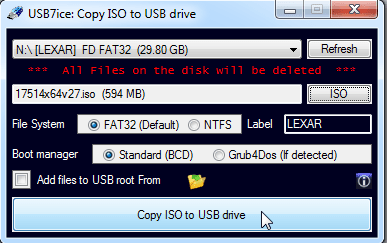
extract the iso file to usb using this View attachment Usb7ice.zip

2. Ask jumanji if anything can be done. Testdisk is included in the boot media Linked above.
 
Last edited:

My Computers My Computers

  • At a glance

    7 X64i5 84002x8gb 3200mhz
    Computer type
    PC/Desktop
    OS
    7 X64
    CPU
    i5 8400
    Motherboard
    gigabyte b365m ds3h
    Memory
    2x8gb 3200mhz
    Hard Drives
    various
    PSU
    pure power 11 400w cm
    Case
    Coolermaster
    Cooling
    cryorig m9i
  • At a glance

    7x64g54008gb ddr4 2400
    Computer type
    PC/Desktop
    OS
    7x64
    CPU
    g5400
    Motherboard
    ga b365m ds3h
    Memory
    8gb ddr4 2400
    PSU
    xfx pro 450w
Hi, SIW2 and thanks! Power was out in the area earlier so I couldn't get on. Downloading the iso now. What do you mean extract the file to usb? Also, before I do anything, will it matter that the drive letters are different from what they'd normally be?
 

My Computers My Computers

  • At a glance

    Win 7 64 Bit
    OS
    Win 7 64 Bit
  • Computer type
    PC/Desktop
usb7 ice will create a bootable usb from the iso file.

Plug in a blank usb stick (or one you dont mind overwriting) .

Select the usb stick in the top dropdown

Click ISO button and browse to the 17514x64v27.iso

Click copy iso to usb drive

usb7ice.png

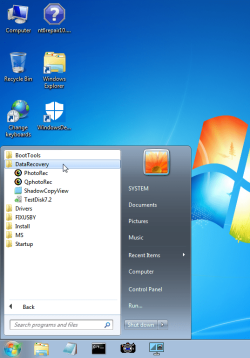
When you boot from the usb you just created, you will get to a desktop. Testdisk and Qphotorec are under the start menu

17514x64v27.png
 

My Computers My Computers

  • At a glance

    7 X64i5 84002x8gb 3200mhz
    Computer type
    PC/Desktop
    OS
    7 X64
    CPU
    i5 8400
    Motherboard
    gigabyte b365m ds3h
    Memory
    2x8gb 3200mhz
    Hard Drives
    various
    PSU
    pure power 11 400w cm
    Case
    Coolermaster
    Cooling
    cryorig m9i
  • At a glance

    7x64g54008gb ddr4 2400
    Computer type
    PC/Desktop
    OS
    7x64
    CPU
    g5400
    Motherboard
    ga b365m ds3h
    Memory
    8gb ddr4 2400
    PSU
    xfx pro 450w
It said there was a write error permission denied. Now my usb drive is gone from the drives list and when I run usb7ice again, the letter for it says 0kb.

- - - Updated - - -

I was able to reformat the usb drive and get everything on it but can you please explain what you want me to do while in there step by step? I don't know what these things are that you're showing me. I need to know what you want me to press. Am I launching testdisk? Am I launching qphotorec? What should I see, what should I do with them? Where am I saving a screenshot I take? I launched disk management and it's just blank hanging on connecting to virtual disk service at the bottom like in my Win 10. Thanks!
 

My Computers My Computers

  • At a glance

    Win 7 64 Bit
    OS
    Win 7 64 Bit
  • Computer type
    PC/Desktop
Wait and see if Jumanji has any advice.
 

My Computers My Computers

  • At a glance

    7 X64i5 84002x8gb 3200mhz
    Computer type
    PC/Desktop
    OS
    7 X64
    CPU
    i5 8400
    Motherboard
    gigabyte b365m ds3h
    Memory
    2x8gb 3200mhz
    Hard Drives
    various
    PSU
    pure power 11 400w cm
    Case
    Coolermaster
    Cooling
    cryorig m9i
  • At a glance

    7x64g54008gb ddr4 2400
    Computer type
    PC/Desktop
    OS
    7x64
    CPU
    g5400
    Motherboard
    ga b365m ds3h
    Memory
    8gb ddr4 2400
    PSU
    xfx pro 450w
@randorandorando,

You will be running TestDisk. @SIW2 may please clarify whether snipping tool is available in that pe, for you to take the screenshots and post it. I would like to see each and every screen as you proceed with TestDisk..
 

My Computer My Computer

At a glance

Windows 7 Home Premium 32 bit
OS
Windows 7 Home Premium 32 bit
Camera icon on the taskbar
 

My Computers My Computers

  • At a glance

    7 X64i5 84002x8gb 3200mhz
    Computer type
    PC/Desktop
    OS
    7 X64
    CPU
    i5 8400
    Motherboard
    gigabyte b365m ds3h
    Memory
    2x8gb 3200mhz
    Hard Drives
    various
    PSU
    pure power 11 400w cm
    Case
    Coolermaster
    Cooling
    cryorig m9i
  • At a glance

    7x64g54008gb ddr4 2400
    Computer type
    PC/Desktop
    OS
    7x64
    CPU
    g5400
    Motherboard
    ga b365m ds3h
    Memory
    8gb ddr4 2400
    PSU
    xfx pro 450w
Thank you SIW2

[FONT=&quot]@[/FONT]randorandorando[FONT=&quot], Click on the Camera icon in the taskbar and check whether you can take a screenshot and save it.

Now I have a basic question. Do you have two independent physical disks connected to two SATA ports in the motherboard on your HP Laptop, one HDD with Windows 7 and another HDD with Windows 10? Please mention their capacities too. ( I have a dual boot Windows 7 and Windows 8 on my old PC. Windows 7 is on one partition and Windows 8 on another partition in the same single HDD. Those are not on two independent HDDs)

Now rightclick on the TestDisk7.2 icon in the Start Menu (DataRecovery Folder) and run as administrator. Inside the TestDisk Window, you will navigate (highlight/select ), using the Up/Down Left/Right arrow keys]

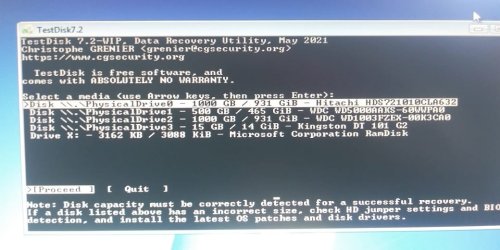
On the TestDisk Window that pops up ( First screen) navigate to [No Log] using the down arrow key and then press the ENTER key. This will take you to the second screen showing all your disks.Post a screenshot. If you have two independent HDDs then it should show two HDDs and your plugged in boot pendrive and may be another Virtual ROM drive..

You can quit TestDisk clicking on X in the Title Bar (Top right) or pressing Q repeatedly.


[/FONT]
 

My Computer My Computer

At a glance

Windows 7 Home Premium 32 bit
OS
Windows 7 Home Premium 32 bit
Thanks guys! I'll get started on testdisk when I'm home. In the meantime jumanji, I have three separate HDDs. My HP desktop came with Win 7 preinstalled on a 1TB Hitachi. I also had an extra Western Digital drive with I think 500gb that I used for backup storage.

About 5 years ago, I started getting SMART errors that the Hitachi was failing. The problem back then was speed. Not that I couldn't boot/access the drive or anything extreme like that.

To be safe, I backed everything up and installed a third 1TB Western Digital drive in my last free port, did a fresh install of my Win 7 on it, and left the Hitachi in so I could still copy files off it in case I missed anything.

Back to now, I did a fresh install of Win 10 on the storage drive early this year like I said and set it up to dual boot, so that's not for storage anymore. Everything was fine until now and you know the rest.

So unless I'm misremembering, there should be three physical HDDs:

Failed Hitachi SATA1
Win 10 SATA0
Win 7 SATA3​

Btw I know SSDs are better but funds were limited. I got what I could get.
 

My Computers My Computers

  • At a glance

    Win 7 64 Bit
    OS
    Win 7 64 Bit
  • Computer type
    PC/Desktop
Ok, yours is a desktop.

1. Hitachi 1TB - failed drive Remove Remove Remove.A faulty disk can influence the booting/performance of the OS. So get rid of it.

2. Western Digital 1TB - Windows 7 - now you are unable to boot into.

3, Western Digital 500GB - Windows 10. Boots but slow - most probable that your faulty disks 1 &2 causing it to falter.

Have I got the disks right? Yes/no.

In TestDisk you will have to identify the disks with their capacity. And let me tell you if TestDisk does not list your 1TB WD disk with windows 7, nothing can be done. No other Data recovery software also will see that disk. So no Do- It-Yourself data recovery is possible.

Now go ahead with TestDisk and post the second screen listing the drives..

If you are in USA, you are in a different time zone. My time now is 19:40 hrs. Thursday. I go to sleep in another two hours and will most probably see your next post my tomorrow morning - another 8 to 10 hours apart.
 
Last edited:

My Computer My Computer

At a glance

Windows 7 Home Premium 32 bit
OS
Windows 7 Home Premium 32 bit
What drive was you using as Win 7, the Hitachi on SATA1 or Western Digital on the SATA3?
 

My Computers My Computers

  • At a glance

    Windows 7 HP 64i5 6600K - 800MHz to 4200MHz4+4G GSkill DDR4 3000IG - Intel 530
    Computer type
    PC/Desktop
    Computer Manufacturer/Model Number
    custom build
    OS
    Windows 7 HP 64
    CPU
    i5 6600K - 800MHz to 4200MHz
    Motherboard
    GA-Z170-HD3P
    Memory
    4+4G GSkill DDR4 3000
    Graphics Card(s)
    IG - Intel 530
    Monitor(s) Displays
    Samsung 226BW
    Screen Resolution
    1680x1050
    Hard Drives
    (1) -1 SM951 – 128GB M.2 AHCI PCIe SSD drive for Windows 7 and Lubuntu
    (2) -1 WD SATA 3 - 1T for Data
    (3) -1 WD SATA 3 - 1T for backup
    PSU
    Thermaltake 450W TR2 gold
    Keyboard
    Old and good Chicony mechanical keyboard
    Mouse
    Logitech mX performance - 9 buttons (had to disable some)
    Internet Speed
    500Mb/s
    Browser
    Firefox 64
    Other Info
    TinyWall firewall
  • At a glance

    Windows 7 Proi7-4500U 800MHz to 3.0GHz(4+4)G DDR3 1600IG intel 4400 + NVIDIA GeForce GT 745M
    Computer type
    Laptop
    System Manufacturer/Model Number
    Asus Q550LF
    OS
    Windows 7 Pro
    CPU
    i7-4500U 800MHz to 3.0GHz
    Motherboard
    Asus Q550LF
    Memory
    (4+4)G DDR3 1600
    Graphics Card(s)
    IG intel 4400 + NVIDIA GeForce GT 745M
    Sound Card
    Realtek
    Monitor(s) Displays
    LG Display LP156WF4-SPH1
    Screen Resolution
    1920 x 1080
    Hard Drives
    BX500 120G SSD for Windows and programs +
    1T HDD for data
    Internet Speed
    500 Mb/s
    Browser
    Firefox
    Other Info
    TinyWall firewall
Nothing is on the Hitachi drive Mega. It's empty and disabled. Win 7 is on the WD.

@jumanji I think that's right. Also I don't want to remove anything until I troubleshoot this. The inside of the case is way too tight and I feel like I'm going to break something whenever I'm forced to go in there for anything other than cleaning dust. That's why I don't do it until I have no choice. The Hitachi has to wait. Heading home to work on this now!

Update:

When I first booted into the usb, I opened photorec/testdisk (not as admin) to see what they were since @SIW2 highlighted them. Photorec was a gray screen with a dropdown that had a bunch of drives listed. Testdisk, I chose no log since I wasn't sure and the next screen showed a bunch of drives too.

I didn't touch anything once I saw drives because I didn't want to make things worse. I just exited the apps. I shut the computer down normally from the desktop and posted here asking what to do with that stuff. Then you chimed in.

When I booted into the usb today to follow your steps, I ran testdisk as admin like you said and chose no log but instead of instantly listing everything like it did before, it hung on "please wait".

I launched photorec thinking I could show you the drives on that instead but it also hung on "disk identification" instead of loading instantly.

I googled these apps to see what they are and found a lot of threads where people had the same problem of them launching fine the first time but hanging ages the second. Is there a reason for that? If it's going to get worse every time I run it I'd rather wait until you give me all of the steps.

Anyway, I closed photorec to focus on testdisk. It loaded in after about 40 minutes. See thumb.

Thanks!
 

Attachments

  • testdisk1.jpg
    testdisk1.jpg
    81.6 KB · Views: 2

My Computers My Computers

  • At a glance

    Win 7 64 Bit
    OS
    Win 7 64 Bit
  • Computer type
    PC/Desktop
A defective drive can prevent the computer to work properly.
If the Hitachi drive is defective, you MUST remove it or detach (SATA and/or power cable) from the MB.
 

My Computers My Computers

  • At a glance

    Windows 7 HP 64i5 6600K - 800MHz to 4200MHz4+4G GSkill DDR4 3000IG - Intel 530
    Computer type
    PC/Desktop
    Computer Manufacturer/Model Number
    custom build
    OS
    Windows 7 HP 64
    CPU
    i5 6600K - 800MHz to 4200MHz
    Motherboard
    GA-Z170-HD3P
    Memory
    4+4G GSkill DDR4 3000
    Graphics Card(s)
    IG - Intel 530
    Monitor(s) Displays
    Samsung 226BW
    Screen Resolution
    1680x1050
    Hard Drives
    (1) -1 SM951 – 128GB M.2 AHCI PCIe SSD drive for Windows 7 and Lubuntu
    (2) -1 WD SATA 3 - 1T for Data
    (3) -1 WD SATA 3 - 1T for backup
    PSU
    Thermaltake 450W TR2 gold
    Keyboard
    Old and good Chicony mechanical keyboard
    Mouse
    Logitech mX performance - 9 buttons (had to disable some)
    Internet Speed
    500Mb/s
    Browser
    Firefox 64
    Other Info
    TinyWall firewall
  • At a glance

    Windows 7 Proi7-4500U 800MHz to 3.0GHz(4+4)G DDR3 1600IG intel 4400 + NVIDIA GeForce GT 745M
    Computer type
    Laptop
    System Manufacturer/Model Number
    Asus Q550LF
    OS
    Windows 7 Pro
    CPU
    i7-4500U 800MHz to 3.0GHz
    Motherboard
    Asus Q550LF
    Memory
    (4+4)G DDR3 1600
    Graphics Card(s)
    IG intel 4400 + NVIDIA GeForce GT 745M
    Sound Card
    Realtek
    Monitor(s) Displays
    LG Display LP156WF4-SPH1
    Screen Resolution
    1920 x 1080
    Hard Drives
    BX500 120G SSD for Windows and programs +
    1T HDD for data
    Internet Speed
    500 Mb/s
    Browser
    Firefox
    Other Info
    TinyWall firewall
I understand, Mega. The SMART test said it was imminently failing 5 years ago but it still works fine (I just opt not to trust it), and my computer issues only started this week. I guarantee I'll do more damage messing around in my case than it's doing at the moment. I'm not touching anything internally until I've tried to retrieve the data from my Win 7 drive and confirmed there's nothing more I can do on the software side. But thank you!

The data on the Win 7 drive that's obviously and actively causing problems with everything else is my focus. I'm just waiting for Jumanji to get back to me with the testdisk walkthrough whenever they're free. Reading up on testdisk in the meantime so I can follow their steps better and troubleshoot if needed.
 
Last edited:

My Computers My Computers

  • At a glance

    Win 7 64 Bit
    OS
    Win 7 64 Bit
  • Computer type
    PC/Desktop
Hi @randorandorando

OK,
Screen 2 lists all your drives. Select/highlight Physical Drive 2 - 1000GB WD drive which has your Windows 7. [Proceed] is highlighted. Press Enter

Screen 3 shows partition type found. In your case it may be [Intel] denoting that it is an MBR drive. Press Enter
(If you know for sure that it is a GPT drive, then and only then move/highlight [EFI GPT] and press Enter)

Screen 4 [Analyse] is highlighted. Enter

Screen 5 Shows current partition structure. [Quick Search] is highlighted. Enter

Screen 6 Analysing cylinder . It will take quite sometime to finish since it is an 1TB drive. When it completes Screen 7 will show the partitions found

Take a screenshot of screen 7 and post.

(If you get any other screen other than what is sequenced above , take a screenshot and post for me to decide what to do next.)
 
Last edited:

My Computer My Computer

At a glance

Windows 7 Home Premium 32 bit
OS
Windows 7 Home Premium 32 bit
Thanks Jumanji! Went through each step fine. Just waiting for analysis to complete.

What would happen if the power went out during this process? It would likely damage the disk further, right? Only asking because heat tends to cause brief outages in my area like it did the other day so I always worry about that whenever I have to let the computer run.
 

My Computers My Computers

  • At a glance

    Win 7 64 Bit
    OS
    Win 7 64 Bit
  • Computer type
    PC/Desktop
Power outages usually can cause file system corruption in the HDDs. Actually I am thinking that your HDD suffered one such file system corruption.

Right now we are going through the partition check process with TestDisk. If it finds that partition/s exist but proclaims file system corruption when we try to list the files, we shall go back to TestDisk Advanced mode to try and repair any such file system corruption.

In data recovery nothing is certain until it becomes certain. Let us see how it folds out as we go along.

if I don't respond to your post within half-an -hour, you can take it for granted that I have gone to sleep. You will get a response only after 10 hours.
 
Last edited:

My Computer My Computer

At a glance

Windows 7 Home Premium 32 bit
OS
Windows 7 Home Premium 32 bit
Ok thank you and have a good rest!

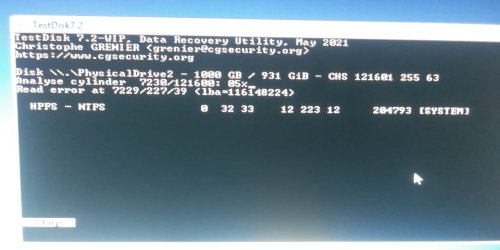
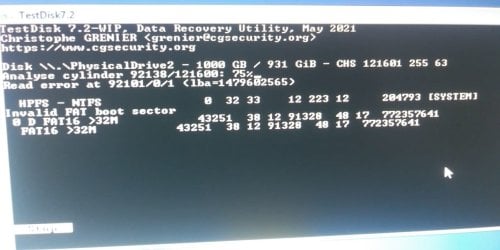
Update: Analyze started quickly, making it to 5% in around ten minutes, then stalled there after saying it had a read error at 7222/121600. It's been stuck at 5% ever since, only up to 7230 after three hours. See screenshot.

I can't keep it running all day since I have to leave later, but will let it go as long as I can. I'm wondering if that's the same "bad area" Win 10 struggled with when it did its scan and repair on the drive.

It had crawled but only on one section. Then went back to normal speed. I hope this will clear the hurdle and speed up again too. Glad to have help to figure this out either way. I've already lost a week of work.

Is there a way to retrieve files without analyzing/repairing the whole drive? Or is there no way to locate the data otherwise? I ask because of the 1TB, I was using about 400gb, and only around 150gb is the data I need. The documents and project files. The rest is work software that can be reinstalled on a new drive/system.

testdisk2.jpg

- - - Updated - - -

Hooray! My finger crossing worked. It did pass that hurdle and get fast again. Now it's facing another bump at 75%. I was able to come back home earlier than planned so I didn't have to stop it before I left. Now I can let it run until it's done. Fingers still crossed for no outage!
testdisk3.jpg
 

My Computers My Computers

  • At a glance

    Win 7 64 Bit
    OS
    Win 7 64 Bit
  • Computer type
    PC/Desktop
randorandorando

When it finishes do not stop or close TestDisk. Take a screenshot of the seventh screen and post. I will be online to see it and give further instructions for you to carryout. From thereon we shall go screen by screen. TestDisk is highly interactive and I cannot predict what screens you will get. I have to see each screen and decide what command should be given.

In the present circumstances where you do not want to remove the HDD, put it into an enclosure and carryout data recovery by plugging into a working computer, there is no other option than running TestDisk from the flash drive and try to recover the data.
 

My Computer My Computer

At a glance

Windows 7 Home Premium 32 bit
OS
Windows 7 Home Premium 32 bit
Back
Top