Recovering files from a readable Hard drive.

Raficoo

New member
Local time
6:22 AM
Messages
7
Greetings all,

First of all I would like to apologize should I be posting in the incorrect section(if so please some mod move this thread to the appropriate section)

So a few days ago my 750GB Hard drive in my Lenovo Y580 laptop failed (due to my setting it on sleep for a long time and taking the laptop with me outside for a prolonged amount of time)

When I got back home, I tried to turn on the laptop and I got 3 or 4 clicks("Click of death" I believe) so I bought a new 1TB Harddrive and used Lenovo recovery disks to get the laptop back to working order

Moving on, I bought a SATA to USB enclosure so that I might try to recover some files from my failed Harddrive, now the thing is, when I connect it, it doesn't give the click sounds anymore and it seems to read, however, here's the weird part, it only shows me the Lenovo recovery part of the drive

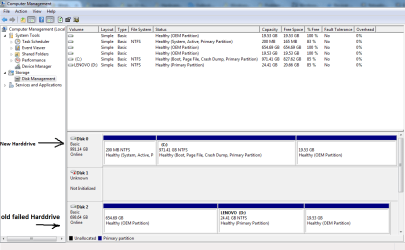
Here's how it looks like in my computer and disk management:
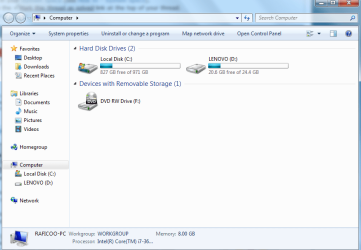
1.png
2.png

So my question is, what does the "OEM Partition" mean on my failed HDD(Disk 2)? and do you think it's possible to recover any data or does this mean all is lost? and if there is a chance of recovery how can I open up the part of the drive where the data was(which apparently in this case is the OEM paritition)

Right clicking on the OEM part only gives me the "Help" option:confused:

Best Regards,
Raficoo
 

My Computer My Computer

Computer type
Laptop
Computer Manufacturer/Model Number
Lenovo
OS
Windows 7 Home Premium 64bit
CPU
i7-3610QM
Memory
8GB
Graphics Card(s)
GTX 660m
Hard Drives
1 TB 5400rpm SATA
Antivirus
MSE
Browser
Firefox
Hi Raficoo,

Welcome to Seven Forums.

Without asking any questions - there are many I would like to ask - let me directly get into action.

Please download, install and run MiniTools Partition Wizard Free Edition 9. MiniTool Partition Manager Software for Windows PC and Server

Does the File System of the 654.69GB partition of your "old failed hard drive" show as NTFS in the disk list?

If yes, rightclick on it > Explore. Do you see the files? Close Partition Explorer.

Rightclick on it again > Unhide Partition. In the next screen assign a drive letter > OK

Two operations will be pending.

Click on APPLY in the top menu bar. When changes are completed > OK and then close Partition Wizard.

Can you see and read the drive now?
 

My Computer My Computer

OS
Windows 7 Home Premium 32 bit

My Computer My Computer

Computer Manufacturer/Model Number
HP, Dell, Gateway, Toshiba - 4 laptops and 2 desktops
OS
Vista, Windows7, Mint Mate, Zorin, Windows 8
CPU
from 1.6GHz Duo to i7
Monitor(s) Displays
2x HP w2207
Hard Drives
5x HDD, 7x SSD, 12x Externals
Keyboard
with trackball - no mices
Mouse
Trackball mice
Internet Speed
DSL 6000
I'd try assigning drive letters to those two partitions that don't have any, they will then show up in explorer. Then you can have a look at what's on them. The first large OEM partition is likely the one you want. Right click it in disk management and see if it will let you assign it a drive letter. Then go back to the Computer window and see if its listed.
 
Last edited:

My Computer My Computer

Computer type
PC/Desktop
Computer Manufacturer/Model Number
Home Built
OS
Windows 10 Education 64 bit
CPU
AMD Phenom II X4 980 Black Edition Deneb 3.7GHz
Motherboard
Asus M4N68T-M V2 µATX Motherboard
Memory
8GB 4GBx2 Kingston PC10600 DDR3 1333 Memory
Graphics Card(s)
Zotac NVIDIA Geforce GT640 2 Gig DDR3 PCIe
Sound Card
VIA VT1708s High Definition Audio 8-channel Onboard
Monitor(s) Displays
22" LG E2242 1080p and 2 19" I-INC AG191D
Screen Resolution
1280x1024 - 1920x1080 - 1280x1024
Hard Drives
Crucial M100 256 GB SSD and 500 GB WD Blue SATA
PSU
Thermaltake TR 620
Case
Power Up Black ATX Mid-Tower Case
Cooling
Stock heatsink and fan
Keyboard
Logitech Wireless K350 Wave
Mouse
Logitech Wireless M570 Trackman Wheel
Internet Speed
80 Mbps Down 30 Mbps Up
Antivirus
Windows Defender
Browser
Internet Explorer 11
Other Info
HP DVD1040e Lightscribe - External USB2
Hi Raficoo,

Welcome to Seven Forums.

Without asking any questions - there are many I would like to ask - let me directly get into action.

Please download, install and run MiniTools Partition Wizard Free Edition 9. MiniTool Partition Manager Software for Windows PC and Server

Does the File System of the 654.69GB partition of your "old failed hard drive" show as NTFS in the disk list?

If yes, rightclick on it > Explore. Do you see the files? Close Partition Explorer.

Rightclick on it again > Unhide Partition. In the next screen assign a drive letter > OK

Two operations will be pending.

Click on APPLY in the top menu bar. When changes are completed > OK and then close Partition Wizard.

Can you see and read the drive now?

Thank you for the reply,

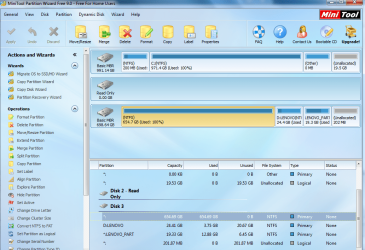
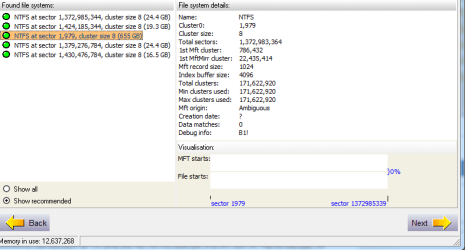
I downloaded and installed that program, and it shows my drive as NTFS as the pic shows:
4.png

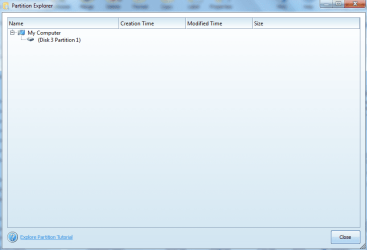
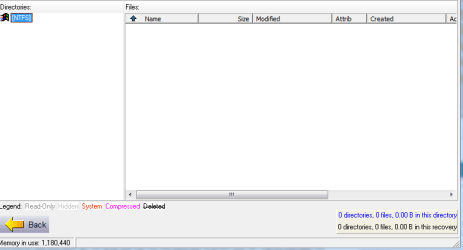
however if I right click > Explore it I get this :
5.png

closing the partition explorer, if I right click it I don't get "Unhide partition" but I get a "Hide partition" option

1. The OEM partition is most likely the recovery partition.

2. You can try to get to your data with this tool which I made myself:

http://www.sevenforums.com/tutorials/287439-emergency-kit-save-your-files-dead-os.html

Thanks, I'll see that if other options don't work

If assign drive letters to those two partitions that don't have any, they will then show up in explorer. Then you can have a look at what's on them. The first large OEM partition is likely the one you want. Right click it in disk management and see if it will let you assign it a drive letter. Then go back to the Computer window and see if its listed.

Like I said, I tried to right click on it, but it's only giving me the "help" option when I do so:
 

My Computer My Computer

Computer type
Laptop
Computer Manufacturer/Model Number
Lenovo
OS
Windows 7 Home Premium 64bit
CPU
i7-3610QM
Memory
8GB
Graphics Card(s)
GTX 660m
Hard Drives
1 TB 5400rpm SATA
Antivirus
MSE
Browser
Firefox
.....closing the partition explorer, if I right click it I don't get "Unhide partition" but I get a "Hide partition" option....

So that partition is not hidden. Yet it refuses to take a drive letter in WDM. Did you try assigning a drive letter with Partition Wizard? "Change Letter"

Also check the current Partition ID. "Change Partition Type ID" Note down the ID shown. If it is anything other than 0x07 NTFS, assign this ID and Apply.

Yes, I am still groping in the dark and trying to get it :).
 

My Computer My Computer

OS
Windows 7 Home Premium 32 bit
.....closing the partition explorer, if I right click it I don't get "Unhide partition" but I get a "Hide partition" option....

So that partition is not hidden. Yet it refuses to take a drive letter in WDM. Did you try assigning a drive letter with Partition Wizard? "Change Letter"

Also check the current Partition ID. "Change Partition Type ID" Note down the ID shown. If it is anything other than 0x07 NTFS, assign this ID and Apply.

Yes, I am still groping in the dark and trying to get it :).

I checked the ID type and it was 0x12 Compaq, so I switched it to 0x7 NTFS, assigned a letter, it showed up on "My Computer", however clicking it gave me this:
err.png

Anything else I can try? or is this the dead end?

I tried Easeus and it actually showed some content recoverable, but with that 1GB recovery limit isn't so useful, so if it comes down to that I would like to ask of another software that I can use.
 

My Computer My Computer

Computer type
Laptop
Computer Manufacturer/Model Number
Lenovo
OS
Windows 7 Home Premium 64bit
CPU
i7-3610QM
Memory
8GB
Graphics Card(s)
GTX 660m
Hard Drives
1 TB 5400rpm SATA
Antivirus
MSE
Browser
Firefox
Most paid software will allow you to recover only 1GB and if you are satisfied with the recovered data you have to buy.And if you are willing to pay I would recommend Getdataback for NTFS. You can try the trial version and then decide.

Now atleast you have assigned a drive letter. Did you explore it in Partition Wizard?

Post a screenshot of Windows Disk Management now. That may bring in other experts' suggestions .May be you need to run checkdisk and see whether it could repair the filesystem. I would wait for others' opinions.

It is now a million dollar question as to what path you should pursue to recover the data.

What type of data you have in that that you want to recover?
 

My Computer My Computer

OS
Windows 7 Home Premium 32 bit

My Computer My Computer

Computer type
PC/Desktop
Computer Manufacturer/Model Number
home built
OS
Multi-Boot W7_Pro_x64 W8.1_Pro_x64 W10_Pro_x64 +Linux_VMs +Chromium_VM
CPU
AMD Athlon II x4 620
Motherboard
Gigabyte GA-MA785G-UD3H
Memory
6GB GSkill DDR2 800
Graphics Card(s)
AMD 4670 GPU + AMD 4200 IGP
Sound Card
on board Realtek ALC889A
Monitor(s) Displays
RCA 40" LCD TV, Insignia 32" LCD TV, HP 15" LCD monitor
Screen Resolution
1680 x 1050
Hard Drives
OCZ Vertex 3 120GB,
Samsung F3 1TB (3),
Several others - WD, Seagate, Hitachi, ...
PSU
Corsair 500 W
Case
Rosewill mid tower
Cooling
CM 90mm rifle
Keyboard
Gyration wireless, Logitech wireless, Dell USB wired
Mouse
Gyration wireless, Logitech wireless, V7 USB wired
Internet Speed
Spectrum - 100Mbps D / 10Mbps U
Antivirus
Avast, MBAM3, EMET, WinPatrol
Browser
Pale Moon, Firefox, IE
Other Info
2 multi-boot PC's
Mainly HTPC/Office/Gen purpose (no gaming).
Trendnet USB KVM.
LG DVD burner/Blue Ray Player.
Tray system for removable SATA backup drives.

Not currently OCd, under-volted.
I use Hybrid sleep, rarely re-boot or shutdown.

Hauppauge HD-PVR, Avermedia PCIe TV Tuner, Hauppauge PCI TV Tuner.
That is a good suggestion from DavidE.

Have a look at this post http://www.sevenforums.com/hardware...ructure-corrupt-unreadable-8.html#post2817308 where the OP had success with GetDataback for NTFS. In the same thread just about half an hour ago another new user has reported success with Active @ File Recovery which again is a paid version.

You may try Active@Partition Recovery as suggested by DavidE though I am not sure whether it can read a drive with a corrupt MFT which I presume is the cause here which again could have been caused by bad sectors.

Test Disk has not been very successful on MFT repair. However you may still try Test Disk and check whether it shows your files. If it shows you can copy those files to another location.

I have also decided that your drive is afflicted with physical bad sectors and running checkdisk will be counterproductive. It can deal with "soft" bad sectors but not physical "hard" bad sectors. Still I would like to have a look at the Windows Disk Management now as part of the learning process.:D

I think the ball is now in your court.:)
 

My Computer My Computer

OS
Windows 7 Home Premium 32 bit
Most paid software will allow you to recover only 1GB and if you are satisfied with the recovered data you have to buy.And if you are willing to pay I would recommend Getdataback for NTFS. You can try the trial version and then decide.

Now atleast you have assigned a drive letter. Did you explore it in Partition Wizard?

Post a screenshot of Windows Disk Management now. That may bring in other experts' suggestions .May be you need to run checkdisk and see whether it could repair the filesystem. I would wait for others' opinions.

It is now a million dollar question as to what path you should pursue to recover the data.

What type of data you have in that that you want to recover?

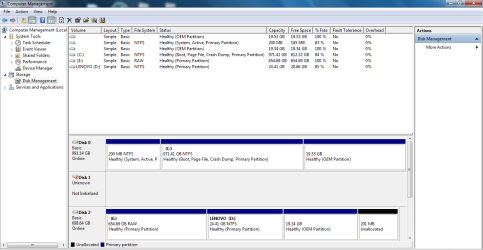
okay after setting the ID type to 0X7 and assigning a letter to the drive, this is what Disk management looks like now:
7.png
I got a funny feeling RAW is a bad sign, no?

I could do a checkdisk if needed, I just need to know how. Also I'm willing to use "GetDataback For NTFS", however, trying it with the "default settings" option, it scans quickly and doesn't show anything on the recovery table, not sure if I should pick a different scan type(Quick Scan, Systematic file system damage, sustained file system damage, or deleted files):
8.png
9.png

The files that I would like to recover? well mostly a few notes, pics, and audio recordings(those particular pics and audio are... were in the same folder), funny I thought I had backed up them in my external but I didn't, but I'm willing to see if I can recover anything at all at this stage to be honest
 

My Computer My Computer

Computer type
Laptop
Computer Manufacturer/Model Number
Lenovo
OS
Windows 7 Home Premium 64bit
CPU
i7-3610QM
Memory
8GB
Graphics Card(s)
GTX 660m
Hard Drives
1 TB 5400rpm SATA
Antivirus
MSE
Browser
Firefox
OK, the picture you are presenting is totally confusing. :)

Now stop trying Getdataback or any other data recovery software.

What is the other disk which is unknown and not initialised in Windows Disk Management and Read only in Partition Wizard? Please remove it.

For the record post fresh screenshots of Partition Wizard and also that of Windows Disk Management taken one after the other without much time difference.( I don't want you to upload the previous screenshots again)

Also explore that partition in Partition Wizard and see whether you can see the files.
 

My Computer My Computer

OS
Windows 7 Home Premium 32 bit
Hello,

Was there ever a resolution to this problem? I have the exact same laptop, HD, and problem. Everything down to the last little detail. I even had it clicking a bit like the OP then it stopped and i want to try and rescue a few files before it completely dies. Any help is greatly appreciated as was my backup with my other laptop HD dying two weeks ago. I am currently using my work computer that won't allow me to install any new programs so it will be a day or so before i can get set up.

Thx in advance. I'm desperate here.
 

My Computer My Computer

Computer type
Laptop
Computer Manufacturer/Model Number
lenovo Y580
OS
Windows Home Premium 64 bit
Back
Top