Recovering Files Lost in a Folder Locker batch program

Sarkman22

New member
Local time
6:11 PM
Messages
4
Hello All- first time posting- I hope I am following forum guidelines and providing enough info. Please feel free to correct me or ask questions. FYI I am pretty good with computers but a novice on programming.

Problem
*I have about 50GB of files locked in a hidden folder. I created a "folder locker" using this article:
How To Password Protect a Folder in Windows 10 | Laptop Mag
*It worked great at first, but now I cannot get the "FolderLocker.bat" file to run.
*It is supposed to launch a black screen where I enter a password, and voila my files appear!
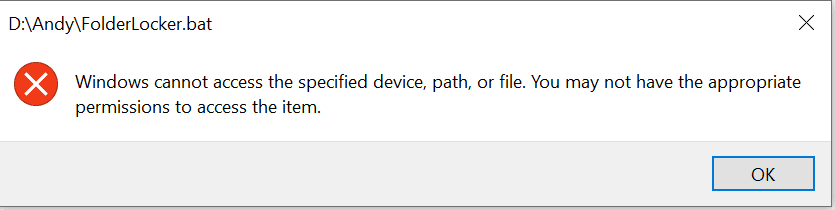
*When I double click the file, I get an error message (error message.png attached)
*I right click and "run as admin", which launches "windows command processor"- then a black screen quickly appears but very quickly disappears.

Other Relevant Info
*The program was created on a different computer which I do not have access to.
*The program ONLY worked on initial setup computer, I think. I am pretty sure the first time I tried it on my current machine, the problem started.
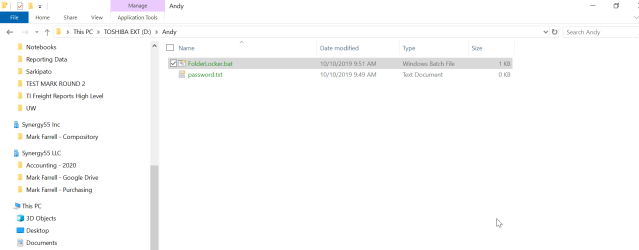
*I poked around CMD using my VERY little knowledge and tried to access the folderlocker.bat file that way and it just said "Access Denied". I also tried to "display directory" to see if other files showed up, but I just saw the same stuff as in windows explorer (folder structure.png attached).
*This is all on a Toshiba External hard drive.

Things I've Tried that didn't work
*Running .bat file on another computer.
*Changing Permissions for Authenticated users on .bat file.
*Running the file with full admin privileges (my current user name does NOT have full admin).
*Accessing via CMD as stated above.
*Changing drive extension of the external hard drive from E: to D: (I think it might have been set up as D: but I can't remember 100%.
*Banging my head against the wall repeatedly.

I could care less about getting this program to work that is now haunting me. Just looking for any way to recoup my data! Many thanks for reading and extra heaps of thanks for any suggestions!
 

Attachments
  • error message.png
    error message.png
    8.5 KB · Views: 0
  • folder structure.png
    folder structure.png
    53.9 KB · Views: 1

My Computer

Computer type
PC/Desktop
Computer Manufacturer/Model Number
Lenova
OS
Windows 10 Pro 64bit, x64-based processor
CPU
T460 Thinkpad
Memory
16.0 GB (15.4 GB usable)
Browser
Chrome
This is actually the Windows 7 help forums. The Windows 10 help forums are here: Windows 10 Help Forums

But I'll add that perhaps you can try Notepad ++ and then right click the .bat file to open it in Notepad ++.

Something tells me Win 10 messed the whole damn lot up. You should have used something like Veracrypt or Truecrypt instead.
 

My Computer

Computer type
PC/Desktop
OS
Windows 7 Ultimate x64
This batch file has been available for older editions of Windows, see Lock Folder without any Software | Microsoft Forums. The solution demonstrates the Principles of Hidden Folders from a batch file, but is not secure.
From the link provided, follow the advise of kedar9444, Wednesday, November 2 2011:
Open your Explorer Window on the Directory containing the .bat file.
Click on the Organise Tab, in Explorer.
Select Folder and Search Options, then select View Tab.
Uncheck "Hide protected operating system files (Recommended)".
Then your hidden folder will reveal itself. Double click on the newley revealed Folder, and provide Password.
Remeber to re-check "Hide protected operating system files (Recommended)" when done.
 

My Computer

Computer type
PC/Desktop
OS
Windows 7 x64, Vista x64, 8.1 smartphone
CPU
Intel E8400 65W 64-bit
Motherboard
Gigabyte EP45-UD3LR
Memory
DDR2 2 x 2GB, 1GB x 2
Graphics Card(s)
XFX Radeon HD5750
Sound Card
AMD High Definition Audio; Realtek High Definition Audio
Monitor(s) Displays
iiyama prolite X2377HDS
Screen Resolution
1920 x 1080
Hard Drives
500GB 7200 rpm Seagate ST3500413AS 16MB, 500GB 5400 rpm Toshiba MQ02ABF050H 32MB, 200GB 7200 rpm Seagate ST3200820AS 8MB, 2TB 7200 rpm Western Digital WD20EZRX 64MB
PSU
Enermax Liberty Modular
Case
Antec P193 Midi Tower
Keyboard
Mionix ZIBAL 60
Mouse
Razer USB 2.0 Diamondback Mouse or Huion Graphics Tablet
Browser
Internet Explorer, Lunascape, Firefox, Opera, Avast Safezone
This batch file has been available for older editions of Windows, see Lock Folder without any Software | Microsoft Forums. The solution demonstrates the Principles of Hidden Folders from a batch file, but is not secure.
From the link provided, follow the advise of kedar9444, Wednesday, November 2 2011:
Open your Explorer Window on the Directory containing the .bat file.
Click on the Organise Tab, in Explorer.
Select Folder and Search Options, then select View Tab.
Uncheck "Hide protected operating system files (Recommended)".
Then your hidden folder will reveal itself. Double click on the newley revealed Folder, and provide Password.
Remeber to re-check "Hide protected operating system files (Recommended)" when done.

Thank you very much for your suggestion! I really appreciate it. This got me a step closer. I followed these instructions and now I can see all of my stuff. However, instead of a folder called "Locker", which I expected to see, it is called "Control Panel.{21EC2020-3AEA-1069-A2DD-08002B30309D}". I can enter that folder and view all of my files, but they are still locked. The .bat file won't run as previously stated. When I double click to open any of the files, I get an access denied error or you do not have permission. Any idea the next step to take? Thanks!
 

My Computer

Computer type
PC/Desktop
Computer Manufacturer/Model Number
Lenova
OS
Windows 10 Pro 64bit, x64-based processor
CPU
T460 Thinkpad
Memory
16.0 GB (15.4 GB usable)
Browser
Chrome
This is actually the Windows 7 help forums. The Windows 10 help forums are here: Windows 10 Help Forums

But I'll add that perhaps you can try Notepad ++ and then right click the .bat file to open it in Notepad ++.

Something tells me Win 10 messed the whole damn lot up. You should have used something like Veracrypt or Truecrypt instead.

Oi sorry about that! I will repost on Windows 10. I really appreciate your suggestion. I will try Notepad ++ in a little bit and report back. I agree I should not have used this method- naive to think nothing would happen.
 

My Computer

Computer type
PC/Desktop
Computer Manufacturer/Model Number
Lenova
OS
Windows 10 Pro 64bit, x64-based processor
CPU
T460 Thinkpad
Memory
16.0 GB (15.4 GB usable)
Browser
Chrome
Tricks like that are targeted at kids and really inexperienced people, because such thing realistically provides ZERO protection against anything. All that it does is renaming a folder and setting hidden and system attributes and that's it. This leveragers bugs in Windows Explorer that hides folder with certain names. No decent file manager does this, including the built-in command prompt.

All you have to do is to simply rename the folder back and unset the attributes and your data is "back" again. If you want to secure data, use VeraCrypt of similar encryption software instead.
 

My Computer

Computer type
Laptop
Computer Manufacturer/Model Number
Toshiba Sattelite A665-S6092
OS
Windows 7 Ultimate x64
CPU
Intel Core i7-740QM
Memory
8 GB DDR3
Graphics Card(s)
NVIDIA GeForce 330GT
Screen Resolution
1366x768
Hard Drives
Samsung 840 SSD 500GB
1TB USB3 external HD
Cooling
Coolermaster Notepal U3 notebook cooling pad
Internet Speed
3mbps ASDL
Antivirus
ClamWin 0.98.7
Browser
Opera 12.17 x86 (main), Firefox 38 (sec), IE11 (last resort)
Tricks like that are targeted at kids and really inexperienced people, because such thing realistically provides ZERO protection against anything. All that it does is renaming a folder and setting hidden and system attributes and that's it. This leveragers bugs in Windows Explorer that hides folder with certain names. No decent file manager does this, including the built-in command prompt.

All you have to do is to simply rename the folder back and unset the attributes and your data is "back" again. If you want to secure data, use VeraCrypt of similar encryption software instead.

Thanks for your answer! What do you mean by "rename the folder back and unset the attributes"? I am not sure what that means. Could you please elaborate a little? Thanks!
 

My Computer

Computer type
PC/Desktop
Computer Manufacturer/Model Number
Lenova
OS
Windows 10 Pro 64bit, x64-based processor
CPU
T460 Thinkpad
Memory
16.0 GB (15.4 GB usable)
Browser
Chrome
Thanks for your answer! What do you mean by "rename the folder back and unset the attributes"? I am not sure what that means. Could you please elaborate a little? Thanks!

All this "locker" does is just rename the folder and make it hidden, relying on a bug of Windows Explorer to remain "hidden". Since Explorer fails miserably with such a folder, open a command prompt where you have the bat file and issue these commands:

Code:
attrib -h -s "Control Panel.{21EC2020-3AEA-1069-A2DD-08002B30309D}"

This makes the folder visible again, and non-system (these options are greyed out for no good reason in Windows Explorer, so you must use command line to unset them).

Then rename the folder to a normal name:

Code:
ren "Control Panel.{21EC2020-3AEA-1069-A2DD-08002B30309D}" Locker

This removes the special name that makes Explorer hide this folder. Then you can just access it like any other folder out there.

Then get rid of the bat file althogeter :p It does nothing useful and is trivially defeated.
 

My Computer

Computer type
Laptop
Computer Manufacturer/Model Number
Toshiba Sattelite A665-S6092
OS
Windows 7 Ultimate x64
CPU
Intel Core i7-740QM
Memory
8 GB DDR3
Graphics Card(s)
NVIDIA GeForce 330GT
Screen Resolution
1366x768
Hard Drives
Samsung 840 SSD 500GB
1TB USB3 external HD
Cooling
Coolermaster Notepal U3 notebook cooling pad
Internet Speed
3mbps ASDL
Antivirus
ClamWin 0.98.7
Browser
Opera 12.17 x86 (main), Firefox 38 (sec), IE11 (last resort)
Back
Top