Solved Registry section information

5Clint7

New member
Member
Local time
6:16 AM
Messages
97
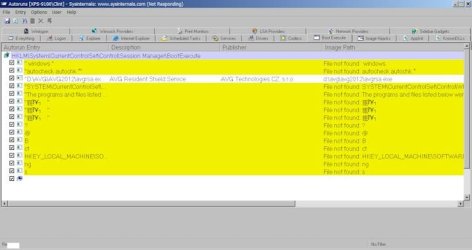
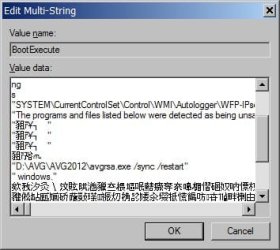
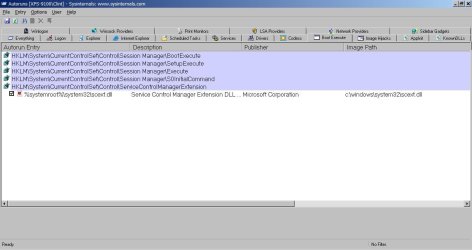
I hope this is the right place for this question. The last couple of times that I have run Sysinternals Autoruns, when it got to HKLM\System\Current Control Set\Control\Sessions Manger\Boot Execute, the program stopped responding. I thought there was a problem with the program, so I uninstalled it and got the latest version 11.32 and installed that. It does the same thing. There are some strange characters in that section. I don't have a clue what they are. I have included a screen shot of that section. The computer is working fine. I have Windows 7 Home Premium 64-bit. Does this look like a problem? Thanks for any help.
 

Attachments

  • Image3.jpg
    Image3.jpg
    45 KB · Views: 98

My Computer

Computer type
PC/Desktop
Computer Manufacturer/Model Number
Dell XPS 9100
OS
Windows 10 Pro 64-bit
CPU
Intel I7 920 @ 2.67 GHz
Motherboard
Dell
Memory
24 Gig
Graphics Card(s)
ATI 5670
Sound Card
Internal
Monitor(s) Displays
23" Wide Flat LED HDMI
Screen Resolution
1366 X 768
Hard Drives
Samsung 250 GB SSD
WD 1TB internal
Seagate 1TB internal
WD 2TB external USB 3
PSU
550 W
Case
Mid
Cooling
Fan
Keyboard
US USB
Mouse
USB
Internet Speed
3.84 Mbps down .44 Mbps up
Antivirus
MS Defener
Browser
IE 11
Other Info
1 Liteon DVD wrighter
1 Liteon BD drive
Don't know if it's a problem, but it's definitely not clean. Some of those entries look to me as though they can be deleted (deselected) as they indicate 'file not found' anyway.

I'd also check for the existence of malware. You've got some very odd keys there!
 
Last edited:

My Computer

OS
Windows 7 Ultimate x64
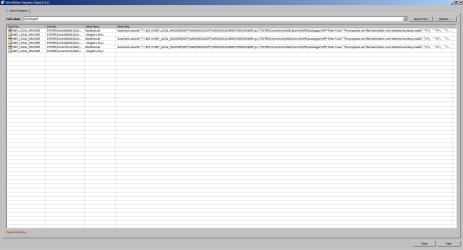
I have run Malwarebytes, AVG and Spybot Search and Destroy. Neither found anything. In Regedit I searched for autologger. It found it in 3 locations.
HKEY_LOCAL_MACHINE\SYSTEM\CurrentControlSet\Control\Session Manager\BootExecute
HKEY_LOCAL_MACHINE\SYSTEM\ControlSet001\Control\Session Manager\BootExecute HKEY_LOCAL_MACHINE\SYSTEM\ControlSet002\Control\Session Manager\BootExecute.


I found this at the Autoruns site.

About regkeys named AutorunsDisabled

If you untick any entry inside Autoruns, then autoruns will create a new regkey named AutorunsDisabled and move the unticked entry there.
If you tick such an item again, Autoruns will move the entry back from the AutorunsDisabled regkey one level up to the original location.


Is This a legitimate file?
C:\Users\Clint\AppData\Roaming\No Company Name \No Client Name\No Client Internal Version\Trace Database.txt? The file is 1KB. It says (Master 1 0)


reg1.jpg

reg2.jpg[/ATTACH][/ATTACH]
 
Last edited:

My Computer

Computer type
PC/Desktop
Computer Manufacturer/Model Number
Dell XPS 9100
OS
Windows 10 Pro 64-bit
CPU
Intel I7 920 @ 2.67 GHz
Motherboard
Dell
Memory
24 Gig
Graphics Card(s)
ATI 5670
Sound Card
Internal
Monitor(s) Displays
23" Wide Flat LED HDMI
Screen Resolution
1366 X 768
Hard Drives
Samsung 250 GB SSD
WD 1TB internal
Seagate 1TB internal
WD 2TB external USB 3
PSU
550 W
Case
Mid
Cooling
Fan
Keyboard
US USB
Mouse
USB
Internet Speed
3.84 Mbps down .44 Mbps up
Antivirus
MS Defener
Browser
IE 11
Other Info
1 Liteon DVD wrighter
1 Liteon BD drive
I have run Malwarebytes, AVG and Spybot Search and Destroy. Neither found anything. In Regedit I searched for autologger. It found it in 3 locations.
HKEY_LOCAL_MACHINE\SYSTEM\CurrentControlSet\Control\Session Manager\BootExecute
HKEY_LOCAL_MACHINE\SYSTEM\ControlSet001\Control\Session Manager\BootExecute HKEY_LOCAL_MACHINE\SYSTEM\ControlSet002\Control\Session Manager\BootExecute.

Just curious, what prompted you to search the registry for 'autologger'?

BTW, I'm guessing that as you're messing in the registry you're comfortable in doing so, right? Watching yourself while you're in it, having it backed up and can restore it if necessary?

I found this at the Autoruns site.
About regkeys named AutorunsDisabled

If you untick any entry inside Autoruns, then autoruns will create a new regkey named AutorunsDisabled and move the unticked entry there.
If you tick such an item again, Autoruns will move the entry back from the AutorunsDisabled regkey one level up to the original location.

Normal and expected.

Is This a legitimate file?
C:\Users\Clint\AppData\Roaming\No Company Name \No Client Name\No Client Internal Version\Trace Database.txt? The file is 1KB. It says (Master 1 0)

Odd pathname. When you say "It says (Master 1 0)" do you mean you opened the file and found that's all it contained?

In order to help ensure your machine is clean try this:

http://www.sevenforums.com/tutorials/166445-windows-defender-offline.html
 

My Computer

OS
Windows 7 Ultimate x64
"Just curious, what prompted you to search the registry for 'autologger'?"

When I saw "autologger" I thought it was a key logger.

I have backed up my registry.

"Odd pathname. When you say "It says (Master 1 0)" do you mean you opened the file and found that's all it contained?"

Boy I'll say. That was one thing that scared me. Yes I did open the file and that's all that was there. Master 1 0.


"In order to help ensure your machine is clean try this:"
http://www.sevenforums.com/tutorials/166445-windows-defender-offline.html

I did make the WDO flash drive and ran it, and it found nothing either. Thanks for the help.

Clint
 

My Computer

Computer type
PC/Desktop
Computer Manufacturer/Model Number
Dell XPS 9100
OS
Windows 10 Pro 64-bit
CPU
Intel I7 920 @ 2.67 GHz
Motherboard
Dell
Memory
24 Gig
Graphics Card(s)
ATI 5670
Sound Card
Internal
Monitor(s) Displays
23" Wide Flat LED HDMI
Screen Resolution
1366 X 768
Hard Drives
Samsung 250 GB SSD
WD 1TB internal
Seagate 1TB internal
WD 2TB external USB 3
PSU
550 W
Case
Mid
Cooling
Fan
Keyboard
US USB
Mouse
USB
Internet Speed
3.84 Mbps down .44 Mbps up
Antivirus
MS Defener
Browser
IE 11
Other Info
1 Liteon DVD wrighter
1 Liteon BD drive
The last couple of times that I have run Sysinternals Autoruns, when it got to HKLM\System\Current Control Set\Control\Sessions Manger\Boot Execute, the program stopped responding.

There are some strange characters in that section. I don't have a clue what they are. I have included a screen shot of that section. The computer is working fine. I have Windows 7 Home Premium 64-bit. Does this look like a problem? Thanks for any help.

When you start Autoruns it opens and starts scanning for ~1 minute (as seen in status bar at lower left). Does it complete the scan and show 'Ready' in the status bar or does it stop responding before that point?

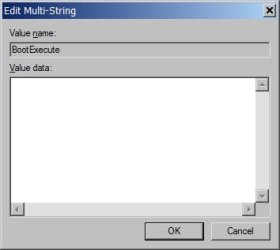
I think the 'autochk' entry in the BootExecute key is supposed to be there. I think it's there to allow automatic runs of 'chkdsk' if they were scheduled to run after a reboot (before Windows completely loads). Can you navigate to the BootExecute key in Regedit, highlite it and press enter to popup the dialog box for it? You should get something like this:

Capture5.PNG

"Just curious, what prompted you to search the registry for 'autologger'?"

When I saw "autologger" I thought it was a key logger.

Sorry, I had missed 'autologger' in your screenshots yesterday. I'm not sure if you should have that in the key. I just looked at 3 different w7 machines and none of them have anything similar.

"Odd pathname. When you say "It says (Master 1 0)" do you mean you opened the file and found that's all it contained?"

Boy I'll say. That was one thing that scared me. Yes I did open the file and that's all that was there. Master 1 0.

Still wondering about this file. What other files show up in that subfolder structure (within 'No Company Name' and deeper')? Check the created/modified dates/times of the subfolders and the file itself; maybe you'll recall something you did at those times that may help explain their existence.

I did make the WDO flash drive and ran it, and it found nothing either. Thanks for the help.

Clint

That's a good sign of course. And you're welcome!

The more supplemental malware scans you do the more comfortable you can be about the security of your machine (because none of them are 100% effective). Booting and running something like WDO allows scanning without interference from Windows or the malware itself. You can also do free online scans from some of the antimalware vendors like Eset, Kaspersky and others by visiting their websites.
 

My Computer

OS
Windows 7 Ultimate x64
"When you start Autoruns it opens and starts scanning for ~1 minute (as seen in status bar at lower left). Does it complete the scan and show 'Ready' in the status bar or does it stop responding before that point?"

Yes, It completes the scan and shows Ready. When I select the Boot Execute Tab and try to use the scroll bars is when it stops responding.


" Can you navigate to the Boot Execute key in Regedit, highlight it and press enter to popup the dialog box for it?"

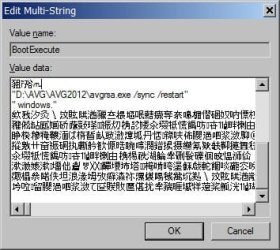
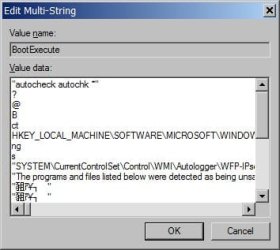
There's so much stuff in it, It will take 3 shots.

autologger1.jpg

autologger2.jpg

autologger3.jpg


"Still wondering about this file. What other files show up in that sub folder structure (within 'No Company Name' and deeper')? Check the created/modified dates/times of the sub folders and the file itself; maybe you'll recall something you did at those times that may help explain their existence."

There were no other files in that folder or sub folder. My PC was built 02-26-2012. The file in question is 03-07-2012. I did a search by date and looked at all the other files by that date. None looked odd. That was about the time I was having trouble getting a drawing tablet installed. Monoprice sent me some new drivers to install. Never did get it fixed. Just uninstalled it and forgot about it. The language in the Boot Execute Key looks like Chinese. I don't know if it is though. One other thing, When I was having a problem with my card readers about that time, Dell took control of my PC and did something, but they are in India.
 

My Computer

Computer type
PC/Desktop
Computer Manufacturer/Model Number
Dell XPS 9100
OS
Windows 10 Pro 64-bit
CPU
Intel I7 920 @ 2.67 GHz
Motherboard
Dell
Memory
24 Gig
Graphics Card(s)
ATI 5670
Sound Card
Internal
Monitor(s) Displays
23" Wide Flat LED HDMI
Screen Resolution
1366 X 768
Hard Drives
Samsung 250 GB SSD
WD 1TB internal
Seagate 1TB internal
WD 2TB external USB 3
PSU
550 W
Case
Mid
Cooling
Fan
Keyboard
US USB
Mouse
USB
Internet Speed
3.84 Mbps down .44 Mbps up
Antivirus
MS Defener
Browser
IE 11
Other Info
1 Liteon DVD wrighter
1 Liteon BD drive
I would guess that Autoruns stops responding when trying to process the characters in that key when you scroll to it.

Your screenshots of that regkey shows "everything", but not quite. Notice the scrollbar at the bottom. There's potentially a lot more there. I hate to say just delete the junk in there as I can't see each full line. Can you export the Session Manager key to a file and upload it here so I can look at it?

I'm not sure about the quoation marks wrapped around the autochk line at the beginning either. If you open an elevated command prompt, type chkdsk /f <enter>, type Y to schedule at reboot, then reboot, does a chkdsk actually occur before Windows loads?
 

My Computer

OS
Windows 7 Ultimate x64
" Can you export the Session Manager key to a file and upload it here so I can look at it?"

View attachment Session Manager.reg

I got this before I ran Chkdsk. Glad I did.


"I'm not sure about the quoation marks wrapped around the autochk line at the beginning either. If you open an elevated command prompt, type chkdsk /f <enter>, type Y to schedule at reboot, then reboot, does a chkdsk actually occur before Windows loads?"

Yes it runs before Windows loads. It must not have found any errors, because I can't find a log anywhere.

I can't believe that fixed it. I ran autoruns again and all that crap was gone from the Boot Execute tab and it didn't stop responding. I looked in the registry again and all was gone from Boot Execute in all 3 places of Sessions Manger. Thanks F5ing for the suggestion. I've got 2 shots with them clean. I'm not going to mark it solved for a couple of days yet.

autologger4.jpg

autologger5.jpg
 

My Computer

Computer type
PC/Desktop
Computer Manufacturer/Model Number
Dell XPS 9100
OS
Windows 10 Pro 64-bit
CPU
Intel I7 920 @ 2.67 GHz
Motherboard
Dell
Memory
24 Gig
Graphics Card(s)
ATI 5670
Sound Card
Internal
Monitor(s) Displays
23" Wide Flat LED HDMI
Screen Resolution
1366 X 768
Hard Drives
Samsung 250 GB SSD
WD 1TB internal
Seagate 1TB internal
WD 2TB external USB 3
PSU
550 W
Case
Mid
Cooling
Fan
Keyboard
US USB
Mouse
USB
Internet Speed
3.84 Mbps down .44 Mbps up
Antivirus
MS Defener
Browser
IE 11
Other Info
1 Liteon DVD wrighter
1 Liteon BD drive
You should be able to find chkdsk results, even when no errors were found, by going into event viewer and searching for wininit and/or chkdsk events. Can you post it here when you find it?
 

My Computer

OS
Windows 7 Ultimate x64
You should be able to find chkdsk results, even when no errors were found, by going into event viewer and searching for wininit and/or chkdsk events. Can you post it here when you find it?

I found the wininit file.

View attachment wininit.txt

I still have the No Company Name Folder thing.

I don't now have The autocheck and AVG line in the Boot Execute key like yours. Is that a problem?

Thanks again F5ing

Clint
 

My Computer

Computer type
PC/Desktop
Computer Manufacturer/Model Number
Dell XPS 9100
OS
Windows 10 Pro 64-bit
CPU
Intel I7 920 @ 2.67 GHz
Motherboard
Dell
Memory
24 Gig
Graphics Card(s)
ATI 5670
Sound Card
Internal
Monitor(s) Displays
23" Wide Flat LED HDMI
Screen Resolution
1366 X 768
Hard Drives
Samsung 250 GB SSD
WD 1TB internal
Seagate 1TB internal
WD 2TB external USB 3
PSU
550 W
Case
Mid
Cooling
Fan
Keyboard
US USB
Mouse
USB
Internet Speed
3.84 Mbps down .44 Mbps up
Antivirus
MS Defener
Browser
IE 11
Other Info
1 Liteon DVD wrighter
1 Liteon BD drive

My Computer

Computer type
PC/Desktop
Computer Manufacturer/Model Number
Home made Desktop
OS
Windows 10 Pro. 64/ version 1709 Windows 7 Pro/64
CPU
Intel i7-6800K @ 4.3
Motherboard
ASUS X-99 Deluxe II
Memory
Corsair Platinum 16 gig @2400
Graphics Card(s)
EVGA GTX 1070 OC
Monitor(s) Displays
Asus 27" LED LCD/VE278Q
Screen Resolution
1920-1080 or 1280-720 HDMI
Hard Drives
INTEL SSD 730-240 Gb Sata 3.0/
PSU
EVGA Platium 1200W
Case
Phanteks Luxe Tempered Glass 8 fans/ one radiator
Cooling
XSPC/ Water Cooled CPU
Keyboard
Das 4 Professional
Mouse
Logitech M705/MX Anywhere 2-S
Internet Speed
100 mbits
Antivirus
Microsoft Security Essentials/ Malwarebytes Premium 3.0/ SAS
Browser
I.E. 11 default/Firefox/ ISP Time Warner Cable/Spectrum
Other Info
LG BluRay Burner/
Sound system-KLipsch-THX/
Icy Dock ssd Hot Swap bays.
I found the wininit file.

So it looks like chkdsk found and cleaned some leftover crud.

I still have the No Company Name Folder thing.

If you're sure no other files exist in that folder structure (make sure Explorer is set to 'show hidden' and' don't hide system files' to be sure) I would rename 'No Company Name' by adding another character to the end (maybe 'No Company Name1'). Go through some runtime and reboots. If any issues pop up you can always remove the extra character. If no issues arise delete the txt file and the rest of the folder structure ('No Company Name' and deeper).

I seriously doubt you'll encounter issues if they only contain that one txt file.

I don't now have The autocheck and AVG line in the Boot Execute key like yours. Is that a problem?

I think both of those entries are required. Does AVG appear to be running? Correctly and with all features available?

Try this again: open an elevated command prompt, type chkdsk /f <enter>, type Y to schedule at reboot, but before rebooting check to see what appears in the Session Manager regkey. Is the autochk entry there?

Then reboot and make sure it does another chkdsk. As the last chkdsk reported problems it's best to run it again anyway to ensure repairs were properly completed.

Thanks again F5ing

Clint

Quite welcome of course!
 

My Computer

OS
Windows 7 Ultimate x64
I don't now have The autocheck and AVG line in the Boot Execute key like yours. Is that a problem?

"I think both of those entries are required. Does AVG appear to be running? Correctly and with all features available?"

All of AVG is working. Looking in Task Manager it is there.

"Try this again: open an elevated command prompt, type chkdsk /f <enter>, type Y to schedule at reboot, but before rebooting check to see what appears in the Session Manager regkey. Is the autochk entry there?"

No the autochk is not there and it's not there after reboot.

"Then reboot and make sure it does another chkdsk. As the last chkdsk reported problems it's best to run it again anyway to ensure repairs were properly completed."

I found this about "autochk". From what I read, It's not there unless you don't shut down correctly. I have not added it yet.


The BootExecute subkey is located in the HKEY_LOCAL_MACHINE hive under the SYSTEM, CurrentControlSet, Control and Session Manager keys and subkeys. It contains a default REG_MULTI_SZ value of Autocheck Autochk *. The benefit of BootExcecute is that it allows you to remove certain applications, services and commands from startup, which in turn can greatly enhance your computer's boot speed.

The Autocheck Autochk * value in the BootExecute subkey tells the operating system to run Autochk* every time the system launches. This tool verifies the logical integrity of the filesystem. It cannot be accessed directly in any other way, though you can indirectly access it through the Chkdsk tool. The benefit of allowing it to run automatically is that it is able to lock the entire disk volume and thus function more effectively.

Autochk bootup routine and the "dirty bit" (also called the "chkdsk flag")
When the system is shut down improperly or stops responding, Autochk runs against any volumes that are marked as being "dirty". At least, I know this is done with NTFS, and I think it is also done with FAT32. Autochk will not initiate a check of any partitions if none of them are flagged !! Autochk is set to run during bootup because of the registry entry:

HKEY_LOCAL_MACHINE\SYSTEM\CurrentControlSet\Control\Session Manager . . . BootExecute
The BootExecute entry tells Windows what to run upon bootup. By default, its value is "autocheck autochk *" - this tells Windows to run Autochk on any drive whose dirty bit is set

You can cancel Autochk within the first few seconds by hitting an key. However, each time you stop chkdsk, the system "remembers" that it still needs to run Autochk due to the flagged partition and will try to run it the next time you reboot. This continues forever, each time you reboot, until you allow Autochk to run and to complete.

 

My Computer

Computer type
PC/Desktop
Computer Manufacturer/Model Number
Dell XPS 9100
OS
Windows 10 Pro 64-bit
CPU
Intel I7 920 @ 2.67 GHz
Motherboard
Dell
Memory
24 Gig
Graphics Card(s)
ATI 5670
Sound Card
Internal
Monitor(s) Displays
23" Wide Flat LED HDMI
Screen Resolution
1366 X 768
Hard Drives
Samsung 250 GB SSD
WD 1TB internal
Seagate 1TB internal
WD 2TB external USB 3
PSU
550 W
Case
Mid
Cooling
Fan
Keyboard
US USB
Mouse
USB
Internet Speed
3.84 Mbps down .44 Mbps up
Antivirus
MS Defener
Browser
IE 11
Other Info
1 Liteon DVD wrighter
1 Liteon BD drive
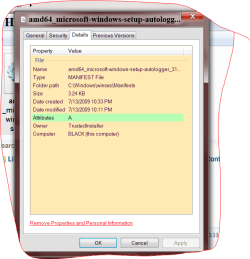
Windows has a autologger on my two computers. Just trying to help.

Capture.PNG

amd64_microsoft-windows-setup-autologger_31bf3856ad364e35_6.1.7600.16385_none_215a93120028ac5a.manifest
 

My Computer

Computer type
PC/Desktop
Computer Manufacturer/Model Number
Home made Desktop
OS
Windows 10 Pro. 64/ version 1709 Windows 7 Pro/64
CPU
Intel i7-6800K @ 4.3
Motherboard
ASUS X-99 Deluxe II
Memory
Corsair Platinum 16 gig @2400
Graphics Card(s)
EVGA GTX 1070 OC
Monitor(s) Displays
Asus 27" LED LCD/VE278Q
Screen Resolution
1920-1080 or 1280-720 HDMI
Hard Drives
INTEL SSD 730-240 Gb Sata 3.0/
PSU
EVGA Platium 1200W
Case
Phanteks Luxe Tempered Glass 8 fans/ one radiator
Cooling
XSPC/ Water Cooled CPU
Keyboard
Das 4 Professional
Mouse
Logitech M705/MX Anywhere 2-S
Internet Speed
100 mbits
Antivirus
Microsoft Security Essentials/ Malwarebytes Premium 3.0/ SAS
Browser
I.E. 11 default/Firefox/ ISP Time Warner Cable/Spectrum
Other Info
LG BluRay Burner/
Sound system-KLipsch-THX/
Icy Dock ssd Hot Swap bays.
So after rebooting did a chkdsk actually occur?

When you select 'yes' to do the chkdsk after the restart I think all it may be doing is setting that volume's dirty bit to on (so that a run of autochk can see it and run the chkdsk before Windows completes loading).

Description of the autochk command from the Microsoft help file:

Applies To: Windows XP,Windows Server 2008 R2,Windows Server 2008,Windows Vista,Windows Server 2003,Windows Server 2000,Windows Server 2003 R2,Windows 7,Windows Server 2008 R2 with SP1

Runs when the computer is started and prior to Windows Server® 2008 R2 starting to verify the logical integrity of a file system.


Autochk.exe is a version of Chkdsk that runs only on NTFS disks and only before Windows Server 2008 R2 starts. Autochk cannot be run directly from the command-line. Instead, Autochk runs in the following situations:
  • If you try to run Chkdsk on the boot volume
  • If Chkdsk cannot gain exclusive use of the volume
  • If the volume is flagged as dirty
Remarks

  • Warning: The Autochk command-line tool cannot be directly run from the command-line. Instead, use the Chkntfs command-line tool to configure the way you want Autochk to run at startup.
  • You can use Chkntfs with the /x parameter to prevent Autochk from running on a specific volume or multiple volumes.
  • Use the Chkntfs.exe command-line tool with the /t parameter to change the Autochk delay from 0 seconds to up to 3 days (259,200 seconds). However, a long delay means that the computer does not start until the time elapses or until you press a key to cancel Autochk.
 

My Computer

OS
Windows 7 Ultimate x64
"So after rebooting did a chkdsk actually occur?"

Yes chkdsk did occur.

I put the "autocheck autochk*" back in the CurentControlSet, 001 and 002 Boot Execute key with the quotation marks and * . When I looked at autoruns it said "file not found". The autochk.exe file is in the System32 folder. Do I need to add the path? I noticed that yours don't have the quotations marks. Is mine wrong?

I ran the Chkntfs. It said both my internal Hard drives are not dirty.

Clint
 

My Computer

Computer type
PC/Desktop
Computer Manufacturer/Model Number
Dell XPS 9100
OS
Windows 10 Pro 64-bit
CPU
Intel I7 920 @ 2.67 GHz
Motherboard
Dell
Memory
24 Gig
Graphics Card(s)
ATI 5670
Sound Card
Internal
Monitor(s) Displays
23" Wide Flat LED HDMI
Screen Resolution
1366 X 768
Hard Drives
Samsung 250 GB SSD
WD 1TB internal
Seagate 1TB internal
WD 2TB external USB 3
PSU
550 W
Case
Mid
Cooling
Fan
Keyboard
US USB
Mouse
USB
Internet Speed
3.84 Mbps down .44 Mbps up
Antivirus
MS Defener
Browser
IE 11
Other Info
1 Liteon DVD wrighter
1 Liteon BD drive
"So after rebooting did a chkdsk actually occur?"

Yes chkdsk did occur.

I put the "autocheck autochk*" back in the CurentControlSet, 001 and 002 Boot Execute key with the quotation marks and * . When I looked at autoruns it said "file not found". The autochk.exe file is in the System32 folder. Do I need to add the path? I noticed that yours don't have the quotations marks. Is mine wrong?

I ran the Chkntfs. It said both my internal Hard drives are not dirty.

Clint

CurentControlSet is the only one that matters. The OS will propogate the data to 001 and 002 and any others as appropriate.

Post another screenshot of autoruns so I can see that "file not found". You should not need the path as the path is already known by the environment variables that are already set (autochk, chkntfs and chkdsk should all reside in the System32 folder). You also might try removing the quotes from the entry and make sure there is a space between 'autochk' and the '*'.

Open Task Manager, click on Processes, and make sure avgrsa.exe is running. The last few machines I've worked on that had AVG installed (that I had while working with your thread) all had that extra line in the Boot Execute key.
 

My Computer

OS
Windows 7 Ultimate x64
"Post another screenshot of autoruns so I can see that "file not found". You should not need the path as the path is already known by the environment variables that are already set (autochk, chkntfs and chkdsk should all reside in the System32 folder). You also might try removing the quotes from the entry and make sure there is a space between 'autochk' and the '*'.

Open Task Manager, click on Processes, and make sure avgrsa.exe is running. The last few machines I've worked on that had AVG installed (that I had while working with your thread) all had that extra line in the Boot Execute key. "

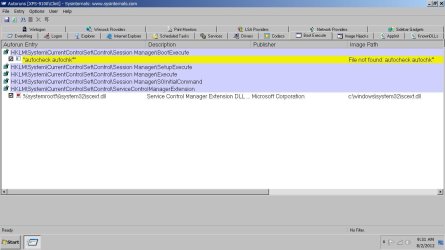
This Is autoruns with "file not found" before I removed the space and quotation marks.

autochk.jpg

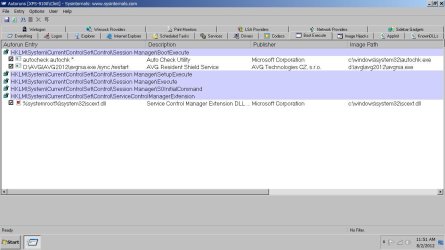
This is autoruns after removing space and quotation marks from autochk. It puts the path in automaticaly. I Also added the AVG line with no quotation marks.


autochk4.jpg


This is reg. after adding autochk and AVG. It put autochk in Session Manger (Default) key also. Is this OK?

autochk6.jpg


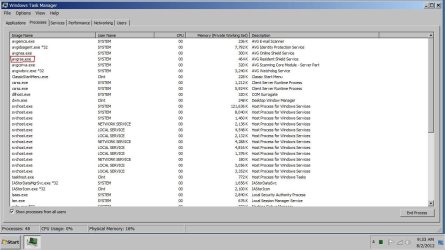
This is TaskManger before I added the line to Boot Execute. The avgrsa.exe was loaded then. It must have loaded after windows started this way. I think now it loads at boot before Windows starts, because it takes longer for Windows to start.

AVG.jpg

I have rebooted several times now and everything seems to be working OK. I will still wait a few days before I mark it solved.

Thanks again
Clint
 

My Computer

Computer type
PC/Desktop
Computer Manufacturer/Model Number
Dell XPS 9100
OS
Windows 10 Pro 64-bit
CPU
Intel I7 920 @ 2.67 GHz
Motherboard
Dell
Memory
24 Gig
Graphics Card(s)
ATI 5670
Sound Card
Internal
Monitor(s) Displays
23" Wide Flat LED HDMI
Screen Resolution
1366 X 768
Hard Drives
Samsung 250 GB SSD
WD 1TB internal
Seagate 1TB internal
WD 2TB external USB 3
PSU
550 W
Case
Mid
Cooling
Fan
Keyboard
US USB
Mouse
USB
Internet Speed
3.84 Mbps down .44 Mbps up
Antivirus
MS Defener
Browser
IE 11
Other Info
1 Liteon DVD wrighter
1 Liteon BD drive
This is autoruns after removing space and quotation marks from autochk. It puts the path in automaticaly. I Also added the AVG line with no quotation marks.

Autoruns is likely just using the "path" environment variable in order to find the exact file location. Even if you have two versions of autochk on your disk (not likely) it's letting you know that this is the one that'll run when the key gets processed.

This is reg. after adding autochk and AVG. It put autochk in Session Manger (Default) key also. Is this OK?

I'm not sure if it'll harm anything, but it's not needed. See if you can modify the (Default) key by deleting its contents so that it end up with the value of '(value not set)'. Reboot and recheck it to see that it stays that way and that the BootExecute entry remains as is (because it now looks good).

This is TaskManger before I added the line to Boot Execute. The avgrsa.exe was loaded then. It must have loaded after windows started this way. I think now it loads at boot before Windows starts, because it takes longer for Windows to start.

I think you're right. Starting it this way helps to ensure it gets up and running before any malware can start and possibly interfere. That '/restart' switch may also be there to make it 'persistent' (if malware succeeds in shutting it down it'll attempt to restart itself).

When you started this thread one of your concerns was finding a reference to an autologger. Perfectly natural to jump to the conclusion that it may be malware. But remember that Windows and some legitimate third party software is autologging data all the time (even when Windows is seemingly idle you can see it doing stuff).

That autologger reference you had found in the registry appears to be legitimate but in the wrong location. You might find the correct location to be at HKEY_LOCAL_MACHINE\SYSTEM\CurrentControlSet\Control\WMI\Autologger. You had stated early in the thread that you had searched the registry for 'autologger' and only found it in the three BootExecute keys. Were you searching with 'keys', 'values' and 'data' all selected?

I wonder how your BootExecute key got so discombobulated to begin with.
 

My Computer

OS
Windows 7 Ultimate x64
Back
Top