
How to Turn On or Off Automatic Log On for a Remote Desktop Connection
Information
This tutorial will show you how to set a remote desktop connection (RDC) to automatically log on or not in Vista, Windows 7, and Windows 8.
Note
While all editions of Vista, Windows 7, and Windows 8 can be a remote desktop client...
- Only the Vista Business, Ultimate, and Enterprise editions can host a remote desktop connection.
- Only the Windows 7 Professional, Ultimate, and Enterprise editions can host a remote desktop connection.
- Only the Windows 8 Pro and Enterprise editions can host a remote desktop connection.
OPTION ONE
To Set a Remote Desktop Connection to Log On Automatically
2. Open the Remote Desktop Connection shortcut (mstsc.exe), and click on Options to expand it open. (see screenshot below)
NOTE: The RDC shortcut can also be found in the Start Menu, All Programs, Accessories location.
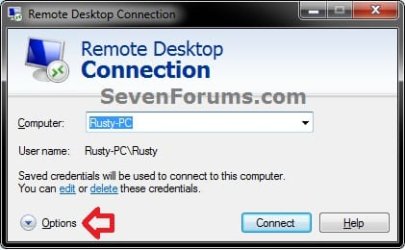
3. Select the Computer and User Name of the RDC that you want to set automatic log on for. (see screenshot below)

4. To Set in RDC Logon Settings A) Under the General tab, check the Always ask for credentials box, and click on the Save tab. (see screenshot above)
B) If you have not already entered the log in credentials of the remote computer for this RDC, then you will be prompted to enter them (step 5B) only for the next time you click on the Connect button. After this, the RDC will be logged on automatically after clicking on the Connnect button.
5. To Set at RDC Log On A) Click on the Connect button. (see screenshot below step 3)
B) If you have not already, enter the log in credentials of the remote computer. (see screenshots below)
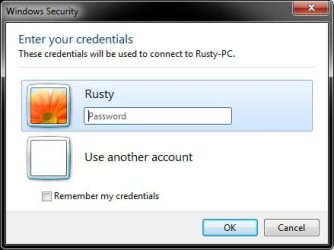
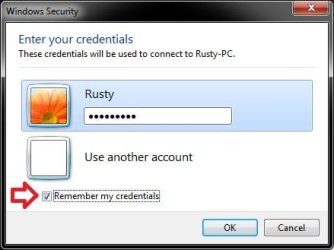
C) Check the Remember my credentials box, and click on OK. (see screenshots above)
6. The selected RDC (step 3) will now log on automatically after clicking on the Connect button.
OPTION TWO
To Turn Off Automatic Log On for a Remote Desktop Connection
NOTE: This is the default setting. 1. Open the Remote Desktop Connection shortcut (mstsc.exe), and click on Options to expand it open. (see screenshot below)
NOTE: The RDC shortcut can also be found in the Start Menu, All Programs, Accessories location.
2. Select the Computer and User Name of the RDC that you want to turn off automatic log on for. (see screenshot below)
3. Under the General tab, uncheck the Always ask for credentials box, and click on the Save tab. (see screenshot above)
4. The selected RDC (step 3) will now have automatic log on turned off and will prompt you to enter the log on credentials again after clicking on the Connect button.
That's it,
Shawn
Related Tutorials
- How to Enable Windows to make a Remote Desktop Connection
- How to Set Time Limit for Active Remote Desktop Sessions
- How to Set Time Limit for Idle Remote Desktop Sessions
- How to Terminate Remote Desktop Session when Active or Idle Time Limits are Reached
- How to Create a Windows RemoteApp and Desktop Connections Shortcut
- How to Automatically Log On a User Account at Windows 7 Startup
- How to Have Windows 8 or 8.1 Log On to a User Account Automatically at Startup
- Allow or Prevent Remote Desktop Connection Clients to Automatically Log On to Host Computer
- How to Create a "Remote Desktop Connection" Shortcut to a Specific Computer
- How to Reset and Clear Remote Desktop Connection History in Windows 7 and Windows 8
- How to Delete Credentials of a Remote Desktop Connection in Windows 7 and Windows 8
Last edited:


