Remote Desktop Connection not working?

weeman1

New member
Local time
4:37 PM
Messages
3
I am trying to set up a remote login with my two laptops, w-PC, and w2-PC.

Firewalls are turned off. The box for the remote coonection is enabled and checked. When I try to connect to w2-PC from w-PC, I get this error message every single time.

Remote Desktop can't connect to the remote computer for one of these reasons:
  1. Remote access to the server is not enabled
  2. The remote computer is turned off
  3. The remote computer is not available on the network
Make sure the remote computer is turned on and connected to the network, and that remote access is enabled.

I have been trying to figure this out for an hour and cannot get it to work. I have the firewall turned off on both computers.
\
How can I solve this problem?
 

My Computer

OS
windows 7 64 bit

My Computer

Computer type
PC/Desktop
Computer Manufacturer/Model Number
Self Built
OS
Windows 7 Ultimate 64bit
CPU
AMD Phenom Quad core 9950 black edition
Motherboard
Gigabyte
Memory
16Gb
Graphics Card(s)
2x XFX Radeon 5850
Sound Card
PCI Express X-Fi Titanium / Logitech G35
Monitor(s) Displays
2x HP 2410i
Screen Resolution
1920x1080
Hard Drives
2x 500Gb Seagate
1x 300Gb Seagate
1x 1Tb Seagate
2x 1Tb Hitatchi
PSU
Jean Tech Storm 700W
Case
Cooler Master COSMOS S
Cooling
Akasa Evo Blue Pro
Keyboard
Logitech G15
Mouse
Mad Catz M.M.O. 7
Internet Speed
12mb
To configure remote access, follow these steps:
1. In Control Panel, click System And Security, and then click System.
2. On the System page, click Remote Settings in the left pane. This opens the System Properties dialog box to the Remote tab.
3. To disable Remote Desktop, select Don’t Allow Connections To This Com¬puter, and then click OK.Skip the remaining steps.
4. To enable Remote Desktop, you have two options. You can:
  • Select Allow Connections From Computers Running Any Version Of Remote Desktop to allow connections from any version of Windows.
  • Select Allow Connections Only From Computers Running Remote Desktop With Network Level Authentication to allow connections only from Windows 7 or later computers (and computers with secure network authentication).
5. Click Select Users. This displays the Remote Desktop Users dialog box.
6. To grant Remote Desktop access to a user, click Add. This opens the Select Users dialog box. In the Select Users dialog box, click Locations to select the computer or domain in which the users you want to work with are located. Type the name of a user you want to work with in the Enter The Object Names To Select field, and then click Check Names. If matches are found, select the account you want to use and then click OK. If no matches are found, update the name you entered and try searching again. Repeat this step as necessary, and then click OK.
7. To revoke remote access permissions for a user account, select the account and then click Remove.
8. Click OK twice when you have finished.
 

My Computer

OS
Windows 7 Home Premium 32bit.
Why not try Teamviewer pal ... very little configuration and very easy to use ;)

Teamviewer Tutorial

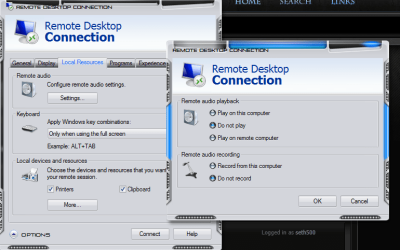
I agree with that. Remote Desktop seems to have a lot of issues on this site with people turning of the sound on remote desktop will help you connect. Follow the screenshot below but teamviewer is a more user friendly program.
 

Attachments

  • 8-31-2011 8-22-32 AM.png
    8-31-2011 8-22-32 AM.png
    40.4 KB · Views: 212

My Computer

Computer Manufacturer/Model Number
Alienware
OS
Windows 7 Ultimate x64
CPU
I7
Motherboard
GA-X58-USB3
Memory
6 x 1.5V DDR3 DIMM sockets supporting up to 24 GB of system
Graphics Card(s)
GeForce GTX 580
Sound Card
Realtek ALC892 codec 2/4/5.1/7.1-channel
Monitor(s) Displays
NEC Display Solutions E321 Black 32"
Screen Resolution
1366 x 768
Hard Drives
OCZ Colossus LT Series OCZSSD2-1CLSLT1T 3.5" 1TB SATA II MLC Internal Solid State Drive
PSU
XFX Black Edition XPS-850W-BES 850W ATX12V
Case
Antec
Cooling
Zalman
Keyboard
Microsoft
Mouse
Microsoft
Back
Top