Remote Desktop Connection (RDC) - Network

How to Enable Windows to Make and Accept a Remote Desktop Connection

   Information
This tutorial will show you how to enable Remote Desktop Connection, and to connect remotely in Vista, Windows 7, and Windows 8.


   Warning
While all editions of Vista, Windows 7, and Windows 8 can be a remote desktop client...
  • Only the Vista Business, Ultimate, and Enterprise editions can host a remote desktop connection.
  • Only the Windows 7 Professional, Ultimate, and Enterprise editions can host a remote desktop connection.
  • Only the Windows 8 Pro and Enterprise editions can host a remote desktop connection.


FIRST

To Enable Remote Connection


1. Go to Control Panel>System>Advanced System Settings
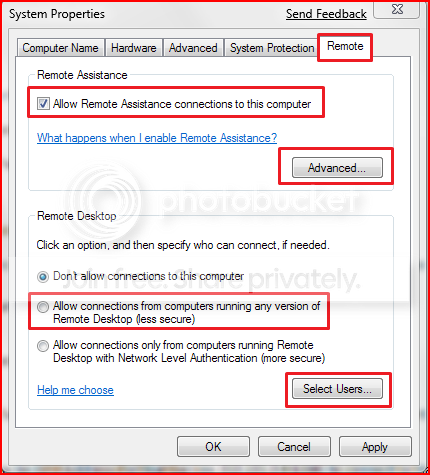
SystemProperties.png

2. Go to Remote tab.

3. Under Remote Assistance, put a check mark on Allow Remote Assistance connections to this computer.
Note: This automatically adds Remote Desktop exception to Windows Firewall.

4. Click on Apply.


OPTION ONE

To Connect to a Remote Desktop (Local Area Connectivity)


1. Go to Start>All Programs>Accessories>Remote Desktop Connection
NOTE: You could also press the Windows + R keys to open the Run dialog, type mstsc.exe, and press Enter.
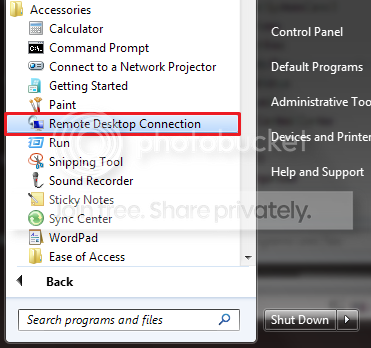
RDCLocation.png

2. Enter the Computer Name or IP address of the computer you wish to connect to.
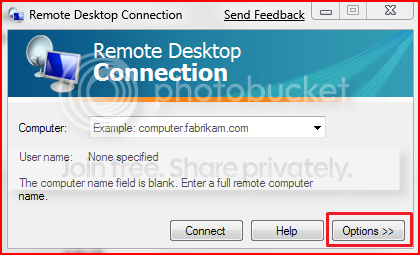
RemoteDesktopConnection.png

3. For more connection options, click on Options
NOTE: Here you can save the connection profile, adjust display properties, run specified programs upon connection, adjust connection bandwidth, etc. For more information on specific tabs, click on Help.
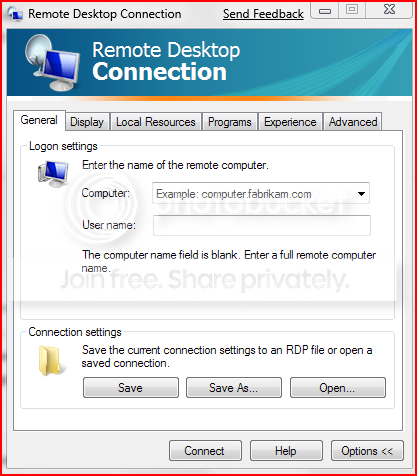
RemoteDesktopConnectionExpanded.png

4. Click on Connect.

5. Enter your log in credentials of a user account on the remote computer that is allowed to do a remote desktop connection.
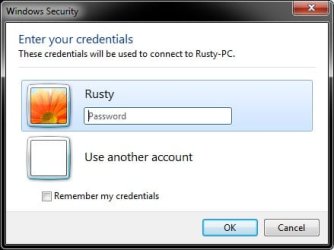
Credentials.jpg


OPTION TWO

Enable Windows to Accept Remote Desktop Connection (Local Area Connectivity)


1. Go to Control Panel>System>Advanced System Settings
SystemProperties.png

2. Go to Remote tab.

3. Under Remote Assistance, put a check mark on Allow Remote Assistance connections to this computer
Note: This automatically adds Remote Desktop exception in Windows Firewall.

4. Click on Advanced...
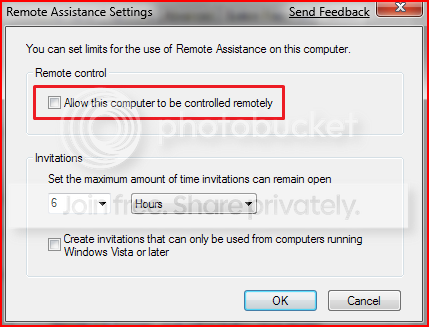
RemoteAssistantSettings.png

5. Put a check mark on Allow this computer to be controlled remotely.

6. Click on OK.
Note: This automatically adds Remote Assistance exception in Windows Firewall.

7. Remote Desktop Connection behind a router (Single computer)
A) Configure your router's port forwarding to allow connections on port 3389
B) Now in RDC just type the IP address supplied by your ISP
8. Remote Desktop Connection behind a router (Multiple computers)
A) For each computer you want to remotely connect to you have to configure each computer to listen to different ports to avoid port conflicts by changing the registry key in:

HKEY_LOCAL_MACHINE\System\CurrentControlSet\Control\Terminal Server\WinStations\RDP-Tcp\PortNumber
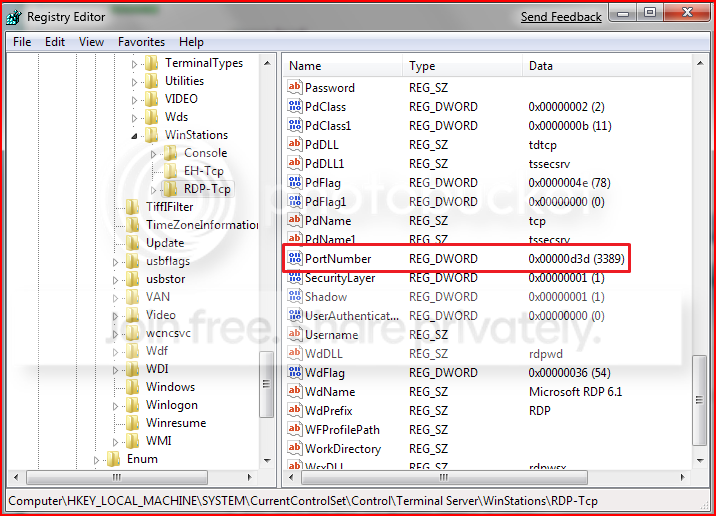
PortConfiguration.png

B) Port Numbers are in Decimal format
Note: To avoid conflict with other programs it is suggested to select a port between 49152 and 65535.

C) Now take that number you've chosen your computer to listen to and configure your router to port forward to that number

D) To connect to that computer your format will now be ISPIPAddress:PortNumber (ex. 222.222.2.8:1234) to connect to that specific computer behind the router
Important: If you have a firewall software running, that too has to be configured to allow communication to the port you opened in your router as well.

Note: The above steps assumes that you're not part of a domain.

 
Last edited by a moderator:
Thanks for your patience....

OK I did that.

PC Name is Old-PC and other is New-PC. I am assuming this is the user name as well.

I seemed to get to a dark screen with the little Square with the Flower and Old-PC. It asked for a pass word and I left thsi blank. as I have no passwords and could not work out how to put one on.
Then it switched users and I went back to New-Pc screen.

So I will jsut have to get a new keyboard and screen for the old pc

Help
Dan
 

My Computer

OS
Wind 7 Pro 64-bit
Sorry to be a pest ...

But I am getting there..

I get the black screen on the Old-PC

then

The Yellow Warning Box

then

Username & Password is incorrect

then

User Name Square - OLD-PC

then

Hit the arrow

then

Username & Password is incorrect.

There is NO passwords anywhere in the network. I know you said I needed a password, but (Why) and how do I get a password on the Old-PC.

Or is there an easier way (apart from getting another keyborad & mouse and physically sitting at the Old-PC

This is really becomming complex.... can anyoen make it simple.... or is this the way of windows

Dan
 

My Computer

OS
Wind 7 Pro 64-bit
Anyone?????

I even got a man in and he could not get it to go.....

Anyone have step-by-step....
 

My Computer

OS
Wind 7 Pro 64-bit
~~~
PC Name is Old-PC and other is New-PC.
I am assuming this is the user name as well.
~~~
Old-PC is probably not the username.
New-PC is probably not the username.

Sit down at your new computer.
Press Ctrl-Alt-Del
Select "Lock this computer" from the menu
Write down the username that shows after you lock the computer

If you can click on that username and get to the desktop without entering a password, then that username does not have a password assigned to it. If that is the username that you want to use during a RDC session to remotely control this new computer, then you must assign that username a password.
 

My Computer

Computer type
Laptop
Computer Manufacturer/Model Number
Employer provided Dell Latitude
OS
W7 Pro SP1 64bit
CPU
i7
Memory
8GB
Graphics Card(s)
Intel HD Graphics
Hard Drives
crappy SSD
Antivirus
Employer mandated Symantec Endpoint Protection
Browser
Pale Moon 64bit, IE11 64bit & Chrome 64bit
Sir

Yes I found the user name.

But it got to log on failure.....

where to next

Thanks for telling me the username. Can I make the username and Computer name the same??? I really do not like having a long list in the draw of various names

regards
Dan
 

My Computer

OS
Wind 7 Pro 64-bit

My Computer

Computer type
Laptop
Computer Manufacturer/Model Number
Employer provided Dell Latitude
OS
W7 Pro SP1 64bit
CPU
i7
Memory
8GB
Graphics Card(s)
Intel HD Graphics
Hard Drives
crappy SSD
Antivirus
Employer mandated Symantec Endpoint Protection
Browser
Pale Moon 64bit, IE11 64bit & Chrome 64bit
~~~
Sit down at your new computer.
Press Ctrl-Alt-Del
Select "Lock this computer" from the menu
Write down the username that shows after you lock the computer

If you can click on that username and get to the desktop without entering a password, then that username does not have a password assigned to it. If that is the username that you want to use during a RDC session to remotely control this new computer, then you must assign that username a password.

@foxint, does the username (account) on the new computer have a password assigned to it?
 

My Computer

Computer type
Laptop
Computer Manufacturer/Model Number
Employer provided Dell Latitude
OS
W7 Pro SP1 64bit
CPU
i7
Memory
8GB
Graphics Card(s)
Intel HD Graphics
Hard Drives
crappy SSD
Antivirus
Employer mandated Symantec Endpoint Protection
Browser
Pale Moon 64bit, IE11 64bit & Chrome 64bit
Sir

None of my PC's have passwords.
You must have a password on the computer that you wish to remotely control via RDC.

If you do not want to add a password to the new computer - then we don't need to work thru anymore step by step instructions.
 

My Computer

Computer type
Laptop
Computer Manufacturer/Model Number
Employer provided Dell Latitude
OS
W7 Pro SP1 64bit
CPU
i7
Memory
8GB
Graphics Card(s)
Intel HD Graphics
Hard Drives
crappy SSD
Antivirus
Employer mandated Symantec Endpoint Protection
Browser
Pale Moon 64bit, IE11 64bit & Chrome 64bit
Sir
I appreciate your time.

But why do I need a password. There is nothing on any of my PC's of any commercial value. I think the world has gone username and password mad.

My young daughters visit Club Penguin et al and we have a list of usernames and passwords on the wall - I keep telling the kinder use the same cuplet for all your sites... or it is too hard. Then we lost the list...... WWIII

Sorry.... I suppose I have been too much of a pain. See ya
 

My Computer

OS
Wind 7 Pro 64-bit
..........Sorry.... I suppose I have been too much of a pain. See ya
No - you are not too much of a pain - sorry if I made it sound like that.

The reason why you must have a password on the computer is because Microsoft wants it that way to protect people. It is a bit complicated to explain, but there are a lot of computers that are connected directly to the internet - if those computers enable RDC and did not use a password, then anyone in the world could remotely control their computer.

There are several programs that let the bad guys scan the internet for unprotected computers. These programs basically ask the remote computers "are you allowing remote control connections?" - if the computer answers with YES, I AM - then another programs starts guessing passwords for that connection.

My guess is that you are not directly connected to the internet because you have two computers in the home that can go online and that is typically done via a device that performs network address translations (NAT). Even with NAT taking place for protection, there are dangers to having RDC enabled and the computer being online. So, having a password is a requirement.

Could you tell me what you plan on doing with RDC? Let's see if RDC is really the remote control tool that you should be attempting to use.


...There is nothing on any of my PC's of any commercial value.....
Actually, your computers are worth lots of money to those that wish to infect & control them. Your computers can be used to do great harm to other computers on the internet. Antivirus tools cannot catch every type of infection... so yes, you need a password before RDC will work.
 

My Computer

Computer type
Laptop
Computer Manufacturer/Model Number
Employer provided Dell Latitude
OS
W7 Pro SP1 64bit
CPU
i7
Memory
8GB
Graphics Card(s)
Intel HD Graphics
Hard Drives
crappy SSD
Antivirus
Employer mandated Symantec Endpoint Protection
Browser
Pale Moon 64bit, IE11 64bit & Chrome 64bit
Sir
Thank you for your patience.

Back to basics..... I have a programme that is a little flaky and since they changed it to SQL it has been a pain....so I want to put this on another PC running Win 7.
This will be the only programme running on this PC....

I have a acute RSI and tendinitice and have a Kensis ergonomic keyboard and a special mouse. So using another keyboard or buying another Kensis and a Handshoe Mouse if out of the budget.

So all I want is a way to access the PC with the one programme from my other PC that also has data that is necessary for the job on an external HDD in Raid 01 (no it is not a NAS box).

So far the local idiots have wasted a lot of my money and time. I was hoping to do this wireless or through the network

Dan
 

My Computer

OS
Wind 7 Pro 64-bit

My Computer

Computer type
Laptop
Computer Manufacturer/Model Number
Employer provided Dell Latitude
OS
W7 Pro SP1 64bit
CPU
i7
Memory
8GB
Graphics Card(s)
Intel HD Graphics
Hard Drives
crappy SSD
Antivirus
Employer mandated Symantec Endpoint Protection
Browser
Pale Moon 64bit, IE11 64bit & Chrome 64bit
i have a problem in remote connnection plz sove this, when i connect to remote pc i type correct password but when i enter it then its shows incorrect use name or password plz help me what can i do for this connection
 

My Computer

OS
windows 7 ultmate x64
Hello MHS Expert,

Are you entering the credentials of an user account created on the computer that you wanted to RDC to?
 

My Computer

Computer type
PC/Desktop
Computer Manufacturer/Model Number
Self built custom
OS
64-bit Windows 11 Pro for Workstations
CPU
Intel i7-8700K OC'd to 5 GHz
Motherboard
ASUS ROG Maximus XI Formula Z390
Memory
64 GB (4x16GB) G.SKILL TridentZ RGB DDR4 3600 MHz
Graphics Card(s)
ASUS ROG-STRIX-GTX1080TI-O11G-GAMING
Sound Card
Integrated
Monitor(s) Displays
2 x Samsung Odyssey G7 27"
Screen Resolution
2560x1440
Hard Drives
1TB Samsung 990 PRO M.2,
4TB Samsung 990 PRO PRO M.2,
TerraMaster F8 SSD Plus NAS
PSU
Seasonic Prime Titanium 850W
Case
Thermaltake Core P3
Cooling
Corsair Hydro H115i
Keyboard
Logitech wireless K800
Mouse
Logitech MX Master 4
Internet Speed
2 Gb/s Download and 100 Mb/s Upload
Antivirus
Malwarebyte Anti-Malware Premium
Browser
Google Chrome
Other Info
Logitech Z625 speaker system,
Logitech BRIO 4K Pro webcam,
HP Color LaserJet Pro MFP M477fdn,
APC SMART-UPS RT 1000 XL - SURT1000XLI,
Galaxy S23 Plus phone
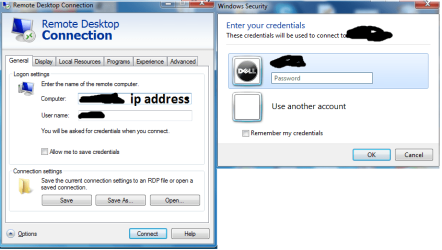
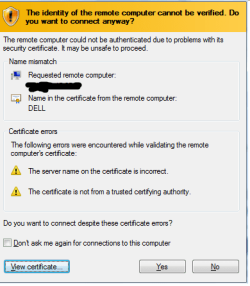
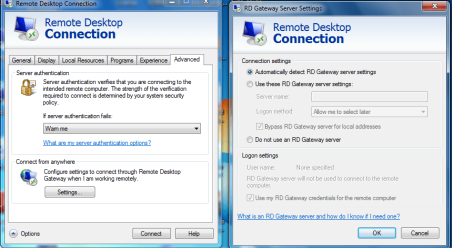
plz look at the pic this error is coming and when i click on yes its gone to logon screen but not open remote windows and plz see these all pics and its sitting nad tell me its sitting are wrong or write? plz help me to solve tihs problem and 1 more my time and date! i thought that their is a link between certificate and time and date thats y i need to change it but it cant change
 

Attachments

  • h.png
    h.png
    109.3 KB · Views: 529
  • s.png
    s.png
    34.8 KB · Views: 387
  • f.png
    f.png
    147 KB · Views: 225

My Computer

OS
windows 7 ultmate x64
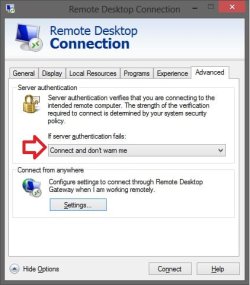
See if setting your advanced RDC settings to this below may help.

RDC-Advanced.jpg
 

My Computer

Computer type
PC/Desktop
Computer Manufacturer/Model Number
Self built custom
OS
64-bit Windows 11 Pro for Workstations
CPU
Intel i7-8700K OC'd to 5 GHz
Motherboard
ASUS ROG Maximus XI Formula Z390
Memory
64 GB (4x16GB) G.SKILL TridentZ RGB DDR4 3600 MHz
Graphics Card(s)
ASUS ROG-STRIX-GTX1080TI-O11G-GAMING
Sound Card
Integrated
Monitor(s) Displays
2 x Samsung Odyssey G7 27"
Screen Resolution
2560x1440
Hard Drives
1TB Samsung 990 PRO M.2,
4TB Samsung 990 PRO PRO M.2,
TerraMaster F8 SSD Plus NAS
PSU
Seasonic Prime Titanium 850W
Case
Thermaltake Core P3
Cooling
Corsair Hydro H115i
Keyboard
Logitech wireless K800
Mouse
Logitech MX Master 4
Internet Speed
2 Gb/s Download and 100 Mb/s Upload
Antivirus
Malwarebyte Anti-Malware Premium
Browser
Google Chrome
Other Info
Logitech Z625 speaker system,
Logitech BRIO 4K Pro webcam,
HP Color LaserJet Pro MFP M477fdn,
APC SMART-UPS RT 1000 XL - SURT1000XLI,
Galaxy S23 Plus phone
but the problem is when its connect then its gone to logon screen there it is need password when i type password its show incorrect user name or password but i type correct password, i have win 7 ultimate and in remote pc also
 

My Computer

OS
windows 7 ultmate x64
Silly question, but are you using an user name and password of an account created on the remote PC to log in with?

Check both the "Allow me to save credentials" and "Remember my credentials" boxes if they are not already. This will save the credentials to be logged on automatically unless the remote PC is set to prevent automatic RDC log on.
254413d1360433258-remote-desktop-connection-rdc-network-h.png


My Computer

Computer type
PC/Desktop
Computer Manufacturer/Model Number
Self built custom
OS
64-bit Windows 11 Pro for Workstations
CPU
Intel i7-8700K OC'd to 5 GHz
Motherboard
ASUS ROG Maximus XI Formula Z390
Memory
64 GB (4x16GB) G.SKILL TridentZ RGB DDR4 3600 MHz
Graphics Card(s)
ASUS ROG-STRIX-GTX1080TI-O11G-GAMING
Sound Card
Integrated
Monitor(s) Displays
2 x Samsung Odyssey G7 27"
Screen Resolution
2560x1440
Hard Drives
1TB Samsung 990 PRO M.2,
4TB Samsung 990 PRO PRO M.2,
TerraMaster F8 SSD Plus NAS
PSU
Seasonic Prime Titanium 850W
Case
Thermaltake Core P3
Cooling
Corsair Hydro H115i
Keyboard
Logitech wireless K800
Mouse
Logitech MX Master 4
Internet Speed
2 Gb/s Download and 100 Mb/s Upload
Antivirus
Malwarebyte Anti-Malware Premium
Browser
Google Chrome
Other Info
Logitech Z625 speaker system,
Logitech BRIO 4K Pro webcam,
HP Color LaserJet Pro MFP M477fdn,
APC SMART-UPS RT 1000 XL - SURT1000XLI,
Galaxy S23 Plus phone
Back
Top