Repair Install

How to Do a Repair Install to Fix Windows 7


   Information
This will show you how to do a repair install (aka: in-place upgrade install) to fix your currently installed Windows 7 and preserve your user accounts, data, programs, and system drivers.
   Note
Do a Repair installation if:
  • A System Restore did not help fix your Windows 7.
  • There is no other easier option left that can fix your Windows 7.
  • You DO NOT want to do a Clean reinstall of Windows 7.
  • You DO want to preserve your user accounts, data, programs, and system drivers.
   Tip
ITEMS THAT WILL BE RESET TO DEFAULT OR AFFECTED:
  • Sounds
  • Services
  • Visual Effects Settings
  • Device Drivers - Be sure to have these handy to reinstall. They do not always remain after the repair (upgrade) install.
  • You may lose the ability to sign on to MSN Messenger, to solve this problem have a look at this thread Unable to sign in to WLM.
  • You may lose your custom themes due to not having permisions set on the old themes. Go to the hidden themes folder at C:/Users/(User-Name)/AppData/Local/Microsoft/Windows/Themes, then Take Ownership of the themes folder and you will now have all your themes back.
  • It has been reported that you may also lose your Media Center gadget after doing the repair install.
  • Windows Updates will need to be checked and reinstalled again.
   Warning

  • You can only do a repair install with the same edition Windows 7 installation disc for the same edition of Windows 7 that you have installed.
  • You cannot use a OEM Windows 7 "Factory" Restore/Recovery type of installation disc that came with or created from a store bought computer to do a repair install with. These can only be used do a clean install instead.
  • You can do a repair install on a factory OEM installation with the latest official Windows 7 with SP1 ISO file here: Microsoft: Windows 7 Direct Download Links, and use Windows 7 USB-DVD Download Tool to create a bootable DVD or USB flash drive with the ISO to do the repair install from within Windows 7.
  • You can use a retail OEM Windows 7 installation disc to do a repair install with.
  • You can use a retail (full or upgrade) Windows 7 installation disc to do a repair install with.
  • You cannot do a repair install with a System Repair Disc. A System Repair Disc is not a installation disc, and will only boot to the System Recovery Options screen.
  • If you have a 32-bit (x86) Windows 7 currently installed, then you must use a 32-bit Windows 7 installation disc to be able to do a repair install with.
  • If you have a 64-bit (x64) Windows 7 currently installed, then you must use a 64-bit Windows 7 installation disc to be able to do a repair install with.
  • You can use a retail Windows 7 SP1 installation disc (ex: Technet (available), MSDN (available), or retail (when available)) to do a repair install with on a currently installed Windows 7 SP1.
  • You can use a Windows 7 SP1 installation disc (ex: Technet (available), MSDN (available), or retail (when available)) to do a repair install with on a currently installed slipstream Windows 7 SP1.
  • You cannot use a slipstream Windows 7 installation disc to do a repair install with on a currently installed Windows 7 SP1.
  • You cannot use a slipstream Windows 7 installation disc to do a repair install with on a currently installed slipstream Windows 7 SP1.
  • You can only do a repair install from within Windows 7.
  • You cannot do a repair install at boot or in Safe Mode.
  • You must be logged into Windows 7 in a administrator account to be able to do a repair install.
  • You must have at least 8.87 GB + what is currently being used of free space (more if you have a larger installation) on the hard drive/partition Windows 7 is installed on to do a repair install.
  • If you changed the default location of a user account's profile folder, then you will need to change it back to the default C:\Users location first.
  • If you moved the default location of a user folder, then you will need to change it back to the default C:\Users\(user-name) location first.


Here's How:
NOTE: Be sure to back up anything that you do not want to lose first to be extra safe.1. Start Windows 7, and log on to an administrator account.

2. Disable any 3rd party firewall, antivirus, or other security program to avoid it from possibly preventing the repair in-place upgrade installation of Windows 7.

3. Do either step 4, step 5, or step 6 below depending if your retail Windows 7 installation ISO/DVD/USB has SP1 or not, and if your currently installed Windows 7 has SP1 installed or not.

4. Repair Installed Windows 7 SP1 using Windows 7 with SP1 ISO

   Note
If you do not have a Windows 7 with SP1 ISO, then you can download an official ISO with your retail product key from Microsoft at the link below.

:ar: Microsoft Software Recovery

You can also download the latest official Windows 7 SP1 Media Refresh (SP1 U) ISO file at the link below, but this link is not always available for download.

:ar: Microsoft: Windows 7 Direct Download Links

A) If you have not already, you will need to install a program like 7-Zip that supports extracting a ISO to a folder.

B) Using the program (ex: 7-Zip) from step 1, extract the Windows 7 SP1 ISO file to a folder on a partition or HDD other than the current Windows 7 partition. (see screenshot below)
NOTE: For example with 7-Zip, right click on ISO, click on 7-Zip, Extract files, browse button, select where you want to extract to, and click on OK twice.7-Zip.jpg
C) While in Windows 7 SP1, open the folder that you extracted the ISO into, and run the setup.exe file.

D) Go to step 7 below.
5. Repair Installed Windows 7 SP1 using Windows 7 with SP1 DVD/USB

   Note
If you do not have a Windows 7 with SP1 ISO, then you can download an official ISO with your retail product key from Microsoft at the link below.

:ar: http://www.microsoft.com/en-us/software-recovery

You can also download the latest official Windows 7 SP1 Media Refresh (SP1 U) ISO file at the link below, but this link is not always available for download.

:ar: Microsoft: Windows 7 Direct Download Links

Afterwards, you can use Windows 7 USB-DVD Download Tool to create a bootable DVD or USB flash drive with the ISO to do the repair install from within Windows 7 using this step.

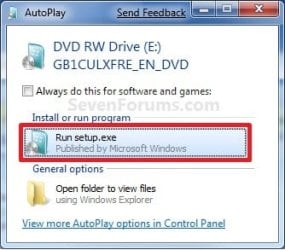
A) While in Windows 7 SP1, insert your retail Windows 7 SP1 installation DVD into the DVD drive, or connect your Windows 7 with SP1 installation USB thumb drive, and click on the Run setup.exe option in AutoPlay. (see screenshot below)
NOTE: If the AutoPlay window does not open, then open the drive folder in Computer and run the setup.exe file.AutoPlay.jpg
B) Go to Go to step 7 below.
6. Repair Installed Windows 7 without SP1 using Windows 7 without SP1 DVD/USB

   Note
If you do not have a Windows 7 without SP1 installation DVD/USB, then you can download the latest official Windows 7 Professional or Home Premium without SP1 ISO file here: Microsoft: Windows 7 Direct Download Links, and use Windows 7 USB-DVD Download Tool to create a bootable DVD or USB flash drive with the ISO to do the repair install from within Windows 7 using this step.

It is preferred to have SP1 installed on your PC and to use step 4 or step 5 above to do a repair install with instead though.

A) While in Windows 7 SP1 installed, insert your retail Windows 7 installation DVD into the DVD drive, or connect your Windows 7 installation USB thumb drive, and click on the Run setup.exe option in AutoPlay. (see screenshot below)
NOTE: If the AutoPlay window does not open, then open the drive folder in Computer and run the setup.exe file.AutoPlay.jpg
B) Go to Go to step 7 below.
7. If prompted by UAC, then click on Yes.

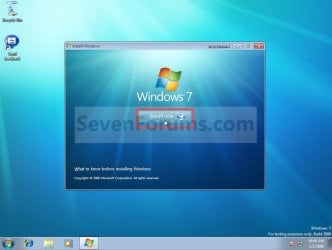
8. Click on the Install Now button to start the installation. (see screenshot below)Step1.jpg
9. If prompted, uncheck the I want to help make Windows installation better box (unless you would like to :) ), and click on the Go online to get the latest updates for installation option. (see screenshot below)Step2.jpg
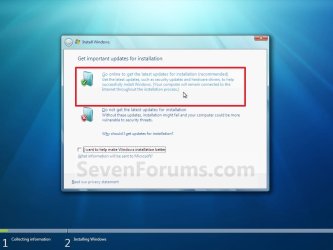
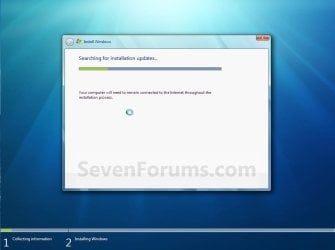
A) Windows 7 will now check online for and install any available installation updates. (see screenshots below)Step2A.jpg

Step2B.jpg

10. Check the I accept the license terms box, and click on Next. (see screenshot below)Step3.jpg
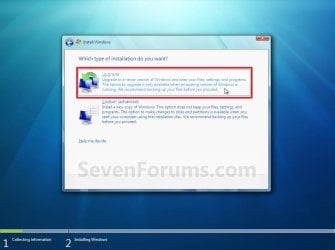
11. Click on the Upgrade option. (see screenshot below)Step4.jpg
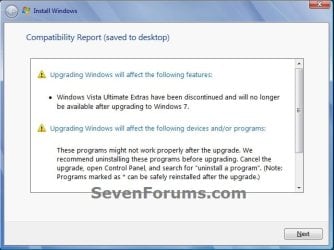
12. Windows will now check for any compatibility issues. If any are found like in the example below, click on the red X to cancel the repair install and close this "Install Windows" window, take care of any found issues (ex: uninstall any incompatible program), then restart the repair install process over again.Compatibility-Report.jpg
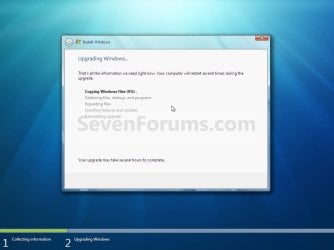
13. The installation of Windows 7 will now begin. (see screenshot below)
NOTE: During the installation process, your screen may flash and computer will restart a few times.Step5.jpg
14. After the final restart, you will see this screen for a moment. (see screenshot below)Step6.jpg
15. Type in your Windows 7 product key number. (see screenshot below step 16)

16. Uncheck the Automatically activate Windows when I'm online box unchecked, then click on the Next button. (see screenshot below)
NOTE: You can activate Windows 7 later after you make sure it is running properly. (see step 23 below)
If you chose to automatically activate Windows online when you set up your computer, automatic activation begins trying to activate your copy of Windows three days after you log on for the first time.Step7.jpg
17. Click on Use recommended settings. (see screenshot below)

:note: You will always be able to change your Windows Update settings at anytime in Windows 7.

Step8.jpg
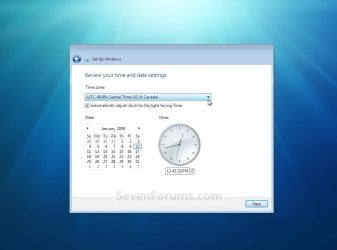
18. Select your time zone and set your time and date settings, then click on the Next button. (see screenshot below)Step9.jpg
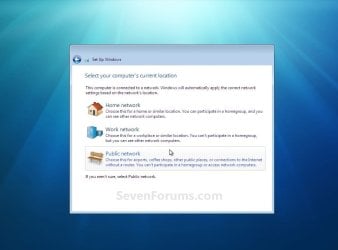
19. Click on the option for your computer's location to select the correct network location type settings to be applied for that location. (see screenshot below)
NOTE: It is best to select Public location for the best security.Step10.jpg
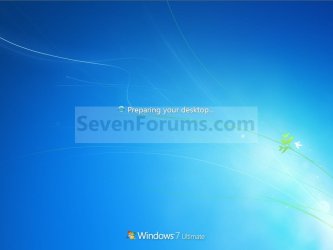
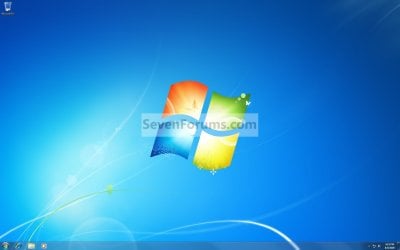
20. Windows 7 will now prepare your desktop to startup. (see screenshots below)Step11A.jpg

Desktop.jpg

21. If you used a DVD or USB to do the repair install with, then you can remove the DVD or USB when the repair install has successfully completed and you are logged in to Windows 7.

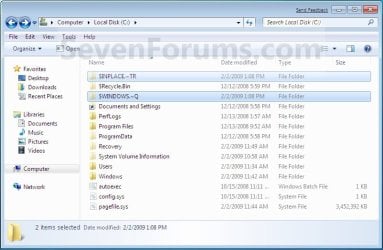
22. Check to see if you are missing any user files. If you are, then you can copy them from the C:\Windows.old or the hidden protected operating system C:\$INPLACE.~TR and C:\WINDOWS.~Q backup folders. (see screenshot below)Old_Install.jpg
23. If everything checks out in step 21, then you can run Disk Cleanup (step 5 at this link). You will need to click on the Clean up system files button first, and then could check the Files discarded by Windows upgrade, Previous Windows installations, and Windows upgrade log files boxes. (see screenshot below)
NOTE: This will delete the C:\Windows.old, C:\$INPLACE.~TR and C:\WINDOWS.~Q folders from step 21 above.Disk_Cleanup.jpg
24. Refresh your Windows Experience Index (WEI) score.

25. When finished, activate Windows 7, and make sure that your 3rd party security programs (if applicable) are enabled again.
That's it,
Shawn


Last edited:
Peter,

I prefer a clean install myself as well for major issues, but a in-place repair install could be good for minor issues that couldn't be fixed otherwise.

I'm glad to hear that you eventually got it up and running though.


Thanks. ;-)
 

My Computer

Computer type
PC/Desktop
Computer Manufacturer/Model Number
Alienware® ALX X58
OS
Win 7 Ult SP1/Win 10 Pro (all x64)
CPU
Intel® Core™ i7-975 Extreme O/C to 4.02 GHz, 8MB Cache
Motherboard
Asus® P6T Deluxe V2 X58 LGA1366
Memory
24GB Corsair Vengeance DDR3 SDRAM at 1600MHz - 6 x 4096MB
Graphics Card(s)
1792 MB NVIDIA® GeForce® GTX 295 Dual Core
Sound Card
Onboard Soundmax® High-Definition 7.1 Performance Audio
Monitor(s) Displays
Samsung XL2370 LED backlit 23" W/S 2ms response time
Screen Resolution
1920 X 1080
Hard Drives
2 x 500gb SATA II
1 x 1TB SATA II
1 external eSATA LaCie 3TB
(Non-RAID)
PSU
Alienware® 1200 Watt Multi-GPU
Case
Alienware® P2 ALX Chassis with AlienIce™ 3.0 Video Cooling
Cooling
Alienware® High-Perf. Liquid Cooling + Acoustic Dampening
Keyboard
Microsoft® Wireless Entertainment 8000 + Logitech® G15 Wired
Mouse
Microsoft® Wireless Laser 8000 + Logitech® G9 Wired
Internet Speed
1Gb/s
Antivirus
McAfee LiveSafe
Browser
Firefox - latest
Other Info
Using non-RAID on purpose as I find RAID to be too temperamental.
Now set to AHCI
Upgraded 7HP to Ultimate, now can't "re-install" ult from HP disk

Dear Brink

I am not surprized to find this friendly helpful tutorial is from you
(though it's taken me ages to find it thanks to the truly weird search engine - e.g. when I type in Tutorials it says: not found, but you could try xyz or Tutorials).

I tried to re-install following the tutorial, but: from Vista which came with the pc when I bought it there was a free upgrade to W7 Home Premium. I then upgraded to Ultimate. Now when I put the 7HP disk in, we get as far as upgrading and then it informs me that I cannot upgrade from Ultimate to HP. Fair enough but any views on how I can get round this ?

[Background is, Windows Explorer is not working, stopped after I dragged and dropped a folder of 27 MB to a USB key.
I have Eset antivirus, and Prevx (and Scotty); and have run Malwarebytes and AdAware (and Ccleaner and Spybot) and am reasonably confident that it is not a virus problem. Obviously I can't do restores with no Explorer. I have tried ShellEx View, Start-up repair, ScanDisk and Memory check, and despairing thought this Tutorial seemed like my last resort, short of taking fresh back-ups of everything and starting from scratch - I have work to do, and Excel and Word seem to find files just fine, but what do I know.]

Great if anyone has any bright ideas

adj
 
Last edited:

My Computer

OS
7 ultimate
CPU
AMD Phenom II x4 810 processor
Motherboard
Asus M4N78-AM
Memory
4096MB
Graphics Card(s)
NVIDIA GeForce 8200
Monitor(s) Displays
iiyama prolite B2409 HDS
Hard Drives
Asus 300gb x2
Hello ADJ,

To make it easier to find, we have a Tutorials link in the toolbar at the top of all the webpages here along with other common and useful links.

Sorry, but you will not be able to use a OEM Windows 7 Factory Restore/Recovery type of installation disc that came with or created from a store bought computer to do a repair install with. These can only be used do a clean install instead. :(
 

My Computer

Computer type
PC/Desktop
Computer Manufacturer/Model Number
Self built custom
OS
64-bit Windows 11 Pro for Workstations
CPU
Intel i7-8700K OC'd to 5 GHz
Motherboard
ASUS ROG Maximus XI Formula Z390
Memory
64 GB (4x16GB) G.SKILL TridentZ RGB DDR4 3600 MHz
Graphics Card(s)
ASUS ROG-STRIX-GTX1080TI-O11G-GAMING
Sound Card
Integrated
Monitor(s) Displays
2 x Samsung Odyssey G7 27"
Screen Resolution
2560x1440
Hard Drives
1TB Samsung 990 PRO M.2,
4TB Samsung 990 PRO PRO M.2,
TerraMaster F8 SSD Plus NAS
PSU
Seasonic Prime Titanium 850W
Case
Thermaltake Core P3
Cooling
Corsair Hydro H115i
Keyboard
Logitech wireless K800
Mouse
Logitech MX Master 4
Internet Speed
2 Gb/s Download and 100 Mb/s Upload
Antivirus
Malwarebyte Anti-Malware Premium
Browser
Google Chrome
Other Info
Logitech Z625 speaker system,
Logitech BRIO 4K Pro webcam,
HP Color LaserJet Pro MFP M477fdn,
APC SMART-UPS RT 1000 XL - SURT1000XLI,
Galaxy S23 Plus phone
An issue we've only identified yesterday, is that our antivirus (ESET NOD32) is wrecking havoc on the sysprep process.
Not sure if its relevant to a repair-install, but it might solve a few problems if you disable your AV before doing so.
 

My Computer

OS
Windows 7 Enterprise
CPU
Intel Pentium Dual E2200 @2.2GHz
Motherboard
Gigabyte II-G31
Memory
4GB
Graphics Card(s)
Palit GForce 9500GT 1GB
Sound Card
onBoard
Hard Drives
WesternDigital: 250GB + 1TB + 1TB + 2TB
PSU
450W
Case
CoolerMaster CM690
Cooling
Corsair H50
Mouse
Logitech MX518
Hello ADJ,

To make it easier to find, we have a Tutorials link in the toolbar at the top of all the webpages here along with other common and useful links.

Sorry, but you will not be able to use a OEM Windows 7 Factory Restore/Recovery type of installation disc that came with or created from a store bought computer to do a repair install with. These can only be used do a clean install instead. :(

Thanks, Brink. Not sure I understand the specification you are talking about: I bought a Vista-enabled machine; when W7 was launched, I applied for, and was sent, a "WinVista HmPrem - Win & HmPrem UF GMedia OEM Software" ("for the Windows 7 program upgrade option", only in French) disc by Microsoft. This obviously had Ultimate hidden in it, and asap I upgraded to Ultimate through a Microsoft store (and very hard work it was to get anyone in Msoft to give a coherent answer about how to do that in France). I take it that that is the kind of OEM disc you are referring to - but, if not, do say.

Otherwise, I may eventually have to save all my stuff on discs (I have 3 backups, one on Omega and 2 cloud, among which Carbonite has saved me in the past, but only for docs and my few pics/ music: for programs, and for safety's sake with docs - I teach, and have to safeguard my students' work/corrections/marks - I would want to do a DVD back up at home before re-installing W7 from scratch). But as I said, the difficulty is finding the time to do it. If you have any alternative ideas about how to solve the 'Windows Explorer has stopped working' issue, do please point me in that direction - and sorry to bring that up in this feed.

Anyway many thanks for your help, adj
 

My Computer

OS
7 ultimate
CPU
AMD Phenom II x4 810 processor
Motherboard
Asus M4N78-AM
Memory
4096MB
Graphics Card(s)
NVIDIA GeForce 8200
Monitor(s) Displays
iiyama prolite B2409 HDS
Hard Drives
Asus 300gb x2
You're welcome ADJ. It does appear that you will need to do a clean install. :(
 

My Computer

Computer type
PC/Desktop
Computer Manufacturer/Model Number
Self built custom
OS
64-bit Windows 11 Pro for Workstations
CPU
Intel i7-8700K OC'd to 5 GHz
Motherboard
ASUS ROG Maximus XI Formula Z390
Memory
64 GB (4x16GB) G.SKILL TridentZ RGB DDR4 3600 MHz
Graphics Card(s)
ASUS ROG-STRIX-GTX1080TI-O11G-GAMING
Sound Card
Integrated
Monitor(s) Displays
2 x Samsung Odyssey G7 27"
Screen Resolution
2560x1440
Hard Drives
1TB Samsung 990 PRO M.2,
4TB Samsung 990 PRO PRO M.2,
TerraMaster F8 SSD Plus NAS
PSU
Seasonic Prime Titanium 850W
Case
Thermaltake Core P3
Cooling
Corsair Hydro H115i
Keyboard
Logitech wireless K800
Mouse
Logitech MX Master 4
Internet Speed
2 Gb/s Download and 100 Mb/s Upload
Antivirus
Malwarebyte Anti-Malware Premium
Browser
Google Chrome
Other Info
Logitech Z625 speaker system,
Logitech BRIO 4K Pro webcam,
HP Color LaserJet Pro MFP M477fdn,
APC SMART-UPS RT 1000 XL - SURT1000XLI,
Galaxy S23 Plus phone
Hi Brink,

thanks for the great tutorial.

I don't find my GERMAN x64 ISO image of Win7 at the moment :o, only ENGLISH x64 or German x86. Now I need to repair my GERMAN x64, can I use the ENGLISH x64 ISO image?

Thanks in advance!
 

My Computer

Computer Manufacturer/Model Number
Self-built
OS
Windows 7 Professional (final) x64
CPU
INTEL Core2 Duo E8500
Motherboard
ASUS P5Q
Memory
OCZ Reaper HPC Edition 4GB PC2-8500U CL5-5-5-18
Graphics Card(s)
NVIDIA GeForce 8800GS
Sound Card
Creative X-Fi Soundblaster Music
Monitor(s) Displays
LG FLATRON W2252TE
Screen Resolution
1680x1050
Hard Drives
1x Intel SSD X25-M 160 GB
1x Samsung HD642JJ 640 GB (SpinPoint F1 DT)
PSU
OCZ ModXStream Pro OCZ500MXSP
Case
Lian Li PC-7F
Cooling
Apack Zerotherm FZ120 Nanoxia Edition
Keyboard
Logitech Media Keyboard Elite (2005 model)
Mouse
Logitech RX-1500 (2008)
Internet Speed
16.000 KB
Other Info
Plantronics GameCom® 377
SteelSeries Siberia In-Ear Headphones (black)
Hello KnowkedgeWorker,

I have never tried it with it being a different languange then what you had installed. If they are both same say the 64-bit Windows 7 Professional edition, then you could give it a try. It will either work or give you an error and not do the repair install.

Please let us know how it went.
 

My Computer

Computer type
PC/Desktop
Computer Manufacturer/Model Number
Self built custom
OS
64-bit Windows 11 Pro for Workstations
CPU
Intel i7-8700K OC'd to 5 GHz
Motherboard
ASUS ROG Maximus XI Formula Z390
Memory
64 GB (4x16GB) G.SKILL TridentZ RGB DDR4 3600 MHz
Graphics Card(s)
ASUS ROG-STRIX-GTX1080TI-O11G-GAMING
Sound Card
Integrated
Monitor(s) Displays
2 x Samsung Odyssey G7 27"
Screen Resolution
2560x1440
Hard Drives
1TB Samsung 990 PRO M.2,
4TB Samsung 990 PRO PRO M.2,
TerraMaster F8 SSD Plus NAS
PSU
Seasonic Prime Titanium 850W
Case
Thermaltake Core P3
Cooling
Corsair Hydro H115i
Keyboard
Logitech wireless K800
Mouse
Logitech MX Master 4
Internet Speed
2 Gb/s Download and 100 Mb/s Upload
Antivirus
Malwarebyte Anti-Malware Premium
Browser
Google Chrome
Other Info
Logitech Z625 speaker system,
Logitech BRIO 4K Pro webcam,
HP Color LaserJet Pro MFP M477fdn,
APC SMART-UPS RT 1000 XL - SURT1000XLI,
Galaxy S23 Plus phone
Hello NTAuthority, and welcome to Seven Forums.

Unfortunately yes. If you can run the installation from within Windows, then you will not be able to do a repair install. :(
 

My Computer

Computer type
PC/Desktop
Computer Manufacturer/Model Number
Self built custom
OS
64-bit Windows 11 Pro for Workstations
CPU
Intel i7-8700K OC'd to 5 GHz
Motherboard
ASUS ROG Maximus XI Formula Z390
Memory
64 GB (4x16GB) G.SKILL TridentZ RGB DDR4 3600 MHz
Graphics Card(s)
ASUS ROG-STRIX-GTX1080TI-O11G-GAMING
Sound Card
Integrated
Monitor(s) Displays
2 x Samsung Odyssey G7 27"
Screen Resolution
2560x1440
Hard Drives
1TB Samsung 990 PRO M.2,
4TB Samsung 990 PRO PRO M.2,
TerraMaster F8 SSD Plus NAS
PSU
Seasonic Prime Titanium 850W
Case
Thermaltake Core P3
Cooling
Corsair Hydro H115i
Keyboard
Logitech wireless K800
Mouse
Logitech MX Master 4
Internet Speed
2 Gb/s Download and 100 Mb/s Upload
Antivirus
Malwarebyte Anti-Malware Premium
Browser
Google Chrome
Other Info
Logitech Z625 speaker system,
Logitech BRIO 4K Pro webcam,
HP Color LaserJet Pro MFP M477fdn,
APC SMART-UPS RT 1000 XL - SURT1000XLI,
Galaxy S23 Plus phone
dang. my windows 7 is extremely messed up, so right now i'm copying all my programs to a different partition in linux, then using a repair function which apparently fixes up windows, but only preserves files under my user folders.
 

My Computer

OS
Windows 7 Home Premium 64bit
Can anyone help.

Windows 7 Ultimate, tried to install SP1, but keep getting errors.
So decided to try a repair install with a slipstreamed SP1 Disk.

Unfortunately keep getting this message 'To upgrade you need to be running Windows 7 with SP1 installed. Close the installation and install SP1'.

So my question is, will a slipstreamed SP1 disk not do a repair 'upgrade' install. If it can be done, can you please tell me how?

TIA,
Paul
 

My Computer

Computer Manufacturer/Model Number
Custom Build
OS
Win7 Ultimate x64, Windows 8 Enterprise x64
CPU
AMD Phenom Quad Core 9865
Motherboard
Foxconn A6VMX
Memory
4GB
Graphics Card(s)
ATI RADEON HD3450
Sound Card
Realtek HD
Monitor(s) Displays
Samsung SyncMaster P2250
Screen Resolution
1920 x 1080
Hard Drives
Seagate ST380815AS (80GB) System Disk
Seagate ST31000528AS (1TB) - 2 Partitions (Programs & Storage)
Samsung HD1035SJ (1TB) - 3 Partitions (Downloads & BackUp)
PSU
450 watt
Case
Generic
Cooling
CPU & Case Fan
Keyboard
Logitech MK700
Mouse
Logitech M705
Internet Speed
20Gbs
Hello Paul,

To be able to do a repair install, you must use a installation DVD that is exactly the same as what you have installed. In your case, you will have to use a installation DVD without SP1 since your installation does not have it.
 

My Computer

Computer type
PC/Desktop
Computer Manufacturer/Model Number
Self built custom
OS
64-bit Windows 11 Pro for Workstations
CPU
Intel i7-8700K OC'd to 5 GHz
Motherboard
ASUS ROG Maximus XI Formula Z390
Memory
64 GB (4x16GB) G.SKILL TridentZ RGB DDR4 3600 MHz
Graphics Card(s)
ASUS ROG-STRIX-GTX1080TI-O11G-GAMING
Sound Card
Integrated
Monitor(s) Displays
2 x Samsung Odyssey G7 27"
Screen Resolution
2560x1440
Hard Drives
1TB Samsung 990 PRO M.2,
4TB Samsung 990 PRO PRO M.2,
TerraMaster F8 SSD Plus NAS
PSU
Seasonic Prime Titanium 850W
Case
Thermaltake Core P3
Cooling
Corsair Hydro H115i
Keyboard
Logitech wireless K800
Mouse
Logitech MX Master 4
Internet Speed
2 Gb/s Download and 100 Mb/s Upload
Antivirus
Malwarebyte Anti-Malware Premium
Browser
Google Chrome
Other Info
Logitech Z625 speaker system,
Logitech BRIO 4K Pro webcam,
HP Color LaserJet Pro MFP M477fdn,
APC SMART-UPS RT 1000 XL - SURT1000XLI,
Galaxy S23 Plus phone
Hi Brink,

Thank you.

Paul.
 

My Computer

Computer Manufacturer/Model Number
Custom Build
OS
Win7 Ultimate x64, Windows 8 Enterprise x64
CPU
AMD Phenom Quad Core 9865
Motherboard
Foxconn A6VMX
Memory
4GB
Graphics Card(s)
ATI RADEON HD3450
Sound Card
Realtek HD
Monitor(s) Displays
Samsung SyncMaster P2250
Screen Resolution
1920 x 1080
Hard Drives
Seagate ST380815AS (80GB) System Disk
Seagate ST31000528AS (1TB) - 2 Partitions (Programs & Storage)
Samsung HD1035SJ (1TB) - 3 Partitions (Downloads & BackUp)
PSU
450 watt
Case
Generic
Cooling
CPU & Case Fan
Keyboard
Logitech MK700
Mouse
Logitech M705
Internet Speed
20Gbs
You're most welcome Paul. :)
 

My Computer

Computer type
PC/Desktop
Computer Manufacturer/Model Number
Self built custom
OS
64-bit Windows 11 Pro for Workstations
CPU
Intel i7-8700K OC'd to 5 GHz
Motherboard
ASUS ROG Maximus XI Formula Z390
Memory
64 GB (4x16GB) G.SKILL TridentZ RGB DDR4 3600 MHz
Graphics Card(s)
ASUS ROG-STRIX-GTX1080TI-O11G-GAMING
Sound Card
Integrated
Monitor(s) Displays
2 x Samsung Odyssey G7 27"
Screen Resolution
2560x1440
Hard Drives
1TB Samsung 990 PRO M.2,
4TB Samsung 990 PRO PRO M.2,
TerraMaster F8 SSD Plus NAS
PSU
Seasonic Prime Titanium 850W
Case
Thermaltake Core P3
Cooling
Corsair Hydro H115i
Keyboard
Logitech wireless K800
Mouse
Logitech MX Master 4
Internet Speed
2 Gb/s Download and 100 Mb/s Upload
Antivirus
Malwarebyte Anti-Malware Premium
Browser
Google Chrome
Other Info
Logitech Z625 speaker system,
Logitech BRIO 4K Pro webcam,
HP Color LaserJet Pro MFP M477fdn,
APC SMART-UPS RT 1000 XL - SURT1000XLI,
Galaxy S23 Plus phone
Hi, I am need to do a repair instal of Windows 7 64 bit to fix the registry and I was just wondering if I need to uninstall all the Windows Updates that are currently installed on my PC as one of the points in the warning box in the first post states that "The Windows 7 installation DVD that you use to do the repair install with must be the same or newer updated version of Windows 7 (ex: Windows Updates or SP level) than the currently installed Windows 7. If the DVD is a older version, then you cannot do a repair install with it.".

The Windows 7 installation DVD that I have is the first retail Windows 7 Home Premium DVD with both the 32 bit and 64 bit versions (I had preorderd Windows 7), so the install disc won't have any of the updates that are currently installed.

I did uninstall Windows 7 SP1 from my PC but is that enough for a repair install using my install DVD or do I need to uninstall all the Windows Update that are listed in Installed Updates section of Programs and Features in the Control Panel?
 

My Computer

OS
Windows 7 Home Premium 64bit
Hello BlueScorpion, and welcome to Seven Forums.

If you have any restore points available, then you could do a system restore at boot using a restore point dated before you had this registry issue to fix it instead with your current Windows 7 installation DVD.

Hope this helps,
Shawn
 

My Computer

Computer type
PC/Desktop
Computer Manufacturer/Model Number
Self built custom
OS
64-bit Windows 11 Pro for Workstations
CPU
Intel i7-8700K OC'd to 5 GHz
Motherboard
ASUS ROG Maximus XI Formula Z390
Memory
64 GB (4x16GB) G.SKILL TridentZ RGB DDR4 3600 MHz
Graphics Card(s)
ASUS ROG-STRIX-GTX1080TI-O11G-GAMING
Sound Card
Integrated
Monitor(s) Displays
2 x Samsung Odyssey G7 27"
Screen Resolution
2560x1440
Hard Drives
1TB Samsung 990 PRO M.2,
4TB Samsung 990 PRO PRO M.2,
TerraMaster F8 SSD Plus NAS
PSU
Seasonic Prime Titanium 850W
Case
Thermaltake Core P3
Cooling
Corsair Hydro H115i
Keyboard
Logitech wireless K800
Mouse
Logitech MX Master 4
Internet Speed
2 Gb/s Download and 100 Mb/s Upload
Antivirus
Malwarebyte Anti-Malware Premium
Browser
Google Chrome
Other Info
Logitech Z625 speaker system,
Logitech BRIO 4K Pro webcam,
HP Color LaserJet Pro MFP M477fdn,
APC SMART-UPS RT 1000 XL - SURT1000XLI,
Galaxy S23 Plus phone
Hello BlueScorpion, and welcome to Seven Forums.

If you have any restore points available, then you could do a system restore at boot using a restore point dated before you had this registry issue to fix it instead with your current Windows 7 installation DVD.

Hope this helps,
Shawn

Yes, I thought of doing a system restore when I first realised (back in September 2010) that there something wrong with the registry but the problem wasn't a big one. Basically Windows Media Player wouldn't open (server execution failed) and some programs like iTunes wouldn't update. So I couldn't be bothered to do a system restore as I was planning to to a clean install of Windows 7 soon anyway.

However I now need to fix this problem as I am trying install Intel SSD Toolbox v2.0.1 to erase/reset a slightly used Intel X25-M 80GB SSD I bought recently on which I plan to do a clean install of Windows 7 64bit and have the SSD as my system and app hard drive.

The problem is that I can't install Intel SSD Toolbox because of the 2738 error (could not access VBScript run time for custom action) and I tried all the solutions I could find to fix the 2738 error (like regsvr32 vbscript.dll on cmd, etc...) but it looks like I willl have to reinstall windows or repair install windows to fix this problem. Doing a system restore to a restore point several months ago doesn't seem ideal to me right now.

So I just want to know if I need to uninstall all/most the Windows Updates that are currently installed (SP1 is already uninstalled) to do a repair install using my retail October 2009 Windows 7 installation disc or can I just leave the windows updates installed and do a repair install anyway to fix my problem?
 

My Computer

OS
Windows 7 Home Premium 64bit
BlueScorpion,

The only problem would be that there is no exact way to know for sure which Windows Updates would have to be uninstalled to be able to allow you to do a repair install with your retail Windows 7 installation DVD. Plus, if you did manage to get it to work, you would have to reinstall all of them again afterwards.

Since you were planning on doing a clean install anyways, you could do a custom install instead. This is almost like a clean install except that you will have your current installation completely copied into a C:\Windows.old folder in the new installation after the new installation is finished. Afterwards, you could copy what you wanted from within the C:\Windows.old folder back into your new installation and delete the C:\Windows.old folder when finished. You will still have to reinstall all your drivers and programs though.
 
Last edited:

My Computer

Computer type
PC/Desktop
Computer Manufacturer/Model Number
Self built custom
OS
64-bit Windows 11 Pro for Workstations
CPU
Intel i7-8700K OC'd to 5 GHz
Motherboard
ASUS ROG Maximus XI Formula Z390
Memory
64 GB (4x16GB) G.SKILL TridentZ RGB DDR4 3600 MHz
Graphics Card(s)
ASUS ROG-STRIX-GTX1080TI-O11G-GAMING
Sound Card
Integrated
Monitor(s) Displays
2 x Samsung Odyssey G7 27"
Screen Resolution
2560x1440
Hard Drives
1TB Samsung 990 PRO M.2,
4TB Samsung 990 PRO PRO M.2,
TerraMaster F8 SSD Plus NAS
PSU
Seasonic Prime Titanium 850W
Case
Thermaltake Core P3
Cooling
Corsair Hydro H115i
Keyboard
Logitech wireless K800
Mouse
Logitech MX Master 4
Internet Speed
2 Gb/s Download and 100 Mb/s Upload
Antivirus
Malwarebyte Anti-Malware Premium
Browser
Google Chrome
Other Info
Logitech Z625 speaker system,
Logitech BRIO 4K Pro webcam,
HP Color LaserJet Pro MFP M477fdn,
APC SMART-UPS RT 1000 XL - SURT1000XLI,
Galaxy S23 Plus phone
Back
Top