Repair Install

How to Do a Repair Install to Fix Windows 7


   Information
This will show you how to do a repair install (aka: in-place upgrade install) to fix your currently installed Windows 7 and preserve your user accounts, data, programs, and system drivers.
   Note
Do a Repair installation if:
  • A System Restore did not help fix your Windows 7.
  • There is no other easier option left that can fix your Windows 7.
  • You DO NOT want to do a Clean reinstall of Windows 7.
  • You DO want to preserve your user accounts, data, programs, and system drivers.
   Tip
ITEMS THAT WILL BE RESET TO DEFAULT OR AFFECTED:
  • Sounds
  • Services
  • Visual Effects Settings
  • Device Drivers - Be sure to have these handy to reinstall. They do not always remain after the repair (upgrade) install.
  • You may lose the ability to sign on to MSN Messenger, to solve this problem have a look at this thread Unable to sign in to WLM.
  • You may lose your custom themes due to not having permisions set on the old themes. Go to the hidden themes folder at C:/Users/(User-Name)/AppData/Local/Microsoft/Windows/Themes, then Take Ownership of the themes folder and you will now have all your themes back.
  • It has been reported that you may also lose your Media Center gadget after doing the repair install.
  • Windows Updates will need to be checked and reinstalled again.
   Warning

  • You can only do a repair install with the same edition Windows 7 installation disc for the same edition of Windows 7 that you have installed.
  • You cannot use a OEM Windows 7 "Factory" Restore/Recovery type of installation disc that came with or created from a store bought computer to do a repair install with. These can only be used do a clean install instead.
  • You can do a repair install on a factory OEM installation with the latest official Windows 7 with SP1 ISO file here: Microsoft: Windows 7 Direct Download Links, and use Windows 7 USB-DVD Download Tool to create a bootable DVD or USB flash drive with the ISO to do the repair install from within Windows 7.
  • You can use a retail OEM Windows 7 installation disc to do a repair install with.
  • You can use a retail (full or upgrade) Windows 7 installation disc to do a repair install with.
  • You cannot do a repair install with a System Repair Disc. A System Repair Disc is not a installation disc, and will only boot to the System Recovery Options screen.
  • If you have a 32-bit (x86) Windows 7 currently installed, then you must use a 32-bit Windows 7 installation disc to be able to do a repair install with.
  • If you have a 64-bit (x64) Windows 7 currently installed, then you must use a 64-bit Windows 7 installation disc to be able to do a repair install with.
  • You can use a retail Windows 7 SP1 installation disc (ex: Technet (available), MSDN (available), or retail (when available)) to do a repair install with on a currently installed Windows 7 SP1.
  • You can use a Windows 7 SP1 installation disc (ex: Technet (available), MSDN (available), or retail (when available)) to do a repair install with on a currently installed slipstream Windows 7 SP1.
  • You cannot use a slipstream Windows 7 installation disc to do a repair install with on a currently installed Windows 7 SP1.
  • You cannot use a slipstream Windows 7 installation disc to do a repair install with on a currently installed slipstream Windows 7 SP1.
  • You can only do a repair install from within Windows 7.
  • You cannot do a repair install at boot or in Safe Mode.
  • You must be logged into Windows 7 in a administrator account to be able to do a repair install.
  • You must have at least 8.87 GB + what is currently being used of free space (more if you have a larger installation) on the hard drive/partition Windows 7 is installed on to do a repair install.
  • If you changed the default location of a user account's profile folder, then you will need to change it back to the default C:\Users location first.
  • If you moved the default location of a user folder, then you will need to change it back to the default C:\Users\(user-name) location first.


Here's How:
NOTE: Be sure to back up anything that you do not want to lose first to be extra safe.1. Start Windows 7, and log on to an administrator account.

2. Disable any 3rd party firewall, antivirus, or other security program to avoid it from possibly preventing the repair in-place upgrade installation of Windows 7.

3. Do either step 4, step 5, or step 6 below depending if your retail Windows 7 installation ISO/DVD/USB has SP1 or not, and if your currently installed Windows 7 has SP1 installed or not.

4. Repair Installed Windows 7 SP1 using Windows 7 with SP1 ISO

   Note
If you do not have a Windows 7 with SP1 ISO, then you can download an official ISO with your retail product key from Microsoft at the link below.

:ar: Microsoft Software Recovery

You can also download the latest official Windows 7 SP1 Media Refresh (SP1 U) ISO file at the link below, but this link is not always available for download.

:ar: Microsoft: Windows 7 Direct Download Links

A) If you have not already, you will need to install a program like 7-Zip that supports extracting a ISO to a folder.

B) Using the program (ex: 7-Zip) from step 1, extract the Windows 7 SP1 ISO file to a folder on a partition or HDD other than the current Windows 7 partition. (see screenshot below)
NOTE: For example with 7-Zip, right click on ISO, click on 7-Zip, Extract files, browse button, select where you want to extract to, and click on OK twice.7-Zip.jpg
C) While in Windows 7 SP1, open the folder that you extracted the ISO into, and run the setup.exe file.

D) Go to step 7 below.
5. Repair Installed Windows 7 SP1 using Windows 7 with SP1 DVD/USB

   Note
If you do not have a Windows 7 with SP1 ISO, then you can download an official ISO with your retail product key from Microsoft at the link below.

:ar: http://www.microsoft.com/en-us/software-recovery

You can also download the latest official Windows 7 SP1 Media Refresh (SP1 U) ISO file at the link below, but this link is not always available for download.

:ar: Microsoft: Windows 7 Direct Download Links

Afterwards, you can use Windows 7 USB-DVD Download Tool to create a bootable DVD or USB flash drive with the ISO to do the repair install from within Windows 7 using this step.

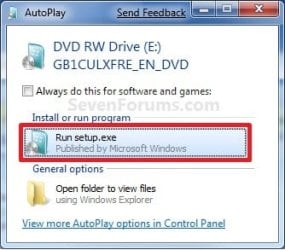
A) While in Windows 7 SP1, insert your retail Windows 7 SP1 installation DVD into the DVD drive, or connect your Windows 7 with SP1 installation USB thumb drive, and click on the Run setup.exe option in AutoPlay. (see screenshot below)
NOTE: If the AutoPlay window does not open, then open the drive folder in Computer and run the setup.exe file.AutoPlay.jpg
B) Go to Go to step 7 below.
6. Repair Installed Windows 7 without SP1 using Windows 7 without SP1 DVD/USB

   Note
If you do not have a Windows 7 without SP1 installation DVD/USB, then you can download the latest official Windows 7 Professional or Home Premium without SP1 ISO file here: Microsoft: Windows 7 Direct Download Links, and use Windows 7 USB-DVD Download Tool to create a bootable DVD or USB flash drive with the ISO to do the repair install from within Windows 7 using this step.

It is preferred to have SP1 installed on your PC and to use step 4 or step 5 above to do a repair install with instead though.

A) While in Windows 7 SP1 installed, insert your retail Windows 7 installation DVD into the DVD drive, or connect your Windows 7 installation USB thumb drive, and click on the Run setup.exe option in AutoPlay. (see screenshot below)
NOTE: If the AutoPlay window does not open, then open the drive folder in Computer and run the setup.exe file.AutoPlay.jpg
B) Go to Go to step 7 below.
7. If prompted by UAC, then click on Yes.

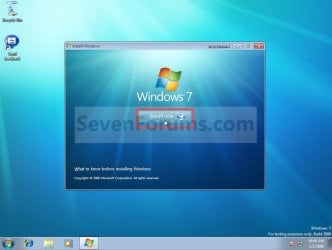
8. Click on the Install Now button to start the installation. (see screenshot below)Step1.jpg
9. If prompted, uncheck the I want to help make Windows installation better box (unless you would like to :) ), and click on the Go online to get the latest updates for installation option. (see screenshot below)Step2.jpg
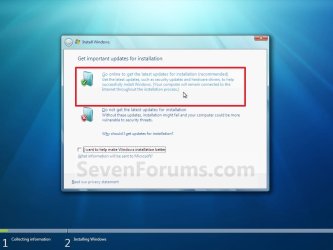
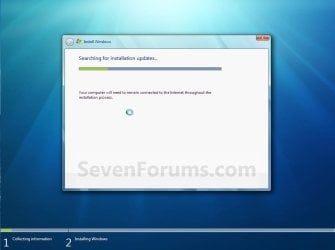
A) Windows 7 will now check online for and install any available installation updates. (see screenshots below)Step2A.jpg

Step2B.jpg

10. Check the I accept the license terms box, and click on Next. (see screenshot below)Step3.jpg
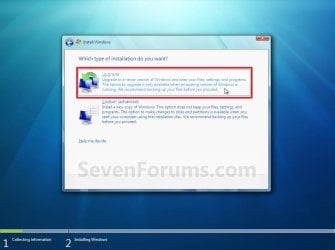
11. Click on the Upgrade option. (see screenshot below)Step4.jpg
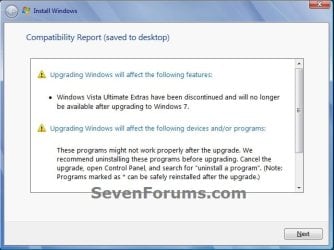
12. Windows will now check for any compatibility issues. If any are found like in the example below, click on the red X to cancel the repair install and close this "Install Windows" window, take care of any found issues (ex: uninstall any incompatible program), then restart the repair install process over again.Compatibility-Report.jpg
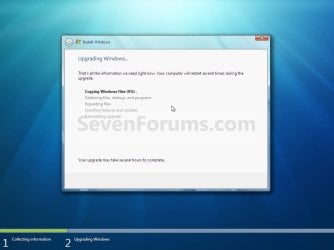
13. The installation of Windows 7 will now begin. (see screenshot below)
NOTE: During the installation process, your screen may flash and computer will restart a few times.Step5.jpg
14. After the final restart, you will see this screen for a moment. (see screenshot below)Step6.jpg
15. Type in your Windows 7 product key number. (see screenshot below step 16)

16. Uncheck the Automatically activate Windows when I'm online box unchecked, then click on the Next button. (see screenshot below)
NOTE: You can activate Windows 7 later after you make sure it is running properly. (see step 23 below)
If you chose to automatically activate Windows online when you set up your computer, automatic activation begins trying to activate your copy of Windows three days after you log on for the first time.Step7.jpg
17. Click on Use recommended settings. (see screenshot below)

:note: You will always be able to change your Windows Update settings at anytime in Windows 7.

Step8.jpg
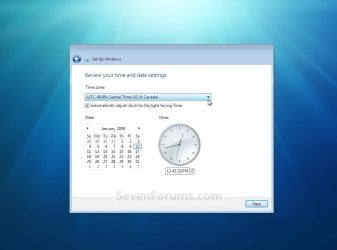
18. Select your time zone and set your time and date settings, then click on the Next button. (see screenshot below)Step9.jpg
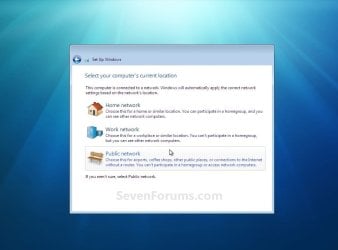
19. Click on the option for your computer's location to select the correct network location type settings to be applied for that location. (see screenshot below)
NOTE: It is best to select Public location for the best security.Step10.jpg
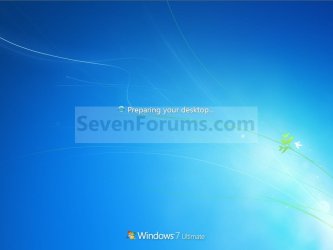
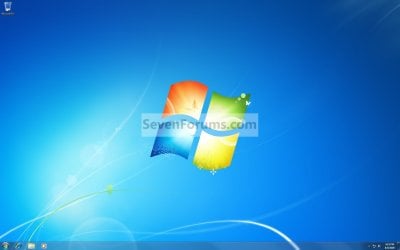
20. Windows 7 will now prepare your desktop to startup. (see screenshots below)Step11A.jpg

Desktop.jpg

21. If you used a DVD or USB to do the repair install with, then you can remove the DVD or USB when the repair install has successfully completed and you are logged in to Windows 7.

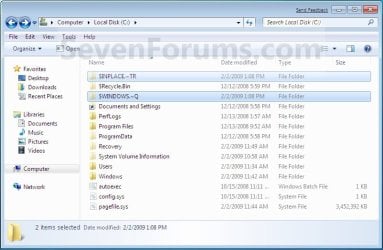
22. Check to see if you are missing any user files. If you are, then you can copy them from the C:\Windows.old or the hidden protected operating system C:\$INPLACE.~TR and C:\WINDOWS.~Q backup folders. (see screenshot below)Old_Install.jpg
23. If everything checks out in step 21, then you can run Disk Cleanup (step 5 at this link). You will need to click on the Clean up system files button first, and then could check the Files discarded by Windows upgrade, Previous Windows installations, and Windows upgrade log files boxes. (see screenshot below)
NOTE: This will delete the C:\Windows.old, C:\$INPLACE.~TR and C:\WINDOWS.~Q folders from step 21 above.Disk_Cleanup.jpg
24. Refresh your Windows Experience Index (WEI) score.

25. When finished, activate Windows 7, and make sure that your 3rd party security programs (if applicable) are enabled again.
That's it,
Shawn


Last edited:
No worries there, this notebook is decent enough. Unfortunately, upgrading through the DVD didn't work. It told me to upgrade through Windows Anytime Upgrade, which didn't work either.

The root of the problem is the fact that I need to get the SP1 update before I can upgrade anything, but every time I try I get an error at about 11%, and upon much googling and attempts to resolve the matter, my last option was to try a repair install.

I guess my only option left is to reformat. =/
 

My Computer

OS
Windows 7 Home Basic 32bit
Hey guys.

I haven't been here in ages but I need some help. Long story short, my LGA 775 motherboard has been giving me constant problems and although I was close to just completely getting a new computer, I decide to be practical and get a new motherboard that is still LGA 775 so I can keep all my hardware and not have to replace everything. I had an Abit IP35 before, but my new board will be a Gigabyte.

Anyway I am expecting to have to reinstall windows after I swap out the board, and I figure a Repair Install will be my best bet, so I can keep everything, programs, files, etc. I just don't feel like going through the hassle of a clean install and having to reinstall all my programs. That would take forever. I have my programs and games and windows all on different partitions.

I was reading the repair install instructions just to make sure I can do it and it did mention one thing that concerns me, namely whatever you have installed, you have to match it with the same install. My install is windows 7 pro 64 bit, retail. But I JUST installed SP1 last night. So the version on my PC is...newer. I did notice though I can simply uninstall SP1. Is that all I need to do? Then I can do a repair install from my retail disc once I put the new board in?

Thanks.!
 

My Computer

Computer Manufacturer/Model Number
Homemade
OS
Windows 7 Pro x64
CPU
Quad Core 2.40 Ghz
Motherboard
Abit IP-35-E
Memory
8 GIGS DDR2 Corsair
Graphics Card(s)
XFX Geforce 260
Sound Card
X-Fi
Monitor(s) Displays
Dell 24 Inch Widescreen and Dell 19 Inch
Screen Resolution
1920 x 1200
Hard Drives
3 Hard drives, 160, 250, and 1.5 TB
PSU
Fotron
Case
Cooler Master
Keyboard
Logitech Illuminated
Mouse
MX Revolution
Internet Speed
Cable
Hello Zeonstart,

Unfortunately, since it will be a different motherboard you will not be able to do a repair install on it since your current Windows installation would probably not run properly on the new motherboard without a clean install. :(

Other than a clean install, you may be able to use Windows Easy Transfer to transfer the files and such with if you have a USB external enclosure to transfer the old computer's HDD on and then transfer to the HDD in the new computer.
 
Last edited:

My Computer

Computer type
PC/Desktop
Computer Manufacturer/Model Number
Self built custom
OS
64-bit Windows 11 Pro for Workstations
CPU
Intel i7-8700K OC'd to 5 GHz
Motherboard
ASUS ROG Maximus XI Formula Z390
Memory
64 GB (4x16GB) G.SKILL TridentZ RGB DDR4 3600 MHz
Graphics Card(s)
ASUS ROG-STRIX-GTX1080TI-O11G-GAMING
Sound Card
Integrated
Monitor(s) Displays
2 x Samsung Odyssey G7 27"
Screen Resolution
2560x1440
Hard Drives
1TB Samsung 990 PRO M.2,
4TB Samsung 990 PRO PRO M.2,
TerraMaster F8 SSD Plus NAS
PSU
Seasonic Prime Titanium 850W
Case
Thermaltake Core P3
Cooling
Corsair Hydro H115i
Keyboard
Logitech wireless K800
Mouse
Logitech MX Master 4
Internet Speed
2 Gb/s Download and 100 Mb/s Upload
Antivirus
Malwarebyte Anti-Malware Premium
Browser
Google Chrome
Other Info
Logitech Z625 speaker system,
Logitech BRIO 4K Pro webcam,
HP Color LaserJet Pro MFP M477fdn,
APC SMART-UPS RT 1000 XL - SURT1000XLI,
Galaxy S23 Plus phone
Aww really? That was about the last thing I wanted to hear. Doing a clean install, as much of a pain as it is, I know is always the best, I just didn't want to go through all that.

I admit I have not installed windows over the same copy of windows in a very long time, probably not since XP. You can't simply copy it over anymore and have it install over everything, meanwhile seeing the new motherboard, programs, and keep it all as it is?

Years ago when I made this computer, I started using partitions, which I had not did before. My copy of windows is basically (with some exceptions) on a hard drive partition by itself and I can (and have) simply wiped just that partition and did a clean install of windows. My programs, games, everything remain on my computer on other drives and partitions, but the problem is Windows no longer knows they are there so in the past the only way to make windows aware of them again is to reinstall them all. Which is the main thing I am trying to avoid. What are my options as far as a clean install but retaining my installs?

I have a lot of hard drive space, and one very large drive devoted to Digital Video that is largely empty right now. Could that somehow be used to my advantage to back up my other drive that has my programs and windows?

I really wish I did not need a new motherboard now. What a pain. But my IP35 was just messing up too much. When your board wont Post because your room is a little cold, it's time to replace it. =(
 

My Computer

Computer Manufacturer/Model Number
Homemade
OS
Windows 7 Pro x64
CPU
Quad Core 2.40 Ghz
Motherboard
Abit IP-35-E
Memory
8 GIGS DDR2 Corsair
Graphics Card(s)
XFX Geforce 260
Sound Card
X-Fi
Monitor(s) Displays
Dell 24 Inch Widescreen and Dell 19 Inch
Screen Resolution
1920 x 1200
Hard Drives
3 Hard drives, 160, 250, and 1.5 TB
PSU
Fotron
Case
Cooler Master
Keyboard
Logitech Illuminated
Mouse
MX Revolution
Internet Speed
Cable
I'm sorry. It would be nice to just drop the drive in the new system and go, but you would end up having a lot of issues trying to do a repair install on a new motherboard like that. In the end, you would most likely end up having to do a clean install anyway since using a HDD with a OS installed on a different motherboard seldomly works out well. :(

You could put the old HDD in the new system and do a custom install instead. It's basically the same as a clean install except that it places a complete copy of your current installation in a C:\Windows.old folder during the new installation. After the installation is complete, you can copy any files you want from within the C:\Windows.old folder back into the new installation. When finished, you can delete the C:\Windows.old folder to regain the HDD space back. You will still have to reinstall all drivers and programs though.
 

My Computer

Computer type
PC/Desktop
Computer Manufacturer/Model Number
Self built custom
OS
64-bit Windows 11 Pro for Workstations
CPU
Intel i7-8700K OC'd to 5 GHz
Motherboard
ASUS ROG Maximus XI Formula Z390
Memory
64 GB (4x16GB) G.SKILL TridentZ RGB DDR4 3600 MHz
Graphics Card(s)
ASUS ROG-STRIX-GTX1080TI-O11G-GAMING
Sound Card
Integrated
Monitor(s) Displays
2 x Samsung Odyssey G7 27"
Screen Resolution
2560x1440
Hard Drives
1TB Samsung 990 PRO M.2,
4TB Samsung 990 PRO PRO M.2,
TerraMaster F8 SSD Plus NAS
PSU
Seasonic Prime Titanium 850W
Case
Thermaltake Core P3
Cooling
Corsair Hydro H115i
Keyboard
Logitech wireless K800
Mouse
Logitech MX Master 4
Internet Speed
2 Gb/s Download and 100 Mb/s Upload
Antivirus
Malwarebyte Anti-Malware Premium
Browser
Google Chrome
Other Info
Logitech Z625 speaker system,
Logitech BRIO 4K Pro webcam,
HP Color LaserJet Pro MFP M477fdn,
APC SMART-UPS RT 1000 XL - SURT1000XLI,
Galaxy S23 Plus phone
Thanks for your continued replies Brink, I appreciate it.

So there really is no simple way to go about this huh?

What about backing up all of my program installs? Is that an option in Windows 7? Like wipe all my drives, install new windows 7 copy, then restore everything from back up?

Does me having my windows on it's own partition give me any advantages?

I have 3 physical Hard drives split like so:

1. 300GB with 50 GB for windows 7 (and any other programs that have installed over time where I couldn't change the install path.) and the rest of the drive is storage.

2. 250 GB drive split in half with one partition being games, and another being programs.

3. 1.5 TB drive split in half, with one half being multimedia and the other being space to work on digital video.

I did all these partitions years ago and am starting to think they are not doing much good. I thought I could clean install windows as needed and keep everything but once you clean install windows, it no longer knows programs are there, even if they are. It would be nice to figure out a way to back up my programs. Reinstalling all that is one daunting task.
 

My Computer

Computer Manufacturer/Model Number
Homemade
OS
Windows 7 Pro x64
CPU
Quad Core 2.40 Ghz
Motherboard
Abit IP-35-E
Memory
8 GIGS DDR2 Corsair
Graphics Card(s)
XFX Geforce 260
Sound Card
X-Fi
Monitor(s) Displays
Dell 24 Inch Widescreen and Dell 19 Inch
Screen Resolution
1920 x 1200
Hard Drives
3 Hard drives, 160, 250, and 1.5 TB
PSU
Fotron
Case
Cooler Master
Keyboard
Logitech Illuminated
Mouse
MX Revolution
Internet Speed
Cable
If you were doing this with the same motherboard, then you could just easily create a system image backup, then do a system image recovery to restore everything. The new motherboad throws a giant monkey wrench it all of this since your currently installed Windows 7 will most likely not run properly or at all on the new motherboard.

The problem with programs is that they do not simple install into one folder that could just easily be copied over. Instead, they may install files in more than one location, and creates quite a few registry entries. This will be next to impossible to track every bit of a program installation down to be able to copy over to another Windows 7 installation.

If you have a USB external HDD, then you should be able to use Windows Easy Transfer to transfer your files, user accounts, programs, and more from the old HDD on your current computer. Afterwards, use Windows Easy Transfer to transfer it from the USB HDD to the HDD on the computer with the new motherboard now that has a clean install of Windows 7.
 

My Computer

Computer type
PC/Desktop
Computer Manufacturer/Model Number
Self built custom
OS
64-bit Windows 11 Pro for Workstations
CPU
Intel i7-8700K OC'd to 5 GHz
Motherboard
ASUS ROG Maximus XI Formula Z390
Memory
64 GB (4x16GB) G.SKILL TridentZ RGB DDR4 3600 MHz
Graphics Card(s)
ASUS ROG-STRIX-GTX1080TI-O11G-GAMING
Sound Card
Integrated
Monitor(s) Displays
2 x Samsung Odyssey G7 27"
Screen Resolution
2560x1440
Hard Drives
1TB Samsung 990 PRO M.2,
4TB Samsung 990 PRO PRO M.2,
TerraMaster F8 SSD Plus NAS
PSU
Seasonic Prime Titanium 850W
Case
Thermaltake Core P3
Cooling
Corsair Hydro H115i
Keyboard
Logitech wireless K800
Mouse
Logitech MX Master 4
Internet Speed
2 Gb/s Download and 100 Mb/s Upload
Antivirus
Malwarebyte Anti-Malware Premium
Browser
Google Chrome
Other Info
Logitech Z625 speaker system,
Logitech BRIO 4K Pro webcam,
HP Color LaserJet Pro MFP M477fdn,
APC SMART-UPS RT 1000 XL - SURT1000XLI,
Galaxy S23 Plus phone
If you have Windows 7 SP1 installed, then you must use a Windows 7 SP1 installation disc to be able to do a repair install
Greg just made me aware of this restriction. What do we do with all the people that upgraded to SP1 and need to do a repair install. Sounds like a dead end road.
 

My Computer

Computer Manufacturer/Model Number
HP, Dell, Gateway, Toshiba - 4 laptops and 2 desktops
OS
Vista, Windows7, Mint Mate, Zorin, Windows 8
CPU
from 1.6GHz Duo to i7
Monitor(s) Displays
2x HP w2207
Hard Drives
5x HDD, 7x SSD, 12x Externals
Keyboard
with trackball - no mices
Mouse
Trackball mice
Internet Speed
DSL 6000
Hello Wolfgang,

It is a bit of a dead end like it was with Vista, but only just for now until retail Windows 7 SP1 installation discs are out on store shelves.


Here's what I know for now:
  • You can use a Windows 7 SP1 installation disc (ex: Technet (available), MSDN (available), or retail (when available)) to do a repair install with on a currently installed Windows 7 SP1.
  • You cannot use a slipstream Windows 7 installation disc to do a repair install with on a currently installed Windows 7 SP1.
  • You cannot use a slipstream Windows 7 installation disc to do a repair install with on a currently installed slipstream Windows 7 SP1.
  • You can use a Windows 7 SP1 installation disc (ex: Technet (available), MSDN (available), or retail (when available)) to do a repair install with on a currently installed slipstream Windows 7 SP1.
I'll do some more testing on this later today with the "mights" above so we can get a more definite answer though.
 
Last edited:

My Computer

Computer type
PC/Desktop
Computer Manufacturer/Model Number
Self built custom
OS
64-bit Windows 11 Pro for Workstations
CPU
Intel i7-8700K OC'd to 5 GHz
Motherboard
ASUS ROG Maximus XI Formula Z390
Memory
64 GB (4x16GB) G.SKILL TridentZ RGB DDR4 3600 MHz
Graphics Card(s)
ASUS ROG-STRIX-GTX1080TI-O11G-GAMING
Sound Card
Integrated
Monitor(s) Displays
2 x Samsung Odyssey G7 27"
Screen Resolution
2560x1440
Hard Drives
1TB Samsung 990 PRO M.2,
4TB Samsung 990 PRO PRO M.2,
TerraMaster F8 SSD Plus NAS
PSU
Seasonic Prime Titanium 850W
Case
Thermaltake Core P3
Cooling
Corsair Hydro H115i
Keyboard
Logitech wireless K800
Mouse
Logitech MX Master 4
Internet Speed
2 Gb/s Download and 100 Mb/s Upload
Antivirus
Malwarebyte Anti-Malware Premium
Browser
Google Chrome
Other Info
Logitech Z625 speaker system,
Logitech BRIO 4K Pro webcam,
HP Color LaserJet Pro MFP M477fdn,
APC SMART-UPS RT 1000 XL - SURT1000XLI,
Galaxy S23 Plus phone
Thank you Shawn. I will also link the info to Greg. He was all in a tizzy about the problem because he uses it in his posts a few times per week. Keep us posted please.
 

My Computer

Computer Manufacturer/Model Number
HP, Dell, Gateway, Toshiba - 4 laptops and 2 desktops
OS
Vista, Windows7, Mint Mate, Zorin, Windows 8
CPU
from 1.6GHz Duo to i7
Monitor(s) Displays
2x HP w2207
Hard Drives
5x HDD, 7x SSD, 12x Externals
Keyboard
with trackball - no mices
Mouse
Trackball mice
Internet Speed
DSL 6000
Will do. I'm hoping to have the results tonight some time. :)
 

My Computer

Computer type
PC/Desktop
Computer Manufacturer/Model Number
Self built custom
OS
64-bit Windows 11 Pro for Workstations
CPU
Intel i7-8700K OC'd to 5 GHz
Motherboard
ASUS ROG Maximus XI Formula Z390
Memory
64 GB (4x16GB) G.SKILL TridentZ RGB DDR4 3600 MHz
Graphics Card(s)
ASUS ROG-STRIX-GTX1080TI-O11G-GAMING
Sound Card
Integrated
Monitor(s) Displays
2 x Samsung Odyssey G7 27"
Screen Resolution
2560x1440
Hard Drives
1TB Samsung 990 PRO M.2,
4TB Samsung 990 PRO PRO M.2,
TerraMaster F8 SSD Plus NAS
PSU
Seasonic Prime Titanium 850W
Case
Thermaltake Core P3
Cooling
Corsair Hydro H115i
Keyboard
Logitech wireless K800
Mouse
Logitech MX Master 4
Internet Speed
2 Gb/s Download and 100 Mb/s Upload
Antivirus
Malwarebyte Anti-Malware Premium
Browser
Google Chrome
Other Info
Logitech Z625 speaker system,
Logitech BRIO 4K Pro webcam,
HP Color LaserJet Pro MFP M477fdn,
APC SMART-UPS RT 1000 XL - SURT1000XLI,
Galaxy S23 Plus phone
Hello Wolfgang,

It is a bit of a dead end like it was with Vista, but only just for now until retail Windows 7 SP1 installation discs are out on store shelves.


Here's what I know for now:
  • You can use a Windows 7 SP1 installation disc (ex: Technet (available), MSDN (available), or retail (when available)) to do a repair install with on a currently installed Windows 7 SP1.
  • You cannot use a slipstream Windows 7 installation disc to do a repair install with on a currently installed Windows 7 SP1.
  • You cannot use a slipstream Windows 7 installation disc to do a repair install with on a currently installed slipstream Windows 7 SP1.
  • You can use a Windows 7 SP1 installation disc (ex: Technet (available), MSDN (available), or retail (when available)) to do a repair install with on a currently installed slipstream Windows 7 SP1.
I'll do some more testing on this later today with the "mights" above so we can get a more definite answer though.

Question: For those of us who have an OEM license, can we not simply uninstall SP1 first, then attempt a repair install?

However, in my case, I don't see any "Service Pack Backup Files" listed in Disk Cleanup. I don't recall ever deleting said files; could that be because none were created, since I invariably installed all Windows Updates up to the date of SP1's release?

wonder.gif
 
Last edited by a moderator:

My Computer

Computer Manufacturer/Model Number
Homebuilt
OS
Windows 7 Ultimate x64 SP1
CPU
Intel Core i7-920 Bloomfield @ 4.25 GHz
Motherboard
EVGA E758-A1 LGA 1366 Intel X58
Memory
Corsair XMS3 12GB DDR3 SDRAM 1600
Graphics Card(s)
(2) GeForce GTX 260 Core 216 Superclocked Edition 896MB
Sound Card
Sound Blaster X-Fi Titanium
Monitor(s) Displays
Samsung 2443BWT
Screen Resolution
1920 x 1200
Hard Drives
WD Caviar Black WD5001AALS 500GB; WD3200AAKS; (2) WDC WD2500KS; Verbatim 2T USB 3 External
PSU
Corsair HX650
Case
Cooler Master CM Stacker STC-T01
Cooling
Swiftech H2O-320 + XSPC Reservoir + Corsair CMXAF2
Keyboard
Logitech Elite
Mouse
Logitech MX510
Internet Speed
Cox Communications ~ 6 Mbps
Hello BammBamm,

If it's a retail OEM installation disc copy and not a "OEM Factory Recovery" installation disc, then you should be able to uninstall SP1 and do a repair install with it. Of course, this all depends on if the SP1 backup files were removed or not to be able to uninstall SP1.
 

My Computer

Computer type
PC/Desktop
Computer Manufacturer/Model Number
Self built custom
OS
64-bit Windows 11 Pro for Workstations
CPU
Intel i7-8700K OC'd to 5 GHz
Motherboard
ASUS ROG Maximus XI Formula Z390
Memory
64 GB (4x16GB) G.SKILL TridentZ RGB DDR4 3600 MHz
Graphics Card(s)
ASUS ROG-STRIX-GTX1080TI-O11G-GAMING
Sound Card
Integrated
Monitor(s) Displays
2 x Samsung Odyssey G7 27"
Screen Resolution
2560x1440
Hard Drives
1TB Samsung 990 PRO M.2,
4TB Samsung 990 PRO PRO M.2,
TerraMaster F8 SSD Plus NAS
PSU
Seasonic Prime Titanium 850W
Case
Thermaltake Core P3
Cooling
Corsair Hydro H115i
Keyboard
Logitech wireless K800
Mouse
Logitech MX Master 4
Internet Speed
2 Gb/s Download and 100 Mb/s Upload
Antivirus
Malwarebyte Anti-Malware Premium
Browser
Google Chrome
Other Info
Logitech Z625 speaker system,
Logitech BRIO 4K Pro webcam,
HP Color LaserJet Pro MFP M477fdn,
APC SMART-UPS RT 1000 XL - SURT1000XLI,
Galaxy S23 Plus phone
Ok. The results are in, and it doesn't look good for being able to use a slipstream Windows 7 SP1 installation disc to use to do a repair install with. :(


Here's are the results:
  • You can use a Windows 7 SP1 installation disc (ex: Technet (available), MSDN (available), or retail (when available)) to do a repair install with on a currently installed Windows 7 SP1.
  • You cannot use a slipstream Windows 7 installation disc to do a repair install with on a currently installed Windows 7 SP1.
  • You cannot use a slipstream Windows 7 installation disc to do a repair install with on a currently installed slipstream Windows 7 SP1.
  • You can use a Windows 7 SP1 installation disc (ex: Technet (available), MSDN (available), or retail (when available)) to do a repair install with on a currently installed slipstream Windows 7 SP1.
Tutorial updated with results in warning box at the top of it.
 

My Computer

Computer type
PC/Desktop
Computer Manufacturer/Model Number
Self built custom
OS
64-bit Windows 11 Pro for Workstations
CPU
Intel i7-8700K OC'd to 5 GHz
Motherboard
ASUS ROG Maximus XI Formula Z390
Memory
64 GB (4x16GB) G.SKILL TridentZ RGB DDR4 3600 MHz
Graphics Card(s)
ASUS ROG-STRIX-GTX1080TI-O11G-GAMING
Sound Card
Integrated
Monitor(s) Displays
2 x Samsung Odyssey G7 27"
Screen Resolution
2560x1440
Hard Drives
1TB Samsung 990 PRO M.2,
4TB Samsung 990 PRO PRO M.2,
TerraMaster F8 SSD Plus NAS
PSU
Seasonic Prime Titanium 850W
Case
Thermaltake Core P3
Cooling
Corsair Hydro H115i
Keyboard
Logitech wireless K800
Mouse
Logitech MX Master 4
Internet Speed
2 Gb/s Download and 100 Mb/s Upload
Antivirus
Malwarebyte Anti-Malware Premium
Browser
Google Chrome
Other Info
Logitech Z625 speaker system,
Logitech BRIO 4K Pro webcam,
HP Color LaserJet Pro MFP M477fdn,
APC SMART-UPS RT 1000 XL - SURT1000XLI,
Galaxy S23 Plus phone
So you have to be an MSDN or Technet subscriber to get the .iso - that sucks. I just checked a few torrents that were posted by My Digitl Life. But those were all blocked for violation.
 

My Computer

Computer Manufacturer/Model Number
HP, Dell, Gateway, Toshiba - 4 laptops and 2 desktops
OS
Vista, Windows7, Mint Mate, Zorin, Windows 8
CPU
from 1.6GHz Duo to i7
Monitor(s) Displays
2x HP w2207
Hard Drives
5x HDD, 7x SSD, 12x Externals
Keyboard
with trackball - no mices
Mouse
Trackball mice
Internet Speed
DSL 6000
That, or wait until the retail package copies of the Windows 7 SP1 installation DVD are available. :(
 

My Computer

Computer type
PC/Desktop
Computer Manufacturer/Model Number
Self built custom
OS
64-bit Windows 11 Pro for Workstations
CPU
Intel i7-8700K OC'd to 5 GHz
Motherboard
ASUS ROG Maximus XI Formula Z390
Memory
64 GB (4x16GB) G.SKILL TridentZ RGB DDR4 3600 MHz
Graphics Card(s)
ASUS ROG-STRIX-GTX1080TI-O11G-GAMING
Sound Card
Integrated
Monitor(s) Displays
2 x Samsung Odyssey G7 27"
Screen Resolution
2560x1440
Hard Drives
1TB Samsung 990 PRO M.2,
4TB Samsung 990 PRO PRO M.2,
TerraMaster F8 SSD Plus NAS
PSU
Seasonic Prime Titanium 850W
Case
Thermaltake Core P3
Cooling
Corsair Hydro H115i
Keyboard
Logitech wireless K800
Mouse
Logitech MX Master 4
Internet Speed
2 Gb/s Download and 100 Mb/s Upload
Antivirus
Malwarebyte Anti-Malware Premium
Browser
Google Chrome
Other Info
Logitech Z625 speaker system,
Logitech BRIO 4K Pro webcam,
HP Color LaserJet Pro MFP M477fdn,
APC SMART-UPS RT 1000 XL - SURT1000XLI,
Galaxy S23 Plus phone
What if you uninstall SP1, then run a repair (upgrade), then re-install SP1?
 

My Computer

Computer Manufacturer/Model Number
Home built
OS
Windows 7 x64 Home Premium
CPU
Intel Q9550 Core 2 quad
Motherboard
Asus P5Q Deluxe
Memory
Crucial 4 gb
Graphics Card(s)
EVGA GTX 285 2gb edition
Sound Card
Creative X-FI Extreme Gamer
Monitor(s) Displays
MAG 22" flat screen
Screen Resolution
1440 x 900
Hard Drives
WD 1 TB Black Edition
PSU
750 watt
Case
Cooler Master 922M
Cooling
air
Keyboard
standard
Mouse
Razer Deathadder 3500/DPI
Internet Speed
cable
Other Info
Two DVD players/recorders IDE. Latest Asus BIOS #2301. All drivers at or close to the latest.
What if you uninstall SP1, then run a repair (upgrade), then re-install SP1?
I think that would work. But that is an awful lot of trouble to go thru. But maybe one reason to keep the SP1 uninstaller around.
 

My Computer

Computer Manufacturer/Model Number
HP, Dell, Gateway, Toshiba - 4 laptops and 2 desktops
OS
Vista, Windows7, Mint Mate, Zorin, Windows 8
CPU
from 1.6GHz Duo to i7
Monitor(s) Displays
2x HP w2207
Hard Drives
5x HDD, 7x SSD, 12x Externals
Keyboard
with trackball - no mices
Mouse
Trackball mice
Internet Speed
DSL 6000
Yup, doing it right now.
 

My Computer

Computer Manufacturer/Model Number
Home built
OS
Windows 7 x64 Home Premium
CPU
Intel Q9550 Core 2 quad
Motherboard
Asus P5Q Deluxe
Memory
Crucial 4 gb
Graphics Card(s)
EVGA GTX 285 2gb edition
Sound Card
Creative X-FI Extreme Gamer
Monitor(s) Displays
MAG 22" flat screen
Screen Resolution
1440 x 900
Hard Drives
WD 1 TB Black Edition
PSU
750 watt
Case
Cooler Master 922M
Cooling
air
Keyboard
standard
Mouse
Razer Deathadder 3500/DPI
Internet Speed
cable
Other Info
Two DVD players/recorders IDE. Latest Asus BIOS #2301. All drivers at or close to the latest.
Hello BammBamm,

If it's a retail OEM installation disc copy and not a "OEM Factory Recovery" installation disc, then you should be able to uninstall SP1 and do a repair install with it. Of course, this all depends on if the SP1 backup files were removed or not to be able to uninstall SP1.

Thanks for the 4-1-1, Shawn.
smile.png
(And, 'yes', mine's a retail OEM.)

As luck would have it, I managed to locate the elusive SP1 Backup Files by enabling the actual Administrator account in Local Users and Groups via Computer Management. I'd initially reckoned that, since my regular user account had Admin privileges, the backups would show within Disk Cleanup; looks like I reckoned wrongly.
biggrin.gif


Now for my next (possibly obtuse) question: Is there anything inherently wrong/bad about performing a repair install, even if we suspect that nothing major's gone haywire with Windows? Is there any particular benefit to doing so as it relates to Windows' performance, necessarily, or is it to be used only as a last resort?

sadconfusedicon1ol.gif
 

My Computer

Computer Manufacturer/Model Number
Homebuilt
OS
Windows 7 Ultimate x64 SP1
CPU
Intel Core i7-920 Bloomfield @ 4.25 GHz
Motherboard
EVGA E758-A1 LGA 1366 Intel X58
Memory
Corsair XMS3 12GB DDR3 SDRAM 1600
Graphics Card(s)
(2) GeForce GTX 260 Core 216 Superclocked Edition 896MB
Sound Card
Sound Blaster X-Fi Titanium
Monitor(s) Displays
Samsung 2443BWT
Screen Resolution
1920 x 1200
Hard Drives
WD Caviar Black WD5001AALS 500GB; WD3200AAKS; (2) WDC WD2500KS; Verbatim 2T USB 3 External
PSU
Corsair HX650
Case
Cooler Master CM Stacker STC-T01
Cooling
Swiftech H2O-320 + XSPC Reservoir + Corsair CMXAF2
Keyboard
Logitech Elite
Mouse
Logitech MX510
Internet Speed
Cox Communications ~ 6 Mbps
Back
Top