Repair Install

How to Do a Repair Install to Fix Windows 7


   Information
This will show you how to do a repair install (aka: in-place upgrade install) to fix your currently installed Windows 7 and preserve your user accounts, data, programs, and system drivers.
   Note
Do a Repair installation if:
  • A System Restore did not help fix your Windows 7.
  • There is no other easier option left that can fix your Windows 7.
  • You DO NOT want to do a Clean reinstall of Windows 7.
  • You DO want to preserve your user accounts, data, programs, and system drivers.
   Tip
ITEMS THAT WILL BE RESET TO DEFAULT OR AFFECTED:
  • Sounds
  • Services
  • Visual Effects Settings
  • Device Drivers - Be sure to have these handy to reinstall. They do not always remain after the repair (upgrade) install.
  • You may lose the ability to sign on to MSN Messenger, to solve this problem have a look at this thread Unable to sign in to WLM.
  • You may lose your custom themes due to not having permisions set on the old themes. Go to the hidden themes folder at C:/Users/(User-Name)/AppData/Local/Microsoft/Windows/Themes, then Take Ownership of the themes folder and you will now have all your themes back.
  • It has been reported that you may also lose your Media Center gadget after doing the repair install.
  • Windows Updates will need to be checked and reinstalled again.
   Warning

  • You can only do a repair install with the same edition Windows 7 installation disc for the same edition of Windows 7 that you have installed.
  • You cannot use a OEM Windows 7 "Factory" Restore/Recovery type of installation disc that came with or created from a store bought computer to do a repair install with. These can only be used do a clean install instead.
  • You can do a repair install on a factory OEM installation with the latest official Windows 7 with SP1 ISO file here: Microsoft: Windows 7 Direct Download Links, and use Windows 7 USB-DVD Download Tool to create a bootable DVD or USB flash drive with the ISO to do the repair install from within Windows 7.
  • You can use a retail OEM Windows 7 installation disc to do a repair install with.
  • You can use a retail (full or upgrade) Windows 7 installation disc to do a repair install with.
  • You cannot do a repair install with a System Repair Disc. A System Repair Disc is not a installation disc, and will only boot to the System Recovery Options screen.
  • If you have a 32-bit (x86) Windows 7 currently installed, then you must use a 32-bit Windows 7 installation disc to be able to do a repair install with.
  • If you have a 64-bit (x64) Windows 7 currently installed, then you must use a 64-bit Windows 7 installation disc to be able to do a repair install with.
  • You can use a retail Windows 7 SP1 installation disc (ex: Technet (available), MSDN (available), or retail (when available)) to do a repair install with on a currently installed Windows 7 SP1.
  • You can use a Windows 7 SP1 installation disc (ex: Technet (available), MSDN (available), or retail (when available)) to do a repair install with on a currently installed slipstream Windows 7 SP1.
  • You cannot use a slipstream Windows 7 installation disc to do a repair install with on a currently installed Windows 7 SP1.
  • You cannot use a slipstream Windows 7 installation disc to do a repair install with on a currently installed slipstream Windows 7 SP1.
  • You can only do a repair install from within Windows 7.
  • You cannot do a repair install at boot or in Safe Mode.
  • You must be logged into Windows 7 in a administrator account to be able to do a repair install.
  • You must have at least 8.87 GB + what is currently being used of free space (more if you have a larger installation) on the hard drive/partition Windows 7 is installed on to do a repair install.
  • If you changed the default location of a user account's profile folder, then you will need to change it back to the default C:\Users location first.
  • If you moved the default location of a user folder, then you will need to change it back to the default C:\Users\(user-name) location first.


Here's How:
NOTE: Be sure to back up anything that you do not want to lose first to be extra safe.1. Start Windows 7, and log on to an administrator account.

2. Disable any 3rd party firewall, antivirus, or other security program to avoid it from possibly preventing the repair in-place upgrade installation of Windows 7.

3. Do either step 4, step 5, or step 6 below depending if your retail Windows 7 installation ISO/DVD/USB has SP1 or not, and if your currently installed Windows 7 has SP1 installed or not.

4. Repair Installed Windows 7 SP1 using Windows 7 with SP1 ISO

   Note
If you do not have a Windows 7 with SP1 ISO, then you can download an official ISO with your retail product key from Microsoft at the link below.

:ar: Microsoft Software Recovery

You can also download the latest official Windows 7 SP1 Media Refresh (SP1 U) ISO file at the link below, but this link is not always available for download.

:ar: Microsoft: Windows 7 Direct Download Links

A) If you have not already, you will need to install a program like 7-Zip that supports extracting a ISO to a folder.

B) Using the program (ex: 7-Zip) from step 1, extract the Windows 7 SP1 ISO file to a folder on a partition or HDD other than the current Windows 7 partition. (see screenshot below)
NOTE: For example with 7-Zip, right click on ISO, click on 7-Zip, Extract files, browse button, select where you want to extract to, and click on OK twice.7-Zip.jpg
C) While in Windows 7 SP1, open the folder that you extracted the ISO into, and run the setup.exe file.

D) Go to step 7 below.
5. Repair Installed Windows 7 SP1 using Windows 7 with SP1 DVD/USB

   Note
If you do not have a Windows 7 with SP1 ISO, then you can download an official ISO with your retail product key from Microsoft at the link below.

:ar: http://www.microsoft.com/en-us/software-recovery

You can also download the latest official Windows 7 SP1 Media Refresh (SP1 U) ISO file at the link below, but this link is not always available for download.

:ar: Microsoft: Windows 7 Direct Download Links

Afterwards, you can use Windows 7 USB-DVD Download Tool to create a bootable DVD or USB flash drive with the ISO to do the repair install from within Windows 7 using this step.

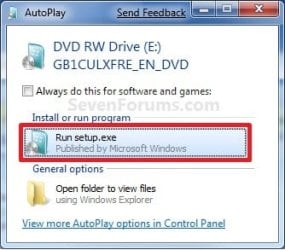
A) While in Windows 7 SP1, insert your retail Windows 7 SP1 installation DVD into the DVD drive, or connect your Windows 7 with SP1 installation USB thumb drive, and click on the Run setup.exe option in AutoPlay. (see screenshot below)
NOTE: If the AutoPlay window does not open, then open the drive folder in Computer and run the setup.exe file.AutoPlay.jpg
B) Go to Go to step 7 below.
6. Repair Installed Windows 7 without SP1 using Windows 7 without SP1 DVD/USB

   Note
If you do not have a Windows 7 without SP1 installation DVD/USB, then you can download the latest official Windows 7 Professional or Home Premium without SP1 ISO file here: Microsoft: Windows 7 Direct Download Links, and use Windows 7 USB-DVD Download Tool to create a bootable DVD or USB flash drive with the ISO to do the repair install from within Windows 7 using this step.

It is preferred to have SP1 installed on your PC and to use step 4 or step 5 above to do a repair install with instead though.

A) While in Windows 7 SP1 installed, insert your retail Windows 7 installation DVD into the DVD drive, or connect your Windows 7 installation USB thumb drive, and click on the Run setup.exe option in AutoPlay. (see screenshot below)
NOTE: If the AutoPlay window does not open, then open the drive folder in Computer and run the setup.exe file.AutoPlay.jpg
B) Go to Go to step 7 below.
7. If prompted by UAC, then click on Yes.

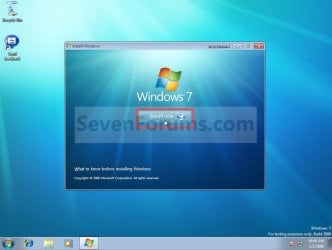
8. Click on the Install Now button to start the installation. (see screenshot below)Step1.jpg
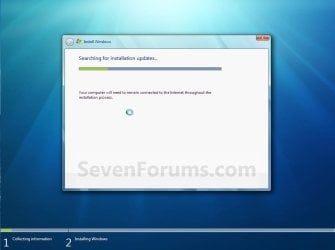
9. If prompted, uncheck the I want to help make Windows installation better box (unless you would like to :) ), and click on the Go online to get the latest updates for installation option. (see screenshot below)Step2.jpg
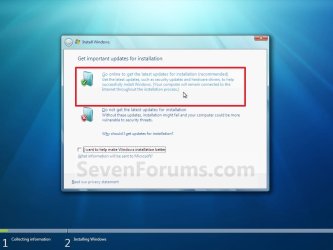
A) Windows 7 will now check online for and install any available installation updates. (see screenshots below)Step2A.jpg

Step2B.jpg

10. Check the I accept the license terms box, and click on Next. (see screenshot below)Step3.jpg
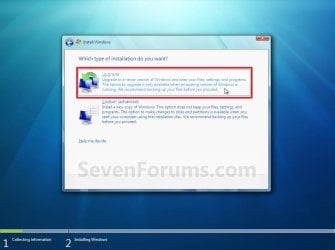
11. Click on the Upgrade option. (see screenshot below)Step4.jpg
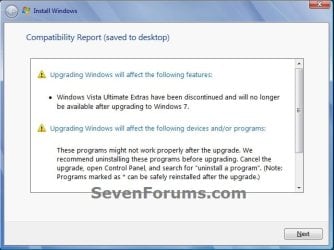
12. Windows will now check for any compatibility issues. If any are found like in the example below, click on the red X to cancel the repair install and close this "Install Windows" window, take care of any found issues (ex: uninstall any incompatible program), then restart the repair install process over again.Compatibility-Report.jpg
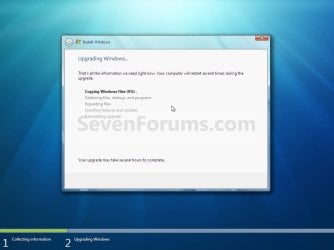
13. The installation of Windows 7 will now begin. (see screenshot below)
NOTE: During the installation process, your screen may flash and computer will restart a few times.Step5.jpg
14. After the final restart, you will see this screen for a moment. (see screenshot below)Step6.jpg
15. Type in your Windows 7 product key number. (see screenshot below step 16)

16. Uncheck the Automatically activate Windows when I'm online box unchecked, then click on the Next button. (see screenshot below)
NOTE: You can activate Windows 7 later after you make sure it is running properly. (see step 23 below)
If you chose to automatically activate Windows online when you set up your computer, automatic activation begins trying to activate your copy of Windows three days after you log on for the first time.Step7.jpg
17. Click on Use recommended settings. (see screenshot below)

:note: You will always be able to change your Windows Update settings at anytime in Windows 7.

Step8.jpg
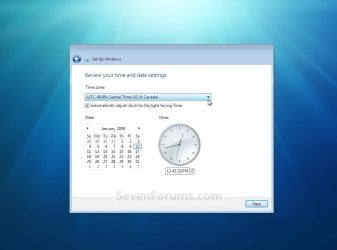
18. Select your time zone and set your time and date settings, then click on the Next button. (see screenshot below)Step9.jpg
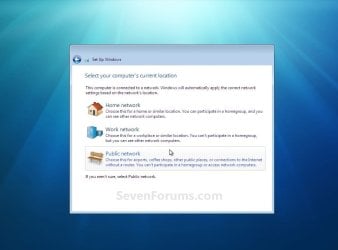
19. Click on the option for your computer's location to select the correct network location type settings to be applied for that location. (see screenshot below)
NOTE: It is best to select Public location for the best security.Step10.jpg
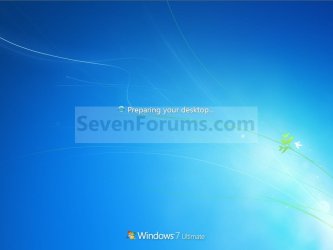
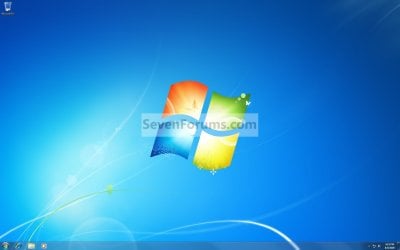
20. Windows 7 will now prepare your desktop to startup. (see screenshots below)Step11A.jpg

Desktop.jpg

21. If you used a DVD or USB to do the repair install with, then you can remove the DVD or USB when the repair install has successfully completed and you are logged in to Windows 7.

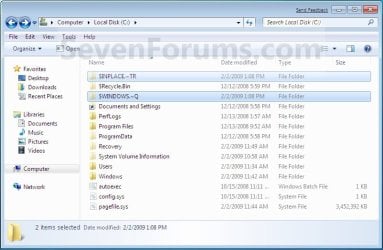
22. Check to see if you are missing any user files. If you are, then you can copy them from the C:\Windows.old or the hidden protected operating system C:\$INPLACE.~TR and C:\WINDOWS.~Q backup folders. (see screenshot below)Old_Install.jpg
23. If everything checks out in step 21, then you can run Disk Cleanup (step 5 at this link). You will need to click on the Clean up system files button first, and then could check the Files discarded by Windows upgrade, Previous Windows installations, and Windows upgrade log files boxes. (see screenshot below)
NOTE: This will delete the C:\Windows.old, C:\$INPLACE.~TR and C:\WINDOWS.~Q folders from step 21 above.Disk_Cleanup.jpg
24. Refresh your Windows Experience Index (WEI) score.

25. When finished, activate Windows 7, and make sure that your 3rd party security programs (if applicable) are enabled again.
That's it,
Shawn


Last edited:
BammBamm,

Doing a repair install should only be done as a last restort to avoid doing a clean install when nothing else has worked to fix a issue that you can't live with.

It's not going to help anything in the installation if there was nothing wrong to begin with. :)
 

My Computer

Computer type
PC/Desktop
Computer Manufacturer/Model Number
Self built custom
OS
64-bit Windows 11 Pro for Workstations
CPU
Intel i7-8700K OC'd to 5 GHz
Motherboard
ASUS ROG Maximus XI Formula Z390
Memory
64 GB (4x16GB) G.SKILL TridentZ RGB DDR4 3600 MHz
Graphics Card(s)
ASUS ROG-STRIX-GTX1080TI-O11G-GAMING
Sound Card
Integrated
Monitor(s) Displays
2 x Samsung Odyssey G7 27"
Screen Resolution
2560x1440
Hard Drives
1TB Samsung 990 PRO M.2,
4TB Samsung 990 PRO PRO M.2,
TerraMaster F8 SSD Plus NAS
PSU
Seasonic Prime Titanium 850W
Case
Thermaltake Core P3
Cooling
Corsair Hydro H115i
Keyboard
Logitech wireless K800
Mouse
Logitech MX Master 4
Internet Speed
2 Gb/s Download and 100 Mb/s Upload
Antivirus
Malwarebyte Anti-Malware Premium
Browser
Google Chrome
Other Info
Logitech Z625 speaker system,
Logitech BRIO 4K Pro webcam,
HP Color LaserJet Pro MFP M477fdn,
APC SMART-UPS RT 1000 XL - SURT1000XLI,
Galaxy S23 Plus phone
I thought I would share an interesting update. I swapped out my motherboard today, going from an Abit IP35 to a Gigabyte with P43 chipset. Hooked everything up, plugged everything in and...Windows loaded just fine. It installed some drivers but that was pretty much it. I completed changed my motherboard and it didn't even seem to phase Windows 7.

I was fully prepared to do a clean install, figuring I would not have a choice. But now that I do have a choice, I might go ahead and do a clean install, I haven't decided yet. The computer is already running a lot better and is more responsive just with the new motherboard. Which by the way is the quietest computer I've ever seen.
 

My Computer

Computer Manufacturer/Model Number
Homemade
OS
Windows 7 Pro x64
CPU
Quad Core 2.40 Ghz
Motherboard
Abit IP-35-E
Memory
8 GIGS DDR2 Corsair
Graphics Card(s)
XFX Geforce 260
Sound Card
X-Fi
Monitor(s) Displays
Dell 24 Inch Widescreen and Dell 19 Inch
Screen Resolution
1920 x 1200
Hard Drives
3 Hard drives, 160, 250, and 1.5 TB
PSU
Fotron
Case
Cooler Master
Keyboard
Logitech Illuminated
Mouse
MX Revolution
Internet Speed
Cable
That's great news Zeonstar. You got lucky. :party:
 

My Computer

Computer type
PC/Desktop
Computer Manufacturer/Model Number
Self built custom
OS
64-bit Windows 11 Pro for Workstations
CPU
Intel i7-8700K OC'd to 5 GHz
Motherboard
ASUS ROG Maximus XI Formula Z390
Memory
64 GB (4x16GB) G.SKILL TridentZ RGB DDR4 3600 MHz
Graphics Card(s)
ASUS ROG-STRIX-GTX1080TI-O11G-GAMING
Sound Card
Integrated
Monitor(s) Displays
2 x Samsung Odyssey G7 27"
Screen Resolution
2560x1440
Hard Drives
1TB Samsung 990 PRO M.2,
4TB Samsung 990 PRO PRO M.2,
TerraMaster F8 SSD Plus NAS
PSU
Seasonic Prime Titanium 850W
Case
Thermaltake Core P3
Cooling
Corsair Hydro H115i
Keyboard
Logitech wireless K800
Mouse
Logitech MX Master 4
Internet Speed
2 Gb/s Download and 100 Mb/s Upload
Antivirus
Malwarebyte Anti-Malware Premium
Browser
Google Chrome
Other Info
Logitech Z625 speaker system,
Logitech BRIO 4K Pro webcam,
HP Color LaserJet Pro MFP M477fdn,
APC SMART-UPS RT 1000 XL - SURT1000XLI,
Galaxy S23 Plus phone
BammBamm,

Doing a repair install should only be done as a last restort to avoid doing a clean install when nothing else has worked to fix a issue that you can't live with.

It's not going to help anything in the installation if there was nothing wrong to begin with. :)

Oh, alright. I guess my biggest problem is knowing when to say 'when', when it comes to fiddling with my PC.

My motto is:
"If it ain't broke, dink around with it until it is, perform a major facepalm, try to figure out how to fix what wasn't broken in the first freakin' place, then, when you're almost ready to wave the white flag, consult the experts at Windows Seven Forums."
biggrin.gif
 
Last edited by a moderator:

My Computer

Computer Manufacturer/Model Number
Homebuilt
OS
Windows 7 Ultimate x64 SP1
CPU
Intel Core i7-920 Bloomfield @ 4.25 GHz
Motherboard
EVGA E758-A1 LGA 1366 Intel X58
Memory
Corsair XMS3 12GB DDR3 SDRAM 1600
Graphics Card(s)
(2) GeForce GTX 260 Core 216 Superclocked Edition 896MB
Sound Card
Sound Blaster X-Fi Titanium
Monitor(s) Displays
Samsung 2443BWT
Screen Resolution
1920 x 1200
Hard Drives
WD Caviar Black WD5001AALS 500GB; WD3200AAKS; (2) WDC WD2500KS; Verbatim 2T USB 3 External
PSU
Corsair HX650
Case
Cooler Master CM Stacker STC-T01
Cooling
Swiftech H2O-320 + XSPC Reservoir + Corsair CMXAF2
Keyboard
Logitech Elite
Mouse
Logitech MX510
Internet Speed
Cox Communications ~ 6 Mbps
That's great news Zeonstar. You got lucky. :party:

Of that I have no doubt. I'm not sure if my luck is contributed to the qaulity of Win 7, but I'm definitely impressed.
 

My Computer

Computer Manufacturer/Model Number
Homemade
OS
Windows 7 Pro x64
CPU
Quad Core 2.40 Ghz
Motherboard
Abit IP-35-E
Memory
8 GIGS DDR2 Corsair
Graphics Card(s)
XFX Geforce 260
Sound Card
X-Fi
Monitor(s) Displays
Dell 24 Inch Widescreen and Dell 19 Inch
Screen Resolution
1920 x 1200
Hard Drives
3 Hard drives, 160, 250, and 1.5 TB
PSU
Fotron
Case
Cooler Master
Keyboard
Logitech Illuminated
Mouse
MX Revolution
Internet Speed
Cable
sooo wait, am I reading this right? If I have a Dell machine that came from the factory with Win7 Pro x64, and I have installed SP1 on it, then to do a repair install I would have to go purchase a new retail Win7 Pro x64 SP1 DVD ($150 or more I'm guessing) if I do not have the SP1 backup files still on the machine?? That just seems completely ludicrous to me.
 

My Computer

Computer type
PC/Desktop
Computer Manufacturer/Model Number
Custom-built PC workstation
OS
Windows 7 Professional x64
CPU
Core i7-4790K Devil's Canyon Quad Core 4.0 GHz
Motherboard
ASUS Z97-E/USB3.1 ATX
Memory
G.SKILL Ripjaws X Series 32 GB DDR3-1866 (4x 8GB)
Graphics Card(s)
EVGA (nVIDIA) GTX 960 4 GB GDDR5
Sound Card
on-board
Monitor(s) Displays
2x Dell Ultrasharp 24" U2415
Screen Resolution
2x 1920x1200
Hard Drives
Crucial MX200 500GB 2.5" SSD SATA III 6 GB/sec
PSU
Rosewill Glacier 700M 700-watt
Case
Fractal Design Define R4 Silent PC mid-tower
Cooling
OEM PSU cooler, 3x 140mm case fans (2 intake, 1 exhaust)
Keyboard
Logitech
Mouse
Logitech
Internet Speed
100+ Mbps
Antivirus
BitDefender
Browser
Firefox/Chrome
Reinstalling Windows 7

I have tried your reinstall procedure 3 times now with no luck. I am trying to reinstall from a Windows 7 32-bit upgrade disk. Is it because it is the upgrade disk that it will not reinstall? I did not see if you mentioned that it could or could not be reinstalled from the upgrade disk.
 

My Computer

OS
Windows 7 32 Bit
sooo wait, am I reading this right? If I have a Dell machine that came from the factory with Win7 Pro x64, and I have installed SP1 on it, then to do a repair install I would have to go purchase a new retail Win7 Pro x64 SP1 DVD ($150 or more I'm guessing) if I do not have the SP1 backup files still on the machine?? That just seems completely ludicrous to me.

Hello Patrick,

Sorry, but a Dell OEM factory recovery installation disc/partition will only allow you to do a clean Dell factory restore of Windows 7 and not a repair install. That's the trade off of having a lower cost OEM vs full cost retail copy of Windows 7. :(

You might post the issue that you are having in a separate new thread in the appropriate forum area to see if we may be able to help you fix it without having to do a factory restore.
 

My Computer

Computer type
PC/Desktop
Computer Manufacturer/Model Number
Self built custom
OS
64-bit Windows 11 Pro for Workstations
CPU
Intel i7-8700K OC'd to 5 GHz
Motherboard
ASUS ROG Maximus XI Formula Z390
Memory
64 GB (4x16GB) G.SKILL TridentZ RGB DDR4 3600 MHz
Graphics Card(s)
ASUS ROG-STRIX-GTX1080TI-O11G-GAMING
Sound Card
Integrated
Monitor(s) Displays
2 x Samsung Odyssey G7 27"
Screen Resolution
2560x1440
Hard Drives
1TB Samsung 990 PRO M.2,
4TB Samsung 990 PRO PRO M.2,
TerraMaster F8 SSD Plus NAS
PSU
Seasonic Prime Titanium 850W
Case
Thermaltake Core P3
Cooling
Corsair Hydro H115i
Keyboard
Logitech wireless K800
Mouse
Logitech MX Master 4
Internet Speed
2 Gb/s Download and 100 Mb/s Upload
Antivirus
Malwarebyte Anti-Malware Premium
Browser
Google Chrome
Other Info
Logitech Z625 speaker system,
Logitech BRIO 4K Pro webcam,
HP Color LaserJet Pro MFP M477fdn,
APC SMART-UPS RT 1000 XL - SURT1000XLI,
Galaxy S23 Plus phone
I have tried your reinstall procedure 3 times now with no luck. I am trying to reinstall from a Windows 7 32-bit upgrade disk. Is it because it is the upgrade disk that it will not reinstall? I did not see if you mentioned that it could or could not be reinstalled from the upgrade disk.

Hello Mr. Hermit, and welcome to Seven Forums.

Do you have SP1 installed?

If so, see the warning box at the top of the tutorial for more details about it.
 

My Computer

Computer type
PC/Desktop
Computer Manufacturer/Model Number
Self built custom
OS
64-bit Windows 11 Pro for Workstations
CPU
Intel i7-8700K OC'd to 5 GHz
Motherboard
ASUS ROG Maximus XI Formula Z390
Memory
64 GB (4x16GB) G.SKILL TridentZ RGB DDR4 3600 MHz
Graphics Card(s)
ASUS ROG-STRIX-GTX1080TI-O11G-GAMING
Sound Card
Integrated
Monitor(s) Displays
2 x Samsung Odyssey G7 27"
Screen Resolution
2560x1440
Hard Drives
1TB Samsung 990 PRO M.2,
4TB Samsung 990 PRO PRO M.2,
TerraMaster F8 SSD Plus NAS
PSU
Seasonic Prime Titanium 850W
Case
Thermaltake Core P3
Cooling
Corsair Hydro H115i
Keyboard
Logitech wireless K800
Mouse
Logitech MX Master 4
Internet Speed
2 Gb/s Download and 100 Mb/s Upload
Antivirus
Malwarebyte Anti-Malware Premium
Browser
Google Chrome
Other Info
Logitech Z625 speaker system,
Logitech BRIO 4K Pro webcam,
HP Color LaserJet Pro MFP M477fdn,
APC SMART-UPS RT 1000 XL - SURT1000XLI,
Galaxy S23 Plus phone
sooo wait, am I reading this right? If I have a Dell machine that came from the factory with Win7 Pro x64, and I have installed SP1 on it, then to do a repair install I would have to go purchase a new retail Win7 Pro x64 SP1 DVD ($150 or more I'm guessing) if I do not have the SP1 backup files still on the machine?? That just seems completely ludicrous to me.
Hi Patrick, as Shawn (Brink) says, there are certain restrictions with OEM versions of Windows. But there is an easy way to protect yourself from mischief - and that is imaging.

If you do frequent imaging, you can always bail yourself out of a tight spot and have no need for repair functions. There is a vast choice of free and paid imaging programs. I myself use free Macrium which does a beautiful job - it is fast, easy to use, reliable and you always know what you are doing. Here is my tutorial if you want to persue the idea: http://www.sevenforums.com/tutorials/73828-imaging-free-macrium.html?ltr=I
 

My Computer

Computer Manufacturer/Model Number
HP, Dell, Gateway, Toshiba - 4 laptops and 2 desktops
OS
Vista, Windows7, Mint Mate, Zorin, Windows 8
CPU
from 1.6GHz Duo to i7
Monitor(s) Displays
2x HP w2207
Hard Drives
5x HDD, 7x SSD, 12x Externals
Keyboard
with trackball - no mices
Mouse
Trackball mice
Internet Speed
DSL 6000
Brink. No, SP2 is not installed. It was, but I uninstalled it before trying do do the Re-install.
 

My Computer

OS
Windows 7 32 Bit
Brink. No, SP2 is not installed. It was, but I uninstalled it before trying do do the Re-install.

Is it a "retail" upgrade disc?

Are you running the the installation process from within the started Windows 7 and not at boot?

If so, what error is it giving you?
 

My Computer

Computer type
PC/Desktop
Computer Manufacturer/Model Number
Self built custom
OS
64-bit Windows 11 Pro for Workstations
CPU
Intel i7-8700K OC'd to 5 GHz
Motherboard
ASUS ROG Maximus XI Formula Z390
Memory
64 GB (4x16GB) G.SKILL TridentZ RGB DDR4 3600 MHz
Graphics Card(s)
ASUS ROG-STRIX-GTX1080TI-O11G-GAMING
Sound Card
Integrated
Monitor(s) Displays
2 x Samsung Odyssey G7 27"
Screen Resolution
2560x1440
Hard Drives
1TB Samsung 990 PRO M.2,
4TB Samsung 990 PRO PRO M.2,
TerraMaster F8 SSD Plus NAS
PSU
Seasonic Prime Titanium 850W
Case
Thermaltake Core P3
Cooling
Corsair Hydro H115i
Keyboard
Logitech wireless K800
Mouse
Logitech MX Master 4
Internet Speed
2 Gb/s Download and 100 Mb/s Upload
Antivirus
Malwarebyte Anti-Malware Premium
Browser
Google Chrome
Other Info
Logitech Z625 speaker system,
Logitech BRIO 4K Pro webcam,
HP Color LaserJet Pro MFP M477fdn,
APC SMART-UPS RT 1000 XL - SURT1000XLI,
Galaxy S23 Plus phone
when u select the upgrade option during the installation process. what happens to your favorites et al? and if by chance there is a problem with the upgrade process and it fails, where does that leave the user? does he lose everything?
 

My Computer

Computer type
PC/Desktop
Computer Manufacturer/Model Number
Asus P6X58D-E, Lenovo
OS
Windows 7, Windows 10 Pro
CPU
Intel Core i7 930
Motherboard
Asus X58 P6X58D-E
Memory
G.SKILL F3-12800CL9T-6GBNQ 6GB DDR3 3X2GB DDR3-1600 CL 9-9-9
Graphics Card(s)
ATI Radeon HD 5700
Hard Drives
Seagate Barracuda 1TB x2 SATA3 6GB/S 7200RPM 64MB
WD 1TB SATA3
PSU
Coolermaster Silent Pro 700W Modular Power Supply
Hello Sammy,

Usually if a repair install fails, it will automatically cancel the installation and revert back to where you were before doing the repair installation. However, if say you lost power while doing the repair install, then you could lose everything.

You should always create a backup of anything that you do not want to lose to be safe. Anything can happen.
 

My Computer

Computer type
PC/Desktop
Computer Manufacturer/Model Number
Self built custom
OS
64-bit Windows 11 Pro for Workstations
CPU
Intel i7-8700K OC'd to 5 GHz
Motherboard
ASUS ROG Maximus XI Formula Z390
Memory
64 GB (4x16GB) G.SKILL TridentZ RGB DDR4 3600 MHz
Graphics Card(s)
ASUS ROG-STRIX-GTX1080TI-O11G-GAMING
Sound Card
Integrated
Monitor(s) Displays
2 x Samsung Odyssey G7 27"
Screen Resolution
2560x1440
Hard Drives
1TB Samsung 990 PRO M.2,
4TB Samsung 990 PRO PRO M.2,
TerraMaster F8 SSD Plus NAS
PSU
Seasonic Prime Titanium 850W
Case
Thermaltake Core P3
Cooling
Corsair Hydro H115i
Keyboard
Logitech wireless K800
Mouse
Logitech MX Master 4
Internet Speed
2 Gb/s Download and 100 Mb/s Upload
Antivirus
Malwarebyte Anti-Malware Premium
Browser
Google Chrome
Other Info
Logitech Z625 speaker system,
Logitech BRIO 4K Pro webcam,
HP Color LaserJet Pro MFP M477fdn,
APC SMART-UPS RT 1000 XL - SURT1000XLI,
Galaxy S23 Plus phone
Hi,
I need to do a repair install on a Windows 7 x64 PC. Is there a way to do this with the DVD if you can't login to the PC?

It boots up, but just goes to an all black screen with a mouse cursor. I can move the mouse, but ctrl + alt + del doesn't do anything. There is nothing else on the screen other than the mouse cursor.

I have tried the startup repair, no help.

I tried system restore, says no restore points found.

Hello Rick, and welcome to Seven Forums.

I'm sorry, but a repair install can only be done from within a started Windows 7, and not at boot. :(
 

My Computer

Computer type
PC/Desktop
Computer Manufacturer/Model Number
Self built custom
OS
64-bit Windows 11 Pro for Workstations
CPU
Intel i7-8700K OC'd to 5 GHz
Motherboard
ASUS ROG Maximus XI Formula Z390
Memory
64 GB (4x16GB) G.SKILL TridentZ RGB DDR4 3600 MHz
Graphics Card(s)
ASUS ROG-STRIX-GTX1080TI-O11G-GAMING
Sound Card
Integrated
Monitor(s) Displays
2 x Samsung Odyssey G7 27"
Screen Resolution
2560x1440
Hard Drives
1TB Samsung 990 PRO M.2,
4TB Samsung 990 PRO PRO M.2,
TerraMaster F8 SSD Plus NAS
PSU
Seasonic Prime Titanium 850W
Case
Thermaltake Core P3
Cooling
Corsair Hydro H115i
Keyboard
Logitech wireless K800
Mouse
Logitech MX Master 4
Internet Speed
2 Gb/s Download and 100 Mb/s Upload
Antivirus
Malwarebyte Anti-Malware Premium
Browser
Google Chrome
Other Info
Logitech Z625 speaker system,
Logitech BRIO 4K Pro webcam,
HP Color LaserJet Pro MFP M477fdn,
APC SMART-UPS RT 1000 XL - SURT1000XLI,
Galaxy S23 Plus phone
Thanks Brink. I have maybe done one "upgrade" in my 30 years of computing. I always do a fresh install. If I understand the STICKY in your first post, pretty much everything (favorites, email, directories) with the added exceptions remain intact during the "upgrade/repair" process?
 

My Computer

Computer type
PC/Desktop
Computer Manufacturer/Model Number
Asus P6X58D-E, Lenovo
OS
Windows 7, Windows 10 Pro
CPU
Intel Core i7 930
Motherboard
Asus X58 P6X58D-E
Memory
G.SKILL F3-12800CL9T-6GBNQ 6GB DDR3 3X2GB DDR3-1600 CL 9-9-9
Graphics Card(s)
ATI Radeon HD 5700
Hard Drives
Seagate Barracuda 1TB x2 SATA3 6GB/S 7200RPM 64MB
WD 1TB SATA3
PSU
Coolermaster Silent Pro 700W Modular Power Supply
That would be understood correctly. :)
 

My Computer

Computer type
PC/Desktop
Computer Manufacturer/Model Number
Self built custom
OS
64-bit Windows 11 Pro for Workstations
CPU
Intel i7-8700K OC'd to 5 GHz
Motherboard
ASUS ROG Maximus XI Formula Z390
Memory
64 GB (4x16GB) G.SKILL TridentZ RGB DDR4 3600 MHz
Graphics Card(s)
ASUS ROG-STRIX-GTX1080TI-O11G-GAMING
Sound Card
Integrated
Monitor(s) Displays
2 x Samsung Odyssey G7 27"
Screen Resolution
2560x1440
Hard Drives
1TB Samsung 990 PRO M.2,
4TB Samsung 990 PRO PRO M.2,
TerraMaster F8 SSD Plus NAS
PSU
Seasonic Prime Titanium 850W
Case
Thermaltake Core P3
Cooling
Corsair Hydro H115i
Keyboard
Logitech wireless K800
Mouse
Logitech MX Master 4
Internet Speed
2 Gb/s Download and 100 Mb/s Upload
Antivirus
Malwarebyte Anti-Malware Premium
Browser
Google Chrome
Other Info
Logitech Z625 speaker system,
Logitech BRIO 4K Pro webcam,
HP Color LaserJet Pro MFP M477fdn,
APC SMART-UPS RT 1000 XL - SURT1000XLI,
Galaxy S23 Plus phone
Hi Brink,

Excellent advice. My repair/upgrade worked out well...so far. Other than already mentioned in the first page, sticky. Are there any common files that sometimes aren't copied or transferred over? If at all possible, I don't want to keep the old directory (installation) around if I don't need to. Thx
 

My Computer

Computer type
PC/Desktop
Computer Manufacturer/Model Number
Asus P6X58D-E, Lenovo
OS
Windows 7, Windows 10 Pro
CPU
Intel Core i7 930
Motherboard
Asus X58 P6X58D-E
Memory
G.SKILL F3-12800CL9T-6GBNQ 6GB DDR3 3X2GB DDR3-1600 CL 9-9-9
Graphics Card(s)
ATI Radeon HD 5700
Hard Drives
Seagate Barracuda 1TB x2 SATA3 6GB/S 7200RPM 64MB
WD 1TB SATA3
PSU
Coolermaster Silent Pro 700W Modular Power Supply
Hello Sammy,

That's great news. There shouldn't be anything that didn't copy over, but it wouldn't hurt to hang on to the old directory for a few days just to be safe before deleting it.
 

My Computer

Computer type
PC/Desktop
Computer Manufacturer/Model Number
Self built custom
OS
64-bit Windows 11 Pro for Workstations
CPU
Intel i7-8700K OC'd to 5 GHz
Motherboard
ASUS ROG Maximus XI Formula Z390
Memory
64 GB (4x16GB) G.SKILL TridentZ RGB DDR4 3600 MHz
Graphics Card(s)
ASUS ROG-STRIX-GTX1080TI-O11G-GAMING
Sound Card
Integrated
Monitor(s) Displays
2 x Samsung Odyssey G7 27"
Screen Resolution
2560x1440
Hard Drives
1TB Samsung 990 PRO M.2,
4TB Samsung 990 PRO PRO M.2,
TerraMaster F8 SSD Plus NAS
PSU
Seasonic Prime Titanium 850W
Case
Thermaltake Core P3
Cooling
Corsair Hydro H115i
Keyboard
Logitech wireless K800
Mouse
Logitech MX Master 4
Internet Speed
2 Gb/s Download and 100 Mb/s Upload
Antivirus
Malwarebyte Anti-Malware Premium
Browser
Google Chrome
Other Info
Logitech Z625 speaker system,
Logitech BRIO 4K Pro webcam,
HP Color LaserJet Pro MFP M477fdn,
APC SMART-UPS RT 1000 XL - SURT1000XLI,
Galaxy S23 Plus phone
The good news is unfortunately, short lived. I noticed my PC running considerably and unacceptably slower with the upgrade/repair. Booting up is taking longer than before as well. In addition, I had a USB 3 Driver issue where I couldn't upgrade to the NEC Driver. See: http://www.sevenforums.com/drivers/153099-usb3-install-fail-feature-transfer-error-2-a.html

What I would like to know,perhaps this question needs to be moved to the SETUP installation thread, is can I create another NEW installation on my C drive, keeping this old exisiting installation in tact and if necessary booting to it? Basically creating a dual boot with my old and new installation. If there is an app and data that I must use, I would like to reboot to that.

I have an Acronis Image of a fresh clean install of C that I did when I brought home my PC. However, installing that would result in me losing my data or taking a great deal of time in backing it up or moving it to other drives.

The other option I have considered but Partition Magic is now dead. Is creating another partition on my current HD that Win 7 currently resides and using Acronis to copy the image to that.
 

My Computer

Computer type
PC/Desktop
Computer Manufacturer/Model Number
Asus P6X58D-E, Lenovo
OS
Windows 7, Windows 10 Pro
CPU
Intel Core i7 930
Motherboard
Asus X58 P6X58D-E
Memory
G.SKILL F3-12800CL9T-6GBNQ 6GB DDR3 3X2GB DDR3-1600 CL 9-9-9
Graphics Card(s)
ATI Radeon HD 5700
Hard Drives
Seagate Barracuda 1TB x2 SATA3 6GB/S 7200RPM 64MB
WD 1TB SATA3
PSU
Coolermaster Silent Pro 700W Modular Power Supply
Back
Top