Repair Install

How to Do a Repair Install to Fix Windows 7


   Information
This will show you how to do a repair install (aka: in-place upgrade install) to fix your currently installed Windows 7 and preserve your user accounts, data, programs, and system drivers.
   Note
Do a Repair installation if:
  • A System Restore did not help fix your Windows 7.
  • There is no other easier option left that can fix your Windows 7.
  • You DO NOT want to do a Clean reinstall of Windows 7.
  • You DO want to preserve your user accounts, data, programs, and system drivers.
   Tip
ITEMS THAT WILL BE RESET TO DEFAULT OR AFFECTED:
  • Sounds
  • Services
  • Visual Effects Settings
  • Device Drivers - Be sure to have these handy to reinstall. They do not always remain after the repair (upgrade) install.
  • You may lose the ability to sign on to MSN Messenger, to solve this problem have a look at this thread Unable to sign in to WLM.
  • You may lose your custom themes due to not having permisions set on the old themes. Go to the hidden themes folder at C:/Users/(User-Name)/AppData/Local/Microsoft/Windows/Themes, then Take Ownership of the themes folder and you will now have all your themes back.
  • It has been reported that you may also lose your Media Center gadget after doing the repair install.
  • Windows Updates will need to be checked and reinstalled again.
   Warning

  • You can only do a repair install with the same edition Windows 7 installation disc for the same edition of Windows 7 that you have installed.
  • You cannot use a OEM Windows 7 "Factory" Restore/Recovery type of installation disc that came with or created from a store bought computer to do a repair install with. These can only be used do a clean install instead.
  • You can do a repair install on a factory OEM installation with the latest official Windows 7 with SP1 ISO file here: Microsoft: Windows 7 Direct Download Links, and use Windows 7 USB-DVD Download Tool to create a bootable DVD or USB flash drive with the ISO to do the repair install from within Windows 7.
  • You can use a retail OEM Windows 7 installation disc to do a repair install with.
  • You can use a retail (full or upgrade) Windows 7 installation disc to do a repair install with.
  • You cannot do a repair install with a System Repair Disc. A System Repair Disc is not a installation disc, and will only boot to the System Recovery Options screen.
  • If you have a 32-bit (x86) Windows 7 currently installed, then you must use a 32-bit Windows 7 installation disc to be able to do a repair install with.
  • If you have a 64-bit (x64) Windows 7 currently installed, then you must use a 64-bit Windows 7 installation disc to be able to do a repair install with.
  • You can use a retail Windows 7 SP1 installation disc (ex: Technet (available), MSDN (available), or retail (when available)) to do a repair install with on a currently installed Windows 7 SP1.
  • You can use a Windows 7 SP1 installation disc (ex: Technet (available), MSDN (available), or retail (when available)) to do a repair install with on a currently installed slipstream Windows 7 SP1.
  • You cannot use a slipstream Windows 7 installation disc to do a repair install with on a currently installed Windows 7 SP1.
  • You cannot use a slipstream Windows 7 installation disc to do a repair install with on a currently installed slipstream Windows 7 SP1.
  • You can only do a repair install from within Windows 7.
  • You cannot do a repair install at boot or in Safe Mode.
  • You must be logged into Windows 7 in a administrator account to be able to do a repair install.
  • You must have at least 8.87 GB + what is currently being used of free space (more if you have a larger installation) on the hard drive/partition Windows 7 is installed on to do a repair install.
  • If you changed the default location of a user account's profile folder, then you will need to change it back to the default C:\Users location first.
  • If you moved the default location of a user folder, then you will need to change it back to the default C:\Users\(user-name) location first.


Here's How:
NOTE: Be sure to back up anything that you do not want to lose first to be extra safe.1. Start Windows 7, and log on to an administrator account.

2. Disable any 3rd party firewall, antivirus, or other security program to avoid it from possibly preventing the repair in-place upgrade installation of Windows 7.

3. Do either step 4, step 5, or step 6 below depending if your retail Windows 7 installation ISO/DVD/USB has SP1 or not, and if your currently installed Windows 7 has SP1 installed or not.

4. Repair Installed Windows 7 SP1 using Windows 7 with SP1 ISO

   Note
If you do not have a Windows 7 with SP1 ISO, then you can download an official ISO with your retail product key from Microsoft at the link below.

:ar: Microsoft Software Recovery

You can also download the latest official Windows 7 SP1 Media Refresh (SP1 U) ISO file at the link below, but this link is not always available for download.

:ar: Microsoft: Windows 7 Direct Download Links

A) If you have not already, you will need to install a program like 7-Zip that supports extracting a ISO to a folder.

B) Using the program (ex: 7-Zip) from step 1, extract the Windows 7 SP1 ISO file to a folder on a partition or HDD other than the current Windows 7 partition. (see screenshot below)
NOTE: For example with 7-Zip, right click on ISO, click on 7-Zip, Extract files, browse button, select where you want to extract to, and click on OK twice.7-Zip.jpg
C) While in Windows 7 SP1, open the folder that you extracted the ISO into, and run the setup.exe file.

D) Go to step 7 below.
5. Repair Installed Windows 7 SP1 using Windows 7 with SP1 DVD/USB

   Note
If you do not have a Windows 7 with SP1 ISO, then you can download an official ISO with your retail product key from Microsoft at the link below.

:ar: http://www.microsoft.com/en-us/software-recovery

You can also download the latest official Windows 7 SP1 Media Refresh (SP1 U) ISO file at the link below, but this link is not always available for download.

:ar: Microsoft: Windows 7 Direct Download Links

Afterwards, you can use Windows 7 USB-DVD Download Tool to create a bootable DVD or USB flash drive with the ISO to do the repair install from within Windows 7 using this step.

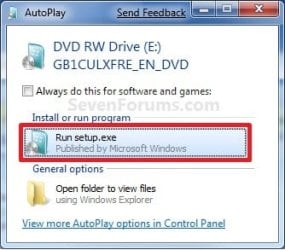
A) While in Windows 7 SP1, insert your retail Windows 7 SP1 installation DVD into the DVD drive, or connect your Windows 7 with SP1 installation USB thumb drive, and click on the Run setup.exe option in AutoPlay. (see screenshot below)
NOTE: If the AutoPlay window does not open, then open the drive folder in Computer and run the setup.exe file.AutoPlay.jpg
B) Go to Go to step 7 below.
6. Repair Installed Windows 7 without SP1 using Windows 7 without SP1 DVD/USB

   Note
If you do not have a Windows 7 without SP1 installation DVD/USB, then you can download the latest official Windows 7 Professional or Home Premium without SP1 ISO file here: Microsoft: Windows 7 Direct Download Links, and use Windows 7 USB-DVD Download Tool to create a bootable DVD or USB flash drive with the ISO to do the repair install from within Windows 7 using this step.

It is preferred to have SP1 installed on your PC and to use step 4 or step 5 above to do a repair install with instead though.

A) While in Windows 7 SP1 installed, insert your retail Windows 7 installation DVD into the DVD drive, or connect your Windows 7 installation USB thumb drive, and click on the Run setup.exe option in AutoPlay. (see screenshot below)
NOTE: If the AutoPlay window does not open, then open the drive folder in Computer and run the setup.exe file.AutoPlay.jpg
B) Go to Go to step 7 below.
7. If prompted by UAC, then click on Yes.

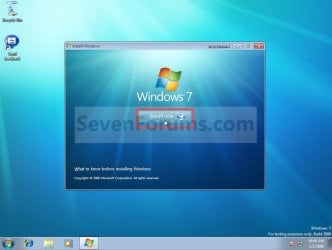
8. Click on the Install Now button to start the installation. (see screenshot below)Step1.jpg
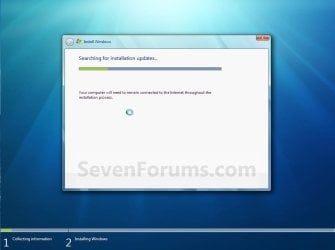
9. If prompted, uncheck the I want to help make Windows installation better box (unless you would like to :) ), and click on the Go online to get the latest updates for installation option. (see screenshot below)Step2.jpg
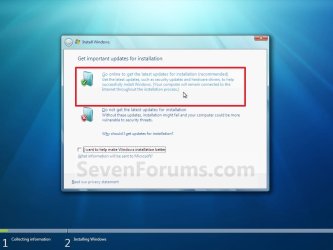
A) Windows 7 will now check online for and install any available installation updates. (see screenshots below)Step2A.jpg

Step2B.jpg

10. Check the I accept the license terms box, and click on Next. (see screenshot below)Step3.jpg
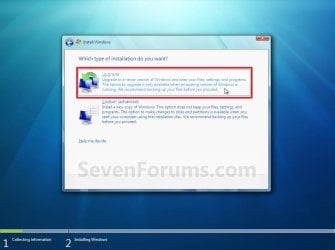
11. Click on the Upgrade option. (see screenshot below)Step4.jpg
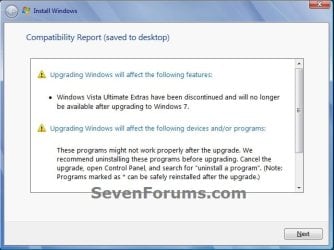
12. Windows will now check for any compatibility issues. If any are found like in the example below, click on the red X to cancel the repair install and close this "Install Windows" window, take care of any found issues (ex: uninstall any incompatible program), then restart the repair install process over again.Compatibility-Report.jpg
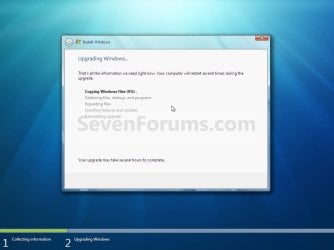
13. The installation of Windows 7 will now begin. (see screenshot below)
NOTE: During the installation process, your screen may flash and computer will restart a few times.Step5.jpg
14. After the final restart, you will see this screen for a moment. (see screenshot below)Step6.jpg
15. Type in your Windows 7 product key number. (see screenshot below step 16)

16. Uncheck the Automatically activate Windows when I'm online box unchecked, then click on the Next button. (see screenshot below)
NOTE: You can activate Windows 7 later after you make sure it is running properly. (see step 23 below)
If you chose to automatically activate Windows online when you set up your computer, automatic activation begins trying to activate your copy of Windows three days after you log on for the first time.Step7.jpg
17. Click on Use recommended settings. (see screenshot below)

:note: You will always be able to change your Windows Update settings at anytime in Windows 7.

Step8.jpg
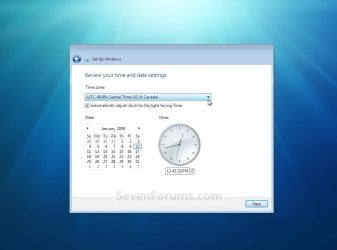
18. Select your time zone and set your time and date settings, then click on the Next button. (see screenshot below)Step9.jpg
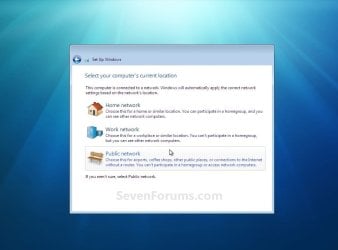
19. Click on the option for your computer's location to select the correct network location type settings to be applied for that location. (see screenshot below)
NOTE: It is best to select Public location for the best security.Step10.jpg
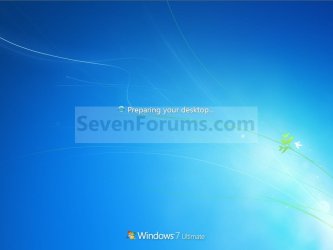
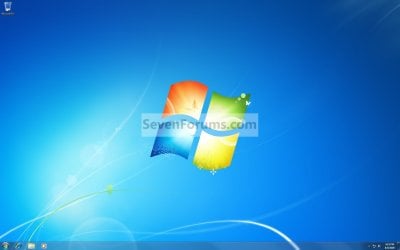
20. Windows 7 will now prepare your desktop to startup. (see screenshots below)Step11A.jpg

Desktop.jpg

21. If you used a DVD or USB to do the repair install with, then you can remove the DVD or USB when the repair install has successfully completed and you are logged in to Windows 7.

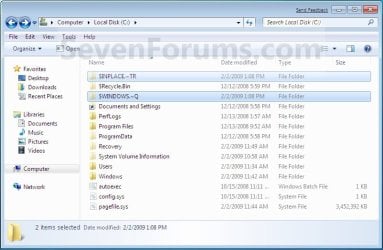
22. Check to see if you are missing any user files. If you are, then you can copy them from the C:\Windows.old or the hidden protected operating system C:\$INPLACE.~TR and C:\WINDOWS.~Q backup folders. (see screenshot below)Old_Install.jpg
23. If everything checks out in step 21, then you can run Disk Cleanup (step 5 at this link). You will need to click on the Clean up system files button first, and then could check the Files discarded by Windows upgrade, Previous Windows installations, and Windows upgrade log files boxes. (see screenshot below)
NOTE: This will delete the C:\Windows.old, C:\$INPLACE.~TR and C:\WINDOWS.~Q folders from step 21 above.Disk_Cleanup.jpg
24. Refresh your Windows Experience Index (WEI) score.

25. When finished, activate Windows 7, and make sure that your 3rd party security programs (if applicable) are enabled again.
That's it,
Shawn


Last edited:
I have a problem with my programs and settings after doing Upgrade

Hi

I'm a bit confused as to what has happened so I'll explain what has gone on:

1. I followed the guidelines step by step and all looked good then at the very end of Step 10 I got a message saying "The Upgrade was cancelled. Any changes that were made to your computer during the upgrade process will not be saved. Install Windows - Windows installation cannot be completed because a required driver could not be installed" Then something about Windows Setup Rollback.
2. I got some more error messages and I thought the whole thing was doomed, then I think maybe after I rebooted? Step 12 came up where I installed the product key. Then it went through to Step 17 all OK. So I was hoping that the initial message I got was wrong and the upgrade had in fact worked.
3. After computer booted up again I was expecting the desktop to be the same as what it was like before I started the upgrade with all my shortcuts on it and all my programs to be installed and operating. However the desktop was basically blank apart from the Recycle Bin and when I clicked on the Start Button it looked like all my programs had gone also. All I could see were the standard programs installed under Windows including Internet Explorer. This relates to my C: but my E: drive which contains all my data files and key settings including outlook.pst, desktop, favorites etc was still intact as I would have expected even in the event of a complete catastrophe.
4. I panicked a bit and spoke to my nephew who is our family computer guru. He couldn't understand what had happened and thought all my program files should still be there. After a bit of discussion we couldn't work out what had gone wrong but agreed that it had and I would need to manually reinstall all my programs. As we say here in Australia, I was not a happy camper at that time.
5. I have installed to date the motherboard drivers, got the internet working again and installed Office 2010 and now have Outlook working, although I haven't imported my outlook.pst file to it yet.
6. Snooping around a bit more in Windows Explorer I have just discovered three different folders in C: that start with $. including C:WINDOWS.~Q. This particular one has the missing program files in it + my data files.
7. Looking at the instructions in this forum more I see that that I should have taken more notice of Step 18 where it says to check for any missing user files and then mentions the above folders. My brain just didn't relate user files to program files.
8. Now I have stopped the manual reinstallation of all my programs realising that I have probably jumped the gun and there is probably an easier way.
9. Can someone please steer my in the right direction as while Step 18. talks re copying the missing user files I'm a bit confused at to exactly what I need to do. Do I just copy and paste them to the relevant Program Files folder? I was hoping that things like all my Outlook View settings, desktop shortcuts etc would all end up exactly the same way as they were before the upgrade. What if anything can I do now to try and achieve what my initial aim was, with as little pain as possible?

Many thanks from John
 

My Computer

OS
Windows 7 Home Premium 64 bit
Hello John, and welcome to Seven Forums.

I'm sorry to hear that it went wrong for you. :(

I'm not sure what had went wrong or if a mistake was made while you were doing the repair install. It sounds like you may have done a "custom" install instead of a "upgrade" install. Did you disable or uninstall any security programs (ex: antivirus) before doing the repair install, and did you get any notices at step 9?

You can double check in your C:\Program Files and C:\Program Files (x86) folders to see if your programs are actually still installed or not. If not, then yes they will all need to be reinstalled again. If not, then you could either create new shortcuts for them, or copy their shortcuts from the folders in step 18 back to their original locations (ex: Start Menu)

You can also copy any files and folders (ex: files in user folders) you wanted from the folders in step 18 back into the new installation.

Hope this helps,
Shawn
 

My Computer

Computer type
PC/Desktop
Computer Manufacturer/Model Number
Self built custom
OS
64-bit Windows 11 Pro for Workstations
CPU
Intel i7-8700K OC'd to 5 GHz
Motherboard
ASUS ROG Maximus XI Formula Z390
Memory
64 GB (4x16GB) G.SKILL TridentZ RGB DDR4 3600 MHz
Graphics Card(s)
ASUS ROG-STRIX-GTX1080TI-O11G-GAMING
Sound Card
Integrated
Monitor(s) Displays
2 x Samsung Odyssey G7 27"
Screen Resolution
2560x1440
Hard Drives
1TB Samsung 990 PRO M.2,
4TB Samsung 990 PRO PRO M.2,
TerraMaster F8 SSD Plus NAS
PSU
Seasonic Prime Titanium 850W
Case
Thermaltake Core P3
Cooling
Corsair Hydro H115i
Keyboard
Logitech wireless K800
Mouse
Logitech MX Master 4
Internet Speed
2 Gb/s Download and 100 Mb/s Upload
Antivirus
Malwarebyte Anti-Malware Premium
Browser
Google Chrome
Other Info
Logitech Z625 speaker system,
Logitech BRIO 4K Pro webcam,
HP Color LaserJet Pro MFP M477fdn,
APC SMART-UPS RT 1000 XL - SURT1000XLI,
Galaxy S23 Plus phone
Hi Shawn

Thanks for your prompt reply. As I'm sure you know when you get major computer dramas you want to get it going again quicly so it's nice to have someone working with you. To give you some more info and ask you some more questions:

1. Before the install I disabled the Resident Shield on AVG Free. This supposedly disabled the Shield but kept the email scanner and other virus protection features active.I also logged in as Administrator and I know for sure I selected the Upgrade option, not the custom install one.
2. At Step 8 during the compatability checks I got several messages. I forget exactly but one had a red icon next to it like it was really important and the two others had just yellow warning icons like they weren't quite as critical. I only wrote down the details of one message which was "Upgrading Windows will affect the following programs - ATI Catalyst Control Manager and ATI Catalyst Control Centre. They may not work properly after upgrade. We recommend uninstalling before upgrading via Control Panel" After consultation with my nephew we decided that it wasn't a big deal and we could reinstall the progs after there was a problem so we just left them installed. I'm pretty sure this warning just had a yellow icon next to it. I can't recall the other messages but I recall that I did spend a bit of time during this step and had to reboot the computer at least once so by the time I got to Step 10 I think that the ATI message was the only one there.
3. I'm concerned that there may still be some underlying issues with my upgraded Windows 7 software. To date I haven't put in a lot of extra time installing my extra programs and adjusting all my settings and views. I'm wondering if I should bite the bullet now and just do a complete fresh install of Windows 7 (ie not an upgrade) before I spend any more time on it. Do you think this is worth it? In my case all my programs and operating system are on my C drive and my data and photo files etc are on E and F drives. Does this mean that if I do a complete fresh install of Windows I can leave my partioning as it is and just install Windows 7 straight to C drive. This to me means that it would be very similar to what I have done now but would be cleaner with less chance to go wrong. Considering it looks as though I've already lost all my program files to my mind I can't be any worse off than where I am now - although maybe I need to save some of the User Settings on C drive beforehand if I decide to go down this path. What do you think Shawn?
4. I've looked again at the C: Program Files and Program Files (x86) folders but there are definately no other programs in there apart from the ones I installed last night after the upgrade. Are you saying that if everything had worked properly that all my originally installed programs would still be there?
4. I've looked more closely at the C:$WINDOWS.~Q/Data folder that contains the Program Files and Program Files (x86) folders. I still don't really understand what you're saying in Step 18 but in my inexperienced mind I was hoping that as a backup solution I would find the missing program files in here and I could somehow copy and paste them to the C: Program Files and Program Files (x86) folders and avoid all the time of reinstalling them. Now I look I can see that while the folders contain other files they're not the full program files and are just settings or something else? Can you please explain to me exactly what the files are and what use if any they are to me?
5. Continuing from 4. I'm still confused about what you're saying in Step 18. What are the sort of user files you are talking about and how do I find them and what do I copy them to? Maybe this is no use to me now in my current situation but I just want to understand what's going on.
6. One of my installed programs is called MYOB and is an accounting software package. It was installed directly in C: and not in either the C: Program Files or Program Files (x86) folders. I can see that this folder called "Standard 19" is still installed in C:. When I drill into the folder through Windows Explorer I found the application icon and after double clicking it the program opened. However when I try to open a data file I get an error message saying "Error 9004 was encountered when opening the M-powered services data file. Contact MYOB Support" I can do this to see what's going on. The strange thing is that when I go to Start-All Programs MYOB Standard 19 is not listed. Also when I go to Control Panel - Add and Remove Progs it's not listed there either. No matter whether I leave the upgrade as it is or do a complete fresh install of Windows, I'll probably reinstall MYOB to be safe anyway but I can't understand why I can't see the program anywhere on my computer? Have you got any comments?
7. I have a backup file of "Desktop". Can I just re-use this instead of redoing all my shortcuts? What do I need to do and if some of the programs aren't installed when I do this will I end up with a desktop full of error messages?
8. When I look at the folders on my E: and F: partitions there are also some $xxx folders installed there now. What is the purpose of these? I'm assuming these can be safely deleted after I've got everything else safely sorted out as per your Step 19.

Thanks again Shawn. It's only 8am in the morning here now and I haven't got to work so I can commit the day to sorting things out once I work out the best way to do things.

Bye

John
 

My Computer

OS
Windows 7 Home Premium 64 bit
The 3 folders, especially the C:\Windows.old folder, is basically just a copy of the previous installation. However, only the files that were in the user folders in say the C:\Windows.old folder are about the only thing that you could copy back. You will not be able to just copy the programs back. Programs must be reinstalled since that's the only way to add all of the unknown registry entries it adds during installation. :(
 

My Computer

Computer type
PC/Desktop
Computer Manufacturer/Model Number
Self built custom
OS
64-bit Windows 11 Pro for Workstations
CPU
Intel i7-8700K OC'd to 5 GHz
Motherboard
ASUS ROG Maximus XI Formula Z390
Memory
64 GB (4x16GB) G.SKILL TridentZ RGB DDR4 3600 MHz
Graphics Card(s)
ASUS ROG-STRIX-GTX1080TI-O11G-GAMING
Sound Card
Integrated
Monitor(s) Displays
2 x Samsung Odyssey G7 27"
Screen Resolution
2560x1440
Hard Drives
1TB Samsung 990 PRO M.2,
4TB Samsung 990 PRO PRO M.2,
TerraMaster F8 SSD Plus NAS
PSU
Seasonic Prime Titanium 850W
Case
Thermaltake Core P3
Cooling
Corsair Hydro H115i
Keyboard
Logitech wireless K800
Mouse
Logitech MX Master 4
Internet Speed
2 Gb/s Download and 100 Mb/s Upload
Antivirus
Malwarebyte Anti-Malware Premium
Browser
Google Chrome
Other Info
Logitech Z625 speaker system,
Logitech BRIO 4K Pro webcam,
HP Color LaserJet Pro MFP M477fdn,
APC SMART-UPS RT 1000 XL - SURT1000XLI,
Galaxy S23 Plus phone
Hi Shawn

Sorry for the long winded post last time - I was just trying to give you a bit of feedback on what happened. Can you please help me on an important decision I covered in my last post?

Should I just bite the bullet and just do a complete fresh install of Windows 7 (ie not an upgrade) now, in case there are still any underlying probs with the upgrade?

In my case all my programs and operating system are on my C drive and my data and photo files etc are on E and F drives. Does this mean that if I do a complete fresh install of Windows I can leave my partioning as it is and just install Windows 7 straight to C drive. Then all my data files on E and F will stay there the same as the upgrade - I'm assuming?

You mentioned a C:\Windows.old folder but I can't find this anywhere on C: Have you got any thoughts on this.

Thanks again

John
 

My Computer

OS
Windows 7 Home Premium 64 bit
I think if you were to poll the most experienced members on this site, they would tell you to do a fresh installation. I would be especially concerned by the lack of a C:\Windows.old folder on your C:\ drive... that has always been there after each of my many Repair Installs.
 

My Computer

Computer Manufacturer/Model Number
me / #1
OS
windows 7 x64 Home Premium
CPU
intel q6600
Motherboard
gigbyte ga ep45 ud3l
Memory
g.skill 8gb ddr2 1066 (pc2 8500)
Graphics Card(s)
evga geforce 9800 gtx 512 mb
Screen Resolution
1680 x 1050
Hard Drives
wd caviar black 500 gb
wd caviar black 1tb
wd elements 1tb external hd x2
PSU
raidmax 500w
Case
smilodon (yes, t'was the pretty blue lites that got me!)
Hi stevieray

Thanks for the advice. As someone who is fairly inexperienced that made sense to me. I am a fair way down the drain anyway so may as well fix it all properly while I'm stuck down there. My main concern is ending up in a worse situation than i'm in now, in particular losing my data. As I said In my case all my programs and operating system are on my C drive and my data and photo files etc are on E and F drives. Does this mean that if I do a complete fresh install of Windows I can leave my partioning as it is and just install Windows 7 straight to C drive. Then all my data files on E and F will stay there the same as the upgrade - correct? Any other potential probs i should look out for?

Thanks

John
 

My Computer

OS
Windows 7 Home Premium 64 bit
Are your E and F drives actual, physically separate units or are they simply partitions on one single physical drive?
 

My Computer

Computer Manufacturer/Model Number
me / #1
OS
windows 7 x64 Home Premium
CPU
intel q6600
Motherboard
gigbyte ga ep45 ud3l
Memory
g.skill 8gb ddr2 1066 (pc2 8500)
Graphics Card(s)
evga geforce 9800 gtx 512 mb
Screen Resolution
1680 x 1050
Hard Drives
wd caviar black 500 gb
wd caviar black 1tb
wd elements 1tb external hd x2
PSU
raidmax 500w
Case
smilodon (yes, t'was the pretty blue lites that got me!)
Hi stevie ray

They are partitions on the one physical hard drive. We set up the partitions when we did the original Windows 7 install a year ago. I'm assuming there is an option in the install process to leave partitioning as it is and just install W7 to the existing C: drive. I would just like confirmation of this from someone in the know.

Thanks

John
 

My Computer

OS
Windows 7 Home Premium 64 bit
Last edited:

My Computer

Computer Manufacturer/Model Number
me / #1
OS
windows 7 x64 Home Premium
CPU
intel q6600
Motherboard
gigbyte ga ep45 ud3l
Memory
g.skill 8gb ddr2 1066 (pc2 8500)
Graphics Card(s)
evga geforce 9800 gtx 512 mb
Screen Resolution
1680 x 1050
Hard Drives
wd caviar black 500 gb
wd caviar black 1tb
wd elements 1tb external hd x2
PSU
raidmax 500w
Case
smilodon (yes, t'was the pretty blue lites that got me!)
I dont know if I understand the tutorial correct,
but how would I know if my Win7 installation disk has SP1 or not?
 

My Computer

OS
Windows 7 Ultimate x64
Hello pspz,

Open the folders below in your Windows 7 installation disc to open and read the license.rtf file. It will let you know what you have. :)

sources\license\en-us\_default\ultimate\license.rtf

Example at top of that file if it's with SP1:

MICROSOFT SOFTWARE LICENSE TERMS

WINDOWS 7 ULTIMATE SERVICE PACK 1

These license terms are an agreement between Microsoft Corporation (or based on where you live, one of its affiliates) and you. Please read them. They apply to the software named above, which includes the media on which you received it, if any. Printed-paper license terms, which may come with the software, may replace or modify any on-screen license terms. The terms also apply to any Microsoft..........
 

My Computer

Computer type
PC/Desktop
Computer Manufacturer/Model Number
Self built custom
OS
64-bit Windows 11 Pro for Workstations
CPU
Intel i7-8700K OC'd to 5 GHz
Motherboard
ASUS ROG Maximus XI Formula Z390
Memory
64 GB (4x16GB) G.SKILL TridentZ RGB DDR4 3600 MHz
Graphics Card(s)
ASUS ROG-STRIX-GTX1080TI-O11G-GAMING
Sound Card
Integrated
Monitor(s) Displays
2 x Samsung Odyssey G7 27"
Screen Resolution
2560x1440
Hard Drives
1TB Samsung 990 PRO M.2,
4TB Samsung 990 PRO PRO M.2,
TerraMaster F8 SSD Plus NAS
PSU
Seasonic Prime Titanium 850W
Case
Thermaltake Core P3
Cooling
Corsair Hydro H115i
Keyboard
Logitech wireless K800
Mouse
Logitech MX Master 4
Internet Speed
2 Gb/s Download and 100 Mb/s Upload
Antivirus
Malwarebyte Anti-Malware Premium
Browser
Google Chrome
Other Info
Logitech Z625 speaker system,
Logitech BRIO 4K Pro webcam,
HP Color LaserJet Pro MFP M477fdn,
APC SMART-UPS RT 1000 XL - SURT1000XLI,
Galaxy S23 Plus phone
You're most welcome pspz. :)
 

My Computer

Computer type
PC/Desktop
Computer Manufacturer/Model Number
Self built custom
OS
64-bit Windows 11 Pro for Workstations
CPU
Intel i7-8700K OC'd to 5 GHz
Motherboard
ASUS ROG Maximus XI Formula Z390
Memory
64 GB (4x16GB) G.SKILL TridentZ RGB DDR4 3600 MHz
Graphics Card(s)
ASUS ROG-STRIX-GTX1080TI-O11G-GAMING
Sound Card
Integrated
Monitor(s) Displays
2 x Samsung Odyssey G7 27"
Screen Resolution
2560x1440
Hard Drives
1TB Samsung 990 PRO M.2,
4TB Samsung 990 PRO PRO M.2,
TerraMaster F8 SSD Plus NAS
PSU
Seasonic Prime Titanium 850W
Case
Thermaltake Core P3
Cooling
Corsair Hydro H115i
Keyboard
Logitech wireless K800
Mouse
Logitech MX Master 4
Internet Speed
2 Gb/s Download and 100 Mb/s Upload
Antivirus
Malwarebyte Anti-Malware Premium
Browser
Google Chrome
Other Info
Logitech Z625 speaker system,
Logitech BRIO 4K Pro webcam,
HP Color LaserJet Pro MFP M477fdn,
APC SMART-UPS RT 1000 XL - SURT1000XLI,
Galaxy S23 Plus phone
Would I follow these steps if I'm getting crashes/BSOD/unexpected shut downs? and why in your steps do you select "compatible with windows vista?" when your actually only dealing with reinstalling windows 7 to repair it? is that just a 'work-around' to make it happen? I have installed win 7 myself once 2 years ago btw. 64 bit win 7 professional with outlook 2007 as well.

thx so much, in advance
 

My Computer

Computer Manufacturer/Model Number
Custom Built
OS
windows 7 Professional 64 bit
Motherboard
Asus
Memory
8G ram
Hard Drives
2 TB
Internet Speed
Cable High Speed
Hello RW,

Yep, that is just a workaround to be able to do the repair install when you do not have a Windows 7 with SP1 installation disc, but have a Windows 7 SP1 installation.

For now, I would recommend to create a new thread about your crashes/BSOD/unexpected shut downs issues in the Crashes and Debugging forum area to see if we may be able to sort it first. Be sure to look at the link below to help show you what to include in your post there in order to help give you the best possible help with it. :)

http://www.sevenforums.com/crashes-debugging/96879-blue-screen-death-bsod-posting-instructions.html
 

My Computer

Computer type
PC/Desktop
Computer Manufacturer/Model Number
Self built custom
OS
64-bit Windows 11 Pro for Workstations
CPU
Intel i7-8700K OC'd to 5 GHz
Motherboard
ASUS ROG Maximus XI Formula Z390
Memory
64 GB (4x16GB) G.SKILL TridentZ RGB DDR4 3600 MHz
Graphics Card(s)
ASUS ROG-STRIX-GTX1080TI-O11G-GAMING
Sound Card
Integrated
Monitor(s) Displays
2 x Samsung Odyssey G7 27"
Screen Resolution
2560x1440
Hard Drives
1TB Samsung 990 PRO M.2,
4TB Samsung 990 PRO PRO M.2,
TerraMaster F8 SSD Plus NAS
PSU
Seasonic Prime Titanium 850W
Case
Thermaltake Core P3
Cooling
Corsair Hydro H115i
Keyboard
Logitech wireless K800
Mouse
Logitech MX Master 4
Internet Speed
2 Gb/s Download and 100 Mb/s Upload
Antivirus
Malwarebyte Anti-Malware Premium
Browser
Google Chrome
Other Info
Logitech Z625 speaker system,
Logitech BRIO 4K Pro webcam,
HP Color LaserJet Pro MFP M477fdn,
APC SMART-UPS RT 1000 XL - SURT1000XLI,
Galaxy S23 Plus phone
I followed your steps to see if i have SP1 and it doesn't say i do. I installed win 7 myself with disc. Would i still follow these steps to repair my windows or not?
 

My Computer

Computer Manufacturer/Model Number
Custom Built
OS
windows 7 Professional 64 bit
Motherboard
Asus
Memory
8G ram
Hard Drives
2 TB
Internet Speed
Cable High Speed
For now, I would recommend to create a new thread about your crashes/BSOD/unexpected shut downs issues in the Crashes and Debugging forum area to see if we may be able to sort it first. Be sure to look at the link below to help show you what to include in your post there in order to help give you the best possible help with it.
smile.gif


Blue Screen of Death (BSOD) Posting Instructions
 

My Computer

Computer type
PC/Desktop
Computer Manufacturer/Model Number
Self built custom
OS
64-bit Windows 11 Pro for Workstations
CPU
Intel i7-8700K OC'd to 5 GHz
Motherboard
ASUS ROG Maximus XI Formula Z390
Memory
64 GB (4x16GB) G.SKILL TridentZ RGB DDR4 3600 MHz
Graphics Card(s)
ASUS ROG-STRIX-GTX1080TI-O11G-GAMING
Sound Card
Integrated
Monitor(s) Displays
2 x Samsung Odyssey G7 27"
Screen Resolution
2560x1440
Hard Drives
1TB Samsung 990 PRO M.2,
4TB Samsung 990 PRO PRO M.2,
TerraMaster F8 SSD Plus NAS
PSU
Seasonic Prime Titanium 850W
Case
Thermaltake Core P3
Cooling
Corsair Hydro H115i
Keyboard
Logitech wireless K800
Mouse
Logitech MX Master 4
Internet Speed
2 Gb/s Download and 100 Mb/s Upload
Antivirus
Malwarebyte Anti-Malware Premium
Browser
Google Chrome
Other Info
Logitech Z625 speaker system,
Logitech BRIO 4K Pro webcam,
HP Color LaserJet Pro MFP M477fdn,
APC SMART-UPS RT 1000 XL - SURT1000XLI,
Galaxy S23 Plus phone
I have no clue how to find errors in my system, but thanks. when blue screen came up, i barely saw it, and other times when i booted up, it had a message like " system shut down unexpectedly..." so i wouldn't know how to find error to follow up on it.
 

My Computer

Computer Manufacturer/Model Number
Custom Built
OS
windows 7 Professional 64 bit
Motherboard
Asus
Memory
8G ram
Hard Drives
2 TB
Internet Speed
Cable High Speed

My Computer

Computer type
PC/Desktop
Computer Manufacturer/Model Number
Self built custom
OS
64-bit Windows 11 Pro for Workstations
CPU
Intel i7-8700K OC'd to 5 GHz
Motherboard
ASUS ROG Maximus XI Formula Z390
Memory
64 GB (4x16GB) G.SKILL TridentZ RGB DDR4 3600 MHz
Graphics Card(s)
ASUS ROG-STRIX-GTX1080TI-O11G-GAMING
Sound Card
Integrated
Monitor(s) Displays
2 x Samsung Odyssey G7 27"
Screen Resolution
2560x1440
Hard Drives
1TB Samsung 990 PRO M.2,
4TB Samsung 990 PRO PRO M.2,
TerraMaster F8 SSD Plus NAS
PSU
Seasonic Prime Titanium 850W
Case
Thermaltake Core P3
Cooling
Corsair Hydro H115i
Keyboard
Logitech wireless K800
Mouse
Logitech MX Master 4
Internet Speed
2 Gb/s Download and 100 Mb/s Upload
Antivirus
Malwarebyte Anti-Malware Premium
Browser
Google Chrome
Other Info
Logitech Z625 speaker system,
Logitech BRIO 4K Pro webcam,
HP Color LaserJet Pro MFP M477fdn,
APC SMART-UPS RT 1000 XL - SURT1000XLI,
Galaxy S23 Plus phone
Back
Top