Repair Install

How to Do a Repair Install to Fix Windows 7


   Information
This will show you how to do a repair install (aka: in-place upgrade install) to fix your currently installed Windows 7 and preserve your user accounts, data, programs, and system drivers.
   Note
Do a Repair installation if:
  • A System Restore did not help fix your Windows 7.
  • There is no other easier option left that can fix your Windows 7.
  • You DO NOT want to do a Clean reinstall of Windows 7.
  • You DO want to preserve your user accounts, data, programs, and system drivers.
   Tip
ITEMS THAT WILL BE RESET TO DEFAULT OR AFFECTED:
  • Sounds
  • Services
  • Visual Effects Settings
  • Device Drivers - Be sure to have these handy to reinstall. They do not always remain after the repair (upgrade) install.
  • You may lose the ability to sign on to MSN Messenger, to solve this problem have a look at this thread Unable to sign in to WLM.
  • You may lose your custom themes due to not having permisions set on the old themes. Go to the hidden themes folder at C:/Users/(User-Name)/AppData/Local/Microsoft/Windows/Themes, then Take Ownership of the themes folder and you will now have all your themes back.
  • It has been reported that you may also lose your Media Center gadget after doing the repair install.
  • Windows Updates will need to be checked and reinstalled again.
   Warning

  • You can only do a repair install with the same edition Windows 7 installation disc for the same edition of Windows 7 that you have installed.
  • You cannot use a OEM Windows 7 "Factory" Restore/Recovery type of installation disc that came with or created from a store bought computer to do a repair install with. These can only be used do a clean install instead.
  • You can do a repair install on a factory OEM installation with the latest official Windows 7 with SP1 ISO file here: Microsoft: Windows 7 Direct Download Links, and use Windows 7 USB-DVD Download Tool to create a bootable DVD or USB flash drive with the ISO to do the repair install from within Windows 7.
  • You can use a retail OEM Windows 7 installation disc to do a repair install with.
  • You can use a retail (full or upgrade) Windows 7 installation disc to do a repair install with.
  • You cannot do a repair install with a System Repair Disc. A System Repair Disc is not a installation disc, and will only boot to the System Recovery Options screen.
  • If you have a 32-bit (x86) Windows 7 currently installed, then you must use a 32-bit Windows 7 installation disc to be able to do a repair install with.
  • If you have a 64-bit (x64) Windows 7 currently installed, then you must use a 64-bit Windows 7 installation disc to be able to do a repair install with.
  • You can use a retail Windows 7 SP1 installation disc (ex: Technet (available), MSDN (available), or retail (when available)) to do a repair install with on a currently installed Windows 7 SP1.
  • You can use a Windows 7 SP1 installation disc (ex: Technet (available), MSDN (available), or retail (when available)) to do a repair install with on a currently installed slipstream Windows 7 SP1.
  • You cannot use a slipstream Windows 7 installation disc to do a repair install with on a currently installed Windows 7 SP1.
  • You cannot use a slipstream Windows 7 installation disc to do a repair install with on a currently installed slipstream Windows 7 SP1.
  • You can only do a repair install from within Windows 7.
  • You cannot do a repair install at boot or in Safe Mode.
  • You must be logged into Windows 7 in a administrator account to be able to do a repair install.
  • You must have at least 8.87 GB + what is currently being used of free space (more if you have a larger installation) on the hard drive/partition Windows 7 is installed on to do a repair install.
  • If you changed the default location of a user account's profile folder, then you will need to change it back to the default C:\Users location first.
  • If you moved the default location of a user folder, then you will need to change it back to the default C:\Users\(user-name) location first.


Here's How:
NOTE: Be sure to back up anything that you do not want to lose first to be extra safe.1. Start Windows 7, and log on to an administrator account.

2. Disable any 3rd party firewall, antivirus, or other security program to avoid it from possibly preventing the repair in-place upgrade installation of Windows 7.

3. Do either step 4, step 5, or step 6 below depending if your retail Windows 7 installation ISO/DVD/USB has SP1 or not, and if your currently installed Windows 7 has SP1 installed or not.

4. Repair Installed Windows 7 SP1 using Windows 7 with SP1 ISO

   Note
If you do not have a Windows 7 with SP1 ISO, then you can download an official ISO with your retail product key from Microsoft at the link below.

:ar: Microsoft Software Recovery

You can also download the latest official Windows 7 SP1 Media Refresh (SP1 U) ISO file at the link below, but this link is not always available for download.

:ar: Microsoft: Windows 7 Direct Download Links

A) If you have not already, you will need to install a program like 7-Zip that supports extracting a ISO to a folder.

B) Using the program (ex: 7-Zip) from step 1, extract the Windows 7 SP1 ISO file to a folder on a partition or HDD other than the current Windows 7 partition. (see screenshot below)
NOTE: For example with 7-Zip, right click on ISO, click on 7-Zip, Extract files, browse button, select where you want to extract to, and click on OK twice.7-Zip.jpg
C) While in Windows 7 SP1, open the folder that you extracted the ISO into, and run the setup.exe file.

D) Go to step 7 below.
5. Repair Installed Windows 7 SP1 using Windows 7 with SP1 DVD/USB

   Note
If you do not have a Windows 7 with SP1 ISO, then you can download an official ISO with your retail product key from Microsoft at the link below.

:ar: http://www.microsoft.com/en-us/software-recovery

You can also download the latest official Windows 7 SP1 Media Refresh (SP1 U) ISO file at the link below, but this link is not always available for download.

:ar: Microsoft: Windows 7 Direct Download Links

Afterwards, you can use Windows 7 USB-DVD Download Tool to create a bootable DVD or USB flash drive with the ISO to do the repair install from within Windows 7 using this step.

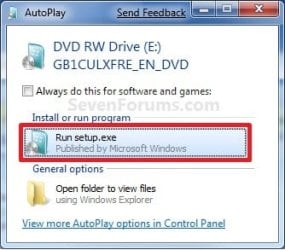
A) While in Windows 7 SP1, insert your retail Windows 7 SP1 installation DVD into the DVD drive, or connect your Windows 7 with SP1 installation USB thumb drive, and click on the Run setup.exe option in AutoPlay. (see screenshot below)
NOTE: If the AutoPlay window does not open, then open the drive folder in Computer and run the setup.exe file.AutoPlay.jpg
B) Go to Go to step 7 below.
6. Repair Installed Windows 7 without SP1 using Windows 7 without SP1 DVD/USB

   Note
If you do not have a Windows 7 without SP1 installation DVD/USB, then you can download the latest official Windows 7 Professional or Home Premium without SP1 ISO file here: Microsoft: Windows 7 Direct Download Links, and use Windows 7 USB-DVD Download Tool to create a bootable DVD or USB flash drive with the ISO to do the repair install from within Windows 7 using this step.

It is preferred to have SP1 installed on your PC and to use step 4 or step 5 above to do a repair install with instead though.

A) While in Windows 7 SP1 installed, insert your retail Windows 7 installation DVD into the DVD drive, or connect your Windows 7 installation USB thumb drive, and click on the Run setup.exe option in AutoPlay. (see screenshot below)
NOTE: If the AutoPlay window does not open, then open the drive folder in Computer and run the setup.exe file.AutoPlay.jpg
B) Go to Go to step 7 below.
7. If prompted by UAC, then click on Yes.

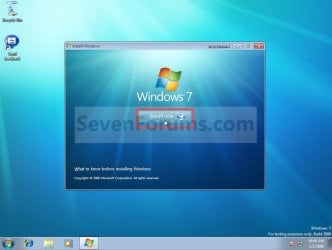
8. Click on the Install Now button to start the installation. (see screenshot below)Step1.jpg
9. If prompted, uncheck the I want to help make Windows installation better box (unless you would like to :) ), and click on the Go online to get the latest updates for installation option. (see screenshot below)Step2.jpg
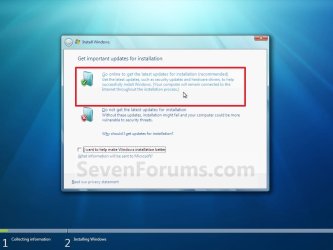
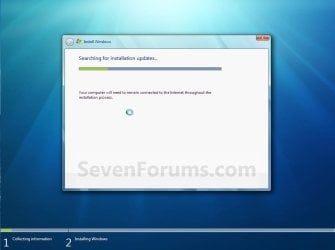
A) Windows 7 will now check online for and install any available installation updates. (see screenshots below)Step2A.jpg

Step2B.jpg

10. Check the I accept the license terms box, and click on Next. (see screenshot below)Step3.jpg
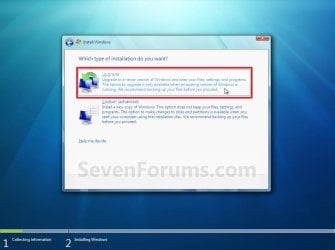
11. Click on the Upgrade option. (see screenshot below)Step4.jpg
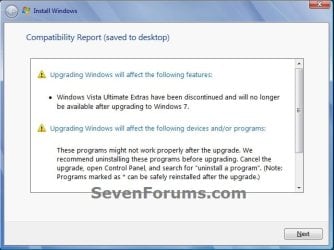
12. Windows will now check for any compatibility issues. If any are found like in the example below, click on the red X to cancel the repair install and close this "Install Windows" window, take care of any found issues (ex: uninstall any incompatible program), then restart the repair install process over again.Compatibility-Report.jpg
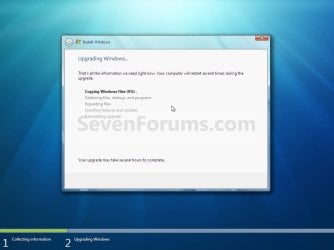
13. The installation of Windows 7 will now begin. (see screenshot below)
NOTE: During the installation process, your screen may flash and computer will restart a few times.Step5.jpg
14. After the final restart, you will see this screen for a moment. (see screenshot below)Step6.jpg
15. Type in your Windows 7 product key number. (see screenshot below step 16)

16. Uncheck the Automatically activate Windows when I'm online box unchecked, then click on the Next button. (see screenshot below)
NOTE: You can activate Windows 7 later after you make sure it is running properly. (see step 23 below)
If you chose to automatically activate Windows online when you set up your computer, automatic activation begins trying to activate your copy of Windows three days after you log on for the first time.Step7.jpg
17. Click on Use recommended settings. (see screenshot below)

:note: You will always be able to change your Windows Update settings at anytime in Windows 7.

Step8.jpg
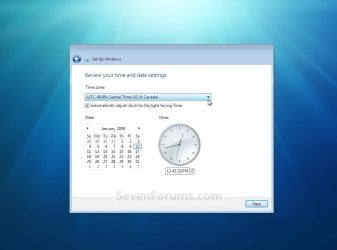
18. Select your time zone and set your time and date settings, then click on the Next button. (see screenshot below)Step9.jpg
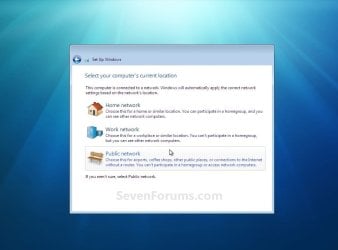
19. Click on the option for your computer's location to select the correct network location type settings to be applied for that location. (see screenshot below)
NOTE: It is best to select Public location for the best security.Step10.jpg
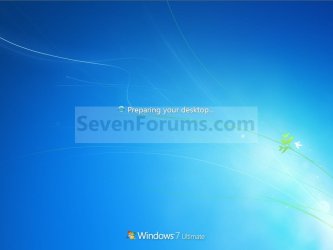
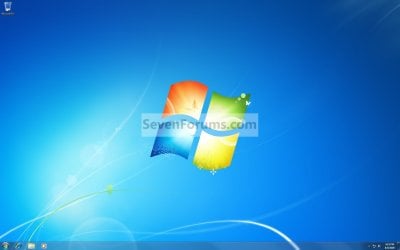
20. Windows 7 will now prepare your desktop to startup. (see screenshots below)Step11A.jpg

Desktop.jpg

21. If you used a DVD or USB to do the repair install with, then you can remove the DVD or USB when the repair install has successfully completed and you are logged in to Windows 7.

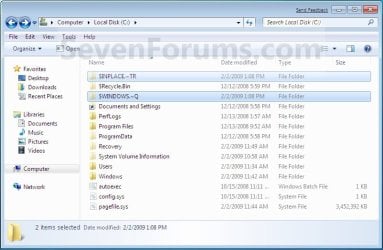
22. Check to see if you are missing any user files. If you are, then you can copy them from the C:\Windows.old or the hidden protected operating system C:\$INPLACE.~TR and C:\WINDOWS.~Q backup folders. (see screenshot below)Old_Install.jpg
23. If everything checks out in step 21, then you can run Disk Cleanup (step 5 at this link). You will need to click on the Clean up system files button first, and then could check the Files discarded by Windows upgrade, Previous Windows installations, and Windows upgrade log files boxes. (see screenshot below)
NOTE: This will delete the C:\Windows.old, C:\$INPLACE.~TR and C:\WINDOWS.~Q folders from step 21 above.Disk_Cleanup.jpg
24. Refresh your Windows Experience Index (WEI) score.

25. When finished, activate Windows 7, and make sure that your 3rd party security programs (if applicable) are enabled again.
That's it,
Shawn


Last edited:
First of all, thanks for posting such detailed tutorial. I am having some doubt regarding windows key.

I bought dell studio laptop with Windows 7 home premium x64 which was OEM activated. I then upgraded to Windows 7 Ultimate x64 through windows anytime upgrade key. Now which key should i use when performing a repair install, OEM key or windows anytime upgrade key? :confused:

Thanks
Use "anytime upgrade key". It's just a "Windows 7 Ultimate x64" key.

Thanks for the prompt reply.
 

My Computer

Computer type
Laptop
Computer Manufacturer/Model Number
Dell
OS
Windows 7 Ultimate x64
CPU
Intel 540 M
Memory
8 GB
Just used this - worked fine,

A couple of third party programs lost their 'activation' keys - I had the original emails so it was no problem. But something to check before doing any kind of reinstall I guess - they both used the 256 byte random key technique

pjd
 

My Computer

Computer type
PC/Desktop
Computer Manufacturer/Model Number
generic - made to spec
OS
Win 7 Professional 64bit
CPU
I5 650 @ 3.2GHz
Motherboard
Gigabyte H55M-UD2H
Memory
6G
Graphics Card(s)
AMD Radeon R7 200 Series
Sound Card
whatever is on mobo
Monitor(s) Displays
1 x 24" Samsung
Screen Resolution
1920x1200
Hard Drives
Internal 1x256GB Toshiba SSD
Internal 1x2TB
External 2 slot USB 3.0 dock (various drives)
External 1 500GB USB 2.0 drive
PSU
850W Antech Modular
Case
Shiny Black Aluminium
Cooling
extra fans - sucker in front, blower at back - noisy & cool
Keyboard
Microsoft USB Dual Receiver Wireless Keyboard
Mouse
Microsoft USB Dual Receiver Wireless Mouse
Internet Speed
20/1Mbps down/up
Antivirus
MSE
Browser
Firefox and Chrome
Other Info
Hitachi USB 3.0 adapter

My Computer

Computer type
PC/Desktop
Computer Manufacturer/Model Number
generic - made to spec
OS
Win 7 Professional 64bit
CPU
I5 650 @ 3.2GHz
Motherboard
Gigabyte H55M-UD2H
Memory
6G
Graphics Card(s)
AMD Radeon R7 200 Series
Sound Card
whatever is on mobo
Monitor(s) Displays
1 x 24" Samsung
Screen Resolution
1920x1200
Hard Drives
Internal 1x256GB Toshiba SSD
Internal 1x2TB
External 2 slot USB 3.0 dock (various drives)
External 1 500GB USB 2.0 drive
PSU
850W Antech Modular
Case
Shiny Black Aluminium
Cooling
extra fans - sucker in front, blower at back - noisy & cool
Keyboard
Microsoft USB Dual Receiver Wireless Keyboard
Mouse
Microsoft USB Dual Receiver Wireless Mouse
Internet Speed
20/1Mbps down/up
Antivirus
MSE
Browser
Firefox and Chrome
Other Info
Hitachi USB 3.0 adapter

My Computer

Computer type
PC/Desktop
OS
Windows 7 Professional 64
Antivirus
United States
Hello tbird, and welcome to Seven Forums.

Sorry, but no you will not be able to use a slipstream installation media to do a repair install with.


Hope this helps, :)
Shawn
 
Last edited:

My Computer

Computer type
PC/Desktop
Computer Manufacturer/Model Number
Self built custom
OS
64-bit Windows 11 Pro for Workstations
CPU
Intel i7-8700K OC'd to 5 GHz
Motherboard
ASUS ROG Maximus XI Formula Z390
Memory
64 GB (4x16GB) G.SKILL TridentZ RGB DDR4 3600 MHz
Graphics Card(s)
ASUS ROG-STRIX-GTX1080TI-O11G-GAMING
Sound Card
Integrated
Monitor(s) Displays
2 x Samsung Odyssey G7 27"
Screen Resolution
2560x1440
Hard Drives
1TB Samsung 990 PRO M.2,
4TB Samsung 990 PRO PRO M.2,
TerraMaster F8 SSD Plus NAS
PSU
Seasonic Prime Titanium 850W
Case
Thermaltake Core P3
Cooling
Corsair Hydro H115i
Keyboard
Logitech wireless K800
Mouse
Logitech MX Master 4
Internet Speed
2 Gb/s Download and 100 Mb/s Upload
Antivirus
Malwarebyte Anti-Malware Premium
Browser
Google Chrome
Other Info
Logitech Z625 speaker system,
Logitech BRIO 4K Pro webcam,
HP Color LaserJet Pro MFP M477fdn,
APC SMART-UPS RT 1000 XL - SURT1000XLI,
Galaxy S23 Plus phone
Is that a volume license iso?

Also, if that doesn't include SP1 am I screwed and can't do a repair?
 

My Computer

Computer type
PC/Desktop
OS
Windows 7 Professional 64
Antivirus
United States
Looks like there isn't anymore evaluation for Windows 7 Enterprise .
 

My Computer

Computer Manufacturer/Model Number
Custom Built
OS
Windows 7 Ultimate 32-Bit & Windows 7 Ultimate 64-Bit
CPU
Intel Core i7 CPU 950 @ 3.07GHz
Motherboard
ASUS P6T DELUXE V2
Memory
OCZ 6GB (3 x 2GB) 240-Pin DDR3 SDRAM DDR3 1600 OCZ3X1600R2
Graphics Card(s)
ATI Radeon HD 5700 Series
Sound Card
OnBoard
Hard Drives
WD6400AACS-00M3B0 (640GB SATA )
PSU
CORSAIR 850w
Case
NZXT LEXA
Cooling
Intel Stock Heatsink Fan
Keyboard
Microsoft Wireless Laser Keyboard 7000
Mouse
Microsoft Wireless Laser Mouse 7000
tbird,

As VK posted above, it looks like there's not a Windows 7 Enterprise evaluation ISO download available anymore at the link I posted.

Unless you or a friend has a TechNet or MSDN subscription to download it from and use your product key with, then it looks like you're out of luck and will need to do a clean install instead. :(
 

My Computer

Computer type
PC/Desktop
Computer Manufacturer/Model Number
Self built custom
OS
64-bit Windows 11 Pro for Workstations
CPU
Intel i7-8700K OC'd to 5 GHz
Motherboard
ASUS ROG Maximus XI Formula Z390
Memory
64 GB (4x16GB) G.SKILL TridentZ RGB DDR4 3600 MHz
Graphics Card(s)
ASUS ROG-STRIX-GTX1080TI-O11G-GAMING
Sound Card
Integrated
Monitor(s) Displays
2 x Samsung Odyssey G7 27"
Screen Resolution
2560x1440
Hard Drives
1TB Samsung 990 PRO M.2,
4TB Samsung 990 PRO PRO M.2,
TerraMaster F8 SSD Plus NAS
PSU
Seasonic Prime Titanium 850W
Case
Thermaltake Core P3
Cooling
Corsair Hydro H115i
Keyboard
Logitech wireless K800
Mouse
Logitech MX Master 4
Internet Speed
2 Gb/s Download and 100 Mb/s Upload
Antivirus
Malwarebyte Anti-Malware Premium
Browser
Google Chrome
Other Info
Logitech Z625 speaker system,
Logitech BRIO 4K Pro webcam,
HP Color LaserJet Pro MFP M477fdn,
APC SMART-UPS RT 1000 XL - SURT1000XLI,
Galaxy S23 Plus phone
Nice instructions, but is there any way to do a repair when W7 won't load and none of the recovery options work? I assume one of the system files got corrupted or damaged on the disk so alternately is there any way to determine which file(s) are missing/damaged so I can possibly reload them?

I should clarify I have a Dell laptop that came with Vista preloaded and a W7 upgrade disk.
 
Last edited:

My Computer

Computer type
Laptop
Computer Manufacturer/Model Number
Dell XPS 13
OS
W7 64 bit home premium upgrade
Hello aPe, and welcome to Seven Forums.

Sorry, but a repair install can only be done from within Windows since it's basically an in-place upgrade to the same edition. :(

Is it giving you an error message?
 

My Computer

Computer type
PC/Desktop
Computer Manufacturer/Model Number
Self built custom
OS
64-bit Windows 11 Pro for Workstations
CPU
Intel i7-8700K OC'd to 5 GHz
Motherboard
ASUS ROG Maximus XI Formula Z390
Memory
64 GB (4x16GB) G.SKILL TridentZ RGB DDR4 3600 MHz
Graphics Card(s)
ASUS ROG-STRIX-GTX1080TI-O11G-GAMING
Sound Card
Integrated
Monitor(s) Displays
2 x Samsung Odyssey G7 27"
Screen Resolution
2560x1440
Hard Drives
1TB Samsung 990 PRO M.2,
4TB Samsung 990 PRO PRO M.2,
TerraMaster F8 SSD Plus NAS
PSU
Seasonic Prime Titanium 850W
Case
Thermaltake Core P3
Cooling
Corsair Hydro H115i
Keyboard
Logitech wireless K800
Mouse
Logitech MX Master 4
Internet Speed
2 Gb/s Download and 100 Mb/s Upload
Antivirus
Malwarebyte Anti-Malware Premium
Browser
Google Chrome
Other Info
Logitech Z625 speaker system,
Logitech BRIO 4K Pro webcam,
HP Color LaserJet Pro MFP M477fdn,
APC SMART-UPS RT 1000 XL - SURT1000XLI,
Galaxy S23 Plus phone
Thanks, Brink. I caught that in your "warning" section, thus the query.

The system crashed during a routine back-up and won't boot. It starts to boot, fails, then runs a blue dump screen (which basically says W failed to load). I can get into the set-up and boot options, but none will do anything other than put me back into the same dump/recovery screens (I'm assuming the repair option won't work because I installed W7 from an upgrade disk). The good news is the hard drive appears ok as I was able to remove it and back up my files, but I'm really hoping there's a way to avoid a complete reinstallation (which will take 20+ hours). Given everything was running fine before and the disk seems to be ok, I'm assuming only one (or a small handful) of files somehow got corrupted. Thus if there was a way to identify the problem files and if they were generic enough to copy from my other machine, that would save a lot of pain. Is there any such tool or am I dreaming? If I can find a W7 boot disk could I then run a repair install on the hard drive's W7?
 
Last edited:

My Computer

Computer type
Laptop
Computer Manufacturer/Model Number
Dell XPS 13
OS
W7 64 bit home premium upgrade
Thanks, Brink. I caught that in your "warning" section, thus the query.

The system crashed during a routine back-up and won't boot. It starts to boot, fails, then runs a blue dump screen (which basically says W failed to load). I can get into the set-up and boot options, but none will do anything other than put me back into the same dump/recovery screens (I'm assuming the repair option won't work because I installed W7 from an upgrade disk). The good news is the hard drive appears ok as I was able to remove it and back up my files, but I'm really hoping there's a way to avoid a complete reinstallation (which will take 20+ hours). Given everything was running fine before and the disk seems to be ok, I'm assuming only one (or a small handful) of files somehow got corrupted. Thus if there was a way to identify the problem files and if they were generic enough to copy from my machine, that would save a lot of pain. Is there any such tool or am I dreaming? If I can find a W7 boot disk could I then run a repair install on the hard drive's W7?
What's exactly on blue screen? Did you try "system restore" from recovery environment? If so.. was it a successful system restore?
 

My Computer

Computer type
Laptop
Computer Manufacturer/Model Number
ACER ASPIRE 5742G
OS
Microsoft Windows 7 Home Premium 64-bits 7601 Multiprocessor Free Service Pack 1
CPU
Intel(R) Core(TM) i3 CPU M 370 @ 2.40GHz
Motherboard
Acer Aspire 5742G
Memory
4,00 GB
Graphics Card(s)
ATI Mobility Radeon HD 5400 Series
Sound Card
(1) AMD High Definition Audio Device (2) Realtek High Defi
Screen Resolution
1366 x 768 x 32 bits (4294967296 colors) @ 60 Hz
Hard Drives
WDC WD5000BEVT-22ZAT0
Sounds like you got a BSOD (Blue Screen of Death). Do you have the exact message on it?

Have you already tried doing a system restore at boot using a restore point dated before this happen to see if it may be able to help fix this to avoid a clean install.

EDIT:
Ron beat me to it. :p
 

My Computer

Computer type
PC/Desktop
Computer Manufacturer/Model Number
Self built custom
OS
64-bit Windows 11 Pro for Workstations
CPU
Intel i7-8700K OC'd to 5 GHz
Motherboard
ASUS ROG Maximus XI Formula Z390
Memory
64 GB (4x16GB) G.SKILL TridentZ RGB DDR4 3600 MHz
Graphics Card(s)
ASUS ROG-STRIX-GTX1080TI-O11G-GAMING
Sound Card
Integrated
Monitor(s) Displays
2 x Samsung Odyssey G7 27"
Screen Resolution
2560x1440
Hard Drives
1TB Samsung 990 PRO M.2,
4TB Samsung 990 PRO PRO M.2,
TerraMaster F8 SSD Plus NAS
PSU
Seasonic Prime Titanium 850W
Case
Thermaltake Core P3
Cooling
Corsair Hydro H115i
Keyboard
Logitech wireless K800
Mouse
Logitech MX Master 4
Internet Speed
2 Gb/s Download and 100 Mb/s Upload
Antivirus
Malwarebyte Anti-Malware Premium
Browser
Google Chrome
Other Info
Logitech Z625 speaker system,
Logitech BRIO 4K Pro webcam,
HP Color LaserJet Pro MFP M477fdn,
APC SMART-UPS RT 1000 XL - SURT1000XLI,
Galaxy S23 Plus phone
I don't recall the excat message (it wasn't very helpful). Going from memory it said W failed to load, if this was the first time seeing the screen to try again, otherwise to select repair. There are ~6 option in the recovery environment and I tried then all, including system restore and none did anything except take me back to the fail screen. In short, I can only get to 2 screen, the fail screen and the recovery screen. The only option I get from the OE installation disks is a complete reinstall going all the way back to Vista.
 

My Computer

Computer type
Laptop
Computer Manufacturer/Model Number
Dell XPS 13
OS
W7 64 bit home premium upgrade
See if you may be able to boot from your Windows 7 installation disc instead, then see if you may be able to do the system restore at boot or a startup repair.
 

My Computer

Computer type
PC/Desktop
Computer Manufacturer/Model Number
Self built custom
OS
64-bit Windows 11 Pro for Workstations
CPU
Intel i7-8700K OC'd to 5 GHz
Motherboard
ASUS ROG Maximus XI Formula Z390
Memory
64 GB (4x16GB) G.SKILL TridentZ RGB DDR4 3600 MHz
Graphics Card(s)
ASUS ROG-STRIX-GTX1080TI-O11G-GAMING
Sound Card
Integrated
Monitor(s) Displays
2 x Samsung Odyssey G7 27"
Screen Resolution
2560x1440
Hard Drives
1TB Samsung 990 PRO M.2,
4TB Samsung 990 PRO PRO M.2,
TerraMaster F8 SSD Plus NAS
PSU
Seasonic Prime Titanium 850W
Case
Thermaltake Core P3
Cooling
Corsair Hydro H115i
Keyboard
Logitech wireless K800
Mouse
Logitech MX Master 4
Internet Speed
2 Gb/s Download and 100 Mb/s Upload
Antivirus
Malwarebyte Anti-Malware Premium
Browser
Google Chrome
Other Info
Logitech Z625 speaker system,
Logitech BRIO 4K Pro webcam,
HP Color LaserJet Pro MFP M477fdn,
APC SMART-UPS RT 1000 XL - SURT1000XLI,
Galaxy S23 Plus phone
Because I got W7 as an upgrade disk, it won't do anything. A friend is burning me a copy of his install disk to see if I can boot/recover from it. Unfortunatly I won't be able to do this until tonight or this w/e, but I'll post later to let you know if it works. If not, I'll post specifics on the failure. Thanks for the suggestions!
 

My Computer

Computer type
Laptop
Computer Manufacturer/Model Number
Dell XPS 13
OS
W7 64 bit home premium upgrade
Ok aPe. We'll be here. :)
 

My Computer

Computer type
PC/Desktop
Computer Manufacturer/Model Number
Self built custom
OS
64-bit Windows 11 Pro for Workstations
CPU
Intel i7-8700K OC'd to 5 GHz
Motherboard
ASUS ROG Maximus XI Formula Z390
Memory
64 GB (4x16GB) G.SKILL TridentZ RGB DDR4 3600 MHz
Graphics Card(s)
ASUS ROG-STRIX-GTX1080TI-O11G-GAMING
Sound Card
Integrated
Monitor(s) Displays
2 x Samsung Odyssey G7 27"
Screen Resolution
2560x1440
Hard Drives
1TB Samsung 990 PRO M.2,
4TB Samsung 990 PRO PRO M.2,
TerraMaster F8 SSD Plus NAS
PSU
Seasonic Prime Titanium 850W
Case
Thermaltake Core P3
Cooling
Corsair Hydro H115i
Keyboard
Logitech wireless K800
Mouse
Logitech MX Master 4
Internet Speed
2 Gb/s Download and 100 Mb/s Upload
Antivirus
Malwarebyte Anti-Malware Premium
Browser
Google Chrome
Other Info
Logitech Z625 speaker system,
Logitech BRIO 4K Pro webcam,
HP Color LaserJet Pro MFP M477fdn,
APC SMART-UPS RT 1000 XL - SURT1000XLI,
Galaxy S23 Plus phone
Hello everyone.

I was just revisiting this thread here. I noticed something which seems to me quite confusing. In the WARNINGS in the first thread, it reads:
You cannot use a slipstream Windows 7 installation disc to do a repair install with on a currently installed Windows 7 SP1.

I have the original full Windows 7 64bit DVD. I have SP1 installed (later of course) with Windows Update.

If I am to understand correctly, I can only repair my Windows 7 installation by running the Windows 7 DVD and then running the SP1 separately? If so, is there no way to get the full Windows7 + SP1 together on one DVD or USB?
 

My Computer

Computer type
PC/Desktop
Computer Manufacturer/Model Number
Asus P6X58D-E, Lenovo
OS
Windows 7, Windows 10 Pro
CPU
Intel Core i7 930
Motherboard
Asus X58 P6X58D-E
Memory
G.SKILL F3-12800CL9T-6GBNQ 6GB DDR3 3X2GB DDR3-1600 CL 9-9-9
Graphics Card(s)
ATI Radeon HD 5700
Hard Drives
Seagate Barracuda 1TB x2 SATA3 6GB/S 7200RPM 64MB
WD 1TB SATA3
PSU
Coolermaster Silent Pro 700W Modular Power Supply
Hello everyone.

I was just revisiting this thread here. I noticed something which seems to me quite confusing. In the WARNINGS in the first thread, it reads:
You cannot use a slipstream Windows 7 installation disc to do a repair install with on a currently installed Windows 7 SP1.

I have the original full Windows 7 64bit DVD. I have SP1 installed (later of course) with Windows Update.

If I am to understand correctly, I can only repair my Windows 7 installation by running the Windows 7 DVD and then running the SP1 separately? If so, is there no way to get the full Windows7 + SP1 together on one DVD or USB?
You can uninstall SP1 and use the original install DVD.
OR
find the correct ISO here (correct bit version and language version, and type [for example ultimate]) Windows 7 Direct Download Links
 

My Computer

Computer type
Laptop
Computer Manufacturer/Model Number
ACER ASPIRE 5742G
OS
Microsoft Windows 7 Home Premium 64-bits 7601 Multiprocessor Free Service Pack 1
CPU
Intel(R) Core(TM) i3 CPU M 370 @ 2.40GHz
Motherboard
Acer Aspire 5742G
Memory
4,00 GB
Graphics Card(s)
ATI Mobility Radeon HD 5400 Series
Sound Card
(1) AMD High Definition Audio Device (2) Realtek High Defi
Screen Resolution
1366 x 768 x 32 bits (4294967296 colors) @ 60 Hz
Hard Drives
WDC WD5000BEVT-22ZAT0
Hello Sammy,

The note box under step 5 in the tutorial can help show you where and how to download an official Windows 7 w/SP1 ISO that can be used to create a DVD/USB with. :)
 

My Computer

Computer type
PC/Desktop
Computer Manufacturer/Model Number
Self built custom
OS
64-bit Windows 11 Pro for Workstations
CPU
Intel i7-8700K OC'd to 5 GHz
Motherboard
ASUS ROG Maximus XI Formula Z390
Memory
64 GB (4x16GB) G.SKILL TridentZ RGB DDR4 3600 MHz
Graphics Card(s)
ASUS ROG-STRIX-GTX1080TI-O11G-GAMING
Sound Card
Integrated
Monitor(s) Displays
2 x Samsung Odyssey G7 27"
Screen Resolution
2560x1440
Hard Drives
1TB Samsung 990 PRO M.2,
4TB Samsung 990 PRO PRO M.2,
TerraMaster F8 SSD Plus NAS
PSU
Seasonic Prime Titanium 850W
Case
Thermaltake Core P3
Cooling
Corsair Hydro H115i
Keyboard
Logitech wireless K800
Mouse
Logitech MX Master 4
Internet Speed
2 Gb/s Download and 100 Mb/s Upload
Antivirus
Malwarebyte Anti-Malware Premium
Browser
Google Chrome
Other Info
Logitech Z625 speaker system,
Logitech BRIO 4K Pro webcam,
HP Color LaserJet Pro MFP M477fdn,
APC SMART-UPS RT 1000 XL - SURT1000XLI,
Galaxy S23 Plus phone
Back
Top