Repair Install

How to Do a Repair Install to Fix Windows 7


   Information
This will show you how to do a repair install (aka: in-place upgrade install) to fix your currently installed Windows 7 and preserve your user accounts, data, programs, and system drivers.
   Note
Do a Repair installation if:
  • A System Restore did not help fix your Windows 7.
  • There is no other easier option left that can fix your Windows 7.
  • You DO NOT want to do a Clean reinstall of Windows 7.
  • You DO want to preserve your user accounts, data, programs, and system drivers.
   Tip
ITEMS THAT WILL BE RESET TO DEFAULT OR AFFECTED:
  • Sounds
  • Services
  • Visual Effects Settings
  • Device Drivers - Be sure to have these handy to reinstall. They do not always remain after the repair (upgrade) install.
  • You may lose the ability to sign on to MSN Messenger, to solve this problem have a look at this thread Unable to sign in to WLM.
  • You may lose your custom themes due to not having permisions set on the old themes. Go to the hidden themes folder at C:/Users/(User-Name)/AppData/Local/Microsoft/Windows/Themes, then Take Ownership of the themes folder and you will now have all your themes back.
  • It has been reported that you may also lose your Media Center gadget after doing the repair install.
  • Windows Updates will need to be checked and reinstalled again.
   Warning

  • You can only do a repair install with the same edition Windows 7 installation disc for the same edition of Windows 7 that you have installed.
  • You cannot use a OEM Windows 7 "Factory" Restore/Recovery type of installation disc that came with or created from a store bought computer to do a repair install with. These can only be used do a clean install instead.
  • You can do a repair install on a factory OEM installation with the latest official Windows 7 with SP1 ISO file here: Microsoft: Windows 7 Direct Download Links, and use Windows 7 USB-DVD Download Tool to create a bootable DVD or USB flash drive with the ISO to do the repair install from within Windows 7.
  • You can use a retail OEM Windows 7 installation disc to do a repair install with.
  • You can use a retail (full or upgrade) Windows 7 installation disc to do a repair install with.
  • You cannot do a repair install with a System Repair Disc. A System Repair Disc is not a installation disc, and will only boot to the System Recovery Options screen.
  • If you have a 32-bit (x86) Windows 7 currently installed, then you must use a 32-bit Windows 7 installation disc to be able to do a repair install with.
  • If you have a 64-bit (x64) Windows 7 currently installed, then you must use a 64-bit Windows 7 installation disc to be able to do a repair install with.
  • You can use a retail Windows 7 SP1 installation disc (ex: Technet (available), MSDN (available), or retail (when available)) to do a repair install with on a currently installed Windows 7 SP1.
  • You can use a Windows 7 SP1 installation disc (ex: Technet (available), MSDN (available), or retail (when available)) to do a repair install with on a currently installed slipstream Windows 7 SP1.
  • You cannot use a slipstream Windows 7 installation disc to do a repair install with on a currently installed Windows 7 SP1.
  • You cannot use a slipstream Windows 7 installation disc to do a repair install with on a currently installed slipstream Windows 7 SP1.
  • You can only do a repair install from within Windows 7.
  • You cannot do a repair install at boot or in Safe Mode.
  • You must be logged into Windows 7 in a administrator account to be able to do a repair install.
  • You must have at least 8.87 GB + what is currently being used of free space (more if you have a larger installation) on the hard drive/partition Windows 7 is installed on to do a repair install.
  • If you changed the default location of a user account's profile folder, then you will need to change it back to the default C:\Users location first.
  • If you moved the default location of a user folder, then you will need to change it back to the default C:\Users\(user-name) location first.


Here's How:
NOTE: Be sure to back up anything that you do not want to lose first to be extra safe.1. Start Windows 7, and log on to an administrator account.

2. Disable any 3rd party firewall, antivirus, or other security program to avoid it from possibly preventing the repair in-place upgrade installation of Windows 7.

3. Do either step 4, step 5, or step 6 below depending if your retail Windows 7 installation ISO/DVD/USB has SP1 or not, and if your currently installed Windows 7 has SP1 installed or not.

4. Repair Installed Windows 7 SP1 using Windows 7 with SP1 ISO

   Note
If you do not have a Windows 7 with SP1 ISO, then you can download an official ISO with your retail product key from Microsoft at the link below.

:ar: Microsoft Software Recovery

You can also download the latest official Windows 7 SP1 Media Refresh (SP1 U) ISO file at the link below, but this link is not always available for download.

:ar: Microsoft: Windows 7 Direct Download Links

A) If you have not already, you will need to install a program like 7-Zip that supports extracting a ISO to a folder.

B) Using the program (ex: 7-Zip) from step 1, extract the Windows 7 SP1 ISO file to a folder on a partition or HDD other than the current Windows 7 partition. (see screenshot below)
NOTE: For example with 7-Zip, right click on ISO, click on 7-Zip, Extract files, browse button, select where you want to extract to, and click on OK twice.7-Zip.jpg
C) While in Windows 7 SP1, open the folder that you extracted the ISO into, and run the setup.exe file.

D) Go to step 7 below.
5. Repair Installed Windows 7 SP1 using Windows 7 with SP1 DVD/USB

   Note
If you do not have a Windows 7 with SP1 ISO, then you can download an official ISO with your retail product key from Microsoft at the link below.

:ar: http://www.microsoft.com/en-us/software-recovery

You can also download the latest official Windows 7 SP1 Media Refresh (SP1 U) ISO file at the link below, but this link is not always available for download.

:ar: Microsoft: Windows 7 Direct Download Links

Afterwards, you can use Windows 7 USB-DVD Download Tool to create a bootable DVD or USB flash drive with the ISO to do the repair install from within Windows 7 using this step.

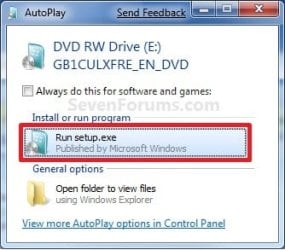
A) While in Windows 7 SP1, insert your retail Windows 7 SP1 installation DVD into the DVD drive, or connect your Windows 7 with SP1 installation USB thumb drive, and click on the Run setup.exe option in AutoPlay. (see screenshot below)
NOTE: If the AutoPlay window does not open, then open the drive folder in Computer and run the setup.exe file.AutoPlay.jpg
B) Go to Go to step 7 below.
6. Repair Installed Windows 7 without SP1 using Windows 7 without SP1 DVD/USB

   Note
If you do not have a Windows 7 without SP1 installation DVD/USB, then you can download the latest official Windows 7 Professional or Home Premium without SP1 ISO file here: Microsoft: Windows 7 Direct Download Links, and use Windows 7 USB-DVD Download Tool to create a bootable DVD or USB flash drive with the ISO to do the repair install from within Windows 7 using this step.

It is preferred to have SP1 installed on your PC and to use step 4 or step 5 above to do a repair install with instead though.

A) While in Windows 7 SP1 installed, insert your retail Windows 7 installation DVD into the DVD drive, or connect your Windows 7 installation USB thumb drive, and click on the Run setup.exe option in AutoPlay. (see screenshot below)
NOTE: If the AutoPlay window does not open, then open the drive folder in Computer and run the setup.exe file.AutoPlay.jpg
B) Go to Go to step 7 below.
7. If prompted by UAC, then click on Yes.

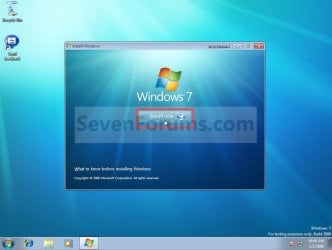
8. Click on the Install Now button to start the installation. (see screenshot below)Step1.jpg
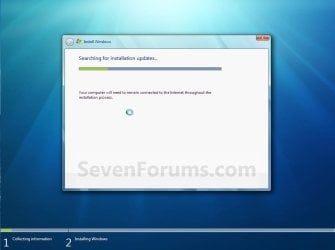
9. If prompted, uncheck the I want to help make Windows installation better box (unless you would like to :) ), and click on the Go online to get the latest updates for installation option. (see screenshot below)Step2.jpg
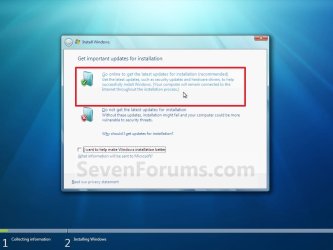
A) Windows 7 will now check online for and install any available installation updates. (see screenshots below)Step2A.jpg

Step2B.jpg

10. Check the I accept the license terms box, and click on Next. (see screenshot below)Step3.jpg
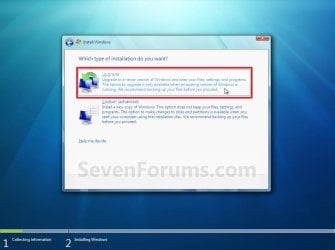
11. Click on the Upgrade option. (see screenshot below)Step4.jpg
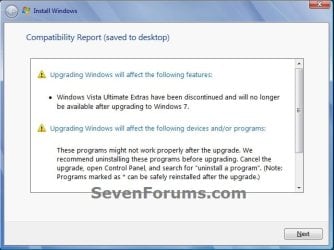
12. Windows will now check for any compatibility issues. If any are found like in the example below, click on the red X to cancel the repair install and close this "Install Windows" window, take care of any found issues (ex: uninstall any incompatible program), then restart the repair install process over again.Compatibility-Report.jpg
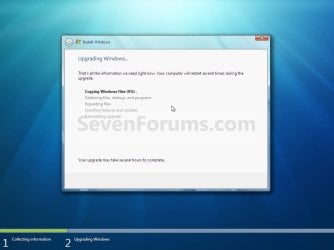
13. The installation of Windows 7 will now begin. (see screenshot below)
NOTE: During the installation process, your screen may flash and computer will restart a few times.Step5.jpg
14. After the final restart, you will see this screen for a moment. (see screenshot below)Step6.jpg
15. Type in your Windows 7 product key number. (see screenshot below step 16)

16. Uncheck the Automatically activate Windows when I'm online box unchecked, then click on the Next button. (see screenshot below)
NOTE: You can activate Windows 7 later after you make sure it is running properly. (see step 23 below)
If you chose to automatically activate Windows online when you set up your computer, automatic activation begins trying to activate your copy of Windows three days after you log on for the first time.Step7.jpg
17. Click on Use recommended settings. (see screenshot below)

:note: You will always be able to change your Windows Update settings at anytime in Windows 7.

Step8.jpg
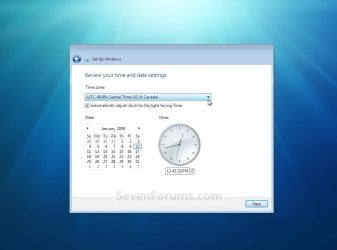
18. Select your time zone and set your time and date settings, then click on the Next button. (see screenshot below)Step9.jpg
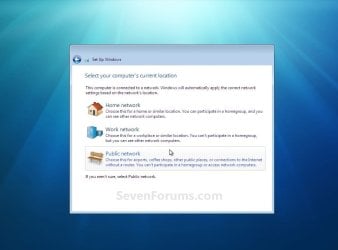
19. Click on the option for your computer's location to select the correct network location type settings to be applied for that location. (see screenshot below)
NOTE: It is best to select Public location for the best security.Step10.jpg
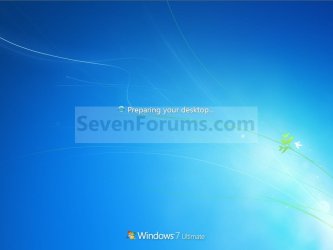
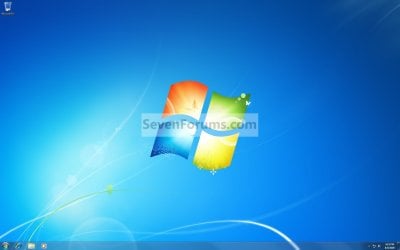
20. Windows 7 will now prepare your desktop to startup. (see screenshots below)Step11A.jpg

Desktop.jpg

21. If you used a DVD or USB to do the repair install with, then you can remove the DVD or USB when the repair install has successfully completed and you are logged in to Windows 7.

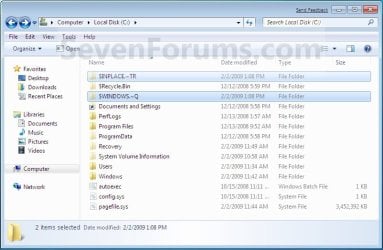
22. Check to see if you are missing any user files. If you are, then you can copy them from the C:\Windows.old or the hidden protected operating system C:\$INPLACE.~TR and C:\WINDOWS.~Q backup folders. (see screenshot below)Old_Install.jpg
23. If everything checks out in step 21, then you can run Disk Cleanup (step 5 at this link). You will need to click on the Clean up system files button first, and then could check the Files discarded by Windows upgrade, Previous Windows installations, and Windows upgrade log files boxes. (see screenshot below)
NOTE: This will delete the C:\Windows.old, C:\$INPLACE.~TR and C:\WINDOWS.~Q folders from step 21 above.Disk_Cleanup.jpg
24. Refresh your Windows Experience Index (WEI) score.

25. When finished, activate Windows 7, and make sure that your 3rd party security programs (if applicable) are enabled again.
That's it,
Shawn


Last edited:
All messed up again it did not last to long.

Everything was working fine then i noticed the Svchost.exe was using 50+ % of my CPU Usage so i found a program called Regcure which was spose to fix it and i installed that and ran a scan fixed errors and restarted tried to do a windows up date and i got same error as i did before.

80072EFE i posted a topic on the forum about it and they all sent me to this thread. I guess that not going to help this time something that im installing is messing with svchost or windows update.

I just dont know how to figure out how to get windows update fixed without do a custom install again. Oh nearly for got a least regcure seems to of fixed the problem with svchost but f**k my windows update up.
 

My Computer

Computer Manufacturer/Model Number
Custom Built
OS
Windows 7 Ultimate x86
CPU
3.2 GHz Duo Core
Motherboard
Gigabyte S-Series 3
Memory
2GB DDR2
Graphics Card(s)
Nvidia 6600 (Waiting on new one)
Sound Card
Built-in
Monitor(s) Displays
Samsung Syncmaster
Hard Drives
120 GB IDE Maxtor
500 GB SATA Seagate
PSU
600w Standard
Case
Gaming Case
Cooling
6 High Speed Fans
Yeah, those registry cleaning programs can really do some damage to your system. :(
 

My Computer

Computer type
PC/Desktop
Computer Manufacturer/Model Number
Self built custom
OS
64-bit Windows 11 Pro for Workstations
CPU
Intel i7-8700K OC'd to 5 GHz
Motherboard
ASUS ROG Maximus XI Formula Z390
Memory
64 GB (4x16GB) G.SKILL TridentZ RGB DDR4 3600 MHz
Graphics Card(s)
ASUS ROG-STRIX-GTX1080TI-O11G-GAMING
Sound Card
Integrated
Monitor(s) Displays
2 x Samsung Odyssey G7 27"
Screen Resolution
2560x1440
Hard Drives
1TB Samsung 990 PRO M.2,
4TB Samsung 990 PRO PRO M.2,
TerraMaster F8 SSD Plus NAS
PSU
Seasonic Prime Titanium 850W
Case
Thermaltake Core P3
Cooling
Corsair Hydro H115i
Keyboard
Logitech wireless K800
Mouse
Logitech MX Master 4
Internet Speed
2 Gb/s Download and 100 Mb/s Upload
Antivirus
Malwarebyte Anti-Malware Premium
Browser
Google Chrome
Other Info
Logitech Z625 speaker system,
Logitech BRIO 4K Pro webcam,
HP Color LaserJet Pro MFP M477fdn,
APC SMART-UPS RT 1000 XL - SURT1000XLI,
Galaxy S23 Plus phone
Do you know the best Reg Cleaner to use with Win7 ? or dont you use them
 

My Computer

Computer Manufacturer/Model Number
Custom Built
OS
Windows 7 Ultimate x86
CPU
3.2 GHz Duo Core
Motherboard
Gigabyte S-Series 3
Memory
2GB DDR2
Graphics Card(s)
Nvidia 6600 (Waiting on new one)
Sound Card
Built-in
Monitor(s) Displays
Samsung Syncmaster
Hard Drives
120 GB IDE Maxtor
500 GB SATA Seagate
PSU
600w Standard
Case
Gaming Case
Cooling
6 High Speed Fans
Do you know the best Reg Cleaner to use with Win7 ? or dont you use them

dont use them... never ever use them. They do more harm than good especially in the hands of an inexperienced user. (and i mean no offence by this, as in terms of the registry I'm inexperienced too.)

why on earth were they directing you here.... 80072EFE is a firewall problem. Uninstall any 3rd party firewalls you might be running.
 

My Computer

Computer type
PC/Desktop
Computer Manufacturer/Model Number
Medion Erazer (note to self: insert model number) - with custom additions
OS
Windows 10 Pro x64
CPU
Intel Core i5 7400 @ 3.00GHz
Motherboard
OEM supllied with PC
Memory
8GB 2133Mhz DDR4 (OEM supplied)
Graphics Card(s)
Gygabyte Windforce GTX 1050Ti (Factory Overclocked)
Sound Card
Realtek
Monitor(s) Displays
Acer Al1980 + HKC
Screen Resolution
1360*768(HKC) / 1280*1024(Acer)
Hard Drives
1TB Toshiba
1TB WD Caviar Green
120GB Samsung Evo 840
PSU
OEM supplied (no power rating on case)
Case
OEM Supplied
Cooling
Stock
Keyboard
Logitech Wireless
Mouse
Logitect Wireless
Internet Speed
40Mb/s Down 10Mb/s Up
Antivirus
Defender
Browser
Firefox
I used the Reg Cleaner for a problem i was having with svchost using up 50+ % of cpu usage and the reg cleaner did fix the problem but then messed up everything else.

Also the error you said it was caused by a firewall so if i just disable mine (Comodo Firewall) it should let me update ?
 

My Computer

Computer Manufacturer/Model Number
Custom Built
OS
Windows 7 Ultimate x86
CPU
3.2 GHz Duo Core
Motherboard
Gigabyte S-Series 3
Memory
2GB DDR2
Graphics Card(s)
Nvidia 6600 (Waiting on new one)
Sound Card
Built-in
Monitor(s) Displays
Samsung Syncmaster
Hard Drives
120 GB IDE Maxtor
500 GB SATA Seagate
PSU
600w Standard
Case
Gaming Case
Cooling
6 High Speed Fans
Also the error you said it was caused by a firewall so if i just disable mine (Comodo Firewall) it should let me update ?

Well technically your error is a "Can't connect to the server" error. but of course Windows can't just say that. but i would be willing to lay money on the fact your firewall is blocking it.

as to disabling the firewall. it should fix it yes, will it? possibly not. by all means give it a go. sometimes however Firewalls and AV's lock themselves into the OS so deeply that the only way to truly turn them off is to Uninstall them. Honestly, if you are behind a decent router then there is no need for a software firewall except the built in Windows Firewall
 

My Computer

Computer type
PC/Desktop
Computer Manufacturer/Model Number
Medion Erazer (note to self: insert model number) - with custom additions
OS
Windows 10 Pro x64
CPU
Intel Core i5 7400 @ 3.00GHz
Motherboard
OEM supllied with PC
Memory
8GB 2133Mhz DDR4 (OEM supplied)
Graphics Card(s)
Gygabyte Windforce GTX 1050Ti (Factory Overclocked)
Sound Card
Realtek
Monitor(s) Displays
Acer Al1980 + HKC
Screen Resolution
1360*768(HKC) / 1280*1024(Acer)
Hard Drives
1TB Toshiba
1TB WD Caviar Green
120GB Samsung Evo 840
PSU
OEM supplied (no power rating on case)
Case
OEM Supplied
Cooling
Stock
Keyboard
Logitech Wireless
Mouse
Logitect Wireless
Internet Speed
40Mb/s Down 10Mb/s Up
Antivirus
Defender
Browser
Firefox
Thanks for this guide!
But I'm in need of a bit help. I just tried to do a repair install because I've been having a bunch of troubles lately, though it failed when it was about to complete.
I noted that your tutorial does state that you need to use an older version or the same as the one you have on the DVD. My DVD was purchased back in January though, so it's really out-dated.
Is there a way for me to downgrade my Windows so that I can do a repair install?
 

My Computer

OS
Windows 7 Home Premium
Hello Manager, and welcome to Seven Forums.

What was the failure message that it gave you?

Usually only when there has been a Service Pack released for Windows will you need to have a Windows installation disc that includes that Service Pack. Since Windows 7 currently does not have a service pack yet, you should be able to use your retail Windows 7 installation disc as long as it's for the same edition (ex: Home Premium) that you have installed.

Did you temporarily turn off or disable any antivirus or other security programs before attempting the repair install. These can sometimes cause the installation to fail like this.
 

My Computer

Computer type
PC/Desktop
Computer Manufacturer/Model Number
Self built custom
OS
64-bit Windows 11 Pro for Workstations
CPU
Intel i7-8700K OC'd to 5 GHz
Motherboard
ASUS ROG Maximus XI Formula Z390
Memory
64 GB (4x16GB) G.SKILL TridentZ RGB DDR4 3600 MHz
Graphics Card(s)
ASUS ROG-STRIX-GTX1080TI-O11G-GAMING
Sound Card
Integrated
Monitor(s) Displays
2 x Samsung Odyssey G7 27"
Screen Resolution
2560x1440
Hard Drives
1TB Samsung 990 PRO M.2,
4TB Samsung 990 PRO PRO M.2,
TerraMaster F8 SSD Plus NAS
PSU
Seasonic Prime Titanium 850W
Case
Thermaltake Core P3
Cooling
Corsair Hydro H115i
Keyboard
Logitech wireless K800
Mouse
Logitech MX Master 4
Internet Speed
2 Gb/s Download and 100 Mb/s Upload
Antivirus
Malwarebyte Anti-Malware Premium
Browser
Google Chrome
Other Info
Logitech Z625 speaker system,
Logitech BRIO 4K Pro webcam,
HP Color LaserJet Pro MFP M477fdn,
APC SMART-UPS RT 1000 XL - SURT1000XLI,
Galaxy S23 Plus phone
Thanks!

I disabled my AV and Firewall. All that happened after the seemingly final reboot was that it said that "Upgrade of Windows failed, going back to your previous Windows", or something in the lines of that.
During the final phase of the installation, the file gathering(?) it loaded up to 68% and then it just restarted. Could this have been the cause? It went so fast that I couldn't see if it went fast from 68% to 100%.
 

My Computer

OS
Windows 7 Home Premium
Do you have enough free space (about the same as what you are currently using) on the hard drive? If it runs out of free space it can cause the installation to fail.

If you do have enough free space as well, then you can do a custom install of Windows 7 instead. This is the same as a clean install, but it also saves all of your files from the current installation into a C:\Windows.old folder in the new installation so that you can copy files you want from that folder back into your new installation. You will still need to reinstall all programs and drivers though.
 

My Computer

Computer type
PC/Desktop
Computer Manufacturer/Model Number
Self built custom
OS
64-bit Windows 11 Pro for Workstations
CPU
Intel i7-8700K OC'd to 5 GHz
Motherboard
ASUS ROG Maximus XI Formula Z390
Memory
64 GB (4x16GB) G.SKILL TridentZ RGB DDR4 3600 MHz
Graphics Card(s)
ASUS ROG-STRIX-GTX1080TI-O11G-GAMING
Sound Card
Integrated
Monitor(s) Displays
2 x Samsung Odyssey G7 27"
Screen Resolution
2560x1440
Hard Drives
1TB Samsung 990 PRO M.2,
4TB Samsung 990 PRO PRO M.2,
TerraMaster F8 SSD Plus NAS
PSU
Seasonic Prime Titanium 850W
Case
Thermaltake Core P3
Cooling
Corsair Hydro H115i
Keyboard
Logitech wireless K800
Mouse
Logitech MX Master 4
Internet Speed
2 Gb/s Download and 100 Mb/s Upload
Antivirus
Malwarebyte Anti-Malware Premium
Browser
Google Chrome
Other Info
Logitech Z625 speaker system,
Logitech BRIO 4K Pro webcam,
HP Color LaserJet Pro MFP M477fdn,
APC SMART-UPS RT 1000 XL - SURT1000XLI,
Galaxy S23 Plus phone
I have enough space, over 100 GB on my Windows drive.

I'll do a custom install if I fail to find the source of my problems then, thanks.
 

My Computer

OS
Windows 7 Home Premium
I got 2 disks: Acer Upgrade DVD and Microsoft Windows 7 upgrade media. On my Computer is an "Upgrade wizard". Can I repair install it? When i insert any of those 2 CD's i get no run.exe so: can i do it with the Upgrade Wizard in combination with a CD (dunno if i need it throughout the installation).
 

My Computer

Computer Manufacturer/Model Number
Acer Travelmate 7730G
OS
Windows 7 Home Premium 32 bits
CPU
Intel core 2 Duo processor T6570
Memory
4096MB RAM
Graphics Card(s)
NVIDIA GeForce 9600M GT TurboCache
You will need to use the Windows 7 Upgrade media to do the repair. Insert it, then go the the drive in My Computer, and look for a setup.exe file.
 

My Computer

Computer Manufacturer/Model Number
Custom
OS
Windows 7 Professional x64
CPU
Intel i7 2600K OC'd @ 4620 MHz
Motherboard
Asus P8Z68-V Pro
Memory
16GB GSkill Sniper 2133 Mhz (4x4GB)
Graphics Card(s)
EVGA GeForce GTX 480 SuperClocked+
Sound Card
Realtek High Definition Audio
Monitor(s) Displays
2x Acer S273HLbmii 27"
Screen Resolution
2 x 1920x1080
Hard Drives
64GB Crucial M4 SSD

Storage: Hitachi 1TB 5400RPM, Samsung 1.5TB 5400RPM
PSU
Corsair HW Series 750w (modular)
Case
Cooler Master HAF 932 Advanced Blue Edition
Cooling
CM Hyper 212+ CPU cooler, 3x 230mm + 1x 140mm case fans
Keyboard
Logitech MK320 (wireless)
Mouse
Logitech MK320 (wireless)
Internet Speed
30 Mb/s : 2 Mb/s
You will need to use the Windows 7 Upgrade media to do the repair. Insert it, then go the the drive in My Computer, and look for a setup.exe file.
Thanks alot!
 

My Computer

Computer Manufacturer/Model Number
Acer Travelmate 7730G
OS
Windows 7 Home Premium 32 bits
CPU
Intel core 2 Duo processor T6570
Memory
4096MB RAM
Graphics Card(s)
NVIDIA GeForce 9600M GT TurboCache
Think its fixed :D. My laptop can go back online :) Thanks for this great tutorial!
 

My Computer

Computer Manufacturer/Model Number
Acer Travelmate 7730G
OS
Windows 7 Home Premium 32 bits
CPU
Intel core 2 Duo processor T6570
Memory
4096MB RAM
Graphics Card(s)
NVIDIA GeForce 9600M GT TurboCache
serious issue w repair (at least for me)

just a little background in the issue-

i've been experiencing networking problems for a few weeks. especially with the homegroup. lastr night i got fed up. windows kept telling me that i couldn't leave the homegroup. i couldn't change any of the file sharing settings either. before anyone asks, i am the only one that manages that computer so i am always logged in as an admin. i found this board and was seriously worried about losing my data. some of it is irrecplaceable. i know that i should back it up, but that is a scalding for another time.

i started thed the repair, and was told that i needed to remove 3 programs, windows mobile center 6.1, ati catalyst, and ati install manager because they would be affected. fine, no prob. i removed them and proceded to continue. after almost 2hrs i decided to stop waiting and go to sleep and let it finish. when i woke up, the computer was hanging. the video card fan was maxing out, as it had been doing for the entire night. all i got was a black screen, with the words this copy of windows is not original on the bottom right corner. however, the mouse can move around the screen, but not buttons work, neither does the keyboard.

i tried restarting the machine several times. same black screen immediately after the windows logo. when i tried to restart the comp in safe mode i got the screen that said "starting windows for the first time". then it stopped, and said that i had to restart because it cannot be in safe mode. i restarted, and back to that black screen. my other option was to boot directly from the windows dvd. i tried that too, only to bring up some repair/restore options.

help please!!!!!!!!!!!!!!
 

My Computer

OS
win 7
CPU
amd phenom ii x4 955 black ed
Motherboard
asus evo
Memory
g. skill 2 x 2gb 1600mhz
Graphics Card(s)
ati radeon 5850 hd
Sound Card
onboard
Monitor(s) Displays
acer 23", lg 32", hitachi 50"
Hard Drives
samsung 750gb
PSU
can't remember
Case
xclio
Hello Cmegalodon, and welcome to Seven Forums.

It sounds like you will need to do a custom install instead. This will give you a clean install with a copy of all the files from your current installation saved into the C:\Windows.old folder during the new installation. You will still have to reinstall your programs and drivers, but it will make copying files that you need from the C:\Windows.old folder to the new installation.

Hope this helps,
Shawn
 

My Computer

Computer type
PC/Desktop
Computer Manufacturer/Model Number
Self built custom
OS
64-bit Windows 11 Pro for Workstations
CPU
Intel i7-8700K OC'd to 5 GHz
Motherboard
ASUS ROG Maximus XI Formula Z390
Memory
64 GB (4x16GB) G.SKILL TridentZ RGB DDR4 3600 MHz
Graphics Card(s)
ASUS ROG-STRIX-GTX1080TI-O11G-GAMING
Sound Card
Integrated
Monitor(s) Displays
2 x Samsung Odyssey G7 27"
Screen Resolution
2560x1440
Hard Drives
1TB Samsung 990 PRO M.2,
4TB Samsung 990 PRO PRO M.2,
TerraMaster F8 SSD Plus NAS
PSU
Seasonic Prime Titanium 850W
Case
Thermaltake Core P3
Cooling
Corsair Hydro H115i
Keyboard
Logitech wireless K800
Mouse
Logitech MX Master 4
Internet Speed
2 Gb/s Download and 100 Mb/s Upload
Antivirus
Malwarebyte Anti-Malware Premium
Browser
Google Chrome
Other Info
Logitech Z625 speaker system,
Logitech BRIO 4K Pro webcam,
HP Color LaserJet Pro MFP M477fdn,
APC SMART-UPS RT 1000 XL - SURT1000XLI,
Galaxy S23 Plus phone
thanks for the welcome. just so i get this straight. if i do a custom install, all of my old files will be saved. however, i will need to re-install all my programs? and then i can extract all of my old files from c:\windows.old?
 

My Computer

OS
win 7
CPU
amd phenom ii x4 955 black ed
Motherboard
asus evo
Memory
g. skill 2 x 2gb 1600mhz
Graphics Card(s)
ati radeon 5850 hd
Sound Card
onboard
Monitor(s) Displays
acer 23", lg 32", hitachi 50"
Hard Drives
samsung 750gb
PSU
can't remember
Case
xclio
Correct, I would always recommend to backup anything that you do not want to lose to be safe though. :)
 

My Computer

Computer type
PC/Desktop
Computer Manufacturer/Model Number
Self built custom
OS
64-bit Windows 11 Pro for Workstations
CPU
Intel i7-8700K OC'd to 5 GHz
Motherboard
ASUS ROG Maximus XI Formula Z390
Memory
64 GB (4x16GB) G.SKILL TridentZ RGB DDR4 3600 MHz
Graphics Card(s)
ASUS ROG-STRIX-GTX1080TI-O11G-GAMING
Sound Card
Integrated
Monitor(s) Displays
2 x Samsung Odyssey G7 27"
Screen Resolution
2560x1440
Hard Drives
1TB Samsung 990 PRO M.2,
4TB Samsung 990 PRO PRO M.2,
TerraMaster F8 SSD Plus NAS
PSU
Seasonic Prime Titanium 850W
Case
Thermaltake Core P3
Cooling
Corsair Hydro H115i
Keyboard
Logitech wireless K800
Mouse
Logitech MX Master 4
Internet Speed
2 Gb/s Download and 100 Mb/s Upload
Antivirus
Malwarebyte Anti-Malware Premium
Browser
Google Chrome
Other Info
Logitech Z625 speaker system,
Logitech BRIO 4K Pro webcam,
HP Color LaserJet Pro MFP M477fdn,
APC SMART-UPS RT 1000 XL - SURT1000XLI,
Galaxy S23 Plus phone
ok. i'll give it a go when i get home. cross your fingers, cause i'm typing....
 

My Computer

OS
win 7
CPU
amd phenom ii x4 955 black ed
Motherboard
asus evo
Memory
g. skill 2 x 2gb 1600mhz
Graphics Card(s)
ati radeon 5850 hd
Sound Card
onboard
Monitor(s) Displays
acer 23", lg 32", hitachi 50"
Hard Drives
samsung 750gb
PSU
can't remember
Case
xclio
Back
Top