Solved Resize Recovery Partition?

bug67

Hazard Avoidance
Pro User
VIP
Local time
4:44 PM
Messages
262
Location
Eagle River, AK
This is probably a little OCD but, that's kinda how I am so, bare with me.

When I first got my Maingear computer, I could've sworn the recovery partition in system view was blue. Now it's red, meaning close to full. I know this partition doesn't move files on or off it so, how did it go from blue to red?

I guess my real question is, can I re-size the recovery partition enough to make it blue again or, should I seek counseling for my OCD? :shock:
 

My Computer

Computer Manufacturer/Model Number
Dell XPS 400
OS
Windows 7 X64 Professional
CPU
Intel® Pentium D Dual Core 3.6GHZ
Motherboard
DELL Dimension 9150 MotherBoard DXP051 XPS400 FJ030
Memory
4GB DDR2 PC2-5300
Graphics Card(s)
GeForce GT 440 (Fermi) 2GB 128-bit DDR3 PCI Express 2.0 x16
Sound Card
ASUS XONAR DG 5.1 Channels PCI Interface Xonar DG
Monitor(s) Displays
2 X 23" Apple Cinema Display
Screen Resolution
1920 X 1200p
Hard Drives
250GB Intel® 510 Series SSD SATA 6G (w/TRIM) [500MB/s Reads]
1.0TB Western Digital Caviar Black SATA 6G 7200rpm 64MB Cache
PSU
375 Watt Dell
Case
Dell XPS 400 BTX Case
Cooling
Dell XPS 400 Air Cooling
Keyboard
Logitech Illuminated Keyboard
Mouse
Logitech M705 Marathon
Internet Speed
+/- 9929 Kbps
Other Info
This machine was given to me when my dad bought a new computer. I keep throwing upgrades at it and it keeps on ticking. Think I've done everything to it that can be done outside a PSU upgrade so I can run an even BETTER GPU.
Sometimes the recovery partition gets written to though its not meant to be. The culprit could be system restore points or windows backups. You can check both for the backup location.

As far as the recovery partition is concerned, you need to check whether its usable now. Try launching recovery (dont go through it though). If you made recovery disks earlier, you're fine even if the recovery partition is hosed. If you didnt, you can try ordering them from the vendor- OEMs like HP, Dell etc. do provide an extra set for a nominal charge.

Even if nothing works, dont worry. Just image your current windows install using macrium or acronis or whatever you prefer, you can just restore the image if things go out of hand. For that matter, you can even clean install windows and activate with the sticker key.
 

My Computer

Computer Manufacturer/Model Number
Too many to describe...
OS
Windows 7 x64 pro/ Windows 7 x86 Pro/ XP SP3 x86
Resizing the recovery partition is not a valid option in my book. You should find out how it got stuffed. Open the recovery partition and have a look. As Bill mentioned, the main culprit is usually the data backup because that assumes D as default.
 

My Computer

Computer Manufacturer/Model Number
HP, Dell, Gateway, Toshiba - 4 laptops and 2 desktops
OS
Vista, Windows7, Mint Mate, Zorin, Windows 8
CPU
from 1.6GHz Duo to i7
Monitor(s) Displays
2x HP w2207
Hard Drives
5x HDD, 7x SSD, 12x Externals
Keyboard
with trackball - no mices
Mouse
Trackball mice
Internet Speed
DSL 6000
You should leave the recovery (factory restore) partition alone and so should everything else I think. Dell seem to use it to double as system active but this is small stuff and shouldn't significantly changing the size of the partition.

You could provide 2 pieces of information if you want more feedback:
1) screenshot from Disk Management
2) screen shot of the contents using the free Partition Wizard Mini Tool. Use the "Explore Partition" option.

As far as resizing the recovery/restore partition I definitely would not. Factory restores should impose the original partition structure.
 

My Computer

Computer type
PC/Desktop
Computer Manufacturer/Model Number
Own build
OS
Windows 7x64 Home Premium SP1
CPU
Intel i7 2600k
Motherboard
ASUS P8Z68 Deluxe
Memory
G.Skill Ripjaws (DDR3-1600) 2x4GB
Graphics Card(s)
Nvidia GeForce GTS 450; Intel HD Graphics 3000(GT2+)
Monitor(s) Displays
Dell Ultrasharp IPS panel U2311H, Samsung SyncMaster P2350
Screen Resolution
1920x1080
Hard Drives
Samsung 850 Pro SSD 256GB, Samsung SSD 840 120GB, Seagates 1TB Barracuda ST31000528AS x2
PSU
Seasonic M12II 520W
Case
Lian Li Lancool PC-K60
Cooling
Case: 1x120mm, 3x140mm CPU: Hyper 212+
Keyboard
Logitech MK520 (wireless)
Mouse
Logitech MK520
Internet Speed
6-7 Mbps
Antivirus
Norton Security Premium, Malwarebytes on 2 (MSE on 3rd PC)
Browser
FireFox
Other Info
Audio: Logitech Z523 2.1
Sometimes the recovery partition gets written to though its not meant to be. The culprit could be system restore points or windows backups. You can check both for the backup location.

As far as the recovery partition is concerned, you need to check whether its usable now. Try launching recovery (dont go through it though). If you made recovery disks earlier, you're fine even if the recovery partition is hosed. If you didnt, you can try ordering them from the vendor- OEMs like HP, Dell etc. do provide an extra set for a nominal charge.

Even if nothing works, dont worry. Just image your current windows install using macrium or acronis or whatever you prefer, you can just restore the image if things go out of hand. For that matter, you can even clean install windows and activate with the sticker key.

I think Bill's advice is sound and you should consider going with the options he suggested.
 

My Computer

Computer Manufacturer/Model Number
HP Pavilion Elite 495UK
OS
Windows 7 Ultimate SP1 64-Bit
CPU
Intel Core i7 870 @ 2.93GHz
Motherboard
MSI 2A9C (CPU1)
Memory
8Gb Dual-Channel DDR3 @ 664MHz
Graphics Card(s)
nVidia GeForce GTX 460 1024MB dedicated RAM
Sound Card
Realtek HD Audio
Monitor(s) Displays
HP2310i
Screen Resolution
1920 x 1080
Hard Drives
1x1954GB Hitachi HDS22020ALA 330 (RAID), 1x1954GB Hitachi External for backup and storage
PSU
460W
Case
HP Elite
Cooling
Air cooled
Keyboard
Logitech K750 solar-powered keyboard
Mouse
Logitech Wireless M180 mouse
Internet Speed
2Mb
Other Info
Pure Avanti Flow Internet Radio with iPod Dock, 64Gb iPod, HP USB Speakers, Sony MDR-V500 Headphones, Sony Vaio F-Series Laptop
Thanks for the replies. I'm at work and can't take the suggestions at the moment. I'll look into things when I get home.

I guess now would be a good time to come clean. The partition in question (as with the whole Windows 7 OS) is on a SSD. I didn't know I wasn't supposed to but, I tried a defrag about 2 weeks after I got the system. It was after that that I noticed it went from blue to red. Everything seems to be working great. In fact, this is the most awesome machine I have ever had. I just don't like "red" things when they're not supposed to be.

All my data (music, pictures, documents, etc.) are on a separate, conventional HDD. I'm not affraid to re-install although, I'd rather not. A long time ago, on a different machine, I tried the "imaging" thing and it didn't work and I had to re-install anyhow. I imagine there's a tutorial on this site that is recommended for imaging?

When I get home I'll provide some of the info that was asked for. Hopefully, I can resolve this without imaging or a re-install...

Thanks.
 

My Computer

Computer Manufacturer/Model Number
Dell XPS 400
OS
Windows 7 X64 Professional
CPU
Intel® Pentium D Dual Core 3.6GHZ
Motherboard
DELL Dimension 9150 MotherBoard DXP051 XPS400 FJ030
Memory
4GB DDR2 PC2-5300
Graphics Card(s)
GeForce GT 440 (Fermi) 2GB 128-bit DDR3 PCI Express 2.0 x16
Sound Card
ASUS XONAR DG 5.1 Channels PCI Interface Xonar DG
Monitor(s) Displays
2 X 23" Apple Cinema Display
Screen Resolution
1920 X 1200p
Hard Drives
250GB Intel® 510 Series SSD SATA 6G (w/TRIM) [500MB/s Reads]
1.0TB Western Digital Caviar Black SATA 6G 7200rpm 64MB Cache
PSU
375 Watt Dell
Case
Dell XPS 400 BTX Case
Cooling
Dell XPS 400 Air Cooling
Keyboard
Logitech Illuminated Keyboard
Mouse
Logitech M705 Marathon
Internet Speed
+/- 9929 Kbps
Other Info
This machine was given to me when my dad bought a new computer. I keep throwing upgrades at it and it keeps on ticking. Think I've done everything to it that can be done outside a PSU upgrade so I can run an even BETTER GPU.
You're very welcome.

Our resident tutor, Brink, has produced an excellent write-up for creating a system image:

http://www.sevenforums.com/tutorials/663-backup-complete-computer-create-image-backup.html

If ever you're not sure of anything, feel free to click the Tutorials link at the top of the page. Chances are, Brink and his colleagues will have covered it.

However, like yourself, I have all my docs, photos, music etc. on a separate hard drive, which in backed up on an incremental basis to an external hard drive. If ever Windows goes walkabout, I just re-install it.

As ever, it's a matter of personal choice as to which method you choose, but not backing up is not an option in my book.
 

My Computer

Computer Manufacturer/Model Number
HP Pavilion Elite 495UK
OS
Windows 7 Ultimate SP1 64-Bit
CPU
Intel Core i7 870 @ 2.93GHz
Motherboard
MSI 2A9C (CPU1)
Memory
8Gb Dual-Channel DDR3 @ 664MHz
Graphics Card(s)
nVidia GeForce GTX 460 1024MB dedicated RAM
Sound Card
Realtek HD Audio
Monitor(s) Displays
HP2310i
Screen Resolution
1920 x 1080
Hard Drives
1x1954GB Hitachi HDS22020ALA 330 (RAID), 1x1954GB Hitachi External for backup and storage
PSU
460W
Case
HP Elite
Cooling
Air cooled
Keyboard
Logitech K750 solar-powered keyboard
Mouse
Logitech Wireless M180 mouse
Internet Speed
2Mb
Other Info
Pure Avanti Flow Internet Radio with iPod Dock, 64Gb iPod, HP USB Speakers, Sony MDR-V500 Headphones, Sony Vaio F-Series Laptop
If you want to do yourself a favor I recommend not to use Windows7 imaging - or at least not use it as the only option. Win7 imaging can be very iffy - many people had problems with it including myself. You are probably better off using the free Macrium or free Paragon which have a lot more function, are easier to use (especially Macrium) and are reliable.
 

My Computer

Computer Manufacturer/Model Number
HP, Dell, Gateway, Toshiba - 4 laptops and 2 desktops
OS
Vista, Windows7, Mint Mate, Zorin, Windows 8
CPU
from 1.6GHz Duo to i7
Monitor(s) Displays
2x HP w2207
Hard Drives
5x HDD, 7x SSD, 12x Externals
Keyboard
with trackball - no mices
Mouse
Trackball mice
Internet Speed
DSL 6000
If you want to do yourself a favor I recommend not to use Windows7 imaging - or at least not use it as the only option. Win7 imaging can be very iffy - many people had problems with it including myself. You are probably better off using the free Macrium or free Paragon which have a lot more function, are easier to use (especially Macrium) and are reliable.

Thanks for the suggestion. I was wondering just that as I read over the how-to. Looks a little overwhelming. I'm not even sure yet what I'm going to need to do. However, I am glad I have Seven Forums as a resource. :cool:
 

My Computer

Computer Manufacturer/Model Number
Dell XPS 400
OS
Windows 7 X64 Professional
CPU
Intel® Pentium D Dual Core 3.6GHZ
Motherboard
DELL Dimension 9150 MotherBoard DXP051 XPS400 FJ030
Memory
4GB DDR2 PC2-5300
Graphics Card(s)
GeForce GT 440 (Fermi) 2GB 128-bit DDR3 PCI Express 2.0 x16
Sound Card
ASUS XONAR DG 5.1 Channels PCI Interface Xonar DG
Monitor(s) Displays
2 X 23" Apple Cinema Display
Screen Resolution
1920 X 1200p
Hard Drives
250GB Intel® 510 Series SSD SATA 6G (w/TRIM) [500MB/s Reads]
1.0TB Western Digital Caviar Black SATA 6G 7200rpm 64MB Cache
PSU
375 Watt Dell
Case
Dell XPS 400 BTX Case
Cooling
Dell XPS 400 Air Cooling
Keyboard
Logitech Illuminated Keyboard
Mouse
Logitech M705 Marathon
Internet Speed
+/- 9929 Kbps
Other Info
This machine was given to me when my dad bought a new computer. I keep throwing upgrades at it and it keeps on ticking. Think I've done everything to it that can be done outside a PSU upgrade so I can run an even BETTER GPU.
You should still get counseling, it seems to be helping me! :huh:
 

My Computer

Computer Manufacturer/Model Number
* BFK Customs *
OS
W 7 64-bit Ultimate
CPU
Intel Q9550 Yorkfield
Motherboard
ASUS P5Q Pro
Memory
8GB Dominator 8500C5D
Graphics Card(s)
ATI : XFX 5870
Sound Card
Realtek HD Audio 7-1
Monitor(s) Displays
1x 47" LCD HDMI & 3x 26" LCD HDMI
Screen Resolution
1920x1080P & 1920x1200
Hard Drives
1x 80GB Intel X25-M G2 SSD : 1x 500GB & 1x 640GB WD Caviar Black(s)
PSU
Corsair 620HX
Case
Cooler Master RC-690
Cooling
Tuniq Tower 120, 2x 140mm and 3x 120mm case fans
Keyboard
Microsoft 500
Mouse
Razer Diamondback 3G
Internet Speed
14 Mb/s
Other Info
1x Koutech 3Gb/s SATA HDD Hot Swap Rack
If you want to do yourself a favor I recommend not to use Windows7 imaging - or at least not use it as the only option. Win7 imaging can be very iffy - many people had problems with it including myself. You are probably better off using the free Macrium or free Paragon which have a lot more function, are easier to use (especially Macrium) and are reliable.

Thanks for the suggestion. I was wondering just that as I read over the how-to. Looks a little overwhelming. I'm not even sure yet what I'm going to need to do. However, I am glad I have Seven Forums as a resource. :cool:
if you need any specific info, just ask.
 

My Computer

Computer Manufacturer/Model Number
HP, Dell, Gateway, Toshiba - 4 laptops and 2 desktops
OS
Vista, Windows7, Mint Mate, Zorin, Windows 8
CPU
from 1.6GHz Duo to i7
Monitor(s) Displays
2x HP w2207
Hard Drives
5x HDD, 7x SSD, 12x Externals
Keyboard
with trackball - no mices
Mouse
Trackball mice
Internet Speed
DSL 6000

My Computer

Computer Manufacturer/Model Number
HP Pavilion Elite 495UK
OS
Windows 7 Ultimate SP1 64-Bit
CPU
Intel Core i7 870 @ 2.93GHz
Motherboard
MSI 2A9C (CPU1)
Memory
8Gb Dual-Channel DDR3 @ 664MHz
Graphics Card(s)
nVidia GeForce GTX 460 1024MB dedicated RAM
Sound Card
Realtek HD Audio
Monitor(s) Displays
HP2310i
Screen Resolution
1920 x 1080
Hard Drives
1x1954GB Hitachi HDS22020ALA 330 (RAID), 1x1954GB Hitachi External for backup and storage
PSU
460W
Case
HP Elite
Cooling
Air cooled
Keyboard
Logitech K750 solar-powered keyboard
Mouse
Logitech Wireless M180 mouse
Internet Speed
2Mb
Other Info
Pure Avanti Flow Internet Radio with iPod Dock, 64Gb iPod, HP USB Speakers, Sony MDR-V500 Headphones, Sony Vaio F-Series Laptop
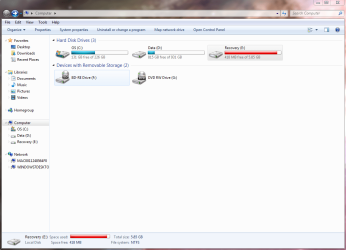
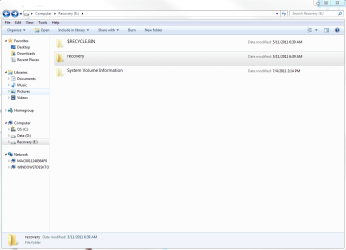
OK, I'm home now and this is what I see.
 

Attachments

  • Computer.PNG
    Computer.PNG
    54.2 KB · Views: 59
  • Recovery (E).PNG
    Recovery (E).PNG
    30.2 KB · Views: 35
  • recovery.PNG
    recovery.PNG
    25.8 KB · Views: 28

My Computer

Computer Manufacturer/Model Number
Dell XPS 400
OS
Windows 7 X64 Professional
CPU
Intel® Pentium D Dual Core 3.6GHZ
Motherboard
DELL Dimension 9150 MotherBoard DXP051 XPS400 FJ030
Memory
4GB DDR2 PC2-5300
Graphics Card(s)
GeForce GT 440 (Fermi) 2GB 128-bit DDR3 PCI Express 2.0 x16
Sound Card
ASUS XONAR DG 5.1 Channels PCI Interface Xonar DG
Monitor(s) Displays
2 X 23" Apple Cinema Display
Screen Resolution
1920 X 1200p
Hard Drives
250GB Intel® 510 Series SSD SATA 6G (w/TRIM) [500MB/s Reads]
1.0TB Western Digital Caviar Black SATA 6G 7200rpm 64MB Cache
PSU
375 Watt Dell
Case
Dell XPS 400 BTX Case
Cooling
Dell XPS 400 Air Cooling
Keyboard
Logitech Illuminated Keyboard
Mouse
Logitech M705 Marathon
Internet Speed
+/- 9929 Kbps
Other Info
This machine was given to me when my dad bought a new computer. I keep throwing upgrades at it and it keeps on ticking. Think I've done everything to it that can be done outside a PSU upgrade so I can run an even BETTER GPU.
OK, thanks for posting the screenshots.

1. You're worrying about nothing.
2. Your recovery partition is 5.85GB in size, and there should be no more than 10% of free space in it.
3. Your free space is shown as 418MB, which is around the 10% mark.
5. There's no point in even trying to increase its size as nothing else should go in there.
6. If the red bar worries you, go into Disk Management and remove the drive letter (the drive won't be removed), that way you won't see the drive in Windows Explorer or Computer.

As for your other screenshots, you've got separate partitions for your operating system and data, which is good.

I would suggest you just create a system image of Drive C or just re-install Windows to it if your system goes belly-up.

As for your data partition you can use Windows Backup to back it up to an external hard drive, and then do incremental backups on a regular basis.
 

My Computer

Computer Manufacturer/Model Number
HP Pavilion Elite 495UK
OS
Windows 7 Ultimate SP1 64-Bit
CPU
Intel Core i7 870 @ 2.93GHz
Motherboard
MSI 2A9C (CPU1)
Memory
8Gb Dual-Channel DDR3 @ 664MHz
Graphics Card(s)
nVidia GeForce GTX 460 1024MB dedicated RAM
Sound Card
Realtek HD Audio
Monitor(s) Displays
HP2310i
Screen Resolution
1920 x 1080
Hard Drives
1x1954GB Hitachi HDS22020ALA 330 (RAID), 1x1954GB Hitachi External for backup and storage
PSU
460W
Case
HP Elite
Cooling
Air cooled
Keyboard
Logitech K750 solar-powered keyboard
Mouse
Logitech Wireless M180 mouse
Internet Speed
2Mb
Other Info
Pure Avanti Flow Internet Radio with iPod Dock, 64Gb iPod, HP USB Speakers, Sony MDR-V500 Headphones, Sony Vaio F-Series Laptop
Looks like no files were added to E. The only other culprit could be a restore point (if system restore was accidently enabled for D). You can check that with the following command in elevated Command Prompt:


vssadmin list shadowstorage


Have a look whether E figures on the list. Else, I agree with seavixen - there is not really anything to worry about.
 

My Computer

Computer Manufacturer/Model Number
HP, Dell, Gateway, Toshiba - 4 laptops and 2 desktops
OS
Vista, Windows7, Mint Mate, Zorin, Windows 8
CPU
from 1.6GHz Duo to i7
Monitor(s) Displays
2x HP w2207
Hard Drives
5x HDD, 7x SSD, 12x Externals
Keyboard
with trackball - no mices
Mouse
Trackball mice
Internet Speed
DSL 6000
OK, thanks for posting the screenshots.

1. You're worrying about nothing.

That's been my main thought all along! :p

2. Your recovery partition is 5.85GB in size, and there should be no more than 10% of free space in it.
3. Your free space is shown as 418MB, which is around the 10% mark.

Good to know.

5. There's no point in even trying to increase its size as nothing else should go in there.

Whew! To tell the truth, I'm glad I don't need to mess with it. I was kinda intimidated by the instructions. :sarc:

6. If the red bar worries you, go into Disk Management and remove the drive letter (the drive won't be removed), that way you won't see the drive in Windows Explorer or Computer.

Like I said, "OCD" :shock:

As for your other screenshots, you've got separate partitions for your operating system and data, which is good.

I would suggest you just create a system image of Drive C or just re-install Windows to it if your system goes belly-up.

As for your data partition you can use Windows Backup to back it up to an external hard drive, and then do incremental backups on a regular basis.

I already run a data back-up weekly to an external HDD. Good to know I'm not a total head case! :p
 

My Computer

Computer Manufacturer/Model Number
Dell XPS 400
OS
Windows 7 X64 Professional
CPU
Intel® Pentium D Dual Core 3.6GHZ
Motherboard
DELL Dimension 9150 MotherBoard DXP051 XPS400 FJ030
Memory
4GB DDR2 PC2-5300
Graphics Card(s)
GeForce GT 440 (Fermi) 2GB 128-bit DDR3 PCI Express 2.0 x16
Sound Card
ASUS XONAR DG 5.1 Channels PCI Interface Xonar DG
Monitor(s) Displays
2 X 23" Apple Cinema Display
Screen Resolution
1920 X 1200p
Hard Drives
250GB Intel® 510 Series SSD SATA 6G (w/TRIM) [500MB/s Reads]
1.0TB Western Digital Caviar Black SATA 6G 7200rpm 64MB Cache
PSU
375 Watt Dell
Case
Dell XPS 400 BTX Case
Cooling
Dell XPS 400 Air Cooling
Keyboard
Logitech Illuminated Keyboard
Mouse
Logitech M705 Marathon
Internet Speed
+/- 9929 Kbps
Other Info
This machine was given to me when my dad bought a new computer. I keep throwing upgrades at it and it keeps on ticking. Think I've done everything to it that can be done outside a PSU upgrade so I can run an even BETTER GPU.
Looks like no files were added to E. The only other culprit could be a restore point (if system restore was accidently enabled for D). You can check that with the following command in elevated Command Prompt:


vssadmin list shadowstorage


Have a look whether E figures on the list. Else, I agree with seavixen - there is not really anything to worry about.

I saw no "E" anywhere after running that command.

So, I guess I'm good.
 

My Computer

Computer Manufacturer/Model Number
Dell XPS 400
OS
Windows 7 X64 Professional
CPU
Intel® Pentium D Dual Core 3.6GHZ
Motherboard
DELL Dimension 9150 MotherBoard DXP051 XPS400 FJ030
Memory
4GB DDR2 PC2-5300
Graphics Card(s)
GeForce GT 440 (Fermi) 2GB 128-bit DDR3 PCI Express 2.0 x16
Sound Card
ASUS XONAR DG 5.1 Channels PCI Interface Xonar DG
Monitor(s) Displays
2 X 23" Apple Cinema Display
Screen Resolution
1920 X 1200p
Hard Drives
250GB Intel® 510 Series SSD SATA 6G (w/TRIM) [500MB/s Reads]
1.0TB Western Digital Caviar Black SATA 6G 7200rpm 64MB Cache
PSU
375 Watt Dell
Case
Dell XPS 400 BTX Case
Cooling
Dell XPS 400 Air Cooling
Keyboard
Logitech Illuminated Keyboard
Mouse
Logitech M705 Marathon
Internet Speed
+/- 9929 Kbps
Other Info
This machine was given to me when my dad bought a new computer. I keep throwing upgrades at it and it keeps on ticking. Think I've done everything to it that can be done outside a PSU upgrade so I can run an even BETTER GPU.
Well, it's done no harm in checking things out and it's been our pleasure to put your mind at rest.

If you consider the topic is resolved, just click the red triangle and type "Solved" in the text box that pops up.

Stay cool and enjoy Windows 7! ;)
 

My Computer

Computer Manufacturer/Model Number
HP Pavilion Elite 495UK
OS
Windows 7 Ultimate SP1 64-Bit
CPU
Intel Core i7 870 @ 2.93GHz
Motherboard
MSI 2A9C (CPU1)
Memory
8Gb Dual-Channel DDR3 @ 664MHz
Graphics Card(s)
nVidia GeForce GTX 460 1024MB dedicated RAM
Sound Card
Realtek HD Audio
Monitor(s) Displays
HP2310i
Screen Resolution
1920 x 1080
Hard Drives
1x1954GB Hitachi HDS22020ALA 330 (RAID), 1x1954GB Hitachi External for backup and storage
PSU
460W
Case
HP Elite
Cooling
Air cooled
Keyboard
Logitech K750 solar-powered keyboard
Mouse
Logitech Wireless M180 mouse
Internet Speed
2Mb
Other Info
Pure Avanti Flow Internet Radio with iPod Dock, 64Gb iPod, HP USB Speakers, Sony MDR-V500 Headphones, Sony Vaio F-Series Laptop
I suggest you read my sound advice again. You may indeed have something to worry about. You need to find out what is happening with your recovery partition. If it stays exactly as is you may not have a problem. The fact that it went from blue to red means it is being written to.

I suggest you at least keep an eye on the size of your recovery partition over time.
WinDirStat enables you to visually see what's going on.
 

My Computer

Computer type
PC/Desktop
Computer Manufacturer/Model Number
Own build
OS
Windows 7x64 Home Premium SP1
CPU
Intel i7 2600k
Motherboard
ASUS P8Z68 Deluxe
Memory
G.Skill Ripjaws (DDR3-1600) 2x4GB
Graphics Card(s)
Nvidia GeForce GTS 450; Intel HD Graphics 3000(GT2+)
Monitor(s) Displays
Dell Ultrasharp IPS panel U2311H, Samsung SyncMaster P2350
Screen Resolution
1920x1080
Hard Drives
Samsung 850 Pro SSD 256GB, Samsung SSD 840 120GB, Seagates 1TB Barracuda ST31000528AS x2
PSU
Seasonic M12II 520W
Case
Lian Li Lancool PC-K60
Cooling
Case: 1x120mm, 3x140mm CPU: Hyper 212+
Keyboard
Logitech MK520 (wireless)
Mouse
Logitech MK520
Internet Speed
6-7 Mbps
Antivirus
Norton Security Premium, Malwarebytes on 2 (MSE on 3rd PC)
Browser
FireFox
Other Info
Audio: Logitech Z523 2.1
You should leave the recovery (factory restore) partition alone and so should everything else I think. Dell seem to use it to double as system active but this is small stuff and shouldn't significantly changing the size of the partition.

You could provide 2 pieces of information if you want more feedback:
1) screenshot from Disk Management
2) screen shot of the contents using the free Partition Wizard Mini Tool. Use the "Explore Partition" option.

As far as resizing the recovery/restore partition I definitely would not. Factory restores should impose the original partition structure.

I suggest you read my sound advice again. You may indeed have something to worry about. You need to find out what is happening with your recovery partition. If it stays exactly as is you may not have a problem. The fact that it went from blue to red means it is being written to.

I suggest you at least keep an eye on the size of your recovery partition over time.
WinDirStat enables you to visually see what's going on.

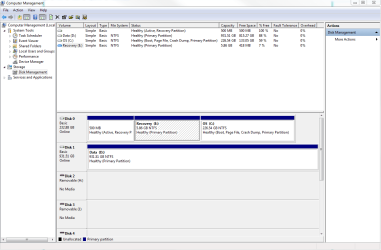
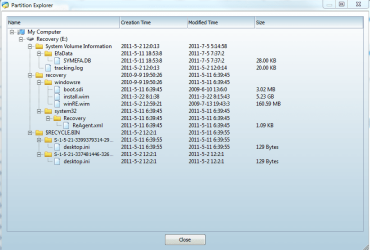
Here are the screen shots you requested.
 

Attachments

  • DiskManagement.PNG
    DiskManagement.PNG
    30.7 KB · Views: 40
  • PartitionWizard (E) Contents.PNG
    PartitionWizard (E) Contents.PNG
    33.5 KB · Views: 31

My Computer

Computer Manufacturer/Model Number
Dell XPS 400
OS
Windows 7 X64 Professional
CPU
Intel® Pentium D Dual Core 3.6GHZ
Motherboard
DELL Dimension 9150 MotherBoard DXP051 XPS400 FJ030
Memory
4GB DDR2 PC2-5300
Graphics Card(s)
GeForce GT 440 (Fermi) 2GB 128-bit DDR3 PCI Express 2.0 x16
Sound Card
ASUS XONAR DG 5.1 Channels PCI Interface Xonar DG
Monitor(s) Displays
2 X 23" Apple Cinema Display
Screen Resolution
1920 X 1200p
Hard Drives
250GB Intel® 510 Series SSD SATA 6G (w/TRIM) [500MB/s Reads]
1.0TB Western Digital Caviar Black SATA 6G 7200rpm 64MB Cache
PSU
375 Watt Dell
Case
Dell XPS 400 BTX Case
Cooling
Dell XPS 400 Air Cooling
Keyboard
Logitech Illuminated Keyboard
Mouse
Logitech M705 Marathon
Internet Speed
+/- 9929 Kbps
Other Info
This machine was given to me when my dad bought a new computer. I keep throwing upgrades at it and it keeps on ticking. Think I've done everything to it that can be done outside a PSU upgrade so I can run an even BETTER GPU.
Back
Top