Hi
jsampson45,
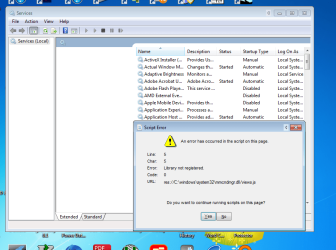
Looking at the links you kindly provided, when I run services.msc there is no Event System (whatever that is) in the list. Volume Shadow Copy and Task Scheduler are running automatically, according to it. Also, when I run services.msc a window comes up which I do not understand at all - screenshot attached.
Can I assume that some of the files that Windows uses to run the VSS have been deleted or corrupted? If so, can they be replaced, or is it not that simple?
Run
CHKDSK [Check Disk] in repair mode, please follow my instructions below!
CHKDSK [Check Disk]
CHKDSK [Check Disk] is a Windows utility program for detecting and repairing any corruptions of the file system [FAT16, FAT32, and NTFS drives]. CHKDSK
must be run from an
elevated command prompt:
- Click Start.
- In the search box type cmd.
- Right-click the cmd icon from the search results under Programs and select Run as administrator.
- The elevated command prompt window will now open.
IMPORTANT: When running CHKDSK, if any bad sectors are found, and when attempting to repair that sector, the data available on that sector might be lost.
This one
repairs errors on the disk
without scanning for any bad sectors.
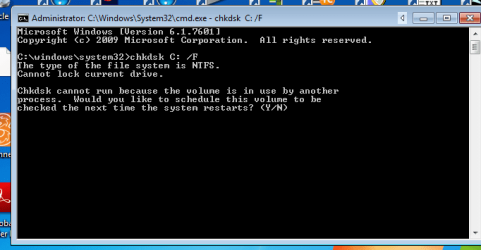
Copy chkdsk C: /F [yes there are 2 spaces there] and
Paste it [you need to use the mouse
right-click and
paste for this as
CTRL+V doesn’t work] into the elevated command prompt window and press
Enter - This
does repair any file system errors or corruptions on drive
C:\, provided that the disk isn’t in use. If the disk is in use [locked], CHKDSK displays a prompt that asks whether you want to schedule the disk to be checked the next time you restart the OS, click
Yes to schedule this check and then
Restart. After CHKDSK has completed, Windows should boot normally [possibly after a second auto-reboot].
CHKDSK [Check Disk] - Log File
NOTE: The
CHKDSK log can be found in the
Event Viewer:
[1] Click
Start.
[2] In the
search box type
eventvwr.msc and press
Enter.
[3] On the left-hand side under
Event Viewer (Local) expand
Windows Logs and click
Application.
[4] On the right-hand side under the
Actions pane click
Filter current log.
[5] In the
Event Sources: dropdown box list select
Wininit and press
Enter, then click
OK.
You should now
only see the
CHKDSK log files displayed from the
Wininit Event Sources and the information pertaining to each of them.
ALTERNATIVELY: You can create your own log location on the
Root of
C:/ for example at the same time you run CHKDSK. Here is an example for each of the three options above, assuming that the HDD is
C:/ and you want the log created on the
Root of
C:/:
[1]
chkdsk C: > C:\ chkdskC_log.txt [change the log name to your own].
[2]
chkdsk C: /F > C:\ chkdskCF_log.txt [change the log name to your own].
[3]
chkdsk C: /R > C:\ chkdskCR_log.txt [change the log name to your own].
You can
Delete the log file if you so wish once you are satisfied and finished with it!
Here is some further information =>
How to Check Disk for Errors Using chkdsk and Command Prompt.
I hope this helps!