Restoring different partitions back to hard drive

boon1

New member
Local time
2:28 AM
Messages
4
Good day everyone,

I need some advice on backing up HD on laptop (as images using Macrium Reflect) and restore back if needed.

Partitions on 500 GB hard drive
#1) system Reserved 100MB
#2) Windows 7 (C) 100GB
#3) Factory Image (D) 10GB
#4) Data (E) 320GB
#5) Misc (F) 30GB++ (remaining total of 500GB = 465.66[Actual capacity])


Assuming I've 5 partitions on a 500GB Hard drive.
a) First I create an image on all 5 partitions as 1 image (say I named it as Image1)
b) Create 1 image for partition# 4 and 5 every week (say I named it as Image2)
c) Create 1 image for partition# 2 if I've install/remove any new applications from this (say I named it as Image3)

My question is that, if my system crash, which images should I restore first.
I was thinking of restoring in the following sequence. (btw planning to use Macrium Reflect bootCD for this process)
1) restore Image1 (choose all partitions)
2) restore Image3 (choose partitions#4 and 5)
3) restore Image2 (choose partition#2)

Can these be done? or any alternate way?

When restoring, can I choose which partition that I wants to restore?

Sorry for all the noob questions. Appreciate your help.

Thanks you
Boon
 

My Computer My Computer

OS
Win 7 Professional 64
You should post a Disk management screen shot to confirm your partition types.
Assuming no linux partition you either have a dynamic disk (generally bad) or an extended partition with logical drives.

As a general answer to your question it depends on the nature of the "crash".
With Macrium Reflect free you restore one partition at a time.
Generally if your OS became unusable with Macrium you would try restoring just C: #2. Say no to MBR replace.

If you needed to replace the whole disk this is the order:
1) #1, System Reserved. Say yes to MBR replacement. Say No for subsequent partitions.
2) #2, C: OS.
3) Boot system. If system fails to boot try running repair up to 3 times from a system repair disk or install DVD.
4) Data Partitions
5) Factory image partition, D:.

Then go part way through a factory recover to ensure your recovery partition is working. Then exit.
 

My Computer My Computer

Computer type
PC/Desktop
Computer Manufacturer/Model Number
Own build
OS
Windows 7x64 Home Premium SP1
CPU
Intel i7 2600k
Motherboard
ASUS P8Z68 Deluxe
Memory
G.Skill Ripjaws (DDR3-1600) 2x4GB
Graphics Card(s)
Nvidia GeForce GTS 450; Intel HD Graphics 3000(GT2+)
Monitor(s) Displays
Dell Ultrasharp IPS panel U2311H, Samsung SyncMaster P2350
Screen Resolution
1920x1080
Hard Drives
Samsung 850 Pro SSD 256GB, Samsung SSD 840 120GB, Seagates 1TB Barracuda ST31000528AS x2
PSU
Seasonic M12II 520W
Case
Lian Li Lancool PC-K60
Cooling
Case: 1x120mm, 3x140mm CPU: Hyper 212+
Keyboard
Logitech MK520 (wireless)
Mouse
Logitech MK520
Internet Speed
6-7 Mbps
Antivirus
Norton Security Premium, Malwarebytes on 2 (MSE on 3rd PC)
Browser
FireFox
Other Info
Audio: Logitech Z523 2.1
You should post a Disk management screen shot to confirm your partition types.
Assuming no linux partition you either have a dynamic disk (generally bad) or an extended partition with logical drives.

As a general answer to your question it depends on the nature of the "crash".
With Macrium Reflect free you restore one partition at a time.
Generally if your OS became unusable with Macrium you would try restoring just C: #2. Say no to MBR replace.

If you needed to replace the whole disk this is the order:
1) #1, System Reserved. Say yes to MBR replacement. Say No for subsequent partitions.
2) #2, C: OS.
3) Boot system. If system fails to boot try running repair up to 3 times from a system repair disk or install DVD.
4) Data Partitions
5) Factory image partition, D:.

Then go part way through a factory recover to ensure your recovery partition is working. Then exit.


Hi mjf,

Thanks for your reply and suggestions. Sorry for the late reply as I've just completed the backup, partitioning and installing apps on my laptop.

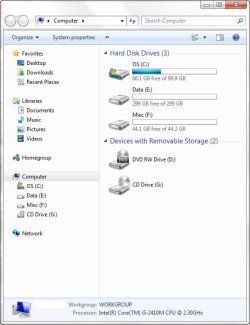
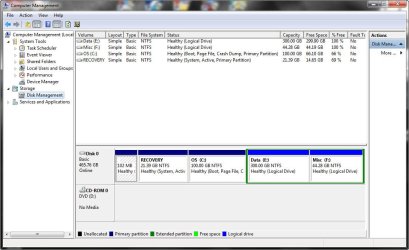
As you can see, I've 5 partitions on my laptop.
Partition#1 = System Reserved (102MB)
Partition#2 = Recovery (21.39GB)
Partition#3 = OS (100GB)
Partition#4 = Data (300GB)
Partition#5 = Misc (44.28GB)

Partition #4 and #5 are being Logical. I've tried to make #4 to primary and the system does not allow me to create more partitions. So, I changed the #4 to Logical. I'm ok with it with 3 primary partitions and the remaining as Logical.

In case I need to perform (Full) restore on the laptop. Are the following steps correct?

1) #1, System Reserved. Say yes to MBR replacement and choose active. Say No for subsequent partitions. [Do I need to execute the restore process before continue to next step?]
2) #3, C: OS.
3) #4, E: Data.
4) #5, F: Misc.

Note: What about partition#2 as this is for Recovery from vendor and it's a "Active" partition

or

1) Restore all the partition at one go.
Eg.
#1, System Reserved. Say yes to MBR replacement and choose active
#3,4,5, mark as "Primary", No to MBR

Questions: In my case, for partition 4 and 5, it's created as "Logical". Do I still make these as "Primary" ?

Sorry for all the questions.

Thanks again.
 

Attachments

  • Screen20110626_Explorer_New.jpg
    Screen20110626_Explorer_New.jpg
    40.4 KB · Views: 20
  • Screen20110626_Partition_New.jpg
    Screen20110626_Partition_New.jpg
    84.6 KB · Views: 43

My Computer My Computer

OS
Win 7 Professional 64
I have a Dell that came set up similar. The 100mb partition is not system reserved, it is what they call an OEM partition and I really have no idea of it's function. The boot files usually found in a system reserved partition are in your case on the recovery partition. There can only be 1 active partition on a disk, and that is where the boot files reside. I back up my data with Microsoft SyncToy and occasionally by simply copy/paste. I don't image my data. That way I have a 1to1 copy of it. The other partitions, I image seperatly and then together. That way I can restore any way I need to. The reserved partition should not change and you should need only 1 good image of it.

There a lot of imaging stratigies and programs to use. Everyone has their own technique and preferred program(s) to use. I use at least 2 and usually 3 programs. Even the best programs can fail occasionally. If you asked 10 people on this forum what program they use and theur backup stratagy, you would get 10 different answers. And probably none of them would be wrong. You have to decide for yourself what program(s) you feel most comfortable with and develope your own stratagy. I would recommend however that you test whichever programs you decide to use. Backups are great, but you only know how good they are until you have to restore. You will find that some work for some people and not for others. If you haven't already, take a look at this tutorial. I hope I didn't confuse you. here are several backup tutorials to give you different stratagies and programs to consider.
 

My Computers My Computers

System One System Two

  • Computer type
    PC/Desktop
    Computer Manufacturer/Model Number
    ALWAYS UNDER CONSTRUCTION
    OS
    Windows 11 Pro
    CPU
    Ryzen 9 5900X
    Motherboard
    Asus X570 Crosshair Viii Hero
    Memory
    32GB G Skill DDR4-3600
    Graphics Card(s)
    EVGA RTX 3080 FTW 3 Ultra
    Sound Card
    On Board/Sennheiser PC37X Headset
    Monitor(s) Displays
    3 X Asus 27"
    Screen Resolution
    2560x1440
    Hard Drives
    2 X 1 TB NVME drives
    PSU
    EVGA 850
    Case
    Phanteks Eclipse P400A
    Cooling
    EVGA 280 AIO
    Keyboard
    Logitech G510s/ Logitech G13
    Mouse
    Logitech G502
    Internet Speed
    24/1
    Antivirus
    ESET/MBAM Pro/SAS Pro
    Browser
    Chrome/ Firefox/ Edge
  • Computer type
    Laptop
    System Manufacturer/Model Number
    Dell 16 Plus
    OS
    Windows 11 Pro
    CPU
    Intel Ultra 9 288V
    Memory
    32 GB LPDDR5X 8533
    Monitor(s) Displays
    16" Mini-LED HDR600 Touch 90 Hz
    Screen Resolution
    2560X1600
    Hard Drives
    1 TB NVME
Hi essenbe,

Thanks for your comments and and some insight. Appreciate it.

I was planning to image the system partitions (in my case, #1, 2 and 3) seperately and for the data I'll do a normal cut/paste to an external drive.

My only concern is that, if I were to restore only 1 partition (the OS, partition#3). Do I only restore just partition#3 OR partition#1,2 and 3 together since my boot files are on the recovery partition (partition#2)

I've not much concern on the strategies or tools to be used. I just wants to understand the relations between all the partitions. I believe it's not as simple as restoring any partitions we like. Unless all the updated on the "OS partition, #3" are independent. Eg. If I install any new applications, all the updated on the registries will not be updated to where the partition has "Active" status or where the boot files reside.
 

My Computer My Computer

OS
Win 7 Professional 64
If I'm wrong, I am sure MJF will correct me. It is my understanding that the boot files on the recovery do not change (or should not) The files and registry are on the C partition. When you start your computer the active boot partition begins the boot. It gets to a certain point and hands the boot process over to the C partition. In that process, the Boot files on the active partition should never change. The only thing that should change is the C partition. This is normal operation and there are exceptions. If you dual boot with another OS, the boot files will change to accomidate the other OS. But other than a situation like that, boot files never change. I operate that way. I just don't have the recovery partition. But, I normally only restore my C partition, unless you have some reason to believe the recovery has been corrupted.
 

My Computers My Computers

System One System Two

  • Computer type
    PC/Desktop
    Computer Manufacturer/Model Number
    ALWAYS UNDER CONSTRUCTION
    OS
    Windows 11 Pro
    CPU
    Ryzen 9 5900X
    Motherboard
    Asus X570 Crosshair Viii Hero
    Memory
    32GB G Skill DDR4-3600
    Graphics Card(s)
    EVGA RTX 3080 FTW 3 Ultra
    Sound Card
    On Board/Sennheiser PC37X Headset
    Monitor(s) Displays
    3 X Asus 27"
    Screen Resolution
    2560x1440
    Hard Drives
    2 X 1 TB NVME drives
    PSU
    EVGA 850
    Case
    Phanteks Eclipse P400A
    Cooling
    EVGA 280 AIO
    Keyboard
    Logitech G510s/ Logitech G13
    Mouse
    Logitech G502
    Internet Speed
    24/1
    Antivirus
    ESET/MBAM Pro/SAS Pro
    Browser
    Chrome/ Firefox/ Edge
  • Computer type
    Laptop
    System Manufacturer/Model Number
    Dell 16 Plus
    OS
    Windows 11 Pro
    CPU
    Intel Ultra 9 288V
    Memory
    32 GB LPDDR5X 8533
    Monitor(s) Displays
    16" Mini-LED HDR600 Touch 90 Hz
    Screen Resolution
    2560X1600
    Hard Drives
    1 TB NVME
My only concern is that, if I were to restore only 1 partition (the OS, partition#3). Do I only restore just partition#3 OR partition#1,2 and 3 together since my boot files are on the recovery partition (partition#2)

I've not much concern on the strategies or tools to be used. I just wants to understand the relations between all the partitions.
Given your machine is a Dell and the Partition structure, the Recovery partition performs the dual roles of the system active (reserved) and Factory recovery.

So similar advice applies, except the recovery (system, active) partition along with the OS partition is required before you can boot.

Normally I would restore and image the OS (#3) more often. Keep some images of #1 and #3. They will be needed if those partitions get corrupted or you need to install a new main HDD.

In terms of relationship between partitions etc. this may help
http://www.sevenforums.com/software/139658-reflect-updates-3.html#post1207608

PS: Just seen essenbe's comments - I agree.
 

My Computer My Computer

Computer type
PC/Desktop
Computer Manufacturer/Model Number
Own build
OS
Windows 7x64 Home Premium SP1
CPU
Intel i7 2600k
Motherboard
ASUS P8Z68 Deluxe
Memory
G.Skill Ripjaws (DDR3-1600) 2x4GB
Graphics Card(s)
Nvidia GeForce GTS 450; Intel HD Graphics 3000(GT2+)
Monitor(s) Displays
Dell Ultrasharp IPS panel U2311H, Samsung SyncMaster P2350
Screen Resolution
1920x1080
Hard Drives
Samsung 850 Pro SSD 256GB, Samsung SSD 840 120GB, Seagates 1TB Barracuda ST31000528AS x2
PSU
Seasonic M12II 520W
Case
Lian Li Lancool PC-K60
Cooling
Case: 1x120mm, 3x140mm CPU: Hyper 212+
Keyboard
Logitech MK520 (wireless)
Mouse
Logitech MK520
Internet Speed
6-7 Mbps
Antivirus
Norton Security Premium, Malwarebytes on 2 (MSE on 3rd PC)
Browser
FireFox
Other Info
Audio: Logitech Z523 2.1
Hi mjf and essenbe,

Thank you so much for the explanations. It's clearer to me now.

Since I've created a full backup (all 5 partitions) on 1 image, I'll do another set of individual images for partition#1, 2 and 3. Subsequently, I'll only backup for Os (#3) often. In case I need to restore, I'll use image OS (#3)

I wish I've another machine to play around :D

Thanks again guys
Boon
 

My Computer My Computer

OS
Win 7 Professional 64
You are more than welcome. Glad you have it sorted out.
 

My Computers My Computers

System One System Two

  • Computer type
    PC/Desktop
    Computer Manufacturer/Model Number
    ALWAYS UNDER CONSTRUCTION
    OS
    Windows 11 Pro
    CPU
    Ryzen 9 5900X
    Motherboard
    Asus X570 Crosshair Viii Hero
    Memory
    32GB G Skill DDR4-3600
    Graphics Card(s)
    EVGA RTX 3080 FTW 3 Ultra
    Sound Card
    On Board/Sennheiser PC37X Headset
    Monitor(s) Displays
    3 X Asus 27"
    Screen Resolution
    2560x1440
    Hard Drives
    2 X 1 TB NVME drives
    PSU
    EVGA 850
    Case
    Phanteks Eclipse P400A
    Cooling
    EVGA 280 AIO
    Keyboard
    Logitech G510s/ Logitech G13
    Mouse
    Logitech G502
    Internet Speed
    24/1
    Antivirus
    ESET/MBAM Pro/SAS Pro
    Browser
    Chrome/ Firefox/ Edge
  • Computer type
    Laptop
    System Manufacturer/Model Number
    Dell 16 Plus
    OS
    Windows 11 Pro
    CPU
    Intel Ultra 9 288V
    Memory
    32 GB LPDDR5X 8533
    Monitor(s) Displays
    16" Mini-LED HDR600 Touch 90 Hz
    Screen Resolution
    2560X1600
    Hard Drives
    1 TB NVME
Back
Top