Right Click Folder Search Option Gone?

Nahtimu

New member
Member
Local time
4:17 AM
Messages
45
Location
Melbourne
Hi all, for various reasons I used the Search option when right-clicking folders in windows XP.
Is there a way to have this option enabled in Windows 7 pleeeeeeeeeeeeeeeeease?
 

My Computer

OS
Windows 7 Professional 64Bit
CPU
Intel® Core i7-930 - 8M Cache, 2.80 GHz, 4.80 GT/s
Motherboard
ASROCK X58 Extreme 3
Memory
6Gb DDR3 1600MHz
Graphics Card(s)
Gigabyte GeForce GTX 470 1280MB - NVIDIA
Sound Card
On Board Realtek HD Audio
Monitor(s) Displays
HP L1950g LCD
Screen Resolution
1280x1024
Hard Drives
2 x SATAII C:500Gb D:1Tb
PSU
750W Antec TruePower
Case
ZALMAN
Cooling
air
Internet Speed
6 Mb/s
Last edited by a moderator:

My Computer

Computer Manufacturer/Model Number
DELL XPS Studio 435T
OS
Vista 64 Ultimate, Windows 7 64 Ultimate, Ubuntu 9.10
CPU
i7 975 3.3 GHz Extreme (Factory OC'd to 3.6 GHz)
Motherboard
DELL provided
Memory
18 Gb Tri-Channel 1066
Graphics Card(s)
ATI 5970 2048 Mb
Sound Card
X-Fi Extreme Gamer
Monitor(s) Displays
Vizio 37" HD-TV
Screen Resolution
1920 x 1080
Hard Drives
1.5 Tb HDD
1.5 Tb HDD
2.0 Tb Network Drive
512 Gb Crucial SSD
PSU
DELL Provided 475 watts
Case
DELL
Cooling
3 fans
Keyboard
Logitech Performance K350 Wireless
Mouse
Logitech Performance MX Wireless
Internet Speed
3 Mb up 750 Kb down
Other Info
Bamboo Fun Tablet, Belkin N+ Wireless router, Pioneer Dolby System Wireless Headphones, Bose 5.1 Dolby Surround Sound System, LifeCam VX 3000 Webcam, Blu-Ray/Hi Def DVD +RW combo and Blu-ray +RW,l 15 in 1 media card reader, Logitech Rumblepad 2, Hauppauge 2250 DTV Tuner with MS Media Center Remote

Laptop:Alienware M17x, Q9100 CPU, 8Gb RAM, 1920x1200 WUXGA LCD driven by 4870's in CrossFireX, Bl
Hi all, for various reasons I used the Search option when right-clicking folders in windows XP.
Is there a way to have this option enabled in Windows 7 pleeeeeeeeeeeeeeeeease?

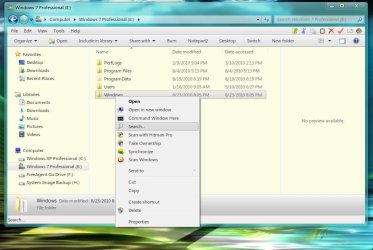
I agree with the other users about using the Search in the Toolbar but, if you want to add the Search... back into the context menu, open RegEdit and go to
Code:
HKEY_CLASSES_ROOT\Directory\shell\find
First, right click that key and select Export and save it!

Now, In the right hand pane, rename LegacyDisable to LegacyDisableD

Search... will now be back in the context menu. I don't know why anyone would want this because it just adds one more step to the search process

If you really want to go all out and add the search icon to the context menu, in the registry with find highlighted, right click it and select New > String Value and type in Icon. In the right hand pane double click Icon String Value you just added and add
Code:
%SystemRoot%\System32\imageres.dll,-177

Untitled.jpg
 

My Computer

Computer Manufacturer/Model Number
Averatec 6130HS-20
OS
Windows 7 Professional 32-bit (6.1, Build 7600)
CPU
Intel(R) Pentium(R) 4 3.00 GHz HT
Memory
2.0 GB
Graphics Card(s)
ATI Mobility Radeon 9600 64MB
Sound Card
Realtek AC'97 Audio
Screen Resolution
1280 x 800
Hard Drives
Seagate 96023A 60GB 7200RPM -
Seagate FreeAgentDesktop 250GB
Cooling
20 Inch Box Fan
Mouse
Targus PAWM10 Wireless Optical Laptop Mouse
The reason it's nice to have is you can right click on a specific folder to search, rather than the current displayed folders and files.

BTW: That's a great find Greg, thanks.
 

My Computer

Computer type
PC/Desktop
Computer Manufacturer/Model Number
Lenovo IdeaCenter 450
OS
Windows 10 Pro X64
CPU
Intel Quad Core i7-4770 @ 3.4Ghz
Memory
16.0GB PC3-12800 DDR3 SDRAM 1600 MHz
Graphics Card(s)
Intel Integrated HD Graphics
Sound Card
Realtek HD Audio
Monitor(s) Displays
HP 22" LCD
Screen Resolution
1680 x 1050
Hard Drives
250GB Samsung EVO SATA-3 SSD
2TB Seagate ST2000DM001 SATA-2
1.5TB Seagate ST3150041AS SATA
Keyboard
Dell USB
Mouse
Lenovo USB
Internet Speed
Cable via Road Runner 3MB Upload, 30MB Download
Antivirus
Windows Defender, MBAM Pro, MBAE
Browser
Seamonkey
Other Info
UEFI/GPT
PLDS DVD-RW DH16AERSH
  • That's perfect Greg... exactly what I wanted... Thank you :)
  • Fishnbanjo, you may have misunderstood my query thus your innappropriate response. Thanks anyway.
  • Ztruker, precisely what you said :) , there are valid reasons why I need this to work that way...
BTW, I just want to comment on how great this forum is, real useful ;)
 

My Computer

OS
Windows 7 Professional 64Bit
CPU
Intel® Core i7-930 - 8M Cache, 2.80 GHz, 4.80 GT/s
Motherboard
ASROCK X58 Extreme 3
Memory
6Gb DDR3 1600MHz
Graphics Card(s)
Gigabyte GeForce GTX 470 1280MB - NVIDIA
Sound Card
On Board Realtek HD Audio
Monitor(s) Displays
HP L1950g LCD
Screen Resolution
1280x1024
Hard Drives
2 x SATAII C:500Gb D:1Tb
PSU
750W Antec TruePower
Case
ZALMAN
Cooling
air
Internet Speed
6 Mb/s
The reason it's nice to have is you can right click on a specific folder to search, rather than the current displayed folders and files.

BTW: That's a great find Greg, thanks.

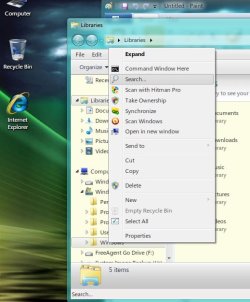
If you use the left navigation pane in Explorer, you can get it in that context menu as well by doing the same for

Code:
HKEY_CLASSES_ROOT\Drive\shell\find

it will also add it to Computer Drives when Computer Desktop icon is clicked.

Untitled.jpg
 

My Computer

Computer Manufacturer/Model Number
Averatec 6130HS-20
OS
Windows 7 Professional 32-bit (6.1, Build 7600)
CPU
Intel(R) Pentium(R) 4 3.00 GHz HT
Memory
2.0 GB
Graphics Card(s)
ATI Mobility Radeon 9600 64MB
Sound Card
Realtek AC'97 Audio
Screen Resolution
1280 x 800
Hard Drives
Seagate 96023A 60GB 7200RPM -
Seagate FreeAgentDesktop 250GB
Cooling
20 Inch Box Fan
Mouse
Targus PAWM10 Wireless Optical Laptop Mouse
Just keeps getting better!!! Greg you are the master! Thanks for adding more 'useful' info... actually that's what I really wanted 'cos I usually right click folders within the left navigation pane, so definatley I will do as you illustrated... :D
 

My Computer

OS
Windows 7 Professional 64Bit
CPU
Intel® Core i7-930 - 8M Cache, 2.80 GHz, 4.80 GT/s
Motherboard
ASROCK X58 Extreme 3
Memory
6Gb DDR3 1600MHz
Graphics Card(s)
Gigabyte GeForce GTX 470 1280MB - NVIDIA
Sound Card
On Board Realtek HD Audio
Monitor(s) Displays
HP L1950g LCD
Screen Resolution
1280x1024
Hard Drives
2 x SATAII C:500Gb D:1Tb
PSU
750W Antec TruePower
Case
ZALMAN
Cooling
air
Internet Speed
6 Mb/s
...Thanks for adding more 'useful' info... actually that's what I really wanted 'cos I usually right click folders within the left navigation pane, so definatley I will do as you illustrated... :D
You're welcome my friend!
 

My Computer

Computer Manufacturer/Model Number
Averatec 6130HS-20
OS
Windows 7 Professional 32-bit (6.1, Build 7600)
CPU
Intel(R) Pentium(R) 4 3.00 GHz HT
Memory
2.0 GB
Graphics Card(s)
ATI Mobility Radeon 9600 64MB
Sound Card
Realtek AC'97 Audio
Screen Resolution
1280 x 800
Hard Drives
Seagate 96023A 60GB 7200RPM -
Seagate FreeAgentDesktop 250GB
Cooling
20 Inch Box Fan
Mouse
Targus PAWM10 Wireless Optical Laptop Mouse
Thanks,.,.just as you described, the good old right-click search option is back and with the mag-glass icon; nice touch Greg ;)
 

My Computer

OS
Windows 7 Professional 64Bit
CPU
Intel® Core i7-930 - 8M Cache, 2.80 GHz, 4.80 GT/s
Motherboard
ASROCK X58 Extreme 3
Memory
6Gb DDR3 1600MHz
Graphics Card(s)
Gigabyte GeForce GTX 470 1280MB - NVIDIA
Sound Card
On Board Realtek HD Audio
Monitor(s) Displays
HP L1950g LCD
Screen Resolution
1280x1024
Hard Drives
2 x SATAII C:500Gb D:1Tb
PSU
750W Antec TruePower
Case
ZALMAN
Cooling
air
Internet Speed
6 Mb/s
Hi all, for various reasons I used the Search option when right-clicking folders in windows XP.
Is there a way to have this option enabled in Windows 7 pleeeeeeeeeeeeeeeeease?

I agree with the other users about using the Search in the Toolbar but, if you want to add the Search... back into the context menu, open RegEdit and go to
Code:
HKEY_CLASSES_ROOT\Directory\shell\find
First, right click that key and select Export and save it!

Now, In the right hand pane, rename LegacyDisable to LegacyDisableD

Search... will now be back in the context menu. I don't know why anyone would want this because it just adds one more step to the search process

If you really want to go all out and add the search icon to the context menu, in the registry with find highlighted, right click it and select New > String Value and type in Icon. In the right hand pane double click Icon String Value you just added and add
Code:
%SystemRoot%\System32\imageres.dll,-177
View attachment 93076

thank you, I just did this on vista. the Icon won't show but I'll try the win7 rig later.
 

My Computer

Computer Manufacturer/Model Number
Gateway/NV7923u & NV79C52u Laptops
OS
windows 7 professional & ultimate 64bit laptops
CPU
2.27 boost to 2.53 & 2.53 boost to 2.80
Motherboard
Mobile Intel® HM55 Express Chipset ???
Memory
4GB
Graphics Card(s)
Intel® Graphics Media Accelerator HD
Sound Card
realtek High-definition audio support
Monitor(s) Displays
17.3 " HD 1600 x 900
Hard Drives
hatachi Travelstar 5400 500GB & west digital 500GB
Internet Speed
35MB fios
Back
Top