Run Command - Enable or Disable

How to Enable or Disable "Run" Command Dialog Box in Windows


   Information
This wiil show you how to enable or disable the Run command dialog box for all or specific users in Vista, Windows 7, or Windows 8.


When Run is disabled:
  • Users will not be able to open the Run command box.
  • The Customize Start Menu option to add or remove Run from the Start Menu is removed in Vista or Windows 7.
  • The New Task (Run) command is removed from Task Manager.
  • Users will be blocked from entering the following into the Internet Explorer Address Bar:
    • A UNC path: \\<server>\<share>
    • Accessing local drives: e.g., C:
    • Accessing local folders: e.g., \temp>
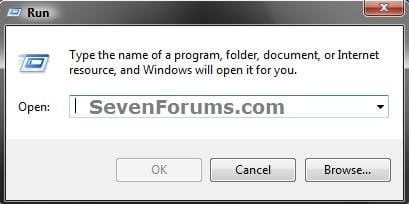
EXAMPLE: Run command (Windows + R)
Run.jpg
EXAMPLE: Message a User will See when Run is Disabled
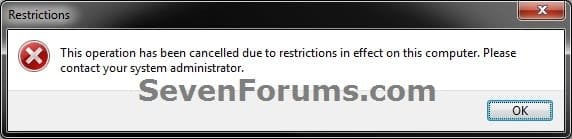
Error.jpg


OPTION ONE

To Enable or Disable "Run" using a REG File Download


1. To Enable Run Command Dialog Box for Only Current User
A) Click/tap on the Download button below to download the file below, and go to step 3 below.
Enable_Run_Command.reg

Download


2. To Disable Run Command Dialog Box for Only Current User
A) Click/tap on the Download button below to download the file below, and go to step 3 below.
Disable_Run Command.reg

Download


3. Save the .reg file to the desktop.

4. Double click/tap on the downloaded .reg file to merge it.

5. When prompted, click/tap on Run, Yes (UAC-Windows 7/8) or Continue (UAC-Vista), Yes, and OK.

6. When done, you can delete the downloaded .reg file if you like.

7. Log off and log on, or restart the computer to apply.


OPTION TWO

To Enable or Disable "Run" using a BAT File Download


1. To Enable Run Command Dialog Box for Only Current User
A) Click on the Download button below to download the file below, and go to step 3 below.
Enable_Run_Command.bat

Download


2. To Disable Run Command Dialog Box for Only Current User
A) Click on the Download button below to download the file below, and go to step 3 below.
Disable_Run Command.bat

Download


3. Save the .bat file to the desktop.

4. Right click or press and hold on the downloaded .bat file, and click/tap on Run as administrator.
5. If prompted, click on Run.
NOTE: If you like, you can stop getting the Run prompt by unblocking the downloaded .bat file.

6. Log off and log on, or restart the computer to apply.

7. When finshed, you can delete the downloaded .bat file if you like.


OPTION THREE

To Enable or Disable "Run" using Local Group Policy Editor


1. Open the all users, specific users or groups, or all users except administrators Local Group Policy Editor for how you want this policy applied.

2. In the left pane, click on to expand User Configuration, Administrative Templates, and Start Menu and Taskbar. (See screenshot below)
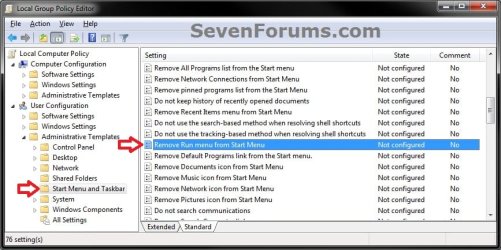
GPEDIT-1.jpg
3. In the right pane, right click on Remove Run from Start Menu and click on Edit. (See screenshot above)

4. To Enable Run Command Dialog Box
A) Select (dot) either Not Configured or Disabled, and go to step 6 below. (See screenshot below step 6)
5. To Disable Run Command Dialog Box
A) Select (dot) Enabled, and go to step 6 below. (See screenshot below step 6)
6. Click on OK. (See screenshot below)
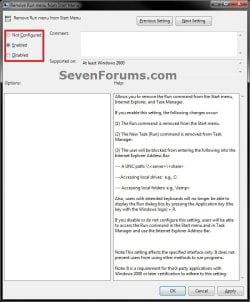
GPEDIT-2.jpg
7. Close the Local Group Policy Editor window.
That's it,
Shawn


Attachments

Last edited:
Why any reg edit not works for other users account?
Like i am modifying some registries but they are only showing changes in that user account who done the edit,other users have no effect.
Take example of this above registry trick only, it's showing effect only on single account user and rest users have no effect :(
Any help so that all users have registery effect??
 

My Computer

Computer type
PC/Desktop
Computer Manufacturer/Model Number
custom build
OS
Windows 7 Ultimate x64
CPU
Intel i7 4790k
Memory
8
Hello Adonix, :)

It all depends on the registry edit, and if you are an administrator.

The .reg files in this tutorial do affect all users on the computer, but you must merge them while logged in as an administrator, and restart the computer afterwards to fully apply.

Are you trying to enable or disable Run?

If enable, then perhaps it could be some other issue at hand.
 

My Computer

Computer type
PC/Desktop
Computer Manufacturer/Model Number
Self built custom
OS
64-bit Windows 11 Pro for Workstations
CPU
Intel i7-8700K OC'd to 5 GHz
Motherboard
ASUS ROG Maximus XI Formula Z390
Memory
64 GB (4x16GB) G.SKILL TridentZ RGB DDR4 3600 MHz
Graphics Card(s)
ASUS ROG-STRIX-GTX1080TI-O11G-GAMING
Sound Card
Integrated
Monitor(s) Displays
2 x Samsung Odyssey G7 27"
Screen Resolution
2560x1440
Hard Drives
1TB Samsung 990 PRO M.2,
4TB Samsung 990 PRO PRO M.2,
TerraMaster F8 SSD Plus NAS
PSU
Seasonic Prime Titanium 850W
Case
Thermaltake Core P3
Cooling
Corsair Hydro H115i
Keyboard
Logitech wireless K800
Mouse
Logitech MX Master 4
Internet Speed
2 Gb/s Download and 100 Mb/s Upload
Antivirus
Malwarebyte Anti-Malware Premium
Browser
Google Chrome
Other Info
Logitech Z625 speaker system,
Logitech BRIO 4K Pro webcam,
HP Color LaserJet Pro MFP M477fdn,
APC SMART-UPS RT 1000 XL - SURT1000XLI,
Galaxy S23 Plus phone
Yes i am merging as administrator but effect not occurs in other user accounts, i restarts explorer.exe for others so that registry effects can be seen but it not works!
Do each time i have to reboot pc to make effect of registry on all users?
Is there a way so that reg edits can be seen in all users accounts without pc restart?
Help please...
 

My Computer

Computer type
PC/Desktop
Computer Manufacturer/Model Number
custom build
OS
Windows 7 Ultimate x64
CPU
Intel i7 4790k
Memory
8
You would only need to log off and log on or restart the computer to apply the one time. Afterwards, it should be applied to all users.

Are you trying to enable or disable Run?
 

My Computer

Computer type
PC/Desktop
Computer Manufacturer/Model Number
Self built custom
OS
64-bit Windows 11 Pro for Workstations
CPU
Intel i7-8700K OC'd to 5 GHz
Motherboard
ASUS ROG Maximus XI Formula Z390
Memory
64 GB (4x16GB) G.SKILL TridentZ RGB DDR4 3600 MHz
Graphics Card(s)
ASUS ROG-STRIX-GTX1080TI-O11G-GAMING
Sound Card
Integrated
Monitor(s) Displays
2 x Samsung Odyssey G7 27"
Screen Resolution
2560x1440
Hard Drives
1TB Samsung 990 PRO M.2,
4TB Samsung 990 PRO PRO M.2,
TerraMaster F8 SSD Plus NAS
PSU
Seasonic Prime Titanium 850W
Case
Thermaltake Core P3
Cooling
Corsair Hydro H115i
Keyboard
Logitech wireless K800
Mouse
Logitech MX Master 4
Internet Speed
2 Gb/s Download and 100 Mb/s Upload
Antivirus
Malwarebyte Anti-Malware Premium
Browser
Google Chrome
Other Info
Logitech Z625 speaker system,
Logitech BRIO 4K Pro webcam,
HP Color LaserJet Pro MFP M477fdn,
APC SMART-UPS RT 1000 XL - SURT1000XLI,
Galaxy S23 Plus phone
You would only need to log off and log on or restart the computer to apply the one time. Afterwards, it should be applied to all users.

Are you trying to enable or disable Run?

I don't see how it could apply to all users. It only writes to HKCU

Enable_Run_Command.bat:
Code:
@ECHO Off
REG delete HKEY_CURRENT_USER\Software\Microsoft\Windows\CurrentVersion\Policies\Explorer /v NoRun /f


Disable_Run_Command.bat:
Code:
@ECHO OFF
REG add HKEY_CURRENT_USER\Software\Microsoft\Windows\CurrentVersion\Policies\Explorer /v NoRun /t REG_DWORD /d 1 /f
In my testing, it only impacts the user that was logged on when the batch file was run.

You could run it for each current user and then change some area of the default user reg so that future users are impacted.
 

My Computer

Computer type
Laptop
Computer Manufacturer/Model Number
Employer provided Dell Latitude
OS
W7 Pro SP1 64bit
CPU
i7
Memory
8GB
Graphics Card(s)
Intel HD Graphics
Hard Drives
crappy SSD
Antivirus
Employer mandated Symantec Endpoint Protection
Browser
Pale Moon 64bit, IE11 64bit & Chrome 64bit
Hey UsernameIssues, :)

HKCU and HKLM doesn't matter in this case since it's a group policy in the Policies key. Group policies are applied to all users by default.

HKCU = "User Configuration" in Local Group Policy Editor

HKLM = "Local Computer Policy" in Local Group Policy Editor

Does setting it in Group Policy instead work for you?
 

My Computer

Computer type
PC/Desktop
Computer Manufacturer/Model Number
Self built custom
OS
64-bit Windows 11 Pro for Workstations
CPU
Intel i7-8700K OC'd to 5 GHz
Motherboard
ASUS ROG Maximus XI Formula Z390
Memory
64 GB (4x16GB) G.SKILL TridentZ RGB DDR4 3600 MHz
Graphics Card(s)
ASUS ROG-STRIX-GTX1080TI-O11G-GAMING
Sound Card
Integrated
Monitor(s) Displays
2 x Samsung Odyssey G7 27"
Screen Resolution
2560x1440
Hard Drives
1TB Samsung 990 PRO M.2,
4TB Samsung 990 PRO PRO M.2,
TerraMaster F8 SSD Plus NAS
PSU
Seasonic Prime Titanium 850W
Case
Thermaltake Core P3
Cooling
Corsair Hydro H115i
Keyboard
Logitech wireless K800
Mouse
Logitech MX Master 4
Internet Speed
2 Gb/s Download and 100 Mb/s Upload
Antivirus
Malwarebyte Anti-Malware Premium
Browser
Google Chrome
Other Info
Logitech Z625 speaker system,
Logitech BRIO 4K Pro webcam,
HP Color LaserJet Pro MFP M477fdn,
APC SMART-UPS RT 1000 XL - SURT1000XLI,
Galaxy S23 Plus phone
Isn't the registry hive for each user kept in that user's profile folder?

There should be no way for a standard user to read (or be impacted by) the reg hive from another user.


Yes, using the Local Group Policy Editor works for all users - because:

"User Configuration" in Local Group Policy Editor writes to both the HKCU
and to \Windows\System32\GroupPolicy\User\Registry.pol
That file is applied to each user at logon if the OS is pro or above.

"Computer Configuration" in Local Group Policy Editor writes to both the HKLM
and to \Windows\System32\GroupPolicy\Machine\Registry.pol
 

My Computer

Computer type
Laptop
Computer Manufacturer/Model Number
Employer provided Dell Latitude
OS
W7 Pro SP1 64bit
CPU
i7
Memory
8GB
Graphics Card(s)
Intel HD Graphics
Hard Drives
crappy SSD
Antivirus
Employer mandated Symantec Endpoint Protection
Browser
Pale Moon 64bit, IE11 64bit & Chrome 64bit
The Policies key in HKCU and HKLM gets applied to all users. If manually setting in registry, it usually requires restarting to apply though, while setting it in Group Policy applies it instantly.

I'm not sure why this one is not getting applied to all users though.
 

My Computer

Computer type
PC/Desktop
Computer Manufacturer/Model Number
Self built custom
OS
64-bit Windows 11 Pro for Workstations
CPU
Intel i7-8700K OC'd to 5 GHz
Motherboard
ASUS ROG Maximus XI Formula Z390
Memory
64 GB (4x16GB) G.SKILL TridentZ RGB DDR4 3600 MHz
Graphics Card(s)
ASUS ROG-STRIX-GTX1080TI-O11G-GAMING
Sound Card
Integrated
Monitor(s) Displays
2 x Samsung Odyssey G7 27"
Screen Resolution
2560x1440
Hard Drives
1TB Samsung 990 PRO M.2,
4TB Samsung 990 PRO PRO M.2,
TerraMaster F8 SSD Plus NAS
PSU
Seasonic Prime Titanium 850W
Case
Thermaltake Core P3
Cooling
Corsair Hydro H115i
Keyboard
Logitech wireless K800
Mouse
Logitech MX Master 4
Internet Speed
2 Gb/s Download and 100 Mb/s Upload
Antivirus
Malwarebyte Anti-Malware Premium
Browser
Google Chrome
Other Info
Logitech Z625 speaker system,
Logitech BRIO 4K Pro webcam,
HP Color LaserJet Pro MFP M477fdn,
APC SMART-UPS RT 1000 XL - SURT1000XLI,
Galaxy S23 Plus phone
The Policies key in HKCU and HKLM gets applied to all users. If manually setting in registry, it usually requires restarting to apply though, while setting it in Group Policy applies it instantly.

I'm not sure why this one is not getting applied to all users though.

This somewhat old technet document seems to say otherwise:

The Policies subkeys in HKCU store policy-related entries that are configured separately for each user. Group Policy adds these entries when you enable (and, for some policies, when you disable) a policy in the User Configuration folder in Group Policy.

The Policies subkeys in HKLM store policy-related entries that apply to all users of the computer. The system adds these entries when you enable (and, for some policies, when you disable) a policy in the Computer Configuration folder in Group Policy.

Many policy-related entries can appear in both HKCU and HKLM. Typically, the entries in HKLM take precedence over the entries in HKCU when both are configured.

The SOFTWARE\Microsoft\Windows\CurrentVersion\Policies subkey stores policy-related entries for Windows 2000 and for Windows NT 4.0 and earlier. The SOFTWARE\Policies subkey is new in Windows 2000. Please note that different versions of Windows support different policies.

Let me know if you find a reg file policy that only writes to HKCU and yet Windows somehow applies it to all users. I would like to study it to see what mechanism is fanning it out. Thanks for your time.
 

My Computer

Computer type
Laptop
Computer Manufacturer/Model Number
Employer provided Dell Latitude
OS
W7 Pro SP1 64bit
CPU
i7
Memory
8GB
Graphics Card(s)
Intel HD Graphics
Hard Drives
crappy SSD
Antivirus
Employer mandated Symantec Endpoint Protection
Browser
Pale Moon 64bit, IE11 64bit & Chrome 64bit
Just about all the .reg files I have in tutorials for group policies are for the HKCU location and get applied to all users. I'm not sure why this one doesn't get applied to all users now.

Here's another one to look at and play with:

Taskbar Toolbars - Enable or Disable
 

My Computer

Computer type
PC/Desktop
Computer Manufacturer/Model Number
Self built custom
OS
64-bit Windows 11 Pro for Workstations
CPU
Intel i7-8700K OC'd to 5 GHz
Motherboard
ASUS ROG Maximus XI Formula Z390
Memory
64 GB (4x16GB) G.SKILL TridentZ RGB DDR4 3600 MHz
Graphics Card(s)
ASUS ROG-STRIX-GTX1080TI-O11G-GAMING
Sound Card
Integrated
Monitor(s) Displays
2 x Samsung Odyssey G7 27"
Screen Resolution
2560x1440
Hard Drives
1TB Samsung 990 PRO M.2,
4TB Samsung 990 PRO PRO M.2,
TerraMaster F8 SSD Plus NAS
PSU
Seasonic Prime Titanium 850W
Case
Thermaltake Core P3
Cooling
Corsair Hydro H115i
Keyboard
Logitech wireless K800
Mouse
Logitech MX Master 4
Internet Speed
2 Gb/s Download and 100 Mb/s Upload
Antivirus
Malwarebyte Anti-Malware Premium
Browser
Google Chrome
Other Info
Logitech Z625 speaker system,
Logitech BRIO 4K Pro webcam,
HP Color LaserJet Pro MFP M477fdn,
APC SMART-UPS RT 1000 XL - SURT1000XLI,
Galaxy S23 Plus phone
Just about all the .reg files I have in tutorials for group policies are for the HKCU location and get applied to all users. I'm not sure why this one doesn't get applied to all users now.

Here's another one to look at and play with:

Taskbar Toolbars - Enable or Disable

Nope - that one fails to be applied to all users too.

I have tested with my base VM* and with my up to date VM**.

*W7pro64bit SP1 - no other updates
no other software, except VirtualBox drivers

**W7pro64bit SP1 - all updates - including all optional updates, except W10 offer
no other software, except VirtualBox drivers


I have tested several variations of these steps:

reboot VM
log on to user:admin account
create user2:admin account
reboot VM - just for fun

log on as user2:admin
let the new profile be built
wait a minute or two for all delayed services to do their thing

reboot VM again - just for fun - nothing was done between reboots
log on as user2:admin again
wait a minute or two for all delayed services to do their thing

merge the reg file named Disable_Taskbar_Toolbars.reg
accept the UAC and other prompts
the process claims to be successful

reboot VM
log on as user2:admin again
the toolbar option is gone from various places - as desired

reboot VM
log on as user:admin
wait a minute or two for all delayed services to do their thing
the toolbar option is present where it should be for user:admin

switch user to user2:admin
the toolbar option is still gone


One of the many variations was to:
reboot only once - after merging the reg file...
...and then using (log off/log on)
The results were the same.

Rebooting a lot was meant to make sure that other profile were not locked.


I know of no mechanism that will...
...inventory every single user account
(there could be hundreds of accounts)
...gather all of the HKCU policy settings
...merge those settings with all other users of a given computer.

As far as I know, each user's HKCU info is kept in this file:
C:\Users\username\NTUSER.DAT

During the testing above, there was a user3:admin account. It was logged on to once to create the profile folder and then the computer was restarted.

The user:admin account was used to take note of the date/time on the NTUSER.DAT file for user3:admin and then the computer was restarted again.

After completing all of the steps mentioned above, the user:admin account was used to verify that the date/time stamp on the NTUSER.DAT file for user3:admin had not changed.

I never did log back on to user3:admin to check the toolbar tab availability.

That tab was only gone from one user profile - as expected :-)
 

My Computer

Computer type
Laptop
Computer Manufacturer/Model Number
Employer provided Dell Latitude
OS
W7 Pro SP1 64bit
CPU
i7
Memory
8GB
Graphics Card(s)
Intel HD Graphics
Hard Drives
crappy SSD
Antivirus
Employer mandated Symantec Endpoint Protection
Browser
Pale Moon 64bit, IE11 64bit & Chrome 64bit
I'll have to do some more testing as well then.

I know that it did work the way I described before. :huh:
 

My Computer

Computer type
PC/Desktop
Computer Manufacturer/Model Number
Self built custom
OS
64-bit Windows 11 Pro for Workstations
CPU
Intel i7-8700K OC'd to 5 GHz
Motherboard
ASUS ROG Maximus XI Formula Z390
Memory
64 GB (4x16GB) G.SKILL TridentZ RGB DDR4 3600 MHz
Graphics Card(s)
ASUS ROG-STRIX-GTX1080TI-O11G-GAMING
Sound Card
Integrated
Monitor(s) Displays
2 x Samsung Odyssey G7 27"
Screen Resolution
2560x1440
Hard Drives
1TB Samsung 990 PRO M.2,
4TB Samsung 990 PRO PRO M.2,
TerraMaster F8 SSD Plus NAS
PSU
Seasonic Prime Titanium 850W
Case
Thermaltake Core P3
Cooling
Corsair Hydro H115i
Keyboard
Logitech wireless K800
Mouse
Logitech MX Master 4
Internet Speed
2 Gb/s Download and 100 Mb/s Upload
Antivirus
Malwarebyte Anti-Malware Premium
Browser
Google Chrome
Other Info
Logitech Z625 speaker system,
Logitech BRIO 4K Pro webcam,
HP Color LaserJet Pro MFP M477fdn,
APC SMART-UPS RT 1000 XL - SURT1000XLI,
Galaxy S23 Plus phone
Yep, you're right. Current User only. I'm not sure how I misunderstood that one. LOL
 

My Computer

Computer type
PC/Desktop
Computer Manufacturer/Model Number
Self built custom
OS
64-bit Windows 11 Pro for Workstations
CPU
Intel i7-8700K OC'd to 5 GHz
Motherboard
ASUS ROG Maximus XI Formula Z390
Memory
64 GB (4x16GB) G.SKILL TridentZ RGB DDR4 3600 MHz
Graphics Card(s)
ASUS ROG-STRIX-GTX1080TI-O11G-GAMING
Sound Card
Integrated
Monitor(s) Displays
2 x Samsung Odyssey G7 27"
Screen Resolution
2560x1440
Hard Drives
1TB Samsung 990 PRO M.2,
4TB Samsung 990 PRO PRO M.2,
TerraMaster F8 SSD Plus NAS
PSU
Seasonic Prime Titanium 850W
Case
Thermaltake Core P3
Cooling
Corsair Hydro H115i
Keyboard
Logitech wireless K800
Mouse
Logitech MX Master 4
Internet Speed
2 Gb/s Download and 100 Mb/s Upload
Antivirus
Malwarebyte Anti-Malware Premium
Browser
Google Chrome
Other Info
Logitech Z625 speaker system,
Logitech BRIO 4K Pro webcam,
HP Color LaserJet Pro MFP M477fdn,
APC SMART-UPS RT 1000 XL - SURT1000XLI,
Galaxy S23 Plus phone
Well any final outcome that why HKEY_CURRENT_USER reg edits not applies to all users ?
reg edits only apply to the person who runs the reg files !
Do we have to edit CURRENT_USER reg thing so that reg edits apply to all ??
I don't know why HKEY_CURRENT_USER reg edits does not applies to all users !
If i edit gpedit.msc, then it applies to all users,..but when i directly modify regedit then no effect applies to other users >.<
 

My Computer

Computer type
PC/Desktop
Computer Manufacturer/Model Number
custom build
OS
Windows 7 Ultimate x64
CPU
Intel i7 4790k
Memory
8
I tried to explain in an earlier post. Here it is again - using other words:

If you use gpedit to make this change, it writes the change to the local user's registry hive.

But, gpedit also write the change to this file:
\Windows\System32\GroupPolicy\User\Registry.pol
That file is applied to each user at logon if the OS is pro or above.


You should be able to write a script that writes the change to each user and changes the default user hive so that new users already have the change. If you cannot write such a script, then maybe someone can help you. Or maybe someone has a better way.
 

My Computer

Computer type
Laptop
Computer Manufacturer/Model Number
Employer provided Dell Latitude
OS
W7 Pro SP1 64bit
CPU
i7
Memory
8GB
Graphics Card(s)
Intel HD Graphics
Hard Drives
crappy SSD
Antivirus
Employer mandated Symantec Endpoint Protection
Browser
Pale Moon 64bit, IE11 64bit & Chrome 64bit
Back
Top