Samsung NP300E5A not restoring to factory reset!

What I did is went to diskpart and assigned a letter to recovery partition. Then I installed Samsung Recovery Solution 5 and removed the letter. But F4 still wouldn't work, and Samsung Recovery Solution when ran in windows, displays the message "Recovery area of the computer not found"! I apologize, I posted this message after I did everything, but before I tried if it works! I eventually did the factory restore by making recovery partition active and booting from it, but F4 still doesn't work, and Recovery Solution still doesn't see the recovery partition!

I have a windows 7 installation DVD, and I want to do a clean reinstall, but I would like to keep my recovery partition and to have F4 working, because Samsung Recovery Solution offer such an option as just installing drivers and utilities from recovery partition without doing the factory restore!

Can you see the reason why Recovery Solution doesn't see my recovery partition, and F4 doesn't work, from the screenshot of Disk mgmt. utility I sent earlier? Please help me!
 

My Computer My Computer

At a glance

Windows 7
Computer type
Laptop
OS
Windows 7
I understand that while you want to do a Clean Reinstall, you want to relink your Samsung Recovery partition to its hotkey in order to boot it to reinstall certain softwares stored there. Are these softwares not listed on the Samsung Support Downloads webpage for your model PC as with most brands where users do a Clean Reinstall - Factory OEM Windows 7, and which may have newer versions like drivers posted?

There have been cases in the past here where Samsung Recovery partition held the only viable copy of needed OEM software that the user needed and wanted reinstalled, even though most of this OEM software is duplicative of better features in Win7.

If this is the position you find yourself in, then you can preserve Recovery during reinstsll to C, then try to run Recovery off a Dual Boot menu you set up temporarily for this purpose to Boot Recovery Partition using EasyBCD. I would try this first.

If this somehow doesn't work for your purposes and you need to restore the F4 key, then the person here who can show you how to do that is SIW2. Ask him to look at this thread so he can help you here so that others may benefit, if you choose to do this.
 
Last edited:
Вы сделали хорошо до сих пор

Some of those machines don't have anything on the recov partition, the image is created the first time the machine is started - something along those lines.

Seems your recov partition does have stuff on it. Looks like be some kind of mbr hook in for the F key

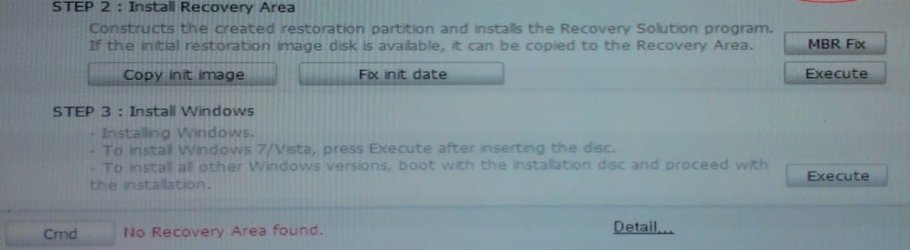
You might be able to do what is outlined here: Note the bit where it says "mbr fix"

mbrfix.jpg


http://comps-tech-solution.blogspot.in/2013/09/create-samsung-recovery-partition.html


I wouldn't. The so called "recovery solutions" from samung and sony are bloody awful. They manage to be complicated and limited at the same time. IMO they are downright hostile to the end user. I have heard the Lenovo one is sensible, but that is an exception.

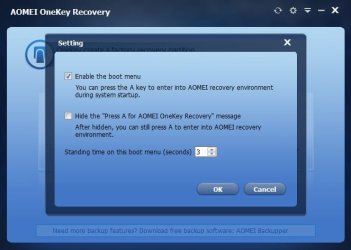
Average users can be saved by using this very nice simple solution provided free by the lovely folk at AOMEI. This is how it should be done:

http://www.backup-utility.com/onekey-recovery.html

aok-v1 menu.jpg
 
Last edited:

My Computers My Computers

  • At a glance

    7 X64i5 84002x8gb 3200mhz
    Computer type
    PC/Desktop
    OS
    7 X64
    CPU
    i5 8400
    Motherboard
    gigabyte b365m ds3h
    Memory
    2x8gb 3200mhz
    Hard Drives
    various
    PSU
    pure power 11 400w cm
    Case
    Coolermaster
    Cooling
    cryorig m9i
  • At a glance

    7x64g54008gb ddr4 2400
    Computer type
    PC/Desktop
    OS
    7x64
    CPU
    g5400
    Motherboard
    ga b365m ds3h
    Memory
    8gb ddr4 2400
    PSU
    xfx pro 450w
I did an MBR fix, and now F4 works! This is what I did:

1. I went to diskpart utility via command prompt and made recovery partition active (as described here: http://www.sevenforums.com/tutorials/71432-partition-mark-active.html).
2. I booted from it to Samsung Recovery Solution on the recovery partition and pressed ctrl+alt+F10 to start management mode. The password is either secclx or secos.
3. Then I went to Tools tab, and clicked Admin Tool USB to create 'Samsung Recovery Solution Admin Tool' a bootable USB stick (you need a USB stick, it won't burn a CD).
4. I went back to Main tab, and launched diskpart via command prompt to make my system partition active again.
5. Booted from the USB stick (making USB-HDD primary boot device) to Samsung Recovery Solution Admin Tool.
6. Hit MBR Fix.
screenshots are here: Create Samsung Recovery Partition | Technical Solution

I would like to burn a Samsung Recovery Solution Admin Tool CD! Can you recommend a freeware that will make an .iso image of USB stick, so I can burn it to CD?
 

My Computer My Computer

At a glance

Windows 7
Computer type
Laptop
OS
Windows 7
Back
Top