Seagate 2TB external drive - cannot find any partitions

faima

New member
Local time
9:44 PM
Messages
11
I have been using a Seagate Expansion 2TB external drive plugged into my ASUS RT-N56U router streaming movies to my WD TV Live. Recently movie streaming stopped working. I tried connecting the drive to my laptop and recorded what happened below.

  1. Plugged power cable into Seagate 2TB drive. After about 10s plugged USB cable into Windows 7 laptop.
  2. Could not see the drive in File Manager, Device Manager or Disk Management.
  3. After a while the system hung however this was resolved by unplugging the power cable from the Seagate 2TB drive.
  4. With the USB cable still connected to the laptop, I plugged in the power cable back into the Seagate 2TB drive.
  5. This time I could see the drive in File Manager, Device Manager or Disk Management.
  6. [FONT=&quot]Windows popped up a window and asked me if I wanted to fix the drive which I selected "Scan & fix" and the scan completed in about 10mins but nothing was reported.[/FONT]
  7. [FONT=&quot]In File Manager I could see the first level directory structure but no other sub directories or files could be found.[/FONT]
  8. [FONT=&quot]I also ran testdisk which appeared to have found some read errors but no partitions were found.[/FONT]
[FONT=&quot]I have attached a file which includes all the relevant screenshots.

I would really like to recover the files on the drive and any help is appreciated.

Thanks.
[/FONT]
 

Attachments

My Computer My Computer

Computer type
Laptop
Computer Manufacturer/Model Number
Lenovo
OS
Windows 7 Pro 64-bit
Download and run MiniTools Partition Wizard Home Edition 8.1.1 Free download Magic Partition Manager Software, partition magic alternative, free partition magic, partition magic Windows 7 and server partition software - Partition Wizard Online

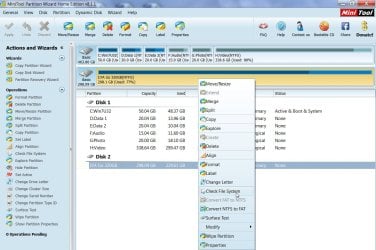
Right Click on your external drive volume and click on Check File System

09-08-2014 13-43-49.jpg

In the ensuing dialog box, select Check and Fix detected errors and Start.

Let it complete.

Close Partition Wizard, shut down your computer and remove your external HDD.

Boot your computer and connect your external HDD.

Hope that resolves your problem. ( This is what I did when only one DVD ISO folder showed up on my 1 TB drive. I had umpteen BD ISOs and the drive was almost full. After running Partition Wizard File System check, I got back all the ISOs. If I remember correctly Windows Disk Check did not do anything.)

EDIT: If PW File System check alone does not resolve the problem, follow it up with Windows disk check - fix errors. Again if I remember right it did a good job this time stitching together the fragments and restoring to relevant files.
 
Last edited:

My Computer My Computer

OS
Windows 7 Home Premium 32 bit
Thanks jumanji for the quick response.

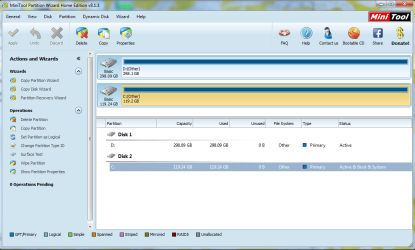
I downloaded and ran PW but it could not detect the USB drive at all. So I power cycled the drive then PW was "Updating partition information, please wait ..." repeatedly (i.e. from 0% to 100% and started from 0% again) for about 15mins.

Eventually PW completed the update and the USB drive was shown as "Bad Disk".

When I right clicked the bad disk, ALL options were greyed out and I could not select anything.

Screenshots are in the attachment.

Any ideas?

Thanks.
 

Attachments

My Computer My Computer

Computer type
Laptop
Computer Manufacturer/Model Number
Lenovo
OS
Windows 7 Pro 64-bit
There is something in the PW screenshots that I do not understand.

Why all your drives are shown as "others" without a file system and capacity used as "Full"?

Also please take the screenshots with Windows Snipping Tool or whatever tool you use, as JPG/PNG and upload it to SevenForums servers. Put those attachments in the post so that we can see it directly - like in my post #2..

http://www.sevenforums.com/tutorials/9733-screenshots-files-upload-post-seven-forums.html

Now please do this:

1. With only your problem Seagate External drive plugged in, take a screenshot of Windows Disk Management and post.( Please click on "Show/Hide Console Tree" and "Show/Hide Action Pane" icons in that Window to hide those so that we get a full screen view without any truncation.)

2. Next post a screenshot how the drives look in Partition Wizard.

Please make sure that there is no truncation and all the info is available.

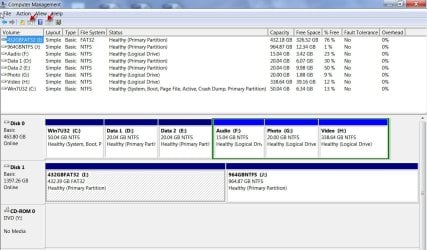
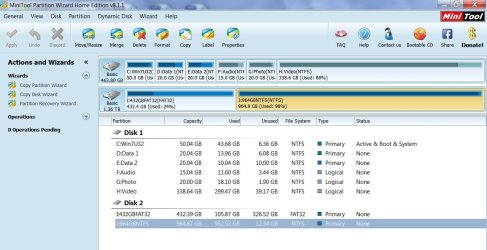
For your understanding, I have taken the above screenshots in my system and attached those to this post.

10-08-2014 15-00-21.jpg

10-08-2014 15-04-43.jpg
 
Last edited:

My Computer My Computer

OS
Windows 7 Home Premium 32 bit
My laptop is for work hence the drives need to be PGP encrypted, maybe this is the reason why they are shown as others and full in PW.
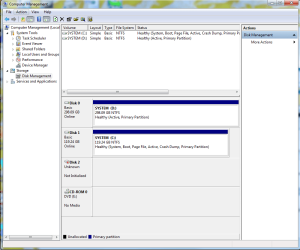
1) Screenshot of Disk Management:
Disk Management 20140810.PNG
2) Screenshot of PW:
PW v01 20140810.PNG

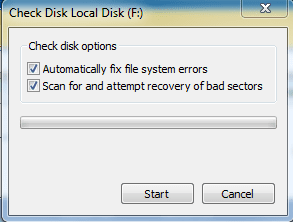
As you can see the USB drive has now disappeared in PW. So I unplugged the power cable of the USB drive, rebooted the laptop, plugged the power cable back into the USB drive. Windows asked me if I want to "Scan and fix" the drive and I responded yes.
Windows check disk 20140810.PNG
However after a while my laptop hung, and did not even respond to Ctrl-Alt-Del. Like last time I unplugged the power cable of the USB drive and the system became responsive again.

Next I plugged the power cable back in, Windows again asked me to "Scan and fix" the drive. This time I did not choose the option of "Scan for and attempt recovery of bad sectors". After about 20mins, the scan completed and the USB drive now appeared in PW.

PW v02 20140810.PNG
 

My Computer My Computer

Computer type
Laptop
Computer Manufacturer/Model Number
Lenovo
OS
Windows 7 Pro 64-bit
I also took another screenshot of Disk Management. This time it showed the USB drive as "Unknown, Not Initialised".
Disk Management v2 20140810.PNG
 

My Computer My Computer

Computer type
Laptop
Computer Manufacturer/Model Number
Lenovo
OS
Windows 7 Pro 64-bit
For all practical purposes your external drive looks normal in Windows Disk Management on your office laptop.

However by using your office laptop that has been setup by your administrator modifying the normal features, some unknown layer ( atleast for me :)) has been added.

As you can see PW has difficulty in seeing your drive and even the drives seen present a screwed up picture.

You may prefer to do anything that you want to do for troubleshooting and further recommended actions on a normal personal machine - other than your office laptop.

Please wait to see if someone else can help you deal with this problem in your present setup.

EDIT: While I was composing this post and posted, I missed your last post which seems to have quickly followed your post #5.Anyway that does not alter anything stated in this post. Pulling out power to the external drive while something is in progress is not good. It can make matters worse. Has it already? I do not know. Anyway better to start from scratch on a normal PC and not on your work laptop.
 
Last edited:

My Computer My Computer

OS
Windows 7 Home Premium 32 bit
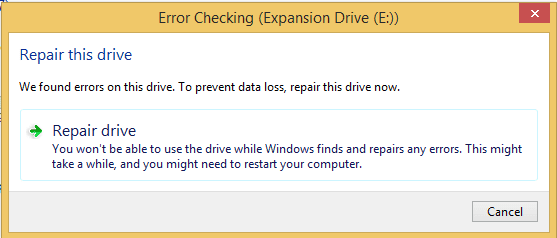
I plugged the USB drive to my home PC which is running Windows 8.1, then rebooted the drive to start from a clean slate.

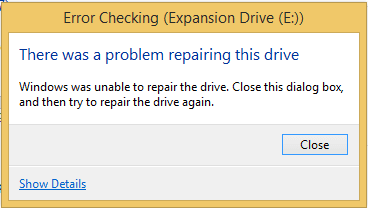
Windows detected errors on the drive and tried to fix it but unsuccessful.

W81 - Scan & fix.PNG
W81 - Repair drive 20140811.PNG
W81 - Error checking 20140811.PNG

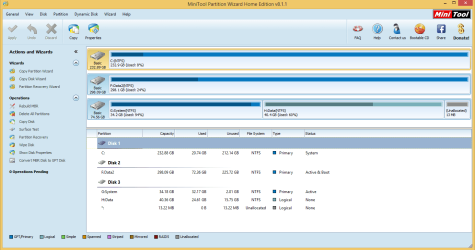
Below are the screenshots in Disk Management and PW:

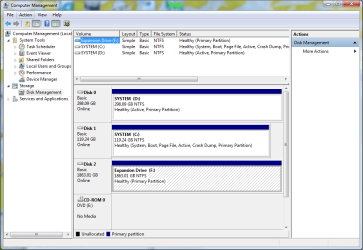
Disk Management - Expansion Drive E: detected.
W81 - Disk Management v2 20140811.PNG

PW - Expansion Drive E: not detected
W81 - PW 20140811.PNG
 

My Computer My Computer

Computer type
Laptop
Computer Manufacturer/Model Number
Lenovo
OS
Windows 7 Pro 64-bit
1. This may not be relevant to the problem at hand but still let us have this information. What is your 298.09 GB Disk 1? What is your 74.56GB Disk 2 with a System volume in it?

2. I am really at a loss why PW is not even detecting your external drive while WDM can.

3. Try repairing the drive again as indicated in the third screenshot and if the same screen appears click on Show Details at the bottom left corner and post a screenshot of what appears. Let us see whether it gives any idea of what is happening in the drive. Most probably it may return many unreadable segments.

In the meanwhile I will be mulling over it on what further action will be appropriate. Should we run SeaTools for Windows and allow it to check and repair the drive or should we straight away get into data recovery mode, recover whatever data we can and then proceed to straighten out the drive? let me think it over.
 

My Computer My Computer

OS
Windows 7 Home Premium 32 bit
Disk 1 is the primary drive for storing data. Disk 2 is my old system drive (running XP) which has got 2 partitions, which is now replaced by a new system drive (C:\ using SSD running Windows 8.1).

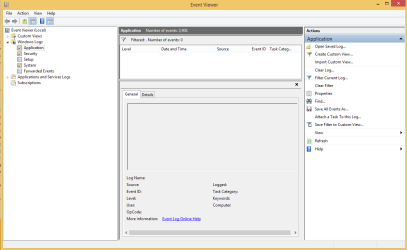
I tried repairing the drive again, clicked on Show Details and the following appeared which doesn't seem to show anything useful:
W81 - Event Viewer 20140811.PNG
 

My Computer My Computer

Computer type
Laptop
Computer Manufacturer/Model Number
Lenovo
OS
Windows 7 Pro 64-bit
OK, run chkdsk from an elevated command prompt.

(Click on the down arrow icon at the left bottom of Start page > Apps > Windows System, right click on Command Prompt and Run as administrator. User Account Control say Yes)

At the Command Prompt, C:\windows\system32\ type "External drive letter" eg : E: <enter>

At the resulting prompt Chkdsk /r /f <enter>

Note:Any data on bad sectors repaired might be lost. Inevitable.

If this fails to correct the problem run SeaTools for Windows and try to repair the disk.
 

My Computer My Computer

OS
Windows 7 Home Premium 32 bit
E:\>chkdsk /r /f
The type of the file system is RAW.
Cannot lock current drive.
CHKDSK is not available for RAW drives.


Seatools for Windows:
Drive Information - Test Unavailable
Short Generic - Short Generic - FAIL
Long Generic - Long Generic - FAIL
Advanced Tests - pressed F8 to enable but nothing dropped down when clicked on the menu
 

My Computer My Computer

Computer type
Laptop
Computer Manufacturer/Model Number
Lenovo
OS
Windows 7 Pro 64-bit
May be I am missing something - my brains ? ;) . I have sent a PM to Anshad Edavana to have a look at this thread. Please wait.
 

My Computer My Computer

OS
Windows 7 Home Premium 32 bit
OK, Till Anshad Edavana comes online, I shall briefly put my thoughts and why I am in a fix on this issue.

1. From the time you had stated that you had to plug out and plug in power to the external drive for it to be recognised I have been musing whether your AC adapter has gone temperemental.

2. It is very hard for me to ignore the Windows Disk Management screenshot at post #8 which shows your external drive is 74% occupied with 26 % free which is a clear indication that data is still there.

3. Personally, I have had much less exposure to Windows 8.1 and running PW or Seatools for Windows on it and so I am not prepared to take that results as sacrosanct - coupled with the suspicion your power brick may be faulty.

4. It is quite possible that an intermittent AC adapter that powers your external drive may be causing these indifferent results. So should I recommend trying the external drive with a new adapter? What if it turns out that it is not causing this problem? Should I put my head under the guillotine? :D

A second opinion from other heads is desirable and that is why I am pulling in Anshad Edavana. It is open for others also to put in their views.
 

My Computer My Computer

OS
Windows 7 Home Premium 32 bit
Seagate drives are failing all over the place! No, really! I've used Seagates for years and then, a few weeks ago, I started seeing threads about Seagates failing -- with the symptoms just like yours. Intermittent file failures were followed by the dreaded "bad disk" in WDM. Then, my own 2TB Barracuda drive failed -- same symptoms. Then, a fried told me that their 5-drive NAS had three of the Seagates fail in the same day.

I tried all the recovery apps I could find and nothing worked on my drive. I sent if off to a drive recovery service and they told me the heads had crashed -- and wanted $1000 USD to fix it. OF course, I declined.

I then read a recent drive review thread that showed that Seagates now have the worse recent history of drive failures. Seems they do fine for 2-3 years and then suddenly, without warning, crash on you.

You are likely to have to send the drive to a data recovery service to get the data back.
 

My Computer My Computer

Computer type
PC/Desktop
Computer Manufacturer/Model Number
Custom
OS
Win7 Pro 32-bit, Win8 Pro 32-bit
CPU
AMD Phenom II X6 1090T
Motherboard
Gigabyte
Memory
4GB ddr3 1300
Graphics Card(s)
AMD HD 4290 onboard
Sound Card
Builtin Realtek HD Audio
Monitor(s) Displays
Samsung 24" widescreen, LG 23" widescreen
Screen Resolution
1920x1200/1920x1080
Hard Drives
Kingston 256GB SSD
Keyboard
Logitech Illuminated Keyboard
Mouse
Logitech M705 wireless mouse
Antivirus
Norton Av 2013
Browser
IE v10
Hey Mark, thanks for sharing your experience too. I am hoping I would not need to resort to data recovery service because as you said they are usually very expensive and there is no guarantee the data could be recovered.

Jumanji, the reason I unplugged/re-plugged the power cable is that it seemed to be the only way to get Windows out of the "hang" state. There is no power switch on the device. I guess the other alternative I could use is unplugging/re-plugging the USB cable, which I am yet to try. I prefer the power cable simply because it is easier i.e. I don't need to worry about which way the cable goes in which I do need to worry for USB cables. Thanks.
 

My Computer My Computer

Computer type
Laptop
Computer Manufacturer/Model Number
Lenovo
OS
Windows 7 Pro 64-bit
Hi there

sometimes Work computers have some software like Bit locker (or alternatives) that USB devices have to be either encrypted or have something like Bit locker on them - this is done usually to stop all and sundry running Portable apps and who knows what else from USB drives on Work supplied PC's. There might be other software around on the PC as well to stop users from plugging in certain types of USB devices.

If the HDD works on your NON office computer then you'll have to see your admin if you want to use the external HDD.

Unless the place is dusty or you bash the HDD around a bit IMO HDD's are far more reliable than most people might think -- they can and DO fail but only rarely IMO.

Note also that these 2TB external HDD's work better when run from a POWERED USB port - the laptop might not be delivering enough "juice" to the HDD. You can in this case run it from a separately powered USB hub.

Cheers
jimbo
 

My Computer My Computer

Computer type
PC/Desktop
Computer Manufacturer/Model Number
Custom built, several laptops HP/ASUS
OS
Linux CENTOS 7 / various Windows OS'es and servers
CPU
Intel i7 Intel i5
Memory
8GB, 16GB
Graphics Card(s)
On Motherboard
Sound Card
Realtek HD audio
Monitor(s) Displays
Apple Cinema display, Samsung LCD
Screen Resolution
1920 X 1080
Hard Drives
4 X 1TB SATA
Mouse
Toshiba wireless laser
Internet Speed
> 20MB up
Hey Jimbo, thanks for the reply. My Seagate Expansion 2TB external USB drive is externally powered and it is not working on either my work laptop running Windows 7 or my home PC running Windows 8.1.
 

My Computer My Computer

Computer type
Laptop
Computer Manufacturer/Model Number
Lenovo
OS
Windows 7 Pro 64-bit
I have seen some bad reports on seagate drives and this is moving me towards WD. Nevertheless I have 6 of them as internals on 3 PCs and non have failed me yet.

For the external you have 4 areas for failure
1) the micro USB connector
2) the internal USB to Sata interface
3) the HDD Sata interface on the drive itself
4) the physical HDD

I'd start by seeing if a new micro USB cable makes a difference. I've had problems on a couple of externals with the terribly designed micro USB connectors (on WD externals). A very small movement can cause them to disconnect.

After all the repair attempts you may have damaged the file system and need to attempt RAW data recovery but first you need to have consistent/reliable data connection.
 

My Computer My Computer

Computer type
PC/Desktop
Computer Manufacturer/Model Number
Own build
OS
Windows 7x64 Home Premium SP1
CPU
Intel i7 2600k
Motherboard
ASUS P8Z68 Deluxe
Memory
G.Skill Ripjaws (DDR3-1600) 2x4GB
Graphics Card(s)
Nvidia GeForce GTS 450; Intel HD Graphics 3000(GT2+)
Monitor(s) Displays
Dell Ultrasharp IPS panel U2311H, Samsung SyncMaster P2350
Screen Resolution
1920x1080
Hard Drives
Samsung 850 Pro SSD 256GB, Samsung SSD 840 120GB, Seagates 1TB Barracuda ST31000528AS x2
PSU
Seasonic M12II 520W
Case
Lian Li Lancool PC-K60
Cooling
Case: 1x120mm, 3x140mm CPU: Hyper 212+
Keyboard
Logitech MK520 (wireless)
Mouse
Logitech MK520
Internet Speed
6-7 Mbps
Antivirus
Norton Security Premium, Malwarebytes on 2 (MSE on 3rd PC)
Browser
FireFox
Other Info
Audio: Logitech Z523 2.1
Hi mjf, thanks for the advice. I changed the USB cable but I still can't access the data. Interestingly this time I cannot even access the drive from the command prompt.

C:\Windows\system32>e:
The system cannot find the file specified.

Perhaps the above is just part of the erratic behavior and not specifically caused by the change of cable, I think.
 

My Computer My Computer

Computer type
Laptop
Computer Manufacturer/Model Number
Lenovo
OS
Windows 7 Pro 64-bit
Back
Top