
- Local time
- 6:23 PM
- Messages
- 562
Please follow the below steps.
1. Boot in to Windows and make sure to only plug the failing disk as a slave drive. Then download DMDE from http://dmde.com/download/dmde-free-2.8.2.546-win32-gui.zip
This is the freeware version. It won't let us recover the data but will virtually reconstruct the original file system by assembling MFT fragments and we will be able to know whether the files are recoverable.
2. After accepting the licence, a disk selection window will appear. On the left pane, make sure Physical Devices is selected and then on the right pane choose your slave disk (model name will be showed ). Then press OK.

3. Now DMDE will scan for the presence of boot sectors or backup boot sectors and will present a partition info box like the one in the below example.

4. Press the NTFS search button. On the next window, choose "Search".

This will take some time to complete. You will see progress in percentage at the bottom.
5. When the scan completes (reaches 100% ), press "Save" button and save the log file on a local folder. This will eliminate the need for searching a second time.

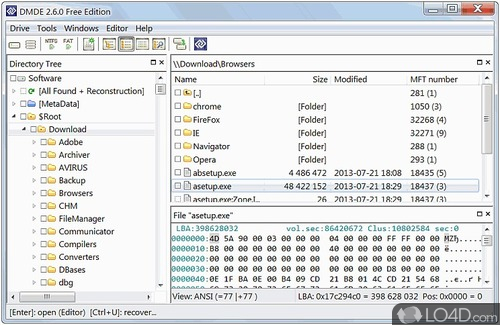
6. After saving the log, choose the first found file system and press "Open Volume" button. You will see folder structure like in the below picture.
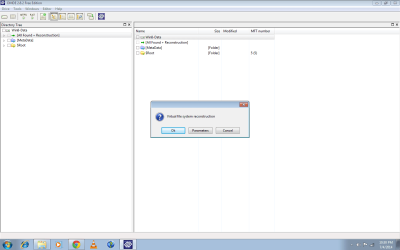
7 Now double click on "All found + Reconstruction" and a confirmation window will appear. Press OK button and the reconstructed file system will be presented.
Can you see your lost files ?.
1. Boot in to Windows and make sure to only plug the failing disk as a slave drive. Then download DMDE from http://dmde.com/download/dmde-free-2.8.2.546-win32-gui.zip
This is the freeware version. It won't let us recover the data but will virtually reconstruct the original file system by assembling MFT fragments and we will be able to know whether the files are recoverable.
2. After accepting the licence, a disk selection window will appear. On the left pane, make sure Physical Devices is selected and then on the right pane choose your slave disk (model name will be showed ). Then press OK.
3. Now DMDE will scan for the presence of boot sectors or backup boot sectors and will present a partition info box like the one in the below example.
4. Press the NTFS search button. On the next window, choose "Search".
This will take some time to complete. You will see progress in percentage at the bottom.
5. When the scan completes (reaches 100% ), press "Save" button and save the log file on a local folder. This will eliminate the need for searching a second time.
6. After saving the log, choose the first found file system and press "Open Volume" button. You will see folder structure like in the below picture.
7 Now double click on "All found + Reconstruction" and a confirmation window will appear. Press OK button and the reconstructed file system will be presented.
Can you see your lost files ?.
My Computer
- Computer type
- PC/Desktop
- OS
- Windows 7 Ultimate x64


