Serious Boot Catastrophe

What were the infection boot scan results which as explained are where you should start?

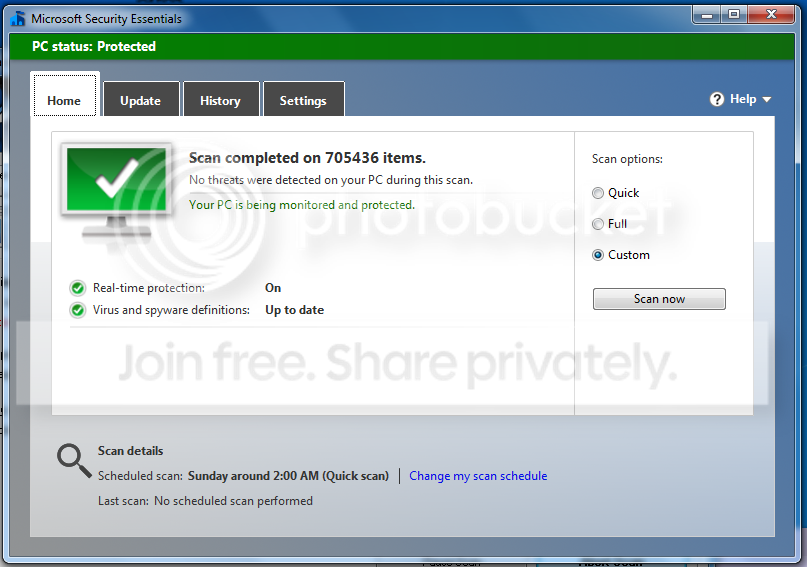
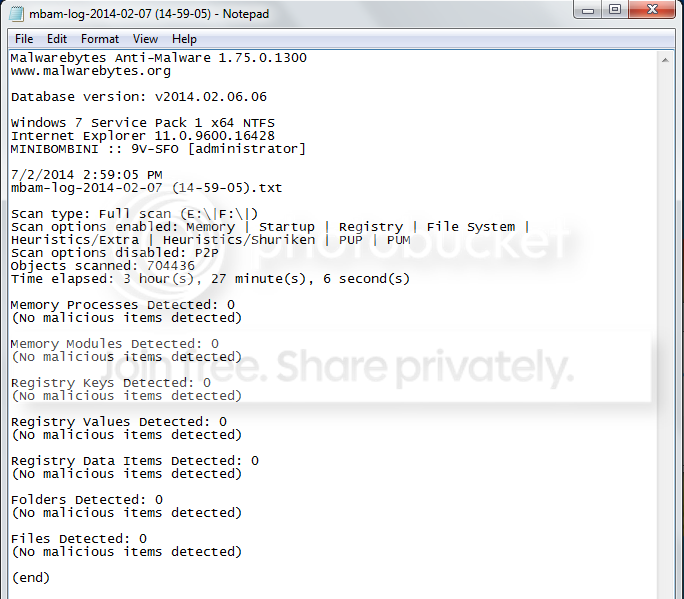
I am currently scanning with MSE and MBAM using a Win7 laptop with boot drive attached as slave. Will post screenshots when done, although I'm saying this again the drive is clean and this is a colossal waste of time.

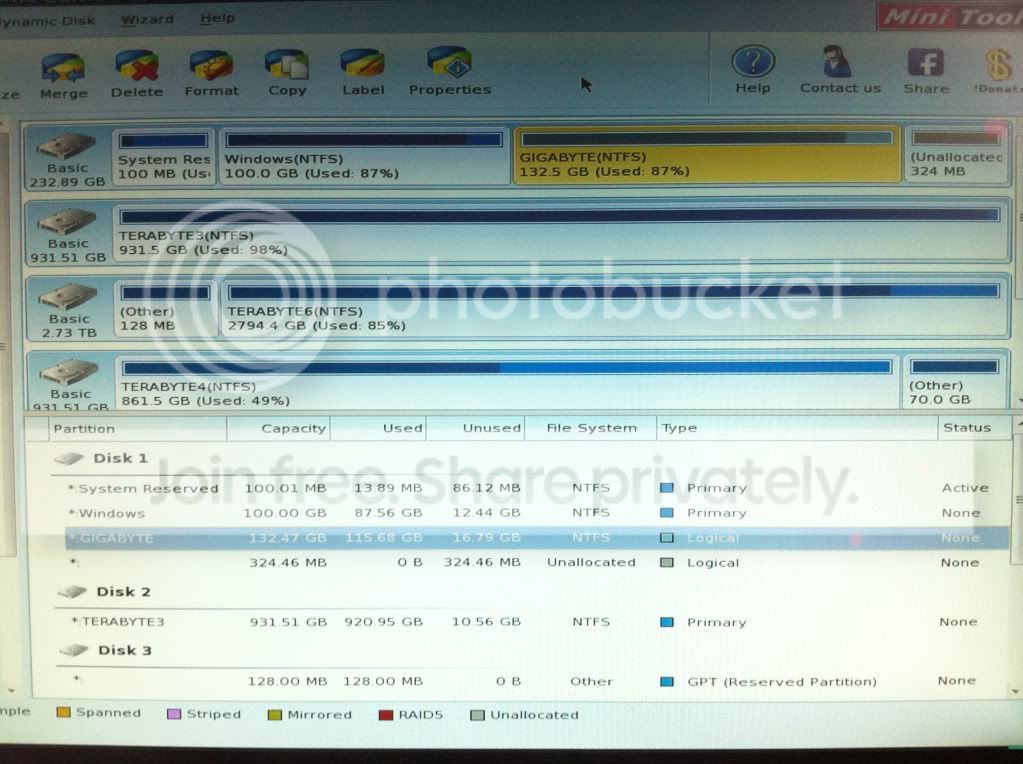
Can we see a picture of the PW drive map? Attach using paper clip in reply box.
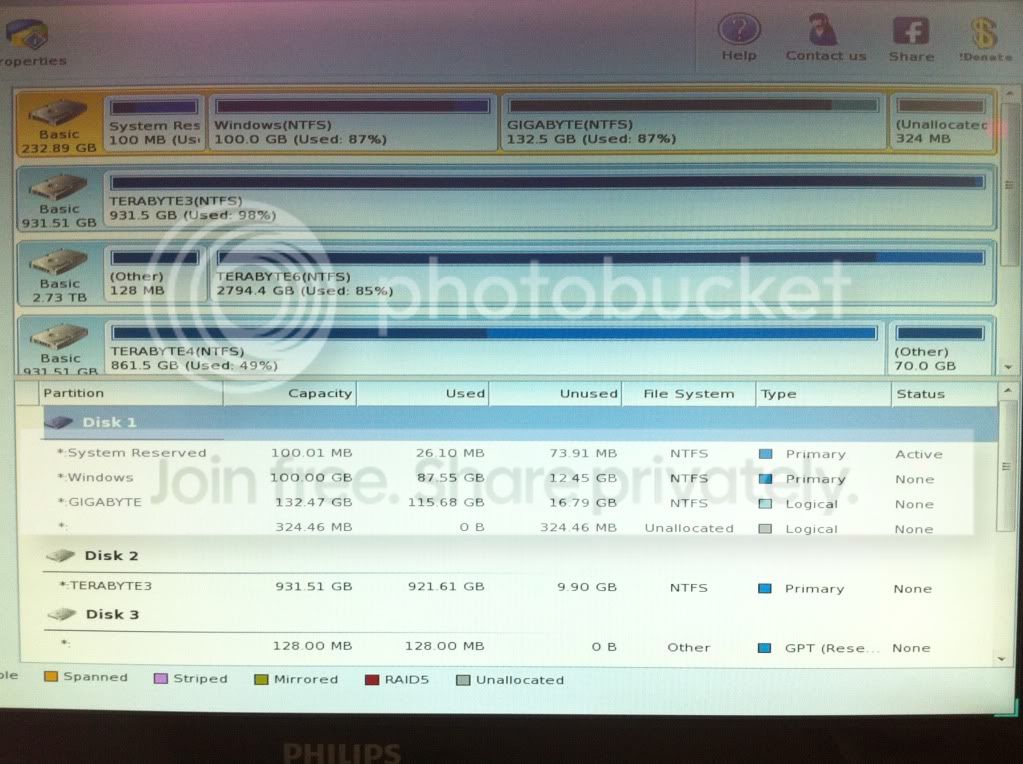
null_zpsa11885f4.jpg~original


Where is the Active flag now? Did you run Startup Repair - Run 3 Separate Times no matter what it reports?
It is on the 100MB System Reserved partition. Setting it on any other partition (including C) will result in BOOTMGR not found error message.

After clicking "repair my computer" in RE, occasionally there will be an automatic prompt to fix startup issues and reboot. This doesn't work. Starting Startup Repair manually never works, returns an error "Startup Repair was not able to repair this computer".

What was the result of System Restore run from System Recovery Options?
Try it again.
Two restore points from December are found and affected programs list loads, but proceeding will return an error along the lines of drive not found. System restore image exists on a secondary drive which I re-connected temporarily but non show up in the recovery menu.
 

My Computer My Computer

At a glance

Windows 7 Ultimate x64
Computer type
PC/Desktop
OS
Windows 7 Ultimate x64
A member from another forum has suggested these steps:
How to restore the system/boot drive letter in Windows

This implies a problem with drive letters (at last check RE reports my Windows installation was on G). Since I cannot reach the desktop the specific steps outlines above are not applicable but would it be possible to manually force new drive letter assignments from the command prompt or EasyRE liveUSB?

From MS technet:
You cannot assign drive letters to system volumes, boot volumes, or volumes that contain the paging file. You cannot assign a drive letter to an OEM partition or any GPT partition other than a basic data partition.
 

My Computer My Computer

At a glance

Windows 7 Ultimate x64
Computer type
PC/Desktop
OS
Windows 7 Ultimate x64
Your System REserved partition lacks the Boot flag (aka System in Disk Mgmt) which means it is not booting Win7, and requires repair untli it shows up.

We also cannot see the other drives to know if another drive further down is booting Disk0. Disk 3 is cut off just as it says "Rese--" which makes me wonder if it may be booting an EFI System.

Drive letters are not shown in PW and are often different in WinRE. What makes you think the issue is drive letter?

You can never rule out infection without at least one full boot scan since the OS may not repair if infected.
 
Hi Greg, very pleased to hear from you.

How should I go about putting the "boot flag" back onto my System Reserved partition?

Would you like me to boot up Partition Wizard again and take a picture with the window maximized?

I don't know if drive letters are the problem, merely wondering if they could have anything to do with my situation.

The MBAM and MSE scans are still running but are around 90% and should be finishing within the next half hour.

I'll refresh this page every 5 minutes. Thank you for your help. I have a 3D project that a client needs by Monday so this is particularly bad timing.

Regards,
Nicholas
 

My Computer My Computer

At a glance

Windows 7 Ultimate x64
Computer type
PC/Desktop
OS
Windows 7 Ultimate x64
If Disk0 is the only OS hard drive then it is an MBR install, so you should be booting the Win7 installation Media or System Repair Disk as a Legacy device and not UEFI. Additionally in BIOS setup there should be enabled either Legacy BIOS or Compatibility Support Module (CSM). Enter BIOS setup now by pressing the key given on first boot screen to report back what these settings are.

To repair Win7 if it is the only OS on the PC, unplug all other HD's, boot disk as Legacy (not UEFI) device, then run Startup Repair - Run 3 Separate Times until Win7 starts.

If it won't start after you've confirmed the BIOS settings as given above, and run the three full Startup Repairs with reboots, then work through the steps for Troubleshooting Windows 7 Failure to Start which attempts everything that can be done up to rescuiing your files to do a perfect reinstall. If this is your production machine then you should have a backup image to apply.

We should see the other HD's to know they don't have conflicting settings. When you plug them back in after Win7 is repaired make sure the Win7 HD remains set first to boot in BIOS.
 
Hi Greg, MSE finished awhile back but MBAM is still going so I'll just post this here first.

Untitled_zps7ddaead9.png~original


Once that's done I'll put the drive back into the big computer. Yes, this is a single-boot scenario and there is only one OS hard drive.

BIOS settings as follows:
SATA mode: AHCI
HPET: enabled
Legacy USB: enabled
PCI ROM priority: Legacy ROM

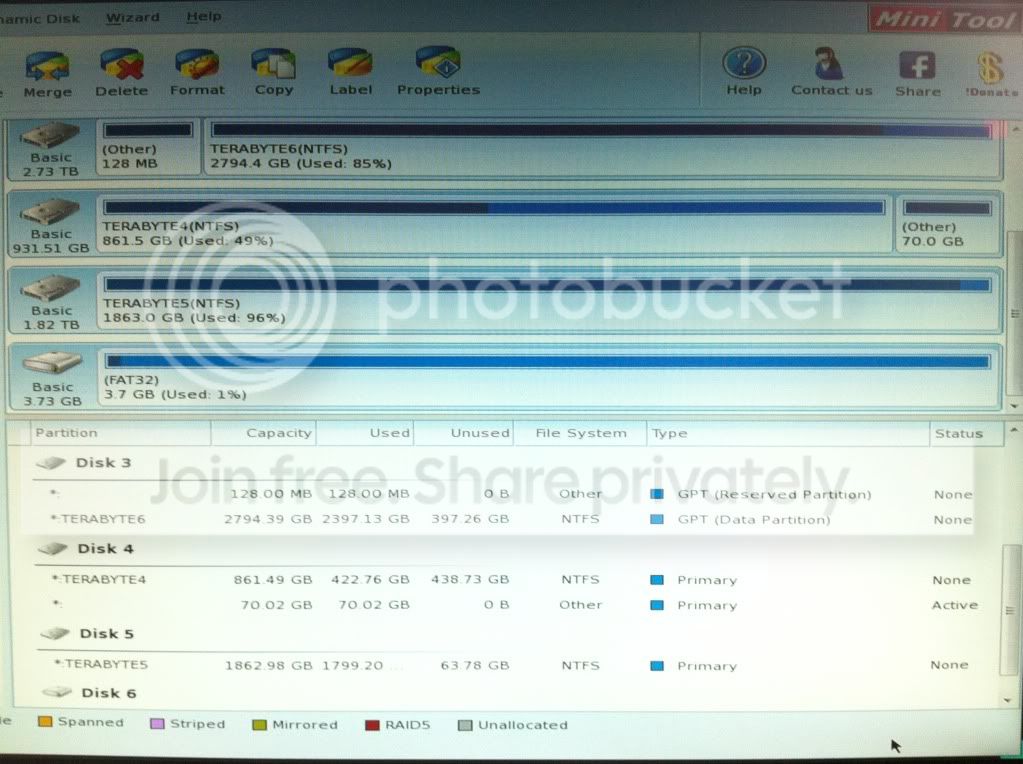
Would you like me to boot up Partition Wizard and take a larger screenshot to see the other HDs?
 

My Computer My Computer

At a glance

Windows 7 Ultimate x64
Computer type
PC/Desktop
OS
Windows 7 Ultimate x64
The UEFI choices are normally Legacy BIOS (different from USB) and/or Compatibility Support Mode (CSM). These need to be enabled for Legacy MBR install such as you have.

Watch this video to understand UEFI BIOS vs. Legacy BIOS - YouTube.

Yes it would be good to see all HD's listings.
 
I did abit of googling, "PCI ROM priority: Legacy ROM" is the one for this motherboard. The following as requested:

Untitled2_zpsff75f946.png~original


null_zpsa71497d6.jpg~original


null_zpsf3925fde.jpg~original


There was a second active partition which I did not spot previously, used PW to mark it as inactive and applied the changes. This didn't change anything; still not able to start Windows.

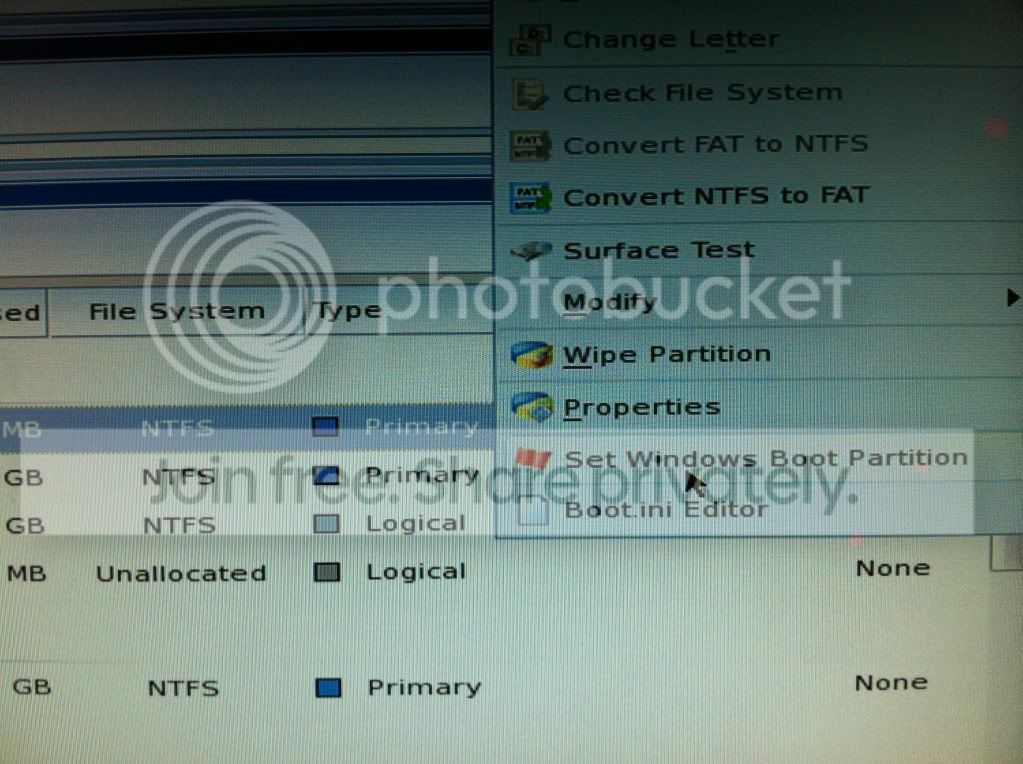
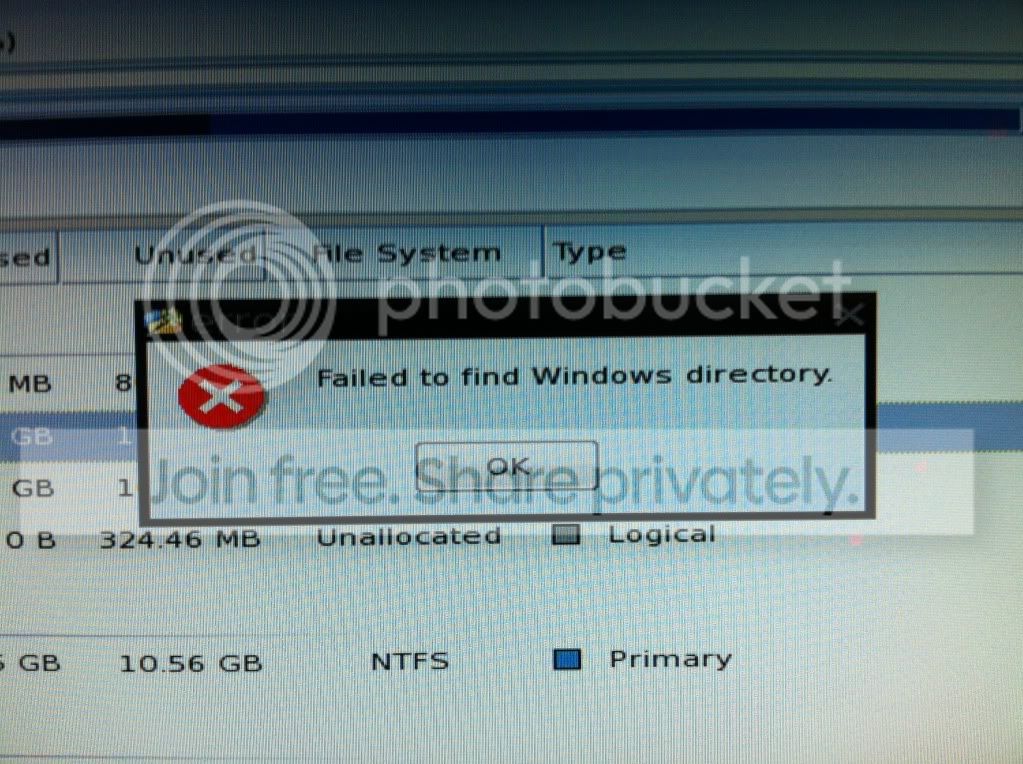
I also tried the "set as Windows boot" function on both System Reserved and C:

null_zpsd042475c.jpg~original


but both returned this error

null_zpsa8e4e8d2.jpg~original


I also tried selecting the boot drive and "Rebuild MBR" function. This also did not work.

Right now what I'm observing is Windows consistently failing right after the logo animation starts. It might not be an issue with the bootloader or boot sector any more but a problem with Windows itself, since we're past booting/BIOS and starting to load Windows.

If this were XP all I'd do is simply perform an in-place repair install from RE and that'd be the end of it. However Windows 7 only allows repair install (upgrade mode) from desktop and not RE/WinPE. Is there a way to force Windows to allow repair install from the bootable flash drive?

Or, from another perspective, would it be possible to perform a repair install or overwrite of the Windows files when connected as a slave via SATA>USB on another Windows 7 computer?
 
Last edited:

My Computer My Computer

At a glance

Windows 7 Ultimate x64
Computer type
PC/Desktop
OS
Windows 7 Ultimate x64
Something I haven't tried before, hitting F8 and selecting "Disable automatic restart on system failure" and got this:

Technical information:
*** STOP: 0X0000007B (0XFFFF880009A98E8, 0XFFFFFFFFC000034, 0X000...000, 0X000...000)

Might be something to work with?
 

My Computer My Computer

At a glance

Windows 7 Ultimate x64
Computer type
PC/Desktop
OS
Windows 7 Ultimate x64
I'm now at the Startup Repair x3 part. On all 3 tries the result this time was:

"Restart your computer to complete the repairs."

Under diagnosis and repair details:
Root cause found: The partition table doe not have a valid System Partition.
Repair action: Partition table repair
Result: Completed successfully. Error code = 0x0
The exact same thing happens all 3 times, after which I am still unable to get past the Windows startup logo animation. On all 3 tries, nothing is shown in the list of Windows installations as well.
 

My Computer My Computer

At a glance

Windows 7 Ultimate x64
Computer type
PC/Desktop
OS
Windows 7 Ultimate x64
Idea:

I have a blank drive lying around. Would it be possible to copy out the contents of C onto this drive, make a clean install on the old boot drive, then use copy out the files and registry from the old drive to the new drive, overwriting, to essentially "restore" programs and settings from the original installation?

2nd try with Win7 SP1 liveUSB:

RE detects my installation as "Windows 7 Ultimate 64-bit (Recovered)". However Startup Repair "is unable to repair this computer" on the first try. Next 2 tries result in "Startup Repair could not detect a problem".

Diagnosis and repair details:
Last successful boot time: 2/5/2014 3:31:49PM (GMT)
Number of repair attempts: 12
Session details
System Disk = \Device\Harddisk1
Windows directory = G:\Windows
AutoChk Run = 0
Number of root causes = 1
...
Name: Boot status test
Result: Completed successfully. Error code = 0x0
Root cause found:
Boot status indicates that the OS booted successfully.
...
Name: Fallback diagnosis
Result: Completed successfully. Error code = 0x0
Root cause found:
Unspecified changes to system configuration might have caused the problem.
There were alot of other entries in the log, but only those with remarks (above 2) are shown.

After finishing 3x attempted Startup Repair, I tried to start Windows again but failed at logo animation.
 

My Computer My Computer

At a glance

Windows 7 Ultimate x64
Computer type
PC/Desktop
OS
Windows 7 Ultimate x64
Did you unplug all other drives to run the three Startup Repairs, with only System Reserved marked Active?

If it won't repair after doing that, as well as Rebuilding MBR first, then it is likely corrupted beyond repair.

However Startup Repair should offer to System Restore during it's run. Did it do this? If not then run System Restore from System Recovery Options.

One other thing I try as a last resort when browsing in to rescue files if necessary using Copy & Paste - in Windows Recovery Console is to copy the boot files from System Reserved to C, next Mark C Partition Active, then run Startup Repair - Run 3 Separate Times. Unplug all other HD's when running Startup REpairs.

Since a 7B error can mean infection of boot sector OR a hardware error, run the AV scans and hardware tests at the beginning of Troubleshooting Windows 7 Failure to Start. If you complete all of the steps there then you've done everything that can be done, leading up to if necessary rescuiing your files to do a perfect Clean Reinstall - Factory OEM Windows 7 which is same for retail.
 
Good morning Greg,

Good news. At about the same time as when you posted, a fellow user on another forum posted a suggestion to check if my BIOS was set to IDE or AHCI mode. I do not remember ever touching this setting. However I found it in AHCI mode and set it to IDE. Seeing how I have scoured the very edges of the internet for all sorts of complex solutions, I was understandably skeptical that such a simple step could fix my problem.

Lo and behold, there it is. I have never been so delighted to see a Windows startup logo animation in my life.
(All the messing about did screw things up a little though; I had to reactivate Windows.)

Nevertheless, I must thank you for your time and patience in assisting me throughout these 2 days, even when I was frustrated at times. If you like, PM me and I will send a small token of appreciation your way.

Regards,
Nicholas
 

My Computer My Computer

At a glance

Windows 7 Ultimate x64
Computer type
PC/Desktop
OS
Windows 7 Ultimate x64
Nick -

I did notice you reported back your SATA setting was AHCI which is what it should be set at for using all of the features of the SATA controller. I guess your install was instead done to IDE. Glad you found the solution.

Remember when reinstalling to choose the more modern AHCI setting, delete all partitions on the HD. You can also change it now to AHCI : Enable in Windows 7 / Vista - Windows 7 Forums. Set a System REstore point first. System Restore Point - Create
 
Thank you Greg. It has been so long ago when I installed Win7 (it's really, really stable and reliable) that I forgot what setting was used. The information on how to switch over to AHCI is very useful, I will carry them out when I have more free time. For now, back to work!

Once again, thank you so much. I appreciate it.
 

My Computer My Computer

At a glance

Windows 7 Ultimate x64
Computer type
PC/Desktop
OS
Windows 7 Ultimate x64
Back
Top