
How to Start or Disable Services in Windows 7
Information
Services are a computer program or process that runs in the background and provides support to other programs in Windows 7. This will show you how to start or disable a Windows 7 service of your choice.
For more information on each service, see: Standard Windows 7 Services Svchost.exe
You must be logged in as an administrator to start or disable Servces.
For more information on each service, see: Standard Windows 7 Services Svchost.exe
You must be logged in as an administrator to start or disable Servces.
Note
If you want to cut down the overhead of what is running in the background and speed Windows 7 up some, then only disable the services you do not use. If you disable a service that you need or use, then it could actually lower your computer's performance. The Services apply to all users on the computer.
Warning
It is highly recommended that you create a restore point before making changes to the services. This way if you make a mistake that cripples your computer, you can do a System Restore using the restore point to undo the changes.
Adjusting service settings requires you to have a deep understanding of what the service is for, what it affects, and what your needs are. If you don't fully understand all of this, then playing with services can really mess up your Windows installation, and possibly your day.
If you disabled the wrong service and lost access to the computer, then try booting into Safe Mode from Advanced Boot Options to change the service back.
Adjusting service settings requires you to have a deep understanding of what the service is for, what it affects, and what your needs are. If you don't fully understand all of this, then playing with services can really mess up your Windows installation, and possibly your day.
If you disabled the wrong service and lost access to the computer, then try booting into Safe Mode from Advanced Boot Options to change the service back.
CONTENTS:
- Option One: To Start, Stop, and Disable Services in "Services" Window
- Option Two: To Start and Stop Services using "net" Commands
- Option Three: To Start, Stop, and Disable Services using "Sc" Commands
- Option Four: To Start, Stop, and Disable Services in Registry Editor
OPTION ONE
To Start, Stop, and Disable Services in "Services" Window
OR
2. Open the Start Menu, type services.msc in the search box, press Enter, and go to step 3 below. (See screenshot below)
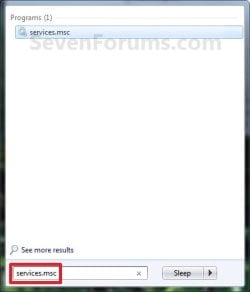
3. If prompted by UAC, then click on Yes.
4. Right click on the service you want to disable or start and click on Properties. (See screenshot below)
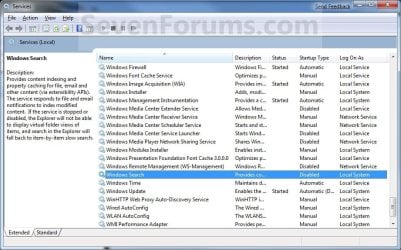
5. To Disable a Service
NOTE: See the guide in the TIP box at the top of the tutorial to help decide.A) Click on the Stop button and wait a sec for the service to stop. (See screenshots below step 7)
B) Next to Startup type, click on the drop down menu and select Disable. (See screenshots below step 7)
C) Click on the Apply button. (See screenshots below step 7)
NOTE: If the service will not stop and gives a error, then you will need to restart the computer to stop it after you set it to Disabled and clicked on OK.
D) Go to step 7.
6. To Start a Service
NOTE: See the guide in the TIP box at the top of the tutorial to help decide.A) Next to Startup type, click on the drop down menu and select Automatic or Manual and click Apply. (See screenshots below step 7)
B) Click on the Start button. (See screenshots below step 7)
NOTE: If the Start option is grayed out and will not start, then you will need to restart the computer to start it after you set it to Automatic and clicked OK.
7. Click on OK. (See screenshots below)
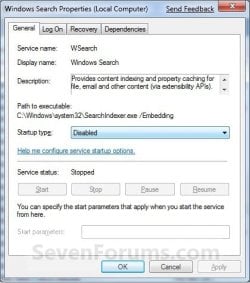

8. Close the Services window.
NOTE: You may need to restart the computer for the changes to the services to take affect.
OPTION TWO
To Start and Stop Services using "net" Commands
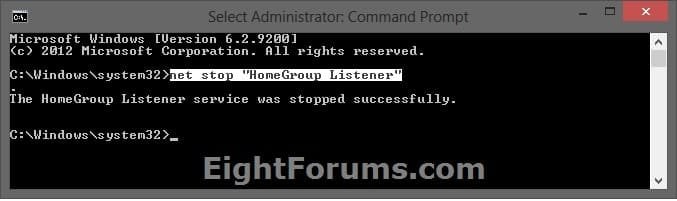
2. To Stop a Service using "Net Stop" Command in Command Prompt
A) In the elevated command prompt, type the command below, press Enter, and go to step 4 below.
NOTE: The Display name of a service is the name displayed in the Services snap-in window, and in the service's properties.
net stop "service name"
OR
net stop "display name of service"
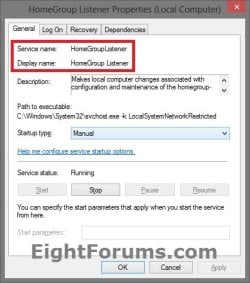
For example:
If I wanted to stop the HomeGroup Listener (display name) or HomeGroupListener (service name) service, I would type either command below exactly in the command prompt, and press Enter.
net stop "HomeGroup Listener"
OR
net stop "HomeGroupListener"
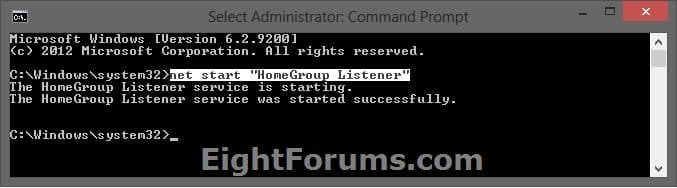
3. To Start a Service using "Net Start" Command in Command PromptA) In the elevated command prompt, type the command below, press Enter, and go to step 4 below.
NOTE: The Display name of a service is the name displayed in the Services snap-in window, and in the service's properties.
net start "service name"
OR
net start "display name of service"
For example:
If I wanted to start the HomeGroup Listener (display name) or HomeGroupListener (service name) service, I would type either command below exactly in the command prompt, and press Enter.
net start "HomeGroup Listener"
OR
net start "HomeGroupListener"
4. When finished, you can close the elevated command prompt.
OPTION THREE
To Start, Stop, and Disable Services using "Sc" Commands
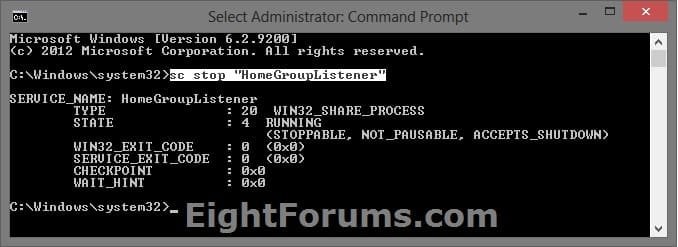
2. To Stop a Service using "Sc Stop" Command in Command Prompt
A) In the elevated command prompt, type the command below, press Enter, and go to step 5 below.
NOTE: The Service name of a service is displayed in the service's properties.
sc stop "service name"
For example:
If I wanted to stop the HomeGroup Listener service, I would type the command below using the HomeGroupListener (service name) exactly in the command prompt, and press Enter.
sc stop "HomeGroupListener"
3. To Disable a Service using "Sc Config" Command in Command Prompt
A) Do step 2 above to stop the service.
B) In the elevated command prompt, type the command below, press Enter, and go to step 5 below.
NOTE: The Service name of a service is displayed in the service's properties.
sc config "service name" start=disabled
For example:
If I wanted to disable the HomeGroup Listener service, I would type the command below using the HomeGroupListener (service name) exactly in the command prompt, and press Enter.
sc config "HomeGroupListener" start=disabled

4. To Start/Enable a Service using "Sc Start" & "Sc Config" Commands
A) If the Startup type of the service is set to Disabled, then in the elevated command prompt, type the command below using the startup type you want to set instead, and press Enter.
NOTE: The Service name of a service is displayed in the service's properties.
sc config "service name" start=demand
or
sc config "service name" start=auto
or
sc config "service name" start=delayed-auto
Note
"Startup Type" for Service
- Manual (demand) - Manual mode allows Windows to start a service when needed. However, very few services will start up when required in Manual mode. If you find you need a service, place it into Automatic.
- Automatic (auto) - With a service in this state, it will start at boot time. Some services, when no longer required, will also automatically stop when not needed. If you find you do not need a service, place it into Manual or Disabled.
- Automatic (Delayed Start) (delayed-auto) - With a service in this state, it will start just after boot time. Some services, when no longer required, will also automatically stop when not needed. If you find you do not need a service, place it into Manual or Disabled.
For example:
If I wanted to set the startup type for the HomeGroup Listener service to Manual, I would type the command below using the HomeGroupListener (service name) exactly in the command prompt, and press Enter.
sc config "HomeGroupListener" start=demand

B) In the elevated command prompt, type the command below using the same service name from step 4A above, press Enter, and go to step 5 below.
sc stop "service name"
For example:
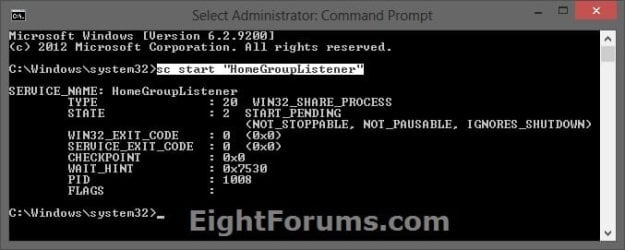
If I wanted to start the HomeGroup Listener service, I would type the command below using the HomeGroupListener (service name) exactly in the command prompt, and press Enter.
sc start "HomeGroupListener"
5. When finished, you can close the elevated command prompt.
OPTION FOUR
To Start, Stop, and Disable Services in Registry Editor
2. Press the Windows + R keys to open the Run dialog, type regedit, and press Enter.
3. If prompted by UAC, then click/tap on Yes.
4. In Registry Editor, go to the location below: (see screenshot below)
NOTE: Substitute Service name in the location below with the actual service name from step 1 above.HKEY_LOCAL_MACHINE\SYSTEM\CurrentControlSet\Services\Service name
For example: The "Service name" for the HomeGroup Listener service is HomeGroupListener, so I would go to this location in the registry.
HKEY_LOCAL_MACHINE\SYSTEM\CurrentControlSet\Services\HomeGroupListener
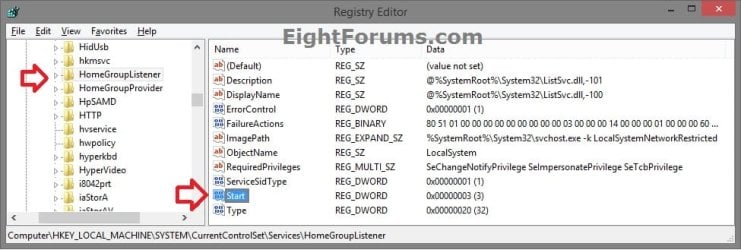
5. In the left pane of the Service name (ex: HomeGroupListener), double click on the Start DWORD to modify it. (see screenshot below)
6. Type in a data value from the table below for what you would like to do, then click/tap on OK. (see screenshot below)
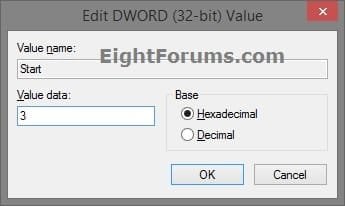
| Startup Type | DWORD "Data" Value |
|---|---|
| Automatic (Delayed Start) | DelayedAutostart = 1 |
| Start = 2 | |
| Automatic | DelayedAutostart = 0 |
| Start = 2 | |
| Manual | DelayedAutostart = 0 |
| Start = 3 | |
| Disabled | DelayedAutostart = 0 |
| Start = 4 |
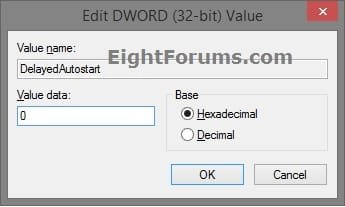
7. If needed, double click on the DelayedAutostart DWORD to modify it's data value (0 or 1) to what's in the table above for what you want set, and click/tap on OK. (see screenshot below)
NOTE: If the DelatedAutostart DWORD is not there, then you can right click on an empty area in the right pane, click on New and DWORD (32-bit) Value, type DelatedAutostart, and press Enter to add it. If DelatedAutostart is not there, then it will be the same as it being set to 0 (zero).
8. When finished, close Registry Editor, and restart PC to apply.
That's it,
Shawn Brink
Related Tutorials
- How to Customize and Save the View in the Services Window in Windows 7
- How to Change the Startup Programs in Windows 7
- How to Delete a Service in Windows 7, Windows 8, and Windows 10
- How to Enable or Disable the Services MMC Snap-in
- How to Restore Default Services in Windows 7
- How to Add or Remove "Services" from Control Panel in Windows
Last edited:


