Share folder settings not being applied to all files within path

bark01

New member
Local time
12:32 PM
Messages
16
Hi,

I have an SMB share set up but certain files within the path do not have the same share settings as others.

The path is set up to my TV folder and an example of the issue is below

TV/Walking Dead/Season 1 - this works all files can be seen
TV/Walking Dead/Season 2 - I can see the folder and open it but I can't see any of the files within it.

When I go to the files and look at properties -> security the files I can see and those I can't see have different settings. The files i can see are shared to Everyone, System, My login, Administrators.

The files I can't see are shared with Authenticated users, System, Administrators, Users.

I've tried removing the share from my TV folder than reapplying it, but I get the same result.

If I attempt to view the files over SMB windows to windows it works, but it doesn't work when viewed from my XBMC live install (Linux).

Any ideas on what is happening?
 

My Computer My Computer

OS
windows 7 68 bit
It sounds like you need to add "Everyone" to either the sharing permissions list or the Security settings.
 

My Computer My Computer

Computer type
PC/Desktop
Computer Manufacturer/Model Number
Home built
OS
Windows 7 Ult, Windows 8.1 Pro,
CPU
Q9650-4.275GHz, E8600 4.5GHz, E6750-3.8GHz
Motherboard
Evga 780i FTW
Memory
G.Skill PC2 9600 1200Mhz 5 5 5 15 2T
Graphics Card(s)
GTX480
Sound Card
Asus Xonar D2
Monitor(s) Displays
HannsG
Screen Resolution
1680X1050
Hard Drives
GSkill Phoenix Pro 120GB SSD
PSU
ThermalTake Toughpower 1000Watt modular
Case
ThermalTake XaserV
Cooling
Xigmatek S1283
Keyboard
Logitech G15
Mouse
Logitech G9
Internet Speed
T1
Go to properties on the second walking dead folder,security/ advanced and see if you can check a box related to adopting the permisions of the parent folder ,sorry I can't be more specific but I'm posting from my phone
 

My Computer My Computer

Computer Manufacturer/Model Number
Hewlett packard/p6512uk
OS
Microsoft Windows 7 Home Premium 64-bit 7600
CPU
IIx4 amd athelon 635 processor
Motherboard
FOXCONN 2AA9
Memory
2x2gb
Graphics Card(s)
ati radeon HD 5450
Sound Card
(1) Realtek High Definition Audio (2) AMD High Definition
Monitor(s) Displays
samsung lcd tv 32"
Screen Resolution
1360x 768
Hard Drives
(1) WDC WD10 01FAES-60Z2A0 SATA Disk Device (2) Maxtor OneTouch USB Device (3) ST310003 33AS USB Device (4) WD My Book 1111 USB Device
PSU
?
Cooling
air!
Keyboard
wireless hp
Mouse
wireless Hp,optical
Internet Speed
1.10mb/s
Antivirus
MSE
Browser
Firefox
Go to properties on the second walking dead folder,security/ advanced and see if you can check a box related to adopting the permisions of the parent folder ,sorry I can't be more specific but I'm posting from my phone

There are hardly any options in the advance window and defiantly not anything that looks like it would copy the setting from previous folder.

I can get round it by selecting all the individual files and then sharing them, but it still seems a little strange that they don't have the correct share to start with.

I've found a folder that has some files viewable and some not. It might be that the permissions are set differently on the files at source, before i download them.
 

My Computer My Computer

OS
windows 7 68 bit
Go to properties on the second walking dead folder,security/ advanced and see if you can check a box related to adopting the permisions of the parent folder ,sorry I can't be more specific but I'm posting from my phone

There are hardly any options in the advance window and defiantly not anything that looks like it would copy the setting from previous folder.

I can get round it by selecting all the individual files and then sharing them, but it still seems a little strange that they don't have the correct share to start with.

I've found a folder that has some files viewable and some not. It might be that the permissions are set differently on the files at source, before i download them.

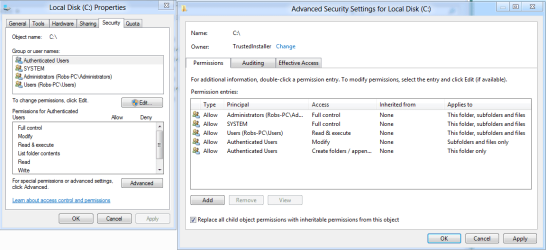
I believe he is referring to the advanced permission settings where you can replace the child object permissions with inheritable permissions as shown in the picture. You have to click on Advanced permissions then use the Change Permissions tab.

It may also be that you need to take ownership of the folders or files first.
 

Attachments

  • replace child objects.PNG
    replace child objects.PNG
    28.3 KB · Views: 78

My Computer My Computer

Computer type
PC/Desktop
Computer Manufacturer/Model Number
Home built
OS
Windows 7 Ult, Windows 8.1 Pro,
CPU
Q9650-4.275GHz, E8600 4.5GHz, E6750-3.8GHz
Motherboard
Evga 780i FTW
Memory
G.Skill PC2 9600 1200Mhz 5 5 5 15 2T
Graphics Card(s)
GTX480
Sound Card
Asus Xonar D2
Monitor(s) Displays
HannsG
Screen Resolution
1680X1050
Hard Drives
GSkill Phoenix Pro 120GB SSD
PSU
ThermalTake Toughpower 1000Watt modular
Case
ThermalTake XaserV
Cooling
Xigmatek S1283
Keyboard
Logitech G15
Mouse
Logitech G9
Internet Speed
T1
Back
Top