
How to Turn On or Off "Translucent Selection Rectangle" in Vista, Windows 7, and Windows 8
Information
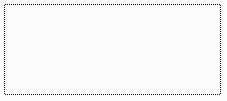
The selection rectangle is what you see when you left click and hold, then drag the mouse pointer over items to select them when you release the left click.
This will show you how to turn the translucent selection rectangle on or off for only on your desktop using different options in Vista, Windows 7, and Windows 8.
This will show you how to turn the translucent selection rectangle on or off for only on your desktop using different options in Vista, Windows 7, and Windows 8.
Note
Windows Explorer is not affected by this setting. It will always have the translucent selection rectangle turned on in it.
EXAMPLE: Translucent Selection Rectangle Turned On and Off

OPTION ONE
Through Visual Effects Settings
2. To "Show Translucent Selection Rectangle" A) Check the Show translucent selection rectangle box, and click on OK. (see screenshot below)
NOTE: This is the default setting.
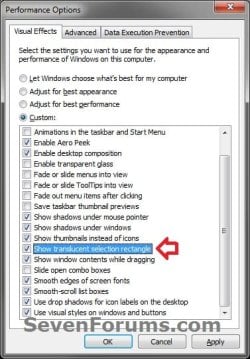
3. To Not "Show Translucent Selection Rectangle" A) Uncheck the Show translucent selection rectangle box, and click on OK. (see screenshot above)
OPTION TWO
Using a REG File Download
NOTE: This is the default setting. A) Click on the download button below to download the file below. Show_Translucent_Selection_Rectangle.reg
Download
B) Go to step 3.
2. To Not "Show Translucent Selection Rectangle" A) Click on the download button below to download the file below.
Not_Show_Translucent_Selection_Rectangle.reg
Download
3. Click on Save, and save the .reg file to the Desktop.
4. Right click on the downloaded .reg file and click on Merge.
5. Click on Run, Yes (Windows 7) or Continue (Vista), Yes, and OK when prompted.
6. Log off and log on, or restart the computer to apply the changes.
7. When done, you can delete the downloaded .reg file if you like.
OPTION THREE
Manually Through Registry Editor
2. If prompted by UAC, then click on Yes (Windows 7) or Continue (Vista).
3. In regedit, navigate to the location below. (see screenshot below)
Code:
HKEY_CURRENT_USER\Software\Microsoft\Windows\CurrentVersion\Explorer\Advanced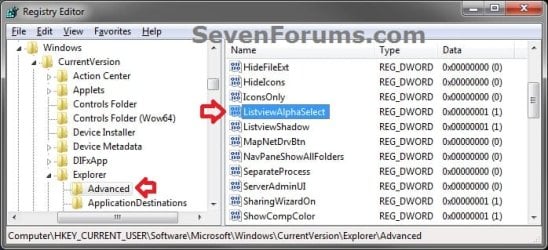
4. In the right pane, double click on ListviewAlphaSelect. (see screenshot above)
5. To "Show Translucent Selection Rectangle" A) Type in 1, and click on OK. (see screenshot below)
NOTE: This is the default setting.

B) Go to step 7.
6. To Not "Show Translucent Selection Rectangle" A) Type in 0, and click on OK. (see screenshot above)
7. Close regedit.
8. Log off and log on, or restart the computer to apply the changes.
That's it,
Shawn
Attachments
Last edited:


