
How to Change Return to Sleep Timeout for Unattended Wake Up in Windows
Information
This tutorial will show you how to change how many minutes Windows will wait idle after waking up in an unattended state before automatically going back to sleep or hibernation in Vista, Windows 7, and Windows 8.
Tip
Adjusting this wait timeout period can also be handy if you had created a task in Task Scheduler to wake up the computer to run something. You could set this wait timeout period to be long enough for the task to have time to finish running before Windows 7 went back to sleep automatically.
Note
- If the computer wakes up from sleep mode and is used by you (no longer idle) during this default timeout period, then Windows will not go back to sleep mode automatically after this timeout period. Instead it will use the time period you set in your Power Plan Settings for Sleep or Hibernation.
- This will also affect how long you have to enter your user account password if you have enabled the Require a Password on wakeup option.
Warning
You can only do this while logged into an administrator account.
OPTION ONE
To Set System Unattended Sleep Timeout in Power Options
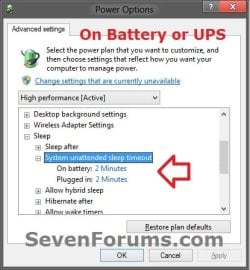
2. Open your Advanced Power Settings, expand Sleep and System unattended sleep timeout. (see screenshots below)
3. Set how many minutes you want, and click/tap on OK. (see screenshots below)

Note
This option changes the ACSettingIndex (Plugged in) and/or DCSettingIndex (On battery) DWORD values at the registry location below.
Substitute Your Power Plan Registry Key in the path below with the actual registry key for in the table below instead for the power plan this is for.
Substitute Your Power Plan Registry Key in the path below with the actual registry key for in the table below instead for the power plan this is for.
Code:
[HKEY_LOCAL_MACHINE\SYSTEM\CurrentControlSet\Control\Power\User\PowerSchemes\[B][COLOR=red]Your Power Plan Registry Key[/COLOR][/B]\238c9fa8-0aad-41ed-83f4-97be242c8f20\7bc4a2f9-d8fc-4469-b07b-33eb785aaca0]| Registry Key | Power Plan |
|---|---|
| 381b4222-f694-41f0-9685-ff5bb260df2e | Balanced |
| 8c5e7fda-e8bf-4a96-9a85-a6e23a8c635c | High performance |
| a1841308-3541-4fab-bc81-f71556f20b4a | Power saver |
OPTION TWO
To Set Default System Unattended Sleep Timeout in Registy
NOTE: You can only do this option while logged into an administrator account.1. Press Windows+R to open the Run dialog, type regedit, and click/tap on OK.
2. If prompted by UAC, then click/tap on Yes (Windows 7/8) or Continue (Vista).
3. In regedit, navigate to the location below: (See screenshot below)
Code:
HKEY_LOCAL_MACHINE\SYSTEM\CurrentControlSet\Control\Power\PowerSettings\238C9FA8-0AAD-41ED-83F4-97BE242C8F20\7bc4a2f9-d8fc-4469-b07b-33eb785aaca0\DefaultPowerSchemeValues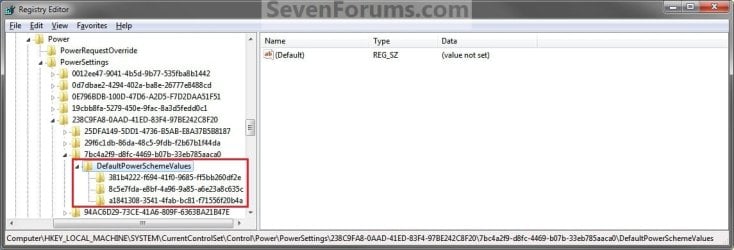
4. In the left pane of regedit, double click/tap on the DefaultPowerSchemeValues key (folder) to expand it. (See screenshot above)
5. Click/tap on the key (see table in tip below) that is for the Power Plan that you want to change the default wait time for. (See screenshot above)
NOTE: Normally, you would just do this for the Power Plan that you have selected (see tip below). If you have more than one user, then you may also want to include their Power Plan, or all of them.
Tip
| Registry Key | Power Plan |
|---|---|
| 381b4222-f694-41f0-9685-ff5bb260df2e | Balanced |
| 8c5e7fda-e8bf-4a96-9a85-a6e23a8c635c | High performance |
| a1841308-3541-4fab-bc81-f71556f20b4a | Power saver |
NOTE: You will not be able to set the wait timeout period for a custom power plan. You can only do so with the default power plans.
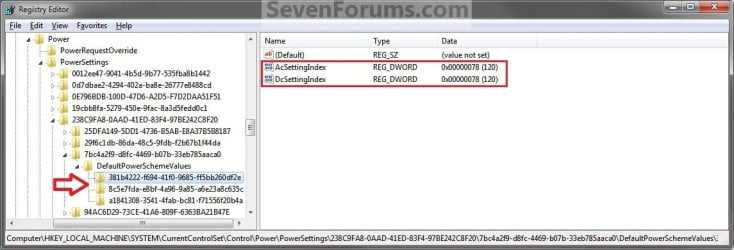
6. In the right pane, double click/tap on ACSettingIndex (Plugged in) or DCSettingIndex (On battery) to Modify it. (See screenshot below)
NOTE: You can choose to do this with one or both of these options to set what you want the wait timeout period to be for them.
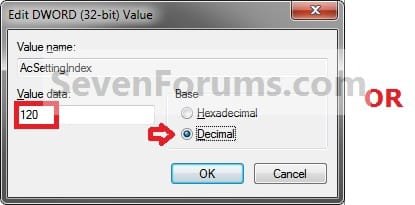
7. Dot Decimal, and type in how many seconds you want Wndows to wait before going back to sleep or hibernation automatically after an unattended wakeup. Click/tap on OK. (See screenshots below)
NOTE: The default time is 120 seconds (2 minutes).

8. Close regedit.
9. Log off and log on, or restart the computer to apply.
That's it,
Shawn Brink
Related Tutorials
- How to Add or Remove "System unattended sleep timeout" in Power Options
- How to Change the Power Plan Settings in Windows 7
- How to Select a Power Plan in Windows 7
- How to Create or Delete a Custom Power Plan in Windows 7
- How to Change the Default Action of the Windows 7 Alt+F4 Shut Down Window
- How to Enable or Disable Hibernate in Windows 7
- How to Restore the Default Power Plan Settings in Windows 7
- How to Run a Windows 7 Power Efficiency Diagnostics Report
- How to Enable or Disable Require Password on Wakeup in Windows 7
- How to Create a Shortcut to Change Power Plans in Windows 7
- How to Create a Task to Wake up the Computer to Run in Vista and Windows 7
- How to Read the Wake Source Log in Event Viewer for Windows 7 and Vista
Attachments

Last edited:


