Sleep Return Timeout for Unattended Wake Up

How to Change Return to Sleep Timeout for Unattended Wake Up in Windows


   Information
This tutorial will show you how to change how many minutes Windows will wait idle after waking up in an unattended state before automatically going back to sleep or hibernation in Vista, Windows 7, and Windows 8.

   Tip
Adjusting this wait timeout period can also be handy if you had created a task in Task Scheduler to wake up the computer to run something. You could set this wait timeout period to be long enough for the task to have time to finish running before Windows 7 went back to sleep automatically.
   Note
  • If the computer wakes up from sleep mode and is used by you (no longer idle) during this default timeout period, then Windows will not go back to sleep mode automatically after this timeout period. Instead it will use the time period you set in your Power Plan Settings for Sleep or Hibernation.
  • This will also affect how long you have to enter your user account password if you have enabled the Require a Password on wakeup option.
   Warning
You can only do this while logged into an administrator account.


OPTION ONE

To Set System Unattended Sleep Timeout in Power Options

1. If the administrator has not already, the System unattended sleep timeout needs to be added to Advanced Power Settings.

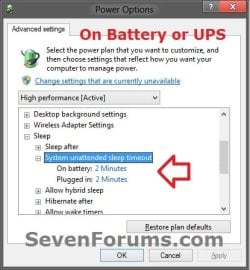
2. Open your Advanced Power Settings, expand Sleep and System unattended sleep timeout. (see screenshots below)

3. Set how many minutes you want, and click/tap on OK. (see screenshots below)AC-Only.jpg Battery.jpg


   Note
This option changes the ACSettingIndex (Plugged in) and/or DCSettingIndex (On battery) DWORD values at the registry location below.

Substitute Your Power Plan Registry Key in the path below with the actual registry key for in the table below instead for the power plan this is for.

Code:
[HKEY_LOCAL_MACHINE\SYSTEM\CurrentControlSet\Control\Power\User\PowerSchemes\[B][COLOR=red]Your Power Plan Registry Key[/COLOR][/B]\238c9fa8-0aad-41ed-83f4-97be242c8f20\7bc4a2f9-d8fc-4469-b07b-33eb785aaca0]

Registry KeyPower Plan
381b4222-f694-41f0-9685-ff5bb260df2eBalanced
8c5e7fda-e8bf-4a96-9a85-a6e23a8c635cHigh performance
a1841308-3541-4fab-bc81-f71556f20b4aPower saver


OPTION TWO

To Set Default System Unattended Sleep Timeout in Registy


NOTE: You can only do this option while logged into an administrator account.1. Press Windows+R to open the Run dialog, type regedit, and click/tap on OK.

2. If prompted by UAC, then click/tap on Yes (Windows 7/8) or Continue (Vista).

3. In regedit, navigate to the location below: (See screenshot below)

Code:
HKEY_LOCAL_MACHINE\SYSTEM\CurrentControlSet\Control\Power\PowerSettings\238C9FA8-0AAD-41ED-83F4-97BE242C8F20\7bc4a2f9-d8fc-4469-b07b-33eb785aaca0\DefaultPowerSchemeValues
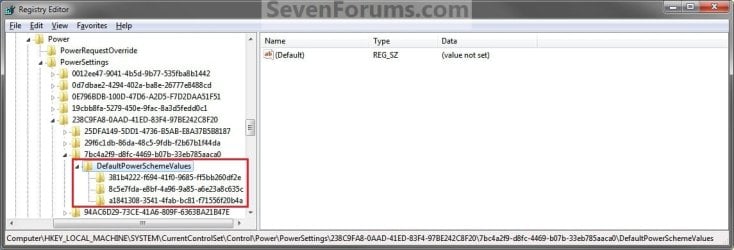
Step1.jpg

4. In the left pane of regedit, double click/tap on the DefaultPowerSchemeValues key (folder) to expand it. (See screenshot above)

5. Click/tap on the key (see table in tip below) that is for the Power Plan that you want to change the default wait time for. (See screenshot above)
NOTE: Normally, you would just do this for the Power Plan that you have selected (see tip below). If you have more than one user, then you may also want to include their Power Plan, or all of them.
   Tip
Registry KeyPower Plan
381b4222-f694-41f0-9685-ff5bb260df2eBalanced
8c5e7fda-e8bf-4a96-9a85-a6e23a8c635cHigh performance
a1841308-3541-4fab-bc81-f71556f20b4aPower saver

NOTE: You will not be able to set the wait timeout period for a custom power plan. You can only do so with the default power plans.


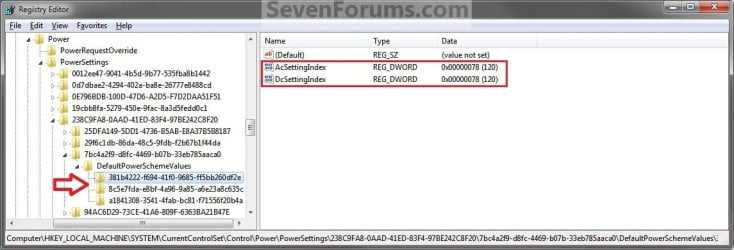
6. In the right pane, double click/tap on ACSettingIndex (Plugged in) or DCSettingIndex (On battery) to Modify it. (See screenshot below)
NOTE: You can choose to do this with one or both of these options to set what you want the wait timeout period to be for them.Step2.jpg

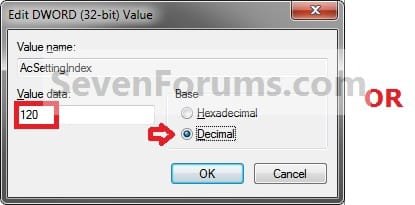
7. Dot Decimal, and type in how many seconds you want Wndows to wait before going back to sleep or hibernation automatically after an unattended wakeup. Click/tap on OK. (See screenshots below)
NOTE: The default time is 120 seconds (2 minutes).Step3A.jpgStep3B.jpg


8. Close regedit.

9. Log off and log on, or restart the computer to apply.


That's it,
Shawn Brink


Attachments

  • Power_Options.jpg
    Power_Options.jpg
    49 KB · Views: 19
Last edited:
Odd, but at least the registry changes are recognized by Power Options. I'm not sure why any changes you made in Power Options are not updated in the registry even after logging off/on.
 

My Computer My Computer

Computer type
PC/Desktop
Computer Manufacturer/Model Number
Self built custom
OS
64-bit Windows 11 Pro for Workstations
CPU
Intel i7-8700K OC'd to 5 GHz
Motherboard
ASUS ROG Maximus XI Formula Z390
Memory
64 GB (4x16GB) G.SKILL TridentZ RGB DDR4 3600 MHz
Graphics Card(s)
ASUS ROG-STRIX-GTX1080TI-O11G-GAMING
Sound Card
Integrated
Monitor(s) Displays
2 x Samsung Odyssey G7 27"
Screen Resolution
2560x1440
Hard Drives
1TB Samsung 990 PRO M.2,
4TB Samsung 990 PRO PRO M.2,
TerraMaster F8 SSD Plus NAS
PSU
Seasonic Prime Titanium 850W
Case
Thermaltake Core P3
Cooling
Corsair Hydro H115i
Keyboard
Logitech wireless K800
Mouse
Logitech MX Master 4
Internet Speed
2 Gb/s Download and 100 Mb/s Upload
Antivirus
Malwarebyte Anti-Malware Premium
Browser
Google Chrome
Other Info
Logitech Z625 speaker system,
Logitech BRIO 4K Pro webcam,
HP Color LaserJet Pro MFP M477fdn,
APC SMART-UPS RT 1000 XL - SURT1000XLI,
Galaxy S23 Plus phone
Odd, but at least the registry changes are recognized by Power Options. I'm not sure why any changes you made in Power Options are not updated in the registry even after logging off/on.

True. The way I look at it, the Registry value changes are doing the job to keep my PC awake for overnight tasks.

I'm using the wakeup and sleep timeout to keep the PC's (Laptop & Desktop) awake when I run nightly AV scans.

I have a question about the Registry timeout:

Does Windows only apply the sleep timeout when the PC is awakend by Windows Task Scheduler?

For example, I'm running a nightly Acronis incremental Backup task. Acronis wakes up my PC to perform the Backup task. If my PC isn't woke up first by Windows Task Scheduler, does the Sleep Timeout Registry value still apply? Will it keep my PC awake for the length specified in the Registry value, regardless of how the PC was waked up (ie, not by a task in Windows Task Scheduler)?
 

My Computer My Computer

Computer type
PC/Desktop
Computer Manufacturer/Model Number
Built at Micro Center Richardson, TX
OS
Windows 7 Home Premium 64 bit
CPU
Intel i5 650 Dual Core 3.20 GHz Cache 4MB Threads: 4
Motherboard
ASUS PRO P7P55D-E
Memory
Corsair 16GB DDR3 1600MHz 9-9-9-24 P/N: CMZ8GX3M2A1600C
Graphics Card(s)
ZOTAC GeFORCE 9500 ZT-95TEK2M-FSL 1GB GDDR2
Sound Card
Mother Bd
Monitor(s) Displays
ASUS V228H 21.5” Diag
Screen Resolution
1440 x 900
Hard Drives
SEAGATE BARRACUDA (2ea) 3.5” INTERNAL 1Tb 16 MB SATA ST1000DM003-9YN162 7200RPM, 64MB, SATA 6Gb/s ** 2 Sata Hot-Swap Racks installed in Tower
PSU
Thermaltake Model TR2 RX 750W
Cooling
2 Tower Fans
Keyboard
Dell Quietkey PS/2 Windows 104 P/N 0463CD
Mouse
Kensington Mechanical Trackball USB Model 64217
Internet Speed
35/35
Antivirus
Norton 360 & MBAM Pro
Browser
IE10
Other Info
Printer: HP DeskJet 3520 USB 2.0 **
Speakers: ALTEC Model VS4621 2.1 28 W/Channel w/Sub-woofer **
IOGEAR HDMI Monitor Switcher Swx3 MODEL GHDSW3 ** Addonics ZDRWESU3 eSata/USB 3.0 external DVD Read/Write DVD Drive** SEAGATE GoFlex USB 2.0 Portable HD 500GB 5400 RPM P/N: 9ZF2A2-570
Scoop,

The sleep return timeout setting is used when the PC is awakened by anything. :)
 

My Computer My Computer

Computer type
PC/Desktop
Computer Manufacturer/Model Number
Self built custom
OS
64-bit Windows 11 Pro for Workstations
CPU
Intel i7-8700K OC'd to 5 GHz
Motherboard
ASUS ROG Maximus XI Formula Z390
Memory
64 GB (4x16GB) G.SKILL TridentZ RGB DDR4 3600 MHz
Graphics Card(s)
ASUS ROG-STRIX-GTX1080TI-O11G-GAMING
Sound Card
Integrated
Monitor(s) Displays
2 x Samsung Odyssey G7 27"
Screen Resolution
2560x1440
Hard Drives
1TB Samsung 990 PRO M.2,
4TB Samsung 990 PRO PRO M.2,
TerraMaster F8 SSD Plus NAS
PSU
Seasonic Prime Titanium 850W
Case
Thermaltake Core P3
Cooling
Corsair Hydro H115i
Keyboard
Logitech wireless K800
Mouse
Logitech MX Master 4
Internet Speed
2 Gb/s Download and 100 Mb/s Upload
Antivirus
Malwarebyte Anti-Malware Premium
Browser
Google Chrome
Other Info
Logitech Z625 speaker system,
Logitech BRIO 4K Pro webcam,
HP Color LaserJet Pro MFP M477fdn,
APC SMART-UPS RT 1000 XL - SURT1000XLI,
Galaxy S23 Plus phone
Scoop,

The sleep return timeout setting is used when the PC is awakened by anything. :)

2r7nfdh.jpg
That was my guess. I can "semi-retire" my Task Scheduler "Wakeup" task.

I've often wondered why some AV products don't include a "wakeup PC to run unattended nightly HDD scans" option.

I'm running Norton 360. Prior to that, I was running ESET. Neither AV product has a wakeup option.

I have a friend that uses MacAfee and apparently that product includes a wakeup option.

Since Norton has an option to put the PC to sleep after completing the scan, that works well for me.
 

My Computer My Computer

Computer type
PC/Desktop
Computer Manufacturer/Model Number
Built at Micro Center Richardson, TX
OS
Windows 7 Home Premium 64 bit
CPU
Intel i5 650 Dual Core 3.20 GHz Cache 4MB Threads: 4
Motherboard
ASUS PRO P7P55D-E
Memory
Corsair 16GB DDR3 1600MHz 9-9-9-24 P/N: CMZ8GX3M2A1600C
Graphics Card(s)
ZOTAC GeFORCE 9500 ZT-95TEK2M-FSL 1GB GDDR2
Sound Card
Mother Bd
Monitor(s) Displays
ASUS V228H 21.5” Diag
Screen Resolution
1440 x 900
Hard Drives
SEAGATE BARRACUDA (2ea) 3.5” INTERNAL 1Tb 16 MB SATA ST1000DM003-9YN162 7200RPM, 64MB, SATA 6Gb/s ** 2 Sata Hot-Swap Racks installed in Tower
PSU
Thermaltake Model TR2 RX 750W
Cooling
2 Tower Fans
Keyboard
Dell Quietkey PS/2 Windows 104 P/N 0463CD
Mouse
Kensington Mechanical Trackball USB Model 64217
Internet Speed
35/35
Antivirus
Norton 360 & MBAM Pro
Browser
IE10
Other Info
Printer: HP DeskJet 3520 USB 2.0 **
Speakers: ALTEC Model VS4621 2.1 28 W/Channel w/Sub-woofer **
IOGEAR HDMI Monitor Switcher Swx3 MODEL GHDSW3 ** Addonics ZDRWESU3 eSata/USB 3.0 external DVD Read/Write DVD Drive** SEAGATE GoFlex USB 2.0 Portable HD 500GB 5400 RPM P/N: 9ZF2A2-570
Most likely the programs that do have one may use Task Scheduler anyway though.
 

My Computer My Computer

Computer type
PC/Desktop
Computer Manufacturer/Model Number
Self built custom
OS
64-bit Windows 11 Pro for Workstations
CPU
Intel i7-8700K OC'd to 5 GHz
Motherboard
ASUS ROG Maximus XI Formula Z390
Memory
64 GB (4x16GB) G.SKILL TridentZ RGB DDR4 3600 MHz
Graphics Card(s)
ASUS ROG-STRIX-GTX1080TI-O11G-GAMING
Sound Card
Integrated
Monitor(s) Displays
2 x Samsung Odyssey G7 27"
Screen Resolution
2560x1440
Hard Drives
1TB Samsung 990 PRO M.2,
4TB Samsung 990 PRO PRO M.2,
TerraMaster F8 SSD Plus NAS
PSU
Seasonic Prime Titanium 850W
Case
Thermaltake Core P3
Cooling
Corsair Hydro H115i
Keyboard
Logitech wireless K800
Mouse
Logitech MX Master 4
Internet Speed
2 Gb/s Download and 100 Mb/s Upload
Antivirus
Malwarebyte Anti-Malware Premium
Browser
Google Chrome
Other Info
Logitech Z625 speaker system,
Logitech BRIO 4K Pro webcam,
HP Color LaserJet Pro MFP M477fdn,
APC SMART-UPS RT 1000 XL - SURT1000XLI,
Galaxy S23 Plus phone
Scoop - I found that the registry WAS changed to reflect changes in "System unattended sleep timeout" made in the Power options plan but the changes appeared in a different registry key to the one shown above. I found the change I made in the "User" key - a few places down from the "Power Settings" key i.e.
[HKEY_LOCAL_MACHINE\SYSTEM\CurrentControlSet\Control\Power\User\PowerSchemes\8c5e7fda-e8bf-4a96-9a85-a6e23a8c635c\238c9fa8-0aad-41ed-83f4-97be242c8f20\7bc4a2f9-d8fc-4469-b07b-33eb785aaca0]
"ACSettingIndex"=dword:00001c20
in my case when I set 120 mins (= 1c20 hex)
(I know it's an old post but it might be relevant to a Googler)
 

My Computer My Computer

Computer type
PC/Desktop
OS
Win 7sp1
P.S. Thanks Brink - that "invisible" 2 min default timeout had me baffled :)
 

My Computer My Computer

Computer type
PC/Desktop
OS
Win 7sp1
Scoop - I found that the registry WAS changed to reflect changes in "System unattended sleep timeout" made in the Power options plan but the changes appeared in a different registry key to the one shown above. I found the change I made in the "User" key - a few places down from the "Power Settings" key i.e.
[HKEY_LOCAL_MACHINE\SYSTEM\CurrentControlSet\Control\Power\User\PowerSchemes\8c5e7fda-e8bf-4a96-9a85-a6e23a8c635c\238c9fa8-0aad-41ed-83f4-97be242c8f20\7bc4a2f9-d8fc-4469-b07b-33eb785aaca0]
"ACSettingIndex"=dword:00001c20
in my case when I set 120 mins (= 1c20 hex)
(I know it's an old post but it might be relevant to a Googler)

Thanks for the info :). I looked at that location in my Registry before and after changing the unattended sleep timeout value from within the Control Panel/Power Options menu but I didn't see it change the User Registry value. Maybe that's due to my Win 7 setup or how it was installed.
 

My Computer My Computer

Computer type
PC/Desktop
Computer Manufacturer/Model Number
Built at Micro Center Richardson, TX
OS
Windows 7 Home Premium 64 bit
CPU
Intel i5 650 Dual Core 3.20 GHz Cache 4MB Threads: 4
Motherboard
ASUS PRO P7P55D-E
Memory
Corsair 16GB DDR3 1600MHz 9-9-9-24 P/N: CMZ8GX3M2A1600C
Graphics Card(s)
ZOTAC GeFORCE 9500 ZT-95TEK2M-FSL 1GB GDDR2
Sound Card
Mother Bd
Monitor(s) Displays
ASUS V228H 21.5” Diag
Screen Resolution
1440 x 900
Hard Drives
SEAGATE BARRACUDA (2ea) 3.5” INTERNAL 1Tb 16 MB SATA ST1000DM003-9YN162 7200RPM, 64MB, SATA 6Gb/s ** 2 Sata Hot-Swap Racks installed in Tower
PSU
Thermaltake Model TR2 RX 750W
Cooling
2 Tower Fans
Keyboard
Dell Quietkey PS/2 Windows 104 P/N 0463CD
Mouse
Kensington Mechanical Trackball USB Model 64217
Internet Speed
35/35
Antivirus
Norton 360 & MBAM Pro
Browser
IE10
Other Info
Printer: HP DeskJet 3520 USB 2.0 **
Speakers: ALTEC Model VS4621 2.1 28 W/Channel w/Sub-woofer **
IOGEAR HDMI Monitor Switcher Swx3 MODEL GHDSW3 ** Addonics ZDRWESU3 eSata/USB 3.0 external DVD Read/Write DVD Drive** SEAGATE GoFlex USB 2.0 Portable HD 500GB 5400 RPM P/N: 9ZF2A2-570
Scoop - I found that the registry WAS changed to reflect changes in "System unattended sleep timeout" made in the Power options plan but the changes appeared in a different registry key to the one shown above. I found the change I made in the "User" key - a few places down from the "Power Settings" key i.e.
[HKEY_LOCAL_MACHINE\SYSTEM\CurrentControlSet\Control\Power\User\PowerSchemes\8c5e7fda-e8bf-4a96-9a85-a6e23a8c635c\238c9fa8-0aad-41ed-83f4-97be242c8f20\7bc4a2f9-d8fc-4469-b07b-33eb785aaca0]
"ACSettingIndex"=dword:00001c20
in my case when I set 120 mins (= 1c20 hex)
(I know it's an old post but it might be relevant to a Googler)

Hello Pat,

Thank you. The path varies depending on the power plan. I added a note at the bottom of OPTION ONE to help make it easier for this. :)
 

My Computer My Computer

Computer type
PC/Desktop
Computer Manufacturer/Model Number
Self built custom
OS
64-bit Windows 11 Pro for Workstations
CPU
Intel i7-8700K OC'd to 5 GHz
Motherboard
ASUS ROG Maximus XI Formula Z390
Memory
64 GB (4x16GB) G.SKILL TridentZ RGB DDR4 3600 MHz
Graphics Card(s)
ASUS ROG-STRIX-GTX1080TI-O11G-GAMING
Sound Card
Integrated
Monitor(s) Displays
2 x Samsung Odyssey G7 27"
Screen Resolution
2560x1440
Hard Drives
1TB Samsung 990 PRO M.2,
4TB Samsung 990 PRO PRO M.2,
TerraMaster F8 SSD Plus NAS
PSU
Seasonic Prime Titanium 850W
Case
Thermaltake Core P3
Cooling
Corsair Hydro H115i
Keyboard
Logitech wireless K800
Mouse
Logitech MX Master 4
Internet Speed
2 Gb/s Download and 100 Mb/s Upload
Antivirus
Malwarebyte Anti-Malware Premium
Browser
Google Chrome
Other Info
Logitech Z625 speaker system,
Logitech BRIO 4K Pro webcam,
HP Color LaserJet Pro MFP M477fdn,
APC SMART-UPS RT 1000 XL - SURT1000XLI,
Galaxy S23 Plus phone
Question

I have a question -- I followed your instruction for how to change the sleep return timeout for unattended wake up and it seems to work -- I am using it for the Task Scheduler to wake the computer and do a few things.

My question is that for some reason, after the elasped time I placed in the registry (balanced power scheme in my case), my computer fails to return to sleep at all.

In my case, I set the time to 2 hours, the computer "woke up" as scheduled, but after the 2 hours, it failed to go back to sleep. I did not touch the keyboard or mouse...etc (I scheduled to wake @ 4:00am and when I got up at 7:00am, my computer was still on -- I assume it would have gone back to sleep at 6:00am). I did verify through command prompt that task scheduler did wake the computer from sleep at 4:00am.

Any ideas what is going on?? Is there any "time limit" when you change this feature -- only minutes versus hours...etc.

Thanks for your help.
 

My Computer My Computer

Computer type
PC/Desktop
Computer Manufacturer/Model Number
Alienware
OS
Windows 7
Hello kanungos, and welcome to Seven Forums.

Double check your task to make sure it is set to not repeat if failed. If it repeats, it could cause the computer not to return to sleep.
 

My Computer My Computer

Computer type
PC/Desktop
Computer Manufacturer/Model Number
Self built custom
OS
64-bit Windows 11 Pro for Workstations
CPU
Intel i7-8700K OC'd to 5 GHz
Motherboard
ASUS ROG Maximus XI Formula Z390
Memory
64 GB (4x16GB) G.SKILL TridentZ RGB DDR4 3600 MHz
Graphics Card(s)
ASUS ROG-STRIX-GTX1080TI-O11G-GAMING
Sound Card
Integrated
Monitor(s) Displays
2 x Samsung Odyssey G7 27"
Screen Resolution
2560x1440
Hard Drives
1TB Samsung 990 PRO M.2,
4TB Samsung 990 PRO PRO M.2,
TerraMaster F8 SSD Plus NAS
PSU
Seasonic Prime Titanium 850W
Case
Thermaltake Core P3
Cooling
Corsair Hydro H115i
Keyboard
Logitech wireless K800
Mouse
Logitech MX Master 4
Internet Speed
2 Gb/s Download and 100 Mb/s Upload
Antivirus
Malwarebyte Anti-Malware Premium
Browser
Google Chrome
Other Info
Logitech Z625 speaker system,
Logitech BRIO 4K Pro webcam,
HP Color LaserJet Pro MFP M477fdn,
APC SMART-UPS RT 1000 XL - SURT1000XLI,
Galaxy S23 Plus phone
Thanks for the info.

I checked and the task was not set to "repeat if failed"

For the most part, the task runs without an issues most of the time but every once in a while, my computer will not go back to sleep at the conclusion of the elapse time set in the task scheduler (it will still be awake)

Is there any way to tell if something else "occurred" that made the task scheduler fail to put the computer back to sleep (i.e. a windows update, a required restart...etc.) Even if something else did occur, my understanding is that the computer "switches back" to the the default power settings (in my case, it is the balanced power option which is suppose to put the computer back to sleep in 30 minutes)

The only think different in my computer that I have noted is the Windows 10 app in the lower right hand corner in the task so not sure if that would have anything to do with it or not.

Let me know your thoughts and I appreciate your assistance.
 

My Computer My Computer

Computer type
PC/Desktop
Computer Manufacturer/Model Number
Alienware
OS
Windows 7
Yeah, it sounds like there was something else running that prevented the return to sleep. However, it could be anything though. When this happens check in Task Manager to see what's running to see if anything stands out each time it happens.
 

My Computer My Computer

Computer type
PC/Desktop
Computer Manufacturer/Model Number
Self built custom
OS
64-bit Windows 11 Pro for Workstations
CPU
Intel i7-8700K OC'd to 5 GHz
Motherboard
ASUS ROG Maximus XI Formula Z390
Memory
64 GB (4x16GB) G.SKILL TridentZ RGB DDR4 3600 MHz
Graphics Card(s)
ASUS ROG-STRIX-GTX1080TI-O11G-GAMING
Sound Card
Integrated
Monitor(s) Displays
2 x Samsung Odyssey G7 27"
Screen Resolution
2560x1440
Hard Drives
1TB Samsung 990 PRO M.2,
4TB Samsung 990 PRO PRO M.2,
TerraMaster F8 SSD Plus NAS
PSU
Seasonic Prime Titanium 850W
Case
Thermaltake Core P3
Cooling
Corsair Hydro H115i
Keyboard
Logitech wireless K800
Mouse
Logitech MX Master 4
Internet Speed
2 Gb/s Download and 100 Mb/s Upload
Antivirus
Malwarebyte Anti-Malware Premium
Browser
Google Chrome
Other Info
Logitech Z625 speaker system,
Logitech BRIO 4K Pro webcam,
HP Color LaserJet Pro MFP M477fdn,
APC SMART-UPS RT 1000 XL - SURT1000XLI,
Galaxy S23 Plus phone
Thanks for your help.
 

My Computer My Computer

Computer type
PC/Desktop
Computer Manufacturer/Model Number
Alienware
OS
Windows 7
I tried what you said -- Task manager has so many things listed it is difficult to know what caused the return to sleep feature to activated. Strange enough, after I do something (mouse click, push keyboard button...etc), the default sleep timer kicks in and it goes back to sleep after 2 minutes. Any other ideas on how to figure what is preventing the sleep timer from kicking back on after the elapsed time I set by your method??

Thanks.
 

My Computer My Computer

Computer type
PC/Desktop
Computer Manufacturer/Model Number
Alienware
OS
Windows 7
Usually when this happens, it's something still running and performing some action that is preventing the return to sleep from unattended wakeup.

A workaround would be to include a sleep command for your task so that it will put the computer back to sleep afterwards.

rundll32.exe powrprof.dll,SetSuspendState

http://www.sevenforums.com/tutorials/61430-sleep-shortcut-create.html
 

My Computer My Computer

Computer type
PC/Desktop
Computer Manufacturer/Model Number
Self built custom
OS
64-bit Windows 11 Pro for Workstations
CPU
Intel i7-8700K OC'd to 5 GHz
Motherboard
ASUS ROG Maximus XI Formula Z390
Memory
64 GB (4x16GB) G.SKILL TridentZ RGB DDR4 3600 MHz
Graphics Card(s)
ASUS ROG-STRIX-GTX1080TI-O11G-GAMING
Sound Card
Integrated
Monitor(s) Displays
2 x Samsung Odyssey G7 27"
Screen Resolution
2560x1440
Hard Drives
1TB Samsung 990 PRO M.2,
4TB Samsung 990 PRO PRO M.2,
TerraMaster F8 SSD Plus NAS
PSU
Seasonic Prime Titanium 850W
Case
Thermaltake Core P3
Cooling
Corsair Hydro H115i
Keyboard
Logitech wireless K800
Mouse
Logitech MX Master 4
Internet Speed
2 Gb/s Download and 100 Mb/s Upload
Antivirus
Malwarebyte Anti-Malware Premium
Browser
Google Chrome
Other Info
Logitech Z625 speaker system,
Logitech BRIO 4K Pro webcam,
HP Color LaserJet Pro MFP M477fdn,
APC SMART-UPS RT 1000 XL - SURT1000XLI,
Galaxy S23 Plus phone
Hi Brink,

Thanks for the suggestion. I am still somewhat new to Seven Forums so bear with me when it comes to some of the questions I ask.

Once I have created the sleep command shortcut, where exactly would I put the sleep shortcut command in the task scheduler "task" that I originally created (in actions tab, triggers tab...etc)??

Or would I just create a new "task" in the scheduler to run this sleep command shortcut at a designated time once the original "task" is completed (i.e. after 2 hour time I set for the original task)???

Does what I am asking making sense?? Thanks for your patience.
 

My Computer My Computer

Computer type
PC/Desktop
Computer Manufacturer/Model Number
Alienware
OS
Windows 7
You could use the command in your current task instead, or create a new one.
 

My Computer My Computer

Computer type
PC/Desktop
Computer Manufacturer/Model Number
Self built custom
OS
64-bit Windows 11 Pro for Workstations
CPU
Intel i7-8700K OC'd to 5 GHz
Motherboard
ASUS ROG Maximus XI Formula Z390
Memory
64 GB (4x16GB) G.SKILL TridentZ RGB DDR4 3600 MHz
Graphics Card(s)
ASUS ROG-STRIX-GTX1080TI-O11G-GAMING
Sound Card
Integrated
Monitor(s) Displays
2 x Samsung Odyssey G7 27"
Screen Resolution
2560x1440
Hard Drives
1TB Samsung 990 PRO M.2,
4TB Samsung 990 PRO PRO M.2,
TerraMaster F8 SSD Plus NAS
PSU
Seasonic Prime Titanium 850W
Case
Thermaltake Core P3
Cooling
Corsair Hydro H115i
Keyboard
Logitech wireless K800
Mouse
Logitech MX Master 4
Internet Speed
2 Gb/s Download and 100 Mb/s Upload
Antivirus
Malwarebyte Anti-Malware Premium
Browser
Google Chrome
Other Info
Logitech Z625 speaker system,
Logitech BRIO 4K Pro webcam,
HP Color LaserJet Pro MFP M477fdn,
APC SMART-UPS RT 1000 XL - SURT1000XLI,
Galaxy S23 Plus phone
How do you do that?

If you have a tutorial in the forum, please let me know.

Thanks.
 

My Computer My Computer

Computer type
PC/Desktop
Computer Manufacturer/Model Number
Alienware
OS
Windows 7
You could just add a new action in the task that you already created.
 

My Computer My Computer

Computer type
PC/Desktop
Computer Manufacturer/Model Number
Self built custom
OS
64-bit Windows 11 Pro for Workstations
CPU
Intel i7-8700K OC'd to 5 GHz
Motherboard
ASUS ROG Maximus XI Formula Z390
Memory
64 GB (4x16GB) G.SKILL TridentZ RGB DDR4 3600 MHz
Graphics Card(s)
ASUS ROG-STRIX-GTX1080TI-O11G-GAMING
Sound Card
Integrated
Monitor(s) Displays
2 x Samsung Odyssey G7 27"
Screen Resolution
2560x1440
Hard Drives
1TB Samsung 990 PRO M.2,
4TB Samsung 990 PRO PRO M.2,
TerraMaster F8 SSD Plus NAS
PSU
Seasonic Prime Titanium 850W
Case
Thermaltake Core P3
Cooling
Corsair Hydro H115i
Keyboard
Logitech wireless K800
Mouse
Logitech MX Master 4
Internet Speed
2 Gb/s Download and 100 Mb/s Upload
Antivirus
Malwarebyte Anti-Malware Premium
Browser
Google Chrome
Other Info
Logitech Z625 speaker system,
Logitech BRIO 4K Pro webcam,
HP Color LaserJet Pro MFP M477fdn,
APC SMART-UPS RT 1000 XL - SURT1000XLI,
Galaxy S23 Plus phone
Back
Top