Slow Startup

pain55

New member
Member
Local time
12:37 AM
Messages
60
Ok, so when I boot up my laptop, and when it gets to desktop, it takes time for everything to stabilise and windows is slow and if i try opening firefox or anything it takes long and most of the time it becoms unresponsive. Maybe because too many programs are starting up.

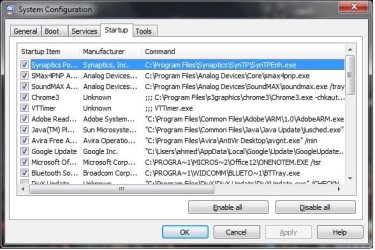
Here is a screen of 'startup' from msconfig. Could somebody please tell me which programs I can untick. Thanks!
 

Attachments

  • msconfig.jpg
    msconfig.jpg
    54.9 KB · Views: 53

My Computer

Computer type
Laptop
Computer Manufacturer/Model Number
HP Mini 2133
OS
windows 7 ultimate 32-bit
Memory
2GB
Antivirus
Avira
Browser
Firefox
General rule of thumb is disable anything you don't actively use at startup, or even close to startup. For example Adobe kicks in when needed anyway; that doesn't need to run at startup.

Some people also disable Synaptics, which is just to do with the configuration of your touchpad, and if you never tinker with its settings then you don't need it running in the background at startup; it can be accessed through 'Mouse' in Control Panel anyway.

Chrome3 and VTimer are related to S3 screentoys which, not being familiar with, I would say leave running in case disabling them completely disables your screen. (Highly unlikely, and chances are it's just a utility suite of software to do with your screen settings, but better safe than sorry).

For others I'd disable in a heartbeat, Java Update, Google Update and Office. Depending on your frequency of bluetooth use as well, I'd disable the bluetooth tray. It's one of those things that opens if you need it anyway, for example if you plug in a bluetooth dongle.
 

My Computer

Computer Manufacturer/Model Number
Custom
OS
Windows 7 Ultimate 64-bit
CPU
AMD Phenom II X4 955 Black OC'ed 4.0GHz
Motherboard
Asus M5A88-V EVO
Memory
8GB Mushkin Enhanced Silverline (2x4GB) 1333
Graphics Card(s)
XFX Radeon HD6870 1024MB GDDR5 OC'ed 945MHz; 1151MHz
Sound Card
Soundblaster X-Fi Xtreme PCIe
Monitor(s) Displays
32" Hannspree SE32LMNB
Screen Resolution
1920 x 1080
Hard Drives
250GB Hitachi Deskstar (OS); 2TB Western Digital Elements
PSU
650W XFX XXX Edition 80PLUS Bronze Modular
Case
Cougar 6GR1 Evolution
Cooling
Corsair H60 p/p 120mm; Zalman VF3000A; x4 120mm; x1 140mm
Keyboard
Logitech G510
Mouse
CM Storm Sentinel Advance Zero-G
Internet Speed
Not fast enough :I
Other Info
No matter what your specs, my PC is better.
General rule of thumb is disable anything you don't actively use at startup, or even close to startup. For example Adobe kicks in when needed anyway; that doesn't need to run at startup.

Some people also disable Synaptics, which is just to do with the configuration of your touchpad, and if you never tinker with its settings then you don't need it running in the background at startup; it can be accessed through 'Mouse' in Control Panel anyway.

Chrome3 and VTimer are related to S3 screentoys which, not being familiar with, I would say leave running in case disabling them completely disables your screen. (Highly unlikely, and chances are it's just a utility suite of software to do with your screen settings, but better safe than sorry).

For others I'd disable in a heartbeat, Java Update, Google Update and Office. Depending on your frequency of bluetooth use as well, I'd disable the bluetooth tray. It's one of those things that opens if you need it anyway, for example if you plug in a bluetooth dongle.

Thanks for reply mate, also is there anything else I can do to generally speed up my laptop?
 

My Computer

Computer type
Laptop
Computer Manufacturer/Model Number
HP Mini 2133
OS
windows 7 ultimate 32-bit
Memory
2GB
Antivirus
Avira
Browser
Firefox
You can possibly look at limiting which services run at startup; these are similar to the startup processes but are mostly invisible and take up very little processing space to begin with. It's only for the most fussy of users and not for casual messing; several services are interlinked and stopping one that you don't need doesn't necessarily mean that you won't be stopping a service that you do need.

If you want to access it simply open up Task Manager (Ctrl+Alt+Del; or right-click taskbar and select 'Start Task Manager'); then head to the Services tab. From here you can't do anything except for see which services are running or stopped, but in the lower right the further 'Services' button calls up a new window allowing you right-click each service individually and choose from a series of options.
In the Properties for any service you can see the service name, a description of what it does, and toggle whether to have it startup:

Automatic (as soon as the machine boots),
Automatic with a delayed start (starts up with the machine, but not the second that Windows loads, so that individual services load mostly separately from one another, theoretically taking the strain off the CPU)
Manual (services will only start when specifically required; for example you turn the Printers services to this setting, and it will only activate when you try to print a document)
Disabled (speaks for itself)


As I say, this is not for the faint of heart nor for mucking about. You can seriously impact your machine's performance by disabling services, or render it inoperable in the worst case scenario. I recommend using a good services guide such as at The Elder Geek Home
You can also use Google to research each one, or in the Properties window for service, click on the 'Dependencies' tab to see which services rely on that particular one, and also which ones it relies on in order to function.


I strongly recommend only researching this method first, though. Research first, act upon it another day if you still feel you can bleed some more performance out of your machine.
http://www.theeldergeek.com/

 

My Computer

Computer Manufacturer/Model Number
Custom
OS
Windows 7 Ultimate 64-bit
CPU
AMD Phenom II X4 955 Black OC'ed 4.0GHz
Motherboard
Asus M5A88-V EVO
Memory
8GB Mushkin Enhanced Silverline (2x4GB) 1333
Graphics Card(s)
XFX Radeon HD6870 1024MB GDDR5 OC'ed 945MHz; 1151MHz
Sound Card
Soundblaster X-Fi Xtreme PCIe
Monitor(s) Displays
32" Hannspree SE32LMNB
Screen Resolution
1920 x 1080
Hard Drives
250GB Hitachi Deskstar (OS); 2TB Western Digital Elements
PSU
650W XFX XXX Edition 80PLUS Bronze Modular
Case
Cougar 6GR1 Evolution
Cooling
Corsair H60 p/p 120mm; Zalman VF3000A; x4 120mm; x1 140mm
Keyboard
Logitech G510
Mouse
CM Storm Sentinel Advance Zero-G
Internet Speed
Not fast enough :I
Other Info
No matter what your specs, my PC is better.
If you want to speed up your laptop some more, run disk cleanup and run disk defragmenter. Don't use third party registry cleaners or any other cleaner. Also, make sure you let Windows 7 have some idle time. Make sure that every once and awhile, you give it about 2 hours of idle, because Windows 7 runs stuff when it is idle that helps speed up Windows and your programs.
 

My Computer

Computer type
PC/Desktop
Computer Manufacturer/Model Number
HP Pavilion P7-1010
OS
Windows 7 Professional x64 Service Pack 1
CPU
AMD Athlon X4 645
Motherboard
Foxxcon N-Alvorix RS880
Memory
6GB DDR3 1066
Graphics Card(s)
Sapphire Radeon HD 5670 512MB GDDR5
Sound Card
Realtek Integrated Audio
Monitor(s) Displays
HP 2011x
Screen Resolution
1600x900
Hard Drives
1. Crucial M4 128GB SSD
2. 1TB Seagate Barracuda 7200.12 RPM
3. 1TB Western Digital Caviar Green 5400RPM
PSU
Seasonic S12 II Bronze 380 Watt
Case
HP OEM
Cooling
Coolermaster Heatsink, AVC Case Fan
Keyboard
HP OEM- Made by Chicony
Mouse
HP OEM- Made by Logitech
Internet Speed
20MBit Down/4 Up
Antivirus
Microsoft Security Essentials
Browser
Internet Explorer 10
As previously mentioned, it's usually not a good idea to tinker with services. One of our experts (gregrocker) has a great tutorial on how to clean up factory bloatware. Bloatware is best described as "stuff" installed by the manufacturer that can seriously slow down a computer. He also goes into some detail on what startup items can be safely disabled - basically everything except your security suite (antivirus, antispyware, firewall.)

http://www.sevenforums.com/tutorials/219576-clean-up-factory-bloatware.html

Another informative tutorial by one of the Admins (Brink) offers several suggestions on what you can do to optimize Windows 7 performance. Not everything will apply to you but there's a lot of good info here as well.

http://www.sevenforums.com/tutorials/11728-optimize-windows-7-a.html
 

My Computer

Computer type
Laptop
Computer Manufacturer/Model Number
Sony Vaio VPCEB47GM Laptop
OS
Win 7 Pro 64-bit
CPU
Intel i5 2.4 Ghz
Memory
8GB DDR3
Graphics Card(s)
Intel HD 3000
Sound Card
IDT High Definition
Monitor(s) Displays
15.6 WGXA Anti-Glare LED
Screen Resolution
1280x800
Hard Drives
640Gb 7200rpm
Antivirus
MSE
Browser
Opera (primary) with IE9 backup
I will mirror what marsmimar said about disabling services. If you know what you are doing, there are certainly some services that you can disable, but it likely won't speed up your boot. You are on the right track with disabling startup programs that are unnecessary. For a simple interface to show what is making your startup slow, I would try Soluto. While I do not use it to manage the startup, it was helpful to visualize what is delaying the boot.

https://www.soluto.com/

A Guy
 

My Computer

Computer type
PC/Desktop
OS
Windows 10 Home x64
CPU
INTEL Core i5-750 Quad-Core 3.37GHz
Motherboard
ASUS P7P55D
Memory
HyperX Fury Black Series 8GB (2 x 4GB) 1866Mhz
Graphics Card(s)
EVGA GeForce GTX 750 Superclocked 1GB 128-Bit GDDR5
Monitor(s) Displays
LG 32MA68HY 32" IPS
Screen Resolution
1920 x 1080
Hard Drives
Samsung 840 Evo 120GB, SEAGATE 500GB Barracuda® 7200.12, SATA 3 Gb/s, 7200 RPM, 16MB cache
PSU
ANTEC TruePower New TP-550, 80 PLUS, 550W
Case
ANTEC Three Hundred Illusion
Cooling
COOLER MASTER Hyper 212 Plus, 4 x 120mm 1 x 140mm Noctua's
Internet Speed
85 + Mbps
Antivirus
Avast
Browser
Vivaldi
Back
Top