Solved Some color change questions

firewater

New member
Local time
5:50 PM
Messages
13
Hello! I'm actually running Windows 8, but I figured It's basically the same, so here I go:

tAlUq9I.png


a) I'm using Start8 and I don't like this rectangle I get when hovering an item on the start menu. I would like to change it to nothing (no effect when hovering) or maybe some sort of shadow, I don't care.

b) Want to erase the long arrow that aims to "All Programs". Would like to leave it just as "All Programs".
L8G1U3y.png


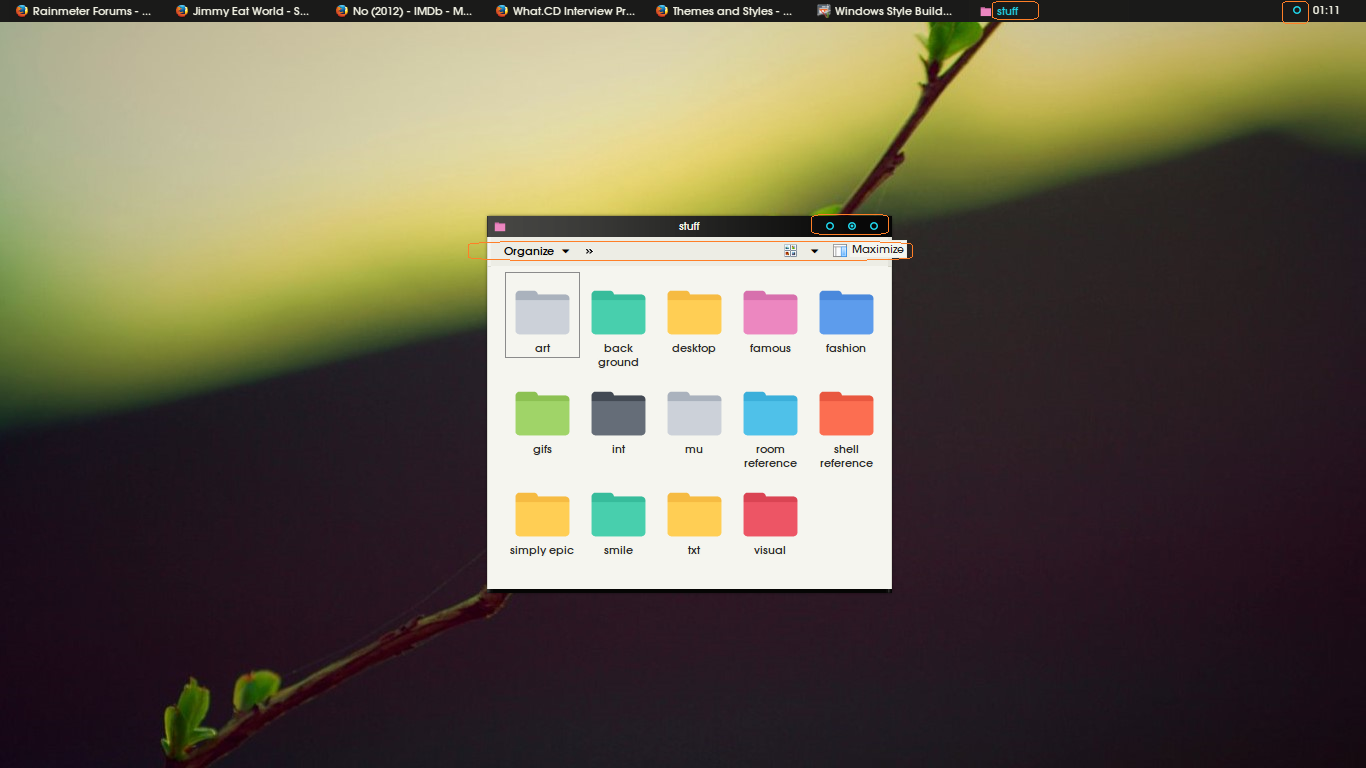
c) I would like to change the color of these circle icons that you can see on the system tray and minimize/maximize/close windows..

d) I already changed the taskbar to a solid black color (used to be a gradient) and I would like to do the same with the bar of every generic window such as the bar that you see when you open the folder explorer (as you can see in the picture) or any application.

e) The blue-ish color on the font when an item is selected in the taskbar.

f) Get rid of the "Organize" bar on the folder explorer

I'm using Windows Style Builder which appears to be a popular piece of software with these type of questions around here, so maybe some of you know how to do any of these.

Thanks!
 

My Computer My Computer

Computer type
Laptop
OS
Windows 8 64 Bits
Welcome to the Seven Forums

Is this a custom third-party theme you are trying to edit? If so post a link to it.

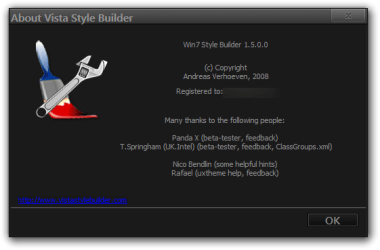
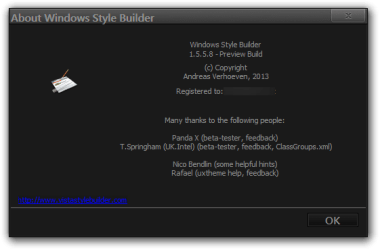
Which version of Windows Style Builder do you have 1.5.0 or 1.5.5 and up?

Jerry
About Vista Style Builder2.png

About Windows Style Builder.png
 

My Computer My Computer

Computer type
Laptop
Computer Manufacturer/Model Number
Sager NP9170
OS
Win 7 Pro x64 / Win 10 Pro
CPU
Intel(R) Core(TM) i7-3630QM CPU @ 2.40GHz
Motherboard
CLEVO P170EM
Memory
12 GB
Graphics Card(s)
(1) Intel(R) HD Graphics 4000 (2) NVIDIA GeForce GTX 675M
Sound Card
(1) Realtek High Definition Audio (2) Intel(R) Display Aud
Monitor(s) Displays
17.3
Screen Resolution
1920x1080
Hard Drives
(1) Samsung 860 EVO 500GB(OS) (1) Samsung 860 EVO 500GB(Data)
Keyboard
Backlite
Antivirus
MSE, Malwarebytes Pro
Browser
Firefox
Other Info
DESKTOP: Custom-built.
OS: Win 10 Pro x64.
CASE: Rosewill R5.
CPU: Intel I5 4670K CPU @ 3.40GHz.
CPU COOLER: Cool Master Hyper 212 EVO.
MOTHERBOARD: Asus Z87-A.
MEMORY: Kingston HyperX 2x4 GB.
GPU: Nvidia Geforce 650 TI.
PSU: Corsair TX750.
DRIVES: (1) Samsung 840 120 GB SSD (2) Western Digital blue 500 GB 7200 RPM.
A
Start Menu > Panels > Basic > Places List > Controls > Places List Item Hover
Start Menu > Panels > Basic > Programs List > Controls > Programs List Item
Start Menu > Panels > Basic > Programs List > Controls > Programs List Split Button Left
Start Menu > Panels > Basic > Programs List > Controls > Programs List Split Button Right


B
Start Menu > Panels > Basic > Programs List > Controls > More Programs Arrow
Start Menu > Panels > Basic > Programs List > Controls > More Programs Arrow Back

C
Not sure about the system tray icon did you change a systeme file?
The buttons have been made transparent, the blue images are at:
Windows & Caption Buttons > Aero > DWM Window > Controls > Captions > Window > Close Button > Close Glyph > 96dpi
Windows & Caption Buttons > Aero > DWM Window > Controls > Captions > Window > Restore/Maximize Button > Restore Glyph > 96dpi
Windows & Caption Buttons > Aero > DWM Window > Controls > Captions > Window > Restore/Maximize Button > Maximize Glyph > 96dpi
Windows & Caption Buttons > Aero > DWM Window > Controls > Captions > Window > Minimize/Help Button > Minimize Glyph > 96dpi
Windows & Caption Buttons > Aero > DWM Window > Controls > Captions > Window > Minimize/Help Button > Help Glyph > 96dpi

D
Windows & Caption Buttons > Aero > DWM Window > Frames > Window > Top > Active/Inactive

E
Taskbar & System Tray > TaskBand > Aero > TaskBand (SmallIcons8) > TaskItemButton > Focused > Textcolor

F
Don't know how not part of Windows Style Builder

Jerry
 

My Computer My Computer

Computer type
Laptop
Computer Manufacturer/Model Number
Sager NP9170
OS
Win 7 Pro x64 / Win 10 Pro
CPU
Intel(R) Core(TM) i7-3630QM CPU @ 2.40GHz
Motherboard
CLEVO P170EM
Memory
12 GB
Graphics Card(s)
(1) Intel(R) HD Graphics 4000 (2) NVIDIA GeForce GTX 675M
Sound Card
(1) Realtek High Definition Audio (2) Intel(R) Display Aud
Monitor(s) Displays
17.3
Screen Resolution
1920x1080
Hard Drives
(1) Samsung 860 EVO 500GB(OS) (1) Samsung 860 EVO 500GB(Data)
Keyboard
Backlite
Antivirus
MSE, Malwarebytes Pro
Browser
Firefox
Other Info
DESKTOP: Custom-built.
OS: Win 10 Pro x64.
CASE: Rosewill R5.
CPU: Intel I5 4670K CPU @ 3.40GHz.
CPU COOLER: Cool Master Hyper 212 EVO.
MOTHERBOARD: Asus Z87-A.
MEMORY: Kingston HyperX 2x4 GB.
GPU: Nvidia Geforce 650 TI.
PSU: Corsair TX750.
DRIVES: (1) Samsung 840 120 GB SSD (2) Western Digital blue 500 GB 7200 RPM.
Thanks! Everything worked perfectly! You are a master.

I found how to change the tray by searching for "tray" on the top right corner.

I know you already took the time to do all this and I really appreciate it, but may I ask for two other things:

a) how do I change the default font? I'm refering mostly to the font used on the taskbar.

b) the shutdown button on the start menu seems to be kinda glitchy so I would like to change it.

I'll try to find the answers by myself and I'll edit the post in case I succeed.

Thanks you again.
 

My Computer My Computer

Computer type
Laptop
OS
Windows 8 64 Bits
A
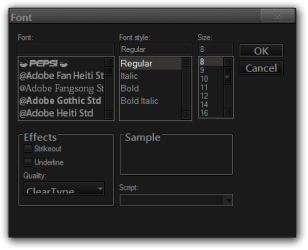
Go to Taskbar & System Tray > TaskBand > Basic > TaskBand > Font and click on the font definition and a font window will open up and you can change it.(look at screenshot)
1.png

2.png

B
I'm not sure which to mean by "glitchy" but the button and all of its properties are located at:
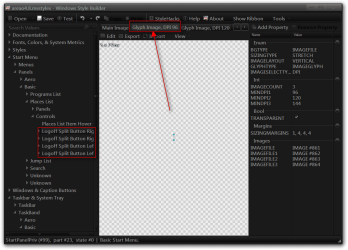
It looks like all the buttons have been made transparent here also, look at the Glyph image DPI 96 (look at screenshot) at these locations.
Start Menu > Panels > Basic > Places List > Controls > Logoff Split Button Right
Start Menu > Panels > Basic > Places List > Controls > Logoff Split Button Right Extended
Start Menu > Panels > Basic > Places List > Controls > Logoff Split Button Left
Start Menu > Panels > Basic > Places List > Controls > Logoff Split Button Left Extended
3.png

Jerry
 
Last edited by a moderator:

My Computer My Computer

Computer type
Laptop
Computer Manufacturer/Model Number
Sager NP9170
OS
Win 7 Pro x64 / Win 10 Pro
CPU
Intel(R) Core(TM) i7-3630QM CPU @ 2.40GHz
Motherboard
CLEVO P170EM
Memory
12 GB
Graphics Card(s)
(1) Intel(R) HD Graphics 4000 (2) NVIDIA GeForce GTX 675M
Sound Card
(1) Realtek High Definition Audio (2) Intel(R) Display Aud
Monitor(s) Displays
17.3
Screen Resolution
1920x1080
Hard Drives
(1) Samsung 860 EVO 500GB(OS) (1) Samsung 860 EVO 500GB(Data)
Keyboard
Backlite
Antivirus
MSE, Malwarebytes Pro
Browser
Firefox
Other Info
DESKTOP: Custom-built.
OS: Win 10 Pro x64.
CASE: Rosewill R5.
CPU: Intel I5 4670K CPU @ 3.40GHz.
CPU COOLER: Cool Master Hyper 212 EVO.
MOTHERBOARD: Asus Z87-A.
MEMORY: Kingston HyperX 2x4 GB.
GPU: Nvidia Geforce 650 TI.
PSU: Corsair TX750.
DRIVES: (1) Samsung 840 120 GB SSD (2) Western Digital blue 500 GB 7200 RPM.
Thanks, man! You are the best.

eO0V380.png


What I meant by "glitchy" is what you can see in the picture above. It only properly displays "Shut down" once I hover the mouse over the button. I don't know if It's easily fixeable or not.

By the way, since you may have noticed I'm trying to change the whole blue-ish style of the theme to plain white and I think the last thing to achieve that would be changing some mouse-hovering related things:

UwkGP8E.png

6xAUAEO.png


The first one is that blue text I get when I hover an item with the mouse.
The other one is that blue circle I get when I'm pressing the button (It's also blue when I hover it).

To be honest, none of these are as important as any of the things I have already asked you, so in case you have the time to explain how It's done don't bother taking pics, just tell me where It's located (or where you think it might be located).

In any way, thank you very much.
 

My Computer My Computer

Computer type
Laptop
OS
Windows 8 64 Bits
You might try to add a Font property to Start Menu > Panels > Basic > Places List > Controls > Logoff Split Button Left and Start Menu > Panels > Basic > Places List > Controls > Logoff Split Button Left Extended and see if you can adjust the font there otherwise I'm not too sure I'm using 8.1 so I don't have the start menu like you do.

The blue text color would be at Explorer & Shell > Explorer > TreeView > TreeItem > Hot > Textcolor

The blue circle should be at Explorer & Shell > Explorer > TreeView > HotGlyph

Jerry
 

My Computer My Computer

Computer type
Laptop
Computer Manufacturer/Model Number
Sager NP9170
OS
Win 7 Pro x64 / Win 10 Pro
CPU
Intel(R) Core(TM) i7-3630QM CPU @ 2.40GHz
Motherboard
CLEVO P170EM
Memory
12 GB
Graphics Card(s)
(1) Intel(R) HD Graphics 4000 (2) NVIDIA GeForce GTX 675M
Sound Card
(1) Realtek High Definition Audio (2) Intel(R) Display Aud
Monitor(s) Displays
17.3
Screen Resolution
1920x1080
Hard Drives
(1) Samsung 860 EVO 500GB(OS) (1) Samsung 860 EVO 500GB(Data)
Keyboard
Backlite
Antivirus
MSE, Malwarebytes Pro
Browser
Firefox
Other Info
DESKTOP: Custom-built.
OS: Win 10 Pro x64.
CASE: Rosewill R5.
CPU: Intel I5 4670K CPU @ 3.40GHz.
CPU COOLER: Cool Master Hyper 212 EVO.
MOTHERBOARD: Asus Z87-A.
MEMORY: Kingston HyperX 2x4 GB.
GPU: Nvidia Geforce 650 TI.
PSU: Corsair TX750.
DRIVES: (1) Samsung 840 120 GB SSD (2) Western Digital blue 500 GB 7200 RPM.
That's all. Thread solved :-)

Thank you very much!
 

My Computer My Computer

Computer type
Laptop
OS
Windows 8 64 Bits
You're welcome
 

My Computer My Computer

Computer type
Laptop
Computer Manufacturer/Model Number
Sager NP9170
OS
Win 7 Pro x64 / Win 10 Pro
CPU
Intel(R) Core(TM) i7-3630QM CPU @ 2.40GHz
Motherboard
CLEVO P170EM
Memory
12 GB
Graphics Card(s)
(1) Intel(R) HD Graphics 4000 (2) NVIDIA GeForce GTX 675M
Sound Card
(1) Realtek High Definition Audio (2) Intel(R) Display Aud
Monitor(s) Displays
17.3
Screen Resolution
1920x1080
Hard Drives
(1) Samsung 860 EVO 500GB(OS) (1) Samsung 860 EVO 500GB(Data)
Keyboard
Backlite
Antivirus
MSE, Malwarebytes Pro
Browser
Firefox
Other Info
DESKTOP: Custom-built.
OS: Win 10 Pro x64.
CASE: Rosewill R5.
CPU: Intel I5 4670K CPU @ 3.40GHz.
CPU COOLER: Cool Master Hyper 212 EVO.
MOTHERBOARD: Asus Z87-A.
MEMORY: Kingston HyperX 2x4 GB.
GPU: Nvidia Geforce 650 TI.
PSU: Corsair TX750.
DRIVES: (1) Samsung 840 120 GB SSD (2) Western Digital blue 500 GB 7200 RPM.
Hello again, It's been 3 days and I thought it was over, but sadly I've encountered another pair of problems while finishing my mod.

a) This seems to be an oddly specific issue, yet it shouldn't take more than changing one color on some menu I couldn't find. I use "never combine" on the taskbar and I've found that whenever I have a Firefox window opened and then I hover the mouse to another one, the "taskbar tab" of the one I currently have opened glows with the very same blue color I'm trying to eliminate from the theme.

mwjQOlP.png


The circle in the picture represents the mouse cursor hovering that tab.

b) I did some googling and this doesn't seem to be related to WSB, but I'm still clueless as to how I'm supossed to modify the .clp (I think?) file. What I want to do is basically what's being shown in the pic: match the big white squares with the background.

5Fs0JcN.png


Sorry to disturb you again, mate, but I literally looked to every single option on WSB (it took me about 2 hours and a half) and yet I still couldn't find a solution to the first problem.
 

My Computer My Computer

Computer type
Laptop
OS
Windows 8 64 Bits
Try the text color at:
Taskbar & System Tray > TaskBand > Aero > TaskBand (SmallIcons8) > TaskItemButton > Hover
Taskbar & System Tray > TaskBand > Aero > TaskBand (SmallIcons8) > TaskItemButton > Other Side Hot (Focused (Uncombined Inheritance))
Taskbar & System Tray > TaskBand > Aero > TaskBand (SmallIcons8) > TaskItemButton > Focused Hover & Open Pressed

For the clock you need to edit the .png images in the PNGFILE folder in the timedate.cpl in C:\Windows\System32 and C:\Windows\SysWOW64 (edit a copy of them)
Then change the system files you need to take ownership give yourself permission and rename the old file and then copy in the new one I have not done this on Windows 8/8.1 it's not the same as 7.

Jerry
 

My Computer My Computer

Computer type
Laptop
Computer Manufacturer/Model Number
Sager NP9170
OS
Win 7 Pro x64 / Win 10 Pro
CPU
Intel(R) Core(TM) i7-3630QM CPU @ 2.40GHz
Motherboard
CLEVO P170EM
Memory
12 GB
Graphics Card(s)
(1) Intel(R) HD Graphics 4000 (2) NVIDIA GeForce GTX 675M
Sound Card
(1) Realtek High Definition Audio (2) Intel(R) Display Aud
Monitor(s) Displays
17.3
Screen Resolution
1920x1080
Hard Drives
(1) Samsung 860 EVO 500GB(OS) (1) Samsung 860 EVO 500GB(Data)
Keyboard
Backlite
Antivirus
MSE, Malwarebytes Pro
Browser
Firefox
Other Info
DESKTOP: Custom-built.
OS: Win 10 Pro x64.
CASE: Rosewill R5.
CPU: Intel I5 4670K CPU @ 3.40GHz.
CPU COOLER: Cool Master Hyper 212 EVO.
MOTHERBOARD: Asus Z87-A.
MEMORY: Kingston HyperX 2x4 GB.
GPU: Nvidia Geforce 650 TI.
PSU: Corsair TX750.
DRIVES: (1) Samsung 840 120 GB SSD (2) Western Digital blue 500 GB 7200 RPM.
Hey again! Well, I guess I'm now doing a full mod of this theme because I just keep finding things I want to edit. Some of them I can manage on my own, but I'm still foreign to this software so there is always stuff I can't seem to find and sometimes they are just way too specific for google to handle.

I seriously feel like I'm bothering you too much so just keep the replies simple and take your time, even days, if you have better things to do.

So, anyway the first directions you gave me worked wonderfully and the clock, well, couldn't find the way to change colors but I edited the .cpl and went full minimal (which is great, because I never thought about editing it that way and I really like it). Taking ownership of system32 was a little different than how it works on Windows 7, but the whole process of editing and implementing the .cpl stays the same.

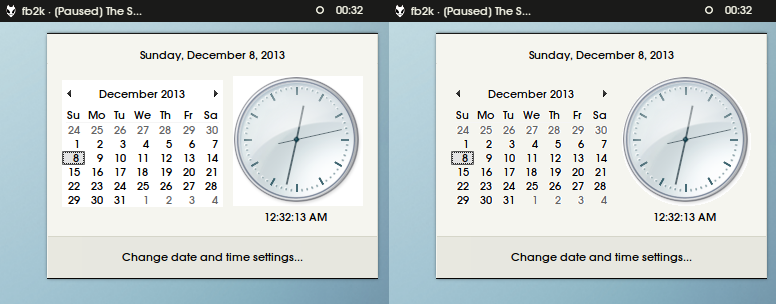
For these questions I took inspiration from Exon, by Nadir1.

7z9sg1K.png


(left is Exon, right is theme I'm modding)

a) I still can't seem to find a way to change the background color. I thought it had something to do with the explorer background color, but I changed that and only the folder explorer got affected, not the clock's background.

I would love to have it literally just like Exon. Pure white background and no line above "Change date and time settings.."

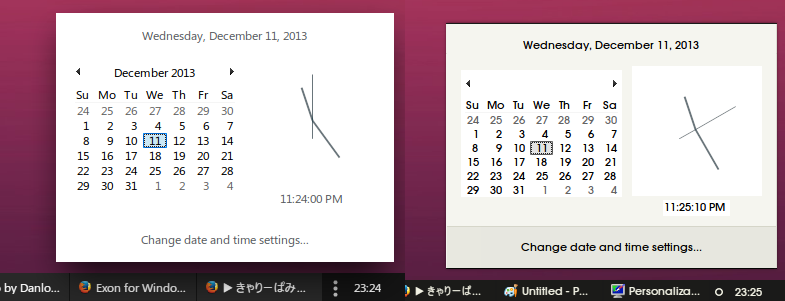
b) I must have changed something while I was modding, because whenever I hover a number on the calendar or the title of the month, font goes to white. I tried changing as many "hover" items I could find but none of them did the trick.

K2r3QBA.png


(above is Exon, bottom is theme I'm modding)

c) I googled a little and some posts claimed that there was no way you could change the color when hovering an icon on the taskbar because Windows takes the color from the icon. However, as I was testing Exon I got surprised by the fact that the guy who made the skin passed through that limitation and implemented this lighter tone when hovering, instead of the adopting-main-icon-color thing.

I want the exact same system for the theme I'm modding.

fM46JCr.png


(both are Exon)

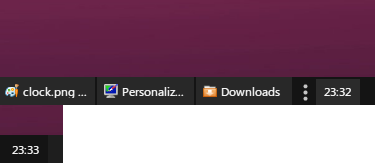
d) I would also like to implement that hover on the taskbar clock.
e) Change the color when pressing the go-to-desktop button.

As always, thank you very much, man. This thing is starting to become a hobbie of mine and each day I'm spending more and more hours editing Windows UI and of course this wouldn't have started without your help.
 

My Computer My Computer

Computer type
Laptop
OS
Windows 8 64 Bits
I thought you wanted to change the clock face background sorry.

The other stuff

A
Background clock: Taskbar & System Tray > System Tray > Basic > System Tray Icons Panel Flyout > Window > Fillcolor
Bottom of clock: Taskbar & System Tray > System Tray > Basic > Tray Notify Flyout > Footer


B
clock text: Explorer & Shell > Shell > MonthCal > GridCell > text color then> Hot,etc

C
Taskbar button hover: Taskbar & System Tray > TaskBand > Basic > TaskBand > TaskItemButton > Hover
Taskbar & System Tray > TaskBand > Basic > TaskBand > UncombinedTaskItemLeft > Hover
Taskbar & System Tray > TaskBand > Basic > TaskBand > UncombinedTaskItemCenter > Hover
Taskbar & System Tray > TaskBand > Basic > TaskBand > UncombinedTaskItemRight > Hover

D
Taskbar clock hover: Taskbar & System Tray > System Tray > Basic > Clock

E
Taskbar & System Tray > TaskBar > Basic > Show Desktop Button > <1>

Jerry
 

My Computer My Computer

Computer type
Laptop
Computer Manufacturer/Model Number
Sager NP9170
OS
Win 7 Pro x64 / Win 10 Pro
CPU
Intel(R) Core(TM) i7-3630QM CPU @ 2.40GHz
Motherboard
CLEVO P170EM
Memory
12 GB
Graphics Card(s)
(1) Intel(R) HD Graphics 4000 (2) NVIDIA GeForce GTX 675M
Sound Card
(1) Realtek High Definition Audio (2) Intel(R) Display Aud
Monitor(s) Displays
17.3
Screen Resolution
1920x1080
Hard Drives
(1) Samsung 860 EVO 500GB(OS) (1) Samsung 860 EVO 500GB(Data)
Keyboard
Backlite
Antivirus
MSE, Malwarebytes Pro
Browser
Firefox
Other Info
DESKTOP: Custom-built.
OS: Win 10 Pro x64.
CASE: Rosewill R5.
CPU: Intel I5 4670K CPU @ 3.40GHz.
CPU COOLER: Cool Master Hyper 212 EVO.
MOTHERBOARD: Asus Z87-A.
MEMORY: Kingston HyperX 2x4 GB.
GPU: Nvidia Geforce 650 TI.
PSU: Corsair TX750.
DRIVES: (1) Samsung 840 120 GB SSD (2) Western Digital blue 500 GB 7200 RPM.
Hey! Thanks for the replie.

Most of them worked except for the fact that the taskbar doesn't really work as it does on the Exon theme.

LcY63SJ.png


What you see above is an animation I get when I hover an icon and then drag the cursor out (without pressing the icon). For some reason It's always orange. I don't want to have that animation at all (Exon doesn't has it).

The only icon that doesn't have this effect is the one being open at the time (that one has no animation).

I attached the current version of the theme in case you want to examine what's causing the problem.

Thanks.
 

Attachments

My Computer My Computer

Computer type
Laptop
OS
Windows 8 64 Bits
I tested yours and Exon and I do not get the "animation I get when I hover an icon and then drag the cursor out (without pressing the icon)"

I made 2 videos showing what I get, in the zip folder.

Jerry
 

Attachments

My Computer My Computer

Computer type
Laptop
Computer Manufacturer/Model Number
Sager NP9170
OS
Win 7 Pro x64 / Win 10 Pro
CPU
Intel(R) Core(TM) i7-3630QM CPU @ 2.40GHz
Motherboard
CLEVO P170EM
Memory
12 GB
Graphics Card(s)
(1) Intel(R) HD Graphics 4000 (2) NVIDIA GeForce GTX 675M
Sound Card
(1) Realtek High Definition Audio (2) Intel(R) Display Aud
Monitor(s) Displays
17.3
Screen Resolution
1920x1080
Hard Drives
(1) Samsung 860 EVO 500GB(OS) (1) Samsung 860 EVO 500GB(Data)
Keyboard
Backlite
Antivirus
MSE, Malwarebytes Pro
Browser
Firefox
Other Info
DESKTOP: Custom-built.
OS: Win 10 Pro x64.
CASE: Rosewill R5.
CPU: Intel I5 4670K CPU @ 3.40GHz.
CPU COOLER: Cool Master Hyper 212 EVO.
MOTHERBOARD: Asus Z87-A.
MEMORY: Kingston HyperX 2x4 GB.
GPU: Nvidia Geforce 650 TI.
PSU: Corsair TX750.
DRIVES: (1) Samsung 840 120 GB SSD (2) Western Digital blue 500 GB 7200 RPM.
Yeah, that's weird... you don't have it at all.

Could you try using your taskbar with small buttons and never combine? Maybe one of those is causing the problem.

D4QhomK.gif


As you can see, some of them don't get affected at all. I tested the original version of area (theme I've been modding) and I have it with that one too.

edit: just tried "big icons" and "always combine", the problem is gone with any of them enabled, but I really like the taskbar this way and I couldn't imagine using Windows without it.

edit 2: I tested other themes, including the default Aero. I have the problem with all of them (except Exon), some of them do not avoid the problem with big icons or always combine, one of them being the original area, so I must have changed something during the process to make the taskbar ignore the effect when icons are big or combined.

edit 3: I made another .gif. First half of the it is the original area theme, second half is theme I attached you above. As you can see, some icons (the ones on the far right) do not get affected on my version.

I can't find a way to get you to see the .gif. It's too big for both imgur and seven forums, but I think you get the idea anyway.

edit 4: I'm attaching you the new version I'm using, I basically removed the whole taskbar thing from Exon because it was a mess, but I obviously still have the glow effect that I want to remove.

Also, I noticed the go-to-desktop button animation doesn't work. I replaced the image I had to, but nothing changed. I just get this white thing when pressing the button, which was already there before I changed the image.

t4cKHSz.jpg


So basically
a) how to get rid of the glow effect.
b) how to make the go-to-desktop button work properly.
D4QhomK.gif
 

Attachments

Last edited:

My Computer My Computer

Computer type
Laptop
OS
Windows 8 64 Bits
A
I cannot reproduce it so there's no way that I know of to fix it sorry, I would go to Windows Style Builder forum Here and ask they are very knowledgeable there.

B
I'm still learning Windows 8.1 and I gave you the wrong location of first-time it is at Windows 8 (For Testing Purposes Only) > ShowDesktop > <1> it looks like only the Pressed part of the button works the rest must come from the taskbar color.

Jerry
 

My Computer My Computer

Computer type
Laptop
Computer Manufacturer/Model Number
Sager NP9170
OS
Win 7 Pro x64 / Win 10 Pro
CPU
Intel(R) Core(TM) i7-3630QM CPU @ 2.40GHz
Motherboard
CLEVO P170EM
Memory
12 GB
Graphics Card(s)
(1) Intel(R) HD Graphics 4000 (2) NVIDIA GeForce GTX 675M
Sound Card
(1) Realtek High Definition Audio (2) Intel(R) Display Aud
Monitor(s) Displays
17.3
Screen Resolution
1920x1080
Hard Drives
(1) Samsung 860 EVO 500GB(OS) (1) Samsung 860 EVO 500GB(Data)
Keyboard
Backlite
Antivirus
MSE, Malwarebytes Pro
Browser
Firefox
Other Info
DESKTOP: Custom-built.
OS: Win 10 Pro x64.
CASE: Rosewill R5.
CPU: Intel I5 4670K CPU @ 3.40GHz.
CPU COOLER: Cool Master Hyper 212 EVO.
MOTHERBOARD: Asus Z87-A.
MEMORY: Kingston HyperX 2x4 GB.
GPU: Nvidia Geforce 650 TI.
PSU: Corsair TX750.
DRIVES: (1) Samsung 840 120 GB SSD (2) Western Digital blue 500 GB 7200 RPM.
Back
Top