Sound Shortcuts - Create

How to Create Sound Shortcuts in Windows 7 and Windows 8

   Information
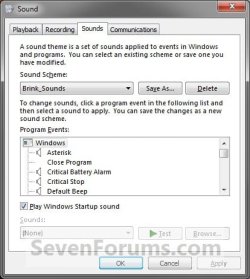
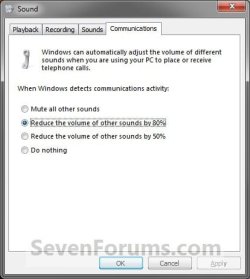
This tutorial will show you how to create or download shortcuts that open directly to the Playback, Recording, Sounds, and Communications tabs in the Sound control panel in Windows 7 and Windows 8.


EXAMPLE: Sound
NOTE: Opened to the Playback, Recording, Sounds, and Communications tabs in Folder Options.
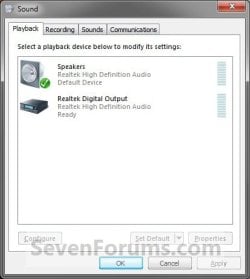
Playback.jpgRecording.jpg
Sounds.jpgCommunications.jpg


OPTION ONE

To Download a "Sound" Shortcut


1. Sound Shortcut that Opens to the Playback Tab
A) Click/tap on the download button below to download the file below.
Sound_Playback.zip

Download


2. Sound Shortcut that Opens to the Recording Tab
A) Click/tap on the download button below to download the file below.
Sound_Recording.zip

Download


3. Sound Shortcut that Opens to the Sounds Tab
A) Click/tap on the download button below to download the file below.
Sounds.zip

Download


4. Sound Shortcut that Opens to the Communications Tab
A) Click/tap on the download button below to download the file below.
Sound_Communications.zip


Download


5. Save the .zip file to your desktop.

6. Open the downloaded .zip file and extract the Sound shortcut to the desktop.

7. Unblock the Sound shortcut. (See screenshot below)
Unblock.jpg
8. In Windows 7, you can now Pin to Taskbar or Pin to Start Menu, add to Quick Launch, assign a keyboard shortcut to it, or move this shortcut to where you like for easy use.

9. In Windows 8 and 8.1, you can Pin to Taskbar on desktop, Pin to Start screen, add to Quick Launch, assign a keyboard shortcut to it, or move this shortcut to where you like for easy use.

10. When done, you can delete the downloaded .zip file if you like.


OPTION TWO

To Manually Create a "Sound" Shortcut


1. Right click or press and hold on an empty area on your desktop, and click/tap on New and Shortcut.


2. Type the location below into the location area for what tab you want the Sound shortcut to open to, and click/tap on the Next button. (See screenshot below)
  • Playback Tab
    • %windir%\System32\rundll32.exe shell32.dll,Control_RunDLL mmsys.cpl,,0
  • Recording Tab
    • %windir%\System32\rundll32.exe shell32.dll,Control_RunDLL mmsys.cpl,,1
  • Sounds Tab
    • %windir%\System32\rundll32.exe shell32.dll,Control_RunDLL mmsys.cpl,,2
  • Communications Tab
    • %windir%\System32\rundll32.exe shell32.dll,Control_RunDLL mmsys.cpl,,3
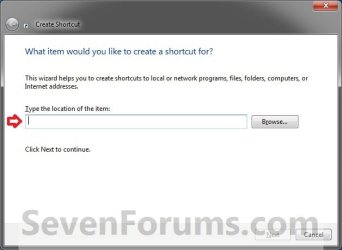
Step1.jpg
3. Type the name of the Sound tab for the name, and click/tap on the Finish button. (See screenshot below)
NOTE: You can name this shortcut anything you would like though.
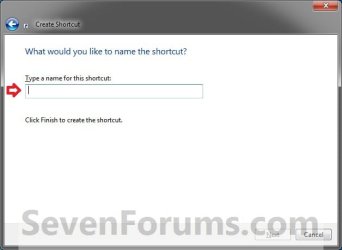
Step2.jpg
4. Right click or press and hold on the new Sound shortcut, and click/tap on Properties.

5. Click/tap on the Shortcut tab, then click/tap on the Change Icon button. (See screenshot below)
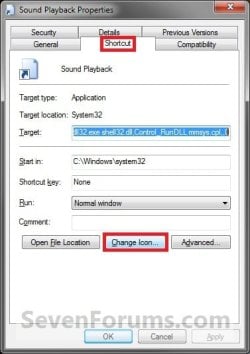
Step4.jpg
6. In the line under "Look for icons in this file", type in the location below, and press Enter. (See screenshot below)
%windir%\System32\mmsys.cpl
Step5.jpg
7. Select the icon highlighted in blue above, and click/tap on OK. (See screenshot above)
NOTE: You can use any icon that you would like for this shortcut instead though.

8. Click/tap on OK. (See screenshot below)
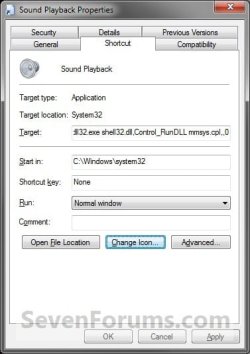
Step6.jpg
9. In Windows 7, you can now Pin to Taskbar or Pin to Start Menu, add to Quick Launch, assign a keyboard shortcut to it, or move this shortcut to where you like for easy use.

10. In Windows 8 and 8.1, you can Pin to Taskbar on desktop, Pin to Start screen, add to Quick Launch, assign a keyboard shortcut to it, or move this shortcut to where you like for easy use.
That's it,
Shawn


Attachments

Last edited:
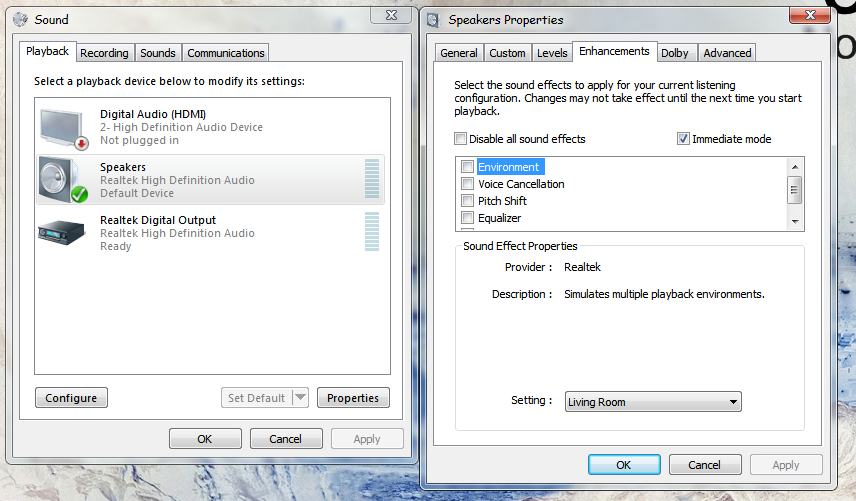
Awesome! Can you take it a step further to Enhancements in Speakers' Properties?

OvYpR.png
 

My Computer

OS
Windows 7 Home Premium x64
Is there a way to make a script or shortcut that will open sound like this, then make a choice of the playback devices?
 

My Computer

Computer Manufacturer/Model Number
Dell Studio Slim
OS
Windows 7 Home Premium
Sorry, but not that I know of, or if it's possible. :(

You might create a new thread to see what suggestions you may get on it. :)
 

My Computer

Computer type
PC/Desktop
Computer Manufacturer/Model Number
Self built custom
OS
64-bit Windows 11 Pro for Workstations
CPU
Intel i7-8700K OC'd to 5 GHz
Motherboard
ASUS ROG Maximus XI Formula Z390
Memory
64 GB (4x16GB) G.SKILL TridentZ RGB DDR4 3600 MHz
Graphics Card(s)
ASUS ROG-STRIX-GTX1080TI-O11G-GAMING
Sound Card
Integrated
Monitor(s) Displays
2 x Samsung Odyssey G7 27"
Screen Resolution
2560x1440
Hard Drives
1TB Samsung 990 PRO M.2,
4TB Samsung 990 PRO PRO M.2,
TerraMaster F8 SSD Plus NAS
PSU
Seasonic Prime Titanium 850W
Case
Thermaltake Core P3
Cooling
Corsair Hydro H115i
Keyboard
Logitech wireless K800
Mouse
Logitech MX Master 4
Internet Speed
2 Gb/s Download and 100 Mb/s Upload
Antivirus
Malwarebyte Anti-Malware Premium
Browser
Google Chrome
Other Info
Logitech Z625 speaker system,
Logitech BRIO 4K Pro webcam,
HP Color LaserJet Pro MFP M477fdn,
APC SMART-UPS RT 1000 XL - SURT1000XLI,
Galaxy S23 Plus phone
Thanks so much!

Thank you so much. Please allow me to condense the information a bit:


Use rundll to display the sound settings dialog. The last argument specifies the tab to open.


Example: Playback Tab (0)
Code:
%windir%\System32\rundll32.exe shell32.dll,Control_RunDLL mmsys.cpl,,0

Example: Recording Tab (1)
Code:
%windir%\System32\rundll32.exe shell32.dll,Control_RunDLL mmsys.cpl,,1

For those wondering why i care:

I'm using SoundWire to connect my Headphones to the PC, so i don't need to crawl under the desk to plug them in. But turning off the loudspeakers is at least 10 klicks in Windows 7.
I cooked up a AutoIt script to do it for me, but I could not figure out how to open this Dialog without using the mouse. Thanks you for providing these shortcuts.
 

My Computer

Computer type
PC/Desktop
OS
64
You're most welcome Mike. I'm glad that it could help. :)
 

My Computer

Computer type
PC/Desktop
Computer Manufacturer/Model Number
Self built custom
OS
64-bit Windows 11 Pro for Workstations
CPU
Intel i7-8700K OC'd to 5 GHz
Motherboard
ASUS ROG Maximus XI Formula Z390
Memory
64 GB (4x16GB) G.SKILL TridentZ RGB DDR4 3600 MHz
Graphics Card(s)
ASUS ROG-STRIX-GTX1080TI-O11G-GAMING
Sound Card
Integrated
Monitor(s) Displays
2 x Samsung Odyssey G7 27"
Screen Resolution
2560x1440
Hard Drives
1TB Samsung 990 PRO M.2,
4TB Samsung 990 PRO PRO M.2,
TerraMaster F8 SSD Plus NAS
PSU
Seasonic Prime Titanium 850W
Case
Thermaltake Core P3
Cooling
Corsair Hydro H115i
Keyboard
Logitech wireless K800
Mouse
Logitech MX Master 4
Internet Speed
2 Gb/s Download and 100 Mb/s Upload
Antivirus
Malwarebyte Anti-Malware Premium
Browser
Google Chrome
Other Info
Logitech Z625 speaker system,
Logitech BRIO 4K Pro webcam,
HP Color LaserJet Pro MFP M477fdn,
APC SMART-UPS RT 1000 XL - SURT1000XLI,
Galaxy S23 Plus phone
I dont know if this was covered before with Nirsoft as there were many search results for it however I could not find one for this use.

You can use nircmd from Nirsoft to create desktop shortcuts.

Right click, New, Shortcut.

Use this line as the target for your shortcut.

C:\Windows\nircmd.exe setdefaultsounddevice "Exact device name goes here"

The device name can be found in the playback tab of your Sound under control panel or from right clicking the speaker icon in the system tray.

Then name your shortcut whatever you want.

If you dont want nircmd.exe in your windows folder, specify the alternate location where you saved it instead of the default windows folder directory.

Also, this is not a program that runs in the background. It just executes.

There are also other programs which allow for a hotkey you can choose from your keyboard, but the ones I have seen either work only for xp, require it in the system tray (which you can still hide) and/or add another background process.

But I like nircmd the best.
 

My Computer

Computer type
PC/Desktop
Computer Manufacturer/Model Number
Custom
OS
Windows 7 Ultimate x64
CPU
Intel i7 4770k OCd to 4.5GHz watercooled
Motherboard
Gigabyte GA-Z87X-UD4H
Memory
32GB G.Skill Sniper 1866
Graphics Card(s)
EVGA GTX680 Classified 4GB VRAM
Hard Drives
Samsung 840 EVO 120GB SSD (Win7)
Samsung 840 120GB SSD (Open BSD)
Samsung 840 250GB SSD
Western Digital 500GB (from old laptop)
Western Digital 3TB Greenie
Seagate Barracuda 3TB x2
Antivirus
AVG
Browser
Firefox
I know that this is a little late but Thank You!

I was looking for something like this and just to let you know .. these shortcuts work very well on my windows 10 pc!
 

My Computer

Computer Manufacturer/Model Number
Gateway FX4710-UB802A
OS
Microsoft Windows Vista Home Premium
CPU
QuadCore Intel Core 2 Quad Q9300, 2500 MHz
Motherboard
Foxconn G33 Series
Memory
4 GB DDR2-667 DDR2 SDRAM
Graphics Card(s)
NVIDIA GeForce 9800 GT
Hard Drives
WD Caviar Blue 640 GB SATA Hard Drive
PSU
550 Watt BP550 PLUS ATX 12V Power Supply from Antec
I'm glad that they could help mrclose. :)
 

My Computer

Computer type
PC/Desktop
Computer Manufacturer/Model Number
Self built custom
OS
64-bit Windows 11 Pro for Workstations
CPU
Intel i7-8700K OC'd to 5 GHz
Motherboard
ASUS ROG Maximus XI Formula Z390
Memory
64 GB (4x16GB) G.SKILL TridentZ RGB DDR4 3600 MHz
Graphics Card(s)
ASUS ROG-STRIX-GTX1080TI-O11G-GAMING
Sound Card
Integrated
Monitor(s) Displays
2 x Samsung Odyssey G7 27"
Screen Resolution
2560x1440
Hard Drives
1TB Samsung 990 PRO M.2,
4TB Samsung 990 PRO PRO M.2,
TerraMaster F8 SSD Plus NAS
PSU
Seasonic Prime Titanium 850W
Case
Thermaltake Core P3
Cooling
Corsair Hydro H115i
Keyboard
Logitech wireless K800
Mouse
Logitech MX Master 4
Internet Speed
2 Gb/s Download and 100 Mb/s Upload
Antivirus
Malwarebyte Anti-Malware Premium
Browser
Google Chrome
Other Info
Logitech Z625 speaker system,
Logitech BRIO 4K Pro webcam,
HP Color LaserJet Pro MFP M477fdn,
APC SMART-UPS RT 1000 XL - SURT1000XLI,
Galaxy S23 Plus phone
going some steps further...

Hi,

you are able to jump even more close to your properties, by adding the right registry key.

For Windows 10 I figured out this shortcut:

*....mmsys.cpl,,{0.0.0.00000000}.{9bc40abd-b525-453e-a9b0-f73d491bdf42},3

Windows 8.1:

*....mmsys.cpl,,{0.0.0.00000000}.{120CED89-3BF4-4173-A132-3CB406CF3231},3

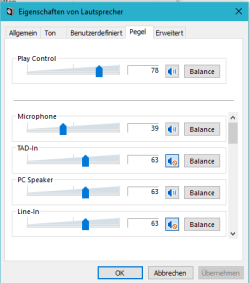
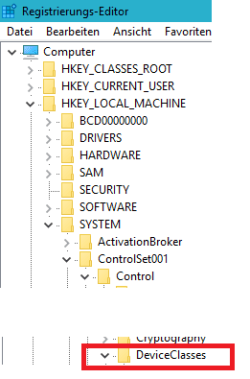
Look for some key in the registry similar to what I added as screenshots. It has to be something like:
SWD\MMDEVAPI\{0.0.0.00000000}.{9bc40abd-b525-453e-a9b0-f73d491bdf42}

Best way to search is to insert the bold part into the search window.

Cheers!
 

Attachments

  • Sound properties.PNG
    Sound properties.PNG
    5.6 KB · Views: 21,418
  • registry2.PNG
    registry2.PNG
    5.1 KB · Views: 21,353
  • registry.PNG
    registry.PNG
    5 KB · Views: 660

My Computer

Computer type
PC/Desktop
OS
Windows 10 64bit
Thank you for sharing livigevil, and welcome to Seven Forums. :)
 

My Computer

Computer type
PC/Desktop
Computer Manufacturer/Model Number
Self built custom
OS
64-bit Windows 11 Pro for Workstations
CPU
Intel i7-8700K OC'd to 5 GHz
Motherboard
ASUS ROG Maximus XI Formula Z390
Memory
64 GB (4x16GB) G.SKILL TridentZ RGB DDR4 3600 MHz
Graphics Card(s)
ASUS ROG-STRIX-GTX1080TI-O11G-GAMING
Sound Card
Integrated
Monitor(s) Displays
2 x Samsung Odyssey G7 27"
Screen Resolution
2560x1440
Hard Drives
1TB Samsung 990 PRO M.2,
4TB Samsung 990 PRO PRO M.2,
TerraMaster F8 SSD Plus NAS
PSU
Seasonic Prime Titanium 850W
Case
Thermaltake Core P3
Cooling
Corsair Hydro H115i
Keyboard
Logitech wireless K800
Mouse
Logitech MX Master 4
Internet Speed
2 Gb/s Download and 100 Mb/s Upload
Antivirus
Malwarebyte Anti-Malware Premium
Browser
Google Chrome
Other Info
Logitech Z625 speaker system,
Logitech BRIO 4K Pro webcam,
HP Color LaserJet Pro MFP M477fdn,
APC SMART-UPS RT 1000 XL - SURT1000XLI,
Galaxy S23 Plus phone
Back
Top