
How to Change Event Sound Effects in Windows 7 and Windows 8
Information
This tutorial will show you how to change the sounds applied to events in Windows and Programs as a Sound Theme for your user account in Windows 7 and Windows 8.
Note
Windows 7 and Windows 8 uses .wav (wave) files played for the sound events.
The default folder that Windows 7 and Windows 8 uses to store the sound files in is located at C:\Windows\Media.
The default folder that Windows 7 and Windows 8 uses to store the sound files in is located at C:\Windows\Media.
Tip

OPTION ONE
To Change Sound Events in "Sounds" Dialog Settings
1. Do step 2, 3, or 4 below for how you would like to open the Sound dialog.
2. Open the Control Panel (icons view), click/tap on the Sound icon, and go to step 5 below.
OR
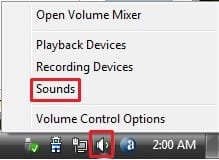
3. Right click or press and hold on the Volume (little white speaker) system icon in the notification area at the bottom right corner area of the taskbar, click/tap on Sounds, and go to step 5 below. (see screenshot below)

OR
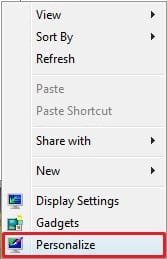
4. Right click or press and hold on a empty area of the desktop, and click/tap on Personalize. (see screenshot below)
NOTE: The Windows 7 Starter and Windows 7 Home Basic editions do not have Personalize included in them.

B) Click/tap on the Sounds link at the bottom of the Personalization window. (see screenshot below)
NOTE: The name in gray under Sounds is the current sound scheme selected.

C) Close the Personalization window, and go to step 5 below.
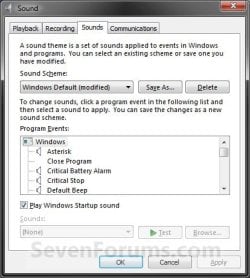
5. Click/tap on the Sounds tab, and do step 6, 7, 8, 9, 10, and/or 11 below. (see screenshot below)
6. To Turn the Windows Startup Sound On or Off
A) Check (on) or uncheck (off) the Play Windows Startup sound box, and click/tap on Apply. (see screenshot below step 5)
7. To Change an Event Sound
A) Click/tap on a listed Program Event (middle section) to select a sound event, and do either step 7B or 7C below. (see screenshot below step 5)
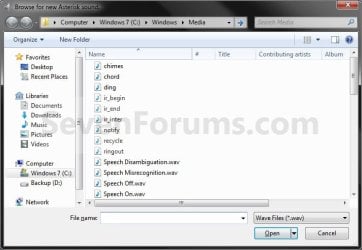
B) Click.tap on the Browse button. (see screenshot above)
NOTE: The default Windows sound files are located in the C:\Windows\Media folder.
- Navigate to and select the .wav file that you want to be used as the sound played for the event, click/tap on Open. (see screenshot below)
- Click/tap on Apply. (see screenshot below step 5)
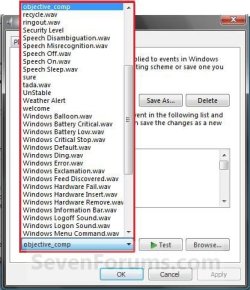
C) Click/tap on the Sounds: drop down menu at the bottom, select a sound that you want to be played for the event, and click/tap on Apply. (see screenshot below)
8. To Test Play a Sound
A) Click/tap on a Program Event that you want to hear the current sound set to be played for the event, and click/tap on the Test button. (see screenshot below step 5)
9. To Change a Sound Scheme
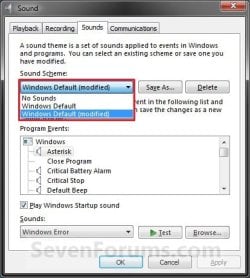
A) Click/tap on the Sound Scheme: drop down arrow menu, select an available sound scheme you want, and click/tap on Apply. (see screenshot below)
10. To Save a Sound Theme
NOTE: This is useful to have all your event sound changes saved as a Sound Theme to be able to select in step 9 above.
A) Click/tap on the Save As button. (see screenshot below step 9)
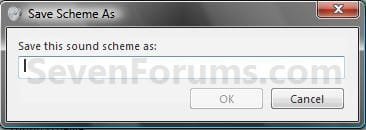
B) Type in a name you would like for the sound scheme (theme), and click/tap on OK. (see screenshot below)

11. To Delete a Saved Sound Scheme
NOTE: You cannot delete the No Sounds, Standard Default, or Windows Default schemes, only the ones that you saved.
A) Click/tap on the Sound Scheme: drop down arrow menu. (see screenshot below step 9)
B) Select the sound scheme that you want to delete, and click/tap on the Delete button. (see screenshot below step 9)
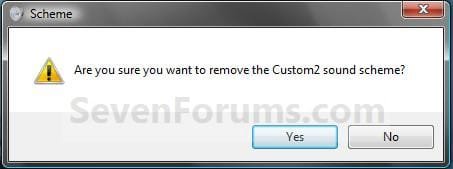
C) Click/tap on Yes to confirm. (see screenshot below)

11. When finished making changes in the Sounds dialog, click/tap on OK . (see screenshot below step 5)
OPTION TWO
To Change Sound Events in Registry Editor
1. Press the Windows + R keys to open the Run dialog, type regedit, and click/tap on OK.
2. If prompted by UAC, then click/tap on Yes.
3. In regedit, navigate to the location below. (see screenshot below)
NOTE: In the left pane under Apps, each subkey (folder) .Default (Windows), Explorer (Windows/File Explorer), and sapisvr (Windows Speech Recognition) contains sound events under those categories just like in Sounds from OPTION ONE above.
HKEY_CURRENT_USER\AppEvents\Schemes\Apps
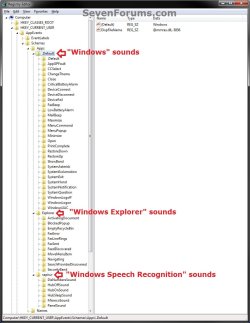
4. In the left pane of regedit, expand the subkey for the sound event (ex: MailBeep for "New Mail Notification") that you want to change what sound is play for it to expand it. (see screenshot above)
5. In the left pane under the expanded sound event (ex: MailBeep), select the .Current key. (see screenshot below)
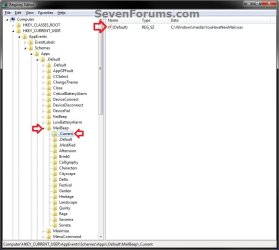
6. In the right pane of .Current, double click/tap on (Default) to modify it. (see screenshot above)
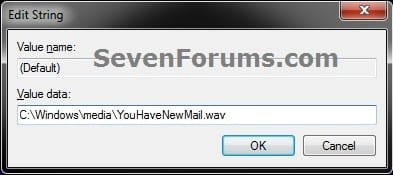
7. Type in the full path of the unblocked .WAV file that you want to be played for this sound event, and click/tap on OK. (see screenshot below)
8. Repeat all of the steps above in OPTION TWO for any other sound event that you wanted to change what default sound is played for it.
9. When finished, close regedit.
That's it,
Shawn
Related Tutorials
- How to Change the Windows 7 Startup Sound
- How to Enable or Disable the Startup Sound in Vista, Windows 7, and Windows 8
- How to Allow or Prevent Changing Sounds in Windows 7
- How to Change or Save a Windows 7 Theme
- How to Make your own Windows 7 Theme Pack
- How to Change the Mouse Pointers in Windows 7
- How to Create a Windows 7 Personalization Shortcut
- How to Create Sound Shortcuts in Windows 7 and Windows 8
- How to Create a Custom Logon Sound that Speaks What You Like
- How to Change or Turn Off the Clicking Sound while Browsing Internet and Windows Exporer
- How to Have Windows Live Mail Play a Sound When New Messages Arrive
- How to Add or Remove "Personalize" from Desktop Context Menu in Windows 7 and Windows 8
- How to Change the New Mail Notification Sound in Windows 8
Attachments
Last edited:


