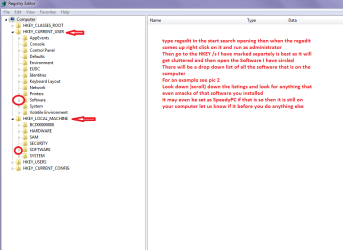
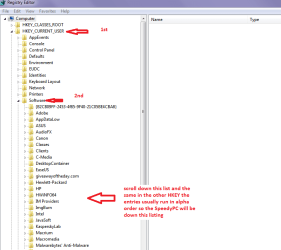
Hello and welcome jlock mate we do need a little more detail on the system especially the motherboard.
This will give you a lot of info you have in that machine
Using HW Info
PART A:
You can test the volts on the PSU with HW Info HWiNFO, HWiNFO32/64 - Download < download the right bit version and close the right hand window select Sensors and scroll down to the power section where you will see what the volts are doing see my pic. In my pic the section (Nuvoton) with VBATT is a dead give away you are in the section for the rail voltages. There are other section titles and one that pops up often is ITE
Now the voltage on the different rails have to be within 5% =+/- of what is required or the machine will not work properly if at all.
IE
12v = 11.4v min to 12.6max
5v = 4.75v min 5.25v max
3.3v = 3.135v min to 3.465v max
See this for the rail voltage info
PSUs 101: A Detailed Look Into Power Supplies (Section 2.)
The original right hand window shows the machine running and is handy for that but for looking at the components in some detail close it and use the main left hand side panel
FOR OTHER COMPONENTS
PART B:
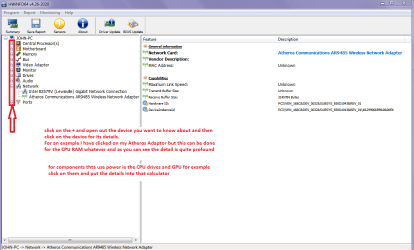
Open each small square with + in it on the section the components are in and then click on the individual component/s (it will highlight in blue) - in the right hand side will appear all sorts of details including brands speeds and other essential info that particular device. See pic for example.
Use PART B: first see pic to check the devices out
Personally I would get more RAM on board and get rid of that MuckAfee real quick if you want a free AV then see the real time section in this
Free Windows Desktop Software Security List | Gizmo's Freeware but avoid MuckAfee, AVG, and Comodo (ok but an awful nagger)
Free Windows Desktop Software Security List - Realtime Protection | Gizmo's Freeware