SSD / HDD : Optimize for Windows Reinstallation

How to Optimize an SSD / HDD When You're Ready to Reinstall the Operating System

This will show how to remove / over-write all existing data from a Solid State Drive (SSD) or a Hard Disk Drive (HDD), it'll work for both, then how to create a partition and then format that partition before install begins so you have a clean drive to start the installation with.

   Note

Before you start this, in the Windows start menu search box type diskmgmt.msc right click the entry and click "Run as Administrator" if you get a User Account Control (UAC) prompt enter your user credentials and click Yes; make very sure you know the correct drive number of the drive you want to do this to if you have more than one SSD / HDD in the machine, you don't want to do the wrong one.
   Warning

Do not do this to any SSD or HDD that has data on it you don't want to lose, the first thing this does is to mark the drive as "Unallocated Space" and then writes zeroes ( 0's ) to the entire drive, it's known as a "Secure Erase" and it will make data un-recoverable, it cannot be done to just a single partition on a drive, it will do the whole drive.
You have been warned!
   Information

It may be a help to over-write the HDD Master Boot Record (MBR) before you start any other procedure using the diskpart clean command, rather than the clean all; it takes just seconds to complete so you will have "unallocated" space to use either the Windows installer to create and format the partition(s) or use diskpart for that, however you choose.

Let's get started!


Step One

Boot To DISKPART


If need be, view this tutorial at the link below for an out-line of the process.
How to Boot to DISKPART at PC Startup

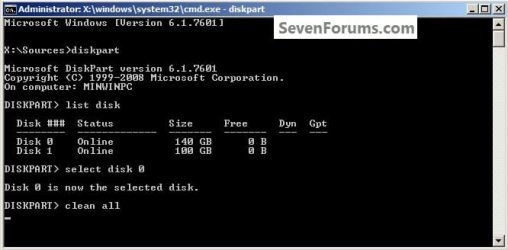
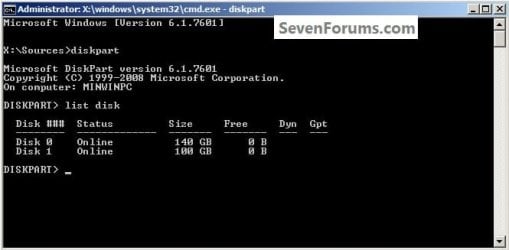
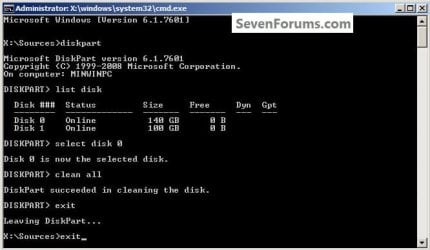
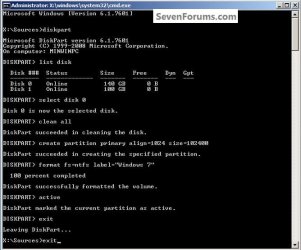
1) In the command window that opens type diskpart then hit the <enter> key then type list disk <enter> if you have more than one SSD / HDD in the machine it'll list them all.

Have a look here to view additional important information on this entire process.
click any image to enlarge
One_1.jpg
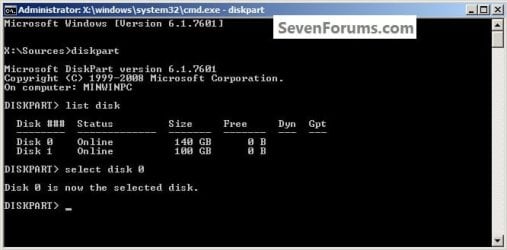
2) Now in the command window type select disk # (# = target disk number) then <enter>, you will get "Disk # is now the selected disk".
One_2.jpg
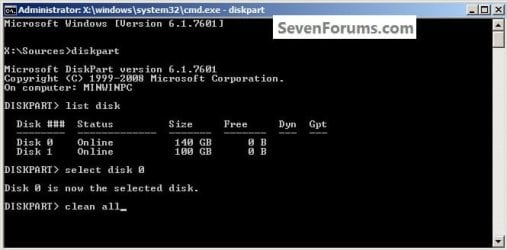
3) Now type clean <enter> you will get a blinking cursor telling you that clean all is working like in the second snip down, just relax and let it work.
One_3.1.jpg
One_3.2.jpg
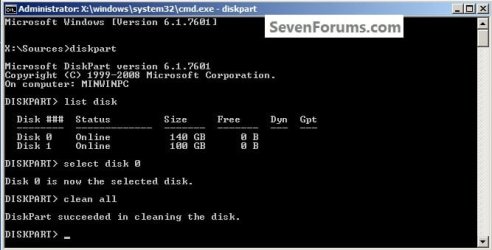
4) When it finishes you'll get "DiskPart succeeded in cleaning the disk" in the command window.
One_4.1.jpg
To leave diskpart at any time and return to the Windows 7 installer type exit two (2) separate times and hit <enter> after each and you will be returned to the installer to continue the installation process.
One_4.2.jpg


Step Two

Create a Partition


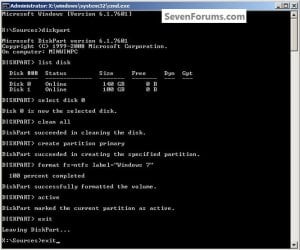
1) Create a single partition of the entire HDD / SSD

Still in the same command window, to create a partition of the entire HDD / SSD, it is suggested if you are using one of the larger, 1 - 2TB HDDs that you use the outline in #2 below to create a single 100GB partition to do the installation to or #3 below if you would like to include the new Windows 7 System Reserved partition, as we're now seeing serious issues with some trying to install to such large partitions.

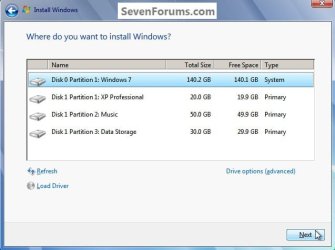
Do not format the created partition(s) with the installer if you create them using this process as the installer will delete all this info, the second snip shows how to select "where to install" during the installation process, click to highlight/select the "Windows 7" partition and click next.

Now skip down to #5 below to start the installation.
click any image to enlarge
Two_1.1.jpg
Two_1.2.jpg
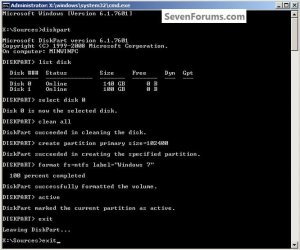
2) Create a specific size partition

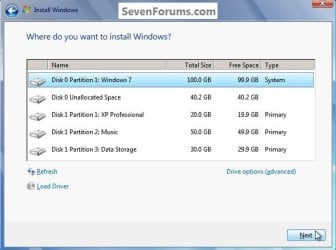
If you wanted to create a specific size partition, say 100GB you would add the size you want to create in MBs like in the command below.
create partition primary size=102400 <enter>
1024MB = 1GB - 1024x100 = 102400, you can use/create any size you like.

You can always extend the Windows partition to include the remaining unallocated space on the HDD / SSD or create additional Primary partitions or an Extended partition after the installation completes if you choose.

Do not format the created partition(s) with the installer if you create them using this process as the installer will delete all this info, the second snip shows how to select "where to install" during the installation process, click to highlight/select the "Windows 7" partition and click next.

Now skip down to #5 below to start the installation.
Two_2.1.jpg
Two_2.2.jpg
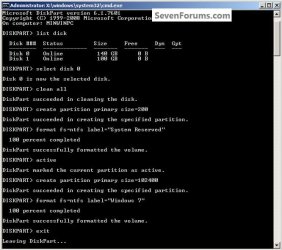
3) Create the System Reserved partition

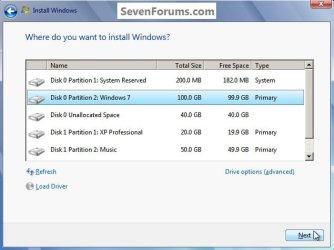
If you should want to add the "System Reserved" partition back after the clean all, see this snip; of course you would have to select to install Windows 7 to the partition labeled as "Windows 7" during the install and do not format either partition with the installer.

The reason for suggesting to create the System Reserved at 200MB instead of the new default of 100MB is an attempt to curb some of the issues we're now seeing with the partition being too small when dual/multi booting and it also being needed for use with the Windows 7 Backup and Restore and BitLocker programs.

You can always extend the Windows partition to include the remaining unallocated space on the HDD / SSD or create additional Primary partitions or an Extended partition after the installation completes if you choose.

The second snip shows how to select "where to install" during the installation process, click to highlight/select the "Windows 7" partition and click next.
Two_3.1.jpg
Two_3.2.jpg
4) See this tutorial for the "align" argument

Align a Solid State Drive for Windows Installation
Two_4.1.jpg
5) That's it, you're now done with the command window, type exit <enter> to leave diskpart and exit <enter> again to close the command window; if you're using a Windows 7 full installer it will go to the "Select Language" screen to continue the installation process as usual.

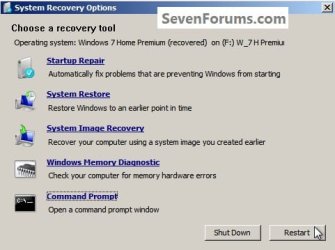
For those using a created repair CD or a Vista installer type exit <enter> to leave diskpart and exit <enter> again to close the command window; at the System Recovery Options dialog box that's still open click Restart to finish the process.
Restart.jpg
Enjoy! :)


Last edited by a moderator:
Personally I would not use a used drive mate they are really cheap at the moment - depending on what size you want of course. if it is for just a boot drive then a 120GB would be ideal and even a 60GB one would do.
Any brand these days is good as a general rule though I stick to the better known brands like Samsung (the bets in my view) Corsair, Crucial, and SanDisk.
 

My Computer

Computer type
PC/Desktop
Computer Manufacturer/Model Number
Own build (new) Desk1 / Asus ROG Win 7 / Desk2 1st build
OS
Desk1 7 Home Prem / Desk2 10 Pro / Main lap Asus ROG 10 Pro 2 laptop Toshiba 7 Pro Asus P2520 7 & 10
CPU
Desk1 i5 3750K / Laptop i7 GTX 860M / Desk2 i5 2500
Motherboard
Desk1 Asus P877-V / Desk2 Gigabyte H67 UD3H / Laptop ?
Memory
Desk1 8GB (1866) / Desk2 16GB (1333) / Laptop 8Gb DDR3
Graphics Card(s)
Desk 1& 2NVidia GTX 650 & Laptops on board Intel
Sound Card
Desk 1 & 2 -XONAR DG Realtek High Def audio Laptop
Monitor(s) Displays
Desk 1 Benq HD 2450 / Desk2 Philips 24" / Laptop 17.5"
Screen Resolution
1920x1080 D1 & D2 & Laptop 1
Hard Drives
Desk1 Samsung 120GB 830 SSD
Asus ROG 256GB 850 Pro SSD
Desk2 Samsung 840 256 SSD
Toshiba 120GB EVO
PSU
Desk 1 Corsair HX 1050/ Laptop ? / Desk 2 Corsair HX 650
Case
Desk 1 Cooler HAF XM ? Toshiba laptop / Desk2 Coolermaster
Cooling
Fans on all Desk1 -2 Desk2 - all Coolermasters 5 Laptop ?
Keyboard
Desk 1 MS Sidewinder X6 Desk 2 MS Sidewinder X 4
Mouse
Desk 1&2 - Gigabyte MS 900 gamer - laptop - Logitec wireless
Internet Speed
ADSL2+
Other Info
One other Desktop (tester) and spare Toshba laptop both with SSD's
Running Kaspersky 2016 ISS on all machines config'd identically
Logitec audio stereo systems on each machine (x3)
Canon MG5250MFC
Router/modem TP-Link running WPA2SK
i followed the instructions to the letter but it tells me there is no room to partition the hard driveand it wont let me install on the windows install bit because the partitons are incorrect
 

My Computer

OS
windows 7 home premium 64bit
Hello Scotty,

How were you wanting to set up the hard drive?

If you were wanting to do a clean install of Windows 7 on a blank drive, then you could follow the steps below to do so. When you get to steps 7 and 8, delete all partitions until the disk shows as unallocated, then select the unallocated space to install to. :)

http://www.sevenforums.com/tutorials/1649-clean-install-windows-7-a.html
 

My Computer

Computer type
PC/Desktop
Computer Manufacturer/Model Number
Self built custom
OS
64-bit Windows 11 Pro for Workstations
CPU
Intel i7-8700K OC'd to 5 GHz
Motherboard
ASUS ROG Maximus XI Formula Z390
Memory
64 GB (4x16GB) G.SKILL TridentZ RGB DDR4 3600 MHz
Graphics Card(s)
ASUS ROG-STRIX-GTX1080TI-O11G-GAMING
Sound Card
Integrated
Monitor(s) Displays
2 x Samsung Odyssey G7 27"
Screen Resolution
2560x1440
Hard Drives
1TB Samsung 990 PRO M.2,
4TB Samsung 990 PRO PRO M.2,
TerraMaster F8 SSD Plus NAS
PSU
Seasonic Prime Titanium 850W
Case
Thermaltake Core P3
Cooling
Corsair Hydro H115i
Keyboard
Logitech wireless K800
Mouse
Logitech MX Master 4
Internet Speed
2 Gb/s Download and 100 Mb/s Upload
Antivirus
Malwarebyte Anti-Malware Premium
Browser
Google Chrome
Other Info
Logitech Z625 speaker system,
Logitech BRIO 4K Pro webcam,
HP Color LaserJet Pro MFP M477fdn,
APC SMART-UPS RT 1000 XL - SURT1000XLI,
Galaxy S23 Plus phone
Hi all!

I've recently followed this informational tutorial and have a few questions. I've provided a screenshot of the Disk Management. I created two partitions: System Reserved and a Local Drive (C).

System Reserved
200 MB NTFS
Healthy (Primary Partition)

Local Drive (C)
238.28 GB NTFS
Healthy (System, Boot, Page File, Active, Crash Dump, Primary Partition)

My question is whether the System Reserved partition needs to have "active" and "System" in addition to the "Primary Partition". As you can see in the screenshot it only has Healthy (Primary Partition) rather than Healthy (System, Active, Primary Partition) like I've seen on my other computer which was done having the Windows installation disk create the partitions. Also, its assigned a drive letter (D) that isn't present on my other computer.

Thanks in advance for any help.

Disk Management.png
 

My Computer

Computer type
PC/Desktop
OS
Windows 7 Home 64-bit
That's cuckoo.

In an typical installation, you would have:

System Reserved marked as system, active, and primary, without a drive letter.

C would be marked as boot, page file, crash dump, and primary.

That's what would happen if you had no partitions of any type and had then installed Windows to a blank drive in the standard way.

In your case, C is marked system. "System" means that's where your boot files are. Normally, they'd be on System Reserved.

So, I'm guessing you did not install in the standard way and instead made partitions first, before installing Windows---rather than letting the installer make the partitions during the installation process??

I'm wondering why you made a System Reserved manually?

You don't need a System Reserved. I don't have it. If you want to make partitions first, you'd typically just make C and end up with C marked as system, active, primary, boot, crash dump, and page file after you installed Windows to that manually made partition.

Did you name that partition "System Reserved"?? I'm not sure what its purpose is now, since it is not marked "system" or "active".

Does the PC boot and operate OK? If so, I'd expect that the System Reserved partition is superfluous and unnecessary--boot files are elsewhere.
 

My Computer

Computer type
PC/Desktop
Computer Manufacturer/Model Number
Ignatz Special; 4 speed manual gearbox; factory air conditioning; one of one
OS
Windows 7 Home Premium SP1, 64-bit
CPU
Intel Skylake i5-6600K, not overclocked
Motherboard
AsRock Z170M Extreme 4, micro ATX
Memory
8 GB HyperX DDR4-2666 (2 x 4 GB)
Graphics Card(s)
none; graphics are integrated on CPU
Sound Card
onboard: Realtek ALC1150; external: USB Behringer UF0-202
Monitor(s) Displays
Dell S2340M 23 inch IPS
Screen Resolution
1600 x 900
Hard Drives
System: Crucial MX100 series SSD, 128 GB;
Data: Samsung Spinpoint 103SJ, 1 TB;
Backup: WD Caviar Green WD30EZRX-00D8PB0, 3 TB
PSU
Rosewill SilentNight 500 watt fanless, semi-modular
Case
Antec Solo II
Cooling
Noctua NH-U12S; Noctua F12 intake, Noctua S12A exhaust
Keyboard
Microsoft 200 6JH-00001 USB
Mouse
Dell or Microsoft optical wired; USB
Antivirus
Microsoft Security Essentials and Malwarebytes Premium
Browser
Pale Moon
Other Info
All fans PWM; speeds at idle: CPU circa 500 rpm; intake circa 600 rpm; exhaust circa 600 rpm; CPU temps 27 idle and 47 C load in a warm room (27 C/81 F) when running Intel Extreme Tuning Utility stress test.
That's cuckoo.

In an typical installation, you would have:

System Reserved marked as system, active, and primary, without a drive letter.

C would be marked as boot, page file, crash dump, and primary.

That's what would happen if you had no partitions of any type and had then installed Windows to a blank drive in the standard way.

In your case, C is marked system. "System" means that's where your boot files are. Normally, they'd be on System Reserved.

So, I'm guessing you did not install in the standard way and instead made partitions first, before installing Windows---rather than letting the installer make the partitions during the installation process??

I'm wondering why you made a System Reserved manually?

You don't need a System Reserved. I don't have it. If you want to make partitions first, you'd typically just make C and end up with C marked as system, active, primary, boot, crash dump, and page file after you installed Windows to that manually made partition.

Did you name that partition "System Reserved"?? I'm not sure what its purpose is now, since it is not marked "system" or "active".

Does the PC boot and operate OK? If so, I'd expect that the System Reserved partition is superfluous and unnecessary--boot files are elsewhere.

Yes, I did it manually thinking that I needed to create a System Reserve partition that way while in DISKPART. After more thought, I think I forgot to set the System Reserve partition as "active" when I continued with the installation using the Windows installation disk.

It seems to work fine, though. No problems booting. I'm just wondering if I should delete the System Reserve partition as I don't think its serving any useful purpose as you surmised and reallocate it to the C drive or leave it as unallocated.

Does that sound like a viable plan? Or would setting the System Reserve partition as active fix it?

Thanks for the reply.
 

My Computer

Computer type
PC/Desktop
OS
Windows 7 Home 64-bit
Well---System Reserved in your case is not empty. There's 18 mb of something on it.

I do not know if that something is needed or not. Let others comment.

You could always do it over. Make C only in diskpart, exit diskpart, continue with the install, and end up with no System Reserved at all. That's what I'd do if I wasn't sure about that 18 mb of stuff on your System Reserved.

System Reserved is needed for the "Bootlocker" capability in Windows, but I don't care about that capability. It's possible that the 18 mb of stuff is related to that.

What was your motivation in manually creating System Reserved and C, rather than letting Windows create both?

I don't think changing SR to "active" would accomplish anything. You want one active partition.
 

My Computer

Computer type
PC/Desktop
Computer Manufacturer/Model Number
Ignatz Special; 4 speed manual gearbox; factory air conditioning; one of one
OS
Windows 7 Home Premium SP1, 64-bit
CPU
Intel Skylake i5-6600K, not overclocked
Motherboard
AsRock Z170M Extreme 4, micro ATX
Memory
8 GB HyperX DDR4-2666 (2 x 4 GB)
Graphics Card(s)
none; graphics are integrated on CPU
Sound Card
onboard: Realtek ALC1150; external: USB Behringer UF0-202
Monitor(s) Displays
Dell S2340M 23 inch IPS
Screen Resolution
1600 x 900
Hard Drives
System: Crucial MX100 series SSD, 128 GB;
Data: Samsung Spinpoint 103SJ, 1 TB;
Backup: WD Caviar Green WD30EZRX-00D8PB0, 3 TB
PSU
Rosewill SilentNight 500 watt fanless, semi-modular
Case
Antec Solo II
Cooling
Noctua NH-U12S; Noctua F12 intake, Noctua S12A exhaust
Keyboard
Microsoft 200 6JH-00001 USB
Mouse
Dell or Microsoft optical wired; USB
Antivirus
Microsoft Security Essentials and Malwarebytes Premium
Browser
Pale Moon
Other Info
All fans PWM; speeds at idle: CPU circa 500 rpm; intake circa 600 rpm; exhaust circa 600 rpm; CPU temps 27 idle and 47 C load in a warm room (27 C/81 F) when running Intel Extreme Tuning Utility stress test.
Well, I wasn't sure whether I needed to create a System Reserve partition or just let Windows installation disk create it since I was doing a clean re-installation on my computer according to the tutorial thread "SSD / HDD : Optimize for Windows Reinstallation". For some unknown reason I got it in my head that I had to manually create that particular partition as I wasn't quite sure it was going to be created by the Windows installation disk.

I'm wondering if me omitting that step (not setting it active) while creating that partition caused that problem.

I don't know, either, what the 18 MB of data on that partition. I using Windows 7 Home and not the Pro version which from my limited understanding has the bitlocker (or is it bootlocker?) capability.

Anyway, would hate having to start all over since it took forever to download all the Windows updates! I'll wait and see if others have a solution regarding this issue before I head down that LOOONG road of doing another clean install.
 
Last edited:

My Computer

Computer type
PC/Desktop
OS
Windows 7 Home 64-bit

My Computer

Computer type
PC/Desktop
Computer Manufacturer/Model Number
Ignatz Special; 4 speed manual gearbox; factory air conditioning; one of one
OS
Windows 7 Home Premium SP1, 64-bit
CPU
Intel Skylake i5-6600K, not overclocked
Motherboard
AsRock Z170M Extreme 4, micro ATX
Memory
8 GB HyperX DDR4-2666 (2 x 4 GB)
Graphics Card(s)
none; graphics are integrated on CPU
Sound Card
onboard: Realtek ALC1150; external: USB Behringer UF0-202
Monitor(s) Displays
Dell S2340M 23 inch IPS
Screen Resolution
1600 x 900
Hard Drives
System: Crucial MX100 series SSD, 128 GB;
Data: Samsung Spinpoint 103SJ, 1 TB;
Backup: WD Caviar Green WD30EZRX-00D8PB0, 3 TB
PSU
Rosewill SilentNight 500 watt fanless, semi-modular
Case
Antec Solo II
Cooling
Noctua NH-U12S; Noctua F12 intake, Noctua S12A exhaust
Keyboard
Microsoft 200 6JH-00001 USB
Mouse
Dell or Microsoft optical wired; USB
Antivirus
Microsoft Security Essentials and Malwarebytes Premium
Browser
Pale Moon
Other Info
All fans PWM; speeds at idle: CPU circa 500 rpm; intake circa 600 rpm; exhaust circa 600 rpm; CPU temps 27 idle and 47 C load in a warm room (27 C/81 F) when running Intel Extreme Tuning Utility stress test.
I went ahead and deleted the partition after much thought. Everything works fine, and so far no problems booting after deletion. It doesn't look like it was serving any purpose like the system partition and was probably recognized, in name only, as a System Reserve Partition. All that's left is 201 MB of unallocated space that can't be extended to the C partition. Something I can live with.

I'm still thinking the the source of this issue was probably due to not setting the partition "active" when I created it using DISKPART and followed it with the installation of Windows. I don't know.

Much thanks for the help, ignatzatsonic.
 

My Computer

Computer type
PC/Desktop
OS
Windows 7 Home 64-bit
All that's left is 201 MB of unallocated space that can't be extended to the C partition. Something I can live with.

You can add that 201 to C using Partition Wizard bootable disk if you decide you can't live with it.

Windows Disk Management can't do it because the unallocated space is shown as being to the left of C. It must be to the right for WDM to do the job.
 

My Computer

Computer type
PC/Desktop
Computer Manufacturer/Model Number
Ignatz Special; 4 speed manual gearbox; factory air conditioning; one of one
OS
Windows 7 Home Premium SP1, 64-bit
CPU
Intel Skylake i5-6600K, not overclocked
Motherboard
AsRock Z170M Extreme 4, micro ATX
Memory
8 GB HyperX DDR4-2666 (2 x 4 GB)
Graphics Card(s)
none; graphics are integrated on CPU
Sound Card
onboard: Realtek ALC1150; external: USB Behringer UF0-202
Monitor(s) Displays
Dell S2340M 23 inch IPS
Screen Resolution
1600 x 900
Hard Drives
System: Crucial MX100 series SSD, 128 GB;
Data: Samsung Spinpoint 103SJ, 1 TB;
Backup: WD Caviar Green WD30EZRX-00D8PB0, 3 TB
PSU
Rosewill SilentNight 500 watt fanless, semi-modular
Case
Antec Solo II
Cooling
Noctua NH-U12S; Noctua F12 intake, Noctua S12A exhaust
Keyboard
Microsoft 200 6JH-00001 USB
Mouse
Dell or Microsoft optical wired; USB
Antivirus
Microsoft Security Essentials and Malwarebytes Premium
Browser
Pale Moon
Other Info
All fans PWM; speeds at idle: CPU circa 500 rpm; intake circa 600 rpm; exhaust circa 600 rpm; CPU temps 27 idle and 47 C load in a warm room (27 C/81 F) when running Intel Extreme Tuning Utility stress test.
All that's left is 201 MB of unallocated space that can't be extended to the C partition. Something I can live with.

You can add that 201 to C using Partition Wizard bootable disk if you decide you can't live with it.

Windows Disk Management can't do it because the unallocated space is shown as being to the left of C. It must be to the right for WDM to do the job.

Thanks, will do tonight. Cheers!
 

My Computer

Computer type
PC/Desktop
OS
Windows 7 Home 64-bit
I'm getting an SSD soon and planning to reinstall Windows to the new SSD.
Do all these steps in cmd etc really needed? On HDD, I usually just use the graphical wizard to delete all partition (if there's any), create a single new partition. It will make a system reserved and a new partition, and then I just click next on the new partition to start the installation.

Can I do it like that, or should I follow the steps on this thread? What's the benefits in doing so?

Thanks in advance, any help would be greatly appreciated ;)
 

My Computer

Computer type
Laptop
Computer Manufacturer/Model Number
Asus
OS
Windows 7 Ultimate x64
CPU
B950
Memory
4GB
Graphics Card(s)
gt520m
Just got this thread update.

Page 36?

Has anyone made a guide?
 

My Computer

Computer type
PC/Desktop
Computer Manufacturer/Model Number
custom
OS
Windows 7 x64 Ultimate
CPU
AMD Athlon II x3 450
Motherboard
MSI 880GM
Memory
2 GB
Hard Drives
various
Browser
Firefox, Opera
Can I do it like that, or should I follow the steps on this thread? What's the benefits in doing so?

Well mate the choice is yours personally with a brand new drive I just install on it I don't bother with any prep.I use to use the prep in whereby you align the drive up beforehand to have an initial 100MB partition but found I was making more mistakes than not.
 

My Computer

Computer type
PC/Desktop
Computer Manufacturer/Model Number
Own build (new) Desk1 / Asus ROG Win 7 / Desk2 1st build
OS
Desk1 7 Home Prem / Desk2 10 Pro / Main lap Asus ROG 10 Pro 2 laptop Toshiba 7 Pro Asus P2520 7 & 10
CPU
Desk1 i5 3750K / Laptop i7 GTX 860M / Desk2 i5 2500
Motherboard
Desk1 Asus P877-V / Desk2 Gigabyte H67 UD3H / Laptop ?
Memory
Desk1 8GB (1866) / Desk2 16GB (1333) / Laptop 8Gb DDR3
Graphics Card(s)
Desk 1& 2NVidia GTX 650 & Laptops on board Intel
Sound Card
Desk 1 & 2 -XONAR DG Realtek High Def audio Laptop
Monitor(s) Displays
Desk 1 Benq HD 2450 / Desk2 Philips 24" / Laptop 17.5"
Screen Resolution
1920x1080 D1 & D2 & Laptop 1
Hard Drives
Desk1 Samsung 120GB 830 SSD
Asus ROG 256GB 850 Pro SSD
Desk2 Samsung 840 256 SSD
Toshiba 120GB EVO
PSU
Desk 1 Corsair HX 1050/ Laptop ? / Desk 2 Corsair HX 650
Case
Desk 1 Cooler HAF XM ? Toshiba laptop / Desk2 Coolermaster
Cooling
Fans on all Desk1 -2 Desk2 - all Coolermasters 5 Laptop ?
Keyboard
Desk 1 MS Sidewinder X6 Desk 2 MS Sidewinder X 4
Mouse
Desk 1&2 - Gigabyte MS 900 gamer - laptop - Logitec wireless
Internet Speed
ADSL2+
Other Info
One other Desktop (tester) and spare Toshba laptop both with SSD's
Running Kaspersky 2016 ISS on all machines config'd identically
Logitec audio stereo systems on each machine (x3)
Canon MG5250MFC
Router/modem TP-Link running WPA2SK
What is an average lifespan of a SSD?
 

My Computer

Computer type
PC/Desktop
OS
Microsoft Windows 7 Professional 64-bit 7601 Multiprocessor Free Service Pack 1
CPU
Intel(R) Core(TM) i5-4690K CPU @ 3.50GHz
Motherboard
ASUS Z97-A ATX
Memory
16.00 GB
Graphics Card(s)
NVIDIA GeForce GTX 960
Sound Card
(1) NVIDIA High Definition Audio (2) High Definition Audio
Screen Resolution
1920 x 1080 x 32 bits (4294967296 colors) @ 60 Hz
Hard Drives
(1) KINGSTON SH103S3240G SCSI Disk Device (2) WDC WD40EZRX-00SPEB0 SCSI Disk Device (3) WDC WD5000AAKS-22A7B SCSI Disk Device
What is an average lifespan of a SSD?

It's not the average you have to worry about. The average of 1, 100, and 100 is 67, but that's deceptive. If those numbers represented the human lifespan in years, you wouldn't be too excited about your chances, because one in three never lives to be 2 years old--despite the 67 average.

If you could stipulate that you would never have problems related to controllers, firmware, or connectors, you'd have a very high chance of it lasting many years under typical usage.

But you can't stipulate to any of those things. A certain percentage will fail long before the memory cells develop problems---if your number comes up, there's nothing you can do about it.
 

My Computer

Computer type
PC/Desktop
Computer Manufacturer/Model Number
Ignatz Special; 4 speed manual gearbox; factory air conditioning; one of one
OS
Windows 7 Home Premium SP1, 64-bit
CPU
Intel Skylake i5-6600K, not overclocked
Motherboard
AsRock Z170M Extreme 4, micro ATX
Memory
8 GB HyperX DDR4-2666 (2 x 4 GB)
Graphics Card(s)
none; graphics are integrated on CPU
Sound Card
onboard: Realtek ALC1150; external: USB Behringer UF0-202
Monitor(s) Displays
Dell S2340M 23 inch IPS
Screen Resolution
1600 x 900
Hard Drives
System: Crucial MX100 series SSD, 128 GB;
Data: Samsung Spinpoint 103SJ, 1 TB;
Backup: WD Caviar Green WD30EZRX-00D8PB0, 3 TB
PSU
Rosewill SilentNight 500 watt fanless, semi-modular
Case
Antec Solo II
Cooling
Noctua NH-U12S; Noctua F12 intake, Noctua S12A exhaust
Keyboard
Microsoft 200 6JH-00001 USB
Mouse
Dell or Microsoft optical wired; USB
Antivirus
Microsoft Security Essentials and Malwarebytes Premium
Browser
Pale Moon
Other Info
All fans PWM; speeds at idle: CPU circa 500 rpm; intake circa 600 rpm; exhaust circa 600 rpm; CPU temps 27 idle and 47 C load in a warm room (27 C/81 F) when running Intel Extreme Tuning Utility stress test.
did all that and Im still getting the error Setup was unable to create a new system partition or locate an existing system partition. trying to install on my ssd after swapping motherboard, using a bootable windows installation thumb drive. I even redid it all in my linux install with gparted still no luck
 

My Computer

Computer type
PC/Desktop
Computer Manufacturer/Model Number
custom
OS
windows 7 ultimate x64/Xubuntu 1404
CPU
i7-3770k
Motherboard
msi z77a gd65
Memory
corsair lp 16gb
Hard Drives
ssd samsung 840 240gbs
WD black 750GBs (linux install)
WD green 3TBs data
Antivirus
panda
Browser
firefox/chrome
Great tutorial, glad I found it!
 

My Computer

Computer type
Laptop
Computer Manufacturer/Model Number
Fujitsu LifeBook AH550
OS
Windows 7 Home Premium x64 SP1
Hello, I am installing Windows 7 onto a friend's laptop because he had some problems when he attempted to do so. I have no prior experience or much knowledge, so all your help is greatly appreciated. First I went into the bios to get the system to boot from a disk, otherwise it would go to set up only when powered on. Next, I placed the disk that has the Windows 7 program in the drive and got started. When the windows screen popped up, I pressed shift F10 to follow the instructions posted in this thread via disk part
I entered:
diskpart, list disk, select disk 0, clean, create partition primary size = 60000, select partition 1, active , format fs=ntfs
This is when I encountered the incorrect response it read, 0 percent completed, Diskpart has encounteredan error: The parameter is incorrect. See the System Event Log for more information.
Could you please tell me what I should do from here? I can't figure it out,, Thank you.
 

My Computer

Computer type
Laptop
OS
Wndows 7 Ultimate x64
Back
Top