SSD - Install and Transfer the Operating System

How to Physically Install a SSD and Transfer the Operating System


Introduction

If you never owned an SSD, you have missed something. Yes, they are not cheap, but Dollar per Dollar there is no other piece of hardware that can give you as much additional performance than an SSD.

Because SSDs are expensive, their current use is for placing the operating system. That’s how you get the best mileage. Although XP and Vista can be installed on SSDs, it is recommended to use them for Windows7, which is the first system to support Trim.

For desktops, an SSD with a 60GB capacity is usually sufficient. The user data can be moved to the HDD – I will explain the procedure later. Should you have very large programs, e.g., games, you should move their program files during the installation of the game to the HDD too.

For laptops, the situation is more complicated because you usually have only one disk bay. I use 80GB and 90GB SSDs on my laptops. In addition, I use the HDD that I recovered from the laptop after I installed the SSD in an external USB enclosure. But, if you move around a lot with the laptop, that may not be so convenient and a bigger SSD (120GB or 250GB) may be in order (budget allowing).


Hardware Installation

For a desktop, you will need a bracket if it is a 2.5” SSD (like most today). But, there are also 3.5” SSDs that will fit without adaptor brackets into the disk bays. You also need a cable to attach the SSD to the motherboard. For electricity, there is usually an extra plug at the PSU which you can use for the SSD’s.

Once you have all those bits, you can install the SSD in an available disk bay – or if none available, some self-adhesive Velcro will also do. The SSDs are light and do not produce any vibration or heat.

For a laptop, you need an external enclosure that attaches to a USB port. That will allow you to make the initial SSD setups. The one I linked attaches via USB2 and eSata, which may be practical later to use as external drive with the HDD that you recovered from the laptop. Also for hot swapping bare bone HDDs. But there are cheaper enclosures for USB2 only and also some that allow attachment to USB3.

Transfer the Operating System

There are two ways to transfer the operating system from your current HDD to the SSD:
1. The Geeky way which comes for free and
2. The easy way that costs $19.95.

1.The Geeky way requires the following steps:

Prepare the SSD – You first have to initialize the SSD to create the MBR. You can do that with Disk Management or with this program (which you will need later anyhow).

Then you need to align the SSD and define an active partition on it. You use an elevated Command Prompt with the following commands:

Diskpart
List disk
Select disk n (where n is the number that was given for your SSD in List disk)
Clean
Create partition primary align=1024
Format fs=ntfs quick
Active (assuming you want to install an OS)
Exit

Note: If you are more comfortable working with Disk Management, you can also define a primary active partition with Disk Management. On a SSD, the partition will be automatically aligned by 1024.


If you want to verify that the alignment is correct, you use these commands:

Diskpart
List disk
Select disk n
List partition


You should see a result like this:

Partition ### Type Size Offset


------------- ---------------- ------- -------
Partition 1 Primary 59 GB

1024 KB - but 64KB or any number divisible by 4 is also good. The offset has to be divisible by 4.

In Windows7, you may have the 100MB active boot partition. The easiest way to deal with that is to move the bootmgr to the C: partition using EasyBCD. That you do on your HDD before you transfer anything to the SSD. Then you do not have to worry about it and you need only transfer the C: partition to the SSD.


But if you care to keep the 100MB partition, then the partition you just created on the SSD is for that 100MB partition. The next step is to shrink the partition you just created to a 100MB size (make sure it is not any smaller). With Disk Management you will have trouble to do that. I recommend this program for the operation.

From the free space you gained, you create the C: partition for the OS. This partition must not be active and need not be a primary (because the 100MB partition contains the boot manager).

Alternatively and easier is if you first create the 100MB partition with these commands:

Diskpart
List disk
Select disk n (where n is the number that was given for your SSD in List disk)
Clean
Create partition primary size=100 align=1024
Format fs=ntfs quick
Active
Exit

Note: The unit in the size parameter is MB

After this action you can use Disk Management to create the C partition from the remaining unallocated space. That can be a logical partition.

If there is no 100MB partition, things are easy. The partition you created with Command Prompt will receive the C partition including boot manager and all.

There may be more partitions on your factory HDD – e.g., the Recovery partition and a Tools Partition. Those you should not transfer to the SSD because of space constraints. I would back them up – e.g., with an imaging program. The Recovery Partition you can also burn to DVDs.

The OS transfer

This is done with an image. There are a variety of free imaging programs (e.g., the free editions of Macrium, Paragon, Acronis, etc.) that are suitable for the task. You can also use the Windows7 imaging, which has the advantage that it deals with the 100MB active boot partition automatically. Disadvantage is that you never know exactly what it does.

You image your partitions to an external disk (you may have to assign a drive letter to the 100MB partition so that the imaging program can identify it) and then pull the images back in to the SSD (using the bootable recovery program of the imaging program).
The recovery is partition by partition. So you have to make separate runs for the 100MB partition (if any) and the C: partition.

Note: Many free imaging programs cannot shrink the originating partition to fit into the usually much smaller C: partition on the SSD - even if the amount of data in that partition would fit. In that case you will need to shrink the C: partition on the HDD prior to imaging it. The HDD C: partition must be smaller or equal in size to the designated partition on the SSD. For that operation I also recommend this program because Disk Management might not be able to shrink it enough. Note: Free Macrium can image to a smaller disk if the data fits.

It is, of course, understood, that the amount of data on your HDD C: partition must not exceed the capacity of the designated C: partition on the SSD. Should you have more data on your HDD C: partition than the size of the SSD C: partition can hold, I suggest you first create a data partition on the HDD system and move the user data there. Here is my video tutorial that explains how this is done. When you finally are on the SSD system, you then right click on the user folders in the data partition (Documents, Pictures, etc.) and Include them into the appropriate library. That approach does not require you to move the user folders later.

Next step is to change the boot sequence in the BIOS to set the SSD as second boot device (leave the CD/DVD reader as first boot device) and, hopefully, your system will boot.

2.The easy way for transferring the OS requires you to purchase this program. It does everything for you – alignment, deals with the 100MB partition, transfers C:, shrinks the originating partition, etc. All you will have to do is change the boot sequence.

Note: Before you activate the SSD, it is recommended to set the BIOS to AHCI. Best time to do that is just before you change the boot sequence. Once Windows7 is running, you make the corresponding settings in the OS. Here is a tutorial on how to do that.
Many people claim that there is a significant performance gain with AHCI. I, however, did not see that. But it may be different from system to system.

Settings after the OS transfer

Disk Defragmentation makes no sense on an SSD. For a laptop, go into Services, navigate to Disk Defragmenter, right click on it and go to Properties. Here you set the service to Disabled.
For a desktop, you may want to disable defrag in the Disk Defragmenter and only for the SSD so that the remaining HDDs can still be defragmented.

Note: As long as Defrag Service is turned off, you cannot shrink any partition. The partition shrink process requires the Defrag service. If you need to shrink a partition later, turn the Defragmentation Service temporarily on.

Hibernation File – most of us do not use Hibernation, but Sleep instead. But, the hiberfile takes precious space on your SSD – to the same tune as the size as your RAM. To get rid of it, run the following command in elevated Command Prompt: powercfg –h off. If you ever want it back, it is powercfg – h on.

Superfetch – many “experts” suggest to turn Superfetch off. I think that is not appropriate. Fetching a program or data from RAM is still a lot faster than fetching it from a disk – even from an SSD.

There are no other settings that are necessary. On the SSD forums you will find a lot of tweaks. I recommend you stay away from them.


Move the user folders to the HDD

To move the user folders to the HDD is very simple. Create a Data partition on the HDD. Define folders in that partition – e.g., Documents, Music, Pictures, etc. One for each folder you want to move off the SSD. The name of those folders can be anything. The system will rename them anyhow. It is just more obvious if you call them by the same name as the originating folders.

Then, open the Explorer and right click on, e.g., My Documents folder (not the Documents Library) in the left pane. Go to Properties and click on the Location tab. Here you click on Move and navigate to the corresponding folder in your Data Partition on the HDD. Then you Select that folder and Apply it.

Very Important: You must move the SSD folder to the corresponding Data Partition folder – NOT to the root of the partition itself. That would create a mess.


Last edited:
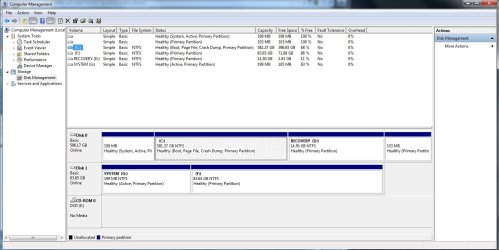
Edited because I read back through and found a potential fix.
 

Attachments

  • Disk mgmt.jpg
    Disk mgmt.jpg
    104 KB · Views: 362
Last edited:

My Computer My Computer

At a glance

W7
OS
W7
new ssd

Hello again,

I've recently got my hands on another ssd (90gb vertex 3,) and I'm wondering if it would be beneficial for me to convert/migrate my primary boot drive from the 60gb vertex 3 to this new one, as bigger volumes tend to have a faster read/write speed. Would it make a noticeable difference to justify the effort? I assume it would be as simple as using the paragon migration tool and transfer everything from the previous ssd to the new one.
Thanks for your time.

-Jeff

PS: I also apologize in advance if this is the wrong thread to ask this question. If so, it would be awesome if I can be directed to the correct one regarding this matter.
 

My Computer My Computer

At a glance

Windows 7 Professional x64AMD Phenom II x4 955 BE 3.8GHzCorsair XMS3 8 GB (2 x 4GB) 1333 MHzGTX 560 Ti
OS
Windows 7 Professional x64
CPU
AMD Phenom II x4 955 BE 3.8GHz
Motherboard
Biostar A870u3
Memory
Corsair XMS3 8 GB (2 x 4GB) 1333 MHz
Graphics Card(s)
GTX 560 Ti
Monitor(s) Displays
23.6" Asus
Screen Resolution
1920X1080
Hard Drives
OCZ Vertex 3 90GB SSD,
WD Caviar Black 1 TB HDD
PSU
Antec EarthWatts EA650 650W
Case
Antec 300
Cooling
CM Hyper 212+
Keyboard
Das Keyboard
Mouse
Logitech G500
Internet Speed
Not fast enough
jff02,

By no means am I an expert, but through my various readings I stumbled across something one time that had to do with your question. I think that the "fullness" of the SSD is only a factor in older versions of SSDs, and that the new ones can be 99% full and still operate with the same quickness.

Do a quick google search for synchronous vs asynchronous SSD memory.
 

My Computer My Computer

At a glance

W7
OS
W7
Hello again,

I've recently got my hands on another ssd (90gb vertex 3,) and I'm wondering if it would be beneficial for me to convert/migrate my primary boot drive from the 60gb vertex 3 to this new one, as bigger volumes tend to have a faster read/write speed. Would it make a noticeable difference to justify the effort? I assume it would be as simple as using the paragon migration tool and transfer everything from the previous ssd to the new one.
Thanks for your time.

-Jeff

PS: I also apologize in advance if this is the wrong thread to ask this question. If so, it would be awesome if I can be directed to the correct one regarding this matter.
I don't think you will notice a difference. If it is not for the extra space, I would not migrate.
 

My Computer My Computer

At a glance

Vista, Windows7, Mint Mate, Zorin, Windows 8from 1.6GHz Duo to i7
Computer Manufacturer/Model Number
HP, Dell, Gateway, Toshiba - 4 laptops and 2 desktops
OS
Vista, Windows7, Mint Mate, Zorin, Windows 8
CPU
from 1.6GHz Duo to i7
Monitor(s) Displays
2x HP w2207
Hard Drives
5x HDD, 7x SSD, 12x Externals
Keyboard
with trackball - no mices
Mouse
Trackball mice
Internet Speed
DSL 6000
Hello,
While formatting my hard drives, I might of accidentally deleted everything from my HDD. is there anyway to reverse this process? I'm talking about the program files folder, users, etc. It is not my primary drive with the OS on it.

What I'm most worried is if I have lost anything that will impact the performance of my computer, essentially.
 
Last edited:

My Computer My Computer

At a glance

Windows 7 Professional x64AMD Phenom II x4 955 BE 3.8GHzCorsair XMS3 8 GB (2 x 4GB) 1333 MHzGTX 560 Ti
OS
Windows 7 Professional x64
CPU
AMD Phenom II x4 955 BE 3.8GHz
Motherboard
Biostar A870u3
Memory
Corsair XMS3 8 GB (2 x 4GB) 1333 MHz
Graphics Card(s)
GTX 560 Ti
Monitor(s) Displays
23.6" Asus
Screen Resolution
1920X1080
Hard Drives
OCZ Vertex 3 90GB SSD,
WD Caviar Black 1 TB HDD
PSU
Antec EarthWatts EA650 650W
Case
Antec 300
Cooling
CM Hyper 212+
Keyboard
Das Keyboard
Mouse
Logitech G500
Internet Speed
Not fast enough
Excellent tut whs and I have a little gadget I use for cloning and whatever that might interest you and the others to save getting an enclosure as this gadget one can get for $10 - $20 just about anywhere I got mine on Ebay the first time but a Google would show where anyone could get one from, and you can lay the drive on some anti static sheet / bag while doing it.

Now I am going to use this to install the SSD into the laptop using your tut but it can be used to clone / back up / copy - paste data any drive any number of times on any machine - I use EaseUS To Do but those who like other software can use what they like.

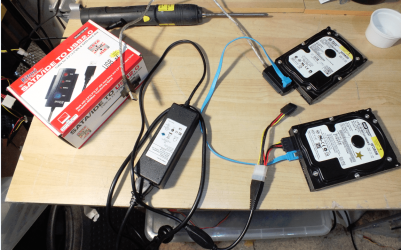
The gadget consists of a mains adaptor for the power to the drive to be cloned formatted etc - the data fixation device for the drive SATA or IDE - it attaches via the IDE or SATA sockets and it has a lead (silver braided) that goes to the machine to be cloned or for diskparting purposes via a USB connector. When hooked up to the running machine it shows up as an extra drive in Computer - then you can start diskparting cloning whatever. (I have shown two drives hooked up for demo purposes.)

The boxed one is a spare and a different brand from it. Oh and the power lead for the adaptor is that little push on/push off button, and I meant to mention it is really quite fast.
 

Attachments

  • GADGET.PNG
    GADGET.PNG
    447.2 KB · Views: 365

My Computer My Computer

At a glance

Desk1 7 Home Prem / Desk2 10 Pro / Main lap A...Desk1 i5 3750K / Laptop i7 GTX 860M / Desk2 i...Desk1 8GB (1866) / Desk2 16GB (1333) / Laptop...Desk 1& 2NVidia GTX 650 & Laptops on board Intel
Computer type
PC/Desktop
Computer Manufacturer/Model Number
Own build (new) Desk1 / Asus ROG Win 7 / Desk2 1st build
OS
Desk1 7 Home Prem / Desk2 10 Pro / Main lap Asus ROG 10 Pro 2 laptop Toshiba 7 Pro Asus P2520 7 & 10
CPU
Desk1 i5 3750K / Laptop i7 GTX 860M / Desk2 i5 2500
Motherboard
Desk1 Asus P877-V / Desk2 Gigabyte H67 UD3H / Laptop ?
Memory
Desk1 8GB (1866) / Desk2 16GB (1333) / Laptop 8Gb DDR3
Graphics Card(s)
Desk 1& 2NVidia GTX 650 & Laptops on board Intel
Sound Card
Desk 1 & 2 -XONAR DG Realtek High Def audio Laptop
Monitor(s) Displays
Desk 1 Benq HD 2450 / Desk2 Philips 24" / Laptop 17.5"
Screen Resolution
1920x1080 D1 & D2 & Laptop 1
Hard Drives
Desk1 Samsung 120GB 830 SSD
Asus ROG 256GB 850 Pro SSD
Desk2 Samsung 840 256 SSD
Toshiba 120GB EVO
PSU
Desk 1 Corsair HX 1050/ Laptop ? / Desk 2 Corsair HX 650
Case
Desk 1 Cooler HAF XM ? Toshiba laptop / Desk2 Coolermaster
Cooling
Fans on all Desk1 -2 Desk2 - all Coolermasters 5 Laptop ?
Keyboard
Desk 1 MS Sidewinder X6 Desk 2 MS Sidewinder X 4
Mouse
Desk 1&2 - Gigabyte MS 900 gamer - laptop - Logitec wireless
Internet Speed
ADSL2+
Other Info
One other Desktop (tester) and spare Toshba laptop both with SSD's
Running Kaspersky 2016 ISS on all machines config'd identically
Logitec audio stereo systems on each machine (x3)
Canon MG5250MFC
Router/modem TP-Link running WPA2SK
Looks like your gadget operates like an enclosure. Or did I miss something.

In my house enclosures seem to mushroom. I have more than half a dozen - USB2, USB3, eSata. The whole 9 yards. Some came with SSDs for free. I use whichever is convenient and depending to which system I hook it up. Not all systems have USB3 or eSata.
 

My Computer My Computer

At a glance

Vista, Windows7, Mint Mate, Zorin, Windows 8from 1.6GHz Duo to i7
Computer Manufacturer/Model Number
HP, Dell, Gateway, Toshiba - 4 laptops and 2 desktops
OS
Vista, Windows7, Mint Mate, Zorin, Windows 8
CPU
from 1.6GHz Duo to i7
Monitor(s) Displays
2x HP w2207
Hard Drives
5x HDD, 7x SSD, 12x Externals
Keyboard
with trackball - no mices
Mouse
Trackball mice
Internet Speed
DSL 6000
Looks like your gadget operates like an enclosure. Or did I miss something.

In my house enclosures seem to mushroom. I have more than half a dozen - USB2, USB3, eSata. The whole 9 yards. Some came with SSDs for free. I use whichever is convenient and depending to which system I hook it up. Not all systems have USB3 or eSata.
Yes Wolfgang it works exactly the same only you don't need the fancy housing to clutter up the place LOL!! All you need to do is the work with the drive then store it (drive) and not a whole lot of enclosures and it saves the cost of them (enclosures).

Oh and this one works through USB 2.0 or 3.0 and the best bit is it can be used with IDE or SATA. It has paid for itself many times over too, and takes up very little space as you can see the components there.:D
Perhaps tomorrow I'll send a pic of it hooked up so that you can see how it looks.
 
Last edited:

My Computer My Computer

At a glance

Desk1 7 Home Prem / Desk2 10 Pro / Main lap A...Desk1 i5 3750K / Laptop i7 GTX 860M / Desk2 i...Desk1 8GB (1866) / Desk2 16GB (1333) / Laptop...Desk 1& 2NVidia GTX 650 & Laptops on board Intel
Computer type
PC/Desktop
Computer Manufacturer/Model Number
Own build (new) Desk1 / Asus ROG Win 7 / Desk2 1st build
OS
Desk1 7 Home Prem / Desk2 10 Pro / Main lap Asus ROG 10 Pro 2 laptop Toshiba 7 Pro Asus P2520 7 & 10
CPU
Desk1 i5 3750K / Laptop i7 GTX 860M / Desk2 i5 2500
Motherboard
Desk1 Asus P877-V / Desk2 Gigabyte H67 UD3H / Laptop ?
Memory
Desk1 8GB (1866) / Desk2 16GB (1333) / Laptop 8Gb DDR3
Graphics Card(s)
Desk 1& 2NVidia GTX 650 & Laptops on board Intel
Sound Card
Desk 1 & 2 -XONAR DG Realtek High Def audio Laptop
Monitor(s) Displays
Desk 1 Benq HD 2450 / Desk2 Philips 24" / Laptop 17.5"
Screen Resolution
1920x1080 D1 & D2 & Laptop 1
Hard Drives
Desk1 Samsung 120GB 830 SSD
Asus ROG 256GB 850 Pro SSD
Desk2 Samsung 840 256 SSD
Toshiba 120GB EVO
PSU
Desk 1 Corsair HX 1050/ Laptop ? / Desk 2 Corsair HX 650
Case
Desk 1 Cooler HAF XM ? Toshiba laptop / Desk2 Coolermaster
Cooling
Fans on all Desk1 -2 Desk2 - all Coolermasters 5 Laptop ?
Keyboard
Desk 1 MS Sidewinder X6 Desk 2 MS Sidewinder X 4
Mouse
Desk 1&2 - Gigabyte MS 900 gamer - laptop - Logitec wireless
Internet Speed
ADSL2+
Other Info
One other Desktop (tester) and spare Toshba laptop both with SSD's
Running Kaspersky 2016 ISS on all machines config'd identically
Logitec audio stereo systems on each machine (x3)
Canon MG5250MFC
Router/modem TP-Link running WPA2SK
Very nice. I understand the desktop clutter problem. You should see my desktop. I live in clutter all day long. Between my desktop and my laptop (which is only 2 feet away) there must be 100 wires over the desk, under the desk and on the side of the desk. Cannot escape from them. I wish somebody would invent wireless attachments.
 

My Computer My Computer

At a glance

Vista, Windows7, Mint Mate, Zorin, Windows 8from 1.6GHz Duo to i7
Computer Manufacturer/Model Number
HP, Dell, Gateway, Toshiba - 4 laptops and 2 desktops
OS
Vista, Windows7, Mint Mate, Zorin, Windows 8
CPU
from 1.6GHz Duo to i7
Monitor(s) Displays
2x HP w2207
Hard Drives
5x HDD, 7x SSD, 12x Externals
Keyboard
with trackball - no mices
Mouse
Trackball mice
Internet Speed
DSL 6000
I understand Wolfgang, I neatly organize the cables behind my desk and within 2 days the are all knotted into a rope.
 

My Computer My Computer

At a glance

Windows 7 Ultimate X64 SP1Intel i5-2550K, Differing ~4.4-4.8GHz No buil...16GB G.Skill Sniper 1866MHz @ 2133MHz 2x8GBASUS GTX650TIB-DC2OC-2GD5, (650TI Boost)
Computer type
PC/Desktop
Computer Manufacturer/Model Number
Home Built Desktop By DataTech
OS
Windows 7 Ultimate X64 SP1
CPU
Intel i5-2550K, Differing ~4.4-4.8GHz No built in GPU
Motherboard
ASUS P8Z68-V PRO/GEN3
Memory
16GB G.Skill Sniper 1866MHz @ 2133MHz 2x8GB
Graphics Card(s)
ASUS GTX650TIB-DC2OC-2GD5, (650TI Boost)
Sound Card
Onboard Realtek 5-1
Monitor(s) Displays
Samsung P2570HD
Screen Resolution
1920x1080
Hard Drives
Samsung 840 Pro 256GB SSD for OS, 500GB Seagate Constellation (Enterprise drive) for Data
PSU
Corsair HX650W
Case
Inwin Dragon Rider
Cooling
Hyper 212 EVO w/two Noctua fans, push-pull, @1300 RPM
Keyboard
E-Z Eyes, bright yellow keys with large characters
Mouse
steelseries SENSEI Laser Pro Gaming
Internet Speed
48-51Mbs Mbs down, 11 Mbs up Xfinity Cable
Antivirus
Norton Internet Security 2013
Browser
IE 10, Opera, Pale Moon if needed
Other Info
4 case fans, LG BluRay-RE, ASUS DVD-RW, Mr. Fusion power supply, 1.21 gigawatts.
Well Wolfgang if you think your place is in a clutter you aint seen nothin yet. I have a whole bedroom with four working and three stationary desktops and three laptops, the hallway is lined up with parts and waiting to be fixed / Frankensteined machines. Another bedroom half full of spare opto's PSU's mobo's - need I go on??
If I could get this damn snip to work (very frustrating) you would see what I mean.
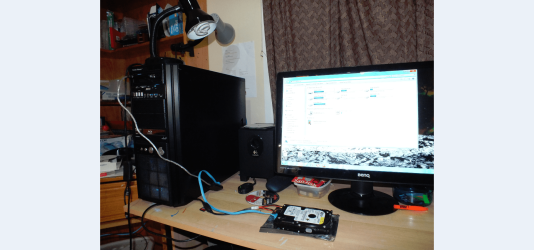
Anyway a pic of my gadget set up for a demo you can see the list of drives in the screen and when you start up EaseUS - I don't know if you are familiar with it it lists what you want to do in the front GUI. If you pick the clone it lists the drive and you just pick the one to be cloned > then the destination drive > proceed and 40 mins after a clone!
Now the GUI lists back ups and all bits and pieces that might interest you - like I say if you haven't seen the GUI before of course (I suspect you have though).
 

Attachments

  • GADG1.png
    GADG1.png
    495.1 KB · Views: 512

My Computer My Computer

At a glance

Desk1 7 Home Prem / Desk2 10 Pro / Main lap A...Desk1 i5 3750K / Laptop i7 GTX 860M / Desk2 i...Desk1 8GB (1866) / Desk2 16GB (1333) / Laptop...Desk 1& 2NVidia GTX 650 & Laptops on board Intel
Computer type
PC/Desktop
Computer Manufacturer/Model Number
Own build (new) Desk1 / Asus ROG Win 7 / Desk2 1st build
OS
Desk1 7 Home Prem / Desk2 10 Pro / Main lap Asus ROG 10 Pro 2 laptop Toshiba 7 Pro Asus P2520 7 & 10
CPU
Desk1 i5 3750K / Laptop i7 GTX 860M / Desk2 i5 2500
Motherboard
Desk1 Asus P877-V / Desk2 Gigabyte H67 UD3H / Laptop ?
Memory
Desk1 8GB (1866) / Desk2 16GB (1333) / Laptop 8Gb DDR3
Graphics Card(s)
Desk 1& 2NVidia GTX 650 & Laptops on board Intel
Sound Card
Desk 1 & 2 -XONAR DG Realtek High Def audio Laptop
Monitor(s) Displays
Desk 1 Benq HD 2450 / Desk2 Philips 24" / Laptop 17.5"
Screen Resolution
1920x1080 D1 & D2 & Laptop 1
Hard Drives
Desk1 Samsung 120GB 830 SSD
Asus ROG 256GB 850 Pro SSD
Desk2 Samsung 840 256 SSD
Toshiba 120GB EVO
PSU
Desk 1 Corsair HX 1050/ Laptop ? / Desk 2 Corsair HX 650
Case
Desk 1 Cooler HAF XM ? Toshiba laptop / Desk2 Coolermaster
Cooling
Fans on all Desk1 -2 Desk2 - all Coolermasters 5 Laptop ?
Keyboard
Desk 1 MS Sidewinder X6 Desk 2 MS Sidewinder X 4
Mouse
Desk 1&2 - Gigabyte MS 900 gamer - laptop - Logitec wireless
Internet Speed
ADSL2+
Other Info
One other Desktop (tester) and spare Toshba laptop both with SSD's
Running Kaspersky 2016 ISS on all machines config'd identically
Logitec audio stereo systems on each machine (x3)
Canon MG5250MFC
Router/modem TP-Link running WPA2SK
I would call this an orderly place. Only 6 or 7 wires. The little gadget looks nice for an occasional job. I have some of my (open) enclosures permanently wired. Then I can hotswat the HDDs.

Just yesterday I ran my Windows 8 to go on my HDD that is normally in the USB3 enclosure of the laptop. I stuck it into the eSata enclosure of the desktop and made this recording. Handy those open enclosures.
 

My Computer My Computer

At a glance

Vista, Windows7, Mint Mate, Zorin, Windows 8from 1.6GHz Duo to i7
Computer Manufacturer/Model Number
HP, Dell, Gateway, Toshiba - 4 laptops and 2 desktops
OS
Vista, Windows7, Mint Mate, Zorin, Windows 8
CPU
from 1.6GHz Duo to i7
Monitor(s) Displays
2x HP w2207
Hard Drives
5x HDD, 7x SSD, 12x Externals
Keyboard
with trackball - no mices
Mouse
Trackball mice
Internet Speed
DSL 6000
Hum Wolfgang erm thats the tidy side when and if I ever get the snip to work I'll show you the "jungle".

Yes actually I have been using 3 x 1TB HDD's in the machine itself and just cloning one to the other/s now and then so that if one or two fall off the perch I still have a drive to go I find this works for me as I only have to catch up a bit when or if that should happen. Plus I do system images on a couple of external USB 3.0 drives. Bit of overkill but paranoid I am :shock:

Now that system doesn't really work with the M4 in situ now although I just transfer data as I get it. Mind you i find having the 1TB drive hooked up mucks around with the boot from the SSD for some reason.

The device I use mainly for fixes and if I have to clone several machines to one system - like our local school machines I did recently. Then it just gets put back in the drawer.

Hum I do like the video on the 8 too as I haven't had much chance to play around in there yet. Oh and we have something in common too - favourites I just get carried away ( and usually lose the passwords for half of them lol!!)

John
 

My Computer My Computer

At a glance

Desk1 7 Home Prem / Desk2 10 Pro / Main lap A...Desk1 i5 3750K / Laptop i7 GTX 860M / Desk2 i...Desk1 8GB (1866) / Desk2 16GB (1333) / Laptop...Desk 1& 2NVidia GTX 650 & Laptops on board Intel
Computer type
PC/Desktop
Computer Manufacturer/Model Number
Own build (new) Desk1 / Asus ROG Win 7 / Desk2 1st build
OS
Desk1 7 Home Prem / Desk2 10 Pro / Main lap Asus ROG 10 Pro 2 laptop Toshiba 7 Pro Asus P2520 7 & 10
CPU
Desk1 i5 3750K / Laptop i7 GTX 860M / Desk2 i5 2500
Motherboard
Desk1 Asus P877-V / Desk2 Gigabyte H67 UD3H / Laptop ?
Memory
Desk1 8GB (1866) / Desk2 16GB (1333) / Laptop 8Gb DDR3
Graphics Card(s)
Desk 1& 2NVidia GTX 650 & Laptops on board Intel
Sound Card
Desk 1 & 2 -XONAR DG Realtek High Def audio Laptop
Monitor(s) Displays
Desk 1 Benq HD 2450 / Desk2 Philips 24" / Laptop 17.5"
Screen Resolution
1920x1080 D1 & D2 & Laptop 1
Hard Drives
Desk1 Samsung 120GB 830 SSD
Asus ROG 256GB 850 Pro SSD
Desk2 Samsung 840 256 SSD
Toshiba 120GB EVO
PSU
Desk 1 Corsair HX 1050/ Laptop ? / Desk 2 Corsair HX 650
Case
Desk 1 Cooler HAF XM ? Toshiba laptop / Desk2 Coolermaster
Cooling
Fans on all Desk1 -2 Desk2 - all Coolermasters 5 Laptop ?
Keyboard
Desk 1 MS Sidewinder X6 Desk 2 MS Sidewinder X 4
Mouse
Desk 1&2 - Gigabyte MS 900 gamer - laptop - Logitec wireless
Internet Speed
ADSL2+
Other Info
One other Desktop (tester) and spare Toshba laptop both with SSD's
Running Kaspersky 2016 ISS on all machines config'd identically
Logitec audio stereo systems on each machine (x3)
Canon MG5250MFC
Router/modem TP-Link running WPA2SK

My Computer My Computer

At a glance

Vista, Windows7, Mint Mate, Zorin, Windows 8from 1.6GHz Duo to i7
Computer Manufacturer/Model Number
HP, Dell, Gateway, Toshiba - 4 laptops and 2 desktops
OS
Vista, Windows7, Mint Mate, Zorin, Windows 8
CPU
from 1.6GHz Duo to i7
Monitor(s) Displays
2x HP w2207
Hard Drives
5x HDD, 7x SSD, 12x Externals
Keyboard
with trackball - no mices
Mouse
Trackball mice
Internet Speed
DSL 6000
How come your system does not work with the M4. Did the bootmgr end up on the 1TB drive because you did not disconnect it during the installation on the M4. If that is the case, transfer the bootmgr to C on the M4: http://www.sevenforums.com/tutorials/209885-bootmgr-move-c-easybcd.html
OK have downloaded and done that and now will try the reboot.

As for the install I only had the M4 installed at the time the problems started when I hooked the HDD back up for data.
 

My Computer My Computer

At a glance

Desk1 7 Home Prem / Desk2 10 Pro / Main lap A...Desk1 i5 3750K / Laptop i7 GTX 860M / Desk2 i...Desk1 8GB (1866) / Desk2 16GB (1333) / Laptop...Desk 1& 2NVidia GTX 650 & Laptops on board Intel
Computer type
PC/Desktop
Computer Manufacturer/Model Number
Own build (new) Desk1 / Asus ROG Win 7 / Desk2 1st build
OS
Desk1 7 Home Prem / Desk2 10 Pro / Main lap Asus ROG 10 Pro 2 laptop Toshiba 7 Pro Asus P2520 7 & 10
CPU
Desk1 i5 3750K / Laptop i7 GTX 860M / Desk2 i5 2500
Motherboard
Desk1 Asus P877-V / Desk2 Gigabyte H67 UD3H / Laptop ?
Memory
Desk1 8GB (1866) / Desk2 16GB (1333) / Laptop 8Gb DDR3
Graphics Card(s)
Desk 1& 2NVidia GTX 650 & Laptops on board Intel
Sound Card
Desk 1 & 2 -XONAR DG Realtek High Def audio Laptop
Monitor(s) Displays
Desk 1 Benq HD 2450 / Desk2 Philips 24" / Laptop 17.5"
Screen Resolution
1920x1080 D1 & D2 & Laptop 1
Hard Drives
Desk1 Samsung 120GB 830 SSD
Asus ROG 256GB 850 Pro SSD
Desk2 Samsung 840 256 SSD
Toshiba 120GB EVO
PSU
Desk 1 Corsair HX 1050/ Laptop ? / Desk 2 Corsair HX 650
Case
Desk 1 Cooler HAF XM ? Toshiba laptop / Desk2 Coolermaster
Cooling
Fans on all Desk1 -2 Desk2 - all Coolermasters 5 Laptop ?
Keyboard
Desk 1 MS Sidewinder X6 Desk 2 MS Sidewinder X 4
Mouse
Desk 1&2 - Gigabyte MS 900 gamer - laptop - Logitec wireless
Internet Speed
ADSL2+
Other Info
One other Desktop (tester) and spare Toshba laptop both with SSD's
Running Kaspersky 2016 ISS on all machines config'd identically
Logitec audio stereo systems on each machine (x3)
Canon MG5250MFC
Router/modem TP-Link running WPA2SK
Hello, I recently got an SSD and decided to use the easy method to migrate my OS from my old HDD, so I bought the program but a problem occurred.
If anyone knows the Paragon migration program well and could help me out it would be highly appreciated, here's the details:
As my destination hard disk is 602GB big and my SSD has 120GB of free space, I've chosen to only include the Perflogs, Users and Windows folder in my migration to the SSD. I've excluded both of my Program folders.
That takes up 58% of the space on the SSD and leaves it with 46,7GB of free space
after copying.
After 30-45 minutes of copying partitions it stops and I recieve the error: "Failed to copy partition with the OS: There's not enough space."
I've tried to enable the "Use all available space for the partition with OS" option and also without but the outcome is the same, for some reason I don't have enough space of the SSD even though it clearly said that I would end up with 46,7GB of space after migrating.

I may be missing something obvious but I would be really glad if someone would help me out with a problem cause I've never been an expert when it comes to computers.
But if everything else fails I may try the 1st method.
 

My Computer My Computer

At a glance

Windows 7 home preimium 64bitAMD Phenom(tm) II X6 1090T Processor 3,20GHzKingston 8GB DDR3 1333Mhz (DUAL)Radeon 6870
OS
Windows 7 home preimium 64bit
CPU
AMD Phenom(tm) II X6 1090T Processor 3,20GHz
Motherboard
Asus M4N75TD
Memory
Kingston 8GB DDR3 1333Mhz (DUAL)
Graphics Card(s)
Radeon 6870
Screen Resolution
1920x1080
Hard Drives
Samsung 1000GB, 7200rpm, Intel Solid-State Drive 510 series.
Case
NZXT Hush Silent
Cooling
Arctic Freezer 7 Pro Rev.2
Keyboard
Razer BlackWidow Ultimate
Mouse
Razor Imperator
Internet Speed
Cable
Hello, I recently got an SSD and decided to use the easy method to migrate my OS from my old HDD, so I bought the program but a problem occurred.
If anyone knows the Paragon migration program well and could help me out it would be highly appreciated, here's the details:
As my destination hard disk is 602GB big and my SSD has 120GB of free space, I've chosen to only include the Perflogs, Users and Windows folder in my migration to the SSD. I've excluded both of my Program folders.
That takes up 58% of the space on the SSD and leaves it with 46,7GB of free space
after copying.
After 30-45 minutes of copying partitions it stops and I recieve the error: "Failed to copy partition with the OS: There's not enough space."
I've tried to enable the "Use all available space for the partition with OS" option and also without but the outcome is the same, for some reason I don't have enough space of the SSD even though it clearly said that I would end up with 46,7GB of space after migrating.

I may be missing something obvious but I would be really glad if someone would help me out with a problem cause I've never been an expert when it comes to computers.
But if everything else fails I may try the 1st method.

I assume you mean your source drive is 602 GB??

I've never used the Paragon tool, but others here have and I think it has a decent reputation.

A thought----if you are not moving your Program folders, that means you are planning on reinstalling all of your programs on the SSD. If you are going to take the time and trouble to reinstall programs on the SSD, why not just do a clean install and bypass the Paragon tool entirely?

I hope you have your data backed up before using Paragon.
 

My Computer My Computer

At a glance

Windows 7 Home Premium SP1, 64-bitIntel Skylake i5-6600K, not overclocked8 GB HyperX DDR4-2666 (2 x 4 GB)none; graphics are integrated on CPU
Computer type
PC/Desktop
Computer Manufacturer/Model Number
Ignatz Special; 4 speed manual gearbox; factory air conditioning; one of one
OS
Windows 7 Home Premium SP1, 64-bit
CPU
Intel Skylake i5-6600K, not overclocked
Motherboard
AsRock Z170M Extreme 4, micro ATX
Memory
8 GB HyperX DDR4-2666 (2 x 4 GB)
Graphics Card(s)
none; graphics are integrated on CPU
Sound Card
onboard: Realtek ALC1150; external: USB Behringer UF0-202
Monitor(s) Displays
Dell S2340M 23 inch IPS
Screen Resolution
1600 x 900
Hard Drives
System: Crucial MX100 series SSD, 128 GB;
Data: Samsung Spinpoint 103SJ, 1 TB;
Backup: WD Caviar Green WD30EZRX-00D8PB0, 3 TB
PSU
Rosewill SilentNight 500 watt fanless, semi-modular
Case
Antec Solo II
Cooling
Noctua NH-U12S; Noctua F12 intake, Noctua S12A exhaust
Keyboard
Microsoft 200 6JH-00001 USB
Mouse
Dell or Microsoft optical wired; USB
Antivirus
Microsoft Security Essentials and Malwarebytes Premium
Browser
Pale Moon
Other Info
All fans PWM; speeds at idle: CPU circa 500 rpm; intake circa 600 rpm; exhaust circa 600 rpm; CPU temps 27 idle and 47 C load in a warm room (27 C/81 F) when running Intel Extreme Tuning Utility stress test.
Yeah, right. There can be such problems with the migration tool. Suggest you wipe the SSD (best with Gparted) to get your SSD back to factory state.

Then reduce the amount of data in your C partition (so that it fits on the SSD) whilst still on the HDD - don't do it during the migration. If you also have user data, make a seperate partition for that on the HDD and move your stuff there.

It would be also not a bad idea if you reduced the total C partition size to be no more than the SSD size. For that you need the bootable CD of Partition Wizard.(see on the left of the webpage). And I would also move the bootmgr from the 100MB active partition to C: http://www.sevenforums.com/tutorials/209885-bootmgr-move-c-easybcd.html

I do all those steps before the migration and never had any problem - except once when the HDD was corrupted, but in a part where there was no data. That gave problems with the migration tool.
 

My Computer My Computer

At a glance

Vista, Windows7, Mint Mate, Zorin, Windows 8from 1.6GHz Duo to i7
Computer Manufacturer/Model Number
HP, Dell, Gateway, Toshiba - 4 laptops and 2 desktops
OS
Vista, Windows7, Mint Mate, Zorin, Windows 8
CPU
from 1.6GHz Duo to i7
Monitor(s) Displays
2x HP w2207
Hard Drives
5x HDD, 7x SSD, 12x Externals
Keyboard
with trackball - no mices
Mouse
Trackball mice
Internet Speed
DSL 6000
Great tutorial, very detailed. I shall soon be investing in an SSD (once my current rig stops playing up) and this will come in handy. No doubt I will have some questions and possibly some errors, glad to know I can turn to this topic for that :D
 

My Computer My Computer

At a glance

Windows 7 UtimateIntel Core 2 Quad 2.5GhzCorsair Vengeance Blue 8Gb DDR3 1600 (2x4Gb)ATi Radeon HD 5450 1Gb
OS
Windows 7 Utimate
CPU
Intel Core 2 Quad 2.5Ghz
Motherboard
Asus P5G41T-M
Memory
Corsair Vengeance Blue 8Gb DDR3 1600 (2x4Gb)
Graphics Card(s)
ATi Radeon HD 5450 1Gb
Hard Drives
Seagate 320Gb 7,200 rpm
Seagate 250Gb 7,200 rpm
Cooling
Arctic Cooling Freezer 7 Pro
Wow, thanks for the quick responses
@ignatz: Yeah I meant my source drive :)
I planned to just move Windows 7 OS to make it run faster. The remaining programs would remain on my old HDD
(programs such as iTunes, Origin and Steam, which takes up the majority of the space on my HDD)
And no, I don't have anywhere to back it up to yet but I suppose I can borrow an external hard drive from my friend. I didn't lose anything after I receieved the error though
@whz: Thanks, I'll wipe out my SSD and see if it works.
 

My Computer My Computer

At a glance

Windows 7 home preimium 64bitAMD Phenom(tm) II X6 1090T Processor 3,20GHzKingston 8GB DDR3 1333Mhz (DUAL)Radeon 6870
OS
Windows 7 home preimium 64bit
CPU
AMD Phenom(tm) II X6 1090T Processor 3,20GHz
Motherboard
Asus M4N75TD
Memory
Kingston 8GB DDR3 1333Mhz (DUAL)
Graphics Card(s)
Radeon 6870
Screen Resolution
1920x1080
Hard Drives
Samsung 1000GB, 7200rpm, Intel Solid-State Drive 510 series.
Case
NZXT Hush Silent
Cooling
Arctic Freezer 7 Pro Rev.2
Keyboard
Razer BlackWidow Ultimate
Mouse
Razor Imperator
Internet Speed
Cable
Back
Top