SSD - Install and Transfer the Operating System

How to Physically Install a SSD and Transfer the Operating System


Introduction

If you never owned an SSD, you have missed something. Yes, they are not cheap, but Dollar per Dollar there is no other piece of hardware that can give you as much additional performance than an SSD.

Because SSDs are expensive, their current use is for placing the operating system. That’s how you get the best mileage. Although XP and Vista can be installed on SSDs, it is recommended to use them for Windows7, which is the first system to support Trim.

For desktops, an SSD with a 60GB capacity is usually sufficient. The user data can be moved to the HDD – I will explain the procedure later. Should you have very large programs, e.g., games, you should move their program files during the installation of the game to the HDD too.

For laptops, the situation is more complicated because you usually have only one disk bay. I use 80GB and 90GB SSDs on my laptops. In addition, I use the HDD that I recovered from the laptop after I installed the SSD in an external USB enclosure. But, if you move around a lot with the laptop, that may not be so convenient and a bigger SSD (120GB or 250GB) may be in order (budget allowing).


Hardware Installation

For a desktop, you will need a bracket if it is a 2.5” SSD (like most today). But, there are also 3.5” SSDs that will fit without adaptor brackets into the disk bays. You also need a cable to attach the SSD to the motherboard. For electricity, there is usually an extra plug at the PSU which you can use for the SSD’s.

Once you have all those bits, you can install the SSD in an available disk bay – or if none available, some self-adhesive Velcro will also do. The SSDs are light and do not produce any vibration or heat.

For a laptop, you need an external enclosure that attaches to a USB port. That will allow you to make the initial SSD setups. The one I linked attaches via USB2 and eSata, which may be practical later to use as external drive with the HDD that you recovered from the laptop. Also for hot swapping bare bone HDDs. But there are cheaper enclosures for USB2 only and also some that allow attachment to USB3.

Transfer the Operating System

There are two ways to transfer the operating system from your current HDD to the SSD:
1. The Geeky way which comes for free and
2. The easy way that costs $19.95.

1.The Geeky way requires the following steps:

Prepare the SSD – You first have to initialize the SSD to create the MBR. You can do that with Disk Management or with this program (which you will need later anyhow).

Then you need to align the SSD and define an active partition on it. You use an elevated Command Prompt with the following commands:

Diskpart
List disk
Select disk n (where n is the number that was given for your SSD in List disk)
Clean
Create partition primary align=1024
Format fs=ntfs quick
Active (assuming you want to install an OS)
Exit

Note: If you are more comfortable working with Disk Management, you can also define a primary active partition with Disk Management. On a SSD, the partition will be automatically aligned by 1024.


If you want to verify that the alignment is correct, you use these commands:

Diskpart
List disk
Select disk n
List partition


You should see a result like this:

Partition ### Type Size Offset


------------- ---------------- ------- -------
Partition 1 Primary 59 GB

1024 KB - but 64KB or any number divisible by 4 is also good. The offset has to be divisible by 4.

In Windows7, you may have the 100MB active boot partition. The easiest way to deal with that is to move the bootmgr to the C: partition using EasyBCD. That you do on your HDD before you transfer anything to the SSD. Then you do not have to worry about it and you need only transfer the C: partition to the SSD.


But if you care to keep the 100MB partition, then the partition you just created on the SSD is for that 100MB partition. The next step is to shrink the partition you just created to a 100MB size (make sure it is not any smaller). With Disk Management you will have trouble to do that. I recommend this program for the operation.

From the free space you gained, you create the C: partition for the OS. This partition must not be active and need not be a primary (because the 100MB partition contains the boot manager).

Alternatively and easier is if you first create the 100MB partition with these commands:

Diskpart
List disk
Select disk n (where n is the number that was given for your SSD in List disk)
Clean
Create partition primary size=100 align=1024
Format fs=ntfs quick
Active
Exit

Note: The unit in the size parameter is MB

After this action you can use Disk Management to create the C partition from the remaining unallocated space. That can be a logical partition.

If there is no 100MB partition, things are easy. The partition you created with Command Prompt will receive the C partition including boot manager and all.

There may be more partitions on your factory HDD – e.g., the Recovery partition and a Tools Partition. Those you should not transfer to the SSD because of space constraints. I would back them up – e.g., with an imaging program. The Recovery Partition you can also burn to DVDs.

The OS transfer

This is done with an image. There are a variety of free imaging programs (e.g., the free editions of Macrium, Paragon, Acronis, etc.) that are suitable for the task. You can also use the Windows7 imaging, which has the advantage that it deals with the 100MB active boot partition automatically. Disadvantage is that you never know exactly what it does.

You image your partitions to an external disk (you may have to assign a drive letter to the 100MB partition so that the imaging program can identify it) and then pull the images back in to the SSD (using the bootable recovery program of the imaging program).
The recovery is partition by partition. So you have to make separate runs for the 100MB partition (if any) and the C: partition.

Note: Many free imaging programs cannot shrink the originating partition to fit into the usually much smaller C: partition on the SSD - even if the amount of data in that partition would fit. In that case you will need to shrink the C: partition on the HDD prior to imaging it. The HDD C: partition must be smaller or equal in size to the designated partition on the SSD. For that operation I also recommend this program because Disk Management might not be able to shrink it enough. Note: Free Macrium can image to a smaller disk if the data fits.

It is, of course, understood, that the amount of data on your HDD C: partition must not exceed the capacity of the designated C: partition on the SSD. Should you have more data on your HDD C: partition than the size of the SSD C: partition can hold, I suggest you first create a data partition on the HDD system and move the user data there. Here is my video tutorial that explains how this is done. When you finally are on the SSD system, you then right click on the user folders in the data partition (Documents, Pictures, etc.) and Include them into the appropriate library. That approach does not require you to move the user folders later.

Next step is to change the boot sequence in the BIOS to set the SSD as second boot device (leave the CD/DVD reader as first boot device) and, hopefully, your system will boot.

2.The easy way for transferring the OS requires you to purchase this program. It does everything for you – alignment, deals with the 100MB partition, transfers C:, shrinks the originating partition, etc. All you will have to do is change the boot sequence.

Note: Before you activate the SSD, it is recommended to set the BIOS to AHCI. Best time to do that is just before you change the boot sequence. Once Windows7 is running, you make the corresponding settings in the OS. Here is a tutorial on how to do that.
Many people claim that there is a significant performance gain with AHCI. I, however, did not see that. But it may be different from system to system.

Settings after the OS transfer

Disk Defragmentation makes no sense on an SSD. For a laptop, go into Services, navigate to Disk Defragmenter, right click on it and go to Properties. Here you set the service to Disabled.
For a desktop, you may want to disable defrag in the Disk Defragmenter and only for the SSD so that the remaining HDDs can still be defragmented.

Note: As long as Defrag Service is turned off, you cannot shrink any partition. The partition shrink process requires the Defrag service. If you need to shrink a partition later, turn the Defragmentation Service temporarily on.

Hibernation File – most of us do not use Hibernation, but Sleep instead. But, the hiberfile takes precious space on your SSD – to the same tune as the size as your RAM. To get rid of it, run the following command in elevated Command Prompt: powercfg –h off. If you ever want it back, it is powercfg – h on.

Superfetch – many “experts” suggest to turn Superfetch off. I think that is not appropriate. Fetching a program or data from RAM is still a lot faster than fetching it from a disk – even from an SSD.

There are no other settings that are necessary. On the SSD forums you will find a lot of tweaks. I recommend you stay away from them.


Move the user folders to the HDD

To move the user folders to the HDD is very simple. Create a Data partition on the HDD. Define folders in that partition – e.g., Documents, Music, Pictures, etc. One for each folder you want to move off the SSD. The name of those folders can be anything. The system will rename them anyhow. It is just more obvious if you call them by the same name as the originating folders.

Then, open the Explorer and right click on, e.g., My Documents folder (not the Documents Library) in the left pane. Go to Properties and click on the Location tab. Here you click on Move and navigate to the corresponding folder in your Data Partition on the HDD. Then you Select that folder and Apply it.

Very Important: You must move the SSD folder to the corresponding Data Partition folder – NOT to the root of the partition itself. That would create a mess.


Last edited:
1. Now we are getting somewhere. You have 290GBs of stuff on your C: - far too much for the SSD

2. I do not think it is a good idea to "exclude" the files during the migration. It will be much better if we prepare the C: partition beforehand.

3. In order to do that, go into your Explorer, and right click on those folders (My Docoments, My Music, My Videos, My Pictures and Downloads). Go to Properites and tell me what the size of each of those folders is. Once we know that, we can make intelligent decisions.

4. Did you run CCleaner ??

5. Another question - do you have an external disk and how much free space is on it.
 

My Computer My Computer

At a glance

Vista, Windows7, Mint Mate, Zorin, Windows 8from 1.6GHz Duo to i7
Computer Manufacturer/Model Number
HP, Dell, Gateway, Toshiba - 4 laptops and 2 desktops
OS
Vista, Windows7, Mint Mate, Zorin, Windows 8
CPU
from 1.6GHz Duo to i7
Monitor(s) Displays
2x HP w2207
Hard Drives
5x HDD, 7x SSD, 12x Externals
Keyboard
with trackball - no mices
Mouse
Trackball mice
Internet Speed
DSL 6000
From the Folders in C:
Program Files - 757 MB
Program Files (x86) -110 GB
Users - 132 GB
Windows - 20GB
Everything else is tiny

From Users:
My Document - 8.78 GB
Desktop - 121 GB (I have a folder on the desktop with all my compressed games)
Downloads - Pretty much empty
No videos, pictures, or music

And no, I do not have an external hard drive. I can try borrowing one from my housemate though

And I ran CC Cleaner just now.
 

My Computer My Computer

At a glance

Windows 7 Professional x64AMD Phenom II x4 955 BE 3.8GHzCorsair XMS3 8 GB (2 x 4GB) 1333 MHzGTX 560 Ti
OS
Windows 7 Professional x64
CPU
AMD Phenom II x4 955 BE 3.8GHz
Motherboard
Biostar A870u3
Memory
Corsair XMS3 8 GB (2 x 4GB) 1333 MHz
Graphics Card(s)
GTX 560 Ti
Monitor(s) Displays
23.6" Asus
Screen Resolution
1920X1080
Hard Drives
OCZ Vertex 3 90GB SSD,
WD Caviar Black 1 TB HDD
PSU
Antec EarthWatts EA650 650W
Case
Antec 300
Cooling
CM Hyper 212+
Keyboard
Das Keyboard
Mouse
Logitech G500
Internet Speed
Not fast enough
Hmm I think we have a bit of a difficulty. It is your games that clog up the partition. The desktop files we could move, but the program files x86 cannot be moved in 20/20 hindsight. Those guys would have to be reinstalled once you are on the SSD and directed to a program file folder on the HDD during installation. Are you prepared to do that.

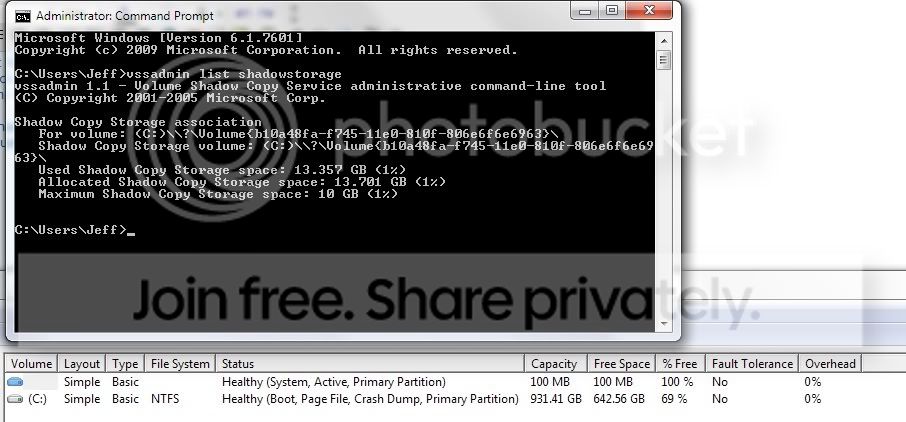
But I am still missing about 30GBs to arrive at 290GB total.. I wonder where those are. Check whether those are restore points. Open an elevated (run as admin) Command Prompt and run this command:

vssadmin list shadowstorage

Tell me what is says under Allocated.
 

My Computer My Computer

At a glance

Vista, Windows7, Mint Mate, Zorin, Windows 8from 1.6GHz Duo to i7
Computer Manufacturer/Model Number
HP, Dell, Gateway, Toshiba - 4 laptops and 2 desktops
OS
Vista, Windows7, Mint Mate, Zorin, Windows 8
CPU
from 1.6GHz Duo to i7
Monitor(s) Displays
2x HP w2207
Hard Drives
5x HDD, 7x SSD, 12x Externals
Keyboard
with trackball - no mices
Mouse
Trackball mice
Internet Speed
DSL 6000
There are still 2 answers you owe me:

1. did you run CCleaner
2. Do you have an external disk
 

My Computer My Computer

At a glance

Vista, Windows7, Mint Mate, Zorin, Windows 8from 1.6GHz Duo to i7
Computer Manufacturer/Model Number
HP, Dell, Gateway, Toshiba - 4 laptops and 2 desktops
OS
Vista, Windows7, Mint Mate, Zorin, Windows 8
CPU
from 1.6GHz Duo to i7
Monitor(s) Displays
2x HP w2207
Hard Drives
5x HDD, 7x SSD, 12x Externals
Keyboard
with trackball - no mices
Mouse
Trackball mice
Internet Speed
DSL 6000
Sorry, I probably answered the two questions after an edit, so you didn't see it.

But yes, and yes (I'd have to borrow, and it prob would have around 200GB of space to be worked with)

So I wouldn't be able to exclude the (x86) when prompted? Or if I find a external storage, can I just back up all those folders of installed games (how about the ones on the desktop [compressed ones])

As long as I have the compressed files, it's easy to re-install them back to C, so I guess I can just delete the games in C and leave stuff like office and other apps.

Under Allocated I have 13.7 GB
Command.jpg
 

My Computer My Computer

At a glance

Windows 7 Professional x64AMD Phenom II x4 955 BE 3.8GHzCorsair XMS3 8 GB (2 x 4GB) 1333 MHzGTX 560 Ti
OS
Windows 7 Professional x64
CPU
AMD Phenom II x4 955 BE 3.8GHz
Motherboard
Biostar A870u3
Memory
Corsair XMS3 8 GB (2 x 4GB) 1333 MHz
Graphics Card(s)
GTX 560 Ti
Monitor(s) Displays
23.6" Asus
Screen Resolution
1920X1080
Hard Drives
OCZ Vertex 3 90GB SSD,
WD Caviar Black 1 TB HDD
PSU
Antec EarthWatts EA650 650W
Case
Antec 300
Cooling
CM Hyper 212+
Keyboard
Das Keyboard
Mouse
Logitech G500
Internet Speed
Not fast enough
1. Again, depending on the "exclude" during the migration is not a good idea. Let's prepare C: first so that it fits on the SSD.

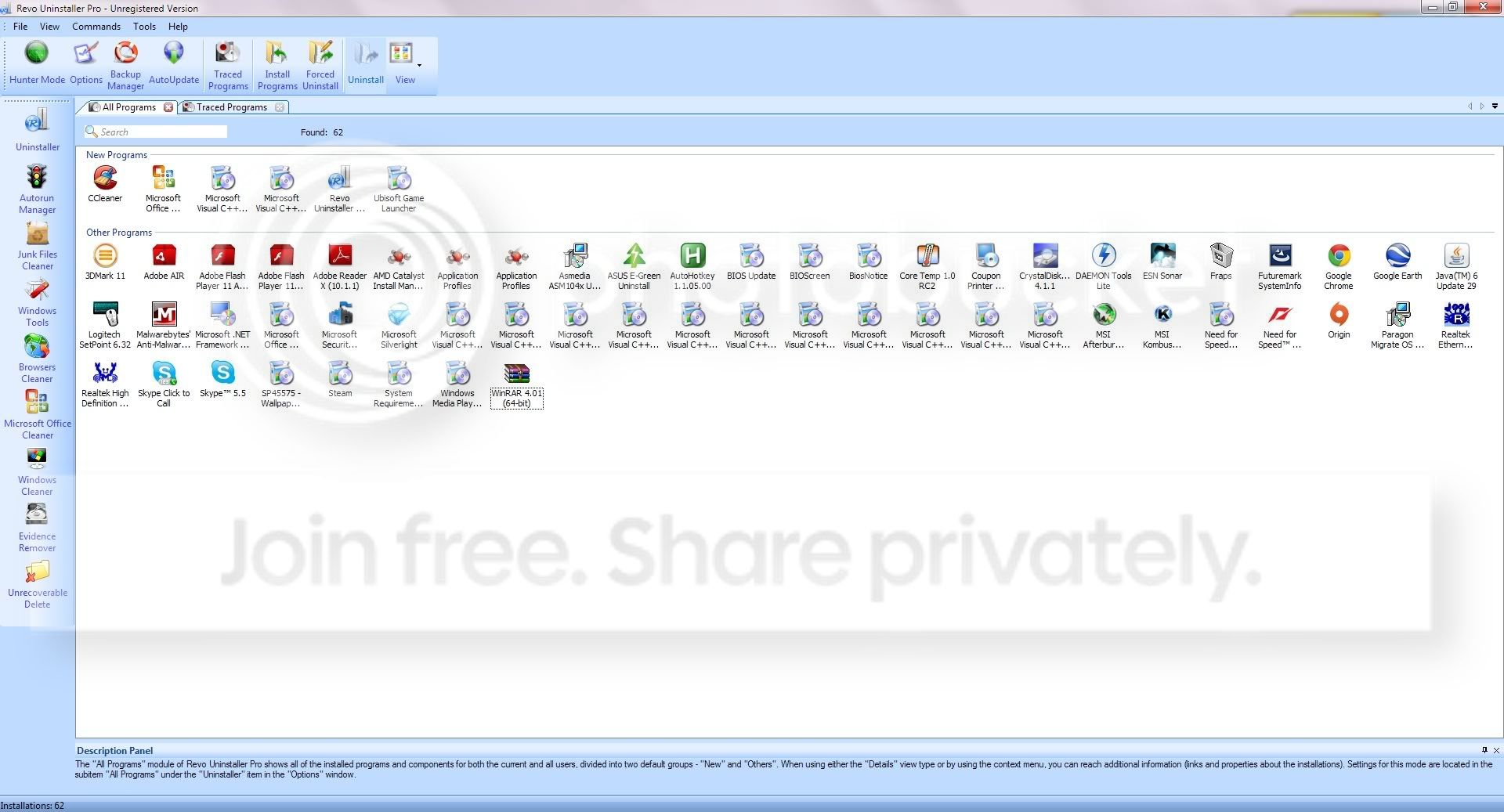
2. Saving the installed games folders in x86 programs will not help - they will be of no use once you migrated to the SSD. Those Games will have to be reinstalled. You have to uninstall them before the migration. But use the REVO uninstaller and check the "Advanced Option" during the uninstall. That way you can get rid of all the registry entries and games files during the second step of the uninstaller.

3. Your compressed games files on the desktop you have to move. Either to an external drive (where I still do no know whether you have one), or you have to shrink C: hoping you get enough space for a new partition to where you can move them.

4. We found 13GB in the shadowstorage. Get rid of it. The command is:

vssadmin Resize ShadowStorage /For=C: /On=C: /MaxSize=300MB

5. Try to shrink C: and let me know whether there would be enough space for a new partition where we could park the desktop games foders.
 

My Computer My Computer

At a glance

Vista, Windows7, Mint Mate, Zorin, Windows 8from 1.6GHz Duo to i7
Computer Manufacturer/Model Number
HP, Dell, Gateway, Toshiba - 4 laptops and 2 desktops
OS
Vista, Windows7, Mint Mate, Zorin, Windows 8
CPU
from 1.6GHz Duo to i7
Monitor(s) Displays
2x HP w2207
Hard Drives
5x HDD, 7x SSD, 12x Externals
Keyboard
with trackball - no mices
Mouse
Trackball mice
Internet Speed
DSL 6000
Ok I got rid of the shadow storage.
And I have a feeling that you might of miss read a little bit from the previous posts, but anyhow.

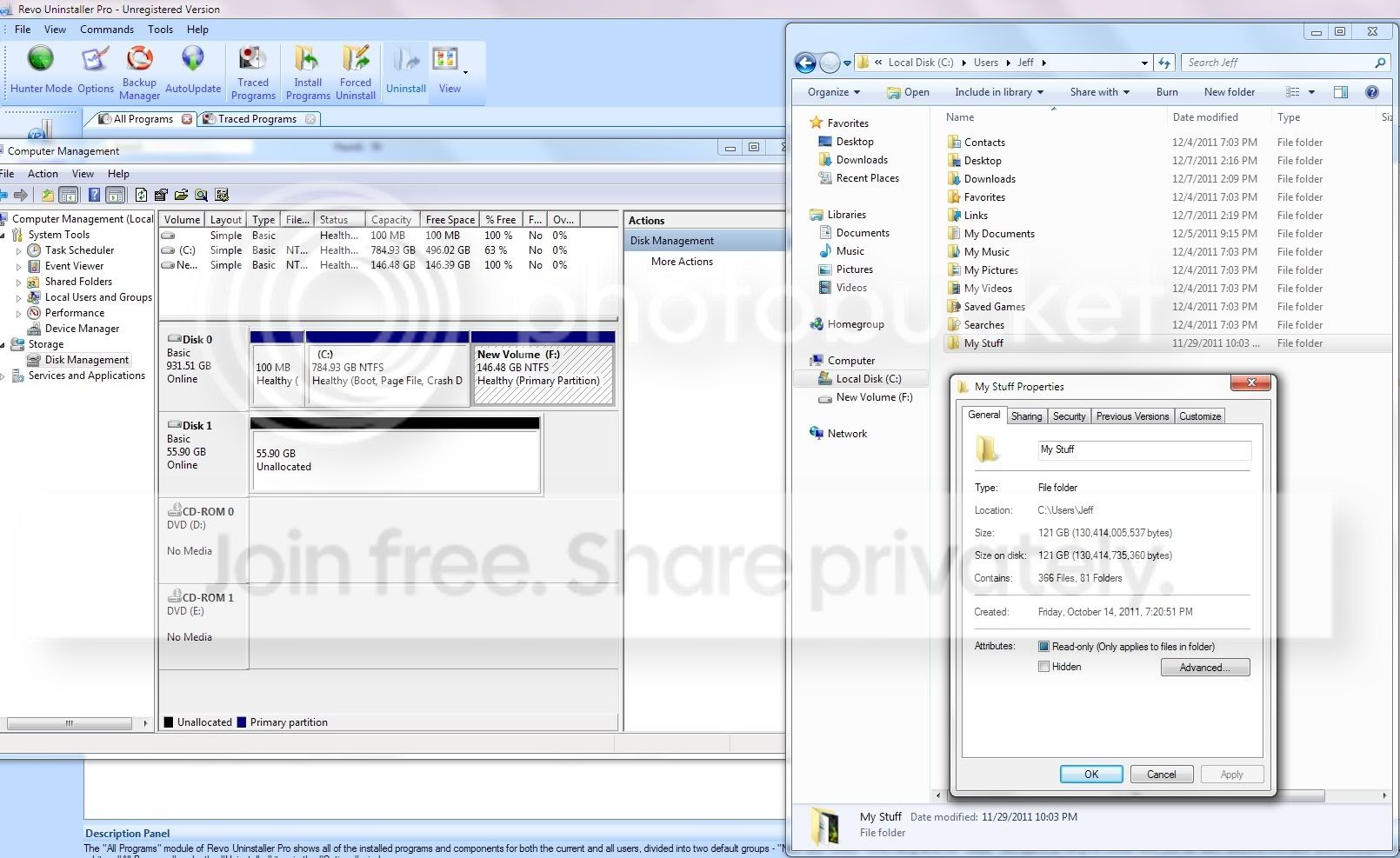
Here I am trying to move my compressed games along with couple of misc. items from "My Stuff"

MovingtoNewpartition.jpg


but I'm definitely missing something. Am I simply making this operation too complex? As I don't see the location tab. I'm continue to try to fiddle with it and delete stuff from x86 in the mean time with the revouninstaller.
 

My Computer My Computer

At a glance

Windows 7 Professional x64AMD Phenom II x4 955 BE 3.8GHzCorsair XMS3 8 GB (2 x 4GB) 1333 MHzGTX 560 Ti
OS
Windows 7 Professional x64
CPU
AMD Phenom II x4 955 BE 3.8GHz
Motherboard
Biostar A870u3
Memory
Corsair XMS3 8 GB (2 x 4GB) 1333 MHz
Graphics Card(s)
GTX 560 Ti
Monitor(s) Displays
23.6" Asus
Screen Resolution
1920X1080
Hard Drives
OCZ Vertex 3 90GB SSD,
WD Caviar Black 1 TB HDD
PSU
Antec EarthWatts EA650 650W
Case
Antec 300
Cooling
CM Hyper 212+
Keyboard
Das Keyboard
Mouse
Logitech G500
Internet Speed
Not fast enough
Here I am trying to move my compressed games along with couple of misc. items from "My Stuff"
To where are you moving it.
Am I simply making this operation too complex? As I don't see the location tab. I'm continue to try to fiddle with it and delete stuff from x86 in the mean time with the revouninstaller
.

Forget the location tab. Just move the files out if C: and uninstall the programs.
 

My Computer My Computer

At a glance

Vista, Windows7, Mint Mate, Zorin, Windows 8from 1.6GHz Duo to i7
Computer Manufacturer/Model Number
HP, Dell, Gateway, Toshiba - 4 laptops and 2 desktops
OS
Vista, Windows7, Mint Mate, Zorin, Windows 8
CPU
from 1.6GHz Duo to i7
Monitor(s) Displays
2x HP w2207
Hard Drives
5x HDD, 7x SSD, 12x Externals
Keyboard
with trackball - no mices
Mouse
Trackball mice
Internet Speed
DSL 6000
I am trying to move "My Stuff" into a new partition "F" as instructed on the tutorial.
Heres what Revo looks like afterwards:
REVO.jpg


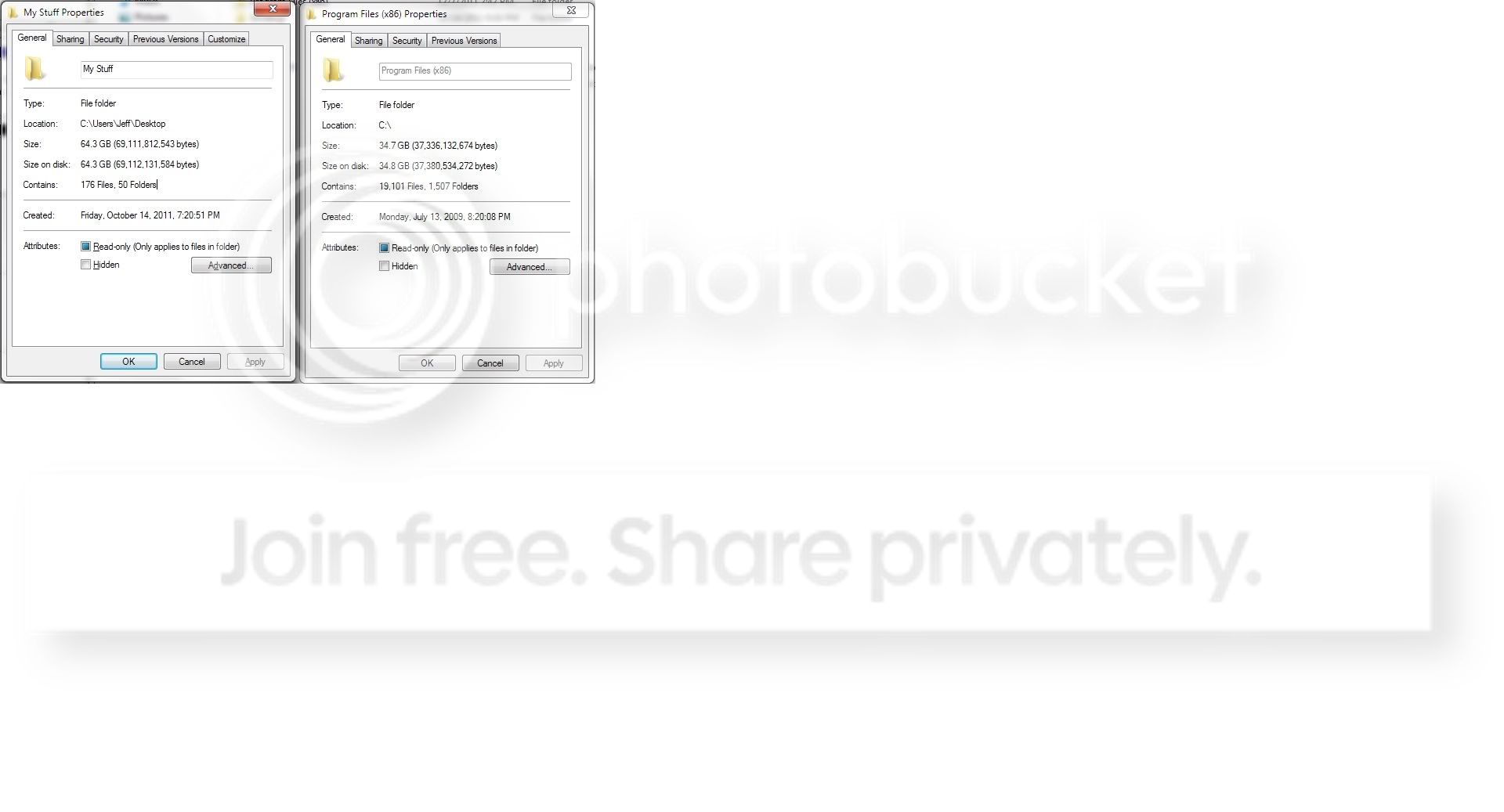
And here's the folder sizes (I deleted files from "My stuff"):
AfterCleanup.jpg


And I just went ahead and moved the folder "My Stuff" to F by simply cut and pasting
 

My Computer My Computer

At a glance

Windows 7 Professional x64AMD Phenom II x4 955 BE 3.8GHzCorsair XMS3 8 GB (2 x 4GB) 1333 MHzGTX 560 Ti
OS
Windows 7 Professional x64
CPU
AMD Phenom II x4 955 BE 3.8GHz
Motherboard
Biostar A870u3
Memory
Corsair XMS3 8 GB (2 x 4GB) 1333 MHz
Graphics Card(s)
GTX 560 Ti
Monitor(s) Displays
23.6" Asus
Screen Resolution
1920X1080
Hard Drives
OCZ Vertex 3 90GB SSD,
WD Caviar Black 1 TB HDD
PSU
Antec EarthWatts EA650 650W
Case
Antec 300
Cooling
CM Hyper 212+
Keyboard
Das Keyboard
Mouse
Logitech G500
Internet Speed
Not fast enough
You are doing good. How big is the total C: partition now.
 

My Computer My Computer

At a glance

Vista, Windows7, Mint Mate, Zorin, Windows 8from 1.6GHz Duo to i7
Computer Manufacturer/Model Number
HP, Dell, Gateway, Toshiba - 4 laptops and 2 desktops
OS
Vista, Windows7, Mint Mate, Zorin, Windows 8
CPU
from 1.6GHz Duo to i7
Monitor(s) Displays
2x HP w2207
Hard Drives
5x HDD, 7x SSD, 12x Externals
Keyboard
with trackball - no mices
Mouse
Trackball mice
Internet Speed
DSL 6000
Still like 15 minutes on the transfer of the folder.
Currently under properties, the C: has 100 GB used, but is going down as we speak.

EDIT: For some reason there were some game folders program files even after I deleted them. I just threw them in the recycle bin for quite a bit more space
 

My Computer My Computer

At a glance

Windows 7 Professional x64AMD Phenom II x4 955 BE 3.8GHzCorsair XMS3 8 GB (2 x 4GB) 1333 MHzGTX 560 Ti
OS
Windows 7 Professional x64
CPU
AMD Phenom II x4 955 BE 3.8GHz
Motherboard
Biostar A870u3
Memory
Corsair XMS3 8 GB (2 x 4GB) 1333 MHz
Graphics Card(s)
GTX 560 Ti
Monitor(s) Displays
23.6" Asus
Screen Resolution
1920X1080
Hard Drives
OCZ Vertex 3 90GB SSD,
WD Caviar Black 1 TB HDD
PSU
Antec EarthWatts EA650 650W
Case
Antec 300
Cooling
CM Hyper 212+
Keyboard
Das Keyboard
Mouse
Logitech G500
Internet Speed
Not fast enough
OK, let me know when C: is settled.
 

My Computer My Computer

At a glance

Vista, Windows7, Mint Mate, Zorin, Windows 8from 1.6GHz Duo to i7
Computer Manufacturer/Model Number
HP, Dell, Gateway, Toshiba - 4 laptops and 2 desktops
OS
Vista, Windows7, Mint Mate, Zorin, Windows 8
CPU
from 1.6GHz Duo to i7
Monitor(s) Displays
2x HP w2207
Hard Drives
5x HDD, 7x SSD, 12x Externals
Keyboard
with trackball - no mices
Mouse
Trackball mice
Internet Speed
DSL 6000

My Computer My Computer

At a glance

Windows 7 Professional x64AMD Phenom II x4 955 BE 3.8GHzCorsair XMS3 8 GB (2 x 4GB) 1333 MHzGTX 560 Ti
OS
Windows 7 Professional x64
CPU
AMD Phenom II x4 955 BE 3.8GHz
Motherboard
Biostar A870u3
Memory
Corsair XMS3 8 GB (2 x 4GB) 1333 MHz
Graphics Card(s)
GTX 560 Ti
Monitor(s) Displays
23.6" Asus
Screen Resolution
1920X1080
Hard Drives
OCZ Vertex 3 90GB SSD,
WD Caviar Black 1 TB HDD
PSU
Antec EarthWatts EA650 650W
Case
Antec 300
Cooling
CM Hyper 212+
Keyboard
Das Keyboard
Mouse
Logitech G500
Internet Speed
Not fast enough
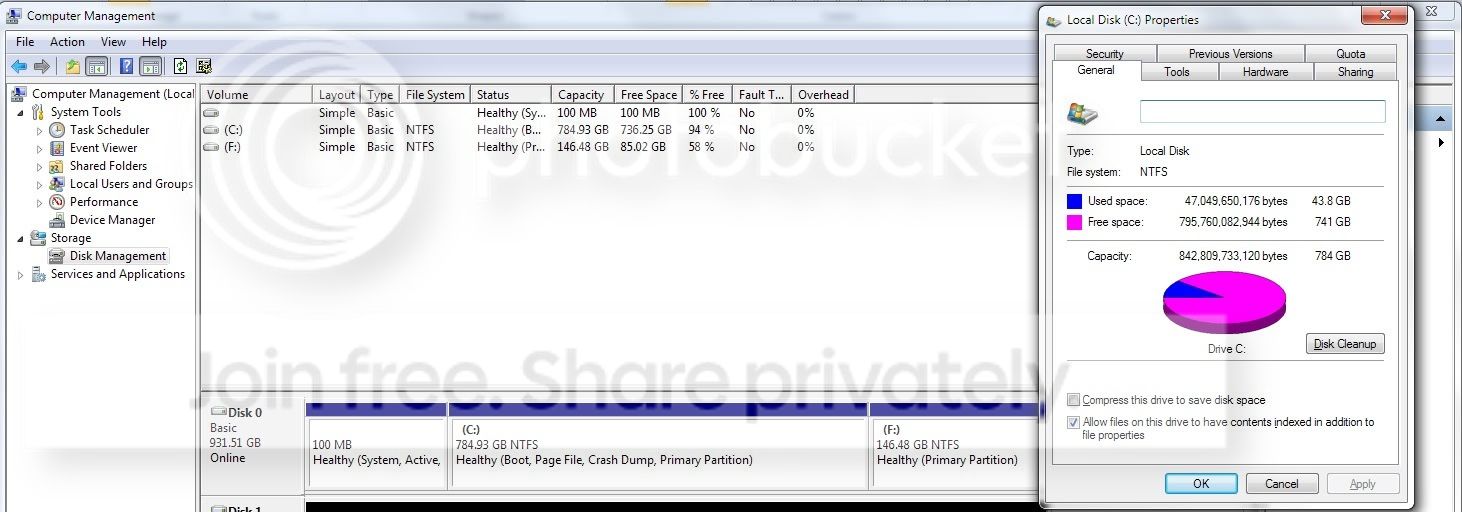
Done:
AfterTransfer.jpg
 

My Computer My Computer

At a glance

Windows 7 Professional x64AMD Phenom II x4 955 BE 3.8GHzCorsair XMS3 8 GB (2 x 4GB) 1333 MHzGTX 560 Ti
OS
Windows 7 Professional x64
CPU
AMD Phenom II x4 955 BE 3.8GHz
Motherboard
Biostar A870u3
Memory
Corsair XMS3 8 GB (2 x 4GB) 1333 MHz
Graphics Card(s)
GTX 560 Ti
Monitor(s) Displays
23.6" Asus
Screen Resolution
1920X1080
Hard Drives
OCZ Vertex 3 90GB SSD,
WD Caviar Black 1 TB HDD
PSU
Antec EarthWatts EA650 650W
Case
Antec 300
Cooling
CM Hyper 212+
Keyboard
Das Keyboard
Mouse
Logitech G500
Internet Speed
Not fast enough
Still a lot of stuff, but it will fit. Now you should have no problem with the migration. Once that is done you have to set the BIOS to boot from the SSD.

And then you have to reinstall all your games. But make sure you direct them all to the HDD - maybe you can use your old C; partition.

Good job. Let me know how you make out and what you think of the SSD performance.
 

My Computer My Computer

At a glance

Vista, Windows7, Mint Mate, Zorin, Windows 8from 1.6GHz Duo to i7
Computer Manufacturer/Model Number
HP, Dell, Gateway, Toshiba - 4 laptops and 2 desktops
OS
Vista, Windows7, Mint Mate, Zorin, Windows 8
CPU
from 1.6GHz Duo to i7
Monitor(s) Displays
2x HP w2207
Hard Drives
5x HDD, 7x SSD, 12x Externals
Keyboard
with trackball - no mices
Mouse
Trackball mice
Internet Speed
DSL 6000
For fine tuning C:, I suggest you run WinDirStat. It gives you a good overview on what is on the partition and you can spot the big chunks easily (just click on the colored boxes)

I also suggest to get rid of the hiberfile - if you do not use hibernation. The cmd command is powercfg -h off
 

My Computer My Computer

At a glance

Vista, Windows7, Mint Mate, Zorin, Windows 8from 1.6GHz Duo to i7
Computer Manufacturer/Model Number
HP, Dell, Gateway, Toshiba - 4 laptops and 2 desktops
OS
Vista, Windows7, Mint Mate, Zorin, Windows 8
CPU
from 1.6GHz Duo to i7
Monitor(s) Displays
2x HP w2207
Hard Drives
5x HDD, 7x SSD, 12x Externals
Keyboard
with trackball - no mices
Mouse
Trackball mice
Internet Speed
DSL 6000
Alright I just finished the migration and booted from the SSD. Everything seems good.

So now my question is, Is my desktop now in the SSD? Should I move it back to the HDD?

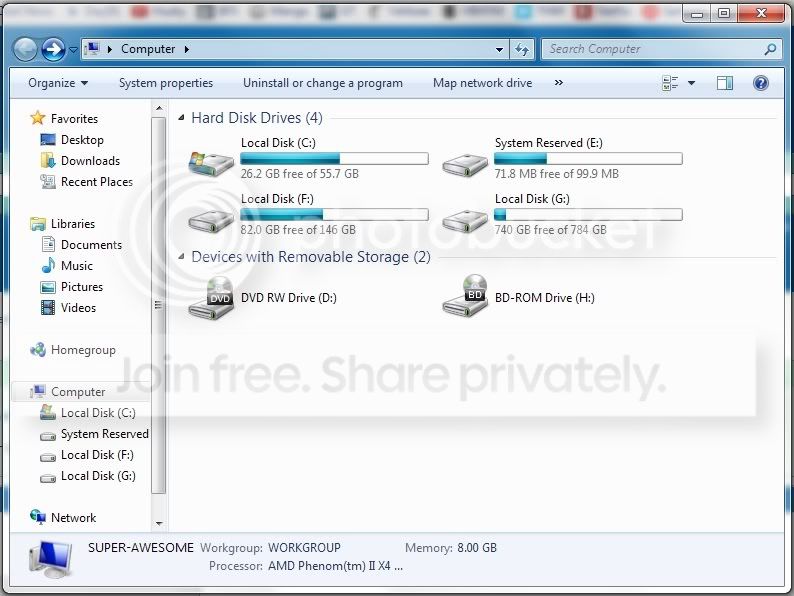
Here's a screenshot of what it looks like now:
Newdrives.jpg


Again, even though you might be tired of this, but thanks for your help. Without you I'd prob have a huge mess right now :x

Also, what should I delete from the old C? Everything? (Now's called G) And what's with the new reserved partition E?
 
Last edited:

My Computer My Computer

At a glance

Windows 7 Professional x64AMD Phenom II x4 955 BE 3.8GHzCorsair XMS3 8 GB (2 x 4GB) 1333 MHzGTX 560 Ti
OS
Windows 7 Professional x64
CPU
AMD Phenom II x4 955 BE 3.8GHz
Motherboard
Biostar A870u3
Memory
Corsair XMS3 8 GB (2 x 4GB) 1333 MHz
Graphics Card(s)
GTX 560 Ti
Monitor(s) Displays
23.6" Asus
Screen Resolution
1920X1080
Hard Drives
OCZ Vertex 3 90GB SSD,
WD Caviar Black 1 TB HDD
PSU
Antec EarthWatts EA650 650W
Case
Antec 300
Cooling
CM Hyper 212+
Keyboard
Das Keyboard
Mouse
Logitech G500
Internet Speed
Not fast enough
Also, is it safe to change the drive letter of G to C, and the ssd's from C to something else? When I tried it warned that some programs might not work properly afterwards so I didn't yet.
I want to do this because installs default the location to C, which I think would make things more convenient.
 

My Computer My Computer

At a glance

Windows 7 Professional x64AMD Phenom II x4 955 BE 3.8GHzCorsair XMS3 8 GB (2 x 4GB) 1333 MHzGTX 560 Ti
OS
Windows 7 Professional x64
CPU
AMD Phenom II x4 955 BE 3.8GHz
Motherboard
Biostar A870u3
Memory
Corsair XMS3 8 GB (2 x 4GB) 1333 MHz
Graphics Card(s)
GTX 560 Ti
Monitor(s) Displays
23.6" Asus
Screen Resolution
1920X1080
Hard Drives
OCZ Vertex 3 90GB SSD,
WD Caviar Black 1 TB HDD
PSU
Antec EarthWatts EA650 650W
Case
Antec 300
Cooling
CM Hyper 212+
Keyboard
Das Keyboard
Mouse
Logitech G500
Internet Speed
Not fast enough
1. Do not change drive letters. The active OS is always C:

2. Do not mess with the system reserved on the SSD. - I assume there is one. This contains your bootmgr and if you mess it up, your system will not boot.

3. The old C: (now G) you can delete one day. But I would keep it for a while to make sure everything on the SSD works - as a backup

4. The system reserved partition on the HDD should not serve any purpose any more. To make sure, disconnect the HDD (pull the Sata or power cable) and boot from the SSD. If that works, then the system reserved on the HDD does not serve any purpose (except if you want to boot from the HDD). Keep that around as long as you keep the old C: on the HDD.

5. Try to sift thru your C: on the SSD (e.g. with WinDirStat). There is still more stuff than need be.

6. When you reinstall the games, you have to direct the installation to the HDD each time. I don't think there is an automatic setting - but I am not 100% sure. In any case, changing drive letters around will not help and is counterproductive.
 

My Computer My Computer

At a glance

Vista, Windows7, Mint Mate, Zorin, Windows 8from 1.6GHz Duo to i7
Computer Manufacturer/Model Number
HP, Dell, Gateway, Toshiba - 4 laptops and 2 desktops
OS
Vista, Windows7, Mint Mate, Zorin, Windows 8
CPU
from 1.6GHz Duo to i7
Monitor(s) Displays
2x HP w2207
Hard Drives
5x HDD, 7x SSD, 12x Externals
Keyboard
with trackball - no mices
Mouse
Trackball mice
Internet Speed
DSL 6000
Thanks whs,
I'll keep all those things in mind. Just re-checked my rating for hard disk and its 7.9 now, which is awesome :)

Will just make sure everything works well and sift through things now
 

My Computer My Computer

At a glance

Windows 7 Professional x64AMD Phenom II x4 955 BE 3.8GHzCorsair XMS3 8 GB (2 x 4GB) 1333 MHzGTX 560 Ti
OS
Windows 7 Professional x64
CPU
AMD Phenom II x4 955 BE 3.8GHz
Motherboard
Biostar A870u3
Memory
Corsair XMS3 8 GB (2 x 4GB) 1333 MHz
Graphics Card(s)
GTX 560 Ti
Monitor(s) Displays
23.6" Asus
Screen Resolution
1920X1080
Hard Drives
OCZ Vertex 3 90GB SSD,
WD Caviar Black 1 TB HDD
PSU
Antec EarthWatts EA650 650W
Case
Antec 300
Cooling
CM Hyper 212+
Keyboard
Das Keyboard
Mouse
Logitech G500
Internet Speed
Not fast enough
Back
Top