SSD - Install and Transfer the Operating System

How to Physically Install a SSD and Transfer the Operating System


Introduction

If you never owned an SSD, you have missed something. Yes, they are not cheap, but Dollar per Dollar there is no other piece of hardware that can give you as much additional performance than an SSD.

Because SSDs are expensive, their current use is for placing the operating system. That’s how you get the best mileage. Although XP and Vista can be installed on SSDs, it is recommended to use them for Windows7, which is the first system to support Trim.

For desktops, an SSD with a 60GB capacity is usually sufficient. The user data can be moved to the HDD – I will explain the procedure later. Should you have very large programs, e.g., games, you should move their program files during the installation of the game to the HDD too.

For laptops, the situation is more complicated because you usually have only one disk bay. I use 80GB and 90GB SSDs on my laptops. In addition, I use the HDD that I recovered from the laptop after I installed the SSD in an external USB enclosure. But, if you move around a lot with the laptop, that may not be so convenient and a bigger SSD (120GB or 250GB) may be in order (budget allowing).


Hardware Installation

For a desktop, you will need a bracket if it is a 2.5” SSD (like most today). But, there are also 3.5” SSDs that will fit without adaptor brackets into the disk bays. You also need a cable to attach the SSD to the motherboard. For electricity, there is usually an extra plug at the PSU which you can use for the SSD’s.

Once you have all those bits, you can install the SSD in an available disk bay – or if none available, some self-adhesive Velcro will also do. The SSDs are light and do not produce any vibration or heat.

For a laptop, you need an external enclosure that attaches to a USB port. That will allow you to make the initial SSD setups. The one I linked attaches via USB2 and eSata, which may be practical later to use as external drive with the HDD that you recovered from the laptop. Also for hot swapping bare bone HDDs. But there are cheaper enclosures for USB2 only and also some that allow attachment to USB3.

Transfer the Operating System

There are two ways to transfer the operating system from your current HDD to the SSD:
1. The Geeky way which comes for free and
2. The easy way that costs $19.95.

1.The Geeky way requires the following steps:

Prepare the SSD – You first have to initialize the SSD to create the MBR. You can do that with Disk Management or with this program (which you will need later anyhow).

Then you need to align the SSD and define an active partition on it. You use an elevated Command Prompt with the following commands:

Diskpart
List disk
Select disk n (where n is the number that was given for your SSD in List disk)
Clean
Create partition primary align=1024
Format fs=ntfs quick
Active (assuming you want to install an OS)
Exit

Note: If you are more comfortable working with Disk Management, you can also define a primary active partition with Disk Management. On a SSD, the partition will be automatically aligned by 1024.


If you want to verify that the alignment is correct, you use these commands:

Diskpart
List disk
Select disk n
List partition


You should see a result like this:

Partition ### Type Size Offset


------------- ---------------- ------- -------
Partition 1 Primary 59 GB

1024 KB - but 64KB or any number divisible by 4 is also good. The offset has to be divisible by 4.

In Windows7, you may have the 100MB active boot partition. The easiest way to deal with that is to move the bootmgr to the C: partition using EasyBCD. That you do on your HDD before you transfer anything to the SSD. Then you do not have to worry about it and you need only transfer the C: partition to the SSD.


But if you care to keep the 100MB partition, then the partition you just created on the SSD is for that 100MB partition. The next step is to shrink the partition you just created to a 100MB size (make sure it is not any smaller). With Disk Management you will have trouble to do that. I recommend this program for the operation.

From the free space you gained, you create the C: partition for the OS. This partition must not be active and need not be a primary (because the 100MB partition contains the boot manager).

Alternatively and easier is if you first create the 100MB partition with these commands:

Diskpart
List disk
Select disk n (where n is the number that was given for your SSD in List disk)
Clean
Create partition primary size=100 align=1024
Format fs=ntfs quick
Active
Exit

Note: The unit in the size parameter is MB

After this action you can use Disk Management to create the C partition from the remaining unallocated space. That can be a logical partition.

If there is no 100MB partition, things are easy. The partition you created with Command Prompt will receive the C partition including boot manager and all.

There may be more partitions on your factory HDD – e.g., the Recovery partition and a Tools Partition. Those you should not transfer to the SSD because of space constraints. I would back them up – e.g., with an imaging program. The Recovery Partition you can also burn to DVDs.

The OS transfer

This is done with an image. There are a variety of free imaging programs (e.g., the free editions of Macrium, Paragon, Acronis, etc.) that are suitable for the task. You can also use the Windows7 imaging, which has the advantage that it deals with the 100MB active boot partition automatically. Disadvantage is that you never know exactly what it does.

You image your partitions to an external disk (you may have to assign a drive letter to the 100MB partition so that the imaging program can identify it) and then pull the images back in to the SSD (using the bootable recovery program of the imaging program).
The recovery is partition by partition. So you have to make separate runs for the 100MB partition (if any) and the C: partition.

Note: Many free imaging programs cannot shrink the originating partition to fit into the usually much smaller C: partition on the SSD - even if the amount of data in that partition would fit. In that case you will need to shrink the C: partition on the HDD prior to imaging it. The HDD C: partition must be smaller or equal in size to the designated partition on the SSD. For that operation I also recommend this program because Disk Management might not be able to shrink it enough. Note: Free Macrium can image to a smaller disk if the data fits.

It is, of course, understood, that the amount of data on your HDD C: partition must not exceed the capacity of the designated C: partition on the SSD. Should you have more data on your HDD C: partition than the size of the SSD C: partition can hold, I suggest you first create a data partition on the HDD system and move the user data there. Here is my video tutorial that explains how this is done. When you finally are on the SSD system, you then right click on the user folders in the data partition (Documents, Pictures, etc.) and Include them into the appropriate library. That approach does not require you to move the user folders later.

Next step is to change the boot sequence in the BIOS to set the SSD as second boot device (leave the CD/DVD reader as first boot device) and, hopefully, your system will boot.

2.The easy way for transferring the OS requires you to purchase this program. It does everything for you – alignment, deals with the 100MB partition, transfers C:, shrinks the originating partition, etc. All you will have to do is change the boot sequence.

Note: Before you activate the SSD, it is recommended to set the BIOS to AHCI. Best time to do that is just before you change the boot sequence. Once Windows7 is running, you make the corresponding settings in the OS. Here is a tutorial on how to do that.
Many people claim that there is a significant performance gain with AHCI. I, however, did not see that. But it may be different from system to system.

Settings after the OS transfer

Disk Defragmentation makes no sense on an SSD. For a laptop, go into Services, navigate to Disk Defragmenter, right click on it and go to Properties. Here you set the service to Disabled.
For a desktop, you may want to disable defrag in the Disk Defragmenter and only for the SSD so that the remaining HDDs can still be defragmented.

Note: As long as Defrag Service is turned off, you cannot shrink any partition. The partition shrink process requires the Defrag service. If you need to shrink a partition later, turn the Defragmentation Service temporarily on.

Hibernation File – most of us do not use Hibernation, but Sleep instead. But, the hiberfile takes precious space on your SSD – to the same tune as the size as your RAM. To get rid of it, run the following command in elevated Command Prompt: powercfg –h off. If you ever want it back, it is powercfg – h on.

Superfetch – many “experts” suggest to turn Superfetch off. I think that is not appropriate. Fetching a program or data from RAM is still a lot faster than fetching it from a disk – even from an SSD.

There are no other settings that are necessary. On the SSD forums you will find a lot of tweaks. I recommend you stay away from them.


Move the user folders to the HDD

To move the user folders to the HDD is very simple. Create a Data partition on the HDD. Define folders in that partition – e.g., Documents, Music, Pictures, etc. One for each folder you want to move off the SSD. The name of those folders can be anything. The system will rename them anyhow. It is just more obvious if you call them by the same name as the originating folders.

Then, open the Explorer and right click on, e.g., My Documents folder (not the Documents Library) in the left pane. Go to Properties and click on the Location tab. Here you click on Move and navigate to the corresponding folder in your Data Partition on the HDD. Then you Select that folder and Apply it.

Very Important: You must move the SSD folder to the corresponding Data Partition folder – NOT to the root of the partition itself. That would create a mess.


Last edited:
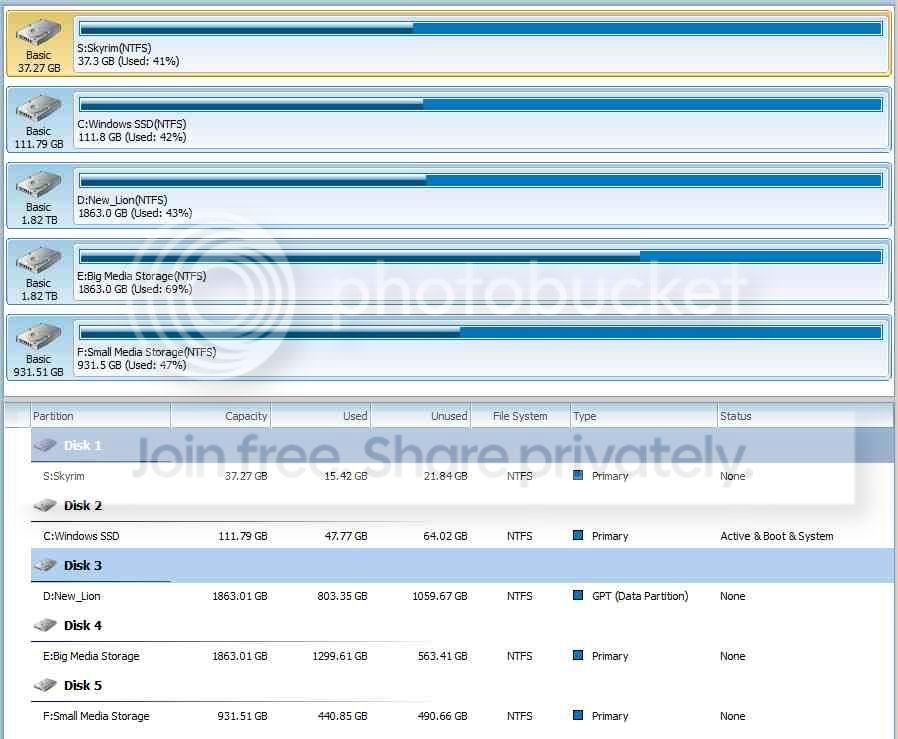
It's taken blood, sweat & tears (and a lot of Googling) but I've got it pretty much sorted now.

DiskManagement7.jpg


I'm having to re-instal quite a few apps, the shortcuts & start menu items mostly have gone, but if I do it as I need them it won't be too bad. Got the vital ones already - GOM player, WinAmp, IrfanView, Skype & PowerDVD.

But I'll finally declare this one totally closed.
 

My Computer My Computer

Computer Manufacturer/Model Number
Advanced Power "Stealth III"
OS
Windows 7 Professional x64 (English)
CPU
i7 870 2.93GHz
Motherboard
MSI H55M-E33
Memory
12GB DDR3
Graphics Card(s)
ASUS/NVidia GTX 560ti GPU (1GB/900MHz overclocked)
Sound Card
Realtek HD audio (to Logitech Z550 5.1)
Monitor(s) Displays
-Samsung 24" Monitor 1920x1200 2-Samsung 32" HDTV 1768x992
Screen Resolution
see above
Hard Drives
C: 120GB ADATA S510 SSD - O/S only
D: 2TB Seagate Barracuda 7200rpm - Progs, Games etc
E: 2TB WD Green Caviar - Media & Projects
F: 40GB Intel Speed Demon SSD - Skyrim
also 3x 1TB WD MyBook Essential for offline backup.
PSU
500W
Case
CoolerMaster
Cooling
six inch on pack panel
Keyboard
Steelseries Merc Stealth gaming keyboard
Mouse
Cyborg R.A.T. 7
Internet Speed
18MB/S down 1.2MB/S up
Other Info
Logitech Z550 5.1 surround system
Just wanted to post a very quick thank you note to Mr. whs for his awesome tutorial!

I initially went the "Geeky" route, feeling fairly comfortable I would be able to complete the process without a hitch. However, after getting about 60% of the way through, got cold feet since I am running an OEM version from an old Dell PC that I have already gotten an exception for when I rebuilt from mobo up, and no longer have the case for (I assure you, it's a 100% legit copy - just made the bonehead mistake of tossing the old case w/ the sticker still attatched :O ) I ended up taking the easy way out via Paragon's tool and the prog worked like a charm - caveat being my C: drive was only 1/2 of my SSD and didn't have the 100mb partition concern either - not sure if/how that played a part in the ease of migration.

Either way, for those on the fence about the tool, I would highly suggest getting it if you are in the least bit concerned you may screw something up along the way. 20 minutes from install of the prog, all files had been cloned and I was adjusting my BIOS options. Only slight hiccup I had was due to user error and misreading the directions - I changed to AHCI in BIOS prior to changing in Windows (herp derp), but swapped back to IDE, followed the simple instructions on how to manually adjust in regedit, and it was smooth sailing from there :D

Thanks again, whs and sevenforums! This isnt the first time you have helped this guy out immensely, and would venture a guess it won't be the last!


P.S. Just as a quick note, and something I do not think was covered in the tutorial, I made sure I updated my SSD's firmware prior to initiating the cloning process based on recommendations I read on other sites. Not sure what impact that may make on the installation process, if any, but based on my results it certainly couldn't hurt :)

Edit: Oh, I also wanted to mention that a quick search for "Paragon Migrate coupon code" on Google resulted in an instant 25% savings through one of the sites they run ads on, Google Ad Sense I would assume. Either way, only had to pay $15 and some change... \o/
 
Last edited:

My Computer My Computer

OS
Windows 7 Home Premium 64 bit
Thanks for your kind words. The coupon idea is excellent. I did not even know about that.

The firmware update is a two edge sword. Not all updates are recommended. On my Crucial M4 SSD I still run on FW 0309 which is backlevel. The last 000F has had several bad reports.
 

My Computer My Computer

Computer Manufacturer/Model Number
HP, Dell, Gateway, Toshiba - 4 laptops and 2 desktops
OS
Vista, Windows7, Mint Mate, Zorin, Windows 8
CPU
from 1.6GHz Duo to i7
Monitor(s) Displays
2x HP w2207
Hard Drives
5x HDD, 7x SSD, 12x Externals
Keyboard
with trackball - no mices
Mouse
Trackball mice
Internet Speed
DSL 6000
Bootmgr - Move to C:\ with EasyBCD

Thanks for your great tutorial whs.

After reading all the replies I decided to use Paragon Migrate OS to move my Windows 7 Home 64-bit OS from my old 500GB HDD (Dell Studio XPS 1340) to a new Samsung 256GB SSD.

However, I think I already successfully moved Bootmgr to C:\ (I noticed that something changed as my laptop turns off after I close the lid, opposed to previous sleep mode).

How do I undo this change if I need to do it before my new SSD arrives as I plan to use Paragon Migrate OS and I might not need it anymore?

Thanks.
 

My Computer My Computer

OS
Windows 7 Home 64-bit
If your bootmgr is on C now, I would leave it there. The 100MB partition will be only in your way.

However, if you really want to move it back to a 100MB partition, you have to define such a primary partition with Disk Management, give that 100MB partition a drive letter and move the bootmgr there. Just make sure you change the drive letter to that of the 100MB partition as the picture shows.
 

Attachments

  • 2012-08-11_2101.png
    2012-08-11_2101.png
    23.8 KB · Views: 189

My Computer My Computer

Computer Manufacturer/Model Number
HP, Dell, Gateway, Toshiba - 4 laptops and 2 desktops
OS
Vista, Windows7, Mint Mate, Zorin, Windows 8
CPU
from 1.6GHz Duo to i7
Monitor(s) Displays
2x HP w2207
Hard Drives
5x HDD, 7x SSD, 12x Externals
Keyboard
with trackball - no mices
Mouse
Trackball mice
Internet Speed
DSL 6000
Thanks, I'll keep it on C if it will not interfere with a move to a SSD.
 

My Computer My Computer

OS
Windows 7 Home 64-bit
I finally was able to get the Paragon software to run to completion, after downloading a developmental version. I can now boot from the SSD. Most software works as it should, however, Windows Live Mail won't start and Windows Update won't run. Paragon decided something is wrong with my Windows installation, although it checks out fine, and everything works when booting from the HDD. Looks like I'll have to do a clean Windows install on the SSD eventually, maybe after Win 8, if I decide to "upgrade" to it.
 
Last edited:

My Computer My Computer

OS
Windows 7 Home Premium 64 bit SP1
I finally was able to get the Paragon software to run to completion, after downloading a developmental version. I can now boot from the SSD. Most software works as it should, however, Windows Live Mail won't start and Windows Update won't run. Paragon decided something is wrong with my Windows installation, although it checks out fine, and everything works when booting from the HDD. Looks like I'll have to do a clean Windows install on the SSD eventually, maybe after Win 8, if I decide to "upgrade" to it.
I got lazy and initially tried the Paragon migrate but it played havoc with my Reliability Monitor. I ended up just doing an image restore to aligned partitions. However, the tool seems to work fine for most.
In your case I'd be tempted to do a clean install of Windows 7. I don't know about waiting to upgrade to Windows 8:zip:
 

My Computer My Computer

Computer type
PC/Desktop
Computer Manufacturer/Model Number
Own build
OS
Windows 7x64 Home Premium SP1
CPU
Intel i7 2600k
Motherboard
ASUS P8Z68 Deluxe
Memory
G.Skill Ripjaws (DDR3-1600) 2x4GB
Graphics Card(s)
Nvidia GeForce GTS 450; Intel HD Graphics 3000(GT2+)
Monitor(s) Displays
Dell Ultrasharp IPS panel U2311H, Samsung SyncMaster P2350
Screen Resolution
1920x1080
Hard Drives
Samsung 850 Pro SSD 256GB, Samsung SSD 840 120GB, Seagates 1TB Barracuda ST31000528AS x2
PSU
Seasonic M12II 520W
Case
Lian Li Lancool PC-K60
Cooling
Case: 1x120mm, 3x140mm CPU: Hyper 212+
Keyboard
Logitech MK520 (wireless)
Mouse
Logitech MK520
Internet Speed
6-7 Mbps
Antivirus
Norton Security Premium, Malwarebytes on 2 (MSE on 3rd PC)
Browser
FireFox
Other Info
Audio: Logitech Z523 2.1
Hi, I'm trying to do this the geeky way, and have hit a small speed-bump. When creating a new C partition on the SSD using Disk Management, how is this done?
 

My Computer My Computer

Computer Manufacturer/Model Number
CyberPower, Inc.
OS
Windows 7 home Premium x64
CPU
Intel i7-2600k
Motherboard
Z68A-D3H-B3
Memory
8Gb
Graphics Card(s)
AMD Radeon HD6850
Hard Drives
2Tb 7200rpm HDD
120Gb Sandisk Extreme SSD
Hello Gaine, and welcome to Seven Forums.

Please go ahead and post a screenshot of your Disk Management showing the full layout of the SSD first so that we can be sure to give the proper advice. :)
 

My Computer My Computer

Computer type
PC/Desktop
Computer Manufacturer/Model Number
Self built custom
OS
64-bit Windows 11 Pro for Workstations
CPU
Intel i7-8700K OC'd to 5 GHz
Motherboard
ASUS ROG Maximus XI Formula Z390
Memory
64 GB (4x16GB) G.SKILL TridentZ RGB DDR4 3600 MHz
Graphics Card(s)
ASUS ROG-STRIX-GTX1080TI-O11G-GAMING
Sound Card
Integrated
Monitor(s) Displays
2 x Samsung Odyssey G7 27"
Screen Resolution
2560x1440
Hard Drives
1TB Samsung 990 PRO M.2,
4TB Samsung 990 PRO PRO M.2,
TerraMaster F8 SSD Plus NAS
PSU
Seasonic Prime Titanium 850W
Case
Thermaltake Core P3
Cooling
Corsair Hydro H115i
Keyboard
Logitech wireless K800
Mouse
Logitech MX Master 4
Internet Speed
2 Gb/s Download and 100 Mb/s Upload
Antivirus
Malwarebyte Anti-Malware Premium
Browser
Google Chrome
Other Info
Logitech Z625 speaker system,
Logitech BRIO 4K Pro webcam,
HP Color LaserJet Pro MFP M477fdn,
APC SMART-UPS RT 1000 XL - SURT1000XLI,
Galaxy S23 Plus phone
diskman1.png
 

My Computer My Computer

Computer Manufacturer/Model Number
CyberPower, Inc.
OS
Windows 7 home Premium x64
CPU
Intel i7-2600k
Motherboard
Z68A-D3H-B3
Memory
8Gb
Graphics Card(s)
AMD Radeon HD6850
Hard Drives
2Tb 7200rpm HDD
120Gb Sandisk Extreme SSD
Gaine,

Personally, I prefer to just do a clean install of Windows 7 to the SSD to avoid any potential issues by trying to transfer it instead.

Saying that, you would need to have another HDD to do the The OS transfer part of the tutorial by making an image of the C: drive using a program like Macrium Reflect that would then be restored to the "unallocated" space on the SSD.

Hope this helps for now,
Shawn
 

My Computer My Computer

Computer type
PC/Desktop
Computer Manufacturer/Model Number
Self built custom
OS
64-bit Windows 11 Pro for Workstations
CPU
Intel i7-8700K OC'd to 5 GHz
Motherboard
ASUS ROG Maximus XI Formula Z390
Memory
64 GB (4x16GB) G.SKILL TridentZ RGB DDR4 3600 MHz
Graphics Card(s)
ASUS ROG-STRIX-GTX1080TI-O11G-GAMING
Sound Card
Integrated
Monitor(s) Displays
2 x Samsung Odyssey G7 27"
Screen Resolution
2560x1440
Hard Drives
1TB Samsung 990 PRO M.2,
4TB Samsung 990 PRO PRO M.2,
TerraMaster F8 SSD Plus NAS
PSU
Seasonic Prime Titanium 850W
Case
Thermaltake Core P3
Cooling
Corsair Hydro H115i
Keyboard
Logitech wireless K800
Mouse
Logitech MX Master 4
Internet Speed
2 Gb/s Download and 100 Mb/s Upload
Antivirus
Malwarebyte Anti-Malware Premium
Browser
Google Chrome
Other Info
Logitech Z625 speaker system,
Logitech BRIO 4K Pro webcam,
HP Color LaserJet Pro MFP M477fdn,
APC SMART-UPS RT 1000 XL - SURT1000XLI,
Galaxy S23 Plus phone
Gaine,

Personally, I prefer to just do a clean install of Windows 7 to the SSD to avoid any potential issues by trying to transfer it instead.

Saying that, you would need to have another HDD to do the The OS transfer part of the tutorial by making an image of the C: drive using a program like Macrium Reflect that would then be restored to the "unallocated" space on the SSD.

Hope this helps for now,
Shawn

I have an additional 1Tb Toshiba external drive I plan on using for the OS Transfer. However, if I just clean install Windows 7 on the SSD, do I have to still transfer the C: drive, or will it automatically create a new C: drive on the unallocated space?
 

My Computer My Computer

Computer Manufacturer/Model Number
CyberPower, Inc.
OS
Windows 7 home Premium x64
CPU
Intel i7-2600k
Motherboard
Z68A-D3H-B3
Memory
8Gb
Graphics Card(s)
AMD Radeon HD6850
Hard Drives
2Tb 7200rpm HDD
120Gb Sandisk Extreme SSD
Yes, a clean install would create a new C on the SSD. If you decide on a clean install, then I would remove or unplug the internal HDD, and clean install Windows 7 to the SSD. Afterwards, you could connect the HDD back, and copy any personal files you want to the SSD.

Since you have a 1TB HDD, you could easily go with either option. It's just a matter of what you would like to do. A transfer could save you more time by not having to reinstall everything with a clean install, but a clean install would have less chances of having issues.

Hope this helps some. :)
 

My Computer My Computer

Computer type
PC/Desktop
Computer Manufacturer/Model Number
Self built custom
OS
64-bit Windows 11 Pro for Workstations
CPU
Intel i7-8700K OC'd to 5 GHz
Motherboard
ASUS ROG Maximus XI Formula Z390
Memory
64 GB (4x16GB) G.SKILL TridentZ RGB DDR4 3600 MHz
Graphics Card(s)
ASUS ROG-STRIX-GTX1080TI-O11G-GAMING
Sound Card
Integrated
Monitor(s) Displays
2 x Samsung Odyssey G7 27"
Screen Resolution
2560x1440
Hard Drives
1TB Samsung 990 PRO M.2,
4TB Samsung 990 PRO PRO M.2,
TerraMaster F8 SSD Plus NAS
PSU
Seasonic Prime Titanium 850W
Case
Thermaltake Core P3
Cooling
Corsair Hydro H115i
Keyboard
Logitech wireless K800
Mouse
Logitech MX Master 4
Internet Speed
2 Gb/s Download and 100 Mb/s Upload
Antivirus
Malwarebyte Anti-Malware Premium
Browser
Google Chrome
Other Info
Logitech Z625 speaker system,
Logitech BRIO 4K Pro webcam,
HP Color LaserJet Pro MFP M477fdn,
APC SMART-UPS RT 1000 XL - SURT1000XLI,
Galaxy S23 Plus phone
Hmm, i hate to say this, but i really dont feel like reinstalling all my drivers, so going back to my original question: How do i go about creating the C drive in the unallocated space on the SSD?
 

My Computer My Computer

Computer Manufacturer/Model Number
CyberPower, Inc.
OS
Windows 7 home Premium x64
CPU
Intel i7-2600k
Motherboard
Z68A-D3H-B3
Memory
8Gb
Graphics Card(s)
AMD Radeon HD6850
Hard Drives
2Tb 7200rpm HDD
120Gb Sandisk Extreme SSD
Hmm, i hate to say this, but i really dont feel like reinstalling all my drivers, so going back to my original question: How do i go about creating the C drive in the unallocated space on the SSD?

You don't directly create a C drive on the SSD.

Instead, you make an image file of the existing C drive. You store that image file on some other drive---probably an external.

Then you restore that image to the SSD.

Macrium Reflect Free Edition is probably the most commonly used application for the task. You will need to make a bootable recovery disk within Macrium. You boot from that recovery disk to restore the image. If you can't boot the recovery disk for whatever reason, you cannot restore.

If it works as advertised, the SSD will then have a bootable C partition.

If it does not work, the alternative is a clean install.

Another alternative is Paragon Migrate, designed specifically for the task. It is well-regarded, but costs $20.
 

My Computer My Computer

Computer type
PC/Desktop
Computer Manufacturer/Model Number
Ignatz Special; 4 speed manual gearbox; factory air conditioning; one of one
OS
Windows 7 Home Premium SP1, 64-bit
CPU
Intel Skylake i5-6600K, not overclocked
Motherboard
AsRock Z170M Extreme 4, micro ATX
Memory
8 GB HyperX DDR4-2666 (2 x 4 GB)
Graphics Card(s)
none; graphics are integrated on CPU
Sound Card
onboard: Realtek ALC1150; external: USB Behringer UF0-202
Monitor(s) Displays
Dell S2340M 23 inch IPS
Screen Resolution
1600 x 900
Hard Drives
System: Crucial MX100 series SSD, 128 GB;
Data: Samsung Spinpoint 103SJ, 1 TB;
Backup: WD Caviar Green WD30EZRX-00D8PB0, 3 TB
PSU
Rosewill SilentNight 500 watt fanless, semi-modular
Case
Antec Solo II
Cooling
Noctua NH-U12S; Noctua F12 intake, Noctua S12A exhaust
Keyboard
Microsoft 200 6JH-00001 USB
Mouse
Dell or Microsoft optical wired; USB
Antivirus
Microsoft Security Essentials and Malwarebytes Premium
Browser
Pale Moon
Other Info
All fans PWM; speeds at idle: CPU circa 500 rpm; intake circa 600 rpm; exhaust circa 600 rpm; CPU temps 27 idle and 47 C load in a warm room (27 C/81 F) when running Intel Extreme Tuning Utility stress test.
Thanks so much ..... I finally found a tutorial that showed me how to enable AHCI and .... IT WORKS!!!!!

Nice Job! ..... took the leap of faith and it paid off.!
Thanks
Westy
 

My Computer My Computer

Computer Manufacturer/Model Number
POWERBOX
OS
WINDOWS 7
CPU
INTEL Q6600 2.4GHz Quad COre
Motherboard
GIGABYTE X38-DS4
Memory
4GB Corsair Dominator
Graphics Card(s)
Geforce 8500 GT
Hmm, i hate to say this, but i really dont feel like reinstalling all my drivers, so going back to my original question: How do i go about creating the C drive in the unallocated space on the SSD?

You don't directly create a C drive on the SSD.

Instead, you make an image file of the existing C drive. You store that image file on some other drive---probably an external.

Then you restore that image to the SSD.

Macrium Reflect Free Edition is probably the most commonly used application for the task. You will need to make a bootable recovery disk within Macrium. You boot from that recovery disk to restore the image. If you can't boot the recovery disk for whatever reason, you cannot restore.

If it works as advertised, the SSD will then have a bootable C partition.

If it does not work, the alternative is a clean install.

Another alternative is Paragon Migrate, designed specifically for the task. It is well-regarded, but costs $20.

Thank you, the instructions weren't very clear with that transition, so i thought i had to define a C drive on the SSD before the OS transfer. I'll give this a shot when i get the time, and lets hope it all works!
 

My Computer My Computer

Computer Manufacturer/Model Number
CyberPower, Inc.
OS
Windows 7 home Premium x64
CPU
Intel i7-2600k
Motherboard
Z68A-D3H-B3
Memory
8Gb
Graphics Card(s)
AMD Radeon HD6850
Hard Drives
2Tb 7200rpm HDD
120Gb Sandisk Extreme SSD
@Gaine, yes Macrium Reflect does all the "heavy lifting" for you. It's great.:)
 

My Computer My Computer

Computer type
PC/Desktop
Computer Manufacturer/Model Number
Home Built Desktop By DataTech
OS
Windows 7 Ultimate X64 SP1
CPU
Intel i5-2550K, Differing ~4.4-4.8GHz No built in GPU
Motherboard
ASUS P8Z68-V PRO/GEN3
Memory
16GB G.Skill Sniper 1866MHz @ 2133MHz 2x8GB
Graphics Card(s)
ASUS GTX650TIB-DC2OC-2GD5, (650TI Boost)
Sound Card
Onboard Realtek 5-1
Monitor(s) Displays
Samsung P2570HD
Screen Resolution
1920x1080
Hard Drives
Samsung 840 Pro 256GB SSD for OS, 500GB Seagate Constellation (Enterprise drive) for Data
PSU
Corsair HX650W
Case
Inwin Dragon Rider
Cooling
Hyper 212 EVO w/two Noctua fans, push-pull, @1300 RPM
Keyboard
E-Z Eyes, bright yellow keys with large characters
Mouse
steelseries SENSEI Laser Pro Gaming
Internet Speed
48-51Mbs Mbs down, 11 Mbs up Xfinity Cable
Antivirus
Norton Internet Security 2013
Browser
IE 10, Opera, Pale Moon if needed
Other Info
4 case fans, LG BluRay-RE, ASUS DVD-RW, Mr. Fusion power supply, 1.21 gigawatts.
Well, it would appear that the current version of Macrium is not compatible with usb external hardrives, only flash drives. Does anyone know if the other suggested programs would work with and external usb HDD?
 

My Computer My Computer

Computer Manufacturer/Model Number
CyberPower, Inc.
OS
Windows 7 home Premium x64
CPU
Intel i7-2600k
Motherboard
Z68A-D3H-B3
Memory
8Gb
Graphics Card(s)
AMD Radeon HD6850
Hard Drives
2Tb 7200rpm HDD
120Gb Sandisk Extreme SSD
Back
Top