SSD - Install and Transfer the Operating System

How to Physically Install a SSD and Transfer the Operating System


Introduction

If you never owned an SSD, you have missed something. Yes, they are not cheap, but Dollar per Dollar there is no other piece of hardware that can give you as much additional performance than an SSD.

Because SSDs are expensive, their current use is for placing the operating system. That’s how you get the best mileage. Although XP and Vista can be installed on SSDs, it is recommended to use them for Windows7, which is the first system to support Trim.

For desktops, an SSD with a 60GB capacity is usually sufficient. The user data can be moved to the HDD – I will explain the procedure later. Should you have very large programs, e.g., games, you should move their program files during the installation of the game to the HDD too.

For laptops, the situation is more complicated because you usually have only one disk bay. I use 80GB and 90GB SSDs on my laptops. In addition, I use the HDD that I recovered from the laptop after I installed the SSD in an external USB enclosure. But, if you move around a lot with the laptop, that may not be so convenient and a bigger SSD (120GB or 250GB) may be in order (budget allowing).


Hardware Installation

For a desktop, you will need a bracket if it is a 2.5” SSD (like most today). But, there are also 3.5” SSDs that will fit without adaptor brackets into the disk bays. You also need a cable to attach the SSD to the motherboard. For electricity, there is usually an extra plug at the PSU which you can use for the SSD’s.

Once you have all those bits, you can install the SSD in an available disk bay – or if none available, some self-adhesive Velcro will also do. The SSDs are light and do not produce any vibration or heat.

For a laptop, you need an external enclosure that attaches to a USB port. That will allow you to make the initial SSD setups. The one I linked attaches via USB2 and eSata, which may be practical later to use as external drive with the HDD that you recovered from the laptop. Also for hot swapping bare bone HDDs. But there are cheaper enclosures for USB2 only and also some that allow attachment to USB3.

Transfer the Operating System

There are two ways to transfer the operating system from your current HDD to the SSD:
1. The Geeky way which comes for free and
2. The easy way that costs $19.95.

1.The Geeky way requires the following steps:

Prepare the SSD – You first have to initialize the SSD to create the MBR. You can do that with Disk Management or with this program (which you will need later anyhow).

Then you need to align the SSD and define an active partition on it. You use an elevated Command Prompt with the following commands:

Diskpart
List disk
Select disk n (where n is the number that was given for your SSD in List disk)
Clean
Create partition primary align=1024
Format fs=ntfs quick
Active (assuming you want to install an OS)
Exit

Note: If you are more comfortable working with Disk Management, you can also define a primary active partition with Disk Management. On a SSD, the partition will be automatically aligned by 1024.


If you want to verify that the alignment is correct, you use these commands:

Diskpart
List disk
Select disk n
List partition


You should see a result like this:

Partition ### Type Size Offset


------------- ---------------- ------- -------
Partition 1 Primary 59 GB

1024 KB - but 64KB or any number divisible by 4 is also good. The offset has to be divisible by 4.

In Windows7, you may have the 100MB active boot partition. The easiest way to deal with that is to move the bootmgr to the C: partition using EasyBCD. That you do on your HDD before you transfer anything to the SSD. Then you do not have to worry about it and you need only transfer the C: partition to the SSD.


But if you care to keep the 100MB partition, then the partition you just created on the SSD is for that 100MB partition. The next step is to shrink the partition you just created to a 100MB size (make sure it is not any smaller). With Disk Management you will have trouble to do that. I recommend this program for the operation.

From the free space you gained, you create the C: partition for the OS. This partition must not be active and need not be a primary (because the 100MB partition contains the boot manager).

Alternatively and easier is if you first create the 100MB partition with these commands:

Diskpart
List disk
Select disk n (where n is the number that was given for your SSD in List disk)
Clean
Create partition primary size=100 align=1024
Format fs=ntfs quick
Active
Exit

Note: The unit in the size parameter is MB

After this action you can use Disk Management to create the C partition from the remaining unallocated space. That can be a logical partition.

If there is no 100MB partition, things are easy. The partition you created with Command Prompt will receive the C partition including boot manager and all.

There may be more partitions on your factory HDD – e.g., the Recovery partition and a Tools Partition. Those you should not transfer to the SSD because of space constraints. I would back them up – e.g., with an imaging program. The Recovery Partition you can also burn to DVDs.

The OS transfer

This is done with an image. There are a variety of free imaging programs (e.g., the free editions of Macrium, Paragon, Acronis, etc.) that are suitable for the task. You can also use the Windows7 imaging, which has the advantage that it deals with the 100MB active boot partition automatically. Disadvantage is that you never know exactly what it does.

You image your partitions to an external disk (you may have to assign a drive letter to the 100MB partition so that the imaging program can identify it) and then pull the images back in to the SSD (using the bootable recovery program of the imaging program).
The recovery is partition by partition. So you have to make separate runs for the 100MB partition (if any) and the C: partition.

Note: Many free imaging programs cannot shrink the originating partition to fit into the usually much smaller C: partition on the SSD - even if the amount of data in that partition would fit. In that case you will need to shrink the C: partition on the HDD prior to imaging it. The HDD C: partition must be smaller or equal in size to the designated partition on the SSD. For that operation I also recommend this program because Disk Management might not be able to shrink it enough. Note: Free Macrium can image to a smaller disk if the data fits.

It is, of course, understood, that the amount of data on your HDD C: partition must not exceed the capacity of the designated C: partition on the SSD. Should you have more data on your HDD C: partition than the size of the SSD C: partition can hold, I suggest you first create a data partition on the HDD system and move the user data there. Here is my video tutorial that explains how this is done. When you finally are on the SSD system, you then right click on the user folders in the data partition (Documents, Pictures, etc.) and Include them into the appropriate library. That approach does not require you to move the user folders later.

Next step is to change the boot sequence in the BIOS to set the SSD as second boot device (leave the CD/DVD reader as first boot device) and, hopefully, your system will boot.

2.The easy way for transferring the OS requires you to purchase this program. It does everything for you – alignment, deals with the 100MB partition, transfers C:, shrinks the originating partition, etc. All you will have to do is change the boot sequence.

Note: Before you activate the SSD, it is recommended to set the BIOS to AHCI. Best time to do that is just before you change the boot sequence. Once Windows7 is running, you make the corresponding settings in the OS. Here is a tutorial on how to do that.
Many people claim that there is a significant performance gain with AHCI. I, however, did not see that. But it may be different from system to system.

Settings after the OS transfer

Disk Defragmentation makes no sense on an SSD. For a laptop, go into Services, navigate to Disk Defragmenter, right click on it and go to Properties. Here you set the service to Disabled.
For a desktop, you may want to disable defrag in the Disk Defragmenter and only for the SSD so that the remaining HDDs can still be defragmented.

Note: As long as Defrag Service is turned off, you cannot shrink any partition. The partition shrink process requires the Defrag service. If you need to shrink a partition later, turn the Defragmentation Service temporarily on.

Hibernation File – most of us do not use Hibernation, but Sleep instead. But, the hiberfile takes precious space on your SSD – to the same tune as the size as your RAM. To get rid of it, run the following command in elevated Command Prompt: powercfg –h off. If you ever want it back, it is powercfg – h on.

Superfetch – many “experts” suggest to turn Superfetch off. I think that is not appropriate. Fetching a program or data from RAM is still a lot faster than fetching it from a disk – even from an SSD.

There are no other settings that are necessary. On the SSD forums you will find a lot of tweaks. I recommend you stay away from them.


Move the user folders to the HDD

To move the user folders to the HDD is very simple. Create a Data partition on the HDD. Define folders in that partition – e.g., Documents, Music, Pictures, etc. One for each folder you want to move off the SSD. The name of those folders can be anything. The system will rename them anyhow. It is just more obvious if you call them by the same name as the originating folders.

Then, open the Explorer and right click on, e.g., My Documents folder (not the Documents Library) in the left pane. Go to Properties and click on the Location tab. Here you click on Move and navigate to the corresponding folder in your Data Partition on the HDD. Then you Select that folder and Apply it.

Very Important: You must move the SSD folder to the corresponding Data Partition folder – NOT to the root of the partition itself. That would create a mess.


Last edited:
I just bought an HP desktop with a fresh install of Windows 7. It had a 400GB HDD and I replaced it with a 120GB Kingston SSD v300. Here's how I did it.
Step 0, create/burn a Windows 7 repair CD. Do that in Control Panel, Backup & Restore.
Step 1 (optional), clone the HDD with Clonezilla (in case you screw something up and have to start over).
Step 2, shrink the OS partition. My computer had a 100GB Restore partition and a 300GB OS partition. Using the built-in Windows 7 partition tool, shrink the OS partition/volume. I shrunk it to about 60GB. The exact value doesn't matter because later you're going to expand the partition when you install the SSD. I ignored the Restore partition because I did not put that on my SSD.
Step 3, Go to Control Panel, Backup & Restore and make a clone of the OS partition on an external USB HDD using Windows 7 built in backup software.
Step 4, replace the internal HDD with the SSD. The SSD is a 2.5" drive so I had to buy a 2.5" to 3.5" adapter mount bought on EBay for $7.
Step 5, Boot your computer from the Windows 7 Repair CD. One of the options is to restore your computer from an image. Choose the image that you burned onto your external USB HDD in step 3.
Step 6, go to Control Panel, Computer Administration, and resize the partition to fill up the entire space of your SSD.
There is also a 100MB partition thing that I don't understand but Windows takes care of that for you.

That's what I did and it worked perfectly! The computer is running 5x faster now.
 
Last edited:

My Computer

Computer type
Laptop
Computer Manufacturer/Model Number
asus u36s
OS
windows 7 64 bit
There is also a 100MB partition thing that I don't understand but Windows takes care of that for you.
This is the system partition that contains your bootmgr. Never touch that. It is the most important partition on your system.
 

My Computer

Computer Manufacturer/Model Number
HP, Dell, Gateway, Toshiba - 4 laptops and 2 desktops
OS
Vista, Windows7, Mint Mate, Zorin, Windows 8
CPU
from 1.6GHz Duo to i7
Monitor(s) Displays
2x HP w2207
Hard Drives
5x HDD, 7x SSD, 12x Externals
Keyboard
with trackball - no mices
Mouse
Trackball mice
Internet Speed
DSL 6000
Made a user just to reply to this thread:

I just performed migration on an intermittently failing hard drive to a new ssd

I wanted to add that the Paragon utility works well and was able to shrink the volume appropriately (from 500gb to 137(it actually seems to just copy the appropriate contents as opposed to doing any actual volume shrinking) ) where disk management's shrink volume would only bring it down to 350gb
Perhaps a defrag could've helped get it closer to the actual used space via disk management, I felt I couldn't risk it as the drive was on its last legs. The Paragon app made the process pretty painless.

Thanks for the tutorial.
 

My Computer

Computer type
PC/Desktop
OS
Win 7 x64
Great and informative post! I've read that some people have better results with different programs through this process, but love that you list recommendations in your tutorial. I've never dealt with an SSD drive upgrade before, so I had a question for you... I didn't see it listed in the thread.... the #2. option, the "easy way" at 19.95 for it to be done for you.... is that through a company you recommend, or what were you referring to?

I need to be able to do this is one day, and want to know what my options might be if there is a company that does this relatively quickly as opposed to doing it myself.

Many thanks in advance for your help with this! :)
 

My Computer

Computer type
Laptop
Computer Manufacturer/Model Number
HP Pavilion G7, all factory equipment
OS
mine is Windows 8.1 64 but this is for a laptop running 7 Home Premium 64 bit
Antivirus
Microsoft Security Essentials
Browser
Google Chrome and Internew Explorer
the #2. option, the "easy way" at 19.95 for it to be done for you.... is that through a company you recommend, or what were you referring to?
I have no stake in this company. I was lucky enough to once get that program thru a promotion for free. Since then I have used it many times on my own systems and for friends.

The program is extremely easy to use and reliable. You do the OS transfer with 3 clicks and it does all the required settings - e.g. SSD alingment, shutting the defrag off, etc. I think even for 20 bucks it is well worth it.

The company is Paragon and they also produce an imaging program. However, their's is a bit more difficult to use than Macrium. That's why I always use Macrium.
 

My Computer

Computer Manufacturer/Model Number
HP, Dell, Gateway, Toshiba - 4 laptops and 2 desktops
OS
Vista, Windows7, Mint Mate, Zorin, Windows 8
CPU
from 1.6GHz Duo to i7
Monitor(s) Displays
2x HP w2207
Hard Drives
5x HDD, 7x SSD, 12x Externals
Keyboard
with trackball - no mices
Mouse
Trackball mice
Internet Speed
DSL 6000
I'm one of the rare ones who had problems trying to get Paragon to work properly. I've had excellent luck just using Macrium Reflect to clone my HDDs to my SSDs after I used Samsung's Magician to make sure they were formatted correctly.

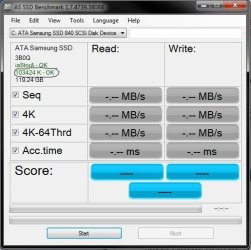
An easier way to check if an SSD is in alignment is to just boot up AS SSD Benchmark. It will automatically show if the SSD is in alignment or not.

AS SSD.jpg

Easy peasy and no confusing math.
 

My Computer

Computer type
PC/Desktop
Computer Manufacturer/Model Number
Custom Build
OS
Win 7 Ultimate 64 bit
CPU
Intel i7-3930K
Motherboard
ASUS P9X79 WS
Memory
Kingston HyperX Genesis 32GB Kit (8x4GB Modules) 1600MHz DDR
Graphics Card(s)
MSI R7850 Twin Frozr 2GD5/OC Radeon HD 7850 2GB 256-bit GDDR
Sound Card
Asus Xonar Essence STX
Monitor(s) Displays
3x Asus VG248QE 24", Vizio 32" TV
Screen Resolution
1920 x 1080, ?
Hard Drives
Samsung 128GB 840 Pro SSD (1),
Samsung 4TB 850 EVO SSDs (4)
Samsung 4TB 850 EVO SSDs (16) external backup drives used in 2.5" hot swap bays in the computer.
PSU
Corsair HX750w
Case
Antec Two Hundred v2 (modified)
Cooling
Cooler Master GeminII S524 120mm (fan replaced with a 140mm)
Keyboard
Logitech G510s
Mouse
Logitech M525 (two in use)
Internet Speed
=< 32Mbps down, 8Mbps up
Antivirus
AVAST!, MBAM, SAS, Spybot S&D (all but MBAM free) Glary Util
Browser
IE11
Other Info
LSI 9211-8i HBA card (8 SATA III ports), 2.5" & 3.5" Hot Swap Bays, HooToo HT-CR001 PCI-E to USB 3.0 Internal Hub + 6 Slot Card Reader, and LG Model CH12LS28 BD-ROM Optical Drive. Also, ScanSnap S1500 ADF duplexing scanner, Canon 9000F flat bed scanner, Corsair SP2500 2.1 speakers, Samsung CLP 415nw laser color printer, Cyberpower PP2200SW UPS
Sorry, Wolfgang, but that math doesn't work. Multiply any number by 1024 and it will be evenly divisible by four simply because 1024 itself is divisible by 4.
 

My Computer

Computer type
PC/Desktop
Computer Manufacturer/Model Number
Custom Build
OS
Win 7 Ultimate 64 bit
CPU
Intel i7-3930K
Motherboard
ASUS P9X79 WS
Memory
Kingston HyperX Genesis 32GB Kit (8x4GB Modules) 1600MHz DDR
Graphics Card(s)
MSI R7850 Twin Frozr 2GD5/OC Radeon HD 7850 2GB 256-bit GDDR
Sound Card
Asus Xonar Essence STX
Monitor(s) Displays
3x Asus VG248QE 24", Vizio 32" TV
Screen Resolution
1920 x 1080, ?
Hard Drives
Samsung 128GB 840 Pro SSD (1),
Samsung 4TB 850 EVO SSDs (4)
Samsung 4TB 850 EVO SSDs (16) external backup drives used in 2.5" hot swap bays in the computer.
PSU
Corsair HX750w
Case
Antec Two Hundred v2 (modified)
Cooling
Cooler Master GeminII S524 120mm (fan replaced with a 140mm)
Keyboard
Logitech G510s
Mouse
Logitech M525 (two in use)
Internet Speed
=< 32Mbps down, 8Mbps up
Antivirus
AVAST!, MBAM, SAS, Spybot S&D (all but MBAM free) Glary Util
Browser
IE11
Other Info
LSI 9211-8i HBA card (8 SATA III ports), 2.5" & 3.5" Hot Swap Bays, HooToo HT-CR001 PCI-E to USB 3.0 Internal Hub + 6 Slot Card Reader, and LG Model CH12LS28 BD-ROM Optical Drive. Also, ScanSnap S1500 ADF duplexing scanner, Canon 9000F flat bed scanner, Corsair SP2500 2.1 speakers, Samsung CLP 415nw laser color printer, Cyberpower PP2200SW UPS
Sorry, Wolfgang, but that math doesn't work. Multiply any number by 1024 and it will be evenly divisible by four simply because 1024 itself is divisible by 4.
He says the offset in KBs (when 1 KB=1024 B) must be divisible by 4. Or if you like the offset in bytes must be divisible by 4096 resulting in an integer. eg. An offset 3x1024=3072 is not aligned (3/4=.75, 3072/4096 = .75). etc etc...
 

My Computer

Computer type
PC/Desktop
Computer Manufacturer/Model Number
Own build
OS
Windows 7x64 Home Premium SP1
CPU
Intel i7 2600k
Motherboard
ASUS P8Z68 Deluxe
Memory
G.Skill Ripjaws (DDR3-1600) 2x4GB
Graphics Card(s)
Nvidia GeForce GTS 450; Intel HD Graphics 3000(GT2+)
Monitor(s) Displays
Dell Ultrasharp IPS panel U2311H, Samsung SyncMaster P2350
Screen Resolution
1920x1080
Hard Drives
Samsung 850 Pro SSD 256GB, Samsung SSD 840 120GB, Seagates 1TB Barracuda ST31000528AS x2
PSU
Seasonic M12II 520W
Case
Lian Li Lancool PC-K60
Cooling
Case: 1x120mm, 3x140mm CPU: Hyper 212+
Keyboard
Logitech MK520 (wireless)
Mouse
Logitech MK520
Internet Speed
6-7 Mbps
Antivirus
Norton Security Premium, Malwarebytes on 2 (MSE on 3rd PC)
Browser
FireFox
Other Info
Audio: Logitech Z523 2.1
Sorry, Wolfgang, but that math doesn't work. Multiply any number by 1024 and it will be evenly divisible by four simply because 1024 itself is divisible by 4.
He says the offset in KBs (when 1 KB=1024 B) must be divisible by 4. Or if you like the offset in bytes must be divisible by 4096 resulting in an integer. eg. An offset 3x1024=3072 is not aligned (3/4=.75, 3072/4096 = .75). etc etc...
You may want to read the instructions again.
 

My Computer

Computer Manufacturer/Model Number
HP, Dell, Gateway, Toshiba - 4 laptops and 2 desktops
OS
Vista, Windows7, Mint Mate, Zorin, Windows 8
CPU
from 1.6GHz Duo to i7
Monitor(s) Displays
2x HP w2207
Hard Drives
5x HDD, 7x SSD, 12x Externals
Keyboard
with trackball - no mices
Mouse
Trackball mice
Internet Speed
DSL 6000
Sorry, Wolfgang, but that math doesn't work. Multiply any number by 1024 and it will be evenly divisible by four simply because 1024 itself is divisible by 4.
He says the offset in KBs (when 1 KB=1024 B) must be divisible by 4. Or if you like the offset in bytes must be divisible by 4096 resulting in an integer. eg. An offset 3x1024=3072 is not aligned (3/4=.75, 3072/4096 = .75). etc etc...
You may want to read the instructions again.
Assuming you're talking to me
You say
The offset (in KBs) has to be divisible by 4.

- what have I missed??
 

My Computer

Computer type
PC/Desktop
Computer Manufacturer/Model Number
Own build
OS
Windows 7x64 Home Premium SP1
CPU
Intel i7 2600k
Motherboard
ASUS P8Z68 Deluxe
Memory
G.Skill Ripjaws (DDR3-1600) 2x4GB
Graphics Card(s)
Nvidia GeForce GTS 450; Intel HD Graphics 3000(GT2+)
Monitor(s) Displays
Dell Ultrasharp IPS panel U2311H, Samsung SyncMaster P2350
Screen Resolution
1920x1080
Hard Drives
Samsung 850 Pro SSD 256GB, Samsung SSD 840 120GB, Seagates 1TB Barracuda ST31000528AS x2
PSU
Seasonic M12II 520W
Case
Lian Li Lancool PC-K60
Cooling
Case: 1x120mm, 3x140mm CPU: Hyper 212+
Keyboard
Logitech MK520 (wireless)
Mouse
Logitech MK520
Internet Speed
6-7 Mbps
Antivirus
Norton Security Premium, Malwarebytes on 2 (MSE on 3rd PC)
Browser
FireFox
Other Info
Audio: Logitech Z523 2.1
Ok, I'll admit math has never been my strong suit (it whipped my ample asset quite thoroughly once I hit college, enough so I had to change majors) so I very well may be applying the divisible by 4 thing wrong (along with many others who I've seen posting the same thing). Using the program I linked, however, makes the issue moot.
 

My Computer

Computer type
PC/Desktop
Computer Manufacturer/Model Number
Custom Build
OS
Win 7 Ultimate 64 bit
CPU
Intel i7-3930K
Motherboard
ASUS P9X79 WS
Memory
Kingston HyperX Genesis 32GB Kit (8x4GB Modules) 1600MHz DDR
Graphics Card(s)
MSI R7850 Twin Frozr 2GD5/OC Radeon HD 7850 2GB 256-bit GDDR
Sound Card
Asus Xonar Essence STX
Monitor(s) Displays
3x Asus VG248QE 24", Vizio 32" TV
Screen Resolution
1920 x 1080, ?
Hard Drives
Samsung 128GB 840 Pro SSD (1),
Samsung 4TB 850 EVO SSDs (4)
Samsung 4TB 850 EVO SSDs (16) external backup drives used in 2.5" hot swap bays in the computer.
PSU
Corsair HX750w
Case
Antec Two Hundred v2 (modified)
Cooling
Cooler Master GeminII S524 120mm (fan replaced with a 140mm)
Keyboard
Logitech G510s
Mouse
Logitech M525 (two in use)
Internet Speed
=< 32Mbps down, 8Mbps up
Antivirus
AVAST!, MBAM, SAS, Spybot S&D (all but MBAM free) Glary Util
Browser
IE11
Other Info
LSI 9211-8i HBA card (8 SATA III ports), 2.5" & 3.5" Hot Swap Bays, HooToo HT-CR001 PCI-E to USB 3.0 Internal Hub + 6 Slot Card Reader, and LG Model CH12LS28 BD-ROM Optical Drive. Also, ScanSnap S1500 ADF duplexing scanner, Canon 9000F flat bed scanner, Corsair SP2500 2.1 speakers, Samsung CLP 415nw laser color printer, Cyberpower PP2200SW UPS
Nice to know a fresh/ clean install on a new ssd doesn't need allot of this technical stuff done :)
The optimizing stuff though has that changed with new ssd's
The optimize tutorial is close to 5 years old :/
Cheers.
 

My Computer

Computer type
PC/Desktop
Computer Manufacturer/Model Number
Custom assembled by me :}
OS
Win-7-Pro64bit 7-H-Prem-64bit
CPU
i7-5930K 2nd i9-9940x both water blocked VRM's too
Motherboard
ASUS SABERTOOTH X99 2nd ASUS x299 Apex
Memory
Trident-z 3200C14 2nd Trident-z 3600C16
Graphics Card(s)
EVGA 1080ti ftw3 2nd Titan Xp both water blocked
Sound Card
Built-in Realtek
Monitor(s) Displays
1-AOC G2460PG 24"G-Sync 144Hz/ 2nd 1-ASUS VG248QE 24" 144Hz
Screen Resolution
1920 x 1080 144Hz
Hard Drives
2-Samsung M.2 Evo & Evo Plus
2-Samsung 850 EVO 500GB SSD's/ 3-2.5 W.D. Black 1tb-&3-1tb/3-3.5 WD Black 1tb hdd's
PSU
EVGA SuperNOVA 1000-P2 2nd 1200-P2
Case
2-Corsair Obsidian Series 450D Black ATX Mid Tower
Cooling
Custom water loops
Keyboard
Logitech G710+/ 2nd Logitech G910
Mouse
2-RedDragon M901 Perdition 16400 dpi Gaming mouse = wired
Internet Speed
Comcast Ping 19ms 89.31mbps download speed 6.12mbps upload
Antivirus
Malwarebytes Pro/ Superantispyware Pro
Browser
FireFox & Pale moon
Other Info
2nd ASUS X299 Apex/Intel i9-9940x with Custom water loop/7H-Prem-x64/Corsair 450D case/Ram Trident-z 3600C16 4x8gb / Samsung970Evo plus 500gb SSD/Dual ssd EZ swap evo/PSU EVGA SuperNova 1200w-P2 80+Platinum/GPU Titan Xp /8-ML-140 on push-pull on 2-280GTX rads
He says the offset in KBs (when 1 KB=1024 B) must be divisible by 4. Or if you like the offset in bytes must be divisible by 4096 resulting in an integer. eg. An offset 3x1024=3072 is not aligned (3/4=.75, 3072/4096 = .75). etc etc...
You may want to read the instructions again.
Assuming you're talking to me
You say
The offset (in KBs) has to be divisible by 4.

- what have I missed??
Sorry Michael. I was talking to LF. I guess I clicked the wrong quote.
 

My Computer

Computer Manufacturer/Model Number
HP, Dell, Gateway, Toshiba - 4 laptops and 2 desktops
OS
Vista, Windows7, Mint Mate, Zorin, Windows 8
CPU
from 1.6GHz Duo to i7
Monitor(s) Displays
2x HP w2207
Hard Drives
5x HDD, 7x SSD, 12x Externals
Keyboard
with trackball - no mices
Mouse
Trackball mice
Internet Speed
DSL 6000
I know what you mean Wolfgang and I am no great mathematician to me it is simple binary stuff.;)
 

My Computer

Computer type
PC/Desktop
Computer Manufacturer/Model Number
Own build (new) Desk1 / Asus ROG Win 7 / Desk2 1st build
OS
Desk1 7 Home Prem / Desk2 10 Pro / Main lap Asus ROG 10 Pro 2 laptop Toshiba 7 Pro Asus P2520 7 & 10
CPU
Desk1 i5 3750K / Laptop i7 GTX 860M / Desk2 i5 2500
Motherboard
Desk1 Asus P877-V / Desk2 Gigabyte H67 UD3H / Laptop ?
Memory
Desk1 8GB (1866) / Desk2 16GB (1333) / Laptop 8Gb DDR3
Graphics Card(s)
Desk 1& 2NVidia GTX 650 & Laptops on board Intel
Sound Card
Desk 1 & 2 -XONAR DG Realtek High Def audio Laptop
Monitor(s) Displays
Desk 1 Benq HD 2450 / Desk2 Philips 24" / Laptop 17.5"
Screen Resolution
1920x1080 D1 & D2 & Laptop 1
Hard Drives
Desk1 Samsung 120GB 830 SSD
Asus ROG 256GB 850 Pro SSD
Desk2 Samsung 840 256 SSD
Toshiba 120GB EVO
PSU
Desk 1 Corsair HX 1050/ Laptop ? / Desk 2 Corsair HX 650
Case
Desk 1 Cooler HAF XM ? Toshiba laptop / Desk2 Coolermaster
Cooling
Fans on all Desk1 -2 Desk2 - all Coolermasters 5 Laptop ?
Keyboard
Desk 1 MS Sidewinder X6 Desk 2 MS Sidewinder X 4
Mouse
Desk 1&2 - Gigabyte MS 900 gamer - laptop - Logitec wireless
Internet Speed
ADSL2+
Other Info
One other Desktop (tester) and spare Toshba laptop both with SSD's
Running Kaspersky 2016 ISS on all machines config'd identically
Logitec audio stereo systems on each machine (x3)
Canon MG5250MFC
Router/modem TP-Link running WPA2SK
Issue :(
No monitor to see what's going on
Got the ssd on external now but wants to initialize the disk and I'm not sure which option to use :(
desktop spec's are correct I'm accessing it via my laptop Help please :(
View attachment 337517
This one popped up as soon as I opened disk management now sure what to do with it ?
View attachment 337518
 
Last edited:

My Computer

Computer type
PC/Desktop
Computer Manufacturer/Model Number
Custom assembled by me :}
OS
Win-7-Pro64bit 7-H-Prem-64bit
CPU
i7-5930K 2nd i9-9940x both water blocked VRM's too
Motherboard
ASUS SABERTOOTH X99 2nd ASUS x299 Apex
Memory
Trident-z 3200C14 2nd Trident-z 3600C16
Graphics Card(s)
EVGA 1080ti ftw3 2nd Titan Xp both water blocked
Sound Card
Built-in Realtek
Monitor(s) Displays
1-AOC G2460PG 24"G-Sync 144Hz/ 2nd 1-ASUS VG248QE 24" 144Hz
Screen Resolution
1920 x 1080 144Hz
Hard Drives
2-Samsung M.2 Evo & Evo Plus
2-Samsung 850 EVO 500GB SSD's/ 3-2.5 W.D. Black 1tb-&3-1tb/3-3.5 WD Black 1tb hdd's
PSU
EVGA SuperNOVA 1000-P2 2nd 1200-P2
Case
2-Corsair Obsidian Series 450D Black ATX Mid Tower
Cooling
Custom water loops
Keyboard
Logitech G710+/ 2nd Logitech G910
Mouse
2-RedDragon M901 Perdition 16400 dpi Gaming mouse = wired
Internet Speed
Comcast Ping 19ms 89.31mbps download speed 6.12mbps upload
Antivirus
Malwarebytes Pro/ Superantispyware Pro
Browser
FireFox & Pale moon
Other Info
2nd ASUS X299 Apex/Intel i9-9940x with Custom water loop/7H-Prem-x64/Corsair 450D case/Ram Trident-z 3600C16 4x8gb / Samsung970Evo plus 500gb SSD/Dual ssd EZ swap evo/PSU EVGA SuperNova 1200w-P2 80+Platinum/GPU Titan Xp /8-ML-140 on push-pull on 2-280GTX rads
I usually use diskpart and set the offset (alignment) at 1024 which is what the installer will set it as if you were doing a clean install. I believe disk management will do it the same. I've only done 1 in disk management and it aligned it at 1024.

If you want to do it in diskpart, I can give you the commands.
 

My Computers

System One System Two

  • Computer type
    PC/Desktop
    Computer Manufacturer/Model Number
    ALWAYS UNDER CONSTRUCTION
    OS
    Windows 11 Pro
    CPU
    Ryzen 9 5900X
    Motherboard
    Asus X570 Crosshair Viii Hero
    Memory
    32GB G Skill DDR4-3600
    Graphics Card(s)
    EVGA RTX 3080 FTW 3 Ultra
    Sound Card
    On Board/Sennheiser PC37X Headset
    Monitor(s) Displays
    3 X Asus 27"
    Screen Resolution
    2560x1440
    Hard Drives
    2 X 1 TB NVME drives
    PSU
    EVGA 850
    Case
    Phanteks Eclipse P400A
    Cooling
    EVGA 280 AIO
    Keyboard
    Logitech G510s/ Logitech G13
    Mouse
    Logitech G502
    Internet Speed
    24/1
    Antivirus
    ESET/MBAM Pro/SAS Pro
    Browser
    Chrome/ Firefox/ Edge
  • Computer type
    Laptop
    System Manufacturer/Model Number
    Dell 16 Plus
    OS
    Windows 11 Pro
    CPU
    Intel Ultra 9 288V
    Memory
    32 GB LPDDR5X 8533
    Monitor(s) Displays
    16" Mini-LED HDR600 Touch 90 Hz
    Screen Resolution
    2560X1600
    Hard Drives
    1 TB NVME
Hi Steve
I do indeed need help :)
Wolfgang has the commands but I was under the impression on a clean install the install would do all of that ?
Issue seem more the missing monitor booting to it when the ssd is inside the desktop tower :/

The laptop is a 32 bit system and the desktop is a 64 bit system ?
I'm an idiot so please be gentile lol :D
 

My Computer

Computer type
PC/Desktop
Computer Manufacturer/Model Number
Custom assembled by me :}
OS
Win-7-Pro64bit 7-H-Prem-64bit
CPU
i7-5930K 2nd i9-9940x both water blocked VRM's too
Motherboard
ASUS SABERTOOTH X99 2nd ASUS x299 Apex
Memory
Trident-z 3200C14 2nd Trident-z 3600C16
Graphics Card(s)
EVGA 1080ti ftw3 2nd Titan Xp both water blocked
Sound Card
Built-in Realtek
Monitor(s) Displays
1-AOC G2460PG 24"G-Sync 144Hz/ 2nd 1-ASUS VG248QE 24" 144Hz
Screen Resolution
1920 x 1080 144Hz
Hard Drives
2-Samsung M.2 Evo & Evo Plus
2-Samsung 850 EVO 500GB SSD's/ 3-2.5 W.D. Black 1tb-&3-1tb/3-3.5 WD Black 1tb hdd's
PSU
EVGA SuperNOVA 1000-P2 2nd 1200-P2
Case
2-Corsair Obsidian Series 450D Black ATX Mid Tower
Cooling
Custom water loops
Keyboard
Logitech G710+/ 2nd Logitech G910
Mouse
2-RedDragon M901 Perdition 16400 dpi Gaming mouse = wired
Internet Speed
Comcast Ping 19ms 89.31mbps download speed 6.12mbps upload
Antivirus
Malwarebytes Pro/ Superantispyware Pro
Browser
FireFox & Pale moon
Other Info
2nd ASUS X299 Apex/Intel i9-9940x with Custom water loop/7H-Prem-x64/Corsair 450D case/Ram Trident-z 3600C16 4x8gb / Samsung970Evo plus 500gb SSD/Dual ssd EZ swap evo/PSU EVGA SuperNova 1200w-P2 80+Platinum/GPU Titan Xp /8-ML-140 on push-pull on 2-280GTX rads
Feeling like police academy
Picked the wrong week to stop sniffing glue ;)
 

My Computer

Computer type
PC/Desktop
Computer Manufacturer/Model Number
Custom assembled by me :}
OS
Win-7-Pro64bit 7-H-Prem-64bit
CPU
i7-5930K 2nd i9-9940x both water blocked VRM's too
Motherboard
ASUS SABERTOOTH X99 2nd ASUS x299 Apex
Memory
Trident-z 3200C14 2nd Trident-z 3600C16
Graphics Card(s)
EVGA 1080ti ftw3 2nd Titan Xp both water blocked
Sound Card
Built-in Realtek
Monitor(s) Displays
1-AOC G2460PG 24"G-Sync 144Hz/ 2nd 1-ASUS VG248QE 24" 144Hz
Screen Resolution
1920 x 1080 144Hz
Hard Drives
2-Samsung M.2 Evo & Evo Plus
2-Samsung 850 EVO 500GB SSD's/ 3-2.5 W.D. Black 1tb-&3-1tb/3-3.5 WD Black 1tb hdd's
PSU
EVGA SuperNOVA 1000-P2 2nd 1200-P2
Case
2-Corsair Obsidian Series 450D Black ATX Mid Tower
Cooling
Custom water loops
Keyboard
Logitech G710+/ 2nd Logitech G910
Mouse
2-RedDragon M901 Perdition 16400 dpi Gaming mouse = wired
Internet Speed
Comcast Ping 19ms 89.31mbps download speed 6.12mbps upload
Antivirus
Malwarebytes Pro/ Superantispyware Pro
Browser
FireFox & Pale moon
Other Info
2nd ASUS X299 Apex/Intel i9-9940x with Custom water loop/7H-Prem-x64/Corsair 450D case/Ram Trident-z 3600C16 4x8gb / Samsung970Evo plus 500gb SSD/Dual ssd EZ swap evo/PSU EVGA SuperNova 1200w-P2 80+Platinum/GPU Titan Xp /8-ML-140 on push-pull on 2-280GTX rads
I'm sure you know spelling and syntax are important. If you are doing a clean install, the installer will do it for you and if you format the drive first, you will not get the 100MB partition.

1. diskpart press enter wait and the command prompt will reply diskpart

2. list disk press enter and the cmd will show all disks and assign each a number. Choose the number of your SSD You will be able to tell by the size. assume it is disk #1

3. select disk 1 press enter it will reply disk 1 is the selected disk

4. clean press enter, not necessary with a new disk, but I do it anyway, it will reply diskpart succeeeded in cleaning the selected disk

5. create partition primary align=1024 press enter will reply created the specified partition.

6. select partition 1 press enter reply- partition 1 is the selected partition

7. format fs=ntfs quick press enter reply will be formated the selected partition

8. active press enter reply - the partition was set to active

9. exit press enter will take you back to where you started

10 exit press enter will close the command prompt

If you are not going to use it as an Operating System Drive, do not set it active
If you are going to use Paragon Migrate you don't have to do anything. Paragon will do everything for you. You have to be sure the OS you are transfering is smaller than the space on the SSD.

It will look similar to this, I did this as an example

clean-align-format SSD.JPG
 

My Computers

System One System Two

  • Computer type
    PC/Desktop
    Computer Manufacturer/Model Number
    ALWAYS UNDER CONSTRUCTION
    OS
    Windows 11 Pro
    CPU
    Ryzen 9 5900X
    Motherboard
    Asus X570 Crosshair Viii Hero
    Memory
    32GB G Skill DDR4-3600
    Graphics Card(s)
    EVGA RTX 3080 FTW 3 Ultra
    Sound Card
    On Board/Sennheiser PC37X Headset
    Monitor(s) Displays
    3 X Asus 27"
    Screen Resolution
    2560x1440
    Hard Drives
    2 X 1 TB NVME drives
    PSU
    EVGA 850
    Case
    Phanteks Eclipse P400A
    Cooling
    EVGA 280 AIO
    Keyboard
    Logitech G510s/ Logitech G13
    Mouse
    Logitech G502
    Internet Speed
    24/1
    Antivirus
    ESET/MBAM Pro/SAS Pro
    Browser
    Chrome/ Firefox/ Edge
  • Computer type
    Laptop
    System Manufacturer/Model Number
    Dell 16 Plus
    OS
    Windows 11 Pro
    CPU
    Intel Ultra 9 288V
    Memory
    32 GB LPDDR5X 8533
    Monitor(s) Displays
    16" Mini-LED HDR600 Touch 90 Hz
    Screen Resolution
    2560X1600
    Hard Drives
    1 TB NVME
Back
Top