SSD won't reboot: "Reboot and select proper boot device"

kjpsych88

New member
Local time
7:18 PM
Messages
11
Hi all,

First timer, please help!

My buddy and I tried building a new computer from scratch with the following:

  • OCZ (AGT4-25SAT3-128G) Agility 4 2.5" 128GB SATA3 6GB/s Solid State Drive
  • Kingston KHX1600C9D3B1K2/8GX 8GB Kit 2X4GB 1600MHz DDR3 240PIN DIMM Unbuff Hmp HyperX CL9
  • Antec Neo Eco 450C Power Supply ATX 12V Active PFC 80PLUS 120MM Fan
  • MSI Radeon HD 7850 OC Twin Frozr III 900MHZ 2GB 4.8GHZ GDDR5 DVI HDMI 2x Mini-DP PCI-E Video Card
  • MSI H77A-G43 ATX LGA1155 H77 DDR3 2PCI-E16 2PCI-E1 3PCI HDMI CrossFireX SATA3 USB3.0 Motherboard

The only thing that is NOT NEW is:

HD: Western Digital Caviar Black 7200RPM 640GB drive (that was sold by my buddy)

This is the sequence of events:

So there is no cd/dvd burner, so I used the Windows USB tool to install my BIOS for Windows 7 Home Premium (64 bits). The installation screen doesn't show the SSD to install the Windows...so I re-arrange the plugs in the SATA ports I and II, so that SSD would be recognized.

Once I did that, I installed Windows into SSD. Everything is fine.

I change the boot sequence back to SSD.

But once I shut down, I get a black screen: "reboot and select proper boot device or insert boot media"

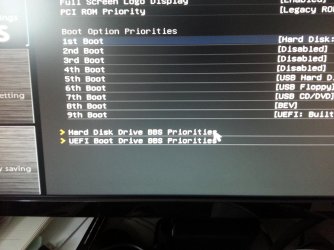
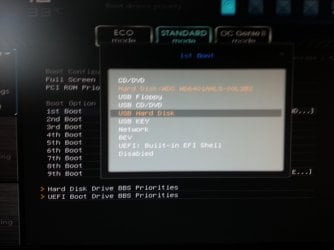
Once I restart, and get into BIOS setup, here's what I see:

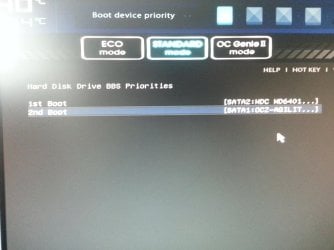
As you can see, on the "Boot Option Priorities", the SSD is not on the list. I then go to "Hard Disk Drive BBS Priorities" and the SSD is listed as "2nd Boot".

I change SSD to "1st Boot".

But once I shut down again, everything is reset, and I get the black screen "reboot and select proper boot device or insert boot media" again.

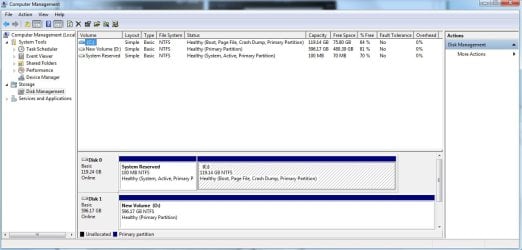
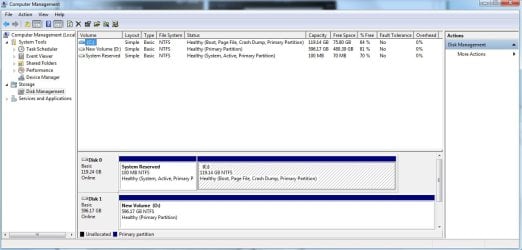
What's weird is that if I get the black screen, but press "Ctrl + alt + del", it works. I look at my computer management, and the last picture is what I see.

I'd really appreciate some guidance! Thanks
 

Attachments
  • 1.jpg
    1.jpg
    301.5 KB · Views: 32
  • 2.jpg
    2.jpg
    619.6 KB · Views: 22
  • 3.jpg
    3.jpg
    473.8 KB · Views: 21
  • 4.jpg
    4.jpg
    428.3 KB · Views: 16
  • computer management.jpg
    computer management.jpg
    86.7 KB · Views: 40

My Computer My Computer

OS
Ontario
I should mention that I have already tried system repair with and without the HDD plugged in. There were no errors, and nothing has changed.
 

My Computer My Computer

OS
Ontario
It sounds like your system is not recognizing the SSD. Have you tried disconnecting the WD drive for testing?

Which SATA ports do you have the drives, including DVD, plugged into.
 

My Computer My Computer

Computer Manufacturer/Model Number
Homebuilt
OS
Windows 7 x64
CPU
i7-2600K
Motherboard
Asus P8Z77-v Pro
Memory
8 G
Graphics Card(s)
GTX 480
Sound Card
Onboard
Monitor(s) Displays
LG W2753V
Screen Resolution
1920x1080
Hard Drives
Crucial M4 128 G SSD
Thanks for replying:

I tried disconnecting the HDD, and the system would reboot with the SSD no problem.

The SSD is plugged into the SATA 1, and HDD was plugged into SATA 2.

I tried plugging the HDD into another SATA port, but nothing changed.

No other SATA ports have anything plugged into them, except for SATA 1 and 2.
 

My Computer My Computer

OS
Ontario
My best guess would be the other hard drive, or possibly its configuration, is causing problems for your system.

Does it have any logical or extended partitions on it, just in case it might be relevant?
 

My Computer My Computer

Computer Manufacturer/Model Number
Homebuilt
OS
Windows 7 x64
CPU
i7-2600K
Motherboard
Asus P8Z77-v Pro
Memory
8 G
Graphics Card(s)
GTX 480
Sound Card
Onboard
Monitor(s) Displays
LG W2753V
Screen Resolution
1920x1080
Hard Drives
Crucial M4 128 G SSD
To be honest, I don't know what the HDD had. I assumed my friend did a clean wipe off of it so it would be as good as new when he sold it to me. Does this picture help?
 

Attachments

  • computer management.jpg
    computer management.jpg
    86.7 KB · Views: 65

My Computer My Computer

OS
Ontario
It shows you have not extended partitions, but from what I understand, it should not matter with a Legacy(MBR) install.

I suppose the only logical thing to do is to try another hard drive to see if it is better and to check the one you have. But it seems the UEFI firmware is not identifying, or is not able to identify, your SSD with the second drive attached.. Using Diskpart to clean the drive, just in case, might be another option.

Maybe someone else will have another opinion.

The Disk Management looks normal.
 

My Computer My Computer

Computer Manufacturer/Model Number
Homebuilt
OS
Windows 7 x64
CPU
i7-2600K
Motherboard
Asus P8Z77-v Pro
Memory
8 G
Graphics Card(s)
GTX 480
Sound Card
Onboard
Monitor(s) Displays
LG W2753V
Screen Resolution
1920x1080
Hard Drives
Crucial M4 128 G SSD
The screenshot shows USB HD as first boot device, not HD. Set SSD as First HD, save and exit. Then set HD first to boot, save changes and exit.

If the SSD boots when the HD is not plugged in then it may be boot code interfering from the HD. Move the data off to wipe it with Diskpart Clean Command from the installer then repartition in Disk Mgmt.
 
Hi, thanks for the reply

I did a clean, but thought I should also do a clean all to be sure...

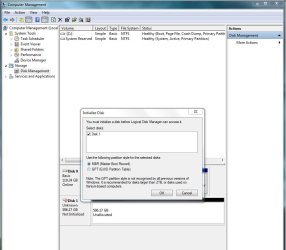
I tried to get back into computer management and I see this:

What should I do now?

Thanks again
 

Attachments

  • LDM.jpg
    LDM.jpg
    67.6 KB · Views: 61

My Computer My Computer

OS
Ontario
Since you are running as an MBR system, probably use MBR, but either one is allowable for a non-booting drive.
 

My Computer My Computer

Computer Manufacturer/Model Number
Homebuilt
OS
Windows 7 x64
CPU
i7-2600K
Motherboard
Asus P8Z77-v Pro
Memory
8 G
Graphics Card(s)
GTX 480
Sound Card
Onboard
Monitor(s) Displays
LG W2753V
Screen Resolution
1920x1080
Hard Drives
Crucial M4 128 G SSD
Tried rebooting it...no dice...

It still went to the black screen, "reboot and select proper boot device or insert boot media"

I go into bios setup, SSD is nowhere to be found on the boot list, or on the "Boot Option Priorities", nor on "Hard Disk Drive BBS Priorities"

I reset it another time, and the SSD finally shows up on "Hard Disk Drive BBS Priorities" but it is listed as 2nd boot priority.

I change it back to 1st.

But once I shut down again, everything repeats itself. It is reset...

Please help! Thanks again for your patience and guidance
 

My Computer My Computer

OS
Ontario
By the way I just chose MBR to initialize the disk
 

My Computer My Computer

OS
Ontario
I suppose the only logical thing to do is to try another hard drive to see if it is better and to check the one you have. But it seems the UEFI firmware is not identifying, or is not able to identify, your SSD with the second drive attached..
Get a different hard drive...maybe your "friend" sold it for a reason...
 

My Computer My Computer

Computer Manufacturer/Model Number
Homebuilt
OS
Windows 7 x64
CPU
i7-2600K
Motherboard
Asus P8Z77-v Pro
Memory
8 G
Graphics Card(s)
GTX 480
Sound Card
Onboard
Monitor(s) Displays
LG W2753V
Screen Resolution
1920x1080
Hard Drives
Crucial M4 128 G SSD
Just to clarify: You are setting the SSD as the Primary HD, and then setting the HD as first item to boot? Then saving Settings before exiting BIOS setup?
 
Ok, so what I did before, was set the SSD as primary HD when I installed Windows.

I went into BIOS after to set the SSD as 1st boot item, but it was nowhere to be found. The HDD is already set as 1st boot item. I did not set it that way. I restart the computer again, and all of a sudden, the SSD appears in the "Hard Disk Drive BBS Priorities." The SSD appears to be the 2nd boot item, while HDD is listed as 1st. So I change it so SSD is 1st, HDD is 2nd, save it, and exit.

At this point, if I restart the computer, and go into BIOS, the SSD is listed as 1st boot, HDD is listed as 2nd.
HOWEVER, if I shut down, the black screen comes up again: "reboot and select proper boot device or insert boot media"

I restart, get into BIOS, and everything is back to square one: SSD is nowhere to be found, HDD is listed as 1st to boot.

Maybe it's the HDD? Thanks for your continued support
 

My Computer My Computer

OS
Ontario
Try changing up the SATA ports, while making sure the SSD remains set as first HD, Saved, then HD group is set to boot first, Save and Exit. You did not describe doing both these operations in sequence before.
 
Hi all,

I tried doing what you said gregrocker, and it still didn't work. But I did notice that when I plugged the HDD into the SATA 4, and left the SSD in the SATA 1, the outcome would be a little different.

I would boot for the 1st time, I would get the black screen. The boot priority would be set to hard disk. SSD is not on the list. I restart, and all of a sudden, the SSD is listed as 1st boot priority...

If I shut down, I'm back to square one...

Thanks for your continued support!
 

My Computer My Computer

OS
Ontario
Just to clarify, at the beginning of my last message, I would get the black screen, so I would restart, and go into BIOS.
 

My Computer My Computer

OS
Ontario
SOLVED

I'd just like to thank you guys for contributing and giving me suggestions.

My buddy and I sat down and tried to figure it out and solved it.

Turns out it wasn't the HDD. It was the SSD.

My particular model: "OCZ (AGT4-25SAT3-128G) Agility 4 2.5" 128GB SATA3 6GB/s Solid State Drive" apparently had some bad issues with it. Even when I updated the firmware, it turns out I had to download it twice for it to work (don't ask me why)

Some people who had spent 600 + on an OCZ SSD had the exact same problem: it wouldn't be recognized on the first boot.

So we went to the OCZ website to download the firmware and it worked fine after that.
OCZ Technology

Apparently, if you buy any OCZ SSD, you will inevitably run into this problem.

Thanks again for the help guys - hope this helps anyone out there that might have the same problem.
 

My Computer My Computer

OS
Ontario
Back
Top