
How to Add or Delete Start Menu All Programs Shortcuts in Windows 7
Information
This will show you how to add or delete shortcuts in the All Programs area of the Start Menu for the Current User or All Users in Windows 7.
Note
It appears that the context menu items for the Start Menu to open the Start Menu folders has been ommitted in the Windows 7 beta for now. Instead of adding and removing shortcuts directly out of the Start Menu, you could manually navigate to the two Start Menu folder locations.
EXAMPLE: Start Menu All Programs
NOTE: All Programs is the right screenshot. You would click on All Programs (left screenshot) to open it.
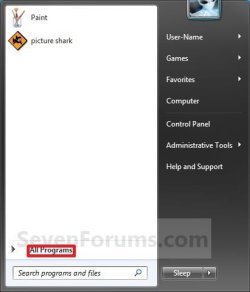
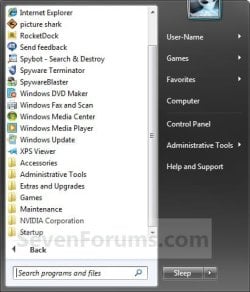
OPTION ONE
Start Menu for Only Current Logged On User
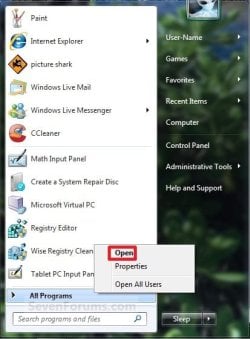
B) Go to step 4.
OR
2. Open the Start Menu. A) In the search box, type shell:start menu and press Enter. (See screenshot below)
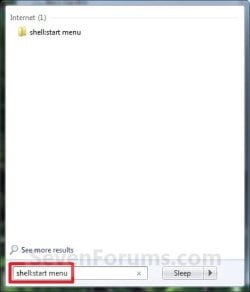
B) Open the Programs folder.
C) Go to step 4.
OR
3. Open Folder Options. A) Dot Show hidden files, folders, or drives., and click on apply. (See screenshot below)

B) Open Windows Explorer and navigate to the location below. (See screenshot below step 6)
Code:
C:\Users\(user name)\AppData\Roaming\Microsoft\Windows\Start Menu\Programs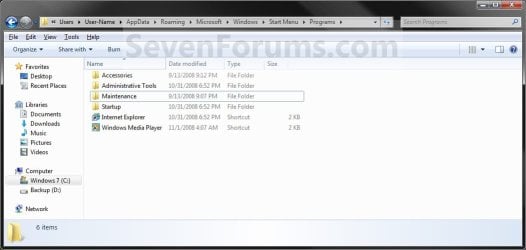
5. If you did step 3, then in Folder Options again, dot Don't show hidden files, folders, or drives and click on OK. (See screenshot below step 3)
OPTION TWO
Start Menu Shared by All Users
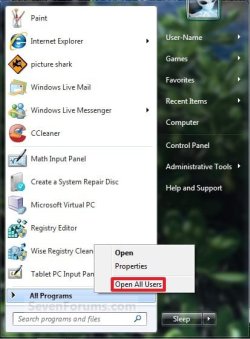
B) Go to step 3.
OR
2. Open the Start Menu. A) In the search box, type shell:common start menu and press Enter.
B) Go to step 3.
OR
3. Open Folder Options. A) Dot Show hidden files, folders, or drives, and click on Apply. (See screenshot below)
B) Open Windows Explorer and navigate to the location below. (See screenshot below step 5)
Code:
C:\ProgramData\Microsoft\Windows\Start Menu\Programs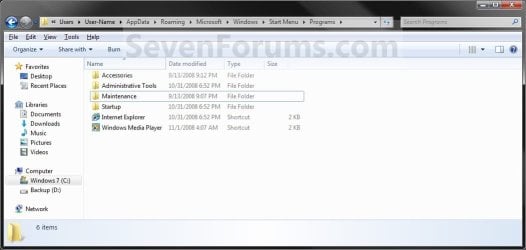
5. If you did step 3, then in Folder Options again, dot Don't show hidden files, folders, or drives and click on OK. (See screenshot below step 3)
That's it,
Shawn
Related Tutorials
- How to Customize the Windows 7 Start Menu
- How to Change the Active Navigation Folder Icon in Windows 7
- How to Change the Start Menu Button in Windows 7
- How to Pin or Unpin a Program to the Windows 7 Start Menu
- How to Pin or Unpin a Folder, Drive, or Library to the Start Menu in Windows 7
- How to Use Small or Large Icons in the Windows 7 Start Menu
- Download a Shortcut that Opens the Start Menu in Windows
- How to Restore Missing Default Shortcuts in the Windows 7 Start Menu
- How to Enable or Disable Start Menu "All Programs" in the Vista and Windows 7
- How to Enable or Disable Start Menu Auto Arrange by Name in Vista and Windows 7
- How to Create a Shortcut of a File, Folder, Drive, or Program in Vista, Windows 7, and Windows 8
Last edited:


