Start Menu Question

wsplawn

New member
Local time
8:14 AM
Messages
74
I have a number of items in my start menu and am about to run out of space for them, that is, I'm running out of vertical range. I'm just wondering what happens if your start menu fills up? Do some items get truncated, is another column created?

How should I look at this?
 

My Computer

OS
Windows XP
Why not try for your self by adding more items?
 

My Computer

OS
Win7 7600 x64
Memory
8gig
Graphics Card(s)
Nvidia
Monitor(s) Displays
dual wide screen 22inch each
Hard Drives
2x 500gig
Why not try for your self by adding more items?

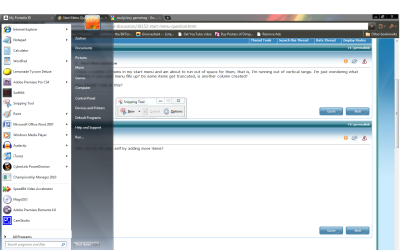
Not very helpful are you :sarc:? Anyway...... :rolleyes: I tried it and the result is in the screenshot.
Thanks,
ZeshanA

If a user helps you, click the scales at the top right of their post and click "I Approve!"
 

Attachments

  • Overloaded Start Bar.png
    Overloaded Start Bar.png
    83.6 KB · Views: 58
Thank you for your efforts to help. It is hard to tell just what the screen shot implies because I am not familiar with how you have things setup. On my machine, if I add more than the screen can hold, the new entries are simply pushed to the bottom, out of site.

The moral may be that if I have so many programs in my start menu that the screen can't hold them, maybe I need to look at the problem differently. I would have guessed that when such a thing happens an up or down arrow would appear to let you know there is something above or below the flyout, but such does not appear to be the case, unless there is some other way to configure my desktop.

Thank you again.
 

My Computer

OS
Windows XP
Eveyone has different needs and desires, but let me tell youwhat I do. I do not have too many programs. The ones that I use but not that often, I have pinned to the start menu. The ones that I use constantly, I have a short cut right on my desk top. Too many for your desk top, here is a trick.

Go to any desktop icon, right click on it, press down control on your keyboard and then with the roller on your mouse, make the icons smaller. Give it a try.
 

My Computer

Computer type
PC/Desktop
Computer Manufacturer/Model Number
Dell XPS 420
OS
Windows 10, Home Clean Install
CPU
Intel Core2 processsor Q8200(2.33Ghz 1333FSB) Quad Core Tech
Motherboard
Dell
Memory
6 gb
Graphics Card(s)
ATI Radeon 256MB HD3650
Sound Card
Intergrated 7.1 Channel Audio
Monitor(s) Displays
Dell SP2009W 20"
Hard Drives
640 GB Serial ATA Hard drive
Cooling
Fan
Keyboard
Dell USB Keyboard
Mouse
Dell Premium Optical USB
Internet Speed
DSL 2.85
Why not try for your self by adding more items?

Not very helpful are you :sarc:? Anyway...... :rolleyes: I tried it and the result is in the screenshot.

I was not being funny, sorry if it was miss read. I just wondered why you had not tried it out? As you have so many programs it would be easier than most people who have a limited number of frequently used programs to test it for you.
As others have said, everyone has different needs, I like my system to remain light weight and only have essential software, daily used stuff on superbar, often used on my explorer icon jump list and occasional used in the start menu, I have seen desktops with 40 odd icons on before! I do not know how people can bpg down the OS like that, several media player, several web browsers, several tuneup software etc.
 

My Computer

OS
Win7 7600 x64
Memory
8gig
Graphics Card(s)
Nvidia
Monitor(s) Displays
dual wide screen 22inch each
Hard Drives
2x 500gig
If I have that much installed on a system, I'll look for things to delete (just the shortcuts), or I'll group them together in new folders. For example, I have a folder called DVD Applications. In it I have just the shortcuts for DVDShrink, DVDfab HD Decrypter, and Handbrake. That's three items down to one, in terms of vertical size. I create one folder for Games, and put just the shortcut to the main game executable in it.
 

My Computer

OS
Windows 7 Ultimate x64 SP1
CPU
Intel Core i7-2600
Motherboard
Gigabyte GA-P67A-UD3P-B3
Memory
12 GB Patriot Extreme DDR3-1333
Graphics Card(s)
Nvidia GTX 470
Monitor(s) Displays
Dell UltraSharp 2209WA
Hard Drives
OCZ Agility3 240 GB, WD5001AALS, WD7501AALS
PSU
OCZ ModStream 700W
Case
CoolerMaster HAF 912 Advanced
Cooling
CoolerMaster Hyper 212 Plus
i cannot access the overloaded pinned items. And i lose the recent apps section.

You could pin some to the taskbar instead, and do some re-ordering of the all programs folder.

There is also a tutorial here for resurrecting the quick launch.

http://www.sevenforums.com/tutorials/888-quick-launch-enable-disable.html

omg antman you're banned!!! I can't believe it!!

This is my first post here (and may possibly be my last after this post), but why is that guy banned because he gave a perfectly acceptable answer and the other poster (ilesal) posted a non answer with his rather persnickety "Why not try for your self by adding more items?" ? Hardly what I would call fair.
 

My Computer

Computer Manufacturer/Model Number
Dell Inspiron 660s
OS
Windows 7 64 bit
CPU
Intel Pentium processor G630(2 .60GHz, 3MB)
Memory
8GB SDRAM at 1600MHz
Monitor(s) Displays
Dell ST2320L
Screen Resolution
1920 X 1080
Internet Speed
Cable 30 MB per second download
Wow, forum drama.

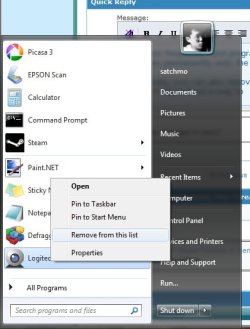
The most frequently used programs get bumped near the top of the Start Menu items, and you can pin some programs permanently onto the list.

Conversely, you can also remove programs from the recent list, however, if you use them again, they come back. I haven't figured out a way to remove a program permanently from the list yet.

Remove.jpg

You can specify how many recent programs get displayed, and you can even turn program tracking off.
 

My Computer

Computer Manufacturer/Model Number
Custom
OS
Windows 7 Home Premium 64
CPU
Core i7 870 2.93 GHz
Motherboard
Gigabyte P55A-UD3
Memory
16 GB G-Skills DDR3 1333
Graphics Card(s)
ASUS GTX 680 DirectCu-II Top
Sound Card
Realtek 5.1 audio
Monitor(s) Displays
Samsung 23" widescreen
Screen Resolution
2048x1152
Hard Drives
OCZ Vertex III 128 GB (primary)
OCZ Vertex II 128 GB (data)
PSU
Corsair 650W
Case
CoolerMaster HAF 920
Cooling
Arctic Cooling Freezer 7 Pro
Keyboard
DAS Model S Ultimate keyboard
Mouse
Logitech G5 gaming mouse
Internet Speed
Cable
Browser
Chrome
Other Info
Built in December 2010
When I right click on an item in the start menu I get two options that appear to have similar meanings. Obviously there is a difference but I have not been able to discern it.

What is the difference between "Remove from List", and "Unpin from Start Menu"
 

My Computer

OS
Windows XP
The "Remove from List" option only applies to the programs that are not already pinned. These programs appear in the Start Menu because they are used frequently. You can only temporarily remove a program from this list, because if you keep using the programs, they will reappear on the list.

The "Unpin from Start Menu" option only applies to the programs that you have pinned to the Start Menu. Once you unpin a program, it disappear from that top section of the Start Menu permanently.

I hope that answers your question.
 

My Computer

Computer Manufacturer/Model Number
Custom
OS
Windows 7 Home Premium 64
CPU
Core i7 870 2.93 GHz
Motherboard
Gigabyte P55A-UD3
Memory
16 GB G-Skills DDR3 1333
Graphics Card(s)
ASUS GTX 680 DirectCu-II Top
Sound Card
Realtek 5.1 audio
Monitor(s) Displays
Samsung 23" widescreen
Screen Resolution
2048x1152
Hard Drives
OCZ Vertex III 128 GB (primary)
OCZ Vertex II 128 GB (data)
PSU
Corsair 650W
Case
CoolerMaster HAF 920
Cooling
Arctic Cooling Freezer 7 Pro
Keyboard
DAS Model S Ultimate keyboard
Mouse
Logitech G5 gaming mouse
Internet Speed
Cable
Browser
Chrome
Other Info
Built in December 2010
Back
Top